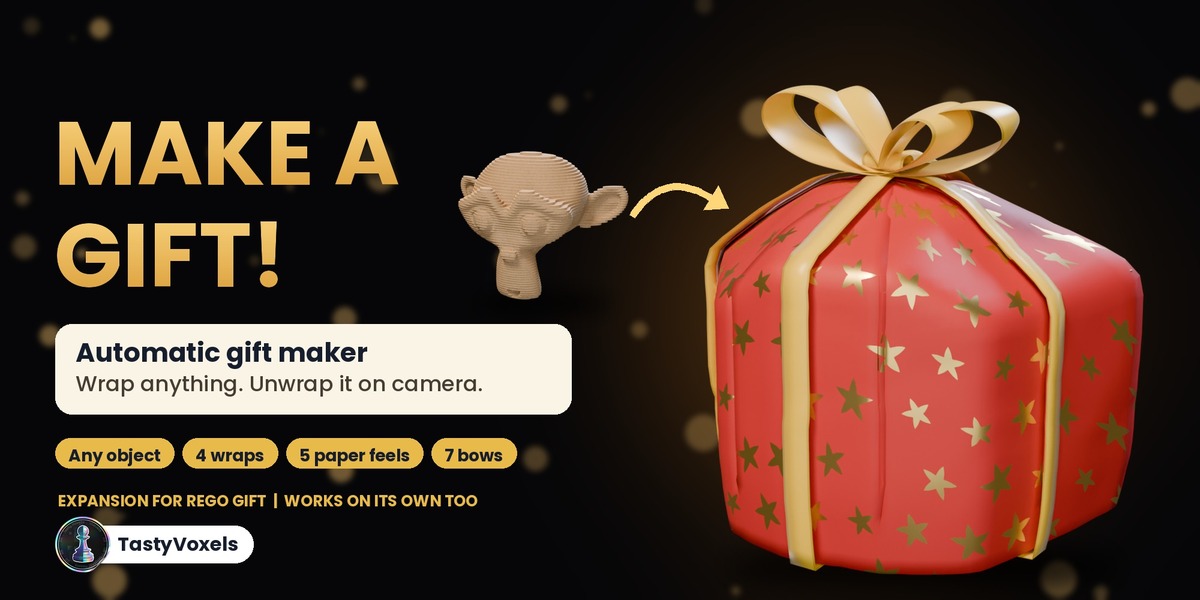
Make a Gift! - Wrap Any Object in Gift Paper and Unwrap It on Camera, Expansion for Rego Gift
 TastyVoxels
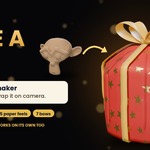
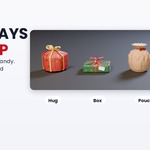
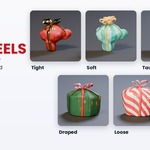
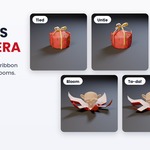
Install
Blender 4.2 or newer: Edit > Preferences > Get Extensions, open the menu at the top right, Install from Disk, and pick make_a_gift-1.0.0.zip. Or drag the zip into Blender. The add-on is in the 3D Viewport sidebar (N), tab Make a Gift.
1. Wrap It
- Select the object, or several objects.
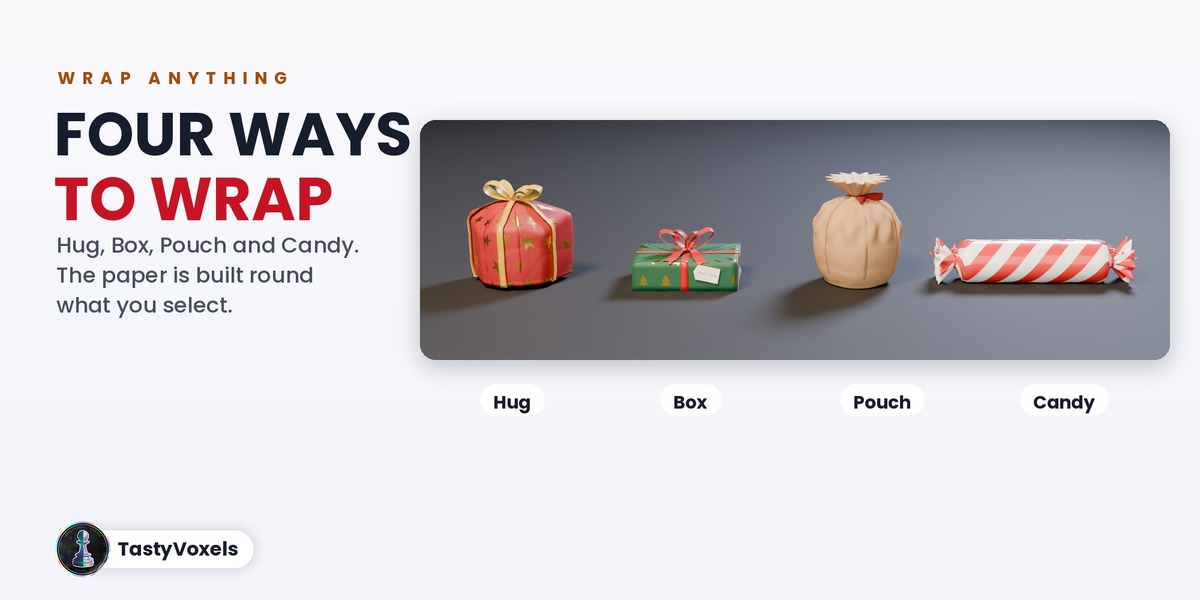
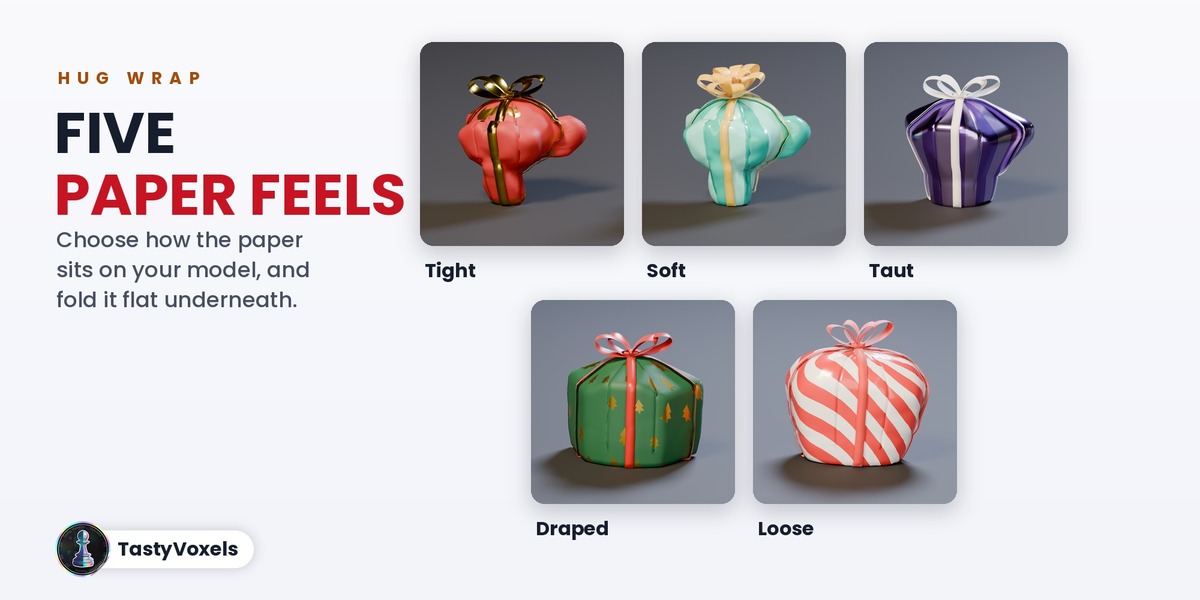
- Pick a wrap: Hug, Box, Pouch or Candy. For Hug, pick a Paper Feel: Tight, Soft, Taut, Draped or Loose, or Custom to set every slider yourself.
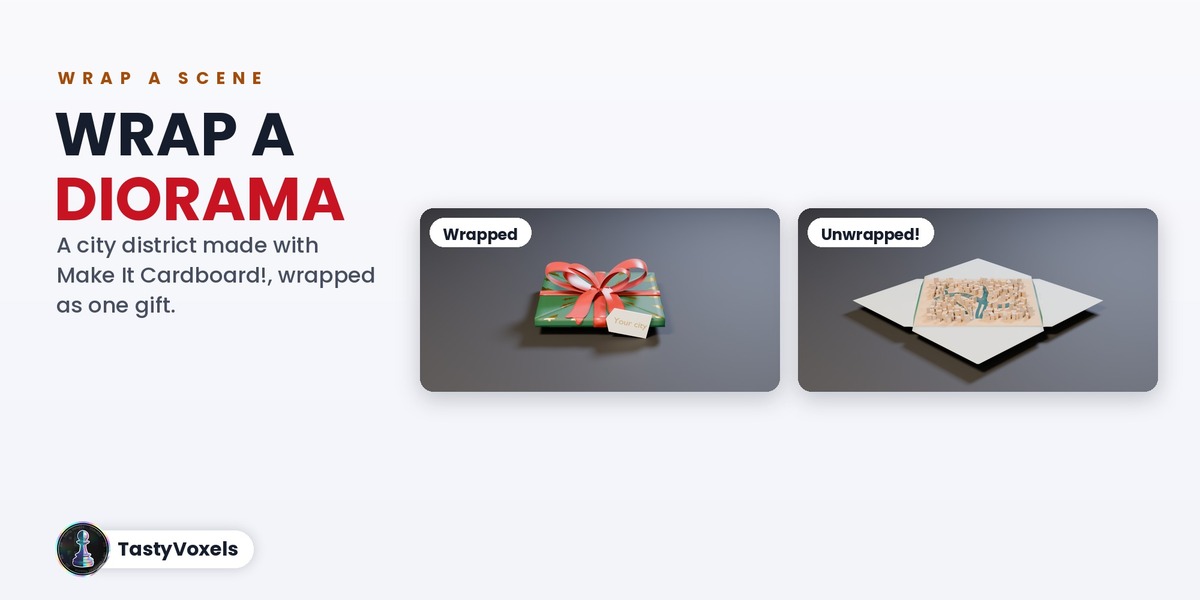
- Tick All in One Gift to wrap the selected objects together, or leave it off to give each object its own gift.
- Press Wrap It!. Try It on Suzanne wraps a test model if you just want to see it.
Your objects are never edited: they are parented to the gift. Remove the Paper takes the wrapping away and leaves your objects where they were.
2. Paper, Ribbon and Tag
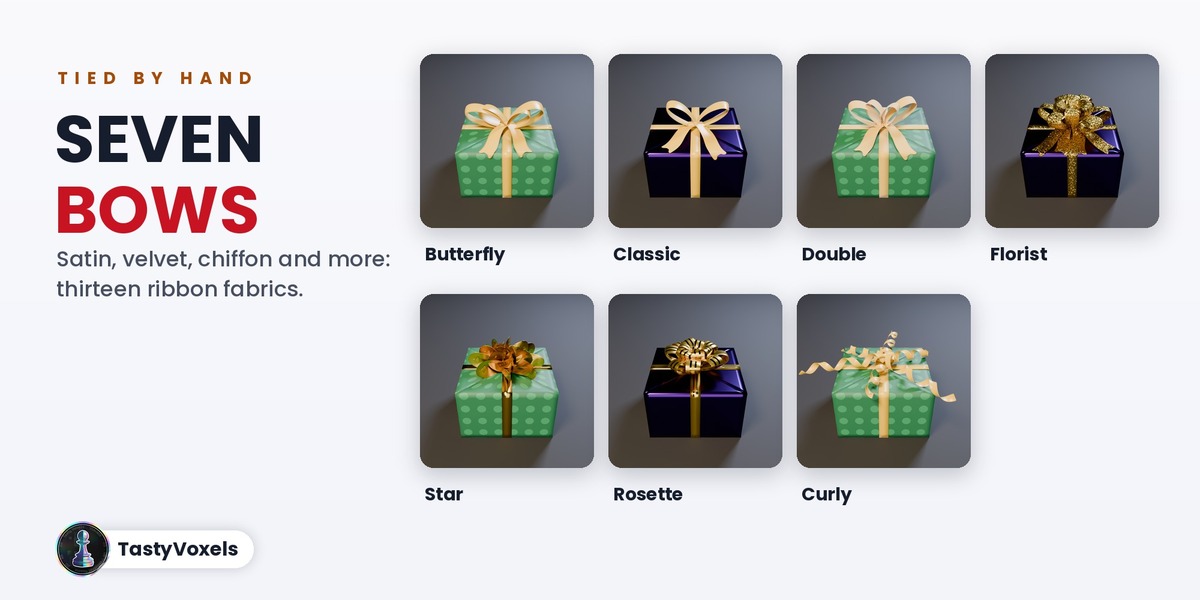
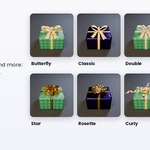
Choose a theme and one of its looks, or My Colours with your own paper colour, print colour, pattern and finish, or your own image as wrapping paper. Then the ribbon (width, fabric), the bow (Butterfly, Classic, Double, Florist, Star, Rosette, Curling Ribbon or none, and its size) and the gift tag with your words. Change these before you press Wrap It!, or wrap again.
3. Unwrap
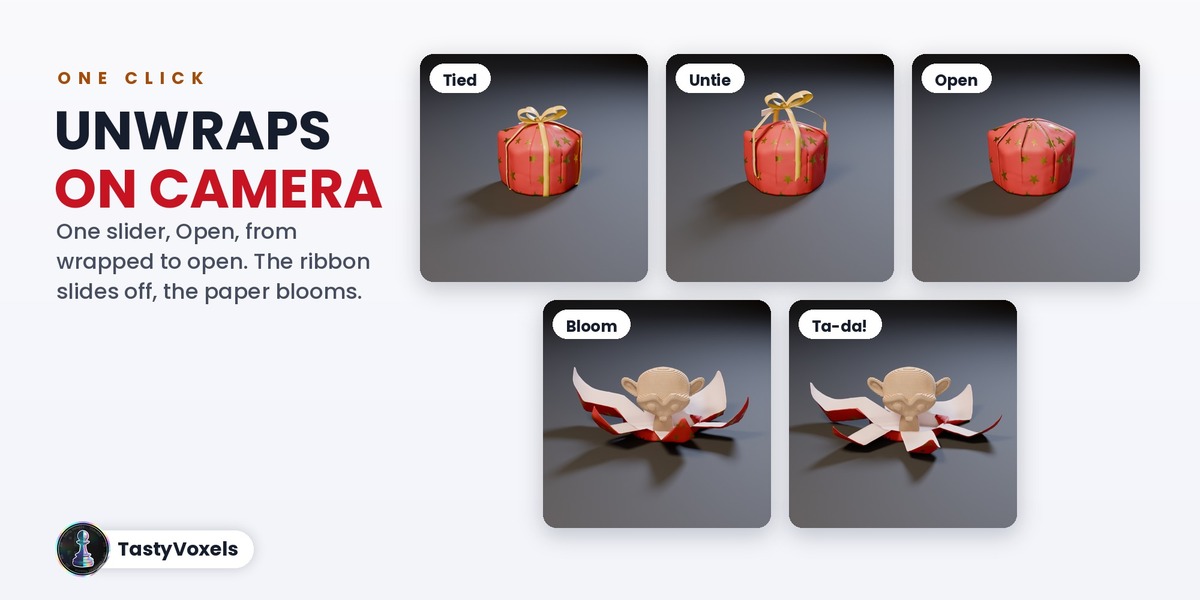
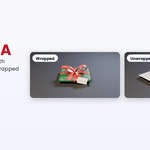
The Open slider of the active gift goes from 0 (wrapped) to 1 (open): you can key it like any other value. Animate keys the selected gifts one after the other: Unwrap, Wrap Up, or Unwrap and Wrap (open, hold, close again), with the frames, the hold and a stagger between gifts. Clear Animation removes those keys.
4. Animate with Rego Gift
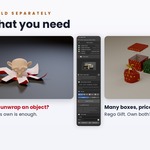
Needs Rego Gift 1.0.5 or newer installed and enabled.
- Send to Rego Gift: the selected gifts take a cell in the Rego Gift mosaic. With an empty mosaic, a few Rego Gift boxes are added round them first (Boxes Around).
- Wrap and Add to Rego Gift: wraps the selected objects and sends them in one click.
- Open Them All: keys the whole mosaic, boxes and gifts, to open one after the other from frame 1.
- Take Out of the Mosaic: the selected gifts leave the mosaic and get their own size back.
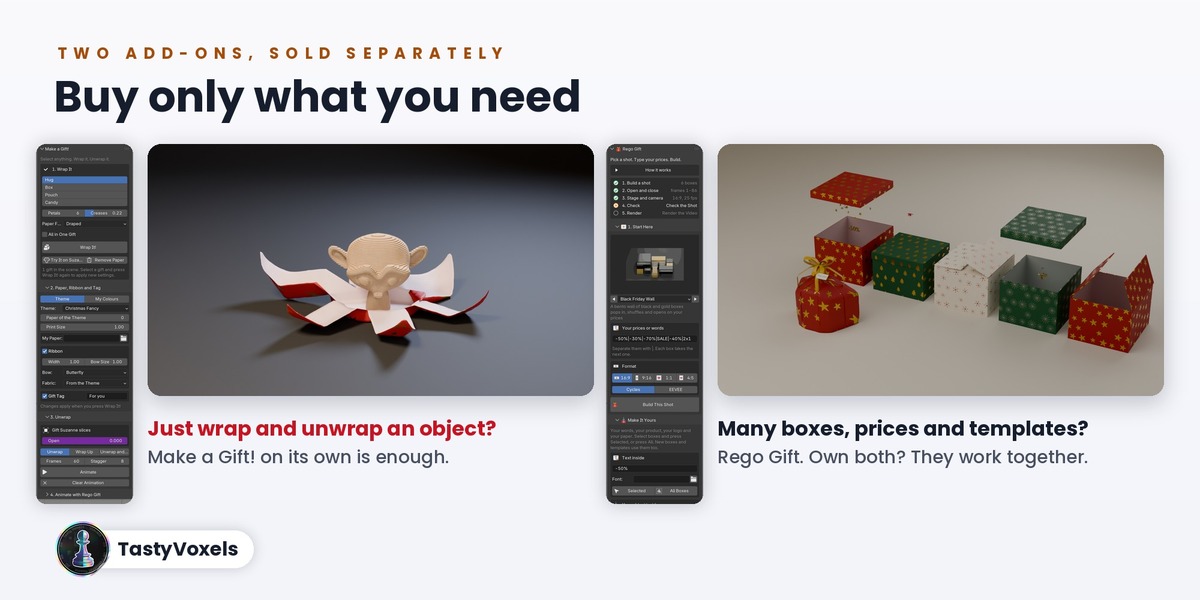
Layout, format, theme, text, confetti, sets, lights and render are in the Rego Gift tab. Your gifts stay in the mosaic when the format changes or when you build another mosaic template; a one-box template (Hero Unboxing) gives them back to the scene, and Send to Rego Gift puts them in again.
Tips
- For product shots, Draped and Taut give the cleanest shapes; Tight and Soft show the details of the model under the paper.
- Flat Bottom folds the paper flat under the gift, like a present standing on a table.
Have questions about this product?
Login to message
| Blender Extension Compatible | Yes |
| Dev Fund Contributor | |
| Published | about 9 hours ago |
| Blender Version | 4.2 - 5.2 |
| Extension Type | Add-on |
| Render Engine Used | Cycles, Eevee |
| License | GPL |
Discover more products like this
animation unboxing gift product reveal gift wrap Christmas wrapping-paper procedural bow ribbon birthday diorama