Make Instance
 Troublesome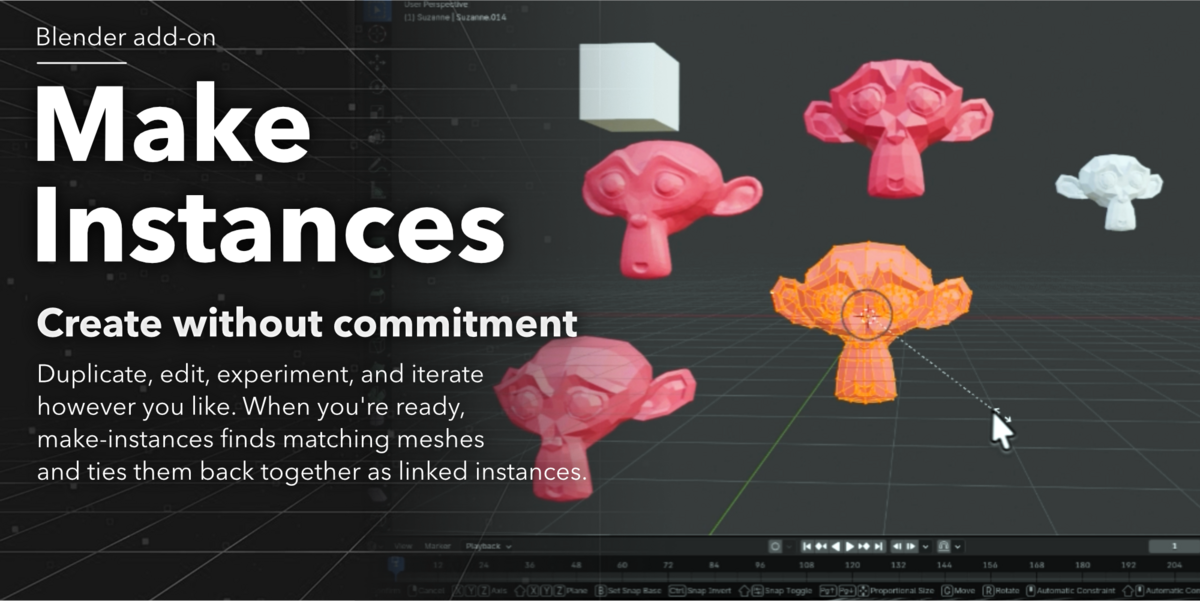
Overview
Make Instances lets you restore linked instances after modeling, instead of having to plan for them beforehand.
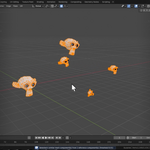
Duplicate objects however you like, make changes, assign materials, unwrap UVs, or import assets into your scene. When you're ready, make-instances finds geometrically similar meshes and converts them into instances of the active object while preserving their placement.
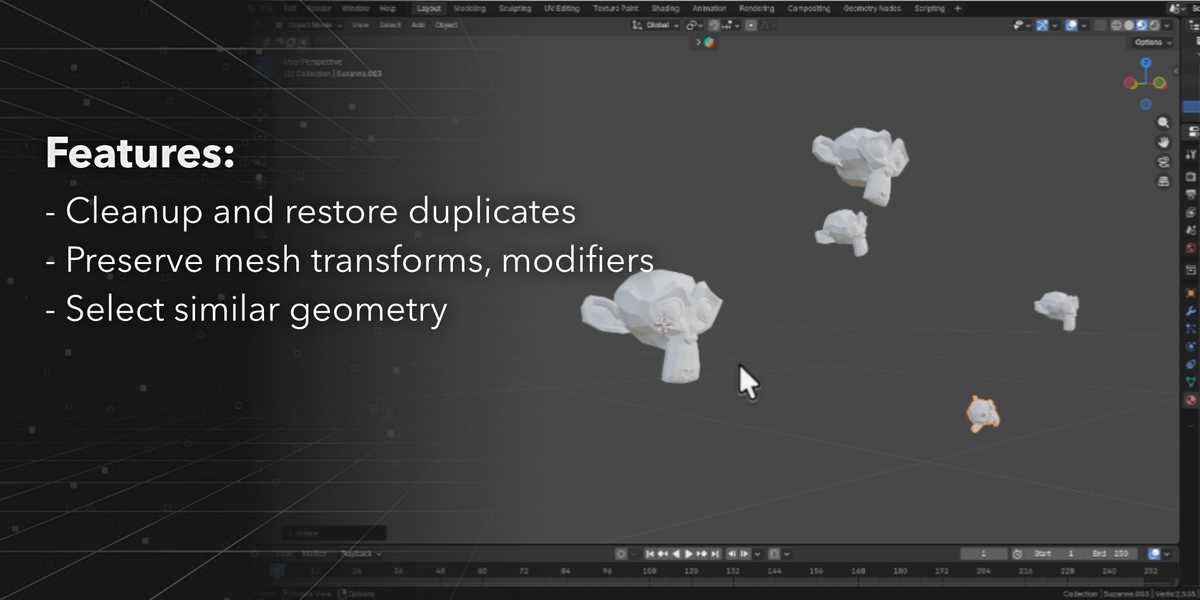
It also includes a Similar Mesh selection tool for quickly finding repeated geometry in your scene.
Tool Locations
Make Instances
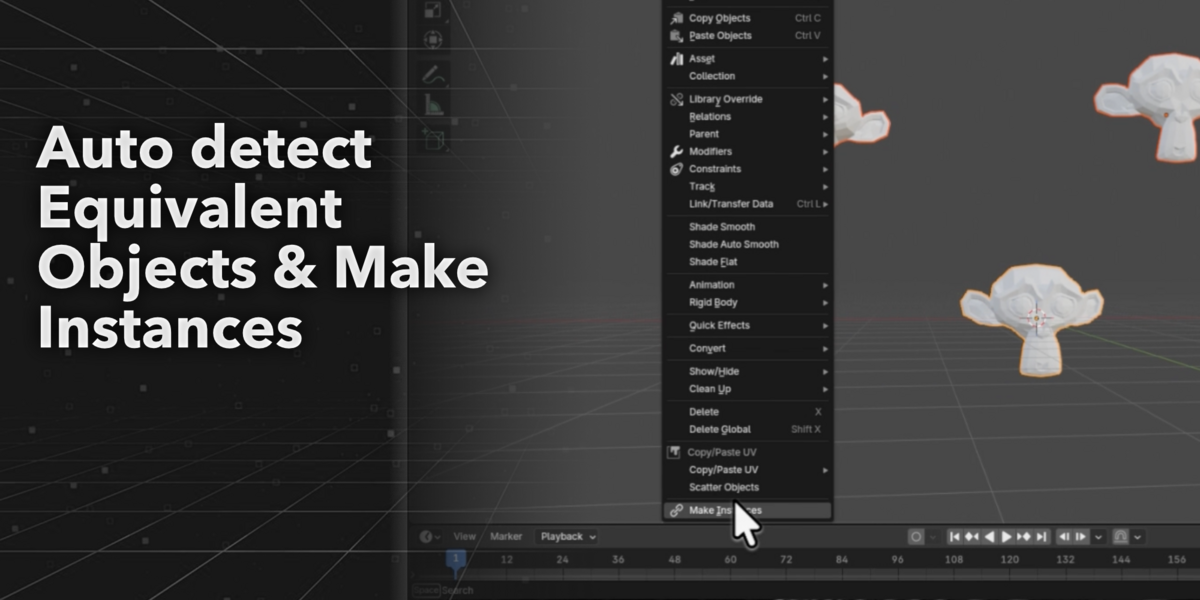
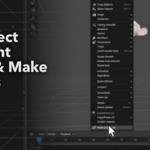
Object Mode → Object → Make Instances
Finds similar mesh objects and converts them into instances of the active object.
Select Similar Meshes
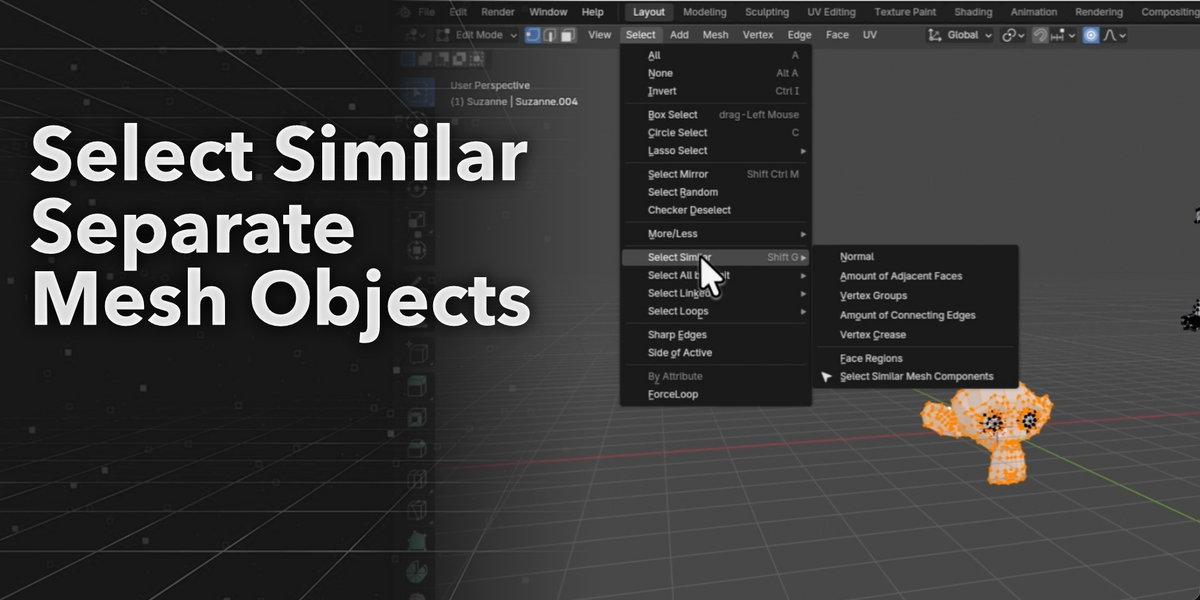
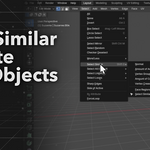
Edit Mode → Select → Select Similar → Select similar mesh components
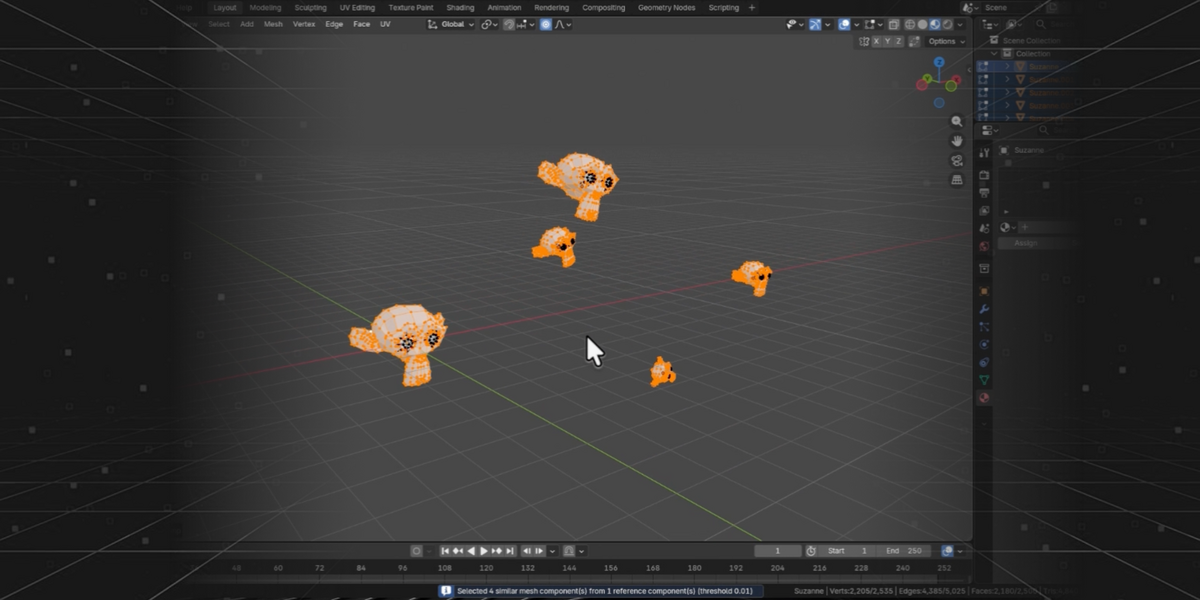
Selects objects whose mesh geometry is similar to the active object.
Useful for locating duplicate assets, cleaning imported scenes, or reviewing repeated geometry before instancing.
Common Workflows
Restore Lost Instances
If you duplicated objects and later made one copy the "master" by editing its mesh, UVs, materials, or modifiers, make-instances can reconnect the remaining copies as linked instances.
Clean Up Imported Models
Many imported FBX, OBJ, CAD, and asset library scenes contain hundreds of identical meshes stored as separate objects.
make-instances quickly restores linked instances to reduce duplicate mesh data.
Optimize Repeated Assets
Perfect for scenes containing repeated props, furniture, architectural elements, modular assets, vegetation, mechanical parts, and kitbash pieces.
Find Similar Meshes
Need to locate every copy of an object?
Use Select similar mesh components to quickly find matching geometry throughout your selection, collection, or scene.
Make Instances Options
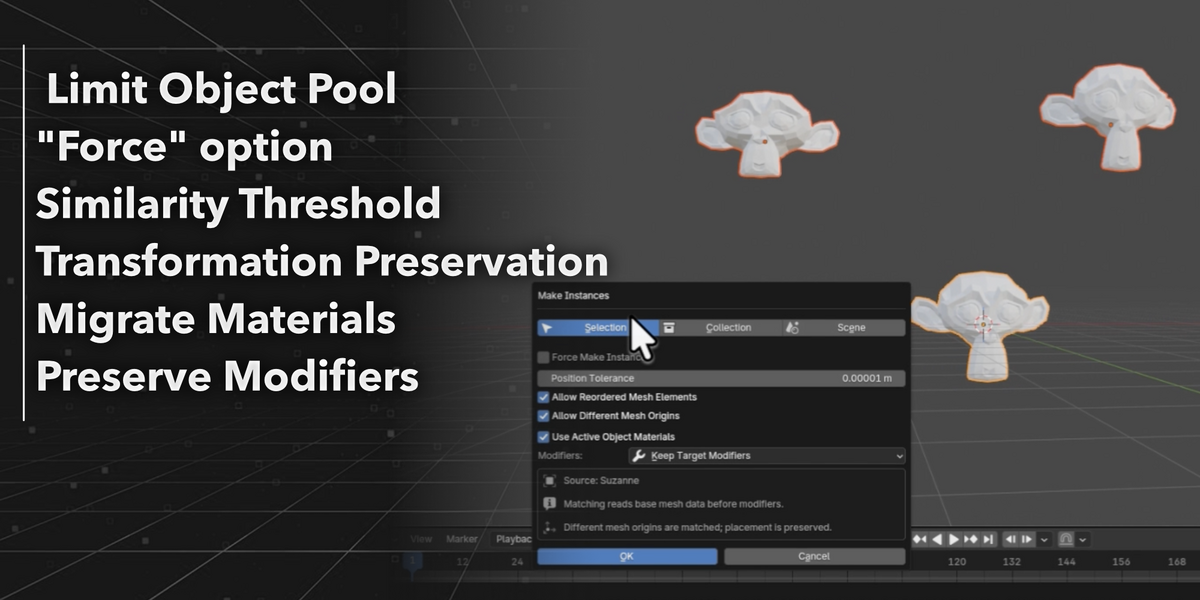
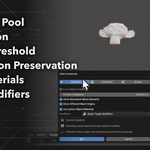
Search Scope
Choose where matching objects are searched.
- Selection — Only selected objects.
- Collection — Objects in the active collection.
- Scene — All mesh objects in the current scene.
Force Make Instances
Skips similarity matching and converts the selected objects directly into instances of the active object.
Use this when you already know which objects should become instances.
Position Tolerance
Controls how much positional variation is allowed during similarity matching.
Increase this value when matching objects have been moved slightly relative to one another.
Allow Reordered Mesh Elements
Matches meshes even if their vertex or face order has changed.
Useful after operations that reorder mesh data while preserving the overall shape.
Allow Different Mesh Origins
Allows objects with different origin positions to be recognized as matching geometry.
Use Active Object Materials
Applies the active object's material slots to newly created instances.
Useful after completing material assignment or UV work.
Keep Target Modifiers
Preserves existing modifiers on the target objects instead of replacing them.
 Included
Includes 12 months of
- Support from Troublesome
- Product updates
Extend this product’s Support Period +12 months: 50% of product price
Have questions before purchasing?
Login to message
| Blender Extension Compatible | Yes |
| Published | 6 days ago |
| Blender Version | 5.1 |
| Extension Type | Add-on |
| License | GPL |