Make It Snow! - Snow Add-on for Blender: Realistic and Cartoon Snow, Falling Snow and Snow Build-Up
 TastyVoxels
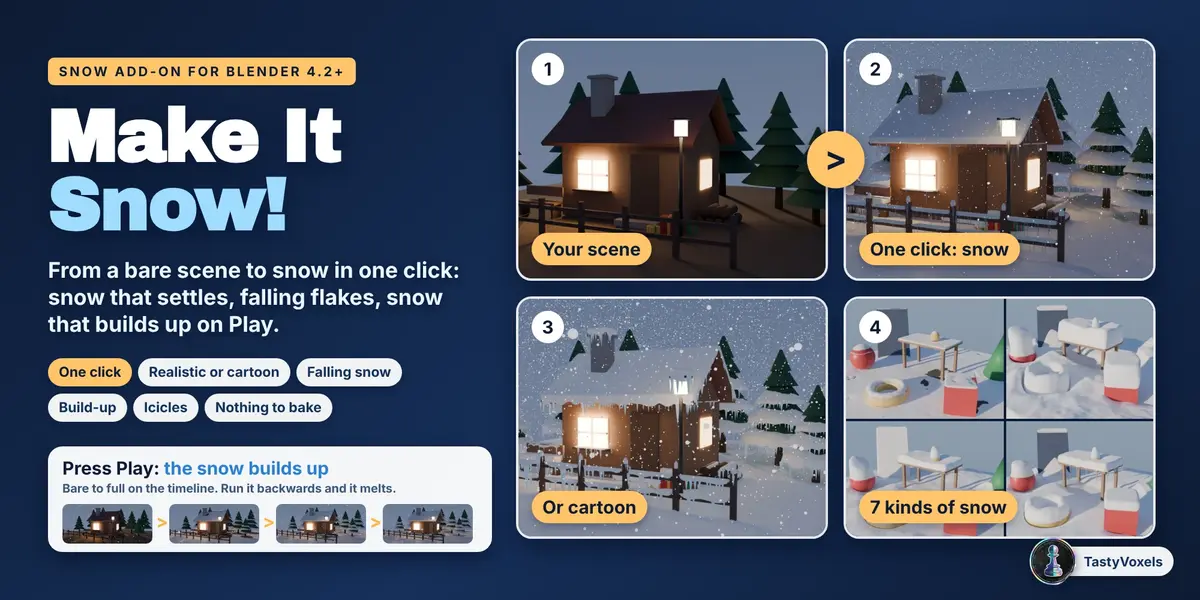
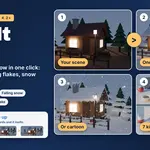

Install. In Blender 4.2 or newer: Edit, Preferences, Get Extensions, the arrow menu at the top right, Install from Disk, and pick make_it_snow-1.0.3.zip. The add-on lives in the 3D Viewport sidebar (press N), tab Snow.
The panel
At the top, a list of six steps that tick themselves as you go: what gets snow, kind of snow, snow on objects, falling snow, grows on Play, winter light. Next to each one a short note says where you are (how many objects are selected, which kind of snow, how many snows). Under it, the big Make It Snow! button and two switches, Falling snow and Snow grows on Play. Then one panel per step, numbered in the same order. How it works opens a short guide.
The one click
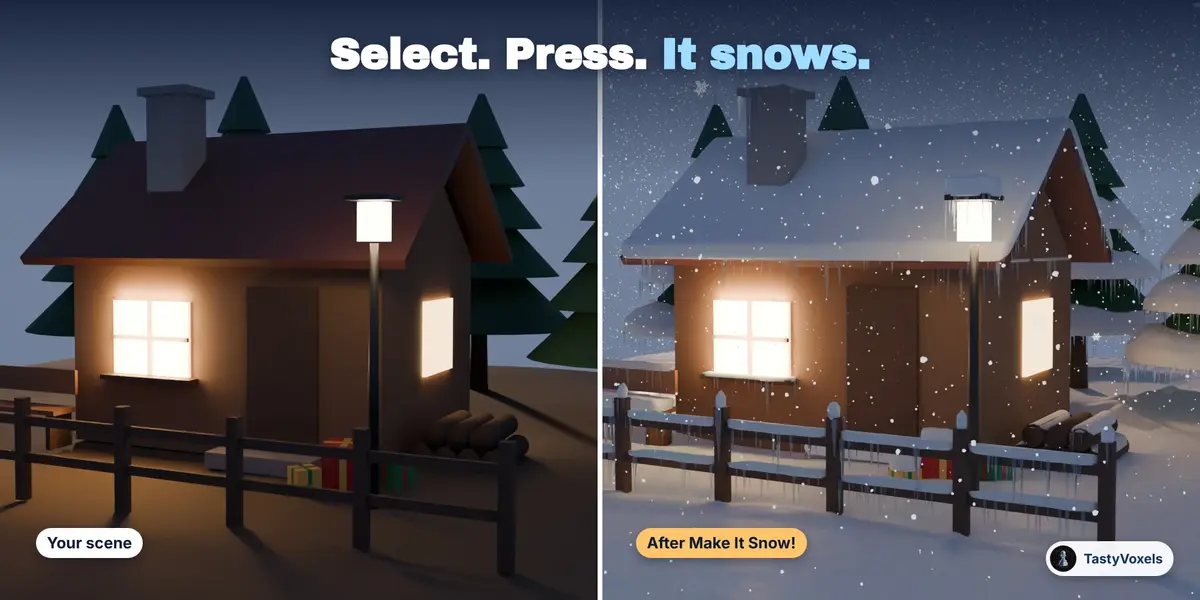
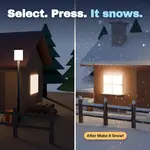
Select what the snow should lie on (or nothing, for everything visible), pick a kind of snow from the pictures in step 2 and press Make It Snow!. You get the snow on the objects and flakes falling over them. Tick Snow grows on Play and the snow also builds up over the frames of the scene.
No scene at hand? Add Example Scene builds a cabin with lit windows, pines, a fence, a lamp post and presents, all bare, with a camera and winter light.
Two styles
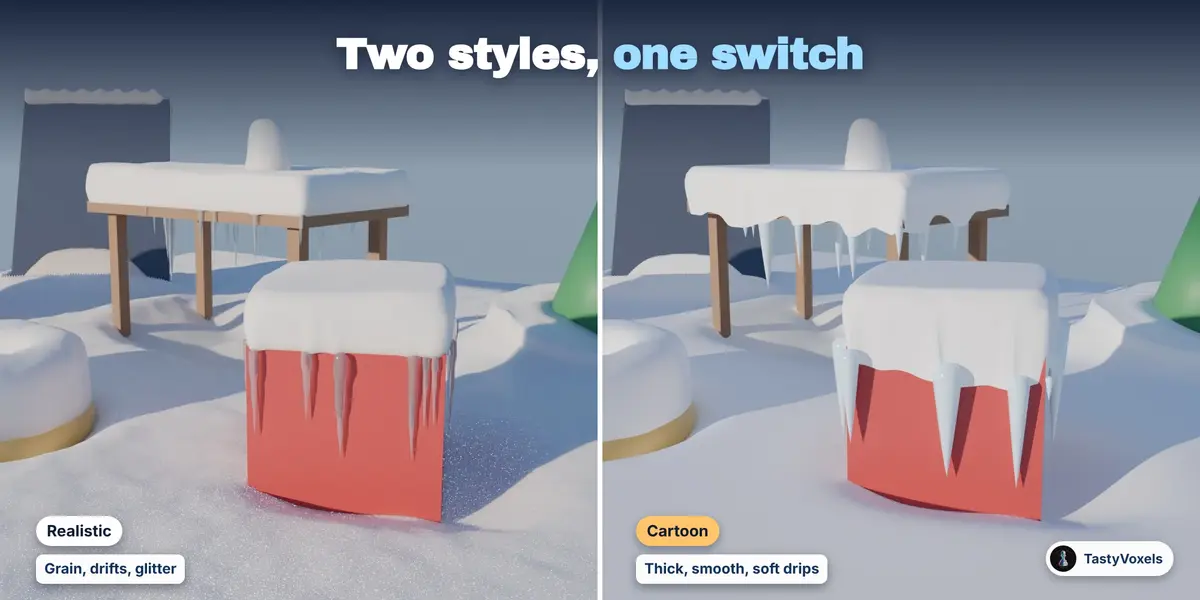
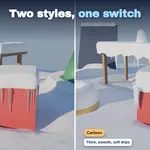
In step 2, Realistic or Cartoon; the pictures of the kinds of snow follow the style you pick. Realistic is snow as it is: grain, drifts, light scattering inside it, glitter. Cartoon is snow as it is drawn: thick, smooth and round, sagging over the edges in soft drips, clean white with a blue tint where it turns away, chunky icicles and plain round flakes. The style lies over the kind of snow you picked, so every kind comes in both. Each snow object has its own style: select it, switch, press Update Snow.
In both styles the line where the snow ends is smoothed (Edge smoothing), so it follows the true edge of your object and never shows the steps of a grid. Drips sets how far the snow sags over an edge; it is on in the cartoon style and can be used in the realistic one too.
1 What gets snow, 2 Kind of snow, 3 Snow on objects
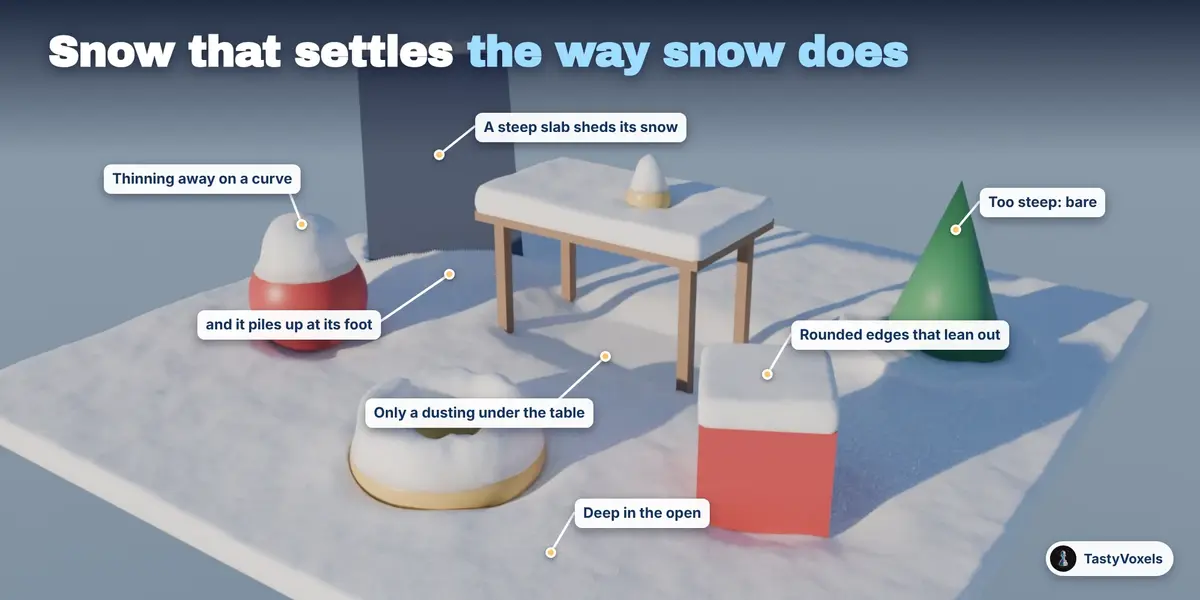
The snow is a real mesh, worked out from your objects as they are after their modifiers:
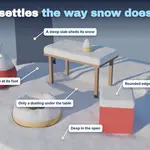
It lies as deep as you ask in the open and thinner where something is above it: under a table, a roof, a tree.
It slides off anything steeper than Slope it holds and piles up below.
At an edge it ends in a rounded shoulder that can lean out over the edge (Edge height, Overhang).
One wind for everything. Wind is in metres per second, with the direction it blows towards. The falling flakes are blown by it, and the snow they leave piles up on the faces turned to it and stays thin in the lee of a wall: what falls and what lies always agree. The slant is real: a flake falls at about a metre a second, so a wind of 1 m/s tilts the snowfall by about 45 degrees. Every kind of snow has a little wind; Blizzard has 7 m/s. A snowfall can have a wind of its own (Own wind, step 4).
Flurry is how far the flakes wander on the way down: more of it carries snow further in under roofs, tables and the tiers of a pine. Blizzard and Deep winter use a lot of it, so trees end up white the way they do after a real storm. Under a table or a roof the snow never stops in a clean cut: it thins out over a hand or so.
Several surfaces one above the other each get their own snow (Layers): a table top, the shelf under it, the ground.
Snow on a single object is parented to it and follows it. Snow that lies across several objects is worked out for where they are: move them, then press Update Snow.
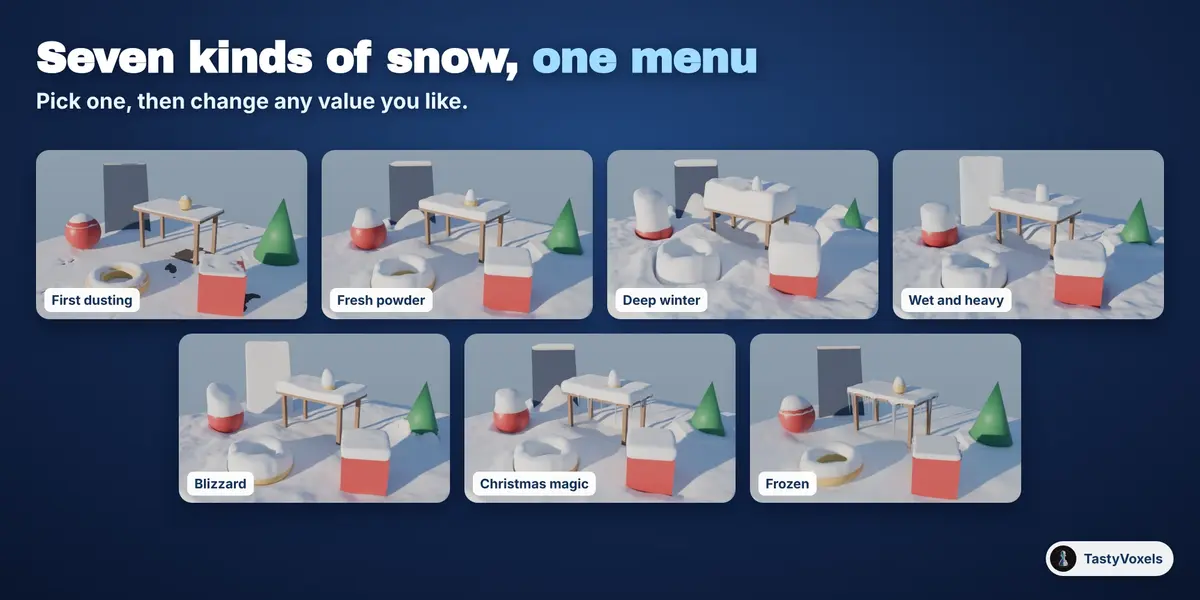
Seven kinds of snow set the values for you: First dusting, Fresh powder, Deep winter, Wet and heavy, Blizzard, Christmas magic, Frozen. Every value stays yours to change. Change one, then press Update Snow: the same seed always gives the same snow.
Detail is the number of cells along the longer side of the snow. 256 is good for a whole scene, 512 or more for a close-up. Only inside limits the snow to the outline of an object of your choice, so a wide ground does not use up the detail. World scale is 1 for a scene in real metres; for a miniature ten times smaller than life, 0.1. Make It Snow! sets it for you when what you snow on is smaller than 1.5 m.
4 Falling snow
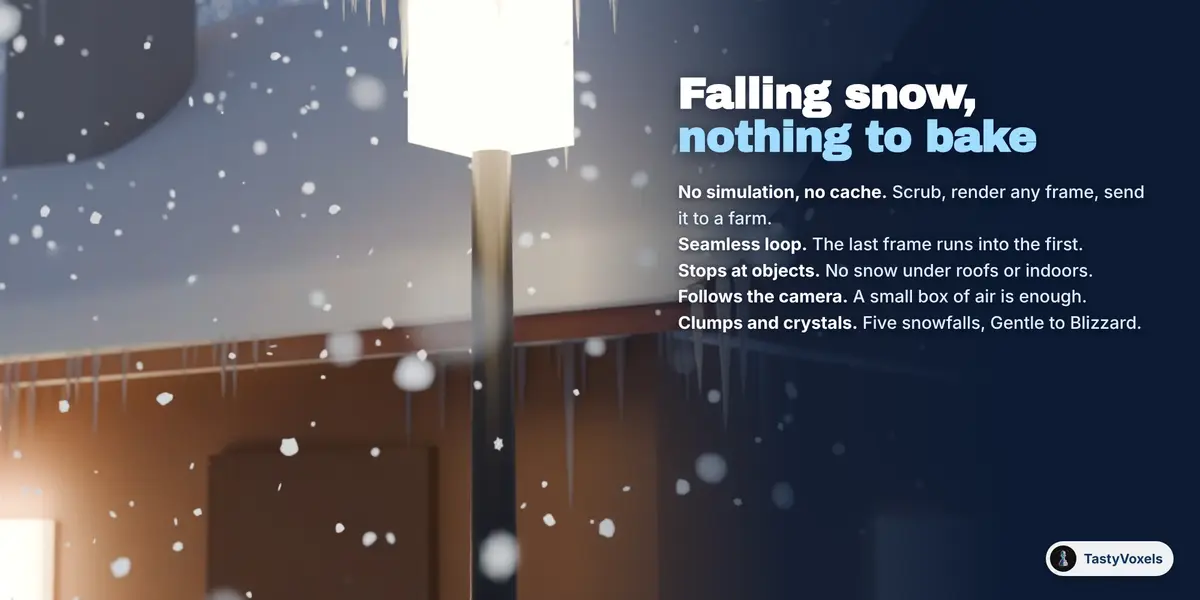
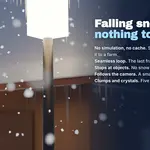
Add Falling Snow puts flakes in a box of air over your objects. It is a geometry nodes setup with no simulation and no cache: where a flake is depends only on the frame. So you can scrub, render any frame on any machine, and nothing needs baking.
Five snowfalls: Gentle, Steady, Heavy, Blizzard, Christmas magic.
Soft clumps, six-armed crystals, or both.
Seamless loop: every flake is back where it started after the loop length. Loop Over the Scene makes the loop as long as the scene.
Stop at objects: a flake with something between it and the sky is left out, so it does not snow under roofs, inside rooms or below the ground.
Follow the camera: the box travels with the camera while the flakes stay where they are in the world, so a small box is enough for a long camera move.
In the viewport shows a share of the flakes while you work; renders show all of them.
5 Grows on Play
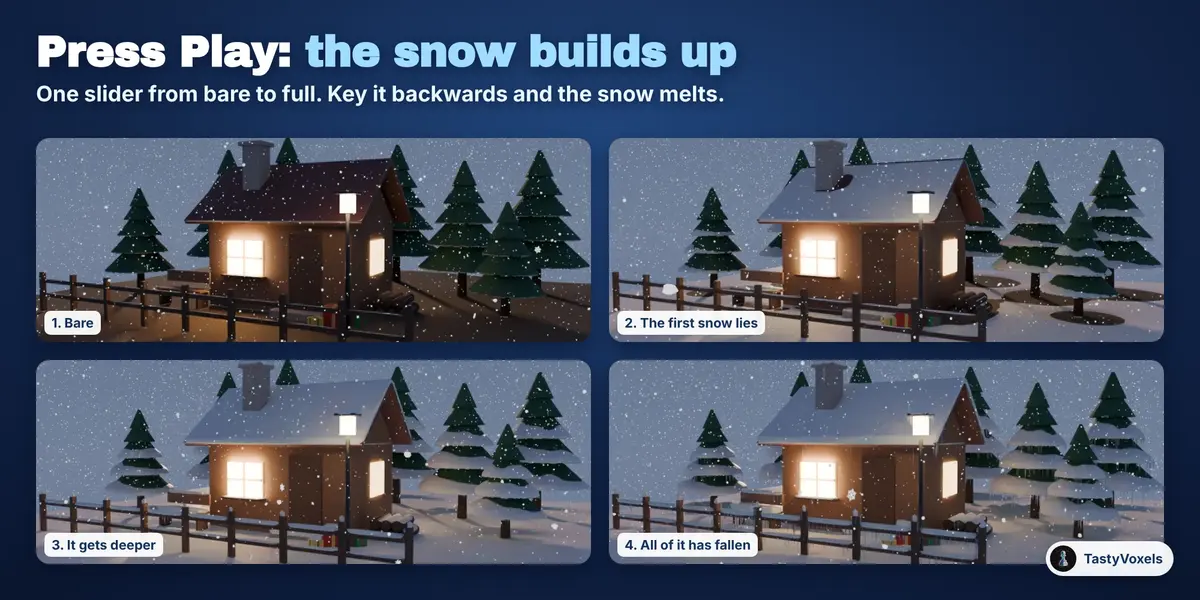
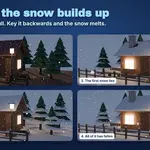
Select a snow and press Simulate the Build-up. The snowfall is worked out step by step and every step is kept as a shape key; the Snow fallen slider goes from bare to full between the two frames you set. Press Play and the snow fills up, slides and piles as it would. The slider is keyed like any other value: run it backwards and the snow melts. It is driven by a plain expression, so no script has to be allowed, and it is an ordinary animated mesh: it exports to Alembic like any other.
6 Look, icicles, light
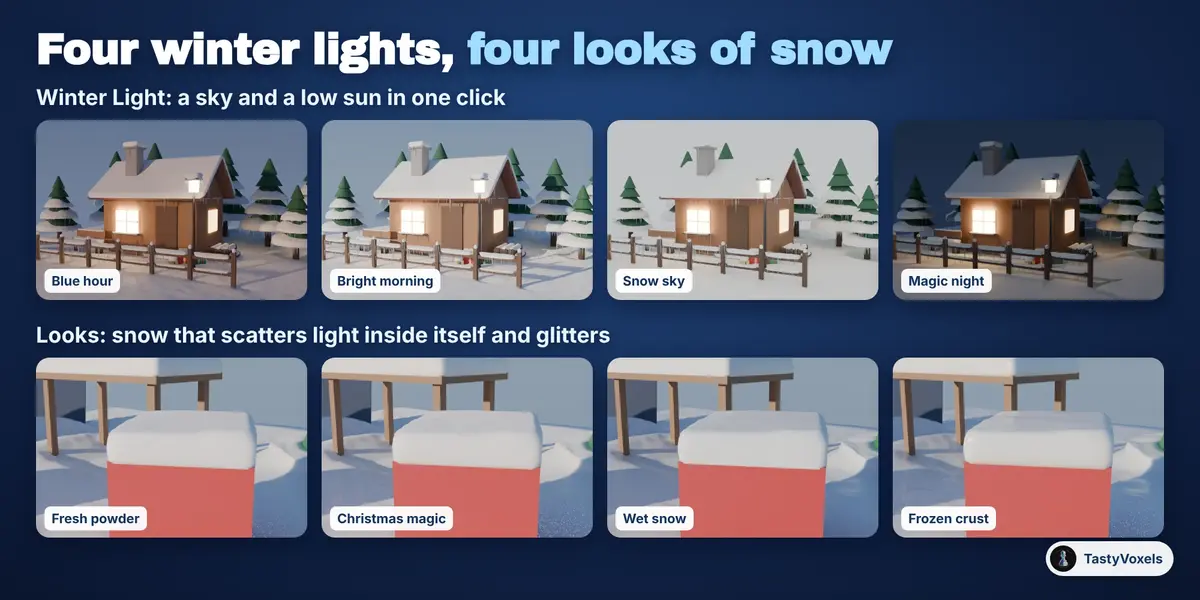
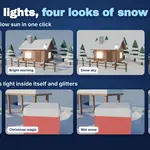
Four looks: Fresh powder, Christmas magic, Wet snow, Frozen crust. The snow scatters light inside itself and glitters as the camera moves (Glitter). One shared Principled material, for Cycles and EEVEE.
Icicles hang from edges that carry snow and have air below them, clear of the wall under the edge, from a lump of snow that hides their root. Tick it, set how many per metre and how long, press Update Snow. With a build-up they grow as the snow falls.
Winter Light sets a sky and a low sun for four moods, picked from pictures: Blue hour, Bright morning, Snow sky, Magic night. Your own world is kept and comes back with the X next to the button.
Good to know
The snow objects, the icicles and the snowfall are ordinary objects. Without the add-on installed they still render: the snow is a mesh, the build-up is shape keys, the snowfall is a node group.
What is under the snow is never changed.
Collection instances and geometry nodes instances are not read as objects to snow on: make them real first, or snow on the objects they are made of.
Snow on a single object follows it. Snow across several objects does not follow them on its own: press Update Snow after moving them, or snow on each moving object separately.
Motion blur: the flakes are instances; turn on motion blur in the render settings as usual.
No AI inside: plain geometry and node code that runs on your computer, offline.
Have questions about this product?
Login to message
| Blender Extension Compatible | Yes |
| Dev Fund Contributor | |
| Published | about 12 hours ago |
| Blender Version | 4.2 - 5.3 |
| Extension Type | Add-on |
| Render Engine Used | Cycles, Eevee |
| License | GPL |
Discover more products like this
icicles snow snow-generator geometry nodes winter snowfall falling snow Christmas Snow Accumulation cartoon snow snow cover procedural snow