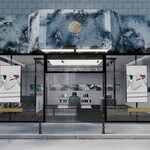
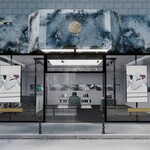
Luxury Marble Boutique Scene
 Media Brennt GmbH



Documentation
Luxury Marble Boutique Storefront Scene – User Guide
This documentation explains how to navigate, customize, render and optimize the Store 01 Blender scene.
Quick Start
- Open MB-Retail_Store-01-BLENDPACK.blend.
- Switch to the prepared camera you want to use from the 00-CINEMATICS collection.
- Use the main collections to hide or show street, storefront, furniture, retail products and lighting.
- Replace storefront logos, signage screens or window decals if needed.
- Use Solid View for layout edits and Cycles Rendered View for final look development.
- Render with Cycles for the intended visual result.
1. File Overview
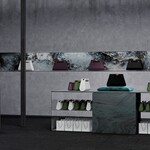
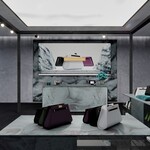
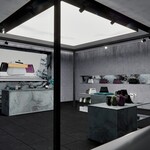
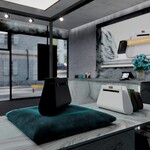
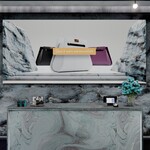
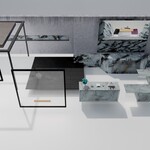
The file contains one complete luxury retail storefront scene. It includes the exterior street setup, marble storefront, glass entrance, retail interior, display furniture, retail products, signage screens, cameras and lighting.
| Main File | MB-Retail_Store-01-BLENDPACK.blend |
| Renderer | Cycles |
| Unit System | Metric |
| Prepared Cameras | 8 cameras for storefront, side, interior and detail shots |
| Lighting | Spotlight, product lights and skylight |
| Main Use | Retail visualization, storefront render, product presentation, archviz and commercial boutique scenes |
2. Collection Structure
The scene is organized into clear main collections. Use the Outliner to quickly hide, show or isolate parts of the scene.
| 00-CINEMATICS | Prepared cameras for exterior, interior and detail render angles. |
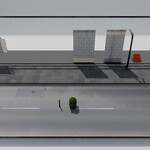
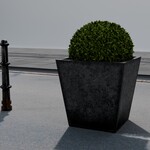
| 1-MB_Building-Street | Front building, windows, street, tiles, curb, pollers and foliage elements. |
| 2-MB_AcrossStreet | Across-street background elements used for depth, reflections and storefront context. |
| 3-STOREFRONT | Marble facade, glass windows, sliding door, storefront logo and exterior storefront structure. |
| 4-STORE CONSTRUCTION | Interior walls, ceiling, floor, skirting and construction elements. |
| 5-FURNITURE | Retail tables, light holders, checkout counter and signage screens. |
| 6-RETAIL-PRODUCTS | Example retail products such as shopping bags, leather bags, packaging and display props. |
| x_LIGHTING | Spotlights, product lights, signage screen light and skylight setup. |
Recommended Navigation Workflow
Start with the camera collection, choose a camera, then disable collections that are outside your current view. For exterior renders, you can often keep the interior products visible. For interior renders, you can disable across-street or heavy background elements if they are not needed.
3. Cameras
The scene includes prepared cameras for different render scenarios. Camera names describe their general purpose and lens length.
- Camera-010-24mm-OUT-CENTER – main centered storefront camera.
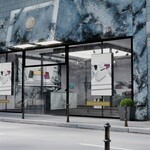
- Camera-011-35mm-OUT-SIDE – exterior side angle.
- Camera-012-35mm-OUT-SIDE2 – exterior side angle with depth of field.
- Camera-020-50mm-INT-DETAIL1 – interior detail camera.
- Camera-030-20mm-INT-CENTER – wide interior center camera.
- Camera-040-20mm-INT-SIDES – interior side perspective.
- Camera-050-20mm-INT-DETAIL – wide detail composition.
- Camera-060-35mm-INT-CENTE2 – interior centered camera with tighter framing.
4. Editing and Customization
The scene is made to be customized. You can adjust branding, screens, retail products, materials, furniture placement and exterior visibility depending on your project.
Common Customization Tasks
- Change the storefront logo: replace the image texture used by the storefront logo material.
- Replace window decals: edit or replace the window decal image texture.
- Customize signage screens: replace the main or small signage screen textures.
- Remove products: hide the 6-RETAIL-PRODUCTS collection or individual product objects.
- Create a clean store version: disable products, tabletop props and decorative objects.
- Change the facade look: adjust marble, glass, metal or imperfection materials in the Shader Editor.
- Rearrange the store: move retail tables, counter objects, bags and display props as needed.
Tip
Before making large edits, duplicate the scene or save a new version of the file. This keeps the original layout intact and gives you a safe working copy.
5. Replacing Logos, Screens and Decals
Store 01 includes several replaceable visual elements. These are usually connected through Image Texture nodes in the material setup.
| Storefront Logo | STORE-01-STOREFRONT-LOGO.jpg |
| Window Decals | STORE 01 WINDOW-DECALS.psd |
| Main Signage Screen | STORE-01-MAIN-DIGNAGE-SCREEN-DESIGN.jpg |
| Small Signage Screen | STORE-01-SMALL-DIGNAGE-SCREEN.jpg |
| Product Packaging | MB_PERFUME-MEN01-PACKAGING-DESIGN.psd |
Replacement Workflow
- Select the object using the logo, screen, decal or product graphic.
- Open the Shader Editor.
- Find the connected Image Texture node.
- Replace the image with your own artwork.
- Keep the same aspect ratio where possible to avoid stretching.
- If needed, adjust UVs or Mapping node settings.
Screen Content Tip
The main signage screen is best replaced with a wide horizontal design. The small signage screen is vertical. Matching the original aspect ratio will give the cleanest result.
6. Material System
The scene uses a mix of PBR texture-based materials and procedural shader setups. Materials are generally named by type, such as marble, glass, metal, leather, fabric, concrete, stone, signage or emission.
Main Material Groups
- Marble / Stone: used for facade panels, checkout counter, floor and stone surfaces.
- Glass: used for storefront windows, sliding doors, retail glass and transparent elements.
- Worn Metal: used for frames, pollers, street details and structural elements.
- Leather / Fabric: used for bags, handles, product details and display props.
- Emission: used for lights, signage, illuminated panels and screen surfaces.
- Weathered Wall / Concrete: used for building facade, street and architectural background elements.
Material Naming Notes
- MB_PBR materials usually rely on texture maps such as base color, roughness, normal, height or metallic.
- MB_PROC materials use procedural shader logic, node groups or generated variation.
- MB_GLASS / MB_CLEAR / WINDOW-GLASS materials are used for transparent glass surfaces.
- Visual / Signage / Screen materials are usually image-based and can be replaced for custom branding.
Important
If several objects share one material, editing that material will affect all linked objects. Duplicate the material first if you want to change only one object.
7. Glass and Window Materials
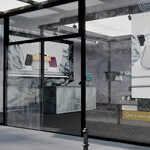
Store 01 uses glass materials for the storefront, sliding door, signage casing and display elements. Some glass materials use roughness and imperfection textures to avoid a perfectly clean CG look.
- Use higher Cycles samples for cleaner transparent glass renders.
- Use denoising for final renders.
- For faster previews, temporarily hide glass-heavy objects or simplify glass materials.
- If glass looks too dark, check scene lighting, Filmic exposure, material roughness and transparency settings.
8. Shader-Based Variation
Some Store 01 materials use shader nodes and Object Info logic to create variation, imperfections, random damage or weathering. This is especially useful for repeated products, leather, metal and surface details.
- Duplicated objects may show material variation depending on the shader setup.
- Random damage and weathering masks can create more natural-looking surfaces.
- Object-based randomness is useful for repeated retail products and display elements.
- For predictable results, duplicate the material and adjust the values manually.
Note
The scene is not a procedural store generator. The procedural systems are mainly used inside materials and shaders for variation, imperfections and editable surface behavior.
9. Collection Instances
Some repeated elements are placed as Collection Instances. This keeps the scene easier to manage and helps avoid unnecessary duplication for repeated spotlights and signage elements.
- MB_RETAIL-SpotlightO1 is used as a repeated spotlight collection instance.
- WINDOW-SIGNAGE instances use the WINDOW-SIGNAGE-ELEMENTS collection.
- Editing the original source collection updates all instances.
- Use Make Instances Real if you need to edit one instance independently.
10. Lighting Workflow
The lighting setup includes a main retail spotlight, product lights and a skylight. This gives the scene a controlled boutique look while keeping the storefront readable from outside.
- MB-Retail-Spot01: main spotlight object.
- Retail-ProductLight: product-focused area light.
- Retail-ProductLight.001: additional product area light.
- Skylight: broader area light for general illumination.
Render Tip
For brighter storefront renders, adjust exposure and skylight intensity carefully. For moodier product shots, reduce general light and emphasize product lights or spotlights.
11. Performance Tips
Store 01 is a detailed render-ready environment. Some decorative objects, foliage, roof geometry, roses and street elements can be heavy depending on the camera view.
- Use Solid View while editing the layout.
- Disable 2-MB_AcrossStreet if it is not visible in your render.
- Hide foliage and rose bouquet elements when they are not needed.
- Disable street/background objects for close interior shots.
- Use lower viewport samples for previews and higher samples for final renders.
- Keep collection instances as instances unless you need unique edits.
- Render through the prepared cameras to avoid unnecessary geometry in frame.
- Temporarily simplify glass materials if viewport performance is slow.
12. Troubleshooting
| Textures appear pink | Use File > External Data > Find Missing Files and point Blender to the included texture folder. Also check whether the images are packed in the .blend file. |
| Scene feels slow | Hide across-street elements, foliage, bouquet objects, retail products or glass-heavy elements while working. |
| Screen content is stretched | Use the same aspect ratio as the original image texture or adjust UV mapping and Mapping node settings. |
| Glass looks noisy | Increase Cycles samples, enable denoising and consider reducing glass roughness or hiding non-visible glass layers. |
| Editing one spotlight changes all spotlights | The spotlight is likely a Collection Instance. Edit the source collection to update all, or make the instance real for unique editing. |
| Randomized material looks unexpected | Object-based shader variation can change per object. Duplicate the material and adjust values manually for a fixed result. |
13. Support
If you need help with missing textures, material adjustments, logo replacement, signage customization, camera setup or render performance, please contact us through Superhive and include your Blender version, a screenshot and a short description of the issue.
 Included
Includes 12 months of
- Support from Media Brennt GmbH
- Product updates
Extend this product’s Support Period +12 months: 50% of product price
Have questions before purchasing?
Login to message
| Published | 3 months ago |
| Blender Version | 5.1 |
| Render Engine Used | Cycles |
| Misc Data | Uvs-Unwrapped, Low-High-Resolution, Normal-Mapped, Textured |
| License | Royalty Free |
Discover more products like this
product display architecture ArchViz shop interior boutique Marble luxury boutique fashion retail