 blidART


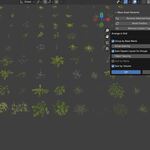
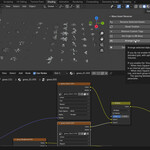
Mass Asset Renamer – User Guide
Overview
The Mass Asset Renamer addon is designed to help you quickly rename objects, materials, and textures, as well as organize objects into collections and arrange them in grids. With a range of options and customizable settings, you can streamline your asset management workflow in Blender.
Installation
-
Download the Addon:
Purchase and download the Mass Asset Renamer addon from Blender Market. -
Install the Addon in Blender:
- Open Blender and go to Edit → Preferences.
- In the Preferences window, navigate to the Add-ons tab.
- Click Install… at the top and select the downloaded ZIP file.
- Once installed, enable the addon by checking the box next to "Mass Asset Renamer".
-
Access the Addon Panel:
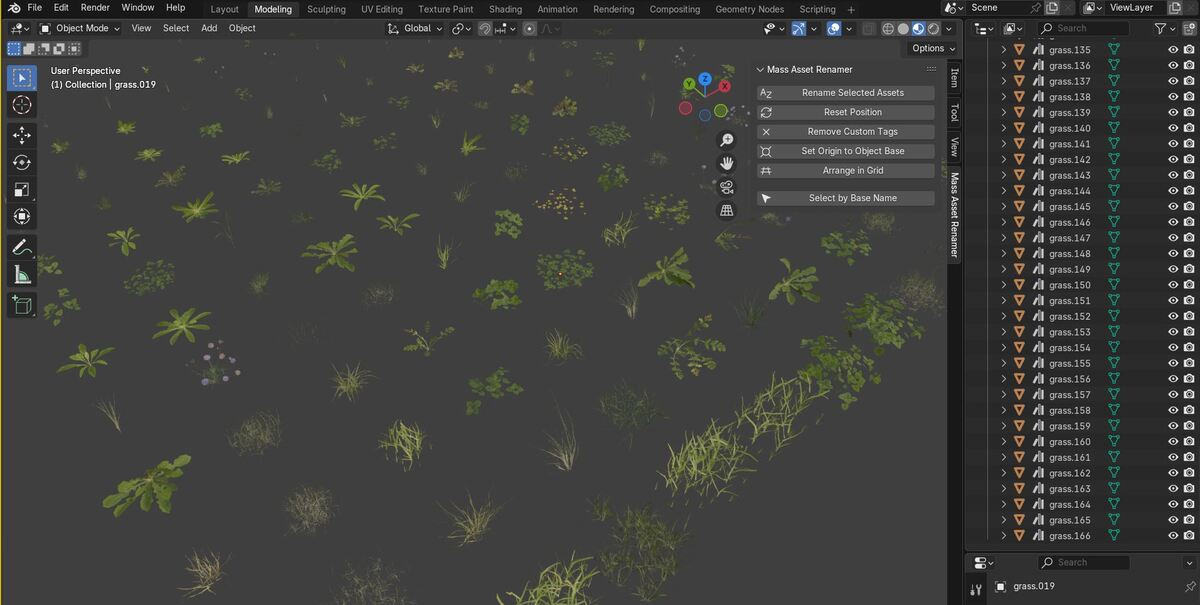
- In the 3D View, press N to open the sidebar.
- Find the Mass Asset Renamer tab to access all the available operators.
How to Use
1. Rename Selected Assets
-
Open the Rename Dialog:
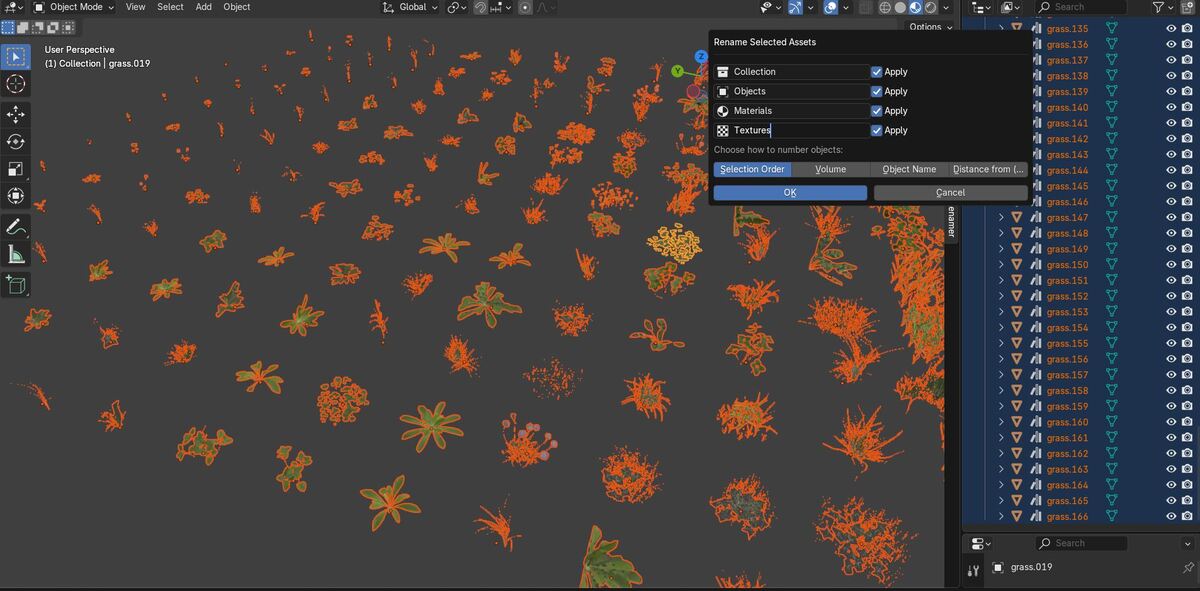
Click on the "Rename Selected Assets" button. This opens a dialog with various options. -
Options Overview:
-
Collection:
- Apply: Move objects to a specified collection and rename the collection.
- Collection Name: Set the target collection name.
-
Object:
- Apply: Rename selected objects and their associated mesh data.
- Base Object Name: Provide a base name that will be numbered sequentially (e.g., Object.001, Object.002, etc.).
-
Material (Optional):
- Apply: Rename materials assigned to the objects.
- Base Material Name: Specify the base material name.
-
Texture (Optional):
- Apply: Rename texture images and node names within material node trees.
- Base Texture Name: Provide the base texture name.
-
Numbering Method:
Choose the method for numbering objects:- Selection Order: Uses the order in which objects were selected.
- Volume: Sorts by bounding box volume (largest first).
- Object Name: Sorts objects alphabetically.
- Distance: Sorts objects by their distance from the origin (0,0,0).
-
Collection:
-
Execute the Operation:
After configuring your options, click OK to apply the renaming and collection operations.
2. Set Origin to BB Base
- Select one or more mesh objects.
- Click the "Set Origin to BB Base" button.
This moves the origin of each selected object to the center of its bottom face (bounding box base).
3. Reset Position
- With your objects selected, click the "Reset Position" button.
This will set the location of all selected objects to the world origin (0,0,0).
4. Remove Custom Tags
- Click the "Remove Custom Tags" button to delete all custom properties from the selected objects.
This is useful for cleaning up unnecessary data attached to objects.
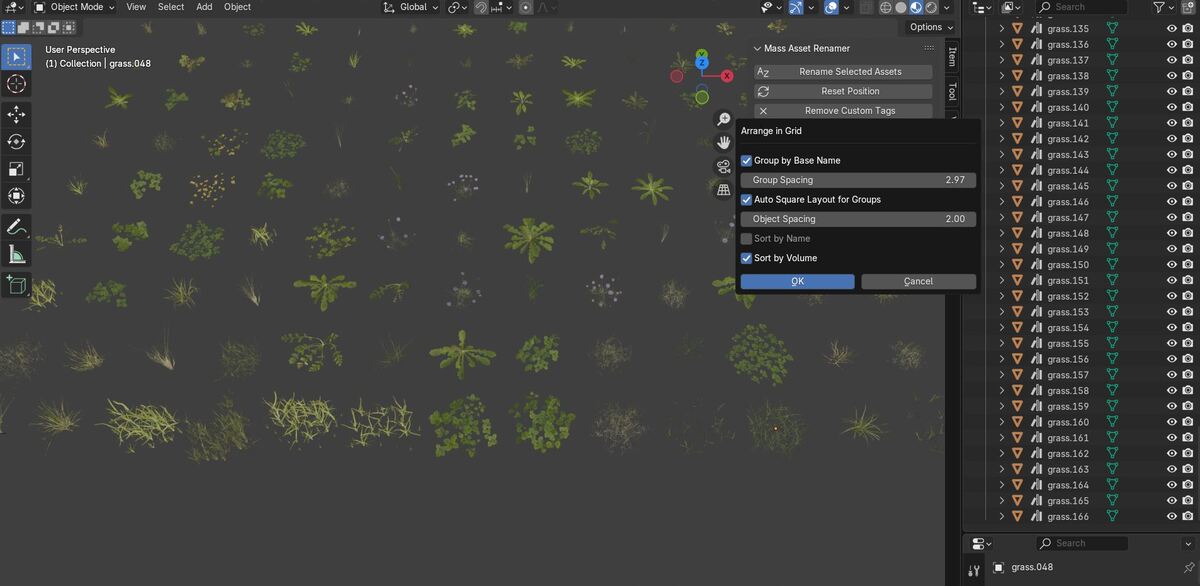
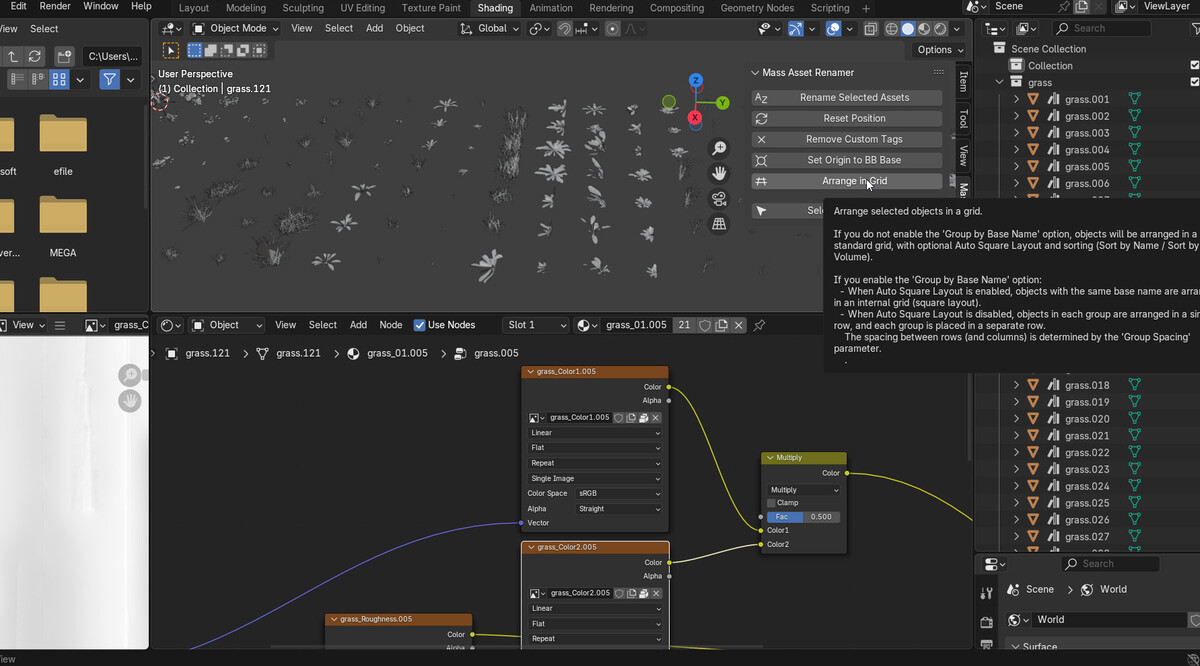
5. Arrange in Grid
-
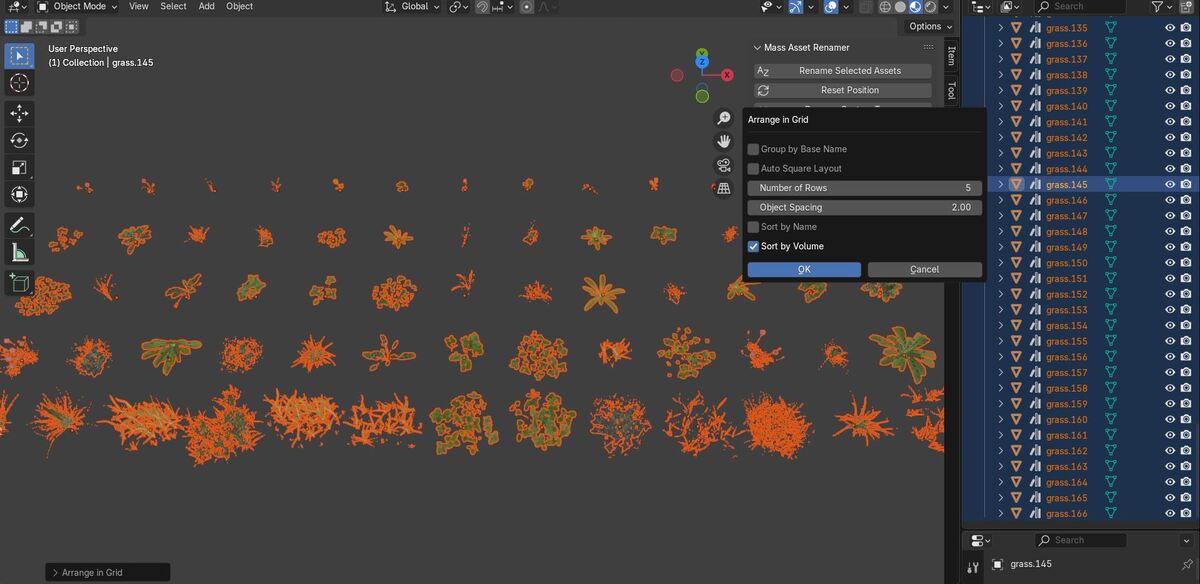
Click on the "Arrange in Grid" button to open the grid arrangement options.
-
Standard Layout:
- Rows: Specify the number of rows.
- Object Spacing: Set the distance between objects.
- Auto Square Layout: Automatically calculates a square layout if enabled.
- Sorting Options: Choose to sort objects alphabetically or by volume.
-
Grouped Layout (Group by Base Name):
- Enable Group by Base Name to arrange objects sharing the same base name into groups.
- Group Spacing: Set the spacing between groups.
- Auto Square Layout for Groups: When enabled, arranges objects within each group in a square grid.
-
After setting your preferences, click OK to arrange the selected objects in a grid.
6. Select by Base Name
- To select all objects sharing the same base name (ignoring the numbering suffix), select one object and then click the "Select by Base Name" button.
- The addon will deselect all objects and select only those with the matching base name.
Tips and Troubleshooting
-
Saving Preferences:
The addon remembers your last used collection name. Adjust the addon preferences if you need a different default. -
Multiple Mesh Users:
If objects share the same mesh data, the addon will automatically copy the mesh to ensure unique renaming. -
Selection Order:
The selection order is maintained automatically in the scene. If you experience unexpected numbering, make sure to select objects in the desired order before running the renaming operator. -
Support:
If you encounter any issues or have questions, refer to the documentation provided on Blender Market or contact the developer through the support links on the addon page.
These instructions are designed to get you started quickly and help you take full advantage of the powerful features available in the Mass Asset Renamer addon. Enjoy a smoother workflow and enhanced organization in your Blender projects!
Have questions about this product?
Login to message
| Published | over 1 year ago |
| Blender Version | 4.4, 4.3, 4.2, 4.1, 4.0, 3.6, 3.5, 3.4, 3.3, 3.2, 3.1, 3.0 |
| Extension Type | N/A |
| License | GPL |
Discover more products like this
ArchViz sort-assets blender tools blender addon VFX Scene Management rename objects blender scripting indie-dev rename-assets cad-to-blender naming-convention rename-materials asset-organization Non-Destructive Editing automatic-renaming scene cleanup rename-textures object-sorting hierarchy-organization bulk-renaming collection management game development batch-renaming Animation Workflow Blender Workflow product-visualization Blender Plugin procedural-naming 3D asset management pipeline-tool 3d modeling Workflow Automation