Matcolex Pro - Your Digital Toolbox For Materials
 Semangat Pagi Studio





What does 'Create New Grouped Material' do?
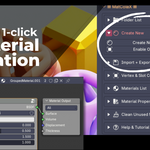
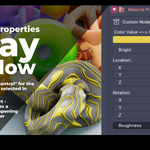
This is a time-saver for creating new, editable materials. It creates a new material, adds a Principled BSDF, and automatically puts it inside a Node Group (as if you pressed Ctrl+G). This means any custom inputs you create will automatically appear in the 'Material Properties' panel
What does the 'Toggle Object Color' button do?
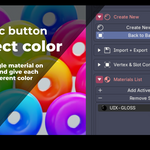
This is a powerful efficiency tool. It links your material's 'Base Color' to the object's 'Object Color' property. This allows you to use one single material on hundreds of objects, giving each object a different color just by changing its 'Object Color' in the Object Properties panel.
What is the 'Export All as .zip Pack' feature? How is it different?
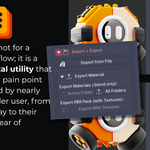
This is the ultimate tool for sharing or selling your assets. It saves all your materials and it intelligently finds every single image texture (.jpg, .png, etc.) used by those materials. It then packages everything into one perfectly organized .zip file. This permanently solves the 'pink texture' (missing files) problem.
Can I import material libraries from other software (e.g., .sbsar, .c4d)?
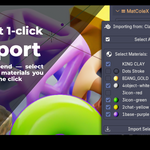
No. The import tool is designed to append materials only from other .blend files.
Does this addon work like a separate, global Asset Browser?
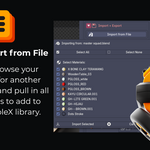
No. MatColeX-Pro saves your material collections inside your .blend file's scene data. This means when you open a new, blank file, your library will also be blank. You must use the 'Import from File' operator to load the library file you saved with the 'Export All Collections' operator.
My .blend file is slow and bloated. How can this addon help?
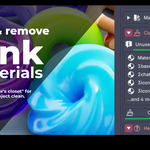
Open the 'Utilities' panel. This panel finds all 'orphan' (unused) materials in your file. Click the 'Purge Unused Materials' button to safely delete all of them at once, making your file smaller and faster
How can I find every object in my scene that uses a specific material?
In the 'Materials' list, click the 'Select Set' icon (it looks like a cursor pointing to a box) next to the material's name. This will instantly select every object in your scene that is using that material.
My object has multiple material slots. How do I apply a material to a specific slot?
Select your object. The 'Material Slot Control' panel will appear, showing all of its slots. Click on the slot you want to target (e.g., 'Slot 1: Windows'). That slot is now active. Now, when you click the 'Apply' (✓) icon on any material, it will be applied only to that specific slot.
How do I use the Right-Click menu to apply materials?
Simply Right-Click in the 3D Viewport. The '☰ MatColeX Quick Tools ☰' menu will show all materials from your currently active folder. Just click the name of the material you wish to apply
How do I save a material to a folder?
It's a 3-step process:
Click on the folder you want to save to.
In the 3D scene, select an object that has the material you want to save.
In the 'Materials' panel, click the 'Add Active Material' button.
How do I apply a material from my library to a new object?
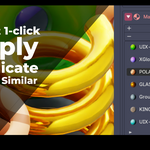
Select the object(s) you want to apply the material to. In the 'Materials' list, find the material you want and click the small checkmark (✓) icon next to its name to apply it
I installed the addon, but the panel is empty. How do I start?
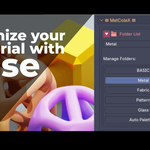
Your first step is to create a folder. In the 'Folder List' panel, click the '+' (Add) icon to create your first collection (e.g., 'Wood', 'Metal').
-
$19
Single-user license. Unlimited use on commercial and personal projects.
-
$25
Single-user license ✚ Fast Color Grading✚Vertex Group & Slot Control✚ 10 Custom Node READY Materials ✚ Unlimited use on commercial and personal projects.
Have questions about this product?
Login to message
| Blender Extension Compatible | Yes |
| Dev Fund Contributor | |
| Published | 11 months ago |
| Blender Version | 4.3 - 5.0 |
| Extension Type | Add-on |
| Render Engine Used | Cycles, Eevee |
| License | GPL |
Discover more products like this
interface manage purge-orphan import Material Export Shader addon 3dviewport