Material ID – One-Click Material ID Pass for Blender
 Fulford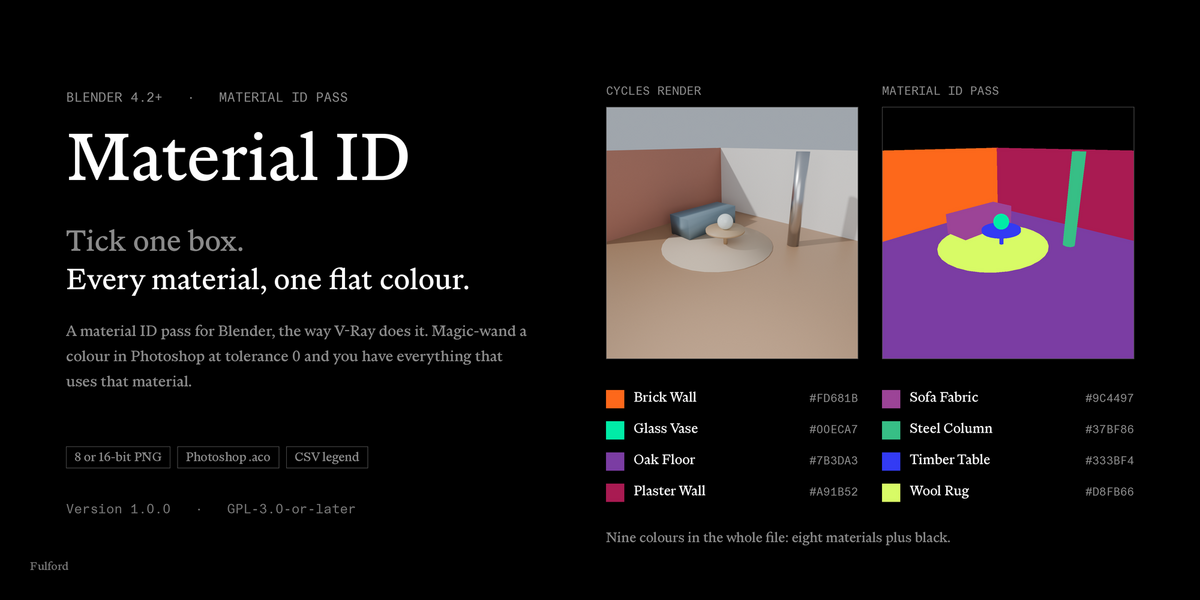

Which versions does it work with?
Blender 4.2 or newer. It is developed against 5.2 LTS, and CI runs the test suite on both 4.2 and 5.2 before every release.
Does it work in Cycles and EEVEE?
Both. The pass was verified pixel-identical between them across glass, transmission, transparent and partial-alpha materials.
Why would I use this instead of Cryptomatte?
If your selection happens inside a compositor that understands Cryptomatte, use Cryptomatte — it handles overlapping and anti-aliased coverage properly, and it is free and already in Blender.
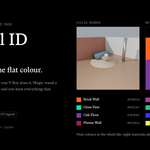
This is for the other case: the selection happens in Photoshop. Cryptomatte needs a plugin there and works from a manifest rather than colours. A flat colour pass needs nothing — you magic-wand a colour and you have the material.
What about the Material Index pass that's already in Blender?
It writes an integer, not a colour. You set an index by hand on every material, then build ID Mask nodes in the compositor to turn indices into mattes. Nothing reaches Photoshop as a flat colour without more work, and a new material silently gets index 0 until you notice.
Where is it?
Properties ▸ View Layer ▸ Passes ▸ Material ID. It sits next to Cryptomatte and the Shader AOVs, because that is what it is — a render pass.
What do I have to do to set it up?
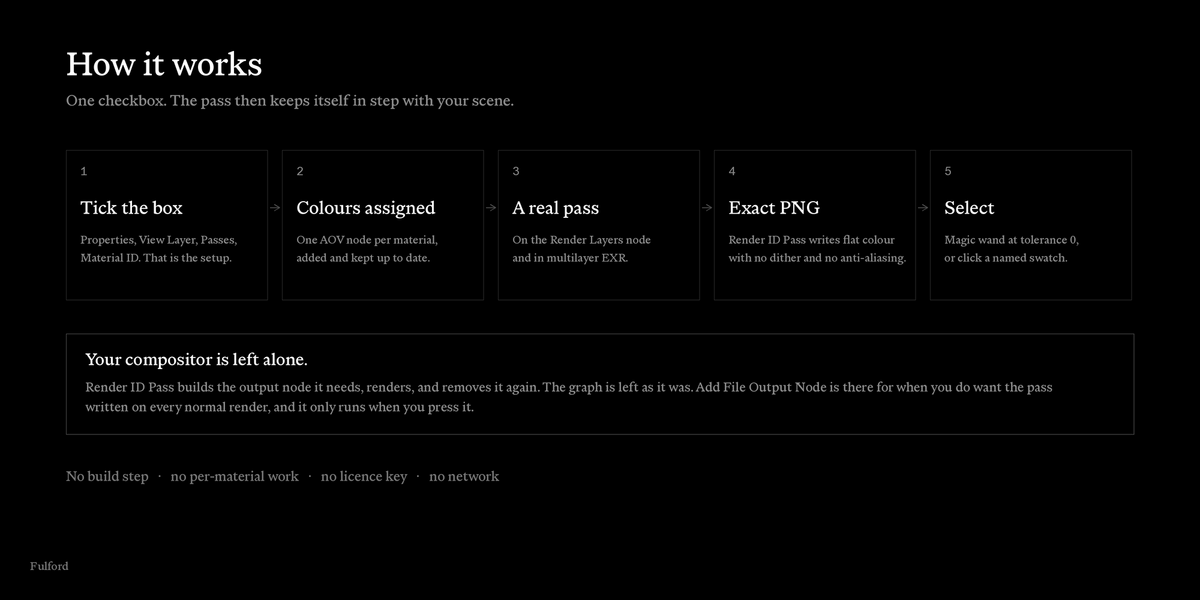
Tick the checkbox. That is the whole setup. Colours are assigned, the pass is registered, and it stays in step with the scene from then on.
Do I need to set up anything in the compositor?
No, and the add-on will not touch your compositor on its own. Render ID Pass writes the PNG without adding anything permanent: it creates the output node it needs, renders, then removes it and restores the graph exactly as it was.
If you *want* the pass written on every normal render, press Add File Output Node. That is the only thing that writes to your comp, and only when you ask.
Does it change my materials?
It adds one AOV output node per material, parked clear of your existing nodes. It never touches your shading.
The one exception: a material with no node tree at all has to be switched over to nodes to carry the pass. The add-on reports how many it changed, because that does edit the material. This mostly only happens with materials created by scripts on older Blender versions.
Where do the exported files go?
Wherever Output points, under Material ID Export. The default //matid/ writes next to your blend file. An unsaved file falls back to Blender's temp folder rather than failing.
Do I have to press anything after adding a material?
No. It is covered before your next render. The palette list in the panel also updates as you work.
Will my existing colours change when I add a material?
No. Colours are hashed from the material name, not from a position in a list, so a new material gets its own colour and every existing one keeps what it had.
What if I rename a material?
That material gets a new colour. The others do not move. If you have already cut artwork in Photoshop against the old colour, rename before you render rather than after.
Will I get the same colours if I reopen the file next year?
Yes, as long as the material names are the same. That is the point of hashing the name — a re-render months later drops straight onto artwork you already cut.
Two colours look too similar to tell apart. What do I do?
Nudge Seed — it reshuffles the whole palette. Or switch to Max Contrast, which spreads hues as far apart as possible. Or pin the one that bothers you to a colour you choose.
Note that no two materials ever *share* a colour, even when they look close; the add-on resolves collisions before rendering. This is only about telling them apart by eye.
Can two materials end up with the same colour?
No. Pinned colours are placed first, generated colours fill in around them, and anything that still lands on a taken colour is nudged until it is unique.
How do I stop a material appearing in the pass?
Untick it in the palette list. It renders black and merges with the background, which is usually what you want for anything you never select.
Which object uses this colour?
Highlight the material in the palette list and press Select Objects. It selects every object using it.
Does it slow down my renders?
The pass adds an AOV to your normal renders, which is a small memory and file-size cost and no meaningful render time — the colour is a constant, so there is nothing to sample.
Render ID Pass is a separate render, but it needs no lighting and uses one sample, so it takes about a second regardless of how heavy your scene is.
Why is there a separate "Render ID Pass" button if it's already a pass?
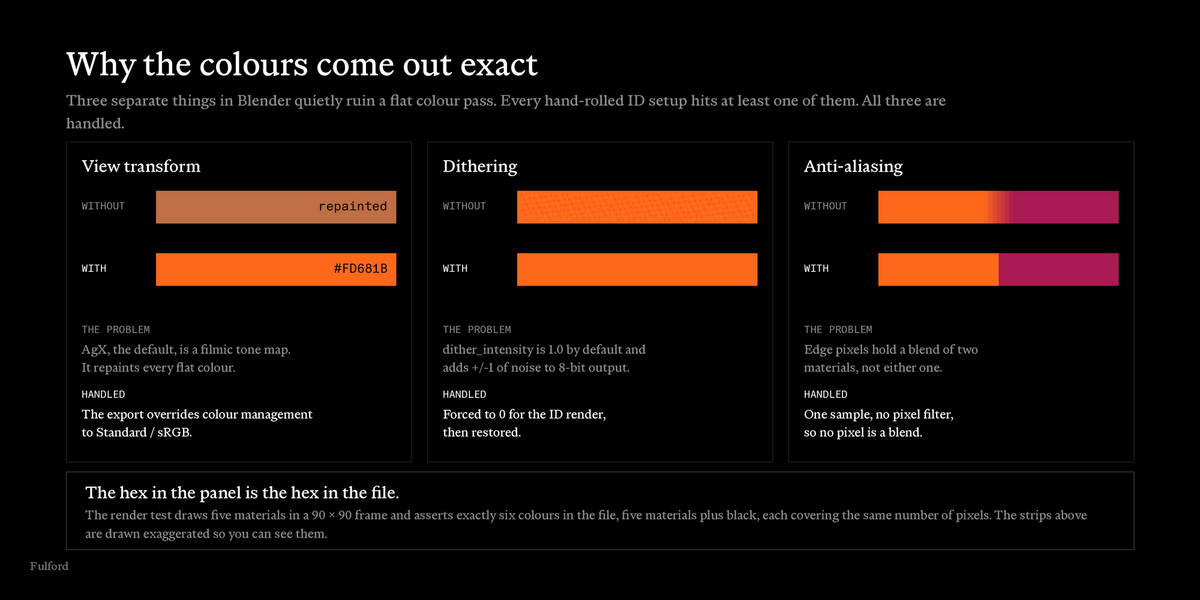
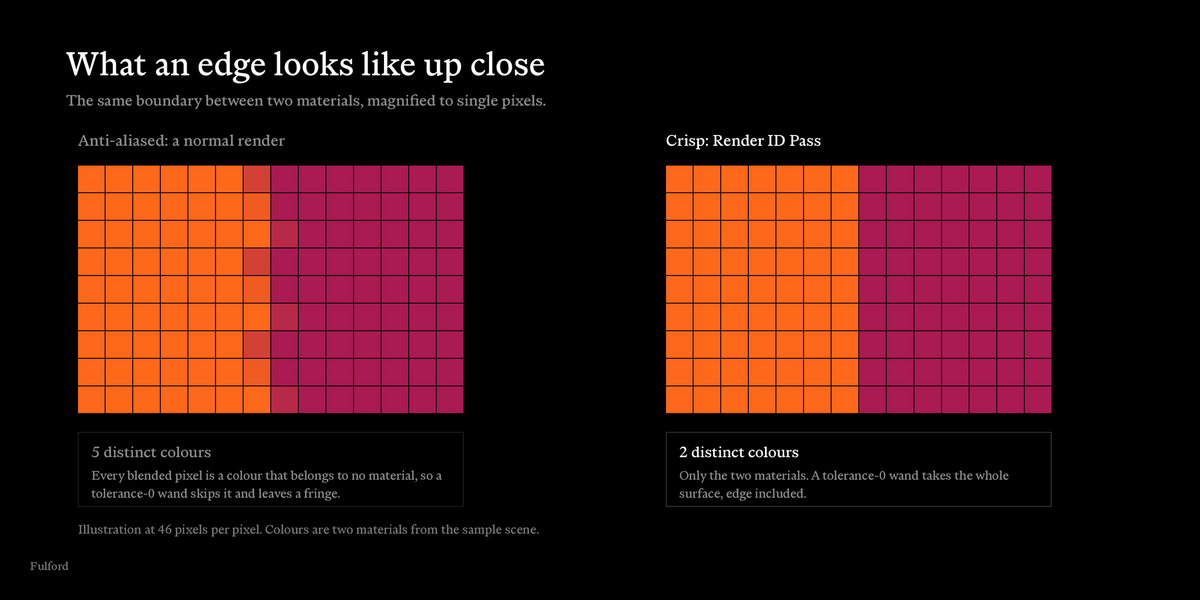
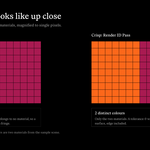
Because the pass on a normal render is anti-aliased. Edge pixels hold a blend of two materials, which leaves ragged holes in a tolerance-0 selection. That is fine if you want a soft matte, and wrong if you want to magic-wand a wall.
Render ID Pass turns anti-aliasing off entirely, so every pixel holds an exact material colour.
Is the hex in the panel really the hex I get in Photoshop?
Yes, and that is deliberate. The colour is converted through the exact inverse of the sRGB encode the file is written with, so it round-trips back to the byte values shown. The test suite asserts this byte-for-byte.
Blender says my View Transform is AgX. Does that matter?
Not for the exported ID pass. The export overrides colour management to Standard/sRGB for that file only, because AgX would repaint every flat colour into something else. Your beauty render is untouched.
What is the dither warning in the panel?
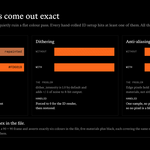
Blender's dither_intensity defaults to 1.0 and adds ±1 of noise to 8-bit output. On a photo that is invisible and desirable; on a flat colour pass it means your flat areas are not flat and a tolerance-0 wand leaves speckled holes.
Render ID Pass forces it to 0 for the ID render. The warning and its fix button are there for the case where you are writing the pass through your own compositor setup instead.
Should I use 8-bit or 16-bit?
8-bit is the normal choice and what Photoshop selection expects. 16-bit is immune to dithering, so it is the option if you would rather not have the setting touched at all. It makes heavier files.
What happens with glass?
Glass and transmission materials get their own ID and occlude what is behind them, on the default *Dithered* render method. Verified in both Cycles and EEVEE.
One of my materials is missing from the pass entirely
Check its Render Method. A material set to *Blended* writes no ID at all — you see straight through to whatever is behind it. Set it to Dithered and it appears.
This catches people with archviz glass, since Blended is a common choice for windows.
What about a material with Alpha below 1?
Partial alpha gives partial, dithered coverage rather than a clean matte, so do not rely on it for selection. If you need to select a partly-transparent surface, pin it a colour and set its render method to Dithered for the ID render.
Do depth of field and motion blur affect the pass?
Not on the crisp ID render — it is a single sample, so neither is applied. That is deliberate: a blurred ID is not selectable.
Do my materials have to be Cycles-compatible for the ID render?
No. The colour is a constant carried on its own output node, so the ID render does not evaluate your shading at all. A material built for Cycles-only nodes still produces the right ID.
What about linked materials from another file?
Library materials are read-only, so they cannot carry the pass. They are skipped, counted in the report, and render black.
What about grease pencil materials?
No shader AOV path exists for them, so they are skipped.
Can I have more than one view layer using the pass?
Yes. The checkbox is per view layer, like Blender's own passes. The panel lists any other view layers that have it on.
How do I actually use the file once I have it?
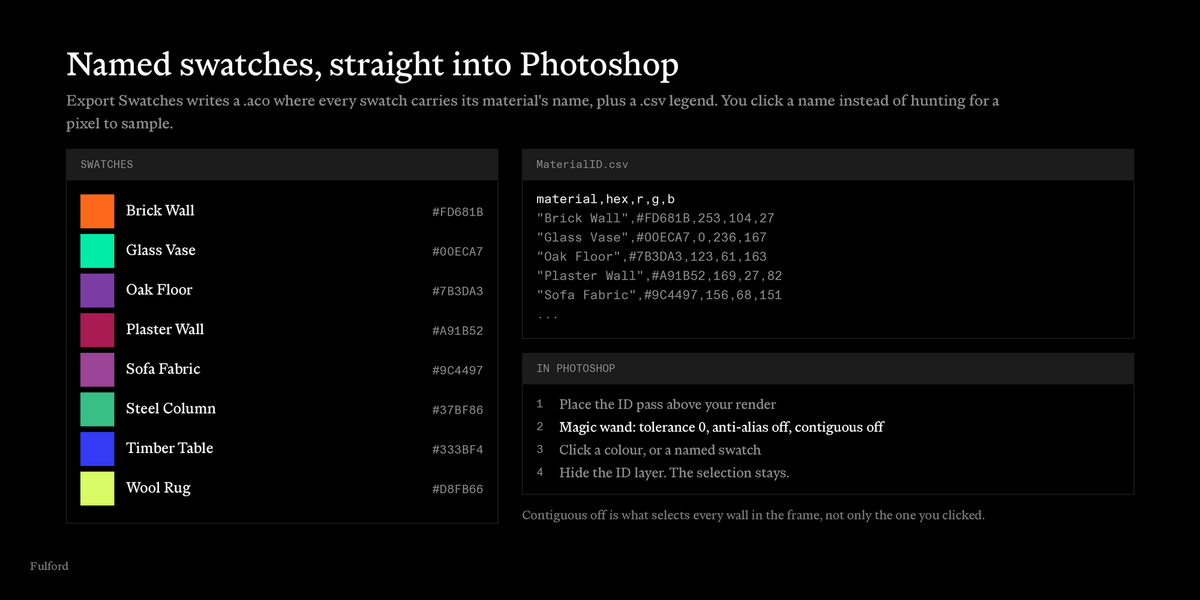
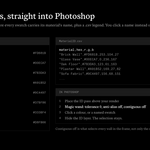
Open the ID PNG as a layer above your render. Magic wand a colour with tolerance 0, anti-alias off and contiguous off — that last one is what picks up every wall in the image rather than the one you clicked. Then hide the ID layer and your selection applies to the render underneath.
What is the .aco file for?
It is a Photoshop swatch file, and every swatch in it is named after its material. Load it into the Swatches panel and you are clicking "Brick Wall" rather than sampling a pixel and hoping.
How do I load it?
Swatches panel ▸ panel menu ▸ Import Swatches, and pick the .aco.
Does this work in Affinity Photo or GIMP?
The PNG does, in anything with a magic wand or select-by-colour. The .aco is a Photoshop format; Affinity can import .aco palettes, and for GIMP the .csv is the practical route.
Can I install it on more than one machine?
Yes. There is no key and no activation.
Where do I get help?
https://fulfordstudio.com/tools/material-id/support
My selection has speckled holes in it
Dithering. Either use Render ID Pass, which forces it off, or press the fix button in the panel to set dither_intensity to 0, or export at 16-bit.
My selection has a ragged fringe on every edge
You are using the pass from a normal, anti-aliased render. Use Render ID Pass for exact colours.
The colours in the file don't match the hexes in the panel
Something is applying a view transform. If you are writing the pass through your own compositor nodes rather than Render ID Pass, set that File Output node's colour management to Standard/sRGB — Add File Output Node configures this correctly, so comparing against what it produces is the quickest way to spot the difference.
A material renders black
Three possibilities: you excluded it, it is a linked library material, or it is a grease pencil material. The first is a checkbox in the palette list; the other two are reported when the pass builds.
The palette list is empty
The pass is switched off. Tick it.
The pass isn't in my render at all
Check the checkbox is ticked on the view layer you are actually rendering — it is per view layer, and the panel lists which others have it on.
I ticked the checkbox but a new material has no colour
It is assigned before the next render, so a render will fix it. If you want it now, press Refresh Palette.
I want everything gone
Remove ID Nodes, under Material ID Export. It switches the pass off, strips every node the add-on created, and clears a File Output node you added — and nothing else. Your own compositor nodes are left alone.
Have questions about this product?
Login to message
| Blender Extension Compatible | Yes |
| Published | about 6 hours ago |
| Blender Version | 5.0 - 5.2 |
| Extension Type | Add-on |
| Render Engine Used | Cycles, Eevee |
| License | GPL |

Discover more products like this
post-processing workflow color id passes Compositing blender passes compositor passes Data passes materials Post-Processing