 Fulford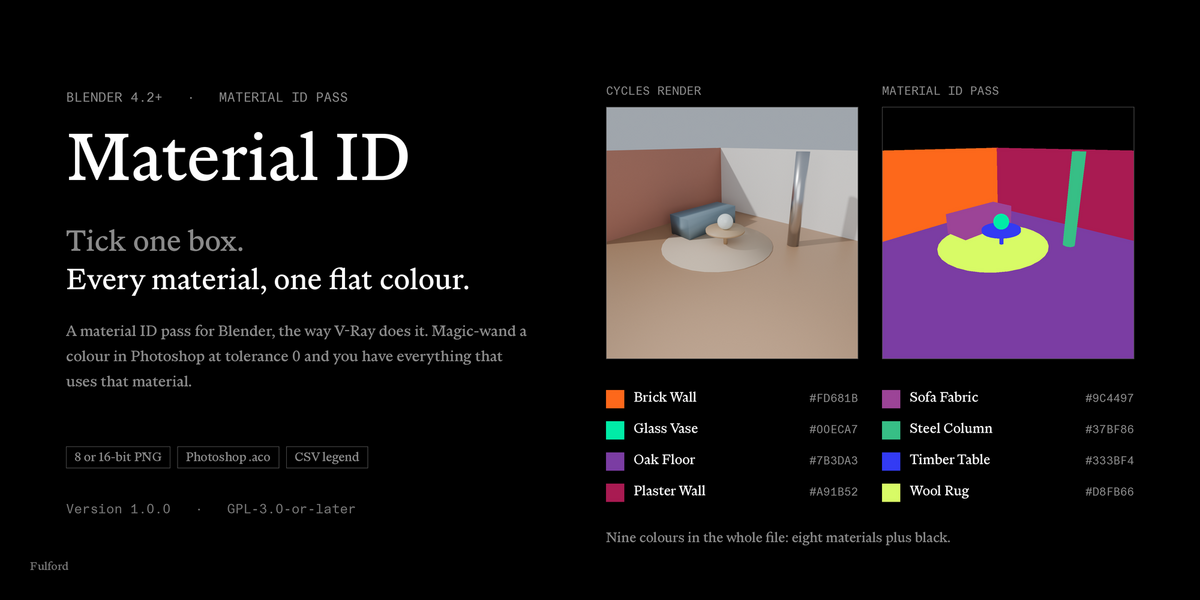

Material ID
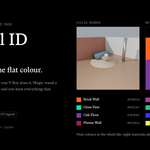
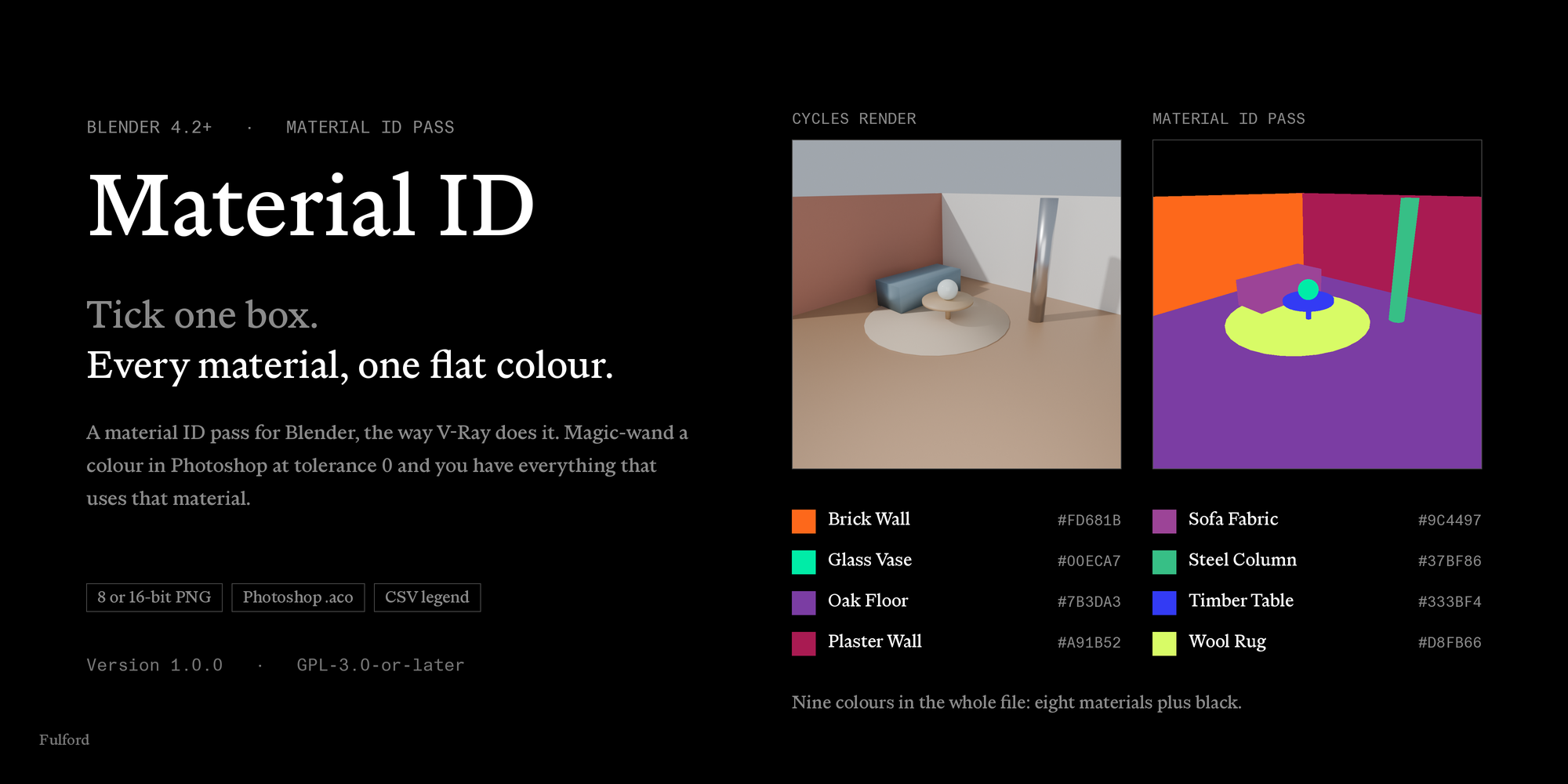
A material ID pass for Blender, the way V-Ray does it. Every material renders as one flat block of colour, so you open the image in Photoshop, magic-wand a colour, and get a clean selection of everything using that material.
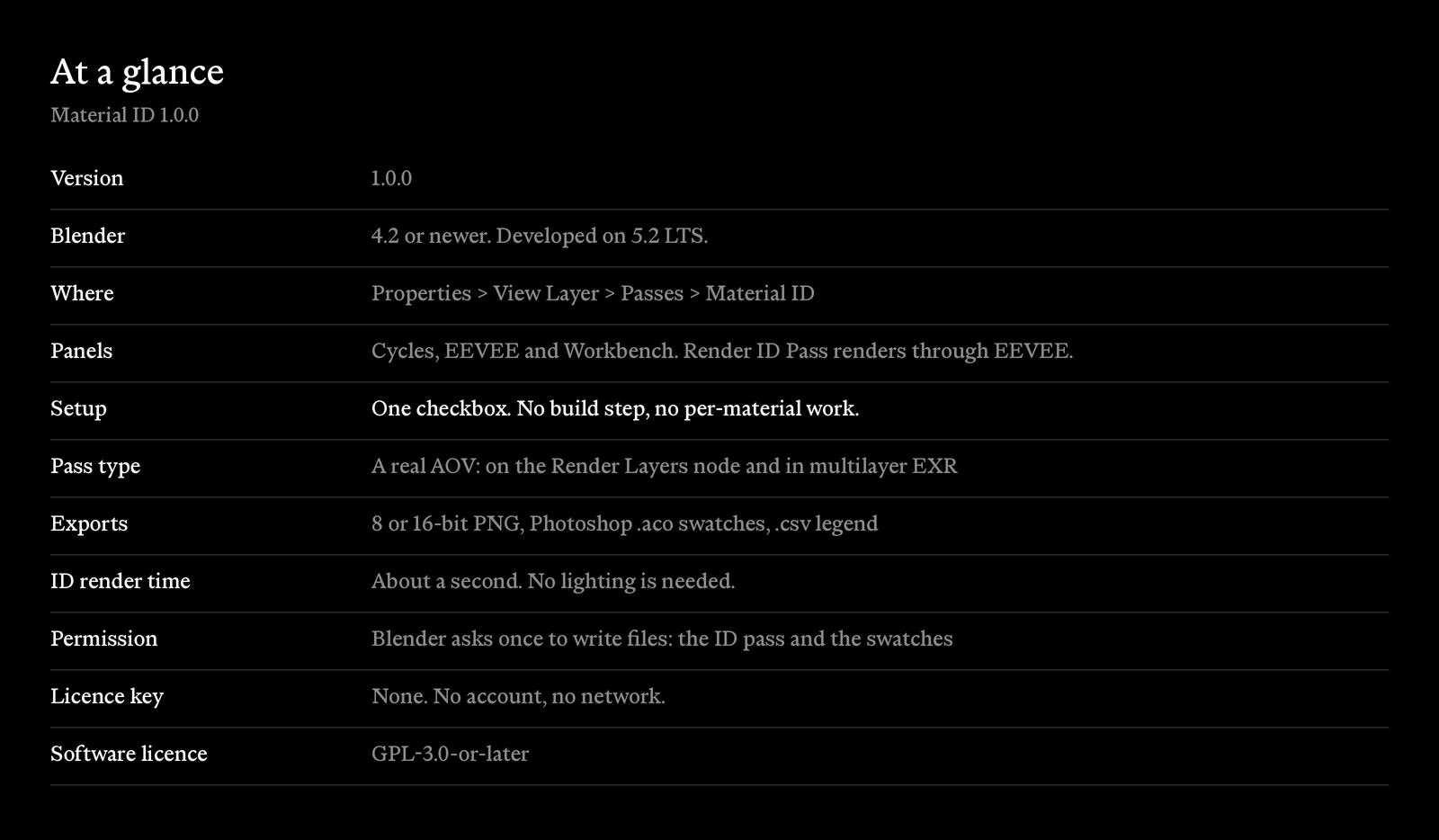
It is a checkbox, not a workflow. Tick Material ID under Passes and it is there — colours assigned, pass registered, and kept in step with your scene from then on. Add a material, rename one, reshuffle the palette; the pass follows without you pressing anything. Panels in Cycles and EEVEE, on Blender 4.2 and newer.
At a glance
How it works
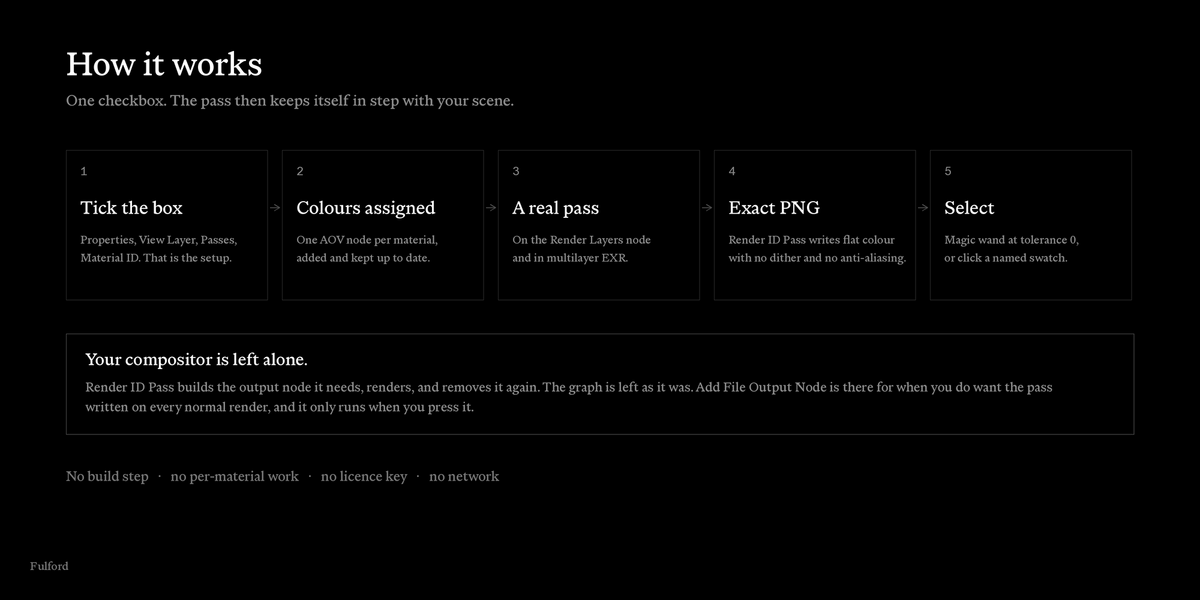
Each material gets one AOV output node carrying a flat colour, added and maintained for you. That makes the result a real render pass rather than a separate export: it appears on the Render Layers node and inside a multilayer EXR next to Combined, with no second render.
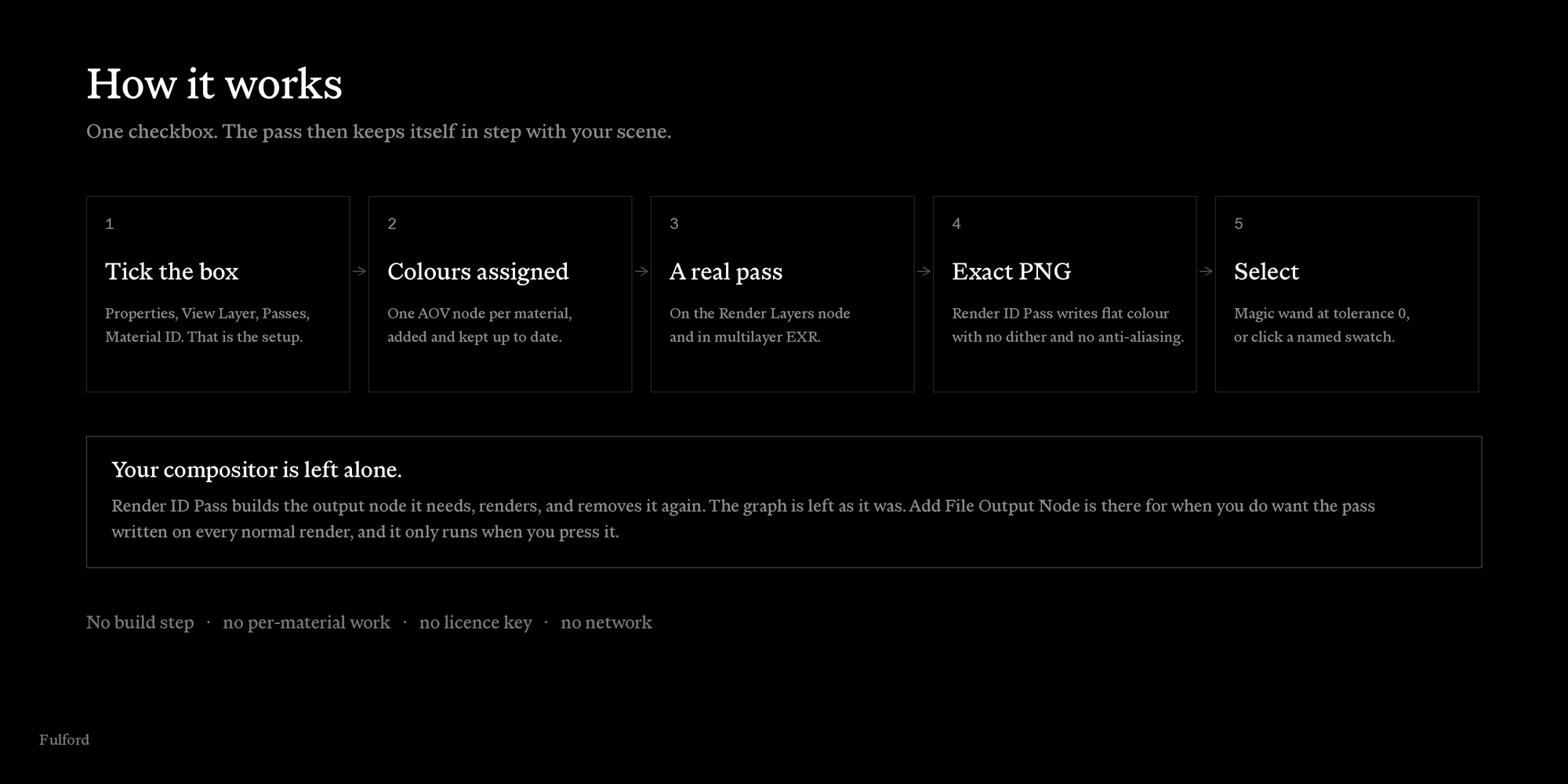
Your compositor is left alone. Render ID Pass builds the output node it needs, renders, and removes it again — the graph is left as it was. Add File Output Node is there for when you do want the pass written on every normal render, and it only runs when you press it.
Why the colours come out exact
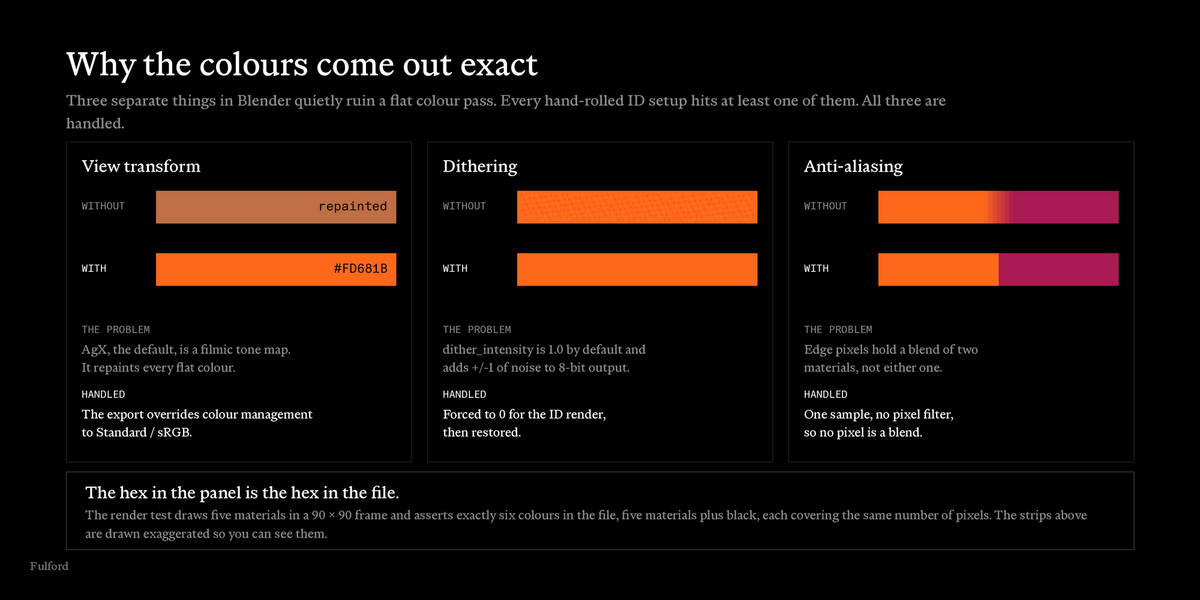
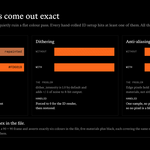
This is the part that decides whether a magic wand at tolerance 0 actually works, and it is the part every hand-rolled ID setup gets wrong. Three separate things in Blender will quietly ruin a flat colour. All three are handled.
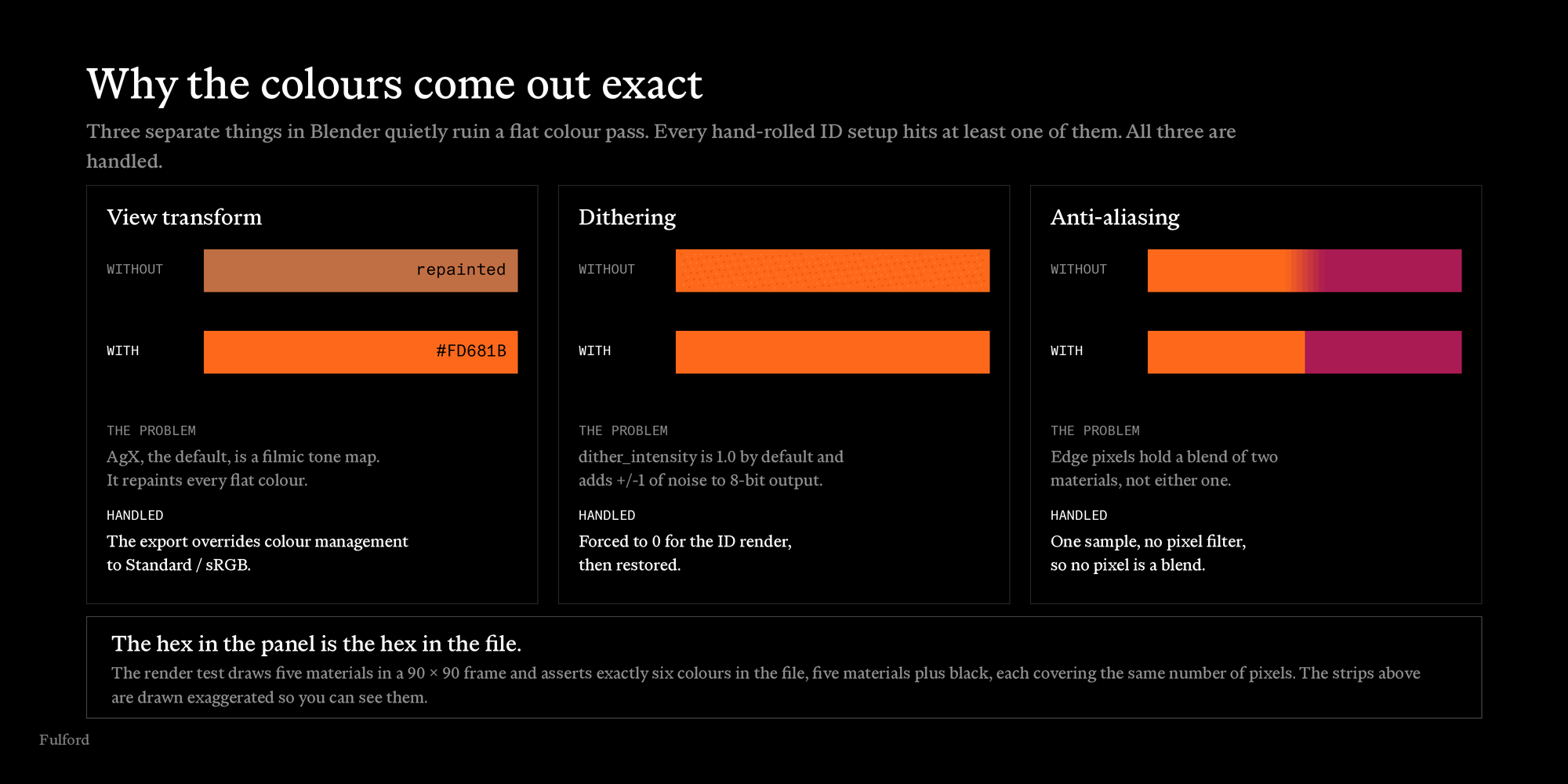
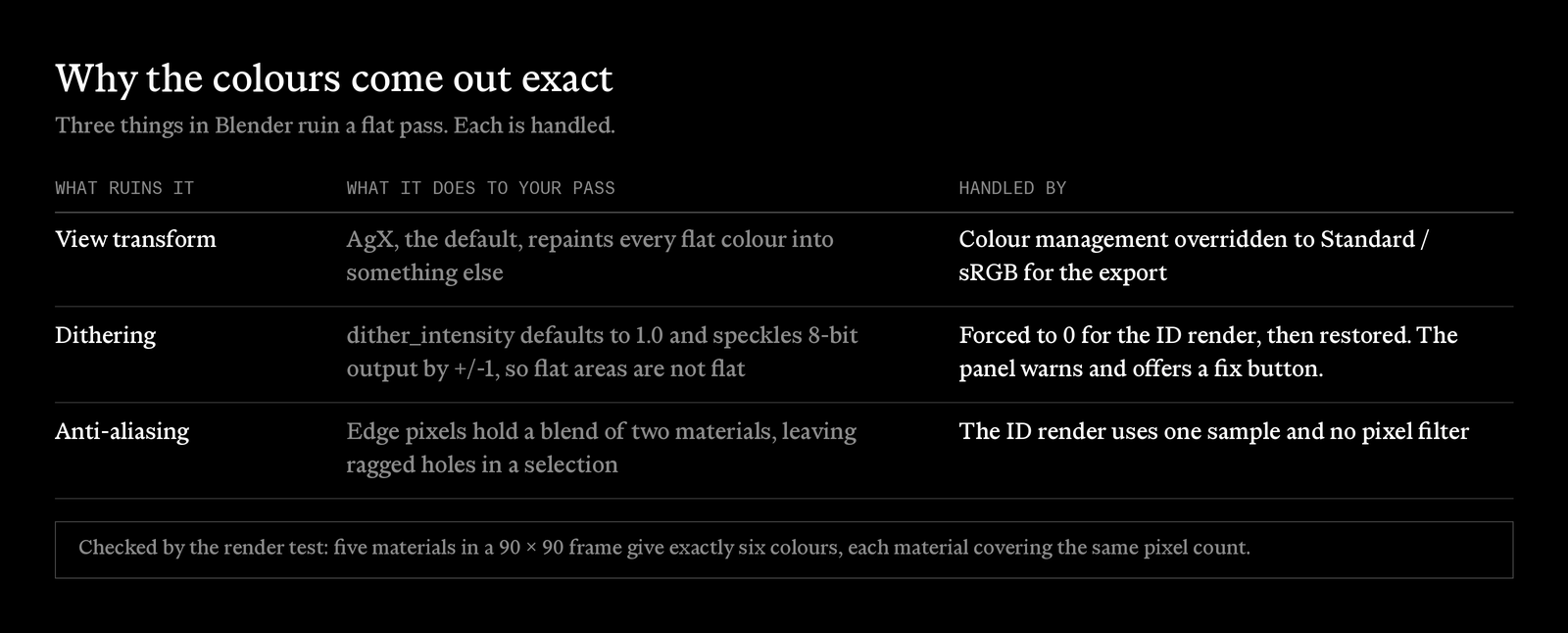
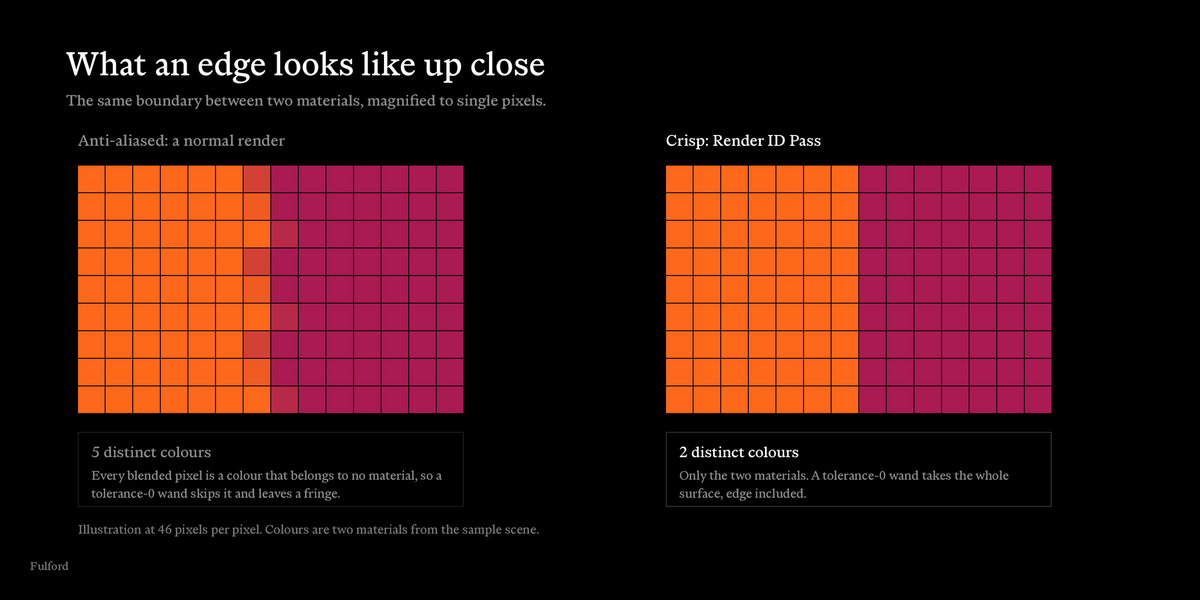
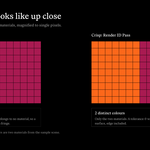
The result: the hex shown beside a material is the hex in the file. The render test draws five materials in a 90×90 frame and asserts exactly six colours in the PNG — five materials plus the black background — with every material covering an identical pixel count. The sample render above, with eight materials, measures nine colours the same way. No blended edge pixels.
What an edge looks like up close
Colours that stay put
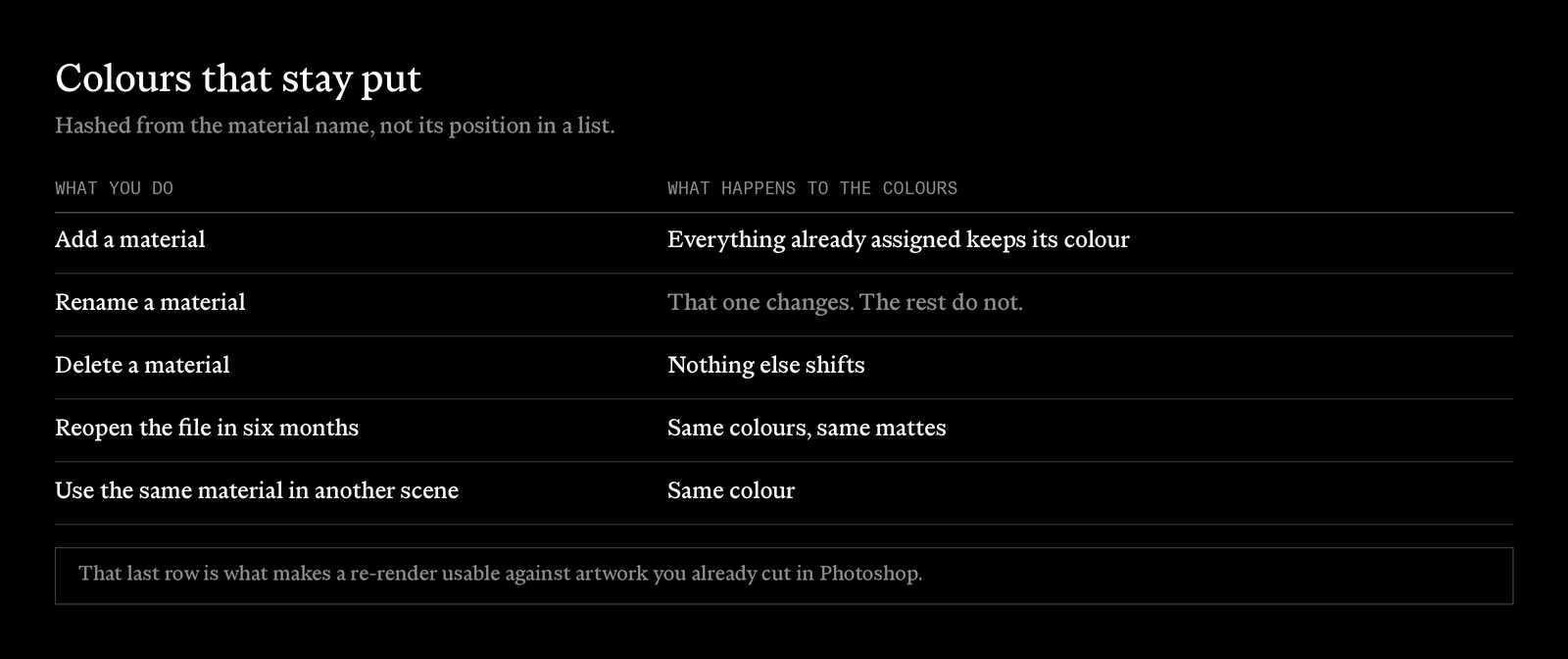
Colours come from a hash of the material name, not its position in a list. That is what lets a re-render months later drop straight onto artwork you already cut.
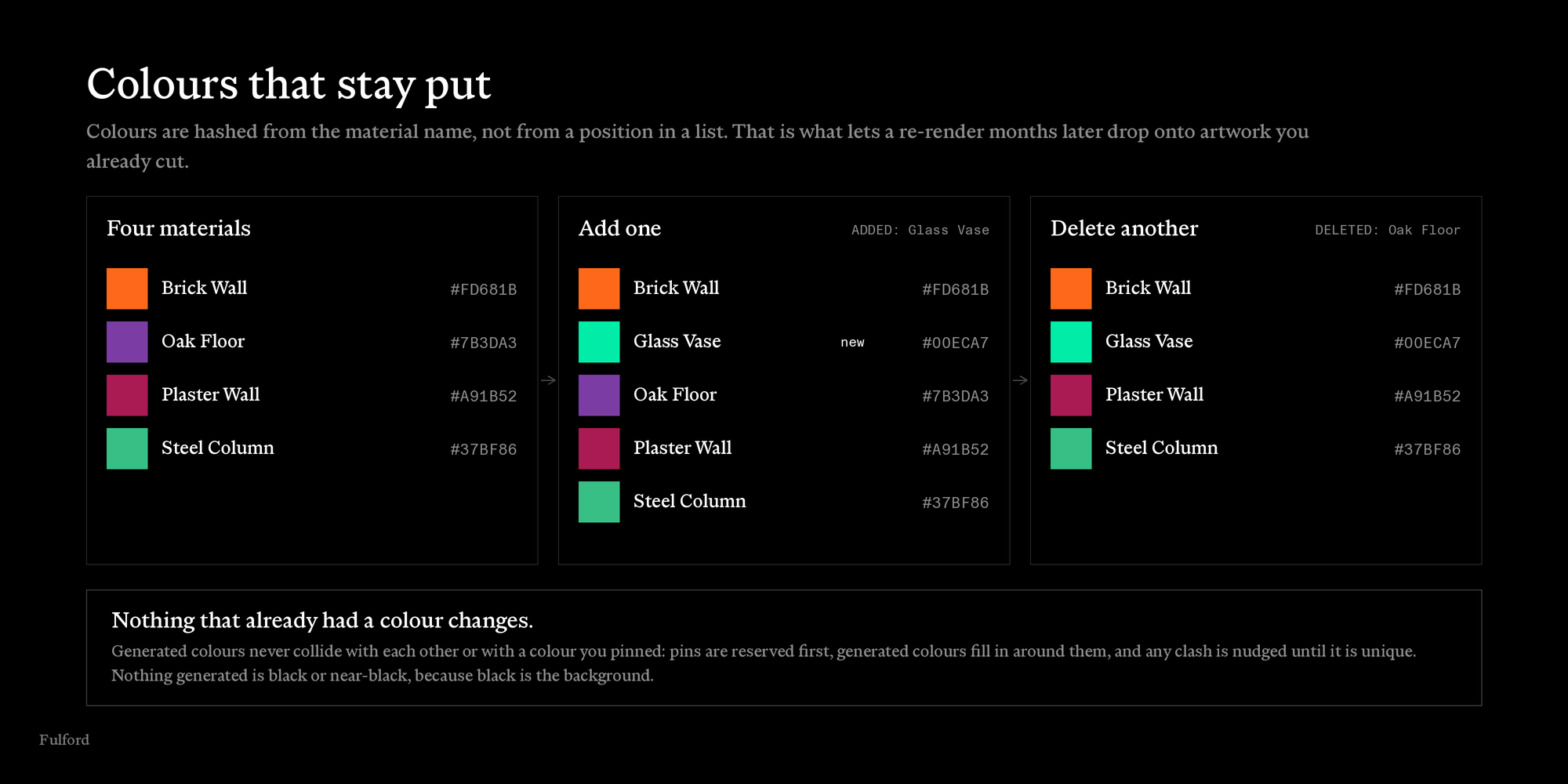
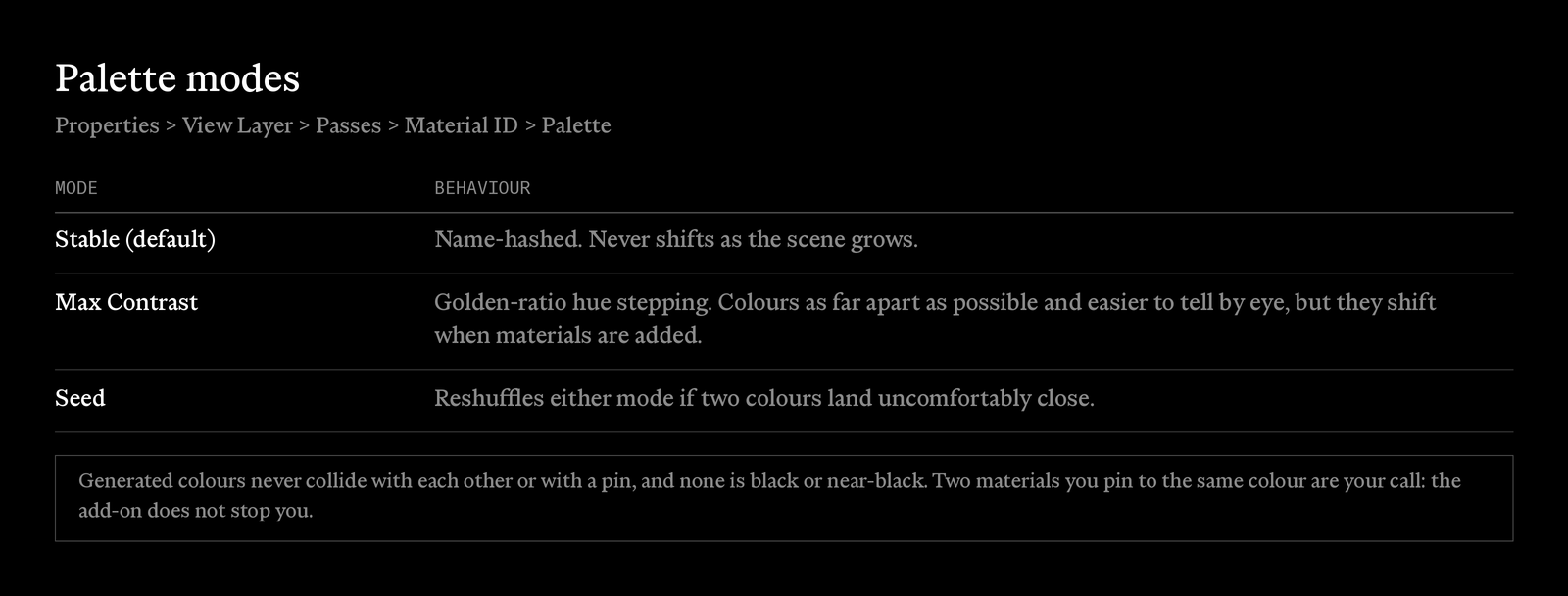
Generated colours never collide with each other or with a pin: pins are placed first, generated colours fill in around them, and any remaining collision is nudged until it is unique. No generated colour is black or near-black, because black is the background. Two materials you pin to the same colour are your call; the add-on does not stop you.
Per-material control
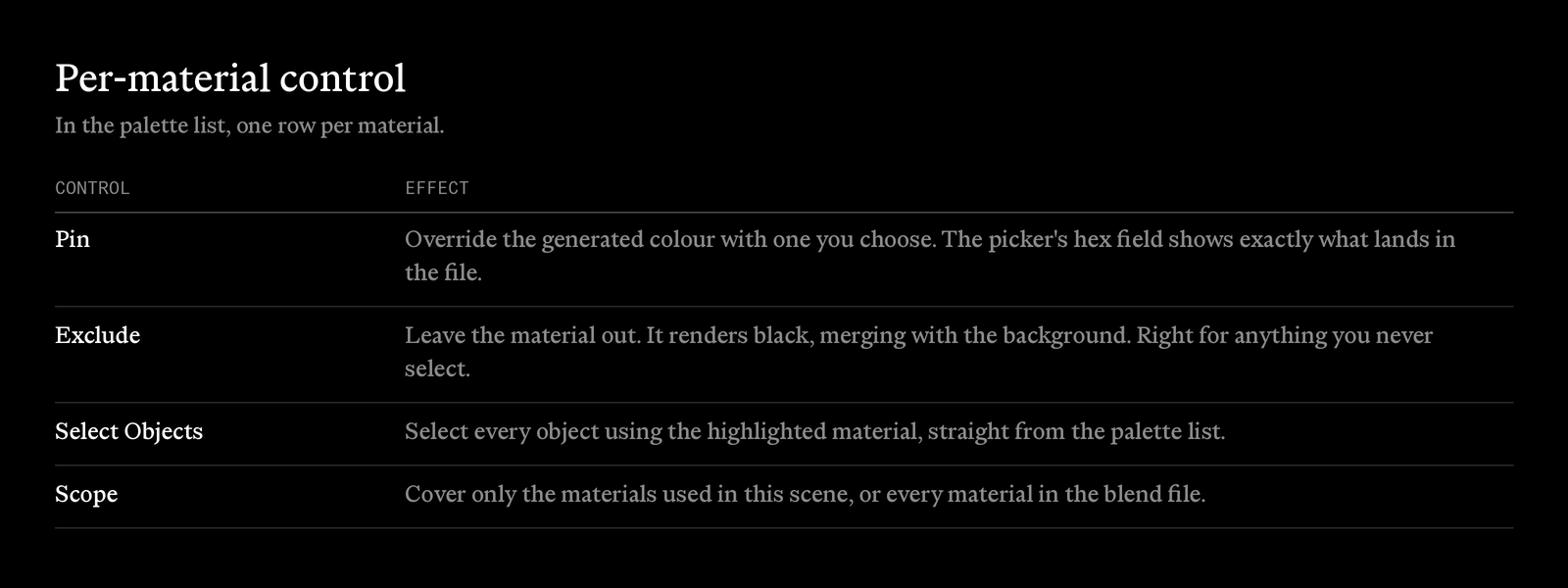
- Pin — override the generated colour with one you choose. The picker's hex field shows exactly what lands in the file.
- Exclude — leave a material out. It renders black, merging with the background, which is right for anything you never select.
- Select Objects — select every object using the highlighted material, straight from the palette list.
- Scope — cover only the materials used in this scene, or every material in the blend file.
Export
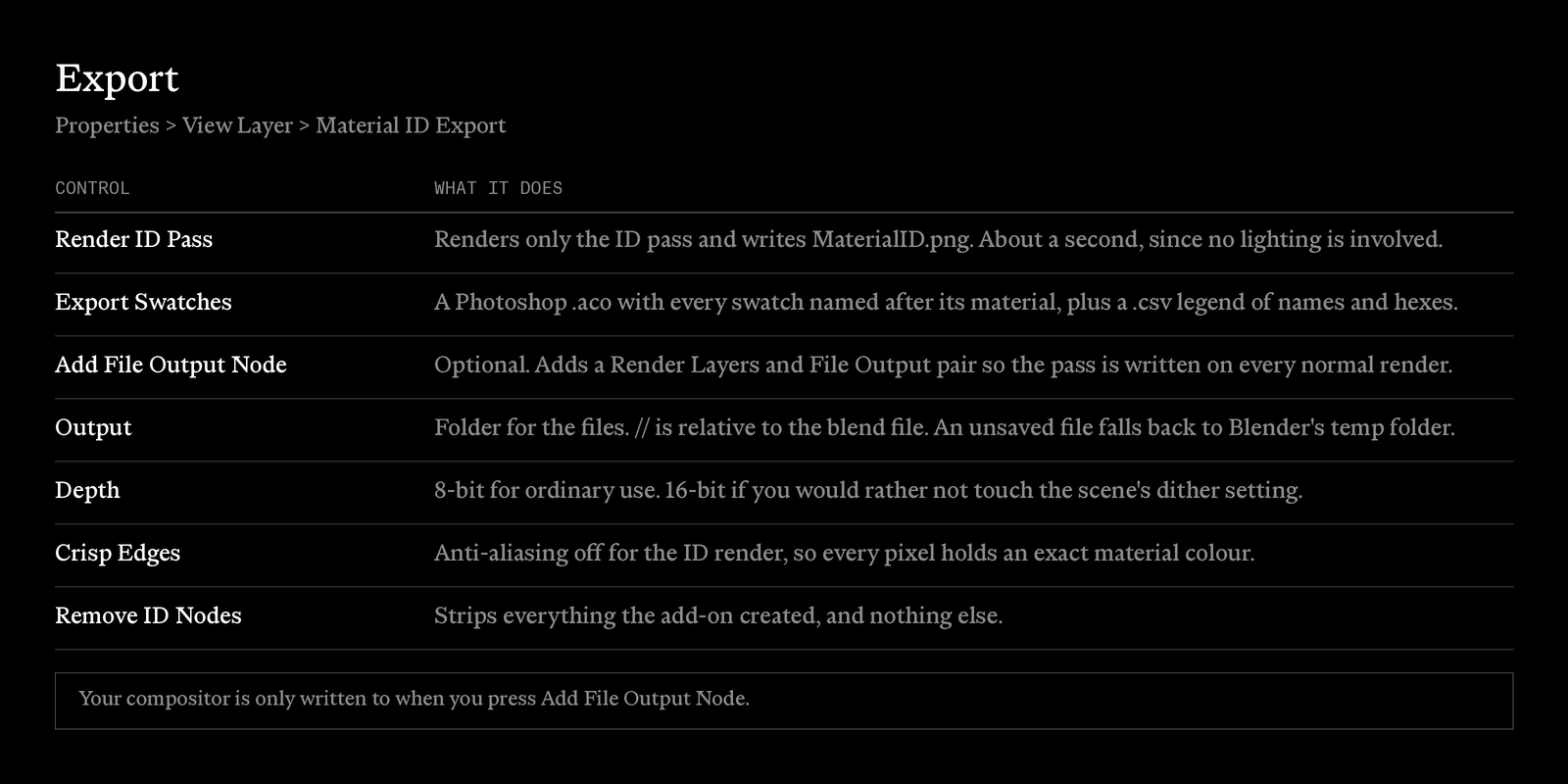
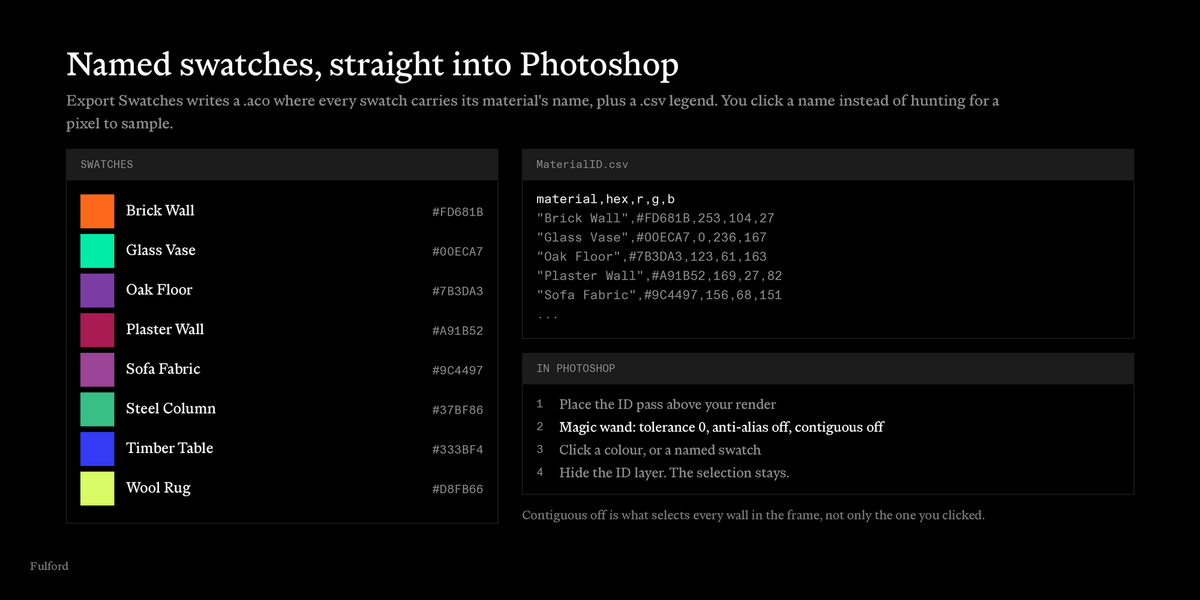
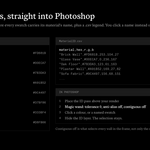
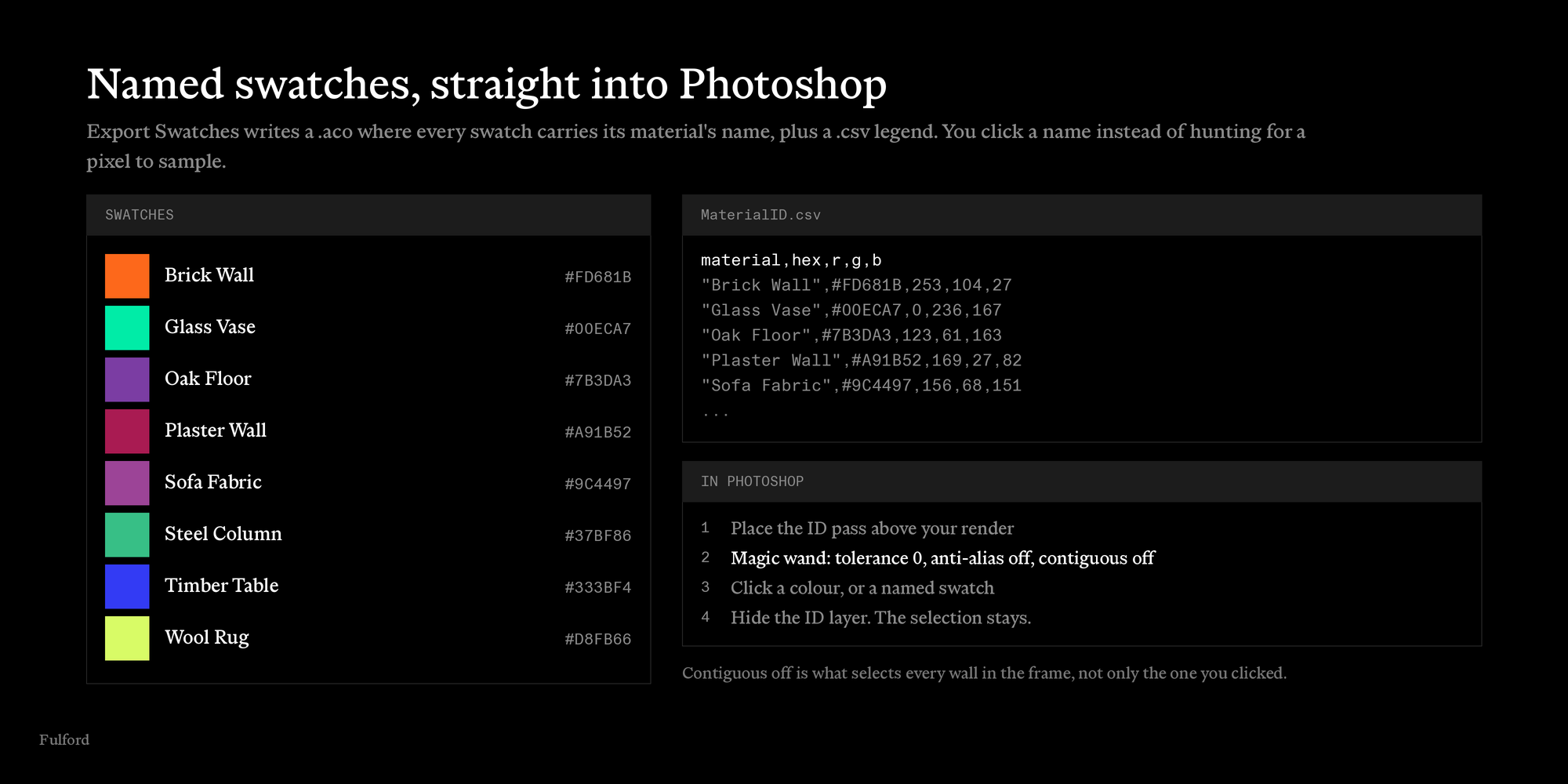
Load the .aco into Photoshop's Swatches panel and you are clicking material
names — "Brick Wall", "Oak Floor" — instead of hunting for a pixel to sample.
If you have tried this before
The three things that go wrong when people roll their own ID pass, or reach for a random-colour override:
- Colours collide. Random-colour methods hand two materials the same colour, or two so close you cannot tell them apart — and you find out in Photoshop. Here, generated colours never collide with each other or with a pin: pins are reserved first, generated ones fill in around them, and any remaining collision is resolved before the render.
- You re-render hoping for a usable palette. There is no seed and no repeatable assignment, so you roll again. Here the palette is name-hashed and deterministic, with a Seed for when you want to reshuffle on purpose.
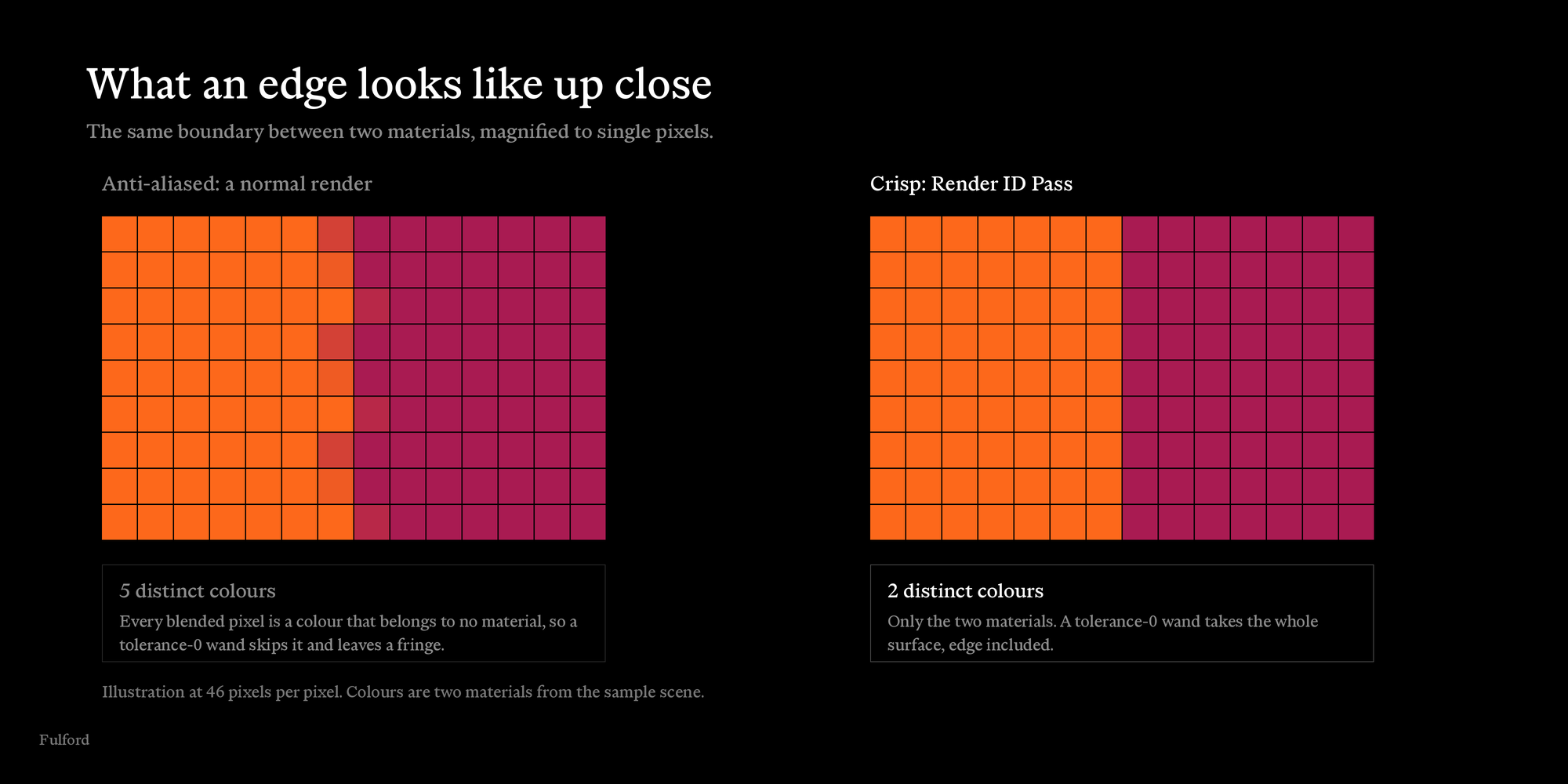
- The edges are aliased. Cryptomatte and ordinary renders both give you filtered edges, which is correct for compositing and useless for a tolerance-0 wand. Crisp Edges renders with one sample and no pixel filter, so no pixel is a blend.
Compared with the alternatives
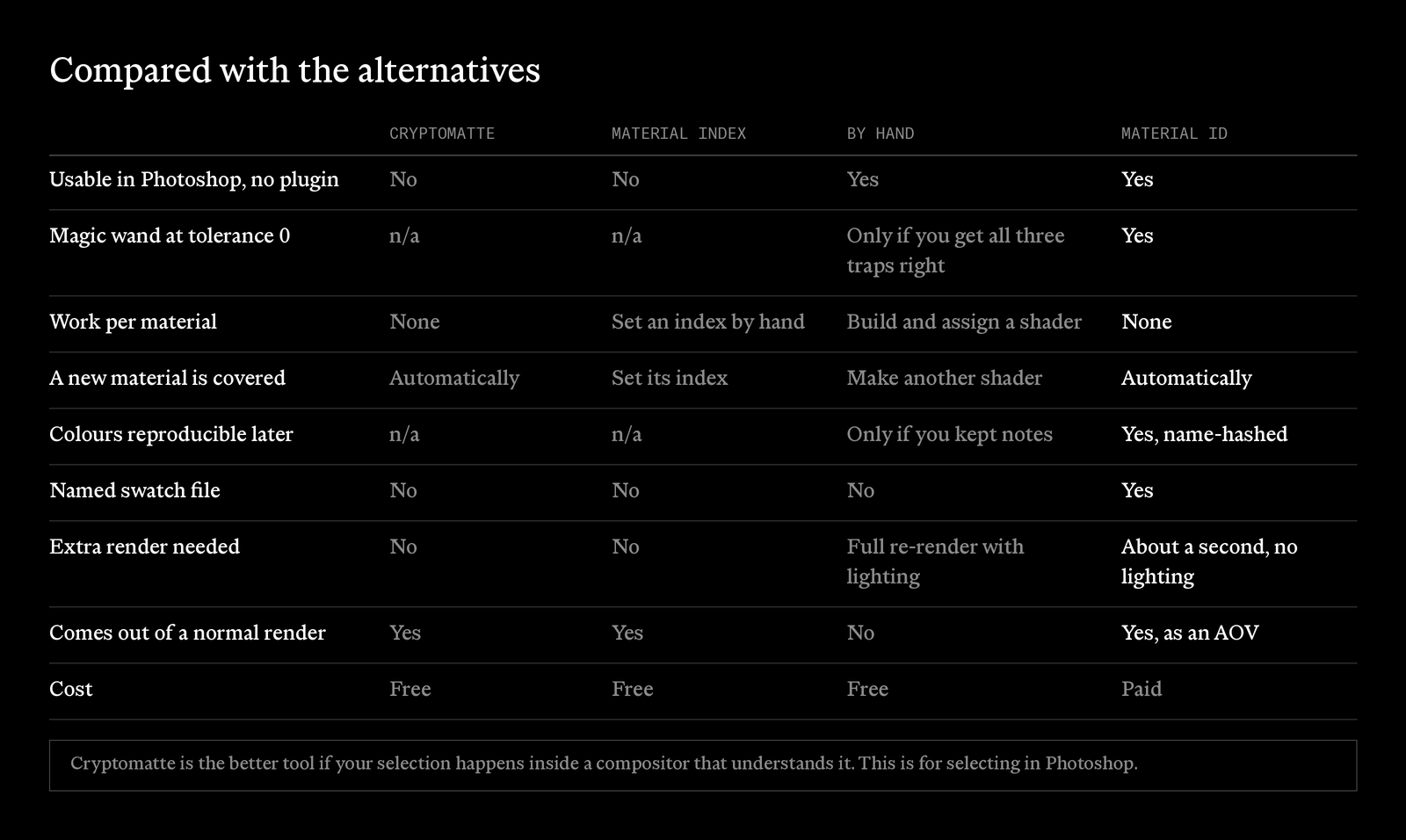
Cryptomatte is the better tool if your selection happens inside a compositor that understands it — it handles overlapping and anti-aliased coverage properly, and it is free. This add-on is for the case where the selection happens in Photoshop and you want flat colours a magic wand can grab.
Known limits
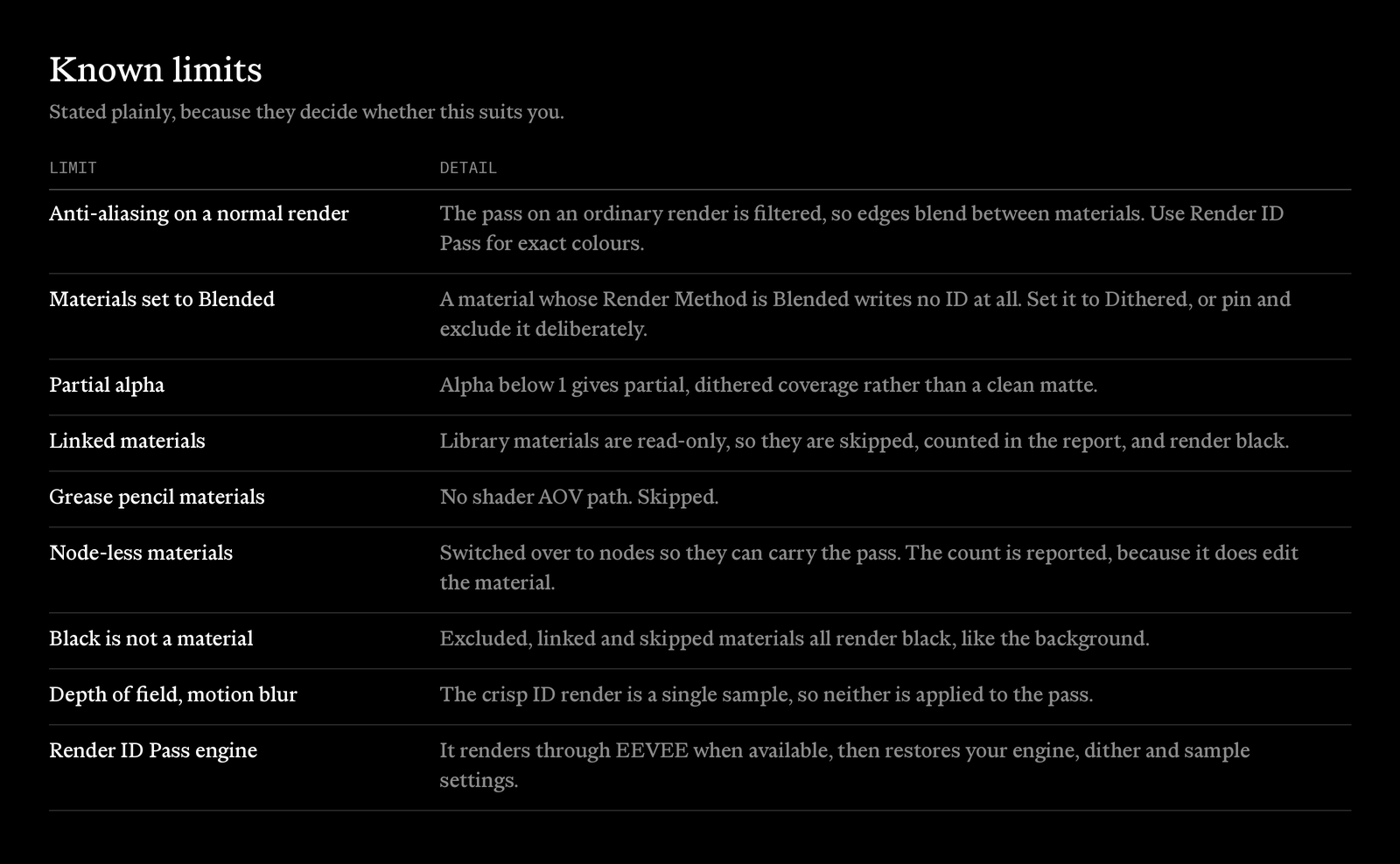
The one worth reading twice: a material whose Render Method is Blended writes no ID at all. That is a common setting for archviz glass, so a window set that way will be missing from the pass. Set it to Dithered and it appears.
Installation
- Blender ▸ Edit ▸ Preferences ▸ Get Extensions ▸ Install from Disk, and pick the zip. Or drag the zip onto Blender. If you had an earlier version, remove it first.
- Blender asks once for permission to write files. That is for the ID pass image and the Photoshop swatches.
- Properties ▸ View Layer ▸ Passes ▸ tick Material ID.
- Set Output under Material ID Export.
//matid/writes next to the blend file. -
Render ID Pass, then Export Swatches. Load the
.acointo Photoshop.
No licence key, no account, no internet connection.
Material ID 1.0.0 — by Fulford
