MatKit - Material Finder, Gallery, Swap & Cleanup Tools
 Al-Dezel



Set up in 1 minute.
Install, open the tab, and every tool explained.
1📦 Install
Drag and drop matkit.zip onto the Blender window and click OK. Don't unzip it.
Or: Edit › Preferences › Get Extensions › the ▾ menu (top right) › Install from Disk… and pick the zip.
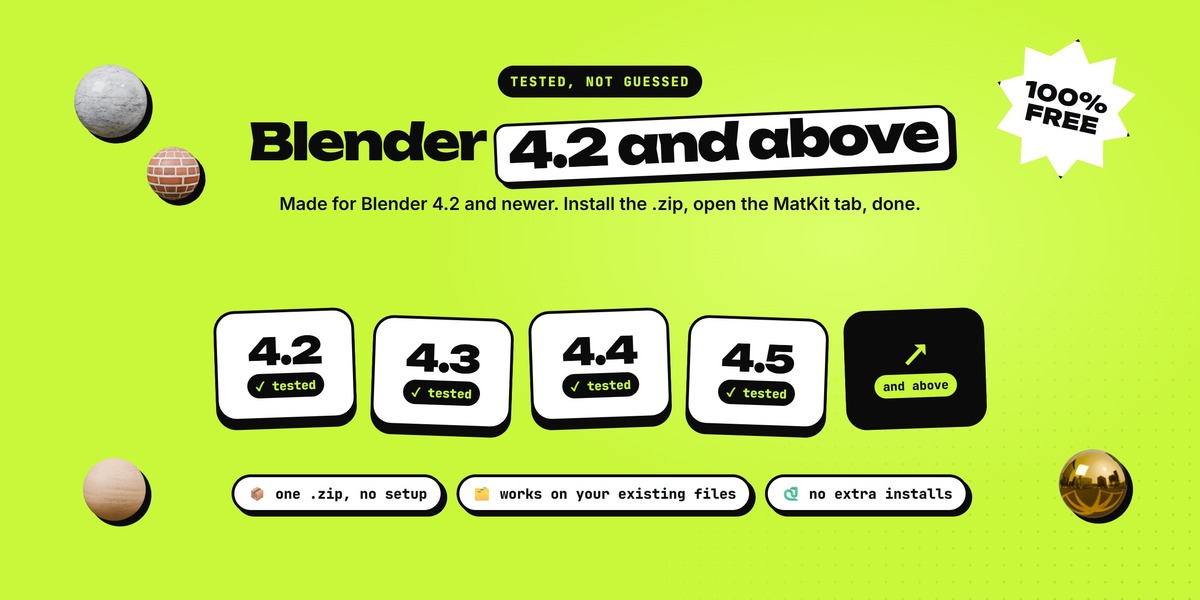
MatKit needs Blender 4.2 or newer. We tested every tool from 4.2 up to the latest Blender.
2🧭 Open the panel
In the 3D Viewport press N to open the sidebar, then click the MatKit tab.
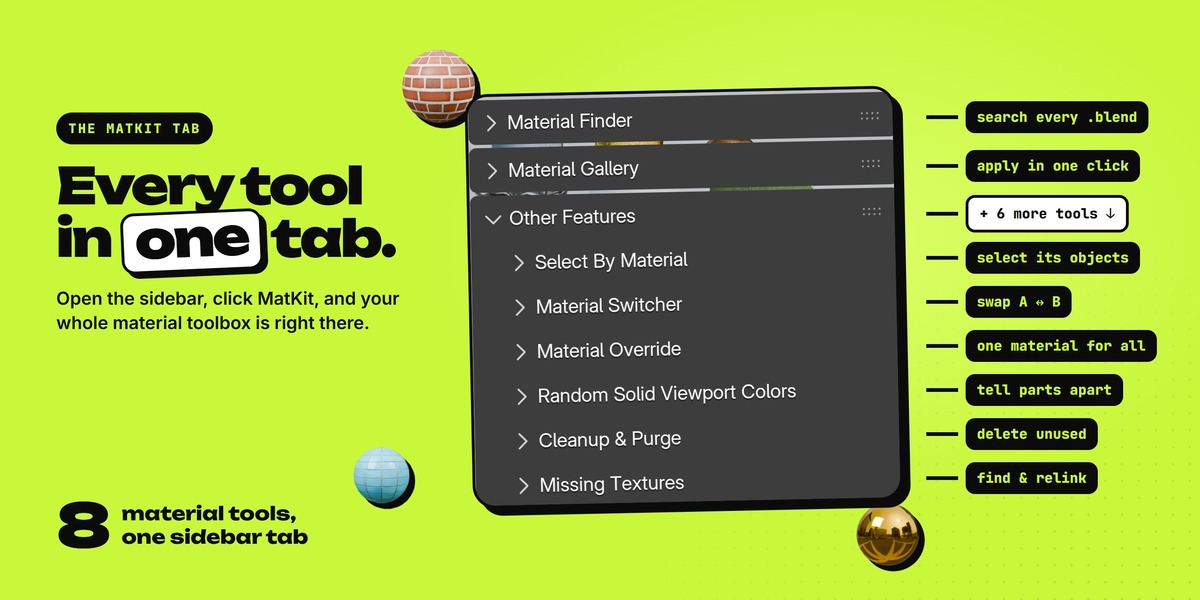
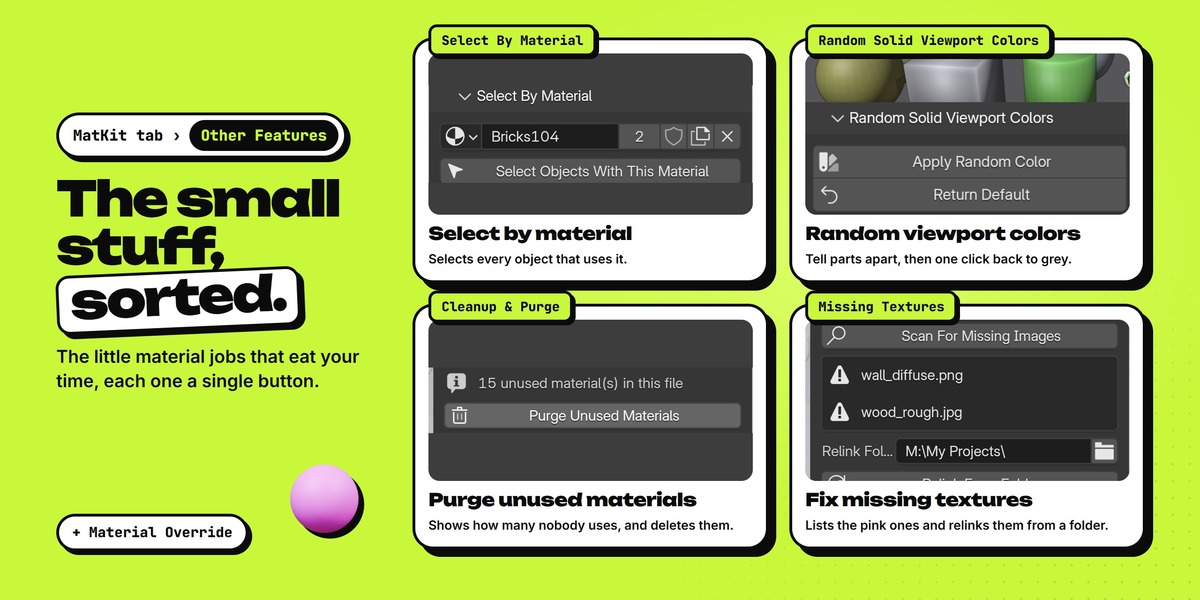
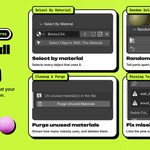
You'll see three panels: Material Finder, Material Gallery and Other Features. Other Features holds six small panels: Select By Material, Material Switcher, Material Override, Random Solid Viewport Colors, Cleanup & Purge and Missing Textures.
3🔍 Material Finder: find a material in any .blend
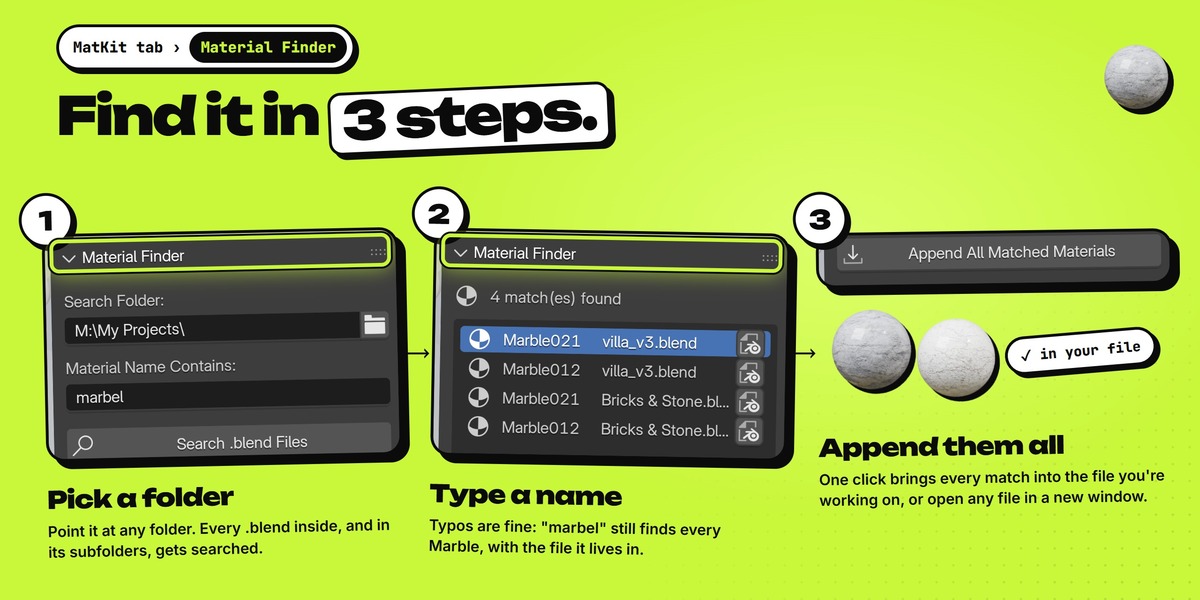
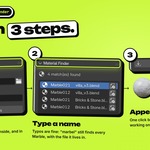
Search Folder: pick the folder with your .blend files (the 📁 button). Every .blend inside is searched, subfolders too.
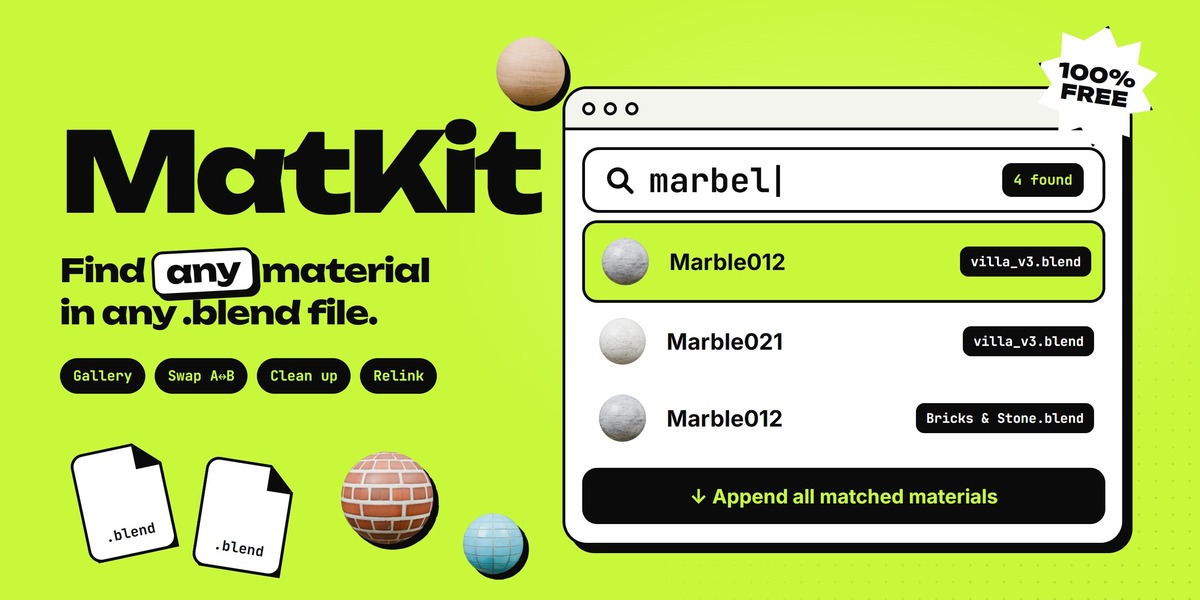
Material Name Contains: type the name, or part of it. Close matches count too, so marbel still finds Marble012.
Click Search .blend Files. A counter shows the progress; press Esc to stop.
The list shows every match and the file it's in. The small file button on a row opens that .blend in a new Blender window.
Append All Matched Materials copies every match into the file you have open. Go Back returns to the search form, and Clear Text empties both fields.
Searching only reads the files. Nothing is changed or saved in your library.
4🖼️ Material Gallery: pick and apply
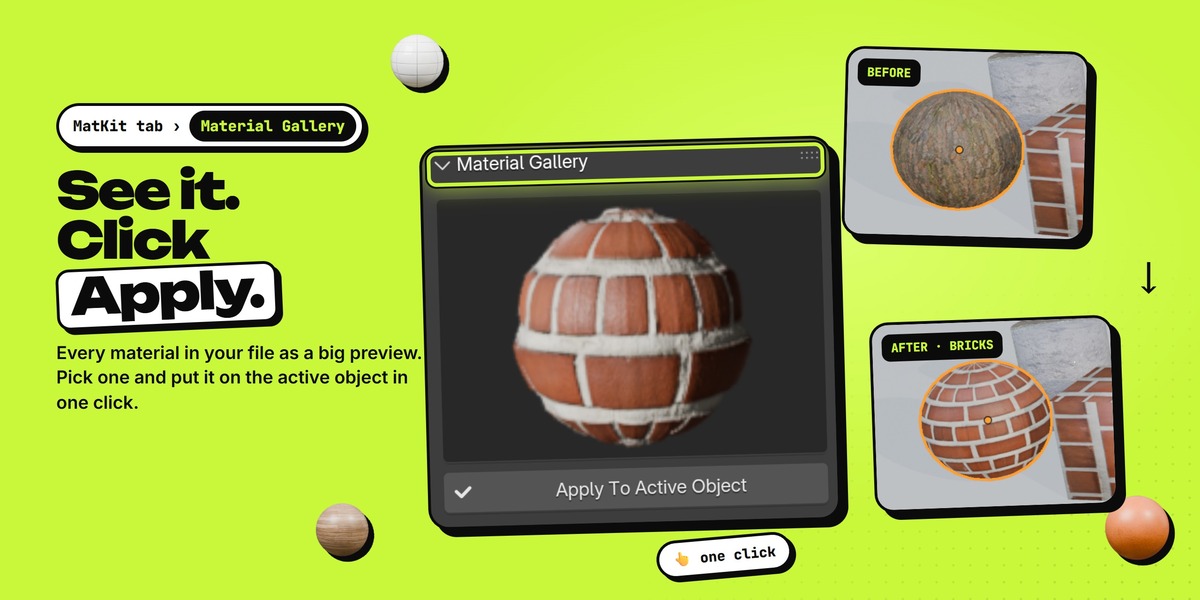
Shows every material in your current file as a big preview. Click the preview to open the grid of all materials and pick one.
Select an object and click Apply To Active Object. The material replaces the object's active slot (or is added if the object has no material yet).
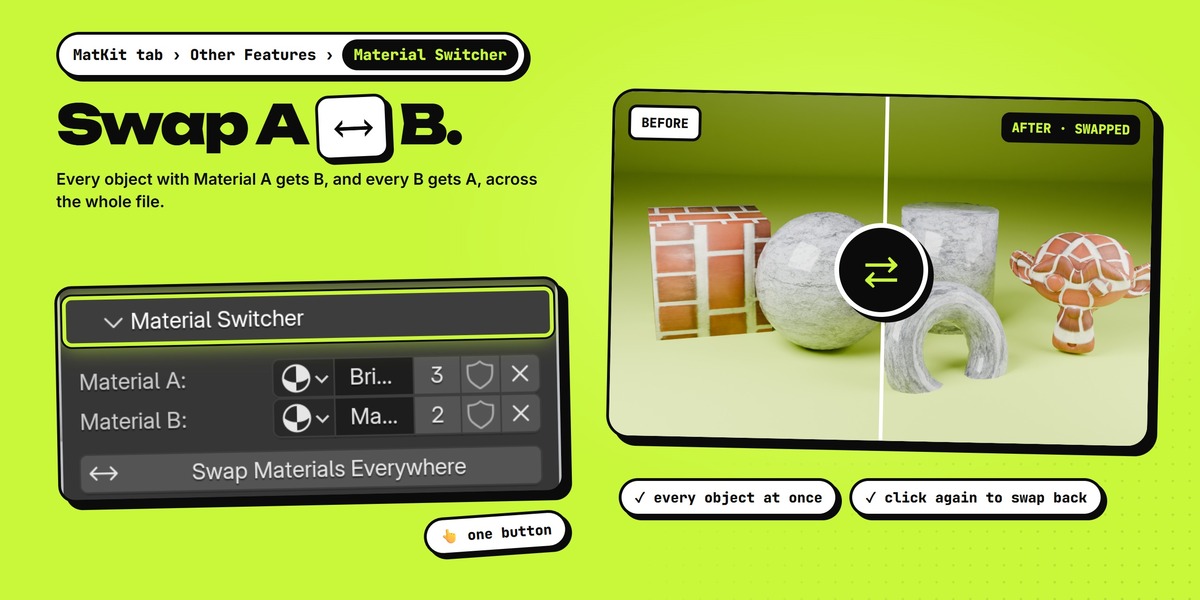
5🔁 Material Switcher: swap A ↔ B
Set Material A and Material B, then click Swap Materials Everywhere.
Every slot with A gets B and every slot with B gets A, on all objects in the file. Click again to swap back.
6🎯 Select By Material
Pick a material and click Select Objects With This Material. Every object in the view layer that uses it gets selected.
7🧱 Material Override
Sets Blender's own View Layer material override, so every surface renders with one material (handy for clay renders). Clear the field to turn it off.
Below it you get the active object's material slots and its surface settings, without going to the Properties editor.
8🎨 Random Solid Viewport Colors
Apply Random Color gives every material its own viewport color. Switch the viewport to Solid to see them. Click again for new colors.
Return Default sets them all back to grey. Only the viewport color changes, never your real material or render.
9🧹 Cleanup & Purge
Shows how many materials no object uses. Purge Unused Materials deletes them (Ctrl + Z brings them back).
10🩹 Missing Textures
Click Scan For Missing Images. Every image whose file can't be found is listed.
Set Relink Folder to where the files are now and click Relink From Folder. MatKit looks through that folder and its subfolders and relinks each image by its file name.
Images that still can't be found stay in the list.
11🛠️ Troubleshooting
“file(s) could not be read”: those .blend files were saved in a newer Blender than the one you're using. Search from that newer version instead.
“No .blend files found in that folder”: check the Search Folder path.
No MatKit tab: make sure the extension is enabled in Preferences › Add-ons, and press N in the 3D Viewport.
Relink missed an image: the file was renamed. Relink matches exact file names only.
Still stuck? Message us on Superhive or ask on our Discord.
Have questions about this product?
Login to message
| Blender Extension Compatible | Yes |
| Published | about 2 hours ago |
| Blender Version | |
| Extension Type | Add-on |
| Render Engine Used | Cycles, Eevee |
| License | GPL |
Discover more products like this
materials textures material finder Workflow material library asset management al-dezel productivity free shading cleanup material manager