MatWerk - Material Picker, Palettes and Cleanup
 WERK
WERK


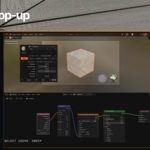
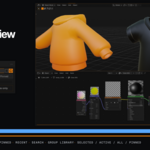
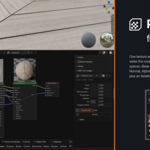
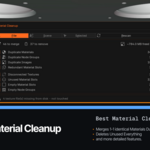
Four steps
- Download the zip from your purchase.
- In Blender: Edit > Preferences > Get Extensions.
- Open the dropdown at the top right, choose Install from Disk.
- Select the zip.
MatWerk appears in the 3D Viewport header, the Shader Editor and Properties > Material.
WERK Dark is the theme used in the screenshots. Install it under Preferences > Themes > Install if you want it. MatWerk reads whatever theme is active and does not need this one.
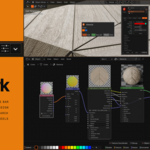
| Bar in the Shader Editor | Colour swatches and node chips |
| Shader Editor header | One toggle and a settings popover |
| Shader Editor sidebar | Colours, previews, node lists, PBR |
| 3D Viewport header | Material Picker |
| 3D Viewport sidebar | Edit Material, recent, colours, cleanup |
| Properties > Material | Compact MatWerk toolbar |
| Properties > Object Data | The same palette for lights |
Keys
Click |
Assign to the selection, or to selected faces in Edit Mode |
Shift |
Open the editor on that material |
Ctrl |
Add it to the selection as a new slot |
Alt |
Collect its colour into the palette |
Wheel |
Step through the other slots on that object |
X |
Clear the materials on the selection |
Shift is a tap, not a chord: press it while hovering and the editor is already open. Preferences > Edit Opens On can move that to a click, or switch it off. Ctrl and Alt are sticky, so the picker stays open while the key is held.
Picking does not clear your selection. The object under the cursor is added to what is already selected and made active, so what you picked out beforehand is still there for Assign and Sweep.
In Edit Mode, Blender will not let the active object change, so a material picked off another object goes to the editor on its own. The header says which object it came from and carries a button back. Assign puts the borrowed material on the selected faces.
Five tabs
| Base | Base Color, Metallic, Roughness, IOR, Alpha, Normal |
| Emit | Emission colour and strength |
| Layers | Subsurface, Specular, Transmission, Coat, Sheen, Thin Film |
| Maps | Every image in the material, with one-click open into a socket |
| All | Every group at once, each one folding away |
It reopens on the tab you left it on. Every row is the real node socket, so dragging, typing, right-click to keyframe and undo behave the way they do everywhere else in Blender.
Clicking a socket dot opens a search rather than a categorised menu. The Surface row is a search too, so the shader itself swaps through it. Once something is plugged in, the dot fills and the field names the node; the X beside it removes that node along with anything upstream that fed only it.
A linked socket carries a disclosure triangle. Opening it draws the node underneath, indented. An image texture opens into Blender's own image selector.
Every value takes Ctrl+Wheel to step it, the slot included. Plain wheel stays with scrolling.
A material with no nodes gets its three viewport values instead. An object with no material gets New, because that is exactly when you want to make one.
The popup background is the theme's Menu Back colour, which Blender uses for every popup and which an add-on cannot override. To match it to the sidebar, set Preferences > Themes > User Interface > Menu Back > Inner to the region background.
Colours
Each pinned palette gets its own row. Rows follow the palette order rather than the selection, so clicking one never rearranges the bar. The gap to the editor edge is Preferences > Bar > Edge Margin.
A palette longer than the strip scrolls. The arrows appear only on the side that still has colours behind it and each moves a screenful. Ctrl+Wheel moves a screenful, Shift+Wheel one colour, middle-drag pans the row.
Right-click is one menu per thing: a swatch opens the swatch menu, the palette button the palette menu, a chip the node menu, and bare strip the bar's own menu with new palette, presets, position, height and preferences.
Presets: Greys, Metals, Skin, Nature, Architectural, Plastic, Pastel, Neon, Warm and Cool, Earth Pigments.
Build your own: Palette From Image takes the dominant colours of an image, or one palette per image in a folder. Palette From Materials takes the colours already in the selection, scene or file. Generate Harmony does complementary, analogous, triadic, tetradic, shades and tints. Save To Library writes to disk and is reachable from every .blend. Send To Blender Palette mirrors the colours into Blender's own palette, where the paint tools can see them.
With Drag Colours In From Anywhere on, holding Alt and dragging from any colour on screen onto the bar collects it. Blender hands no drag data to add-ons, so the colour is read off the screen the way an eyedropper reads it. Switch it off in Preferences > Bar if you want Alt for something else.
Nodes
Category menus covering every shader node, plus Pinned and Recent. The nodes you actually add get promoted to a shortlist, sized by how often you add them and ordered so the most used one lands under the cursor. Usage is counted from the tree itself, so nodes added through the Add menu, Node Wrangler or a paste count too. Either half of the bar can be switched off, and Ctrl+Shift+B hides the whole thing.
Ctrl+Shift+P
The switch also turns Blender's experimental preference on, and puts it back when switched off.
Where they show: Selected, Active, All or Pinned. A pinned node keeps its preview after losing the selection. Max Previews is in Preferences > General and defaults to 16, because each preview is its own render job.
When nothing shows, the panel says why: World shading, a non-Cycles engine, or overlays hidden.
Select an Image Texture node, press Generate PBR
Outputs: Base Color, Roughness, Metallic, Normal, Alpha, Height, AO, Normal Map (raw colour, for baking) and Displacement.
At the top: Scale, Height, Normal Strength, Roughness, Metallic, AO and Parallax Offset. The rest sits in collapsed panels on the group and under More in the sidebar.
Parallax quality is Low 4, Medium 8 or High 12 steps, one texture sample each. Parallax Offset at 0 turns it off.
The normal is derivative based from three samples, with Normal Size as the sampling distance in texels. AO comes from the difference between the centre sample and four neighbours plus luminance. Remove Shadows divides out baked-in lighting.
Changing the image at the top updates every sampler in the group. Parallax On/Off and Quality rebuild the group and carry the slider values over. The X turns it back into a plain Image Texture.
Analyse, read, then apply
Analyse and Clean shows a summary first, with the detail optional. After applying, every change is written to a text datablock named MatWerk Cleanup Log.
Two materials count as duplicates only when all of this holds:
- every RNA property matches, including add-on registered ones;
- the node tree hashes the same structurally, independent of names and layout;
- colour ramp stops, curve handles and node group contents match recursively;
- images match by resolved path and, optionally, by pixel content;
- the pair passes exact graph isomorphism.
Merging materials orphans the textures only they used, so passes run until the file stops changing.
Categories: duplicate materials, node groups and images; disconnected textures; redundant, unused and empty material slots; empty node groups; unused materials, node groups and images; missing files, which are reported only.
To protect something, put its name or name prefix under Options > Never Touch. Fake-user materials, assets and linked data are never touched.
A slot counts as used when a modifier points at it. A Bevel's Material Index, a Solidify or Wireframe offset, a Boolean keeping the operand's index, a Geometry Nodes tree that reads or writes one, and a particle system's render slot all keep their slot. Removing a slot renumbers every slot above it and nothing renumbers a Material Index to match, so once a modifier pins slot n, everything up to n stays put too.
Sweep, material tools, Shader Editor button
Sweep holds one material and hands it to whatever the cursor crosses while the left button is down. No selection change, no active object change, and one stroke is one undo step. Crossing the same object twice inside a stroke does nothing the second time, so a mistake is painted over rather than undone. Linked objects are counted and left alone. Object Mode only for now; Esc or right-click ends it.
Recent Materials reassigns in one click, Ctrl+click only makes it active. Select Users selects every object using the material, or the faces in Edit Mode, and Shift extends the selection. Replace Material swaps every user of A for B, across the file or only the selection, optionally deleting the old one.
The Shader Editor button splits the viewport you are looking at and puts a node tree under it, then merges it back when pressed again. Preferences > Shader Editor Opens As can make it a window of its own instead, and Shader Editor Height sets how much of the viewport the split half takes.
Shortcuts
Shift+Q |
3D Viewport | Material Picker, and the editor inside it |
Ctrl+Shift+Q |
3D Viewport | Material from an image |
Shift+Q |
Shader Editor | Quick colour and node popup |
Ctrl+Shift+P |
Shader Editor | Node previews on and off |
Ctrl+Shift+B |
Shader Editor | Palette bar on and off |
All of them are editable under Preferences > Keymap.
Files on disk
Palettes saved to the library, saved node groups and node usage statistics live in Blender's user config folder under matwerk/. Nothing else is written outside the .blend, and there is no network access.
Support, updates, licence
Questions and bug reports go through the Superhive inbox on this product page. Updates are free for the life of the product and appear in your downloads.
GPL-3.0-or-later. No licence key, no activation, no phoning home.
Have questions about this product?
Login to message
Discover more products like this
Material Picker Shader material manager color-palette Node Editor cleanup texture Material productivity Workflow node palette PBR