MaxBlend Object Transfer
 Phatarian
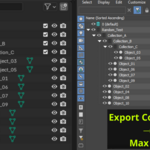
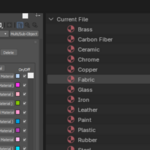
MaxBlend Object Transfer
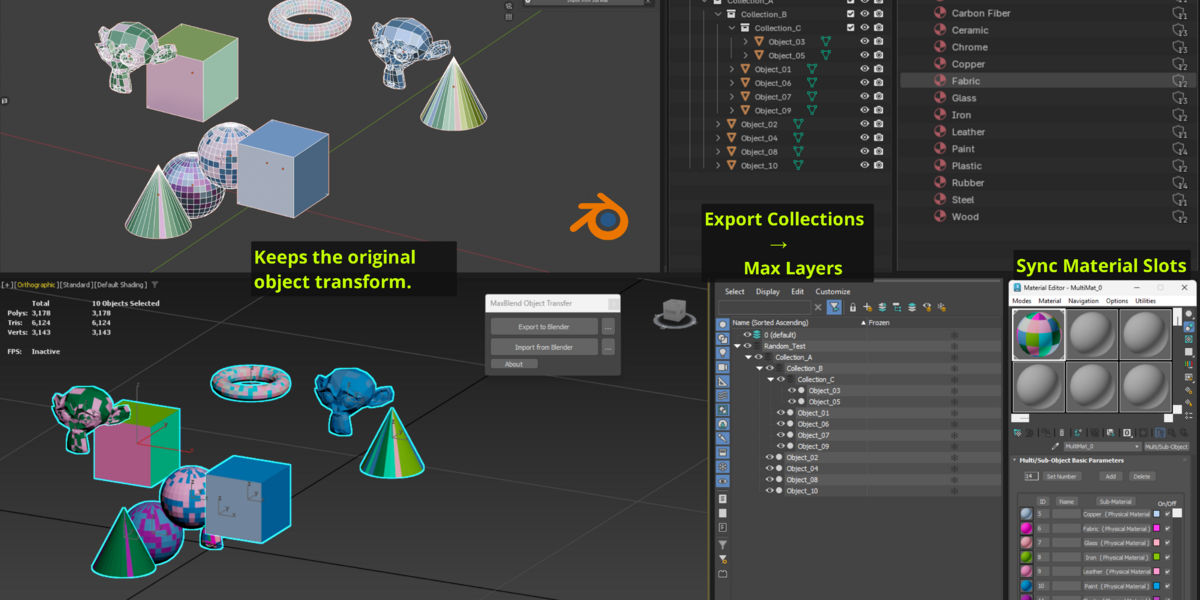
MaxBlend Object Transfer is a Blender ↔ 3ds Max workflow tool designed to simplify FBX-based object transfer while preserving important scene information such as Collections, Layers, Materials, Material IDs, transforms, and smoothing data.
1. Requirements
Blender
Blender 2.80 or newer
Windows recommended
3ds Max
3ds Max with MaxScript support
FBX workflow
2. Installation
Blender Add-on
Download the MaxBlend Blender package.
Open Blender.
Go to:
Edit → Preferences → Add-ons
Click Install...
Select the MaxBlend
.zipfile.Enable MaxBlend Object Transfer.
The MaxBlend panel is available in:
3D Viewport → Sidebar (N) → MaxBlend
3ds Max
Extract the MaxBlend 3ds Max package.
Run the included MaxScript.
Follow the installation instructions included with the package.
3. Exchange Folder
MaxBlend uses an exchange folder to transfer data between Blender and 3ds Max.
Default:
C:\MaxBlend\Exchange
The folder can be changed from the Blender add-on Preferences.
The exchange folder contains the temporary FBX and manifest data used during the transfer process.
4. Blender → 3ds Max
Select the objects you want to transfer and open:
3D Viewport → Sidebar → MaxBlend → Export
MaxBlend exports the selected Blender objects to FBX together with the required manifest information.
Depending on the enabled options, the transfer can include:
Object hierarchy
Collection structure
Materials
Material slot order
Material IDs
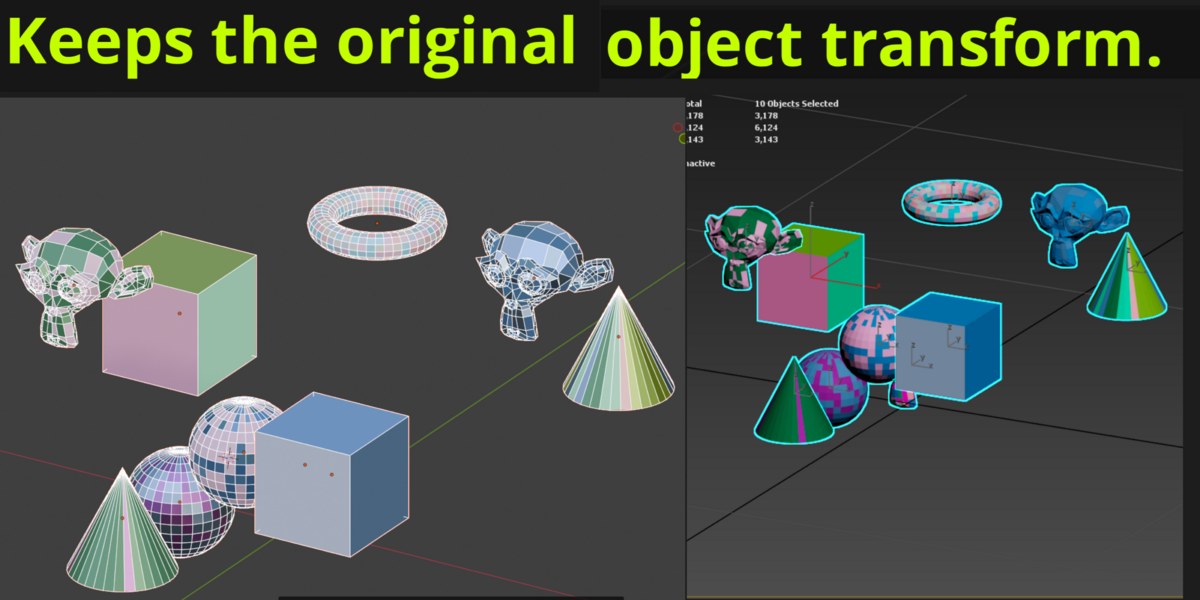
Object transforms
Modifiers
Triangulation
Smoothing / hard-edge information
5. 3ds Max → Blender
After working on the transferred objects in 3ds Max, use the MaxBlend import workflow to send the objects back to Blender.
MaxBlend reads the associated manifest data and restores supported scene information.
This allows Blender to remain the main source scene while 3ds Max can be used as part of the modeling or processing workflow.
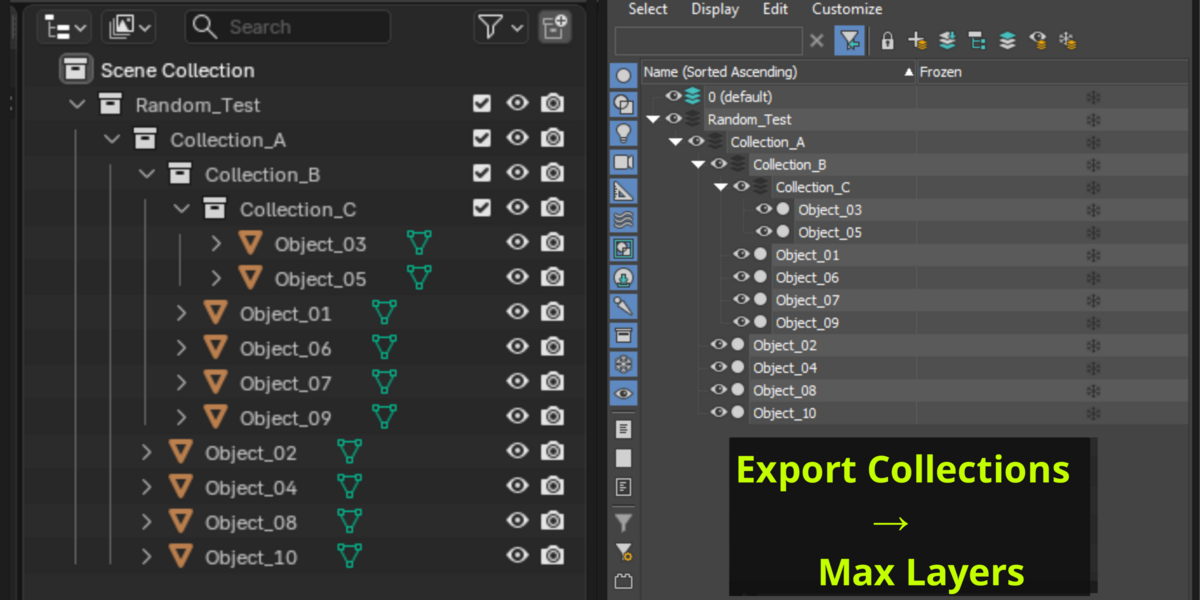
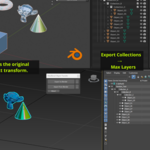
6. Collection ↔ Layer Synchronization
MaxBlend provides a mapping between:
Blender Collections ↔ 3ds Max Layers
When exporting a Blender scene, Collection information is stored in the transfer data.
When importing the result back into Blender, MaxBlend can use this information to restore the corresponding Collection structure.
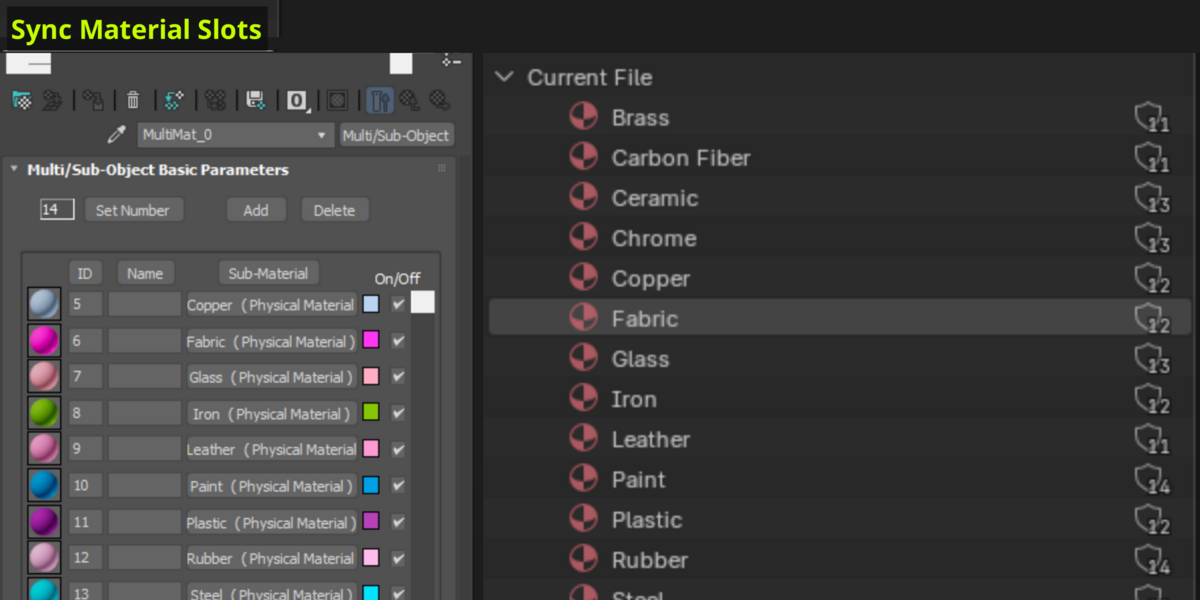
7. Material Slot & Material ID Synchronization
MaxBlend can synchronize Blender Material Slots with 3ds Max Material IDs.
The synchronization process can:
Remove unused material slots
Preserve material slot order
Match material assignments
Keep Material IDs consistent between Blender and 3ds Max
This is especially useful when the same asset needs to move repeatedly between Blender and 3ds Max.
Why material slot order matters
Blender and 3ds Max use different representations for material assignments.
MaxBlend uses the material slot order as part of the synchronization process so that a face assigned to a specific Blender material can correspond to the expected Material ID in 3ds Max.
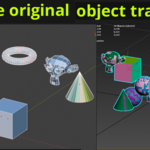
8. Transform Options
MaxBlend provides options for applying transforms during export.
Supported workflow options include:
Apply Transform
Preserve object transforms
World-space transfer
Choose the transform workflow according to whether the receiving scene needs the objects in local or world coordinates.
9. Modifier & Triangulation Options
MaxBlend can optionally apply modifiers before exporting.
Apply Modifiers
Use this when the evaluated geometry needs to be transferred instead of the original modifier stack.
Triangulate
Use this when consistent triangle topology is required for the transfer or downstream workflow.
10. Smoothing and Hard Edges
MaxBlend preserves supported smoothing information during the Blender ↔ 3ds Max workflow.
The goal is to maintain the intended hard and smooth surface transitions when the object moves between applications.
For production assets, always verify the resulting shading after import because Blender and 3ds Max use different internal representations for smoothing information.
11. World Rescale
MaxBlend supports world-scale conversion during import.
This is useful when Blender and 3ds Max scenes use different unit scales.
The imported objects can be rescaled while maintaining their relative scene structure.
12. Manifest Data
MaxBlend uses a manifest to store information that cannot reliably be represented by FBX alone.
The manifest can contain information such as:
Collection hierarchy
Object information
Material assignments
Material slot order
Face material indices
Transfer metadata
The manifest works together with the FBX file to reconstruct supported Blender scene information during the return transfer.
13. Recommended Workflow
A typical workflow is:
Blender
   ↓
Select Objects
   ↓
MaxBlend Export
   ↓
FBX + Manifest
   ↓
3ds Max
   ↓
Model / Edit / Process
   ↓
MaxBlend Export
   ↓
FBX + Manifest
   ↓
Blender
   ↓
Restore Scene Structure
For production work, keep the original Blender scene as the source scene and use MaxBlend as the bridge between Blender and 3ds Max.
14. Troubleshooting
Objects are missing after import
Check:
FBX file exists in the Exchange Folder
The correct Exchange Folder is configured
The objects were included in the export selection
The corresponding manifest is present
Materials are assigned to the wrong IDs
Check:
Material slot order
Unused material slots
Material synchronization settings
Material IDs in 3ds Max
For consistent results, synchronize material slots before transferring the asset.
Scale is incorrect
Check the World Rescale / unit settings on import.
Make sure Blender and 3ds Max are using the expected scene scale.
Collection structure is not restored
Check that the transfer was performed using the MaxBlend workflow and that the corresponding manifest data is available.
15. Best Practices
For reliable production transfers:
Keep Blender as the source scene.
Use consistent material names.
Avoid unnecessary material slot changes in 3ds Max.
Keep the FBX and manifest from the same transfer together.
Verify scale before transferring large scenes.
Test smoothing on representative assets before processing an entire production batch.
Use material synchronization when Material IDs need to remain consistent.
16. License
MaxBlend Object Transfer is distributed under the GNU General Public License v3.0 or later (GPL-3.0-or-later) for the applicable source code.
The MaxBlend name, branding, logos, documentation, and other non-code assets may be subject to separate rights and terms.
See the included LICENSE file for the complete license text.
17. Support
For updates, product information, and support resources, visit the official MaxBlend product page.
Product: MaxBlend Object Transfer
Developer: Phatarian
-
$3.90
For individual artists and freelancers. Full features, commercial use, 1 user.
-
$10.90
For small teams and studios. Full features, commercial use, up to 10 users.
-
$39.90
For larger studios and companies. Full features, commercial use, unlimited users.
Have questions about this product?
Login to message
| Dev Fund Contributor | |
| Published | 4 days ago |
| Blender Version | 4.0 - 5.1 |
| Extension Type | N/A |
| License | GPL |
Discover more products like this
3dsMaxToBlender 3dsmax export industrial bridge 3DsMax BlenderTo3dsMax 3dsmax-import