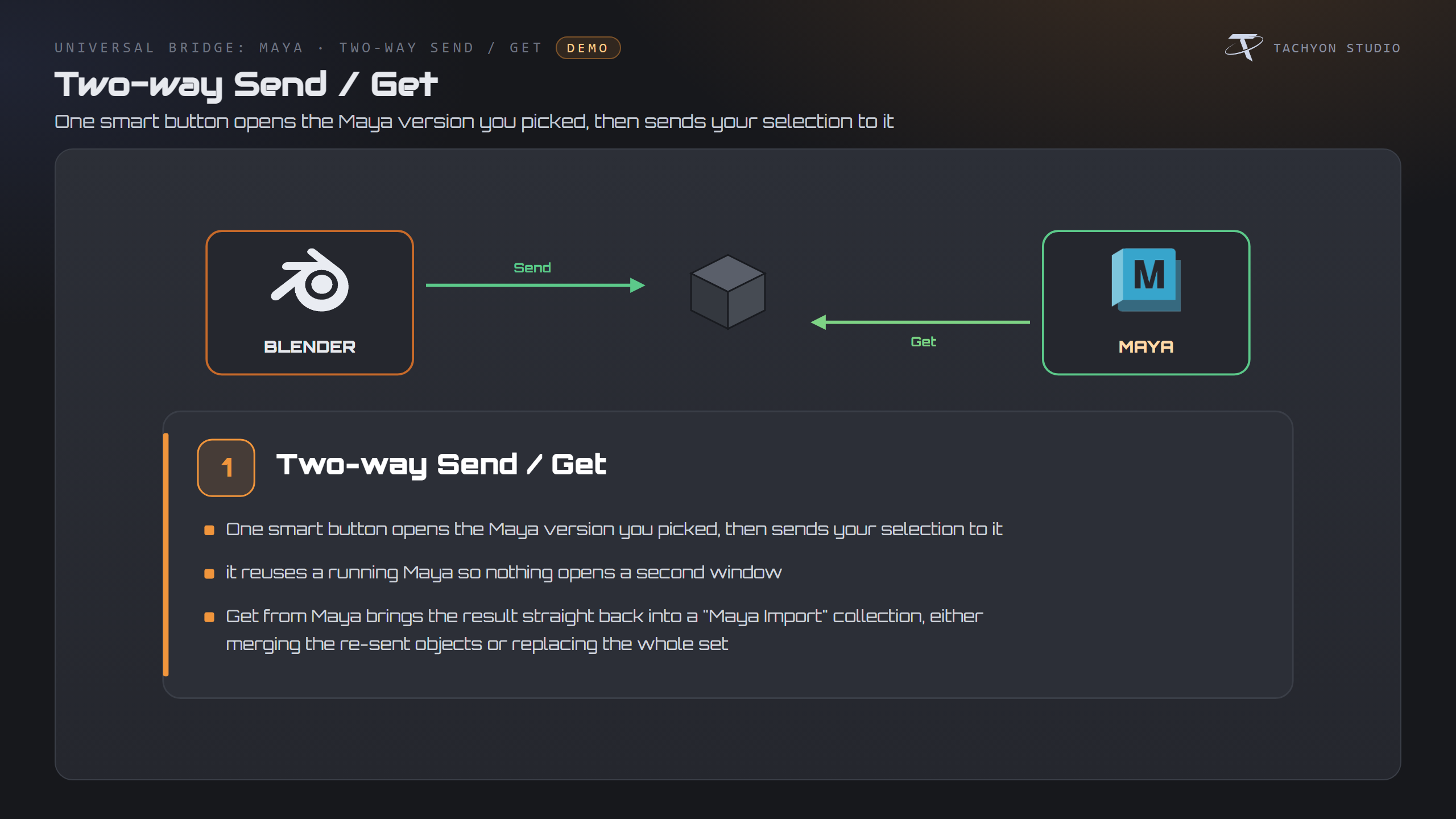
A two-way bridge between Blender and Maya. Send your selection to Maya, keep working, and get the result back onto your Blender scene — without exporting or importing FBX by hand. It reuses a running Maya (and launches the exact version you pick), cleans meshes up on the Maya side as they land, and can sync hands-free while you work. On Get you decide what returns: everything, just the mesh, or just the UVs.
Requirements - please read before buying
-
Windows only. The add-on detects and launches Maya through Windows paths and processes. macOS and Linux are not supported.
-
Blender 3.3 - 5.2 - Extension on 4.2+, classic add-on on 3.3-4.1.
-
Autodesk Maya is required and sold separately. You need your own licensed copy from Autodesk. No Autodesk Maya licence is included with this product - it is the Blender-side bridge only, and is not affiliated with, endorsed by, or a reseller of Autodesk.
-
through a shared temp folder.
-
Network: none. Blender and Maya exchange files on your own machine - the add-on opens no network connection.
Installation
Blender 4.2+ (Extension): Edit ▸ Preferences ▸ Add-ons ▸ drop-down ▸ *Install from Disk…* → pick universal_bridge_maya-x.x.x-blender4.2-5.2.zip, then enable it. Blender 3.3–4.1: Edit ▸ Preferences ▸ Add-ons ▸ *Install…* → pick universal_bridge_maya-x.x.x-blender3.3-4.1.zip.
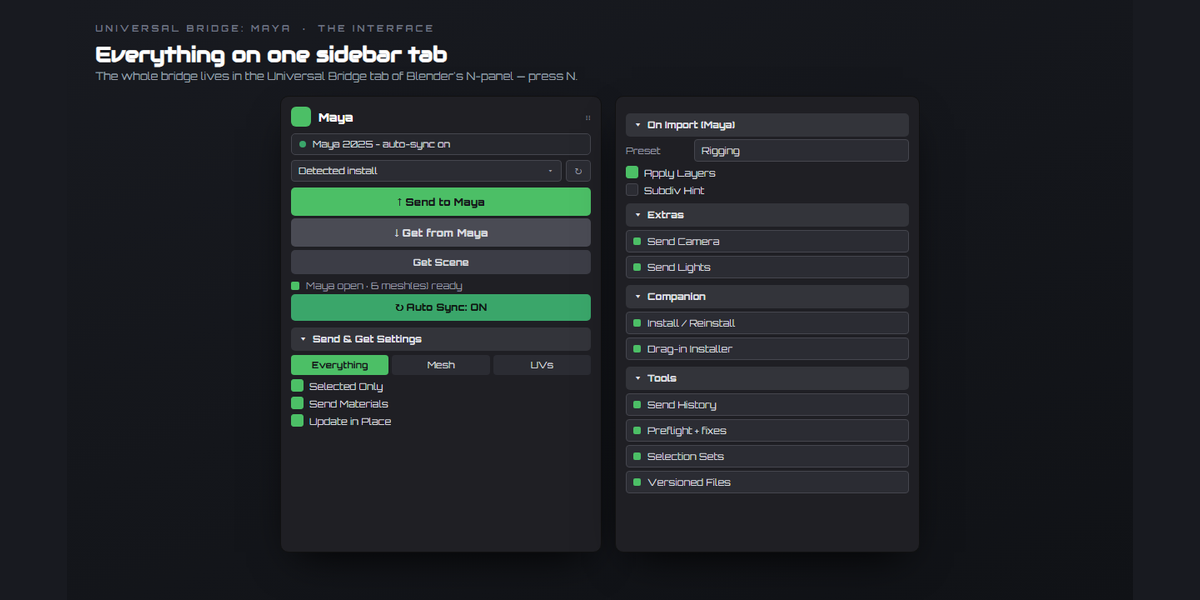
The panel is in the 3D Viewport sidebar (press N) under the Universal Bridge tab. Open the add-on preferences and check the Version dropdown — it lists the Maya installs found on this machine; pick one, or set the executable by hand.
Maya-side setup (one-time)
Two-way sync needs a small companion module (tachyon_maya_bridge.py) on Maya's script path. Pick either route from the add-on preferences:
-
A) Install / Reinstall — writes the module and a
userSetup.py hook into
your Maya scripts folder (Documents/maya/scripts by default, or a custom folder set in prefs — it must be on Maya's script path). Restart Maya once.
-
B) Drag-in Installer — click Drag-in Installer, then drag
DRAG_INTO_MAYA.py into Maya's viewport.
Either way, a Blender Bridge panel opens in Maya with its own Send / Get buttons and an Auto-Watch toggle. Uninstall Maya Script removes the module and strips the hook again.
Sending Blender → Maya works even before this setup (the bridge just launches Maya and it picks up the file on boot); the companion script is what enables live two-way sync and on-import processing.
Getting started
- Select mesh objects.
- Click the smart button — Open Maya launches the version you picked; once
it's open the same button becomes Send to Maya.
- Model / edit in Maya.
- Click Get from Maya — or turn on Auto Sync and skip this step.
Send to Maya
The top button is keyed to the Maya version chosen in the dropdown. If that version isn't open it launches it (you can open a different version alongside one that's already running); once it's open, the button sends your selection to it. A running Maya is reused only when its bridge watcher is actually alive, so a crashed Maya never silently swallows a send. A warning appears if your scene Unit Scale is not 1.0, since transfers can arrive scaled.
Get from Maya — and what comes back
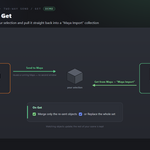
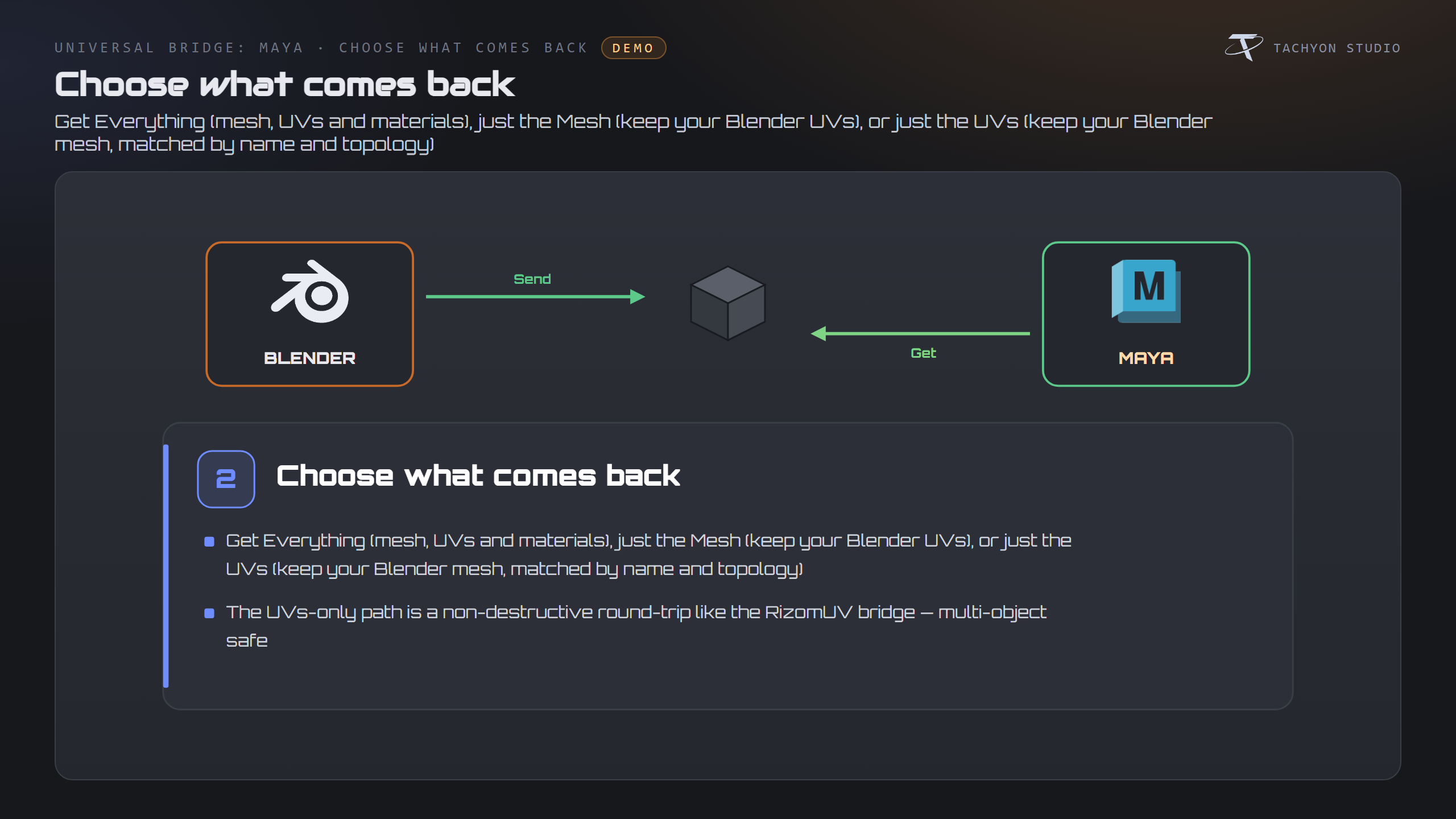
Get from Maya imports whatever Maya last sent. The Get toggle chooses:
| Mode |
What it does |
| Everything |
Replace your objects with Maya's version — mesh, UVs and materials. |
| Mesh |
Bring back Maya's geometry, keep your existing Blender UVs. |
| UVs |
Bring back only Maya's UVs onto your existing mesh (a RizomUV-style round-trip). |
Returned objects are matched to your originals by name and topology, so a UVs- or Mesh-only Get on several objects pairs up 1:1. On Get you can also choose to Update (keep others) — refresh only the re-sent objects — or Replace all in the Maya Import collection.
On Import (Maya)
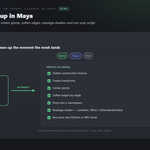
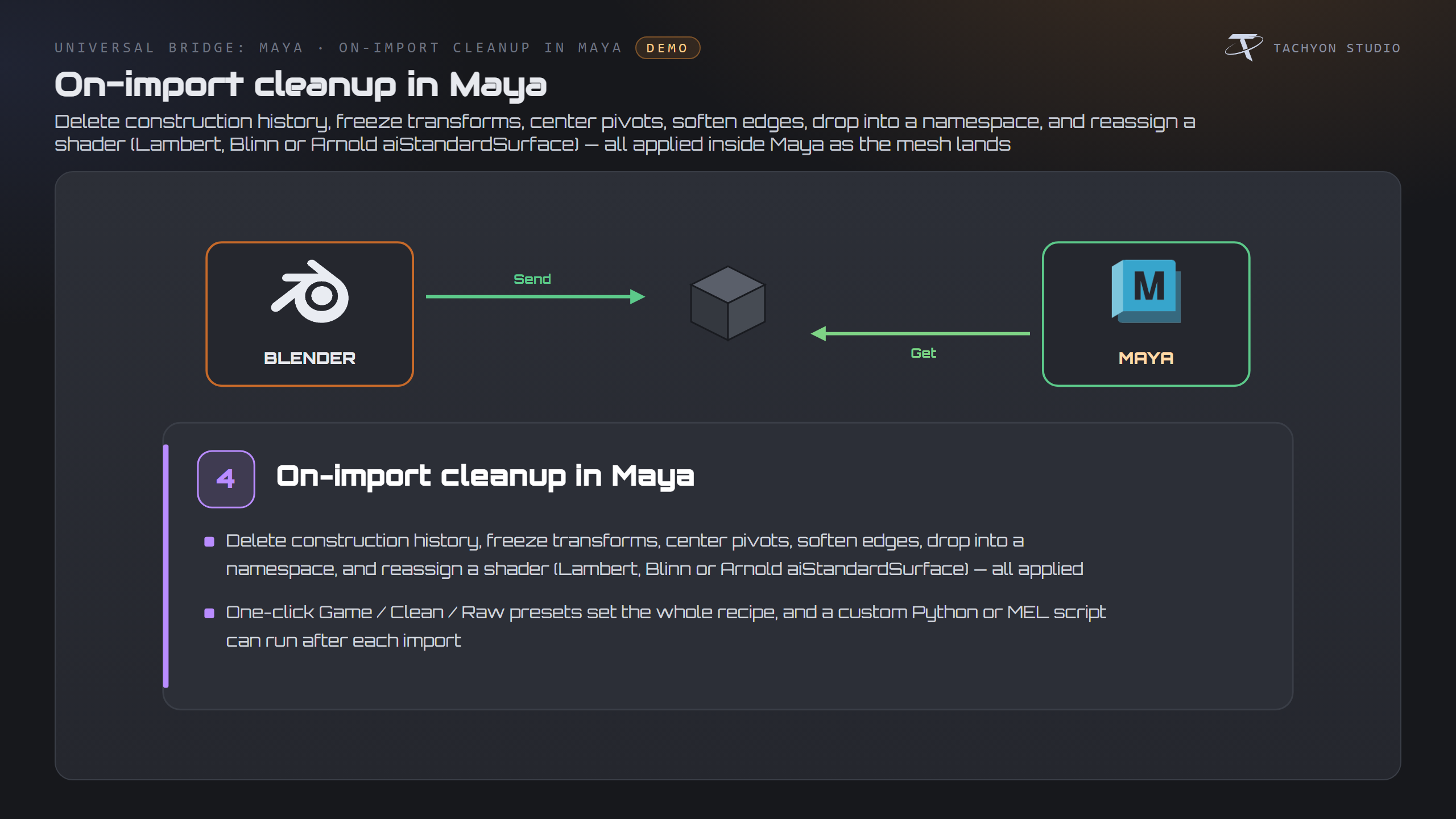
Steps applied inside Maya as each mesh lands (companion script required):
-
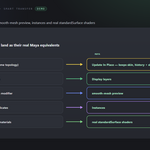
Preset — Game (delete history + freeze + soften + center pivot), Clean
(delete history + center pivot), or Raw (untouched).
-
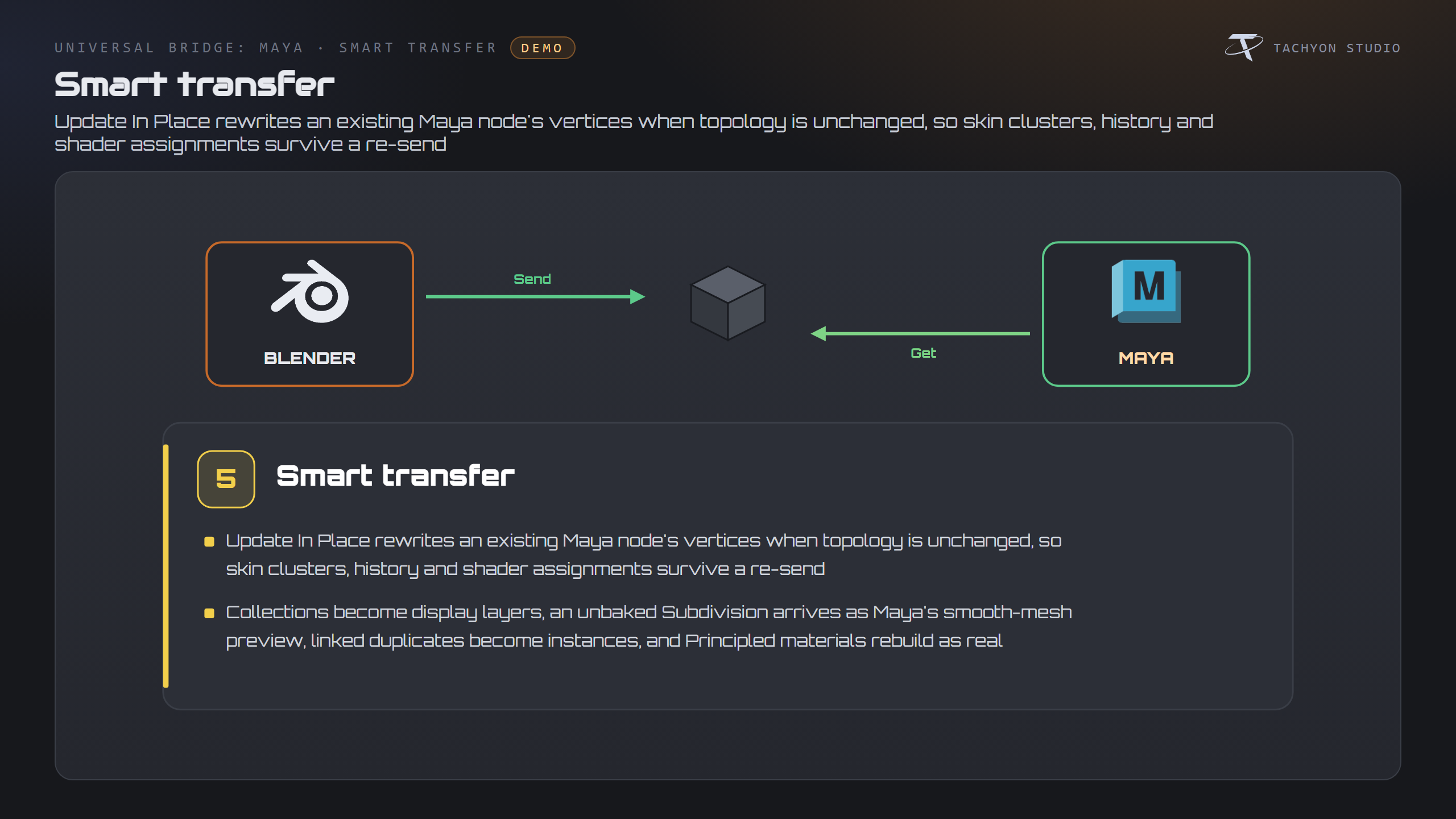
Update In Place — when a re-sent mesh has unchanged topology, Maya updates
the existing node's vertices instead of replacing it, so skin clusters, history and shader assignments survive.
-
Collections as Display Layers — recreate each object's Blender collection as
a Maya display layer.
-
Subsurf as Smooth Preview — objects with an unbaked Subdivision modifier
arrive with Maya's smooth-mesh preview (3-key) at the same level, not dense baked geometry.
-
Rebuild PBR Materials — a Principled-BSDF sidecar lets Maya rebuild real
standardSurface materials (colour, metallic, roughness, textures) instead of FBX's mangled ones.
-
Delete History, Freeze Transforms, Center Pivot, Soften Edges.
-
Shader — Keep Imported, or assign a fresh Lambert, Blinn or Arnold
aiStandardSurface.
-
Namespace — import into a Maya namespace (created if needed).
-
Custom Script — a
.py or .mel file run in Maya after each import.
Send & Get settings
-
On Get — Update (keep others) or Replace all.
-
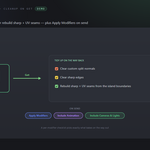
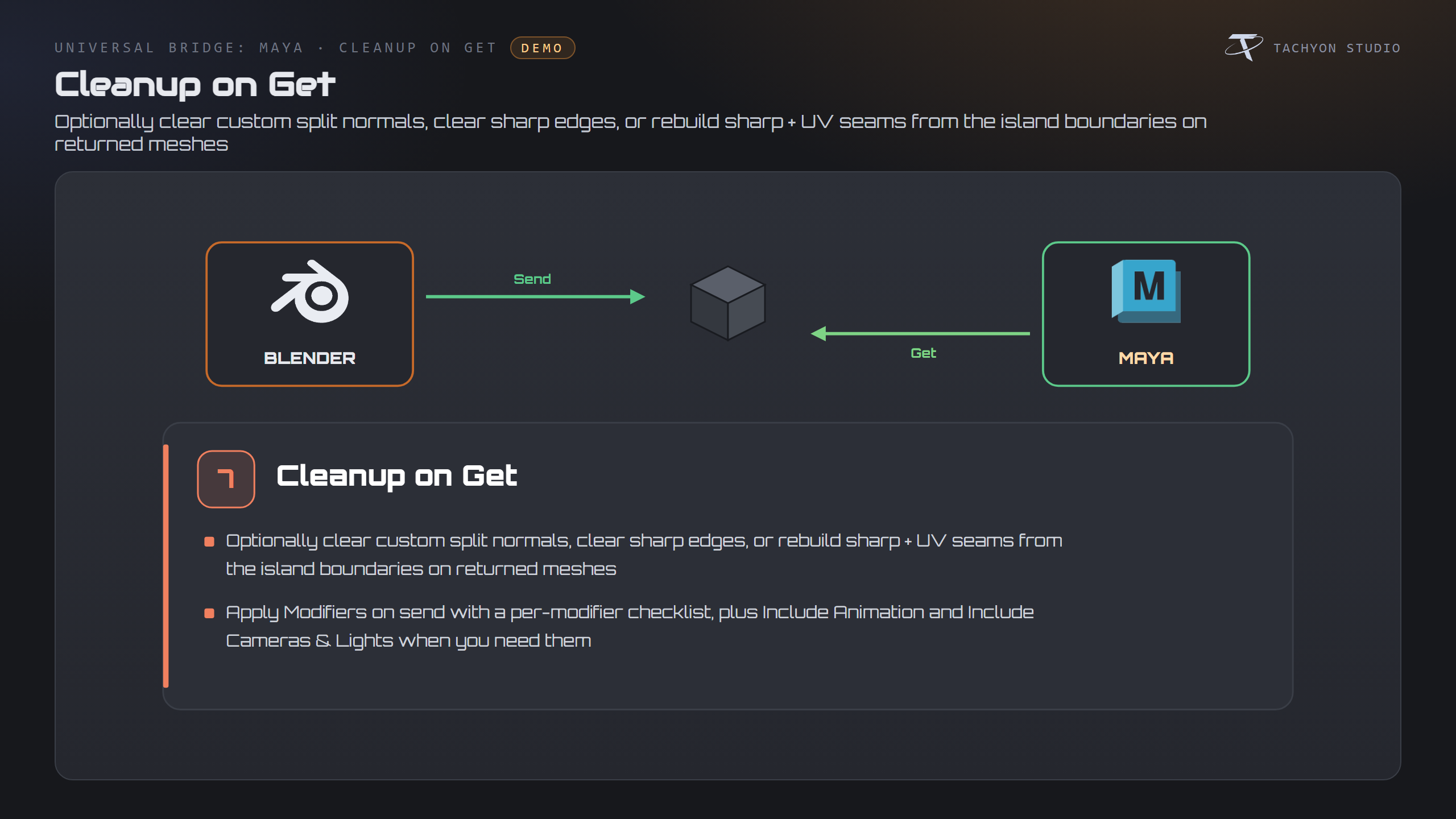
Clean up on Get — Clear Custom Normals, Clear Sharp Edges, and Sharp + Seams
from UV (marks sharp/seams along the returned mesh's UV-island boundaries).
-
New "Maya Import" Collection — import into a dedicated collection, or turn
off to use the active one.
-
Apply Modifiers — bake modifiers on send; when on, a per-modifier checklist
(with All / None) lets you pick exactly which ones bake.
-
Include Animation — bake object/armature animation over the scene frame range.
-
Include Cameras & Lights — also export selected cameras and lights.
-
Preserve Instances — linked-duplicate meshes become instances in Maya.
-
Save File — export to a specific FBX path instead of the live bridge file.
-
Backup Before Send — duplicate objects into a "Maya Backup" collection first.
-
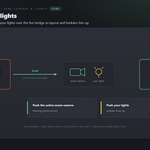
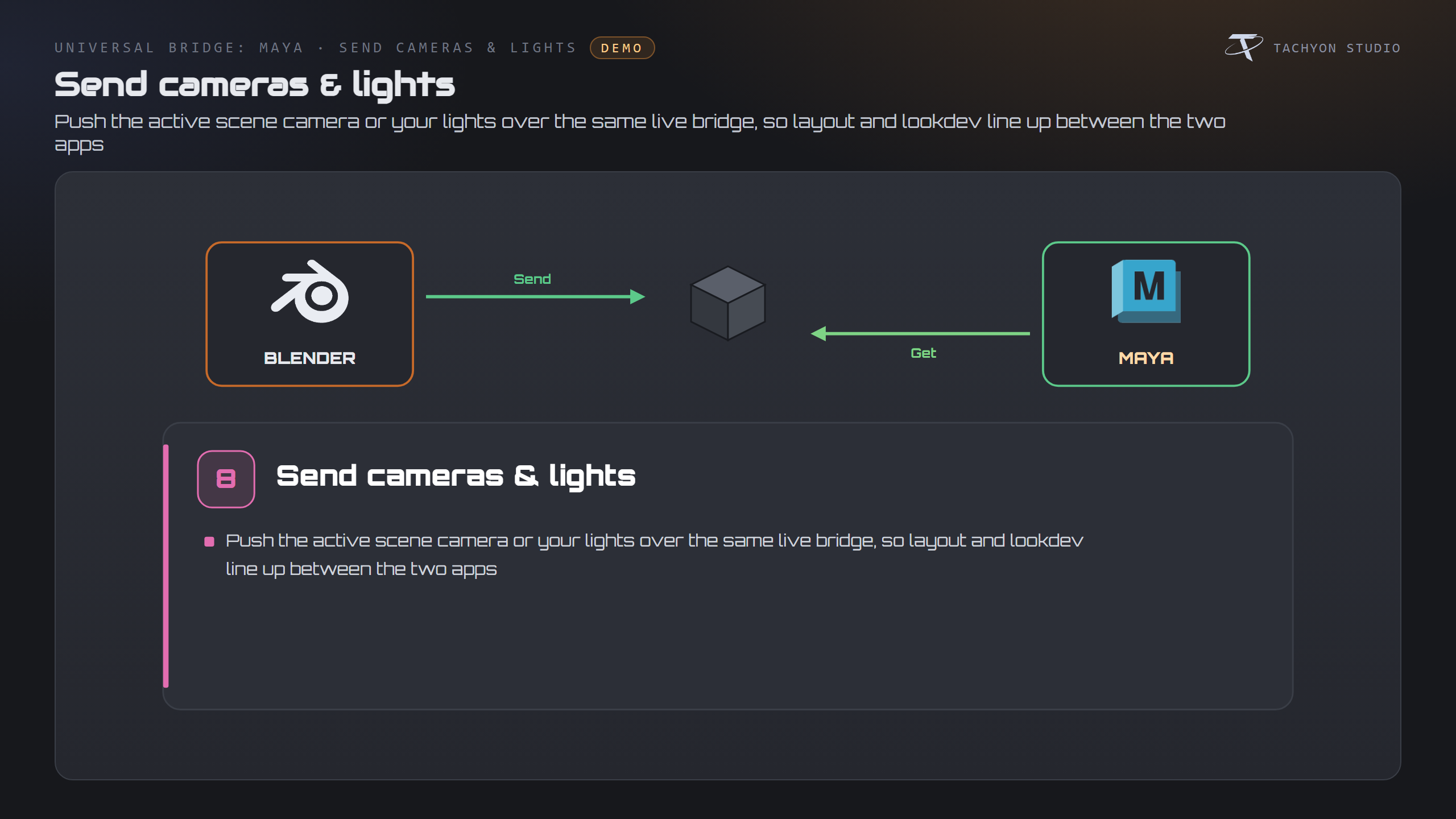
Send Camera / Send Lights — push the active scene camera or your lights
over the same live bridge for matching layout/lookdev.
Live Auto Sync
-
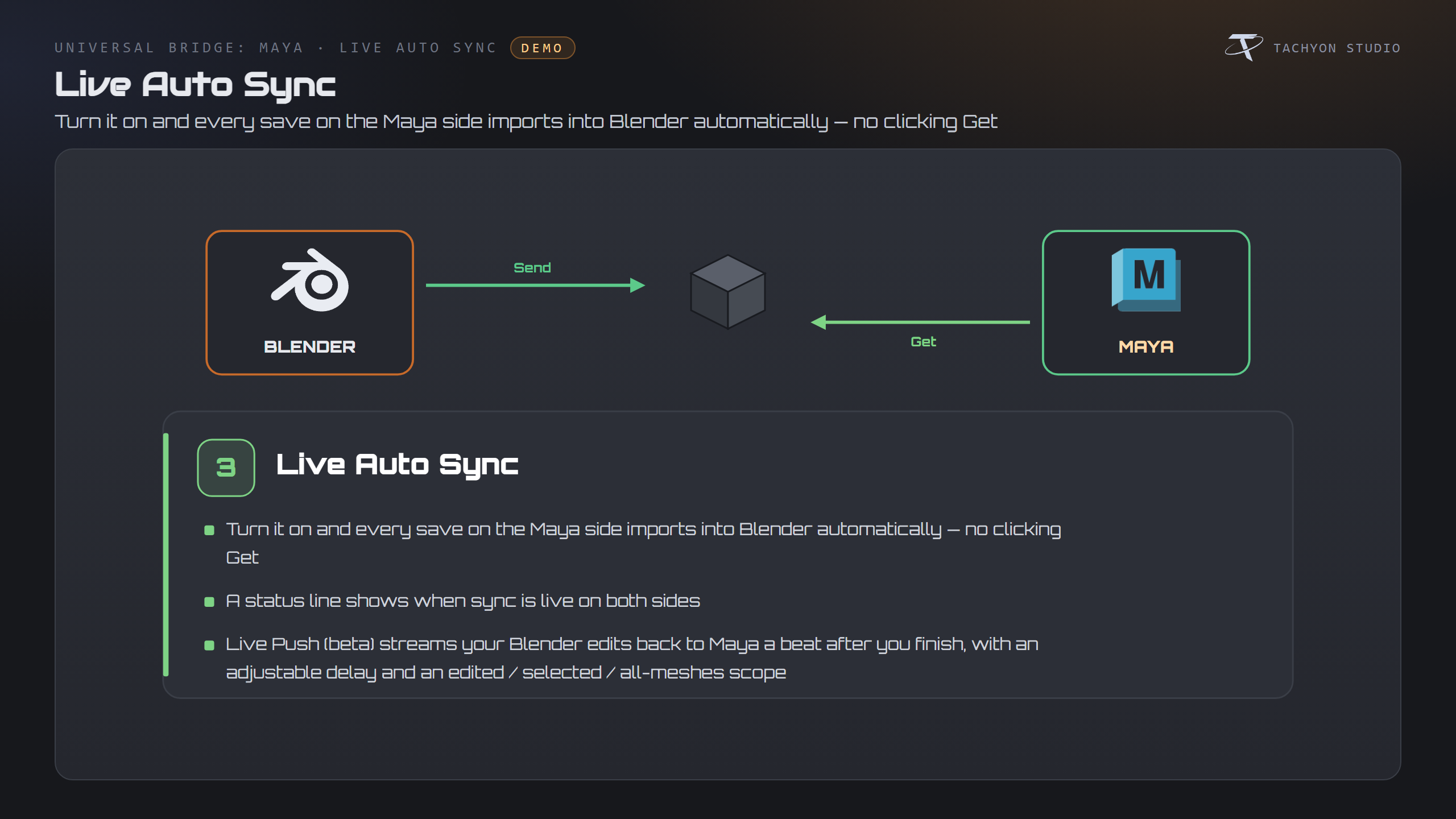
Start Auto Sync — while on, every save on the Maya side applies the new data
in Blender automatically. Click again (or ESC) to stop. The status line reads green only when sync is live on both sides.
-
Live Push (Beta Features) — stream your Blender edits back to Maya a beat
after you finish editing, no Send click needed. Needs Auto Sync running here and Auto-Watch on in Maya. Controls: Push Delay, Push Scope (Edited Only / Selected / All Meshes), and Push in Edit Mode (hold until you leave Edit Mode when off).
Shared Universal Bridge tools
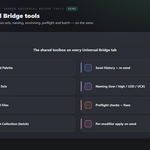
Registered once and shared with every other bridge you own, on the same tab, in the Tools panel:
-
Command Palette — a menu of every bridge action.
-
Send History — the last sends, each with a one-click re-send.
-
Selection Sets — save the current selection as a named set and reselect it.
-
Naming — apply a convention to selected meshes (low / high / LOD / UCX /
socket).
-
Preflight — flag unapplied scale/rotation, missing UVs, missing materials,
n-gons and non-manifold edges, with one-click fixes for transforms and UVs.
-
Version Exchange Files — keep a numbered copy of each sent/received file.
-
Send Each Collection — batch-send every scene collection that has meshes.
Preferences
-
Version — the auto-scanned Maya installs, a Detect Maya refresh, and the
active install; or a manual Maya Executable path (used when Version = Custom).
-
Reuse Running Maya — send to an already-open Maya instead of launching a new
window.
-
Script Install Folder — where Install / Reinstall writes the companion module
and userSetup hook (blank = Documents/maya/scripts).
-
Install / Reinstall, Uninstall, and Drag-in Installer buttons.
Troubleshooting
-
Maya not found → set or detect the executable in the add-on preferences.
-
Nothing happens on a running Maya → its bridge watcher may not be alive;
install/reinstall the companion script and restart Maya, or just Send again to launch a fresh Maya that boots the watcher.
-
Transfers arrive scaled → the panel warns when scene Unit Scale isn't 1.0;
set it to 1.0 or apply scale before sending.
-
Custom script folder ignored → a custom Script Install Folder must be on
Maya's script path, or userSetup.py can't import the module by name.
-
Two versions installed → pick the one you want in the Version dropdown; the
bridge launches exactly that build.
Button icons
The buttons in the bridge panels use a drawn icon set rather than Blender glyphs borrowed from elsewhere. Preferences ▸ Button Icons controls it:
-
Brand Colours (default) — each bridge in its own colour.
-
Mono — every icon in one accent colour you pick.
-
Blender Built-ins — no custom icons at all, exactly as before.
Colour-code Status keeps the link and modifier icons green / amber / red, where the colour is the message; turn it off and they take your accent too. Blender's own glyphs are kept wherever they are already the familiar thing — the trash can, the folder, the warning triangle — so the panels still look like Blender.
Support
Join the Discord: https://discord.gg/SuSqbZMDk5. Include your Blender and Maya versions.
Part of the Universal Bridge line. Works on its own, and the free Universal Bridge Manager hub add-on is included with your purchase.
 Tachyon Studio




 Included