 Hoa Vu


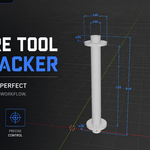
Measure Tool – Dim Tracker
Two Working Modes
Edit Mode
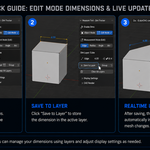
Real-time dimensions based on the current selection. Dimensions update instantly as you select geometry and can be saved to layers for permanent annotations. Saved dimensions remain attached to the geometry and automatically update when the mesh is edited.
Object Mode
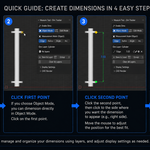
Interactive click-to-dimension workflow with snapping. Click two points to define the measurement, then click a third point to place the dimension line.
4 Dimension Types
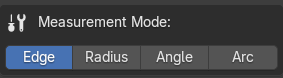
Edge / Distance
Measure the distance between two points or vertices.
Radius / Diameter
Measure circle radius or diameter, displayed with standard CAD prefixes R or Ø.
Angle
Measure the angle at a vertex, with an arc indicator and degree label.
Arc Length
Measure the length of an arc based on selected edges.
Smart Snapping (Object Mode)
Snap to Vertex, Midpoint, Circle Center, and Perpendicular
Ortho Lock (hold Shift) constrains measurements to Horizontal, Vertical, or 45° directions
Automatic Circle Center detection from circular edge loops in the scene
Optimized with throttling and dwell-gating to maintain responsiveness on dense meshes
Dimension Layer System
Every dimension is stored as a dedicated layer inside the scene and remains persistent within the .blend file.
Layer list with filtering based on the active object
Organize dimensions into groups and toggle group visibility
Click to highlight, Shift+Click for multi-selection, Ctrl+Click for range selection
Double-click a layer to enter Edit Mode and automatically reselect its original vertices
Topology validation automatically marks dimensions as N/A when referenced vertices have been deleted
Dimension Editing
Edit Mode Dimensions
Enter a new measurement value and the mesh will scale accordingly. Fully supports Blender pivot modes, including:
3D Cursor
Active Element
Bounding Box Center
Median Point
Object Mode Dimensions
Customize dimension labels with your own text, including support for special symbols such as: Ø , ≈ , m² etc.
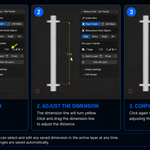
Interactive Dimension Line Adjustment
Hover over a dimension line to reveal a drag handle
Drag to adjust the offset position
Release to confirm changes
Fully undoable with Ctrl+Z
Cut Dim Tool
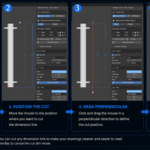
Draw a cutting line across extension lines to hide portions that intersect with geometry.
Non-destructive and fully undoable
Supports multiple cuts on the same dimension
CAD Render Tools
This function requires at least one camera in the scene.
Render Dimensions
Overlay dimension annotations directly onto Blender's final render output. Allows exporting separate dim lines as transparent png.
Render Viewport
Capture the current viewport (mesh) together with dimensions, including transparent background support.
CAD Viewport Mode
Switch the viewport to a technical drawing style with Wireframe display, white background, and outlines. This method only works with clean mesh models.
Display Settings
Customize the appearance of dimensions:
Dimension Lines: Line color, Line thickness, Endpoint style (Arrow / Dot / Slash), Extension line gap
Text: Text color, Font size, Padding
Text Highlighting: Custom highlight color, No Highlight, Line Split Mode
Units: mm, cm, m, in, ft (Optionally hide unit labels)
Precision: Decimal places from 0 to 6 digits
Label Rotation: Rotate text labels independently for each dimension layer
Save as Default: Save all display settings to Blender Preferences and automatically apply them to every new project.
Have questions about this product?
Login to message
| Blender Extension Compatible | Yes |
| Sales | 10 |
| Published | 3 months ago |
| Blender Version | 5.0 - 5.2 |
| Extension Type | Add-on |
| Render Engine Used | Blender-Internal |
| License | GPL |