Medieval Trailer Template
 Snap_Production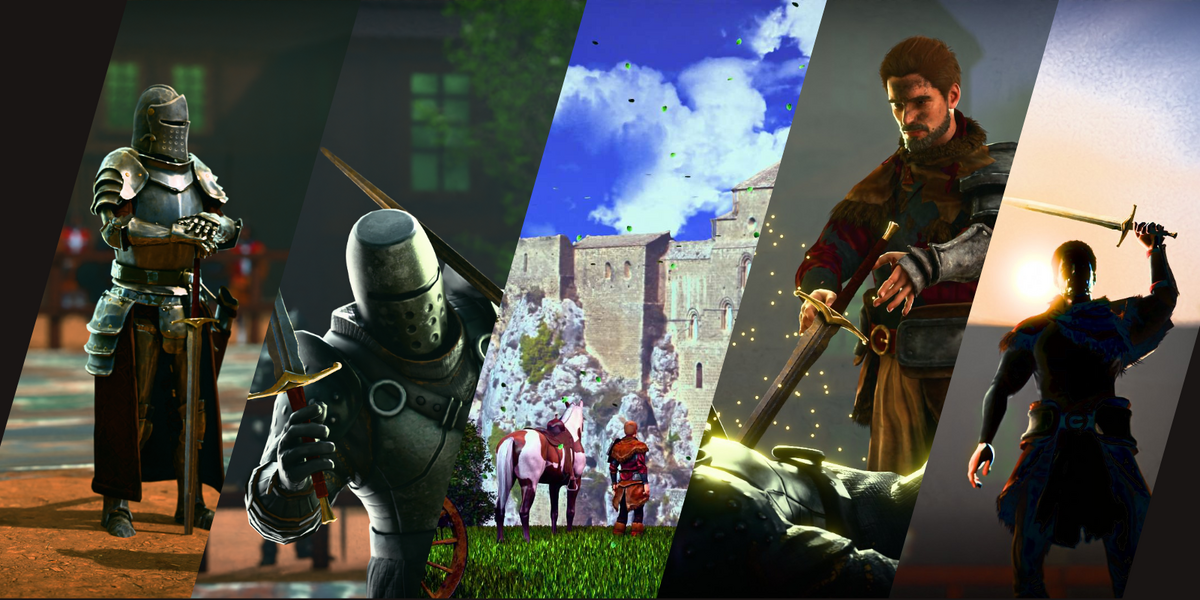
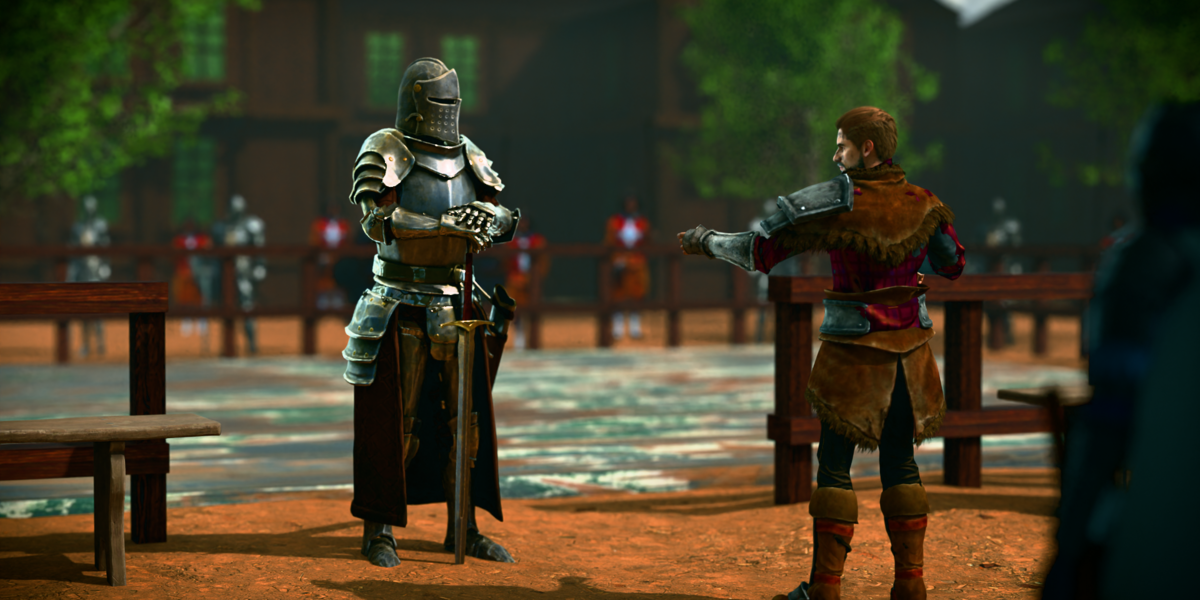
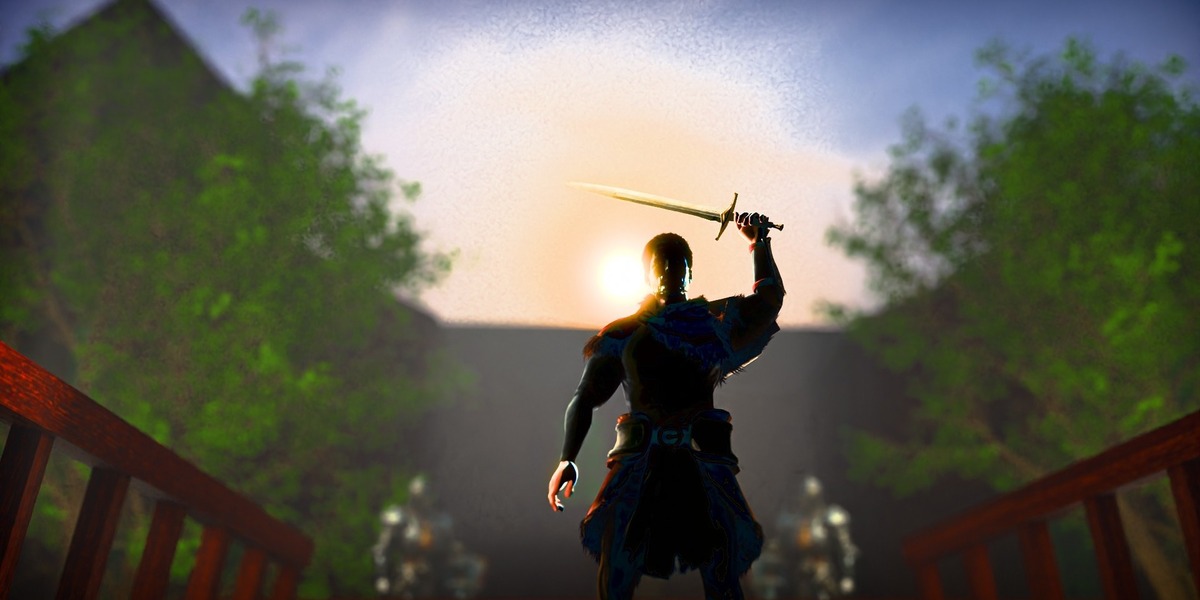
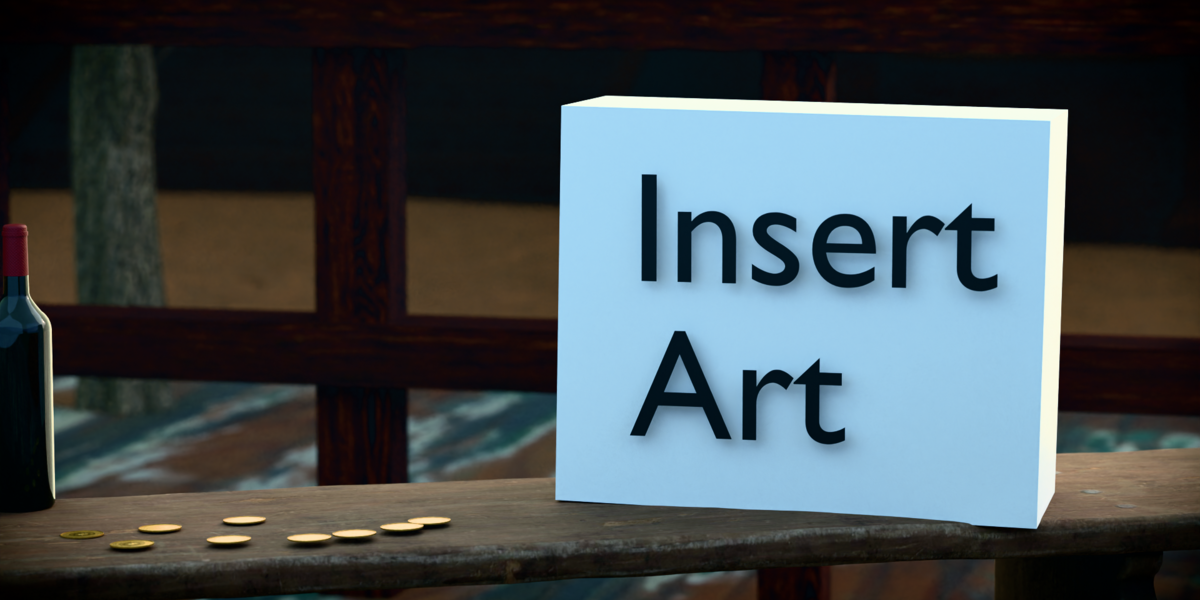
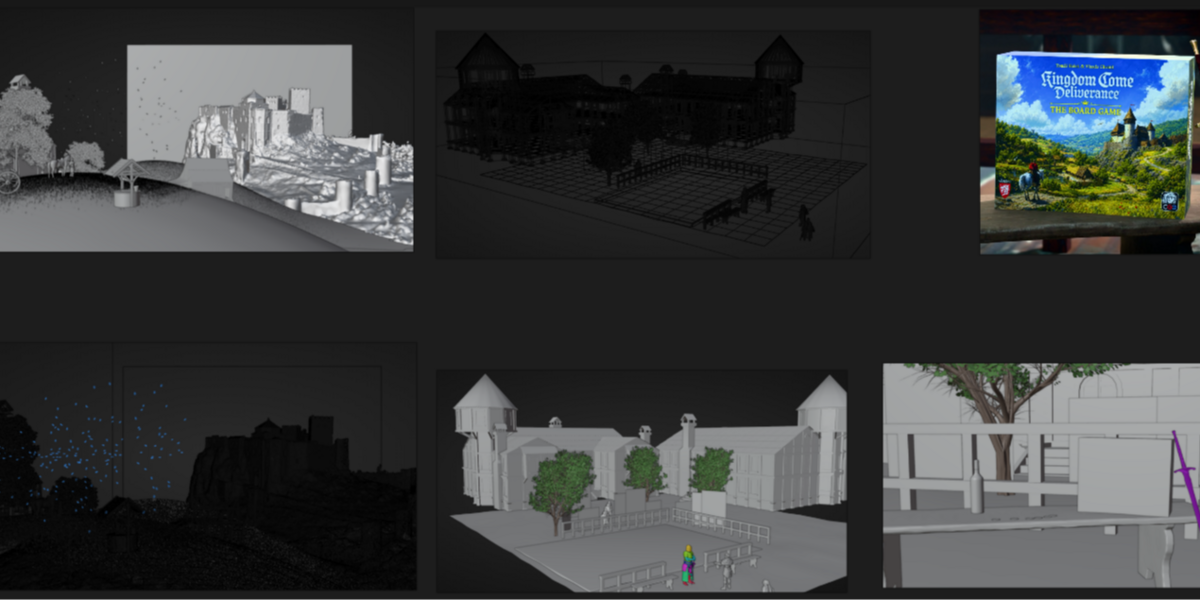
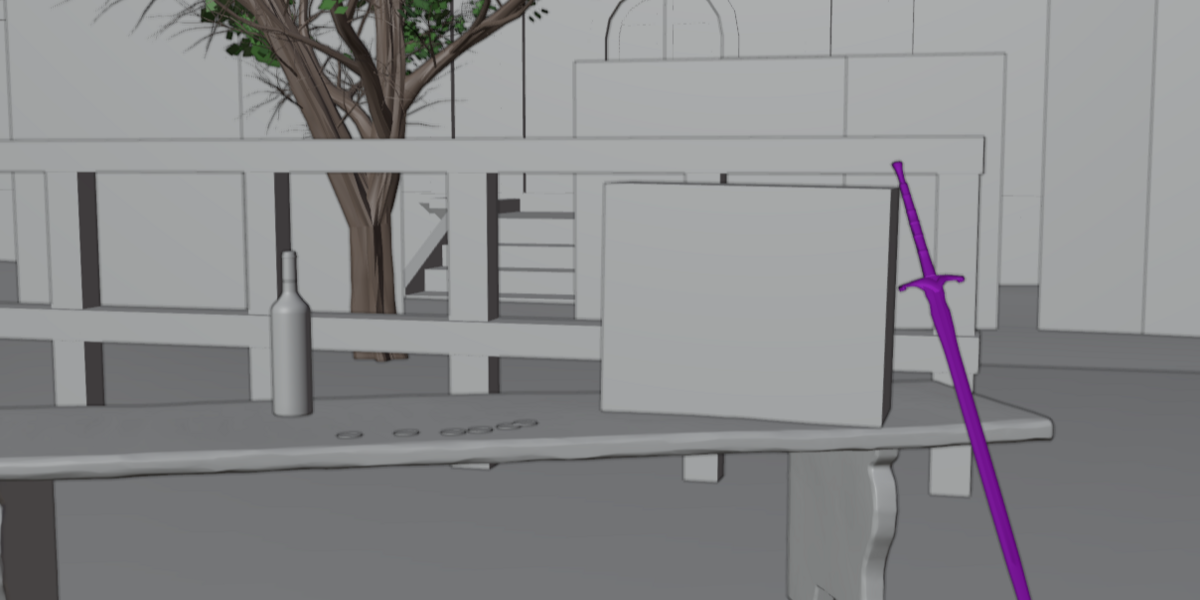
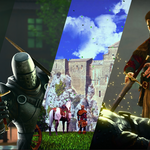
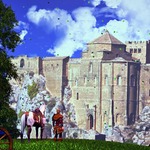
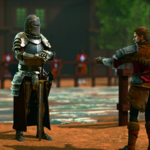
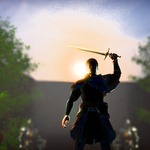
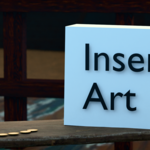
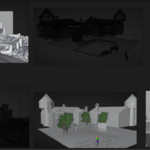
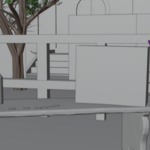
The file contains six separate scenes, each set up as its own shot, along with the knight character models, the medieval environment, and all textures. Use it as a finished trailer template, relight and retexture it, or pull individual assets into your own projects.
2. What's Included
- One .blend file with 6 scenes (Shot 1 to Shot 6)
- Knight character models
- Medieval environment (village, castle backdrop, props)
- All models and textures
- A placeholder image in the final shot, ready to be replaced with your own logo, box art, or title
3. Requirements
- Blender 5.2
- Render engine: Cycles
- Approximate file size: 1gb
4. Getting Started
- Download the blender file
- Keep the .blend file and the textures folder together. Do not move or rename the textures folder, or Blender may not find them.
- Open the .blend file in Blender.
- Wait for the scene to load. The first load can take a moment, especially on the larger shots.
- Press the render preview or switch the viewport to rendered view to see the shot.
5. Switching Between Scenes
Each shot is its own Blender scene. To change shots, use the scene selector in the top right corner of the Blender window and pick Shot 1 through Shot 6. Each scene has its own camera, lighting, and layout, so settings you change in one shot do not affect the others unless an asset is shared between them.
6. The Six Shots
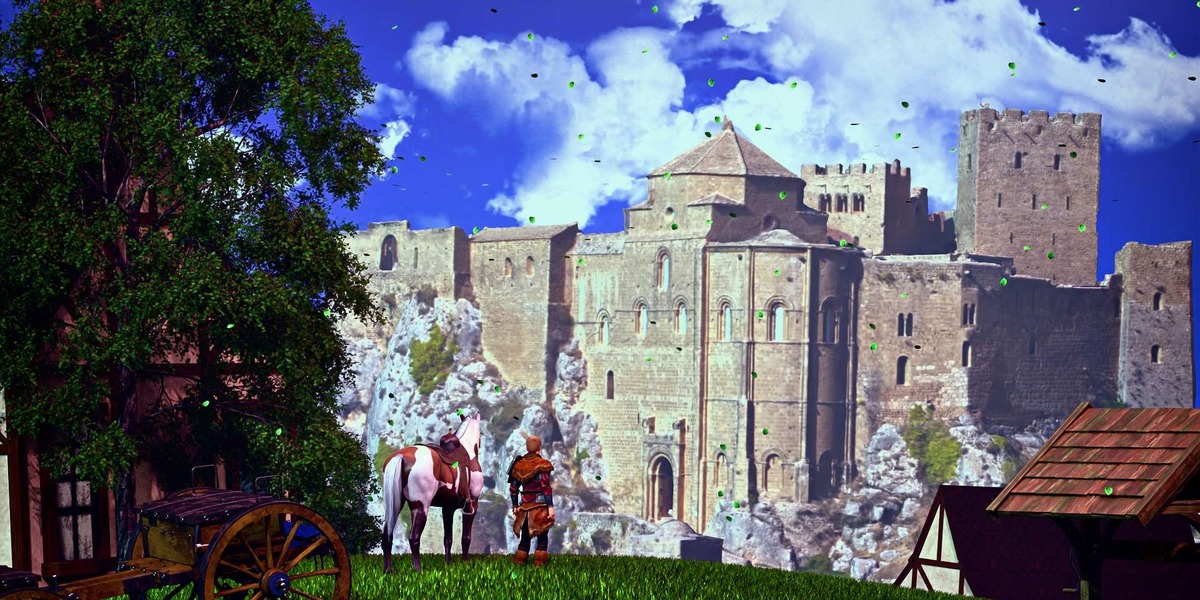
Shot 1: Establishing shot. A character stands on a hill overlooking the village and castle. This is the opening shot and shows how the scene works as a template.
Shots 2 to 6: The environment from different angles. These shots use the same environment, with the models and props arranged differently for each shot.
Final shot. Contains a placeholder image. See section 7 to replace it. It is meant to be a boardgame but can changed if preferred
7. Replacing the Placeholder Image
The last shot includes a placeholder where you can add your own logo, box art, or title.
- Switch to the final shot using the scene selector.
- Select the object that displays the placeholder: box model
- Open the Shading workspace, or switch an editor to the Shader Editor.
- In the Image Texture node, click Open and choose your own image.
- Adjust the size and position of the object if your image has a different aspect ratio.
Tip: use a PNG with a transparent background for logos, and a high-resolution image so it stays sharp at your render resolution.
8. Changing the Lighting
The lighting in every shot can be changed freely.
- Select any light object in the scene and adjust its color, strength, angle, or position.
- Open the World tab in the Properties panel to change the sky or background lighting.
- Try a different time of day or mood by changing the color and strength of the main light and the world.
To keep the original look, save a copy of the file before changing the lighting.
9. Swapping Textures
You can replace any texture with your own.
- Select the object whose material you want to change.
- Open the Shading workspace.
- In the Shader Editor, find the Image Texture node for the material and click Open to load a new image.
- Adjust the mapping or scale if the texture looks stretched or too small.
All original textures are included, so you can switch back at any time.
10. Using Assets in Your Own Projects
To bring a model from this file into another Blender project:
- In your own project, choose File, then Append.
- Browse to the .blend file.
- Open the Object folder (or Collection folder) and select the model or collection you want.
- Click Append.
If textures appear missing after appending, keep the textures folder next to the original .blend file or follow the steps in the Troubleshooting section.
11. Rendering
- Choose your output resolution and frame range in the Output properties tab.
- Each shot has its own camera and settings, so check the render settings for the shot you are rendering.
- Render each shot separately and combine them in a video editor if you want a full trailer.
12. Troubleshooting
Textures appear pink or missing. Make sure the textures folder is in the same location as the .blend file. In Blender, go to File, External Data, Find Missing Files and point it to the textures folder.
Blender is slow or crashes. The scenes contain detailed models and textures. But the trees and castle model in shot 1 will be the heaviest model in the scene
The file will not open or looks different. Check that you are using the Blender version listed in the requirements. Older versions may not support all features.
The placeholder image is not showing. Check that the object is visible in the render and that its material has an image loaded.
Have questions about this product?
Login to message
| Published | about 3 hours ago |
| Blender Version | 5.0 - 5.2 |
| Render Engine Used | Cycles |
| Misc Data | Uvs-Unwrapped, Rigged, Normal-Mapped, Textured |
| License | Creative Commons |