 mooham3d


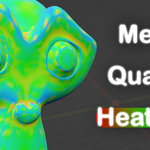
Installation :
- Download the addon ZIP file.
- Open Blender.
- Go to Edit > Preferences > Add-ons.
- Click Install.
- Select the ZIP file.
-
Enable Mesh Quality Heatmap.
Opening the Addon :
Open:
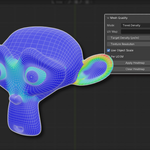
3D View > Sidebar (N) > Mesh Quality.
How to Use :
- Select a mesh.
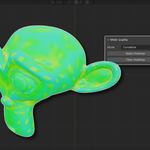
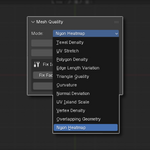
- Choose one of the available Heatmap Modes.
- Configure the available settings (if applicable).
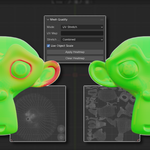
- Press Apply Heatmap.
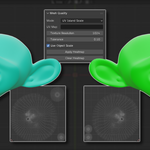
- The mesh will be colored according to the selected analysis.
Blue generally represents lower values while red represents higher values.
Heatmap Modes :
Texel Density :
Displays UV texel density across the mesh.
Useful for:
- Consistent texture resolution.
- Game asset optimization.
UV Stretch :
Highlights UV distortion.
Useful for:
- Finding stretched UVs.
- Improving texture quality.
Polygon Density :
Shows areas with dense or sparse geometry.
Useful for:
- Mesh optimization.
- Even polygon distribution.
Edge Length Variation :
Highlights inconsistent edge lengths.
Useful for:
- Retopology.
- Smoother subdivision.
Triangle Quality :
Measures how close triangles are to an ideal equilateral shape.
Useful for:
- Simulation.
- Physics.
- Game meshes.
Curvature :
Visualizes mesh curvature.
Useful for:
- Detecting sharp transitions.
- Surface analysis.
Normal Deviation :
Shows differences between face normals and shading normals.
Useful for:
- Smoothing issues.
- Shading artifacts.
UV Island Scale :
Displays texel density per UV island.
Useful for:
- Keeping UV islands consistent.
Vertex Density :
Shows average mesh density around vertices.
Useful for:
- Detecting uneven topology.
Overlapping Geometry :
Highlights duplicated or overlapping faces.
Useful for:
- Cleaning imported meshes.
- Removing duplicate geometry.
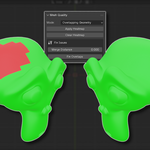
Ngon Heatmap :
Colors polygons by type:
- Blue : Triangles.
- Green : Quads.
- Red : N-gons.
Useful for:
- Retopology.
- Game-ready meshes.
Have questions about this product?
Login to message
| Dev Fund Contributor | |
| Published | 2 months ago |
| Blender Version | 4.5 - 5.2 |
| Extension Type | N/A |
| Render Engine Used | Cycles, Eevee |
| License | GPL |
Discover more products like this
shading 3d modeling game assets blender topology texel density uv curvature Geometry mesh optimization retopology normals