 Mytner



Full fledged documentation at the GitHub Docs.
Get started with basics here:
Usage Guide
Emoji Search
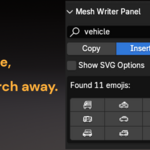
Type in the search bar to find emojis by name or category
-
Select Copy or Insert mode:
Copy: Copies emoji to clipboard
Insert: Inserts directly into active text object or node
Click on an emoji to copy/insert it
Emoji Categories
Expand the Emojis panel
Click a category button (e.g., “Smileys & Emotion”)
Browse emojis in a 4-column grid
Click ← Back to return to categories
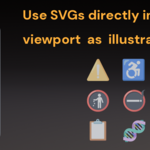
SVG Import (View3D Only)
Check Show SVG Options in the search panel
Emojis with available SVGs show an asterisk (*)
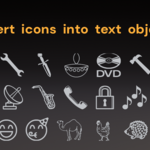
Click the SVG button to import as a curve object
Note
SVG import only works in View3D, not in Geometry Nodes.
Working with Text Objects
In View3D:
Select a Text object
Use Insert mode
Click an emoji to insert at cursor position
In Geometry Nodes:
Select a String node
Use Insert mode
Click an emoji to append to the string input
Working with the Text Editor:
Using the text editor in the node editor: Click on the “Open Text Editor” button to open the text editor. You can use the editor just like any text editor to add multiline text.
Changing the text format to bold or italic: You can change the text format to bold or italic using the buttons 🅱️ Bold Live and 𝑰 Italic Live.
Changing the text format to superscript or subscript: You can change the text format to superscript or subscript, by pressing the "Live" buttons. If the super or sub script of that character exists then it will print the same else it will roll back to its original format.
Frame Creation and Management:
Creating a frame. Open a Shader Node Editor (Same for Geometry and Compositor node editors) : Press N – Go to the Mesh Writer tab To create a frame or comment: Use the “Create Frame ➕” button
Creating a frame for a node or nodes: Select your node or nodes Use the “Insert Frame ☐” button A frame will be created at the mouse cursor location.
Note:
Each frame creation results in a data block named “_MW”.
This stores your text and formatting. Any frame created via Mesh Writer will have a data block ending with _MW. You can change it if you want.
All data blocks are saved automatically, you do not need to save them manually.
To delete a frame and its data block, simply delete the frame node. The data block will be deleted automatically.
Language Selection
Change the emoji name language in the Help/Settings panel to see tooltips in your preferred language.
 Included
Includes 12 months of
- Support from Mytner
- Product updates
Extend this product’s Support Period +12 months: 50% of product price
Have questions before purchasing?
Login to message
| Blender Extension Compatible | Yes |
| Dev Fund Contributor | |
| Published | 8 months ago |
| Blender Version | 4.5 - 5.1 |
| Extension Type | Add-on |
| License | GPL |
Discover more products like this
superscript subscript blender unicode SVG Annotate Text text-editor text Blender geometry nodes motion graphics blender documentation note math symbols blender SVG Converter