Meshcloud
 Shahzaib A.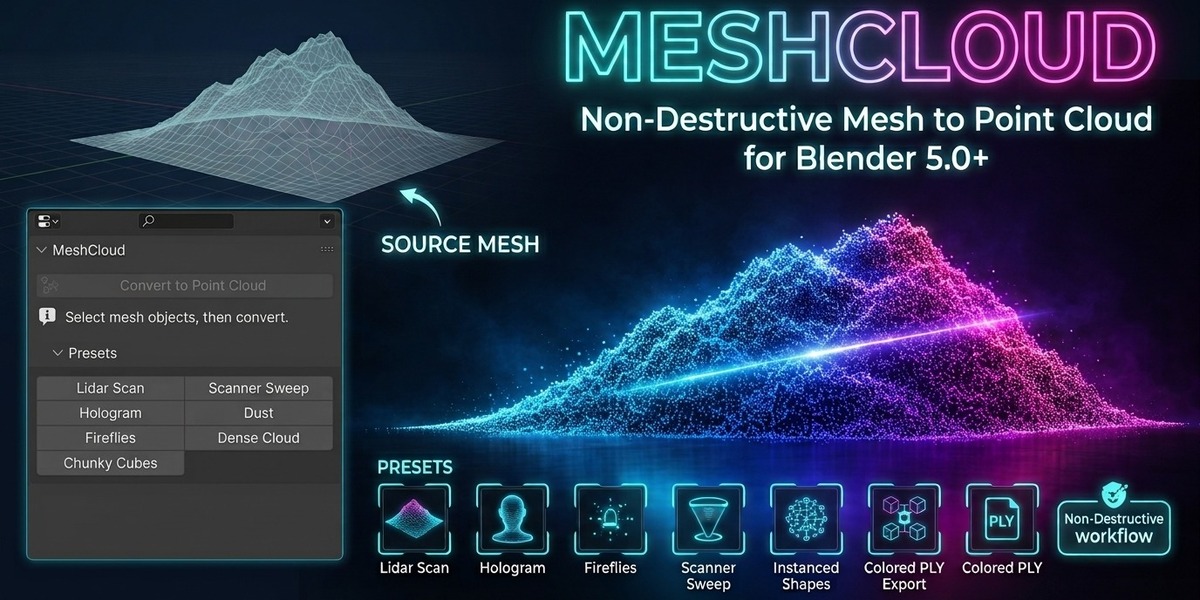
Overview
MeshCloud is a non-destructive Blender add-on for converting mesh objects into customizable point-cloud effects.
It is designed for workflows such as LiDAR-style scans, scanner reveals, holograms, particles, dust, fireflies, stylized point renders, and procedural point-based animation.
After installation, MeshCloud is available in:
3D Viewport → Sidebar (N) → MeshCloud
Getting Started
1. Select a Mesh
Select one or more mesh objects in the Blender viewport.
Open the Sidebar with N, then select the MeshCloud tab.
2. Convert the Mesh
Click:
Convert to Point Cloud
MeshCloud adds a non-destructive modifier to the selected mesh. Your original mesh remains available unless you choose to apply or replace it.
3. Choose a Preset
The quickest way to get started is through the built-in presets:
Lidar Scan
Scanner Sweep
Hologram
Dust
Fireflies
Dense Cloud
Chunky Cubes
Preset settings automatically adapt their point sizing and density to the mesh.
Sampling
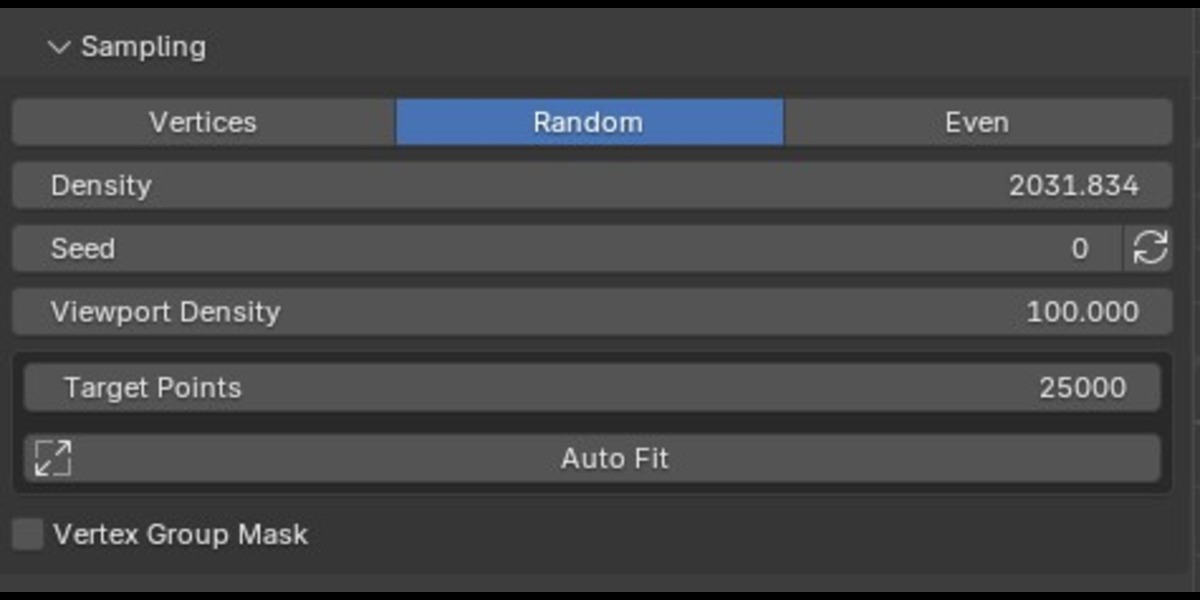
The Sampling panel controls how points are generated.
Vertices
Uses the vertices of the source mesh as the point locations.
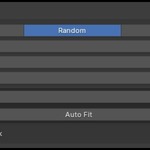
Random
Distributes points randomly across the mesh surface.
Even
Uses Poisson-style surface distribution to create more evenly spaced points.
Density
Controls the number of points generated per surface area for surface-based sampling modes.
Min Distance
Controls minimum spacing when using Even sampling.
Seed
Changes the random distribution without changing the basic settings.
Use the randomize button to quickly generate a different distribution.
Viewport Density
Reduces the number of points displayed in the viewport while keeping renders at full density.
This is useful for keeping heavy scenes responsive.
Target Points & Auto Fit
Set a target point count and use Auto Fit to automatically calculate suitable density, radius, and spacing for the selected mesh.
Vertex Group Mask
Enable Vertex Group Mask to control where points are generated using a vertex group.
Points
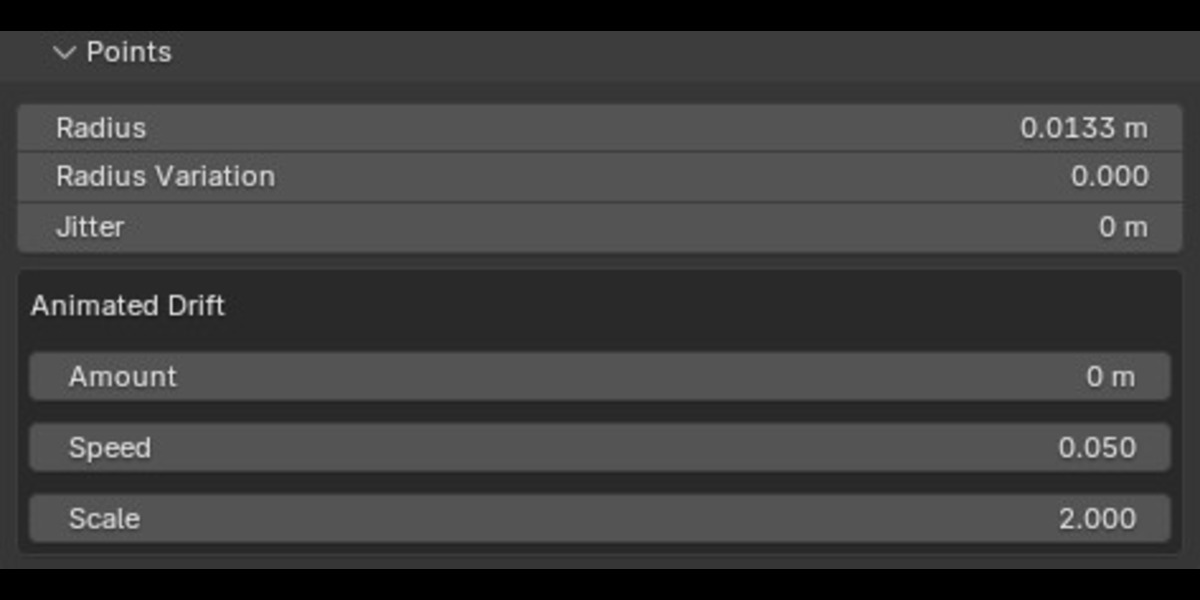
The Points panel controls the physical appearance and movement of individual points.
Radius
Sets the base point size.
Radius Variation
Adds randomized size variation between points.
Jitter
Applies a static random offset to point positions.
Animated Drift
Adds procedural animated movement using noise.
Adjust:
Amount — how far points drift
Speed — how quickly the noise changes
Scale — size of the noise pattern
These controls can be combined to create subtle floating particles or more energetic point-cloud motion.
Color
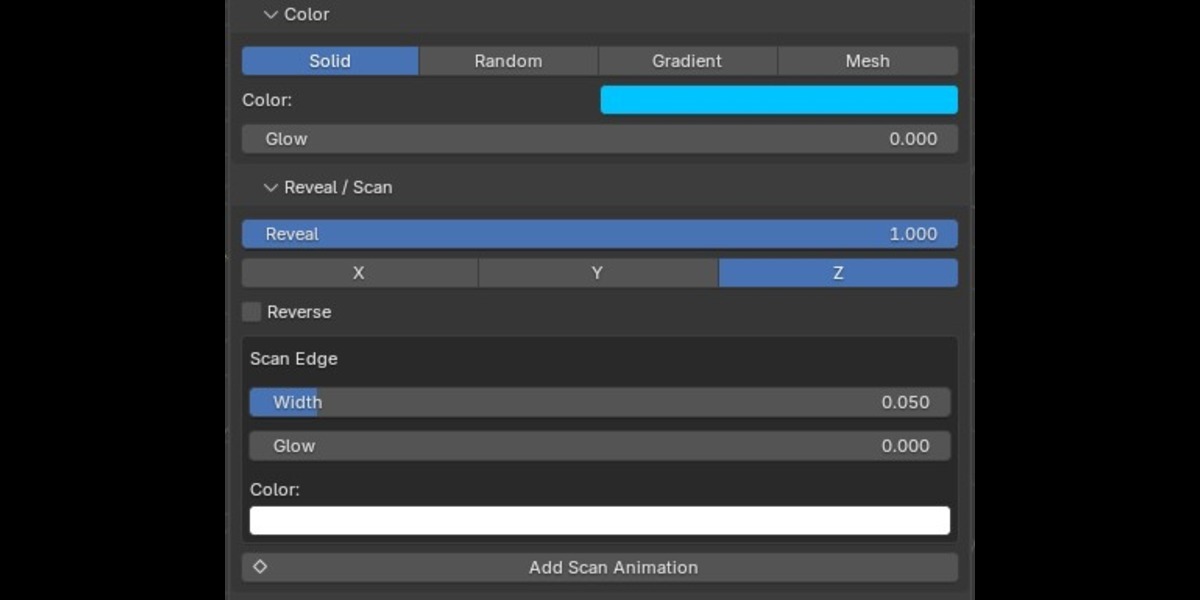
MeshCloud includes four color modes:
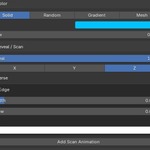
Solid
Uses a single color.
Random
Blends between Color A and Color B using randomized values.
Gradient
Creates a gradient between Color A and Color B based on the selected reveal axis.
Mesh
Uses a color attribute from the original mesh.
You can also adjust:
Glow — controls emission strength applied to the points.
Reveal / Scan
The Reveal / Scan panel is designed for animated scanning effects.
Reveal
Controls how much of the point cloud is visible.
A value of 0 hides the cloud, while 1 reveals the complete result.
Axis
Choose the scan direction:
X, Y, or Z
Reverse
Reverses the scan direction.
Scan Edge
Create a glowing edge around the active scan area using:
Edge Width
Edge Glow
Edge Color
Add Scan Animation
Click Add Scan Animation to automatically keyframe Reveal from 0 to 1 across a selected frame range.
This is ideal for scanner sweeps, object reveals, holographic builds, and technological visualization effects.
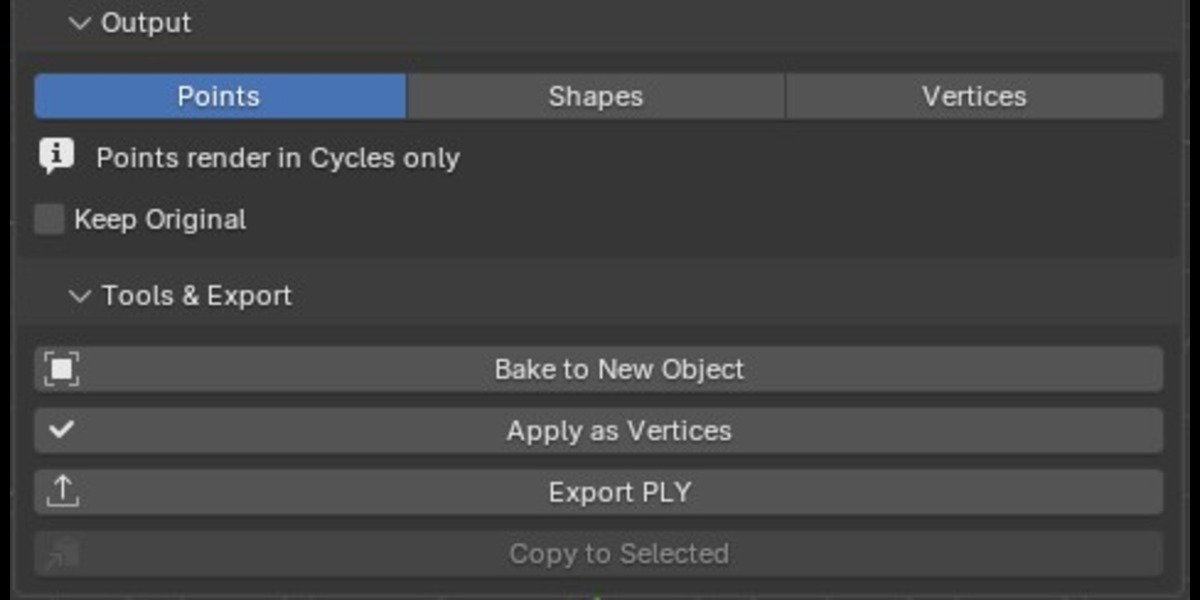
Output
MeshCloud provides three output modes.
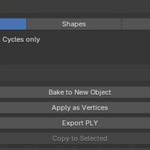
Points
Outputs a point-cloud representation.
The UI notes that this mode renders in Cycles only.
Shapes
Instances geometry on each generated point.
Available shapes:
Sphere
Cube
Custom Object
Sphere detail can be adjusted, and random rotation can be enabled.
Vertices
Converts the generated point cloud into real mesh vertices.
Custom Object Instancing
To use your own object as the point instance:
Select the object you want to instance.
Select the MeshCloud object last.
Use Use Selected Object.
MeshCloud assigns the selected object as the custom instance and switches the output to Shapes/Object mode.
Presets
MeshCloud includes seven built-in presets:
Lidar Scan
Even surface distribution with a blue-to-orange gradient and emission.
Scanner Sweep
A scanning setup with reveal animation controls and a bright scan edge.
Hologram
Dense glowing points with randomized point sizing.
Dust
Random surface particles with strong size variation and animated drift.
Fireflies
Sparse glowing particles with animated movement.
Dense Cloud
A high-density random point distribution.
Chunky Cubes
Vertex-based sampling using cube instances with random rotation and color variation.
User Presets
MeshCloud allows you to save your own settings as reusable presets.
Use:
Save Preset
Saved presets appear under:
My Presets
You can load or delete your custom presets directly from the MeshCloud panel.
Bake to New Object
Use Bake to New Object when you want to create a separate mesh object from the current point-cloud result while preserving the original source object.
The generated object contains real vertices and keeps the generated color attributes.
This is the recommended option when you want to keep your original mesh editable.
Apply as Vertices
Apply as Vertices converts the current result directly on the source object.
This is a destructive operation because the MeshCloud modifier is applied and the original mesh is replaced by the generated vertices.
For a non-destructive workflow, use Bake to New Object instead.
PLY Export
MeshCloud includes a built-in Export PLY tool for exporting generated point clouds.
The exporter includes:
XYZ point coordinates
RGB point colors
Binary PLY
ASCII PLY
World-space export option
Binary output is enabled by default and is intended to produce smaller, faster files.
Copy Settings
Use Copy to Selected to copy the active object's MeshCloud settings to other selected mesh objects.
This is useful for applying the same point-cloud treatment across multiple objects.
Randomize Seed
Use Randomize Seed to generate a new random arrangement while keeping the rest of your MeshCloud settings unchanged.
Reset Settings
Reset Settings restores the MeshCloud modifier to its default settings and re-applies automatic fitting to the scene's target point count.
Upgrade Older MeshCloud Setups
When an older MeshCloud node-group version is detected, the interface displays an upgrade option.
Click:
Upgrade Modifier
MeshCloud migrates the modifier to the current node setup while preserving compatible settings.
Performance Tips
Point clouds can become extremely dense.
MeshCloud displays estimated render and viewport point counts and can warn you when the current setup becomes very heavy.
For large point counts:
Lower Viewport Density to keep the viewport responsive.
When using Instanced Shapes, be especially careful with very high point counts because instancing geometry becomes more expensive.
Recommended Workflow
For the fastest workflow:
1. Select mesh → 2. Convert to Point Cloud → 3. Choose a preset → 4. Adjust Sampling → 5. Tune Points & Color → 6. Add Reveal/Scan animation → 7. Bake or Export when finished
For a fully procedural workflow, leave the MeshCloud modifier active and continue adjusting its controls.
For a final editable point mesh, use Bake to New Object.
For external point-cloud workflows, use Export PLY.
Troubleshooting
I don't see MeshCloud
Make sure the add-on is enabled and that you are looking in:
3D Viewport → Sidebar (N) → MeshCloud
The viewport is too slow
Reduce Viewport Density or lower the point density.
The point count is higher than expected
Check Density, Min Distance, and the active sampling mode. The estimated count is displayed in the MeshCloud panel.
I need to keep my original model
Use Bake to New Object instead of Apply as Vertices.
My older MeshCloud object needs updating
Use the Upgrade Modifier button shown when an older MeshCloud setup is detected.
Support
MeshCloud is built around Blender's Geometry Nodes system, giving you a procedural and non-destructive workflow while still providing tools for baking, animation, instancing, and PLY export.
Have questions about this product?
Login to message
| Blender Extension Compatible | Yes |
| Published | 1 day ago |
| Blender Version | 5.0 - 5.2 |
| Extension Type | Add-on |
| Render Engine Used | Cycles, Eevee |
| License | GPL |
Discover more products like this
PLY export blender visual effects geometry nodes Blender Add-on Point Cloud Generator lidar procedural point cloud VFX Mesh to Point Cloud sci fi