Meshforge - One-Click Lod Generation & Batch Export For Game Engines
 Markel Lavan



Documentation
Everything you need to get started with MeshForge
INSTALLATION
Getting Started
- Download the
MeshForge.zipfile - In Blender, go to
Edit > Preferences > Add-ons - Click Install... and select the downloaded ZIP file
- Enable the addon by checking the box next to "MeshForge"
- Find the panel in the 3D Viewport sidebar (press
Nif hidden) under the "MeshForge" tab
QUICK START
Basic Workflows
Basic Export Workflow
- Select one or more objects in your scene
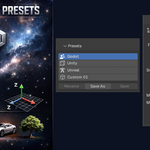
- Choose an engine preset (Godot/Unity/Unreal) or create a custom one
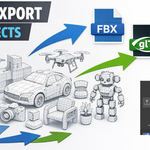
- Select your export format (FBX, GLTF/GLB, OBJ, USD, STL)
- Click "Export" — all objects will be exported with correct naming and settings
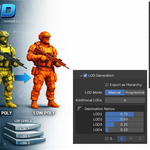
LOD Generation
- Select your high-poly mesh
- Choose LOD mode:
- Progressive Mode: Set a single scale factor (e.g., 0.5) — MeshForge calculates all levels automatically
- Manual Mode: Define exact decimation ratios for each LOD level
- Set number of LOD levels (typically 3-4)
- Click "Generate LODs" — meshes will be created and named automatically (e.g.,
Sword_LOD0,Sword_LOD1, etc.)
ENGINE PRESETS
Pre-configured Settings
Godot
- Format: GLTF/GLB
- Axis: Y-up
- Naming: snake_case (e.g.,
sword_lod0.glb)
Unity
- Format: FBX
- Axis: Y-up, -Z forward
- Naming: PascalCase (e.g.,
Sword_LOD0.fbx)
Unreal Engine
- Format: FBX
- Axis: Z-up, X forward
- Scale: Centimeters (x100)
- Naming: PascalCase (e.g.,
Sword_LOD0.fbx)
CUSTOM PRESETS
Create Your Own
- Configure your desired export settings
- Click "Save Preset"
- Name your preset
- Access it anytime from the presets dropdown
TEXTURE OPTIMIZATION
Automatic Resizing
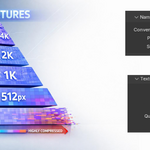
When enabled, MeshForge automatically resizes textures per LOD level:
- LOD0: Original resolution (e.g., 4096px)
- LOD1: 50% (2048px)
- LOD2: 25% (1024px)
- LOD3: 12.5% (512px)
Note: Normal maps are kept one quality level higher to preserve detail.
SUPPORTED FORMATS
Export Options
- FBX — Industry standard, best for Unity/Unreal
- GLTF/GLB — Modern format, perfect for Godot and web
- OBJ — Universal compatibility
- USD — Pixar's Universal Scene Description
- STL — For 3D printing workflows
TIPS & BEST PRACTICES
Pro Tips
- Apply modifiers before LOD generation for predictable results
- Use Progressive Mode for quick iteration during development
- Use Manual Mode for production when you need precise control
- Test your LODs in-engine to verify quality vs performance balance
- Name objects clearly before export — MeshForge preserves your naming
$9
Have questions about this product?
Login to message
| Blender Extension Compatible | Yes |
| Published | 7 months ago |
| Blender Version | 4.2 - 5.0 |
| Extension Type | Add-on |
| License | GPL |

Discover more products like this
decimation Workflow gltf godot unreal Export Game Engine batch-export unity LOD fbx mesh optimization