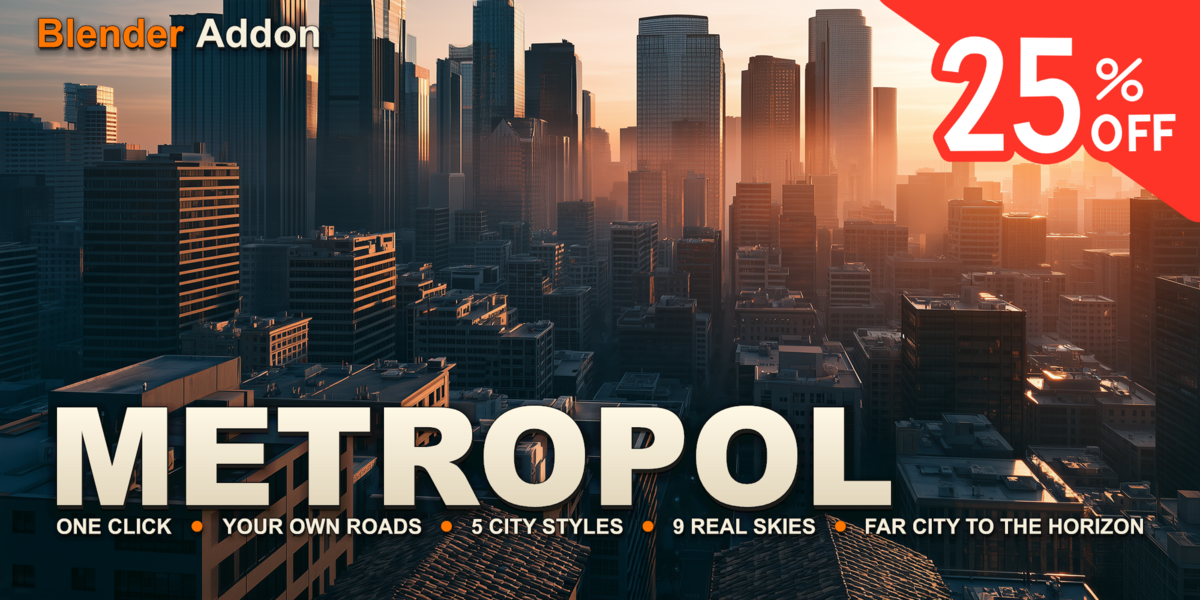
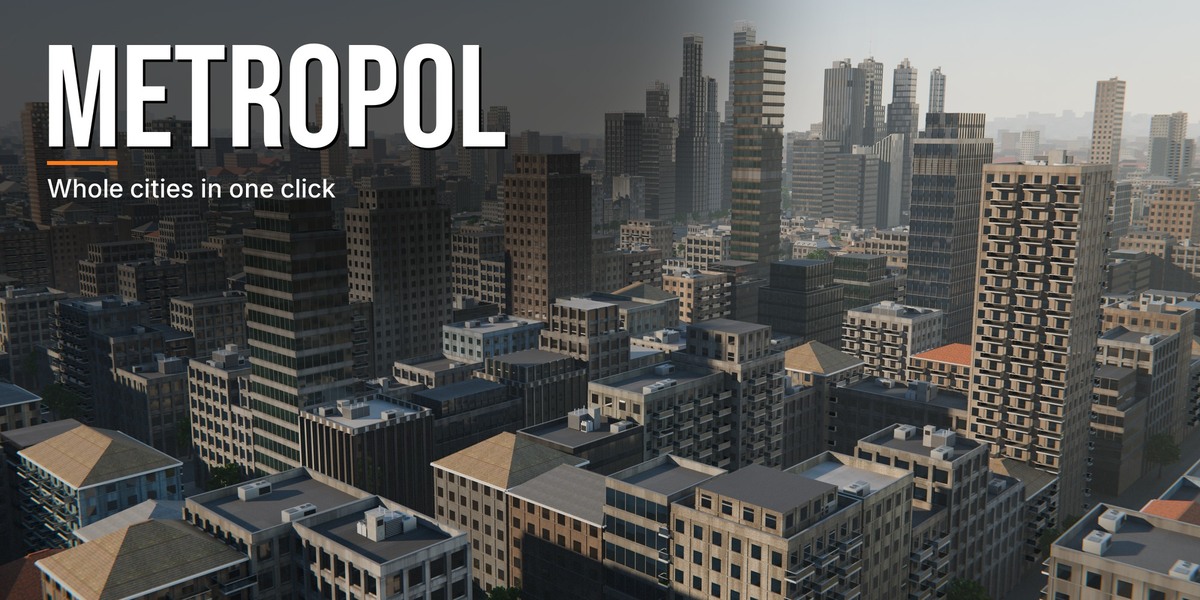
Metropol - One-Click Procedural Cities
 Voyde Procedural
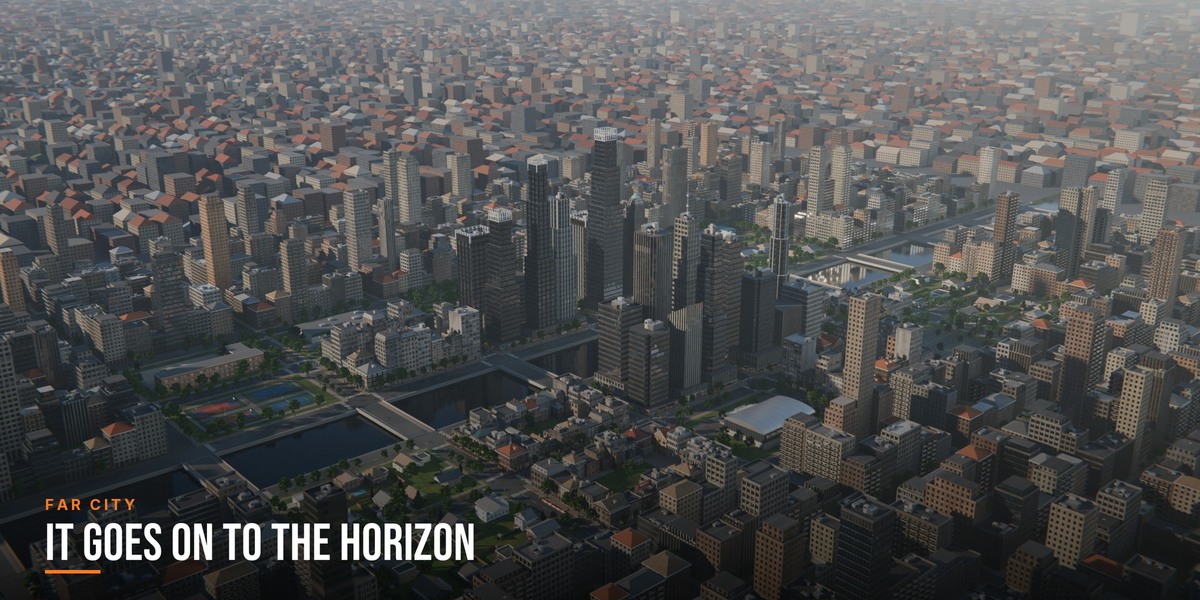
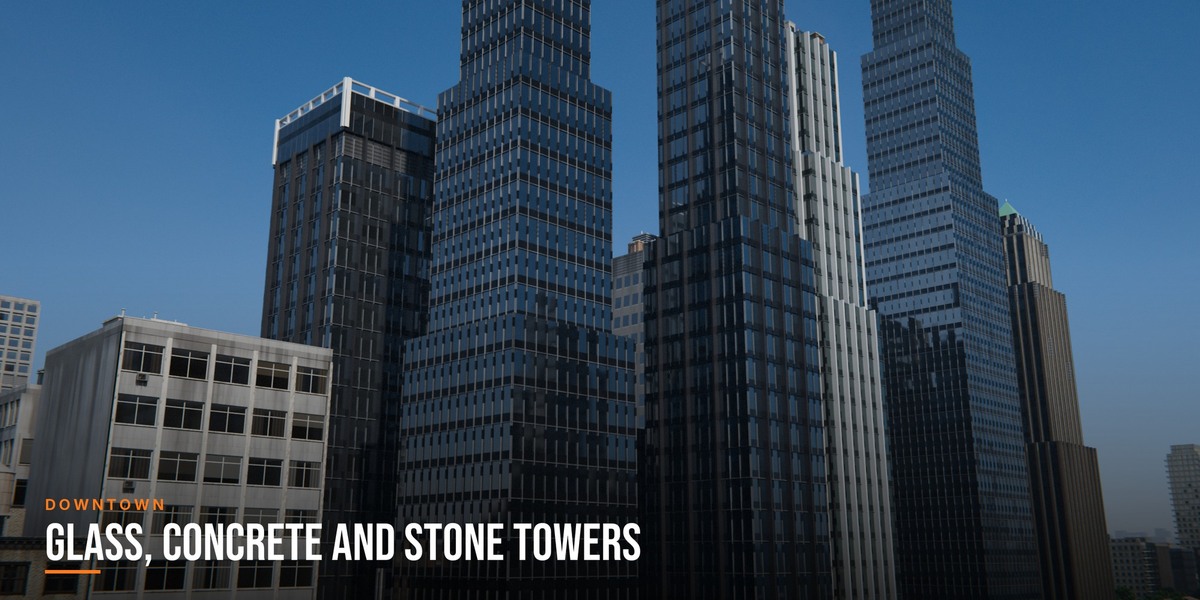
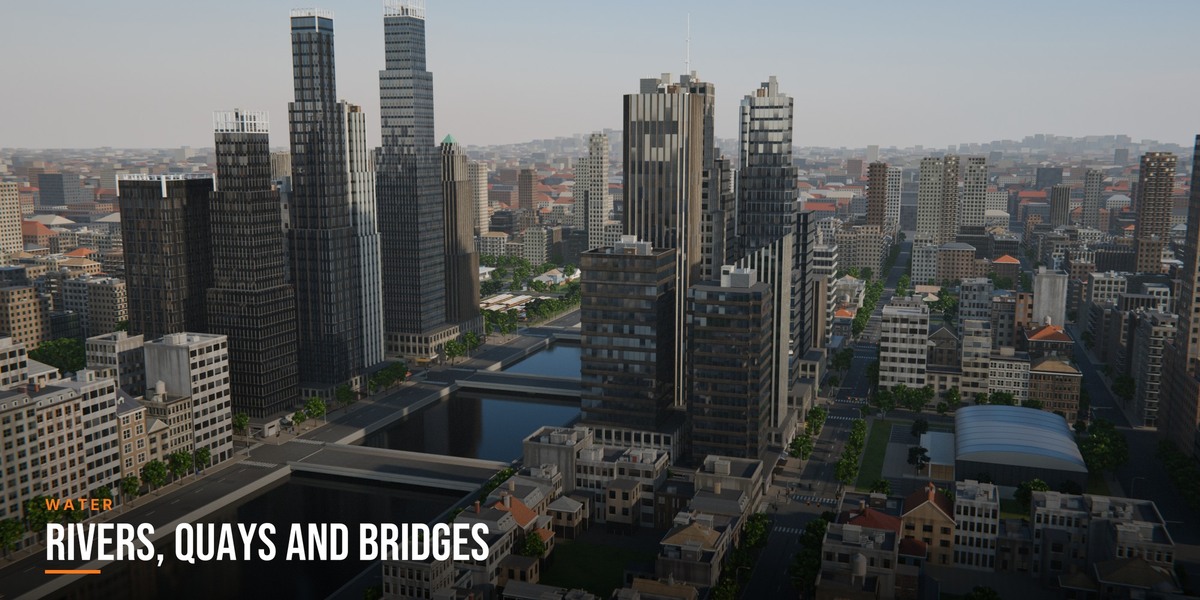
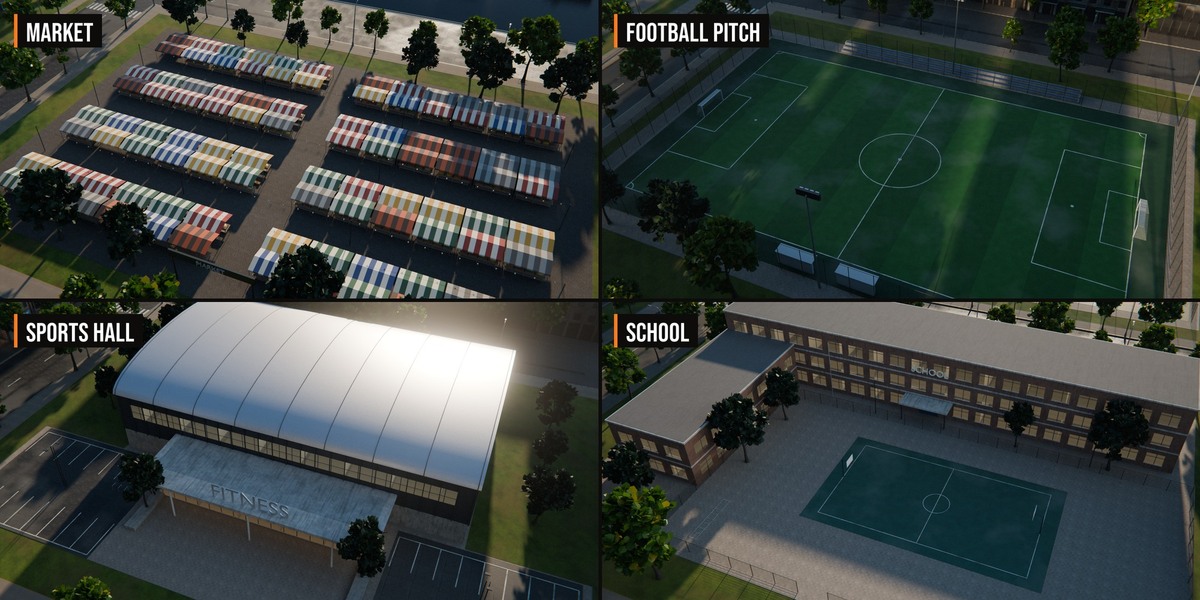

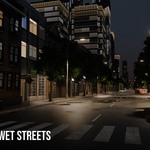
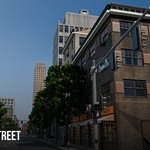
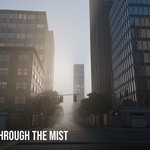
Installation
- Download metropol-1.0.0.zip from your Superhive library. Do not unzip it.
- Drag it into the Blender window, or use Edit > Preferences > Get Extensions > ⌄ (top right) > Install from Disk.
- Press N in the 3D Viewport and open the Metropol tab.
Quick start
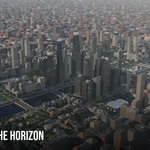
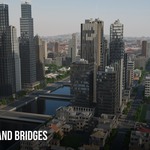
- Click Add City. A first city with a river takes about ten seconds on a recent PC.
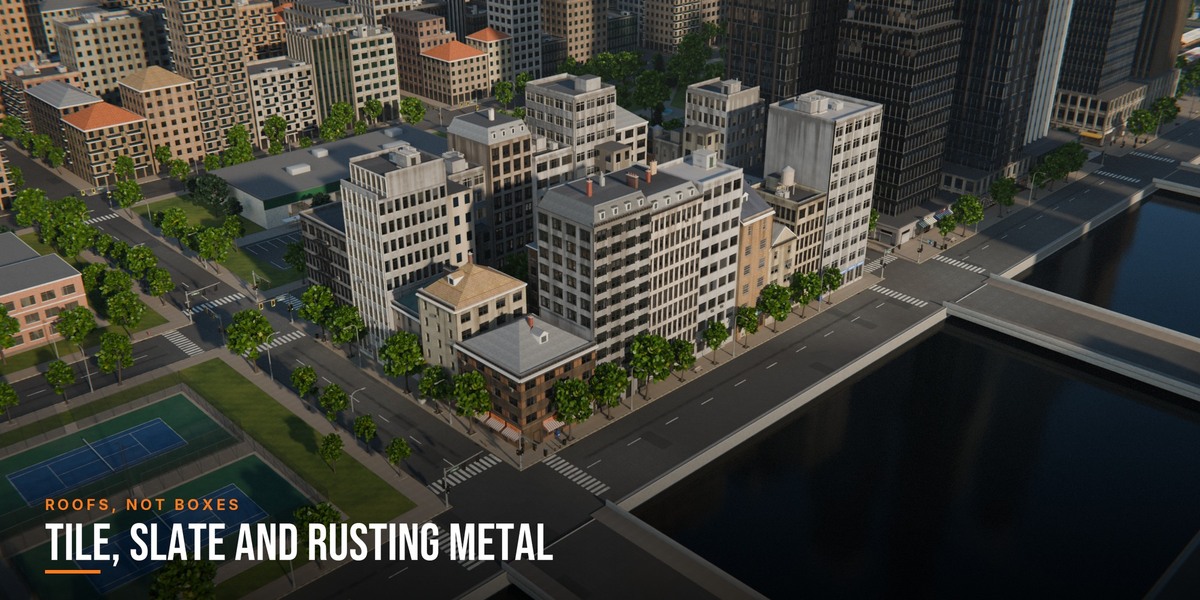
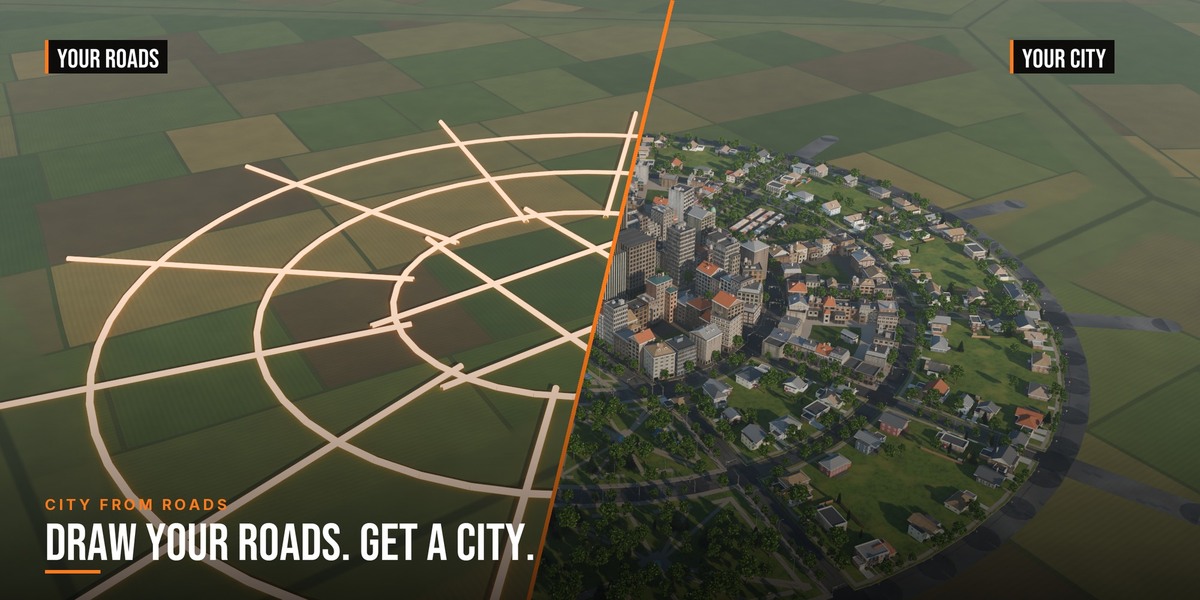
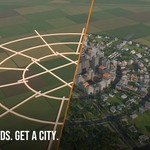
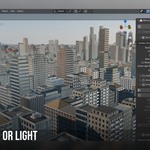
- In the operator panel (bottom left) pick a Layout and the number of blocks, or draw your own roads as a mesh or curve and click From Roads.
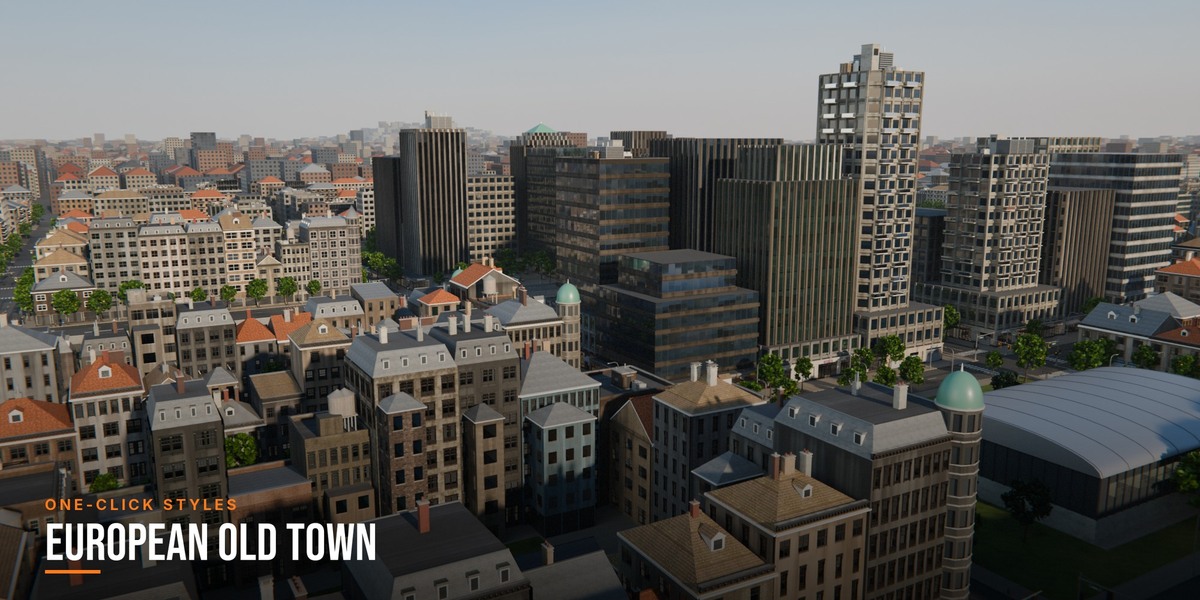
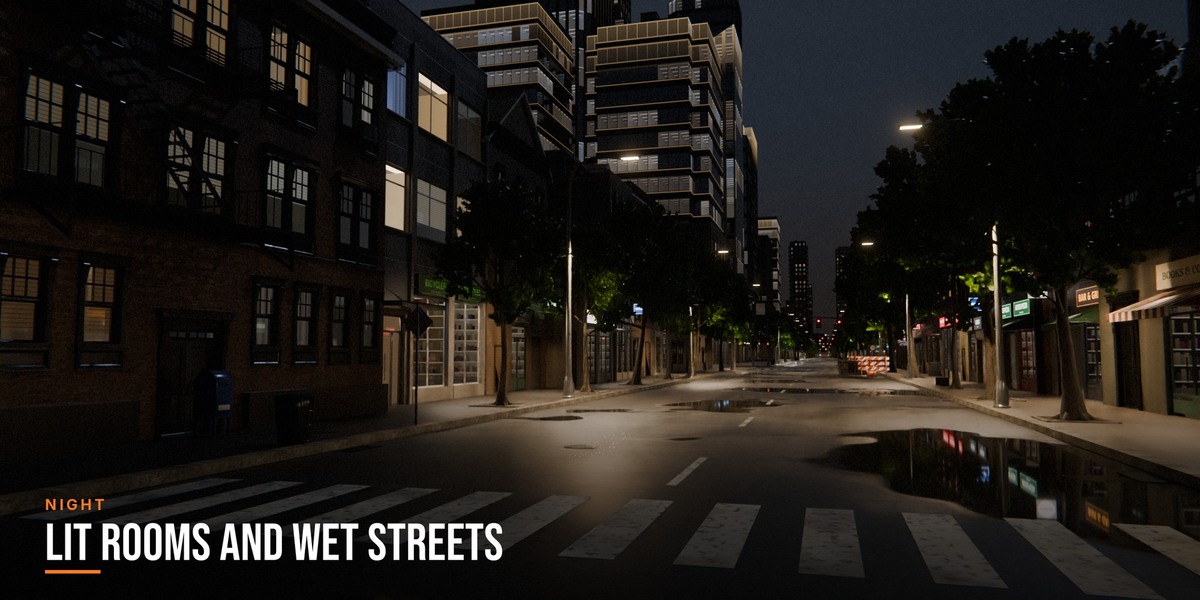
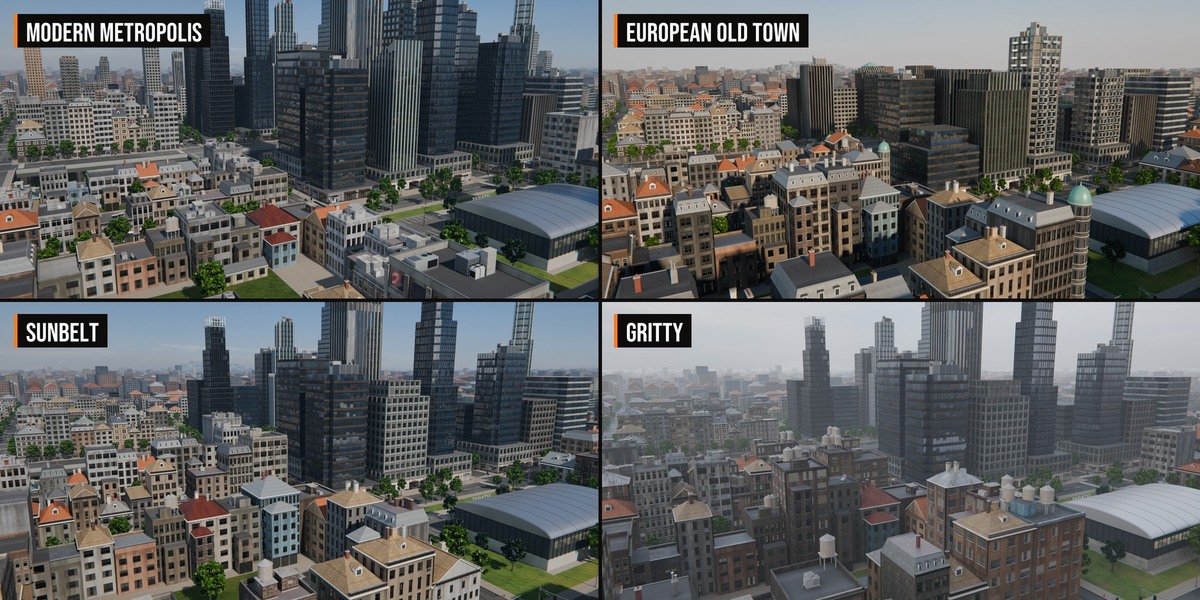
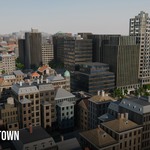
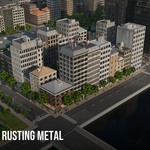
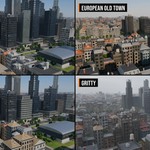
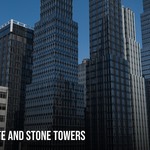
- Pick a Style for the whole city (Modern Metropolis, European Old Town, Sunbelt, Night City or Gritty).
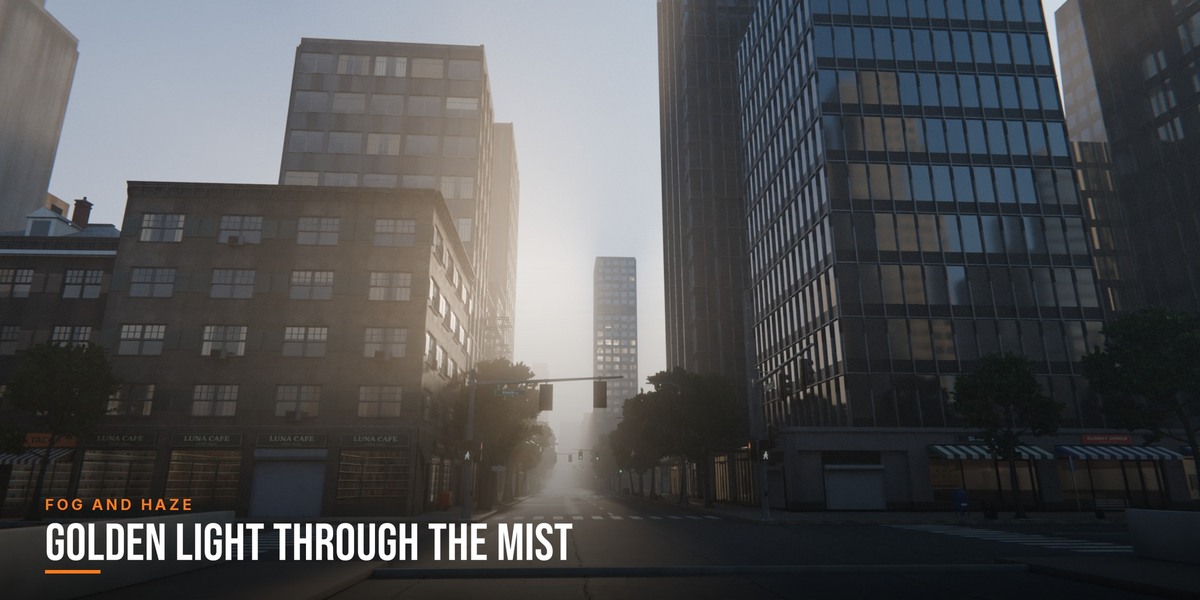
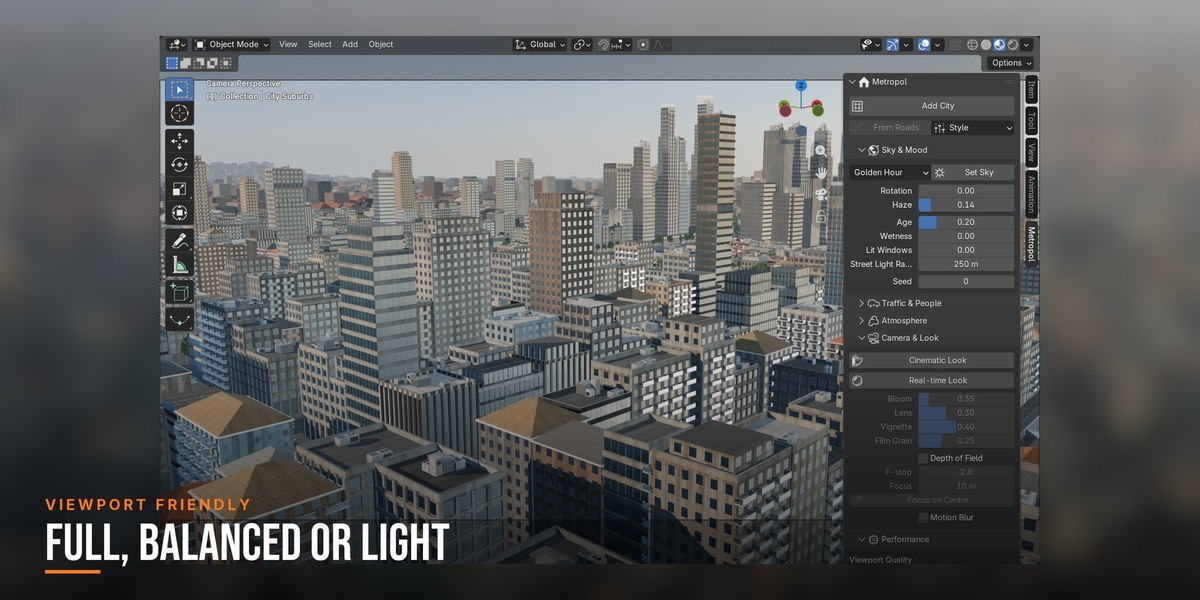
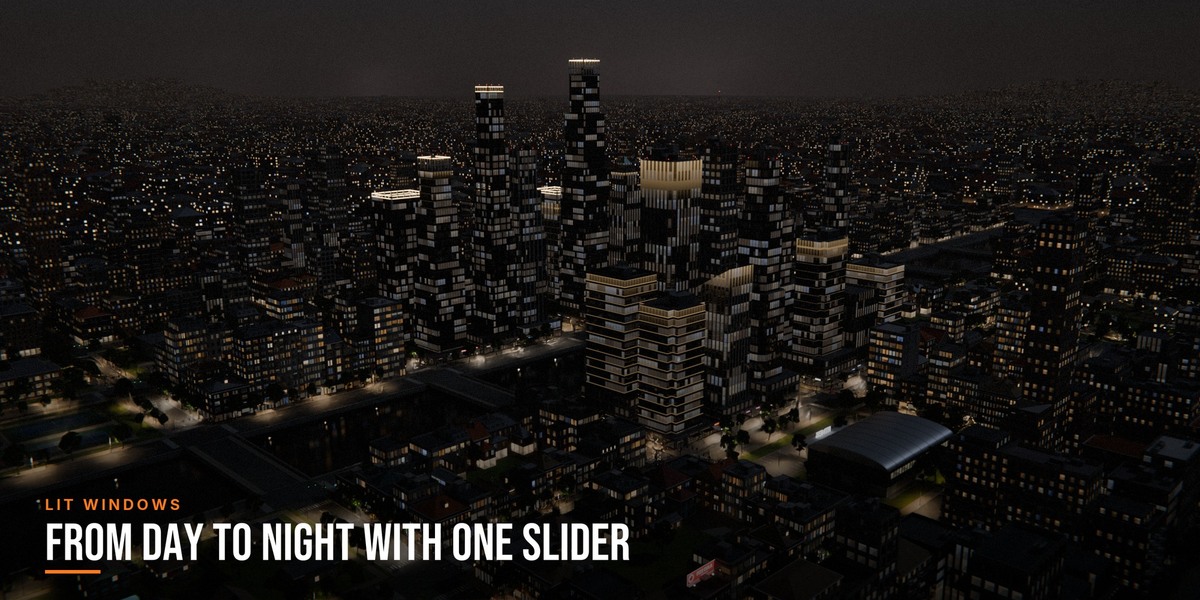
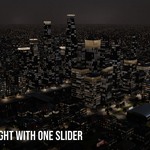
- Pick a Sky and click Set Sky: it sets the sky, the sun, the exposure and the lit windows.
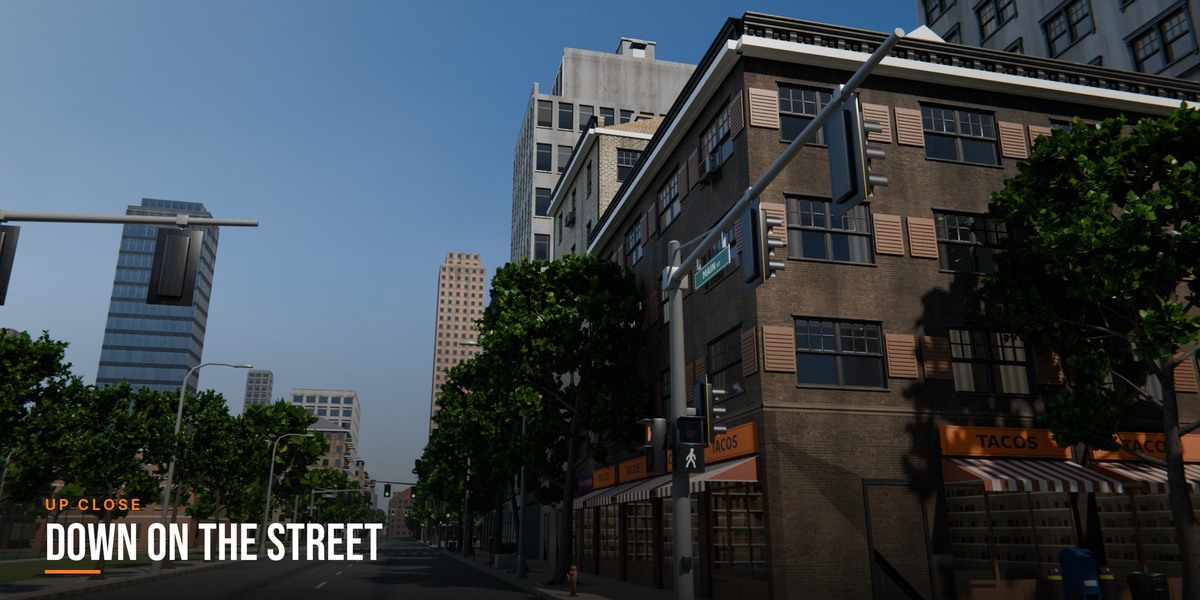
- Place your camera and render, or click Real-time Look and fly around in EEVEE.
Demo scenes
Metropol_Demo_1.0.zip holds a river city with seven cameras and a town built from drawn roads. Install the add-on first, then open a scene. Textures are packed into the files.
Manual
The full manual is Metropol_Manual.pdf in the product download: districts, every panel setting, styles, skies, fog and haze, City from Roads, performance and troubleshooting.
If something looks wrong
If the sliders do nothing after opening a file, or the city shows bare grey boxes, click Help & Info > Repair City. Set Viewport Quality to Balanced or Light while you work; renders always show everything.
Blender 5.2 or newer. Cycles and EEVEE.
Have questions about this product?
Login to message
| Blender Extension Compatible | Yes |
| Dev Fund Contributor | |
| Published | about 2 hours ago |
| Blender Version | 5.2 |
| Extension Type | Add-on |
| Render Engine Used | Cycles, Eevee |
| License | GPL |
Discover more products like this
buildings procedural-city geometry nodes roads skyscrapers city urban road-network architecture environment city generator cityscape