Mimika Face Capture: Video to ARKit Face Animation
 Meshwright
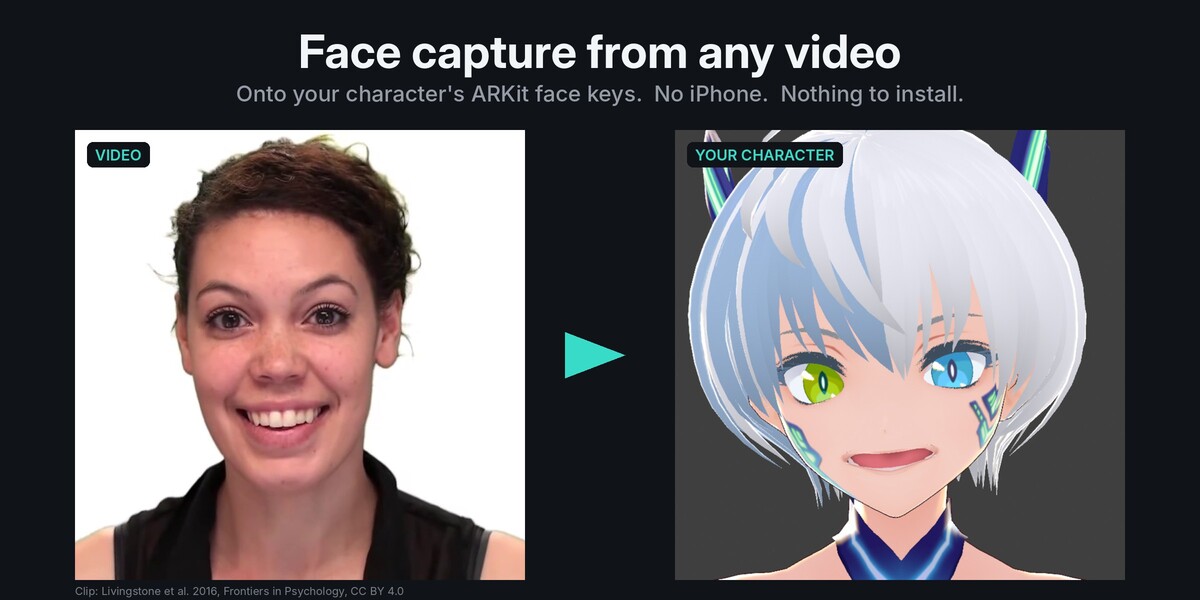
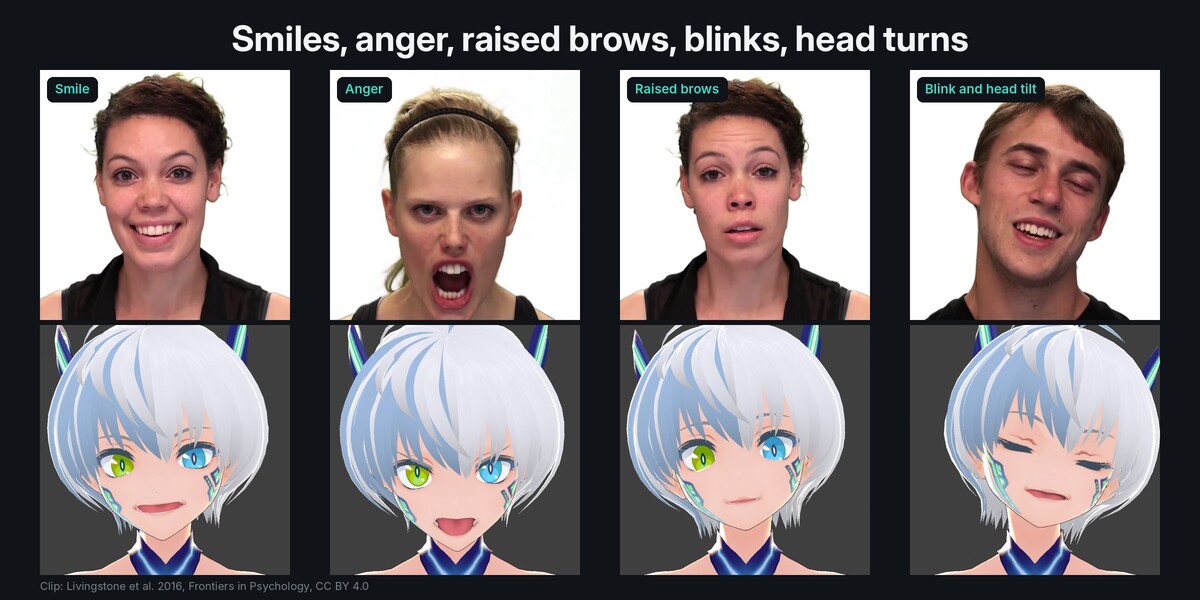
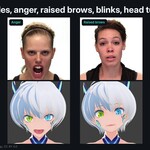
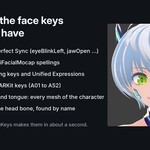
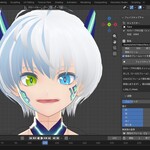
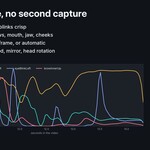
Requirements: Blender 4.2 to 5.2 on Windows, macOS or Linux, and a character with ARKit face shape keys.
Install
- Download
mimika-1.0.0.zip. Do not unzip it. - In Blender (4.2 or newer): Edit > Preferences > Get Extensions, the arrow menu at the top right, Install from Disk, pick the zip. (Or drag the zip into the Blender window.)
- The Mimika tab appears in the 3D Viewport sidebar (press N).
Nothing else is installed or downloaded.
Capture a video
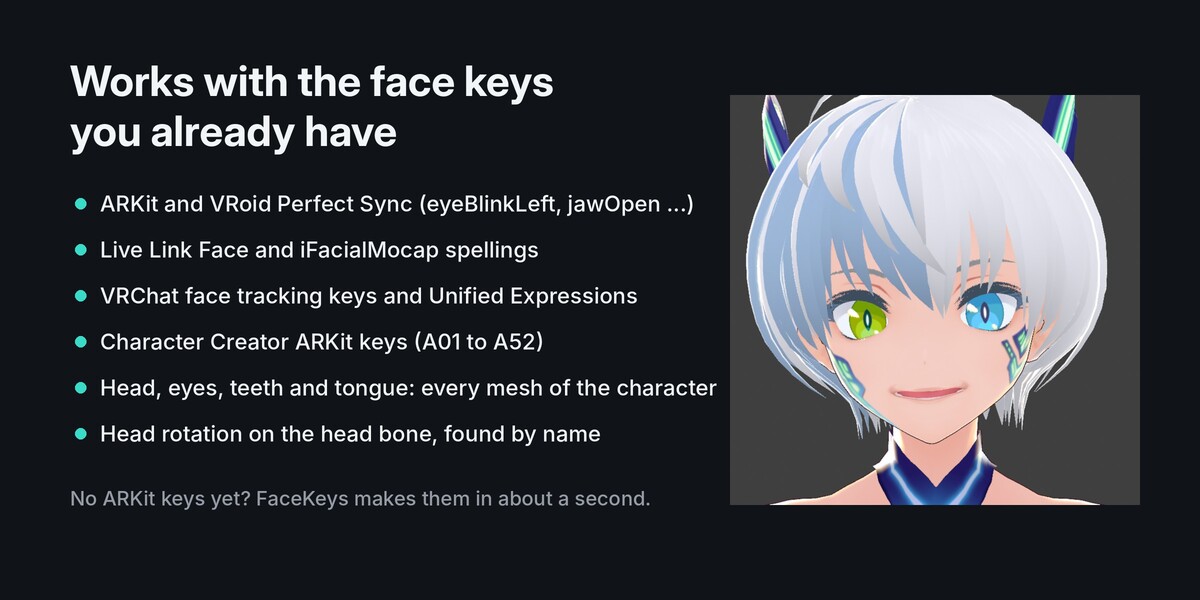
- Open your character. It needs ARKit face shape keys (eyeBlinkLeft, jawOpen, ...). FaceKeys, Faceit, VRoid Perfect Sync, VRChat face tracking and Character Creator ARKit keys all work.
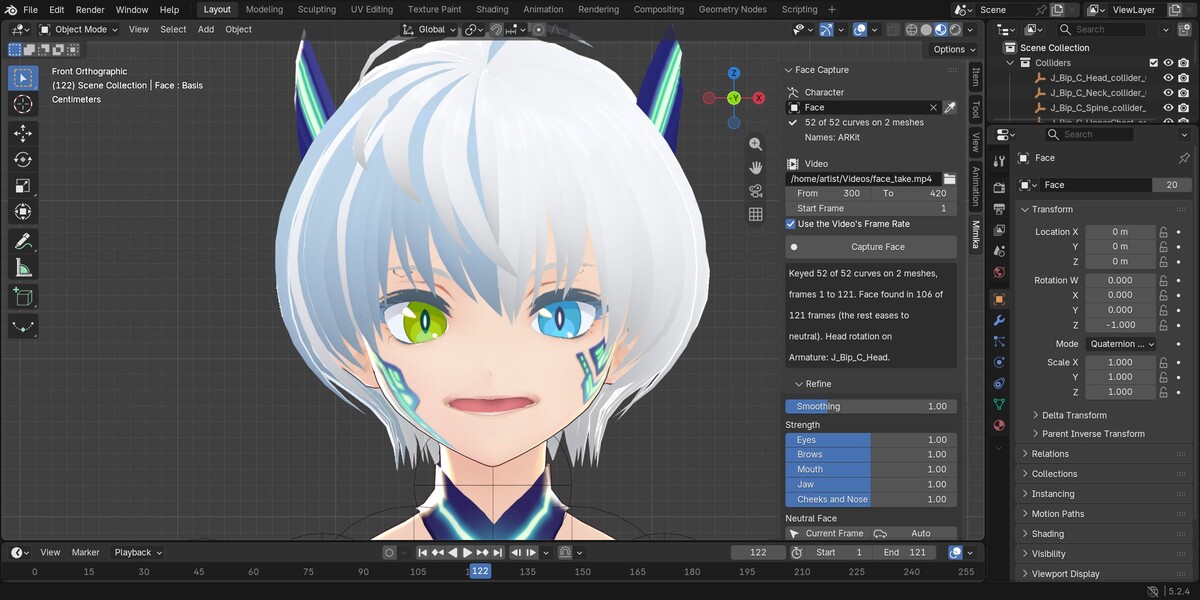
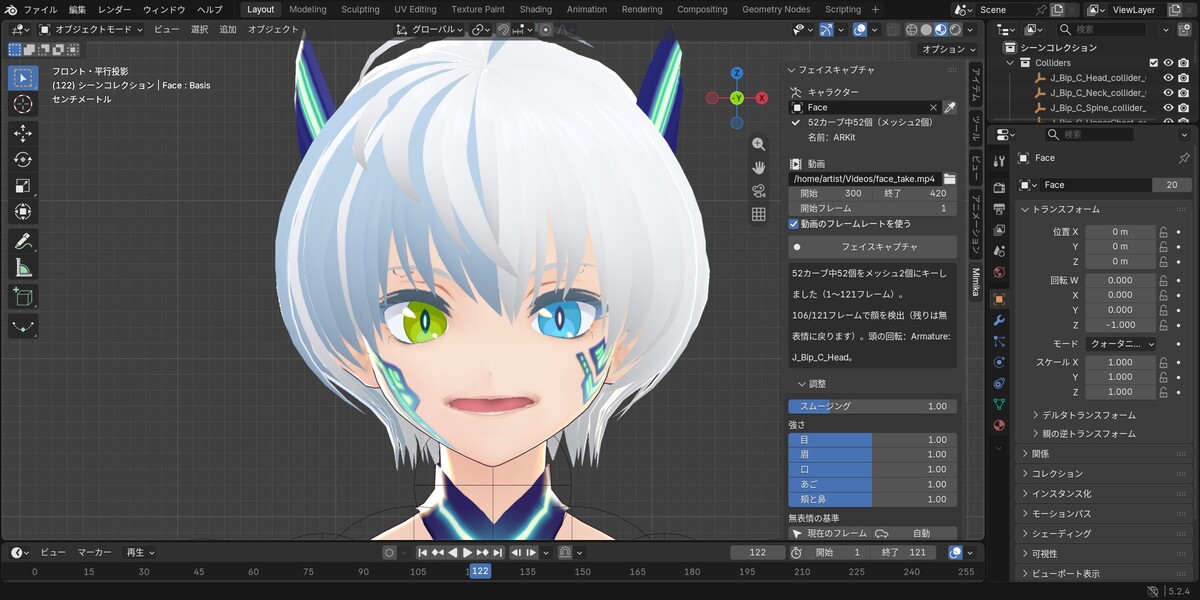
- Mimika tab > Character: pick the head mesh, or the armature the meshes belong to (the eyedropper takes the active object). The panel shows how many of the 52 curves it found and on how many meshes.
- Video: pick the clip. From and To limit the frames (0 means to the end). Start Frame is where the first video frame goes in your scene.
- Press Capture Face. A progress bar shows the frame and the speed. Esc stops it and changes nothing.
- Press Play. The scene's frame range and frame rate follow the take (both can be turned off).
Refine
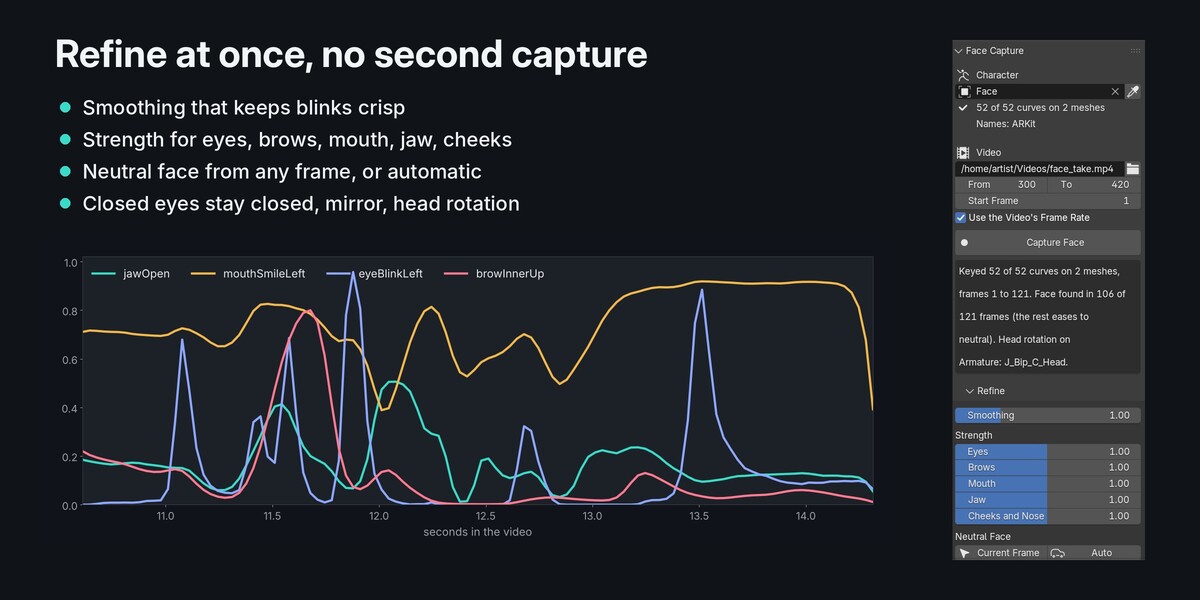
The take is kept in the .blend file, so these settings change the animation at once, without reading the video again:
- Smoothing: steadier curves; blinks are smoothed less than brows. 0 is off.
- Strength: eyes, brows, mouth, jaw, cheeks and nose.
- Neutral Face: go to a frame where the face is calm and press Current Frame. Auto finds the calm part of the clip.
- Eye Look: the gaze curves on or off.
- Closed Eyes Stay Closed: look and wide values fade while an eye closes, so a blink is a fully closed eye.
- Mirror Left and Right: for selfie cameras that flip the picture.
- Head Rotation: keys the head bone (found by name, or pick it) with its own strength.
- Live: turn off to change several settings and press Apply Changes once.
Export and View
- Show Video Beside: the clip plays next to the character in the viewport, in step with the animation (hidden in renders).
- Save Live Link Face CSV: the 52 curves and the head angles, for Unreal Engine, FaceKeys' Load Capture and other tools.
- Read Height: frames are read at this height at most (720 by default). Raise it only for a small face in a wide shot.
Tips for a good video
- One face, looking at the camera or a little to the side, filling a good part of the frame.
- Light on the face from the front; no strong backlight.
- 30 or 60 fps. Phone videos filmed sideways are turned upright for you.
- Start with a second of calm face: it makes a good neutral frame.
Good to know
- The face model reads 51 of the 52 ARKit curves: tongueOut is not read from video and stays 0.
- Cheek puff and nose sneer come out weaker than on an iPhone capture: raise Cheeks and Nose.
- A key that the character does not have is skipped; the panel shows how many curves it found.
- An action that was already on the shape keys is kept with a fake user, not deleted.
Problems
- "No face found in the video": the face is too small, too dark, or turned away. Try a closer clip.
- "Blender cannot read this file as a video": convert it to MP4 (H.264) and try again.
- The eyes close too much while the actor smiles: lower Eyes, or set a neutral frame while smiling slightly.
- The head turns the wrong bone: pick the armature and the bone under Head Rotation.
Third-party material
The face models are Google's MediaPipe Face Landmarker models (Apache License 2.0), run with the add-on's own code. Details in the zip: licenses/.
Have questions about this product?
Login to message
| Blender Extension Compatible | Yes |
| Published | about 3 hours ago |
| Blender Version | 4.2 - 5.2 |
| Extension Type | Add-on |
| License | GPL |
Discover more products like this
VTuber motion capture perfect sync vroid lip sync facial-mocap vrchat animation face capture shape keys webcam ARKit