 SUPRA3D

Installing
- Download
modperf-1.0.0.zip. Don't unzip it. - In Blender 5.2 or later, open Edit › Preferences › Get Extensions.
- Click the drop-down arrow at the top right and choose Install from Disk…, then pick the zip. You can also drag the zip into the Blender window.
To update, install the newer zip the same way. Your favourite stacks and shortcut are kept.
Opening and closing the panel
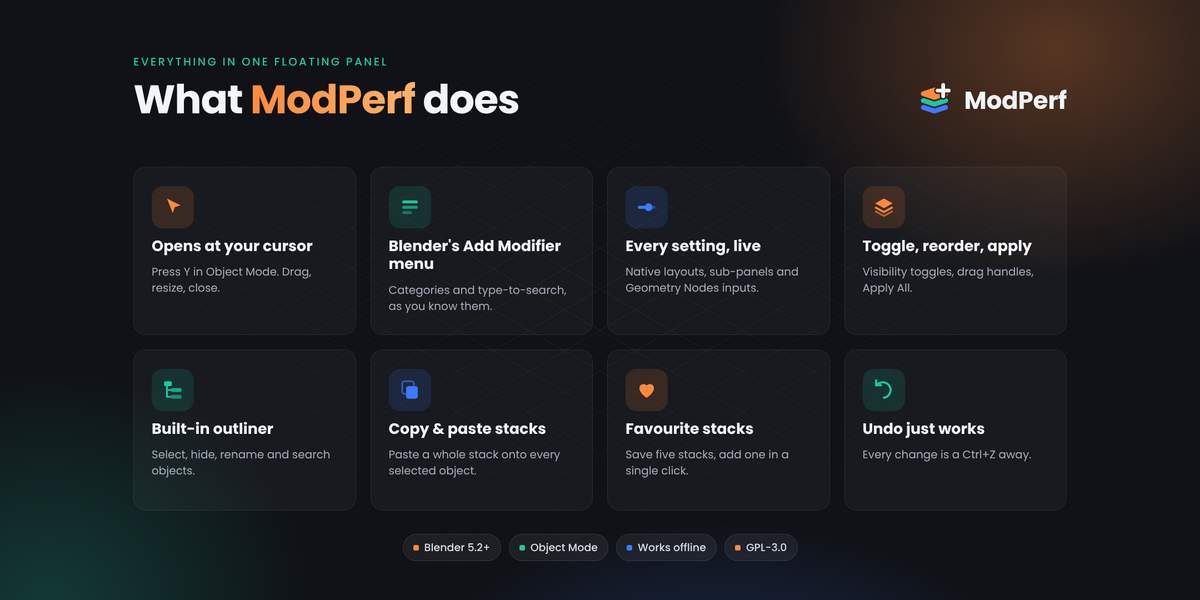
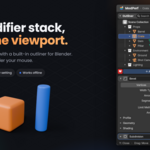
Hover over a 3D Viewport in Object Mode and press Y. The panel opens with its title bar under your mouse. Press Y again, click the × in its title bar, or switch to another mode to close it. You can also use View › ModPerf in the viewport header.
The panel
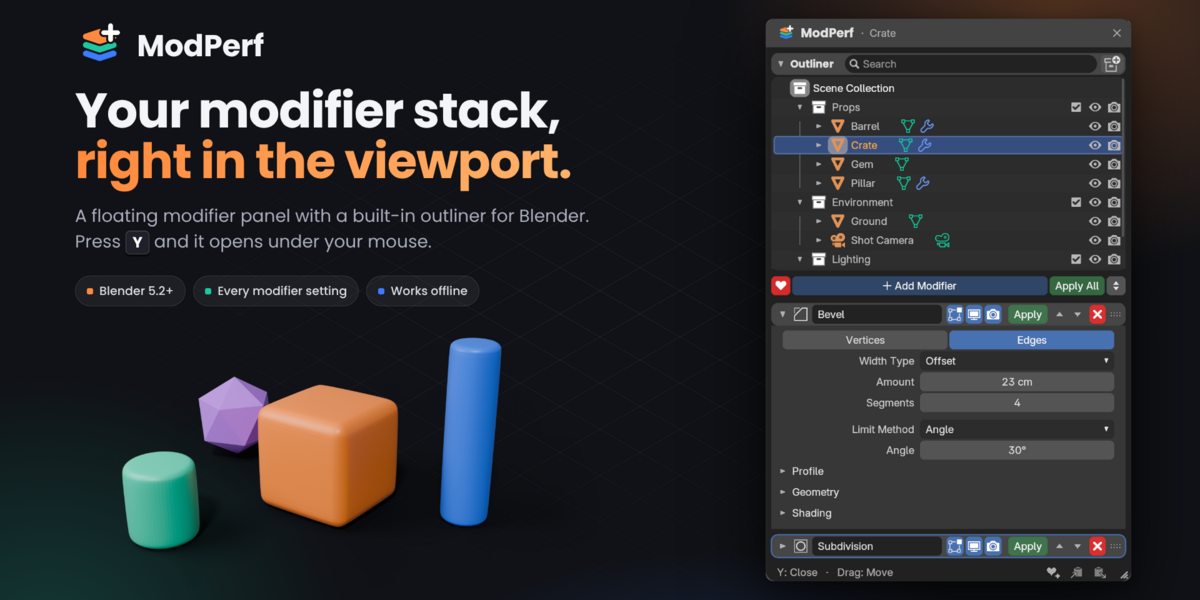
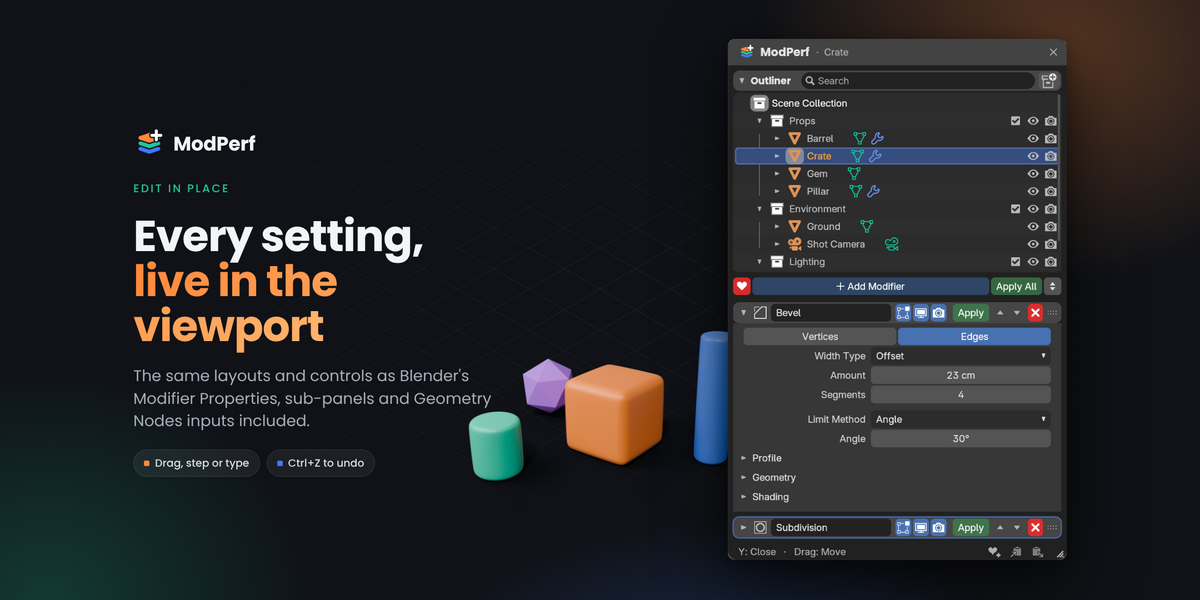
- Title bar: shows the active object. Drag it, or any empty spot, to move the panel. Resize it from the bottom-right corner.
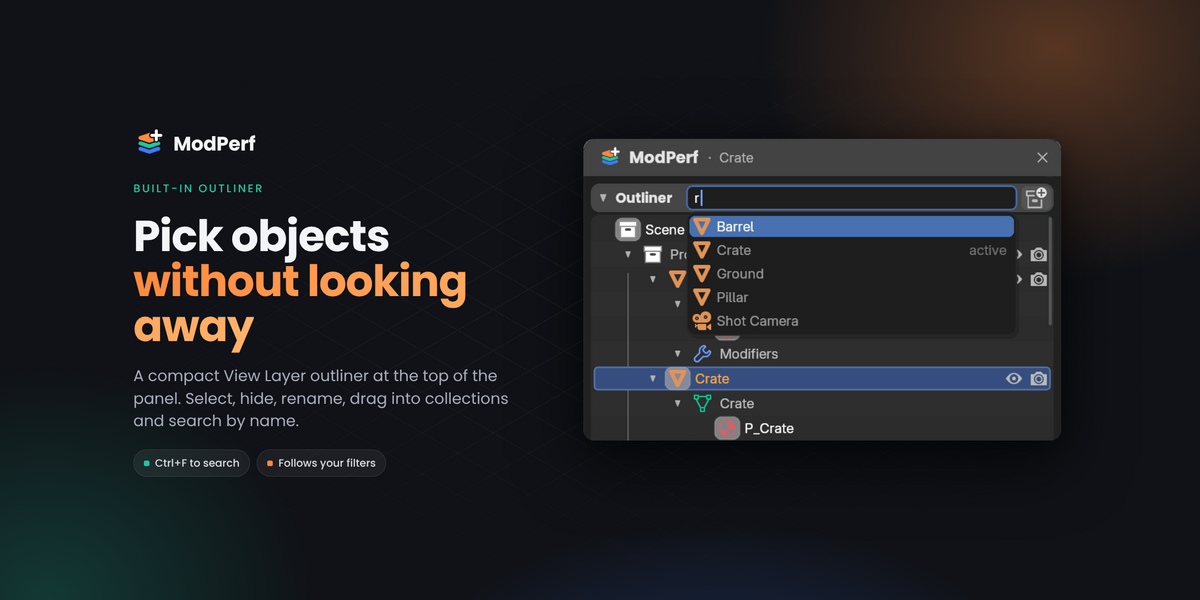
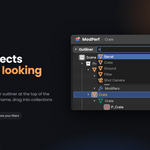
- Outliner: your scene's collections and objects. Select, hide, rename, drag into collections, search with Ctrl+F, and right-click for more.
- Toolbar: favourite stacks (heart), Add Modifier, Apply All and Expand / Collapse All.
- Modifier header: name, Edit Mode / Viewport / Render toggles, Apply, move up and down, delete and a drag handle.
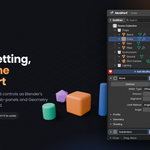
- Settings: the same layout and controls as Blender's Modifier Properties, including sub-panels and Geometry Nodes inputs.
- Footer: Save Modifier Stack, Copy Modifiers and Paste Modifiers.
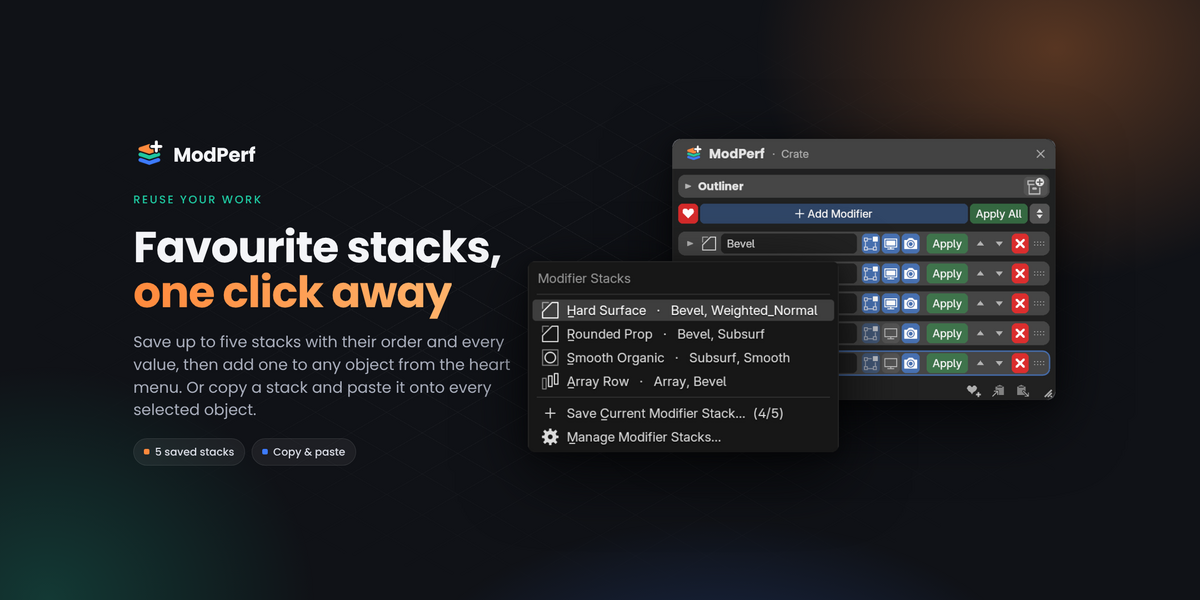
Favourite stacks
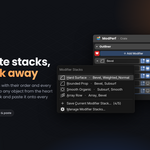
Click the save icon in the footer to store the active object's modifiers (order and every value) as a stack. Up to five stacks are kept. Add one to any object from the heart menu. Rename, reorder and delete stacks in Preferences › Add-ons › ModPerf.
Shortcuts
- Y (3D Viewport): open or close the panel
- Shift+D (over a modifier): duplicate it
- Ctrl+Z: undo the last change
- Ctrl+click an expand arrow: open only that modifier
- Double-click a name: rename
- Shift+click Copy: copy only the active modifier
- Drag sideways on a number field: change the value (Shift for fine steps, Ctrl to snap)
- Ctrl+F over the outliner: search
Troubleshooting
- The panel doesn't open: make sure you're in Object Mode with the mouse over a 3D Viewport, and that no other add-on uses the same key. You can change the key in the preferences.
- "Select an object that supports modifiers": lights and cameras have no modifiers, and empties can only have Geometry Nodes modifiers. Select a mesh, curve, text or similar object.
- Add Modifier says "No Object Selected": the active object must also be selected. Click it in the viewport or the outliner.
- Apply doesn't work: meshes with shape keys can't have modifiers applied (a Blender limitation).
- A modifier icon is red: the modifier is missing something it needs, such as a target object.
A 10-page PDF user guide with screenshots is included with the download.
Have questions about this product?
Login to message
| Blender Extension Compatible | Yes |
| Published | about 9 hours ago |
| Blender Version | 5.2 |
| Extension Type | Add-on |
| License | GPL |
Discover more products like this
modifier stack modifier-panel modeling extension interface Workflow productivity modifiers bevel viewport outliner hard surface