Modular Road Generator
 AS Formworks
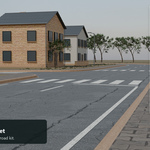
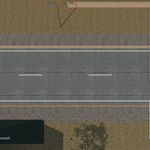
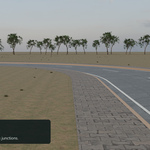
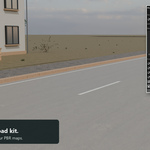
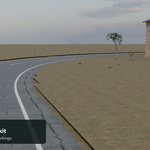
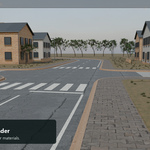
Modular Road Generator 0.8.0
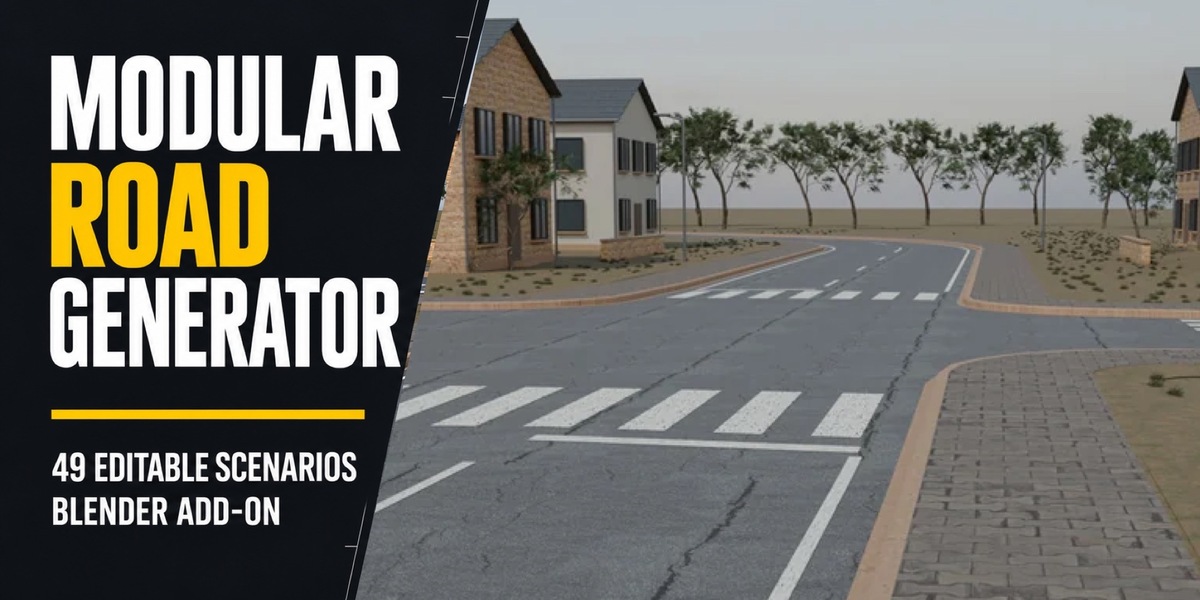
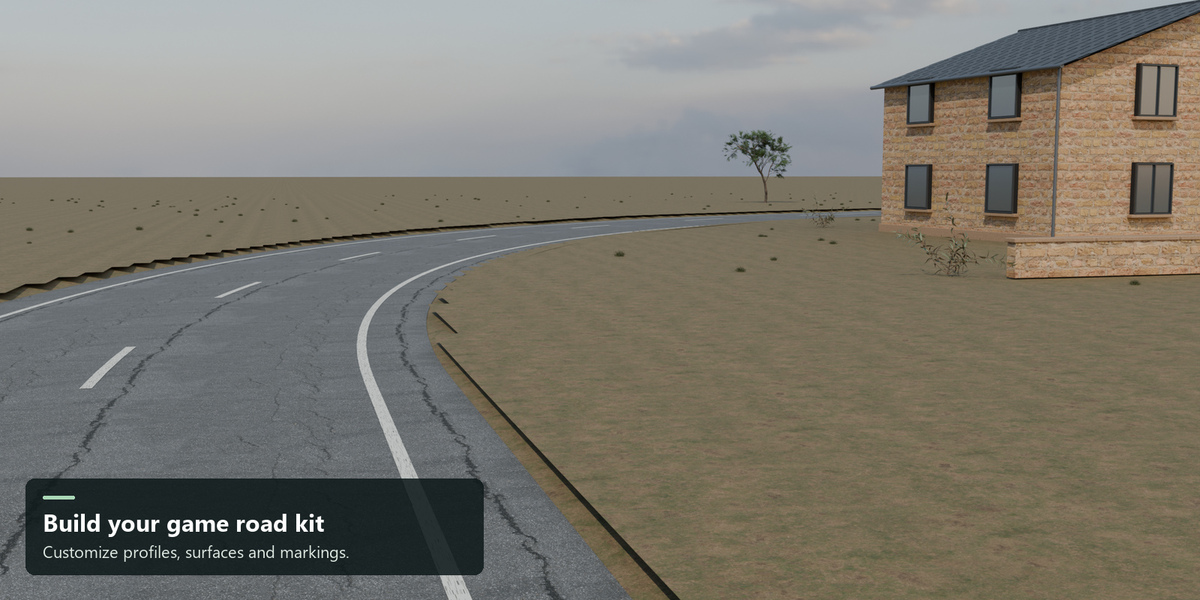
Build your own modular road kit for your game. Start immediately with the included examples, or bring your own materials and textures for a road system that fits your art direction. Road geometry, live editing, connection ports, LODs, collision and engine packages work with both workflows.
Installation
Requires Blender 4.2 or newer. Tested on Windows with Blender 4.2.23 LTS, 5.0.0 and 5.2.1 LTS. Other operating systems are not tested in this release.
- Open Edit > Preferences > Get Extensions or Add-ons.
- Open the menu at the top right and choose Install from Disk.
- Select modular_road_generator-0.8.0.zip. Do not extract it first.
- Enable Modular Road Generator.
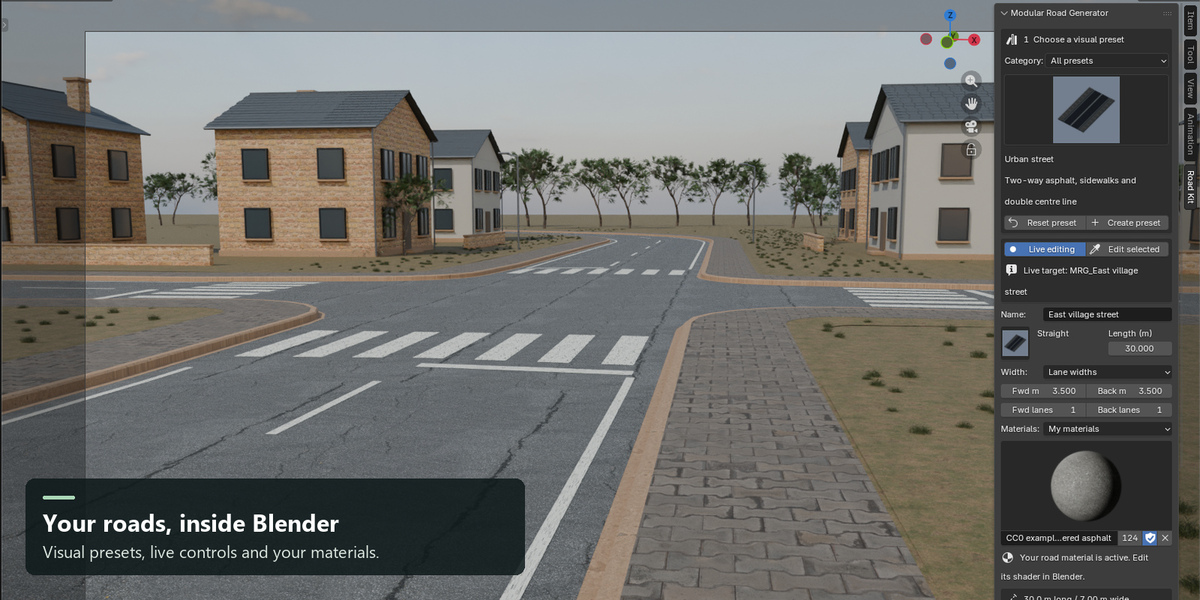
- In the 3D View, press N and open the Road Kit tab. Widen the sidebar if needed.
If upgrading, disable and remove the older version first, then install this version. Keep a backup of production .blend files. Preset JSON schema 1 remains supported; 0.7 surfaces require 0.7 or newer.
Quick start
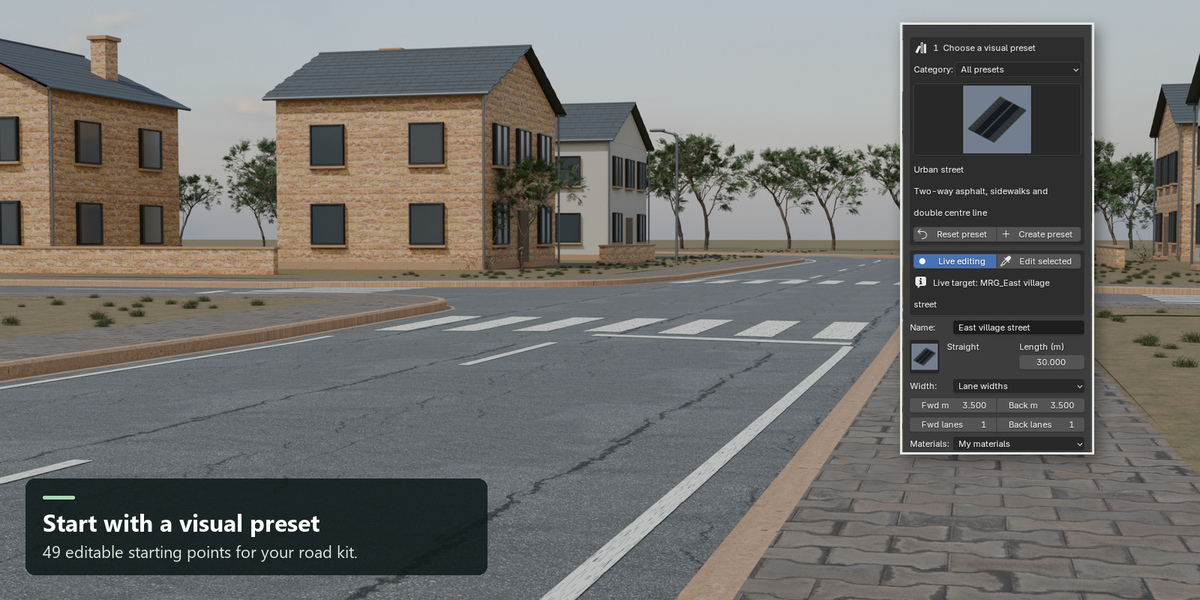
- Choose a category, then click the large preset thumbnail to open the visual selector.
- Click a thumbnail. Its complete profile is applied immediately, including width, markings, sidewalks and surface.
- Click Create new module. It is placed at the 3D cursor and becomes the live edit target. Auto-snap can connect it to a nearby compatible free port.
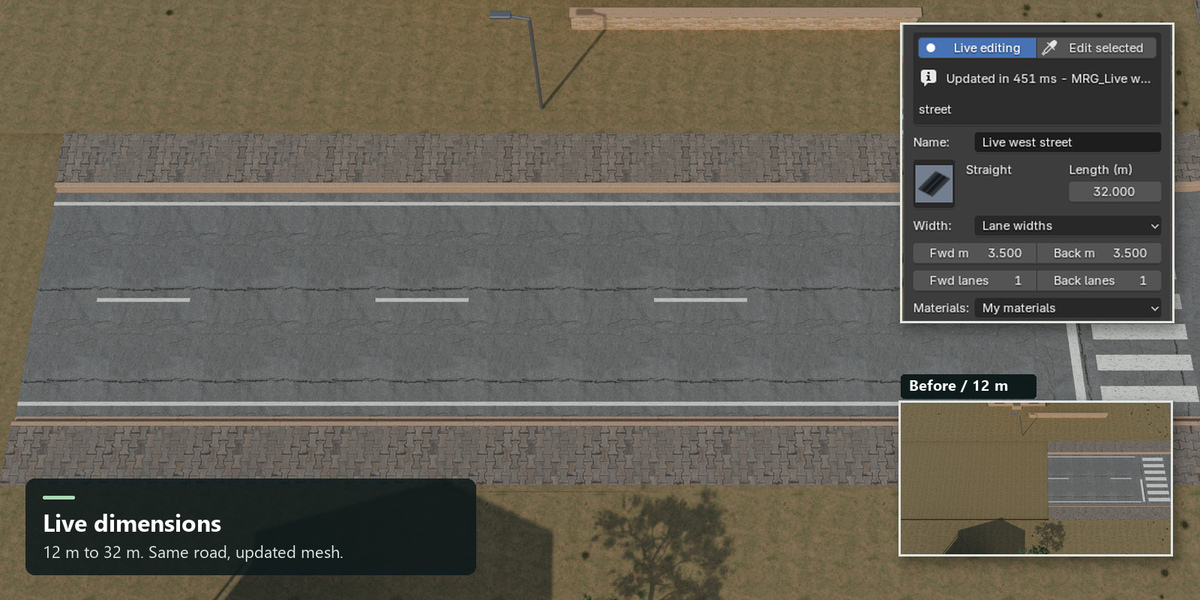
- Change length, widths, surface or advanced settings. After a 0.28-second pause, the selected live target updates.
- Click Materials for textured viewport shading. Solid mode can show material colors but cannot show the texture details.
- Use Edit selected to load another module and bind it for live editing.
Create preset resets to the selected factory preset and creates a new module. Create new module uses the currently edited values. Reset preset restores factory values. Save preset and Load preset store or retrieve a JSON configuration.
Your materials and textures
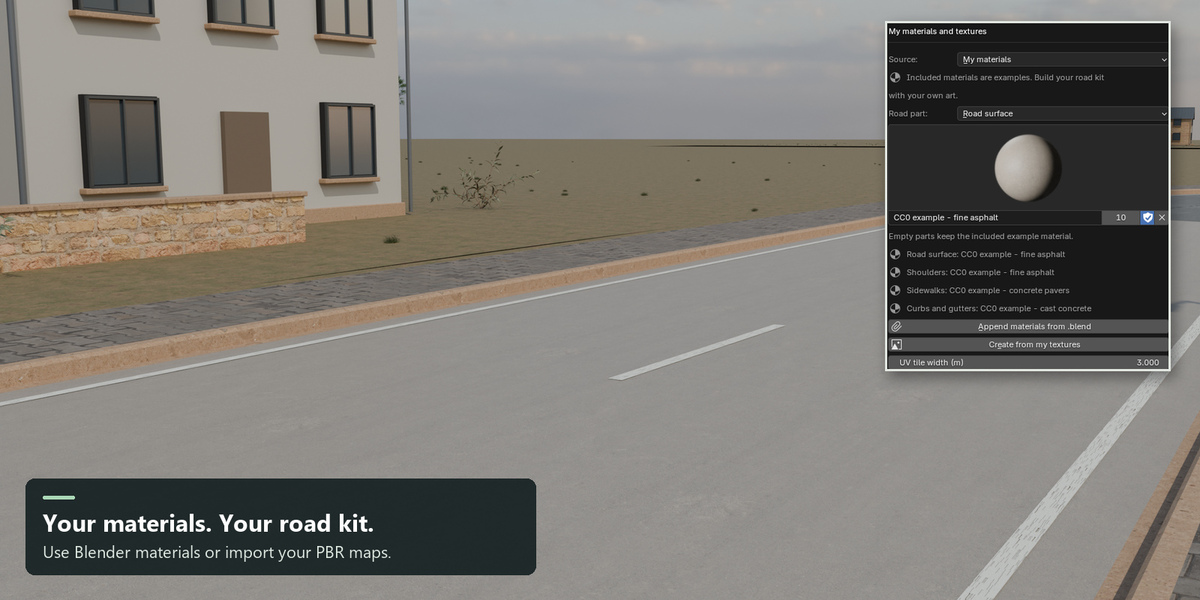
The included textures and materials are optional examples. Geometry and material palettes are independent: changing a road preset keeps your selected custom palette.
Use materials already in Blender
- Open **My materials and textures** in the Road Kit sidebar.
- Set Material source to **My materials**.
- Choose a Road part: Road surface, Shoulders, Sidewalks, Curbs and gutters, Median, Slab joints or Paint markings.
- Select your existing Blender material in the material preview selector. Repeat for the other parts you want to customize.
- Create a module, or keep your live target selected to update it. Empty parts retain their example material.
The same material can be used for several parts. Separate parts stay independent even when the included examples originally shared one concrete material. Your assignments are retained across straight roads, curves, junctions, live dimension edits, all LODs and road extensions. Apply appearance to selection transfers the palette across a selection. Root transforms, ports and collision continue to work normally.
Assigning a material directly to an existing generated material slot in Blender is also adopted before a subsequent live rebuild. This applies to replacement of a role slot; arbitrary new per-face material layouts remain manual mesh edits and are regenerated. Modules made with an older release gain separate role slots on their next rebuild.
Use Append materials from .blend to bring materials from your own Blender library into the current file. Appended materials remain available in the selector. Existing custom shaders are used unchanged in Blender; game export supports the core Principled PBR subset described below. Pack external resources in Blender when sharing existing library materials that reference external images.
Build a material from your texture maps
- Choose the Road part, then open **Create from my textures**.
- Enter a name and select your Base color, Roughness, Normal, Ambient occlusion, Metallic and/or Opacity files. Every map is optional, but at least one image is required.
- Choose OpenGL (+Y) or DirectX (-Y) for the normal format. The add-on creates an OpenGL working copy for DirectX input.
- Enable base-color alpha cutout if the color map contains a paint/opacity mask. A separate Opacity image also enables cutout.
- Click **Build and assign my PBR material**. A separate material is created, the imported images are packed, and the selected role updates.
The import copies image datablocks before assigning color spaces or converting normals. It does not overwrite source texture files or modify other materials using those files. The new material belongs to your Blender file and remains available after switching back to the example materials.
UV tile width controls physical texture repetition across the generated surface. Edit custom shader values such as roughness or normal strength in Blender's Shader Editor; the example weathering/roughness controls do not overwrite your shader. The main panel shows your selected road material when it is active.
Save and reuse your palette
Material datablock references are stored with each module collection and survive saving/reopening a .blend file. Edit selected loads that module's palette. Save custom preset includes material names alongside the geometry configuration; append the referenced materials into another .blend before loading that JSON. If names are missing, loading reports them and leaves the current settings intact. JSON contains references, not embedded material assets; use .blend files to transfer materials and their resources. Geometry-only presets from older releases remain supported.
Game export of your materials
Core Principled Base Color, Roughness, Metallic, tangent-space Normal, Ambient Occlusion and alpha-cutout image maps are supported. Node names and image labels do not have to match the examples. Packed-channel inputs through Separate Color are recognized. Roughness/AO/metallic maps of different sizes are resampled into the engine's packed texture without resizing the originals. Constant PBR values and the material's own normal strength are preserved. File and shader names are sanitized for texture output paths.
Image textures must use SurfaceUV (or the default UV input), flat projection, and Repeat/Extend. Data maps use Non-Color. Paint replacements must match the generated UV convention: a 4 x 4 atlas for road lines/arrows, or a single paint tile for ground kits. Keep the supplied paint material when you only want to customize the pavement.
Complex procedural shaders, custom UV mapping nodes, bump/world-space normals, blended transparency, coat, transmission, sheen, subsurface and emission are not translated by the road import helpers. They can still be used on the Blender-generated meshes. Export preflight explains what must be baked to core PBR maps or set up as a custom shader in the target engine; it does not silently discard those effects.
The supplied Unity and Unreal helpers create native materials from the exported maps. If your game already has its own master shaders, use the exported material role/name metadata and assign those game materials in the engine. Installing this Blender add-on does not modify a game project automatically.
Live editing
Live editing is enabled by default and starts after creating a module or choosing Edit selected. The target is bound by its module ID, so selecting another object cannot redirect pending edits to it. Select the bound module's root, mesh or port to continue. Live editing pauses when the target is not active or Blender is outside Object Mode. After selecting it again, change a setting or use Update now to apply pending values.
Invalid settings keep the last valid mesh and display a readable error. Fix the highlighted dimensions to continue. Turn Live editing off to stage settings, then use Update now to apply them explicitly. The collection ID and root object survive rebuilds, as do root placement and rotation. Texture-only changes reuse the existing meshes; normal strength changes reuse the texture images too.
Generated child meshes are regenerated by geometry edits. Preserve custom mesh work separately before rebuilding. Live editing refuses collections with custom/shared objects, child modifiers, child animation or child constraints. Root animation and root parenting can remain because the root itself is retained. Changing a connected road's length or profile does not move neighboring modules; check and repair connections afterwards.
Visual choices
The add-on bundles 96 offline thumbnails rendered from its own meshes and PBR shaders. Visual selectors cover all 49 scenarios, four module shapes, ten carriageway surfaces, four sidewalk surfaces, nine marking kits, seven centerline patterns, lane arrows and five paint palettes. Click a thumbnail to open its selector. Advanced controls reveal the additional visual selectors.
Categories include roads, airport, parking and industrial workflows. Matching modular taxiway and parking families retain their original profiles. Independent compact parking uses a different profile and does not snap to the wider parking family.
Airport and ground markings
Choose a preset or marking kit to apply its matching base profile. Airport profiles contain no street sidewalks, median, widening or pedestrian crossings. The advanced sidewalk controls are hidden for these profiles. Validation also prevents an incompatible aviation profile loaded from JSON or edited through Python from generating street furniture.
Available kits: road markings, taxiway centerline, taxiway edges, taxiway hold, runway threshold, apron stand, helipad, parking bays and warehouse loading bays. Kit offset, spacing, depth, count and edge inset control the pattern. Controls have different effects per kit: count affects runway stripes or bay/stand repetitions; depth affects runway threshold, apron guide or helipad dimensions.
Taxiway center and edge kits support curves. Taxiway center also supports symmetric junctions. Other ground kits require straight modules. They replace ordinary traffic lines and arrows. White and yellow ground paint use dedicated single-color alpha tiles. Road markings and arrows share a 4 by 4 RGBA atlas. Paint uses mesh decals, not engine-native projected decals.
These are environment art tools. They do not provide airport certification, runway numbering, lights, traffic simulation, terrain conformity or engineering compliance.
PBR material library
Twelve procedural surfaces: asphalt, worn asphalt, cracked asphalt, wet asphalt, red asphalt, concrete, light concrete, gravel, dirt, pavers, brick and cobblestone. Ten are available for carriageways; sidewalks offer concrete, pavers, brick and cobblestone.
Each surface produces packed Base Color, Roughness, OpenGL Normal and Ambient Occlusion images. Color uses sRGB; data maps use Non-Color. Textures tile periodically and require no downloads or external asset libraries. Brick and stone have recessed joints; worn surfaces have variation, pores or cracks; wet asphalt has lower effective roughness. Wet asphalt is a surface appearance, not a fluid simulation.
Resolution: 256, 512, 1024 or 2048 px. Tile width is in meters, independent of resolution. Texel density equals resolution / tile width. Seed reproduces the same variation. Weathering affects the surface; paint wear controls the separate alpha mask. Concrete and light concrete can add geometric visual slab joints on ordinary road segments. Junctions use continuous concrete surfaces without those geometric joint strips.
Use New surface variation to randomize seed and weathering. Apply appearance to selection transfers the appearance settings across selected modules after safety checks. This batch action can regenerate geometry; retain manual edits separately.
Profiles and connections
Coordinates are meters: X right, Y forward, Z up. Positive curve angles turn right; negative angles turn left. Width is calculated from lane widths or distributed equally over a fixed carriageway width. Median, shoulders, gutters, curbs and sidewalks are additional bands.
Advanced controls cover crown, bank, grade, shoulders, tapered lay-bys, sidewalk slope, curb bevel, outward sidewalk widening, arrows, paint and intersections. Junctions require symmetric two-way profiles and no median, grade, bank, partial shoulders or widening. Validation explains unsupported combinations before generation.
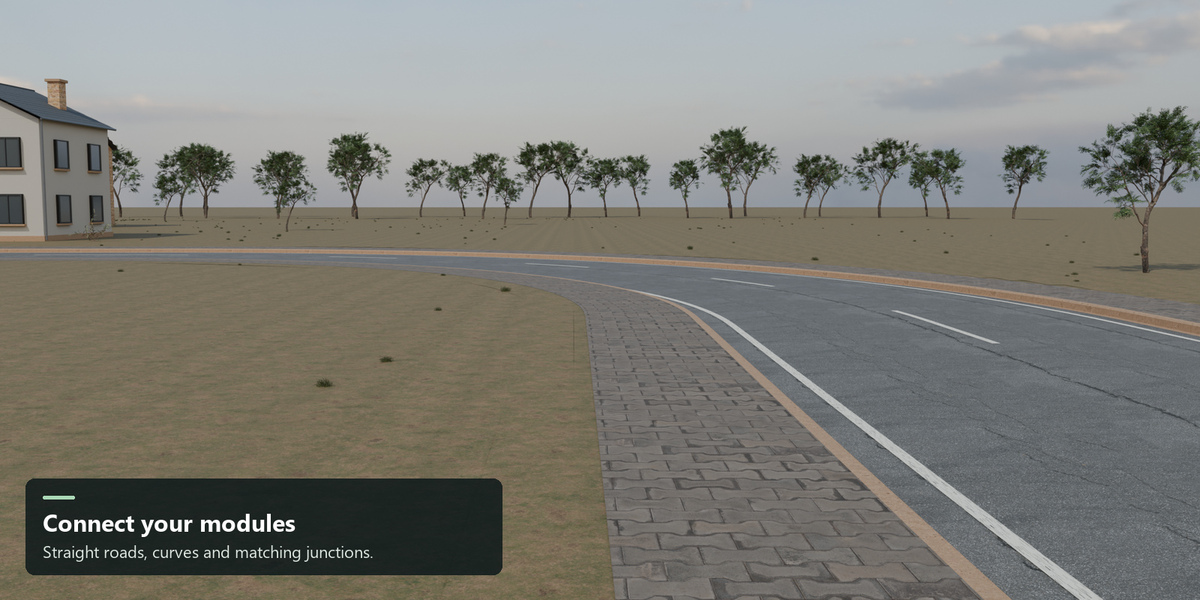
Left / Straight / Right creates a continuation using the actual port profile, including end shoulder and sidewalk widths. Select a port to choose the direction, or use Target port. Snap to compatible port moves the active module to another selected module or a nearby free port. Profile and lane-direction compatibility are checked. Use Check connections after changing dimensions in a network. Scaling the root is not a substitute for changing road dimensions.
LOD and collision
Choose 1-3 LOD levels. Lower levels use coarser curve sampling while preserving port profiles. LOD2 can remove paint geometry. Straight roads may already have few polygons, so their LOD counts can be similar. Junction topology and paint clipping can affect the reduction ratio. Preview LOD switches only the selected module's viewport and render visibility; exports retain all generated levels.
Collision is a separate static drivable surface without paint. It is not a closed convex hull for dynamic rigid bodies. Port and collision helpers can be toggled under Viewport and LOD. Use Frame module to fit the view.
Export
- Select a module or its root.
- Choose Portable GLB, Unity URP, Unity HDRP or Unreal Engine 5.
- Click Validate and inspect Report. Errors block export; budget warnings describe potential runtime costs.
- Click Export active module, or select several modules and use Export selected modules.
- Choose an output directory. A new folder is created so existing exports are preserved.
The active live target is flushed before export. An invalid queued edit blocks export rather than silently exporting older geometry. For batch export, make the bound live target active or pause live editing.
Packages contain actual GLB or FBX meshes, separate LOD and collision files, geometry.json, road.json, PNG maps, ENGINE_IMPORT.txt and matching engine import helpers. GLB embeds its PBR textures. Unity exports include metallic/AO or HDRP mask data. UE5 exports include ORM and DirectX normal maps. Ambient occlusion is included in packed engine maps. JSON records source axes, units, ports, configurations and LOD thresholds.
Import helpers are included under integrations/ and in engine export packages. Follow the generated ENGINE_IMPORT.txt instructions. Blender exports were tested for all four targets. The Unity and Unreal importers were not executed in engine editors for this release; validate shader, collision, scale and LOD behavior in your specific engine version before production. Multiple exported modules are individual assets, not an automatically reconstructed engine scene.
Performance
The release removes unnecessary LOD roots, ports and collider work, uploads UV and material indices in bulk, uses float32 texture buffers, shares images across normal strength changes and removes only unused add-on-generated materials/images after live updates. User-created datablocks are not globally purged.
Benchmark scripts and raw measurements are in the release bundle. They measure cached generation and repeated normal-strength edits on the local test machine. Custom shader rendering cost depends on your materials and target engine; geometry LODs and shared-material workflows remain available for your own road kit.
Troubleshooting
- No update: enable Live editing, select its bound target, stay in Object Mode, then change a setting or use Update now.
- Last valid mesh kept: fix the displayed profile constraints. Existing geometry remains available.
- Airport has old street settings: choose the airport preset again, or select the matching marking kit. Selection now applies the full profile automatically.
- Material looks flat: use Materials / Material Preview. Increase texture resolution or reduce tile width for closer views.
- Cannot snap: verify lane directions, exact port cross-sections, unit root scale, available ports and snap distance.
- Rebuild refuses the module: move custom/shared objects or modified generated children out of the collection first.
- Report opens a Text Editor: press Shift+F5 to return to the 3D View.
- LOD2 has no paint: disable Drop markings in LOD2 and update the module.
License and credits
The add-on retains GPL-3.0-or-later and the original contributor attribution. Engine integration source retains its included MIT license. No third-party texture library, runtime network service or license-key activation is required. See LICENSE and integrations/LICENSE for the complete license texts.
REALISTIC PBR ROAD SHOWCASE - EDITABLE EXAMPLE
This packed Blender 4.2+ file contains 12 genuine generated road modules: nine connected village modules and three connected rural-route modules. The rural route is at X=245 m; choose the Rural route camera to view it.
Select a road mesh or its root, then use Road Kit > Edit selected to edit it. The road modules demonstrate optional image-based asphalt and concrete palettes. Use the named Village street, Surface detail, Connection view and Rural route cameras to inspect the example locations. Press Numpad 0 for the active camera view.
Append Materials/PBR_Material_Library.blend through Road Kit > My materials and textures > Append materials from .blend. It contains weathered asphalt, fine asphalt, concrete pavers and cast concrete, with packed base color, roughness, OpenGL normals and ambient occlusion. Select My materials and assign these to the road parts. The example module UV tile width is 3 m; your own materials remain fully supported.
Architecture and terrain are original presentation geometry. Image-based PBR, HDRI and vegetation are free CC0 Poly Haven assets, available independently at the source links in Licenses/THIRD_PARTY_ASSETS.txt. They are optional examples, not exclusive art. The ENVIRONMENT collection can be hidden. The add-on does not generate these environment objects. All required resources are packed; no live API or linked external files are required. Source licenses and digest receipts are included. The add-on code and engine integration licenses remain as supplied.
Have questions about this product?
Login to message
| Blender Extension Compatible | Yes |
| Published | 1 day ago |
| Blender Version | 4.2 - 5.2 |
| Extension Type | Add-on |
| Render Engine Used | Cycles, Eevee |
| License | GPL |
Discover more products like this
PBR game assets LOD modular roads environment art Road generator