Pro Graph - Motion Graphics Tools for Geometry Nodes
 CG_Flow
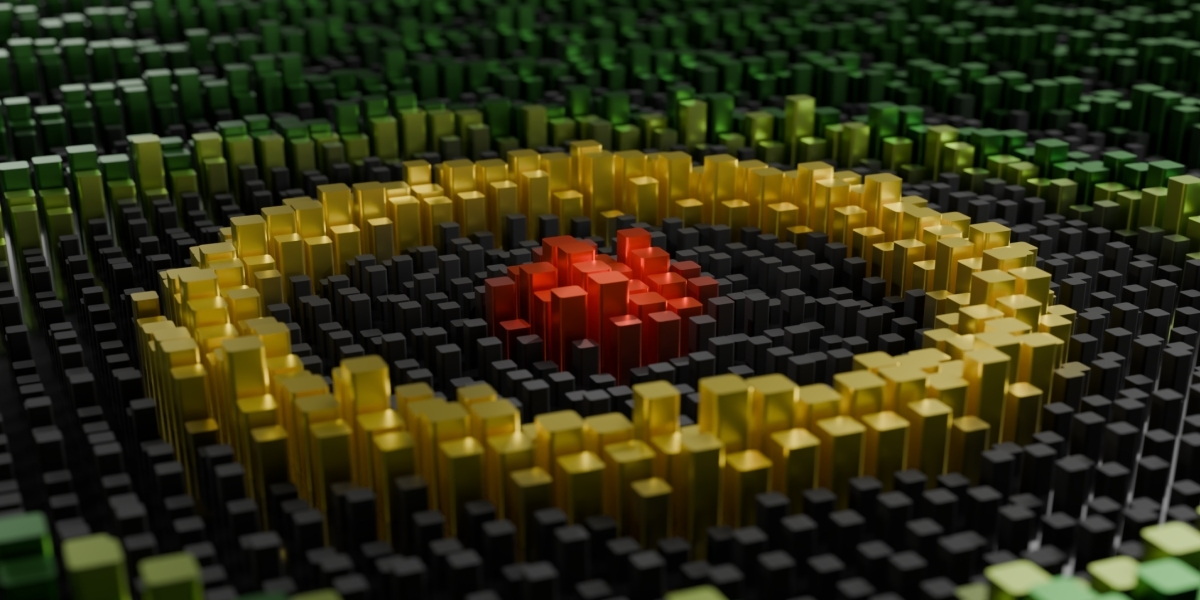

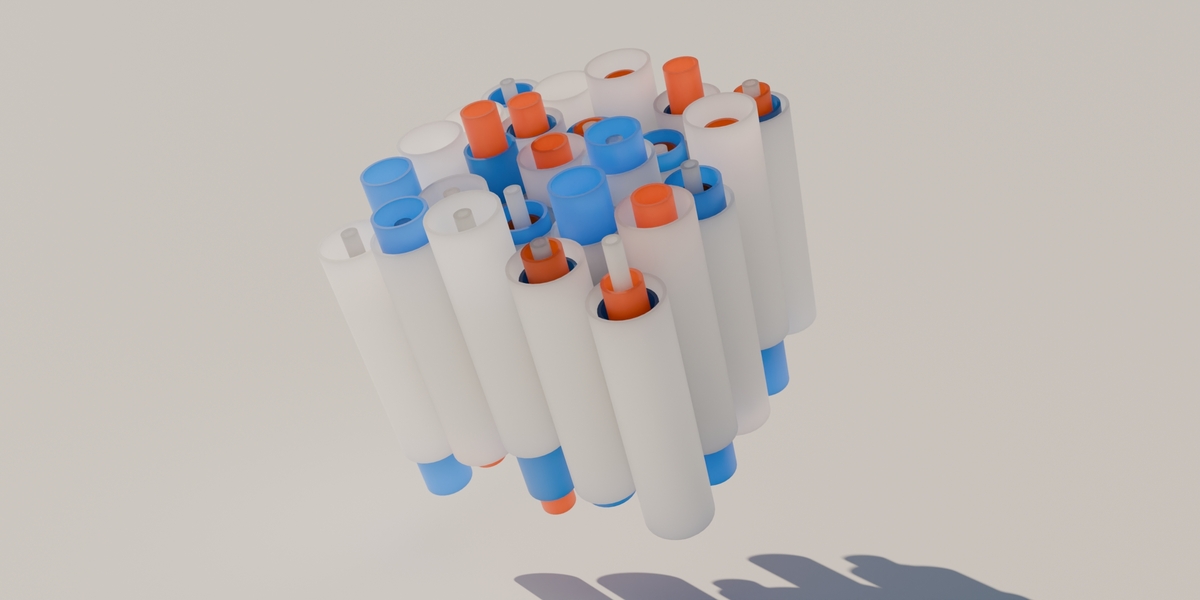

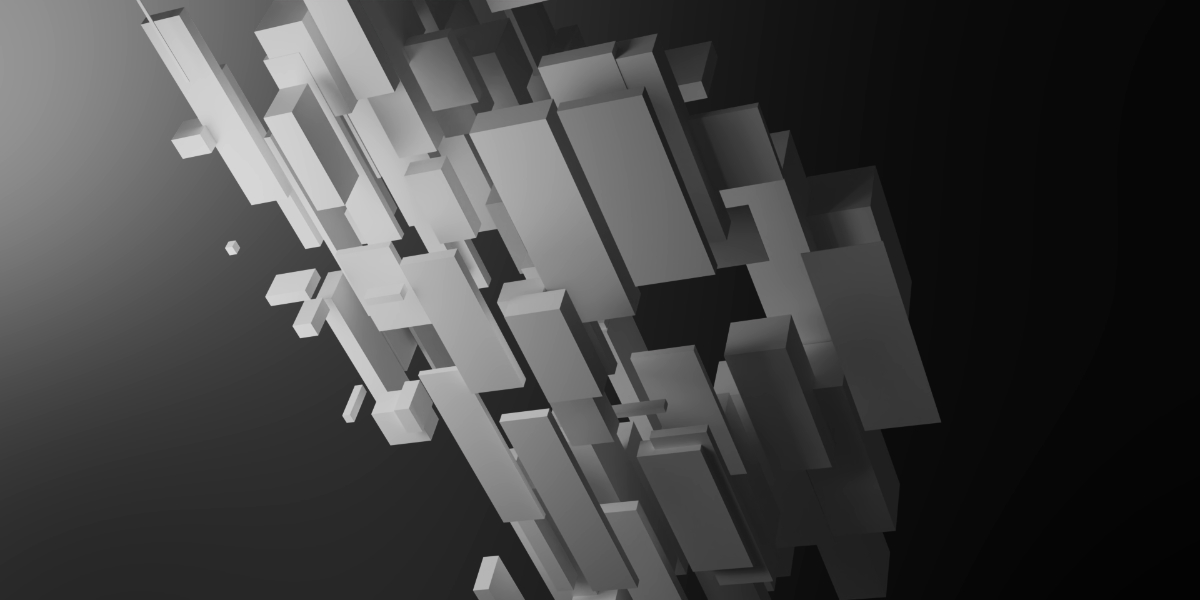
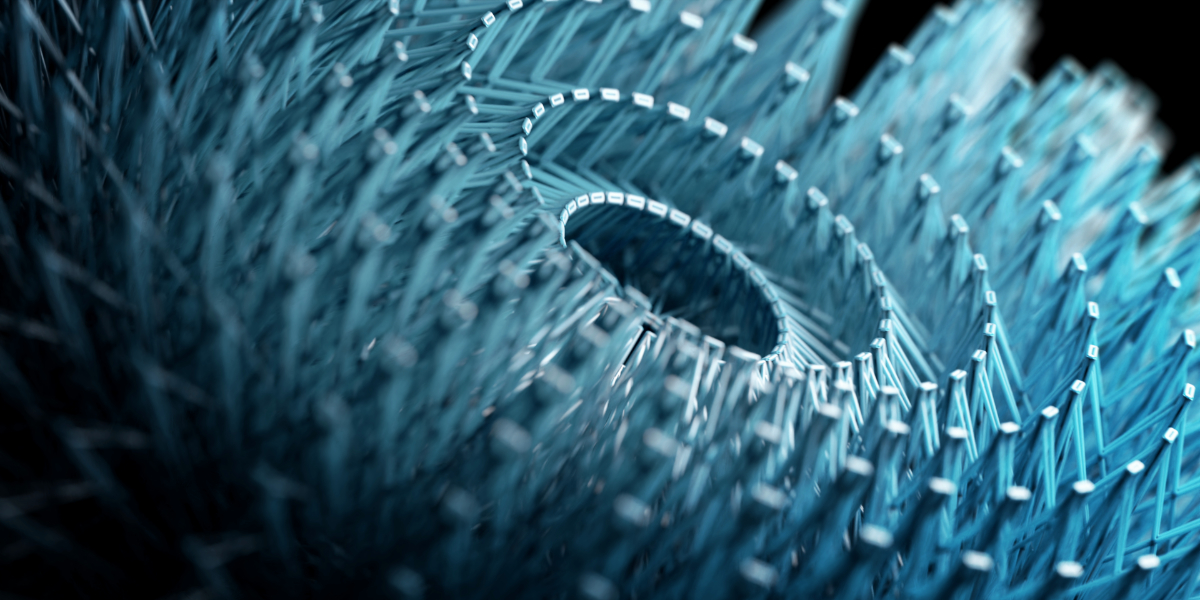


MoGraph Tools Documentation
Welcome! This guide provides everything you need to get started with MoGraph Tools, from installation to basic use cases.
1. Installation & Setup
MoGraph Tools is a Node Group Pack. The setup is a simple, one-time process:
- First, extract the product ZIP file to a permanent location on your computer (e.g., a "Blender Assets" folder).
- In Blender, go to Edit > Preferences > File Paths.
- Under the Asset Libraries section, click the '+' button to add a new library.
- Navigate to the folder you just extracted and click "Add Asset Library".
That's it! The nodes are now fully installed and ready to use.
2. How to Use the Nodes
Once installed, there are two ways to add MoGraph nodes to your editor.
Method 1: Add Menu (Recommended & Fastest)
The quickest way to work is to press Shift+A inside the Geometry Nodes Editor. You will find all 72 MoGraph nodes in a dedicated sub-menu, ready to be added instantly.
Method 2: Asset Browser (Visual Approach)
If you prefer a visual workflow, open the Asset Browser, select your "MoGraph Tools" library from the dropdown, and simply drag and drop the nodes you need into the editor.
3. The Core Concept: How It Works
The entire system is built on a simple, powerful idea. You combine three types of nodes:
- 1. Cloners: These nodes CREATE geometry (e.g., a grid of cubes).
- 2. Effectors: These nodes MODIFY the geometry from a cloner (e.g., randomize the scale of the cubes).
- 3. Fields: These nodes CONTROL WHERE an effector works (e.g., only affect the cubes inside a sphere).
4. Quick Start: Your First MoGraph Setup
This simple example shows the core concept in action.
- Using the Add Menu (Shift+A), add a Grid Cloner node. Connect a Cube node to its "Clone" input.
- Add a Random Effector. Connect the "Geometry" output of the Cloner to the "Geometry" input of the Effector.
- Add a Sphere Field. Connect its "Field" output to the "Field" input of the Random Effector.
- Create an Empty in your 3D scene and select it in the Sphere Field node.
- Done! Now, when you move the Empty, it will control where the Random Effector works.
5. Important Info: Shading & Demo Files
Shading Attributes
To color your creations, use the Attribute Node in the Shader Editor to access these attributes:
- col: The main color attribute, directly influenced by effectors.
- factor: A float value (0-1) primarily used for coloring splines with a Color Ramp node.
Included Demo Files
The product comes with 11 demo files to explore and deconstruct:
- Basic_Field.blend
- Basic_Noise.blend
- Circles_Terrain.blend
- Curl_Text.blend
- Differential Growth.blend
- Lines_and_Text.blend
- Recursive_SubDiv.blend
- Wavy_Blocks.blend
- Tubes_Random.blend
- Abstract_Tunnel.blend
- Topographic.blend
6. Full Node Reference
A complete list of all node groups included in the pack.
Cloners
- circle cloner
- grid cloner
- hexagon cloner
- object cloner
- curve cloner
- volume cloner
- collection to instances
- fill vessel
Effectors
- noise effector
- random effector
- simple effector
- step effector
- time effector
- look at effector
- magnet effector
- attribute effector
- delete effector
- color effector
- morph effector
Fields
- sphere field
- box field
- ring field
- plane field
- object field
- noise field
- wave field
- curve field
- random field
Extra Effects
- atom array
- brickify
- differential growth line
- recursive subdivision
- extrude mesh
- circle packer
- trails
- connect fx
- random boolean
- circles
- flow field
- flow field static
Text Effects
- text
- curl text
- counter
Generators
- curve: circles
- curve: twisted
- curve: volume trails
- topographic
- make hexagons
- cylinder
- torus
- sphere
- round rectangle
- round cube
- tube bend
- tube
- arc
- blocks
- stairs
- round 3d cross
- capsule
- torus knot
- disc
Deformer & Mesher
- noise deform
- curve mesher
- point mesher
Simulation Forces
- wind
- attractor
- turbulence
- force combine
Animate
- curve animator
- linear float
- linear vector
- sine float
- sine vector
Utility
- time node
- field to attribute
- shader driving nodes
7. Changelog
- v2.0: A major update focusing on new creative nodes, enhanced field and effector controls, and quality-of-life improvements.
- New Nodes: Morph Effector, Color Effector, Disc Generator (slice, inner radius), Time Node, Field to Attribute.
- Effector & Field Overhaul: Added blend modes for fields, support for custom float attributes in effectors, and a global/local space menu for effectors.
- Node Enhancements: Added speed parameter to Wave Field, loop option for Noise Effector, point limit for Object Cloner, and min/max values for Sine Vector.
- General Improvements: consistent naming, advanced Time node controls (scaling, offset, loop).
- v1.12: Added Poisson Disk mode to object cloner
- v1.11: Fixed issue of relative positions
- v1.10: Text node improvements, field interpolation, general optimization.
- v1.9: Added Collection to Instance node.
- v1.8: Fixes for effectors, added Volume Trails, Turbulence, and Force Combine.
- v.7: Many new generators (Sphere, Torus, etc.) and fields.
- v1.6: Added Look At effector, Noise Deform, Meshers, Forces, Attribute Effector, and more.
- v1.5: Added Flow Field nodes.
- v1.4: Added animator nodes (Linear/Sine).
- v1.3: Added Atom Array.
- v1.2: Added Counter, ConnectFx, Circles, and Fill Vessel.
- v1.1: Added Hexagon Cloner, Circle Packer, Trails, Random Boolean, and Text.
- v1.0: Initial Release.
Have questions about this product?
Login to message
| Sales | 100+ |
| Rating | 3 ratings |
| Dev Fund Contributor | |
| Published | over 2 years ago |
| Blender Version | 4.2 - 5.1 |
| License | Royalty Free |
Discover more products like this
motiongraphics animate motion mograph Blender Geometry Blender geometry nodes clone blender motion graphics geometry node effector pro graph geometry nodes fields Blender Cloner Nodes fields Procedural Cloner motion graphics nodes cloner MoGraph Tools motion graphics nodes Generator flow field Motion Animate geometry nodes instance effectors Motion design #MotionDesign prograph motion mo graph Procedural Motion Graphics