Mood Atmosphere
 Animation Store
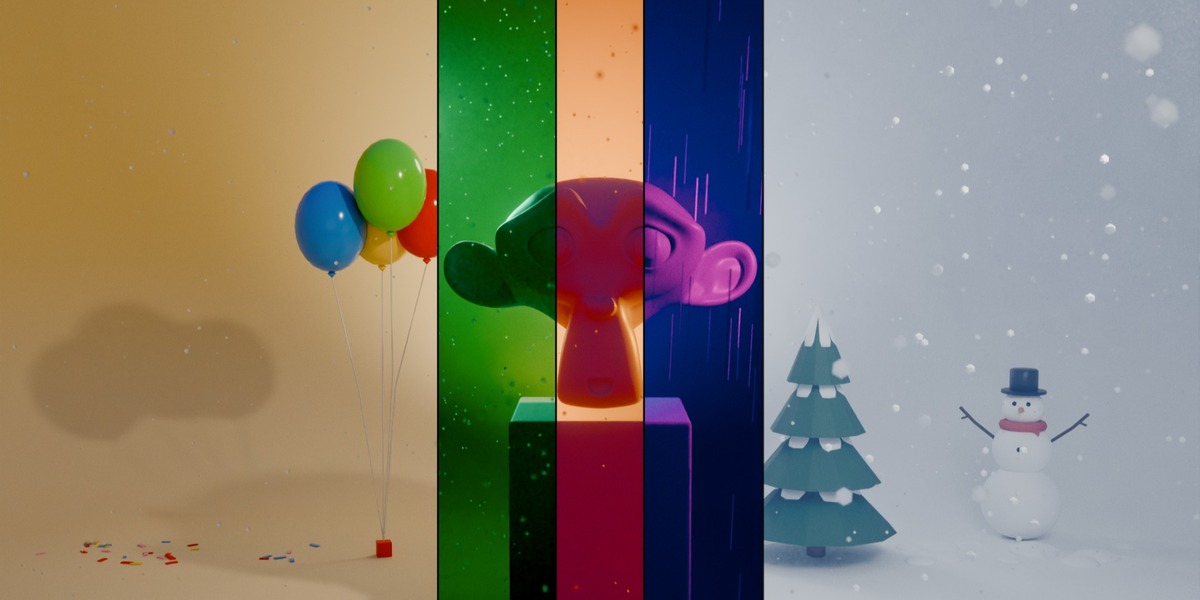
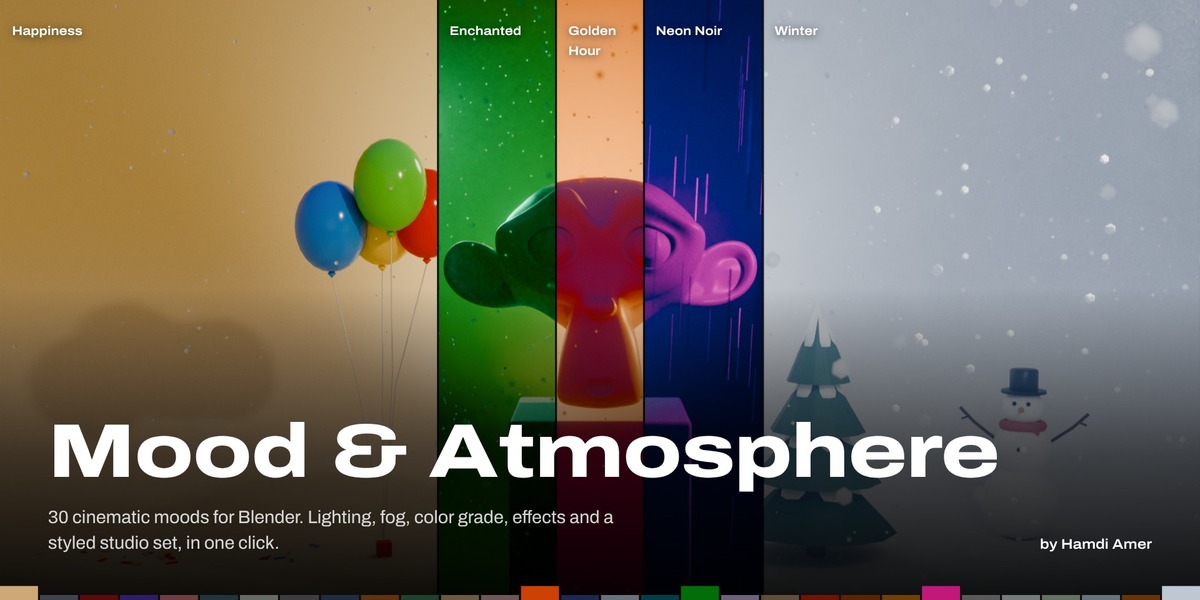
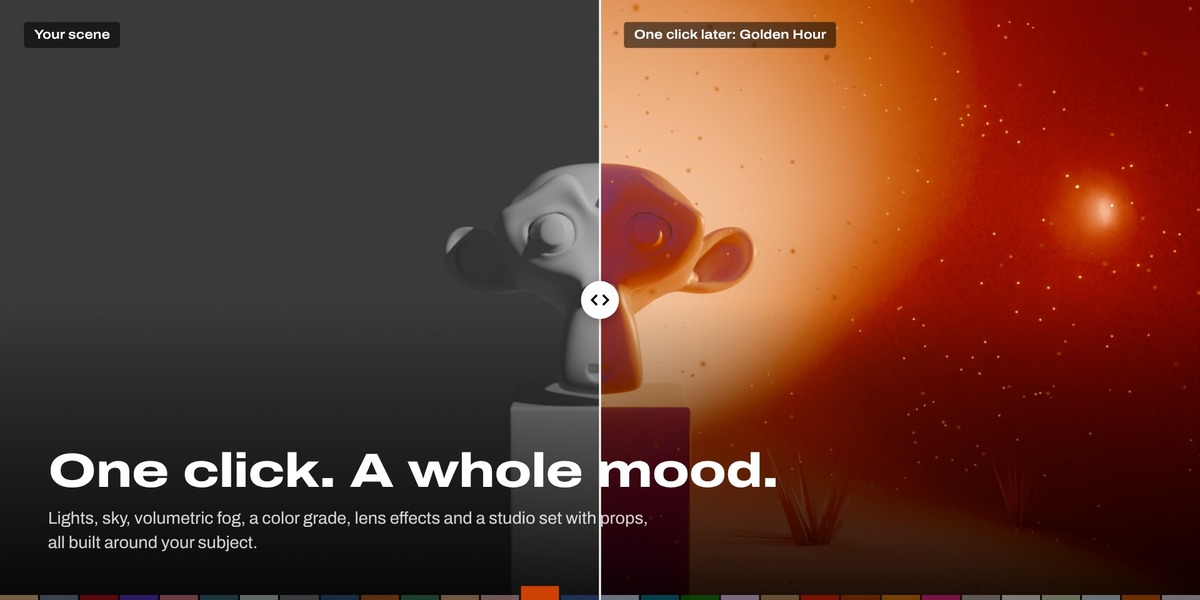
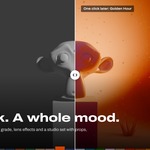

Mood & Atmosphere documentation
Quick start
- Select your subject (optional). Your character or object becomes the subject, even when it is the only thing in the scene. With nothing selected, the add-on lights what the camera looks at.
- Choose what to Build. See the table below.
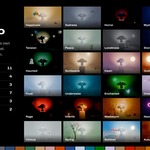
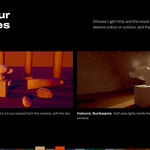
- Pick a mood in the gallery. It is applied right away. The add-on detects whether the camera is indoors or outdoors and builds the right lights.
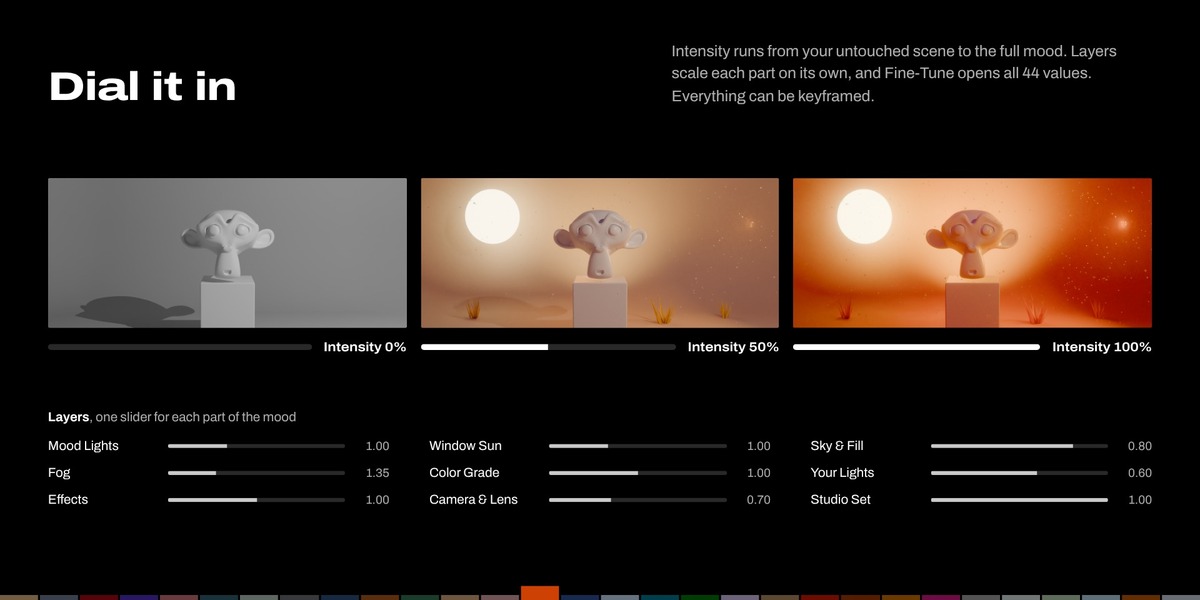
- Set Intensity. 0% is your scene untouched (and the studio plain grey). 100% is the full mood.
| Light + Studio | The mood's lighting and atmosphere, plus a studio set around your subject in the mood's style. |
| Light Only | Just the lighting and atmosphere, for your own set or environment. |
| Studio Only | Just the studio set. You light it yourself. Your lights, world and render settings stay as they are. |
You can change your mind later. The Lighting and Studio buttons under the gallery add or remove either part, and keep your story and tweaks.
Lighting
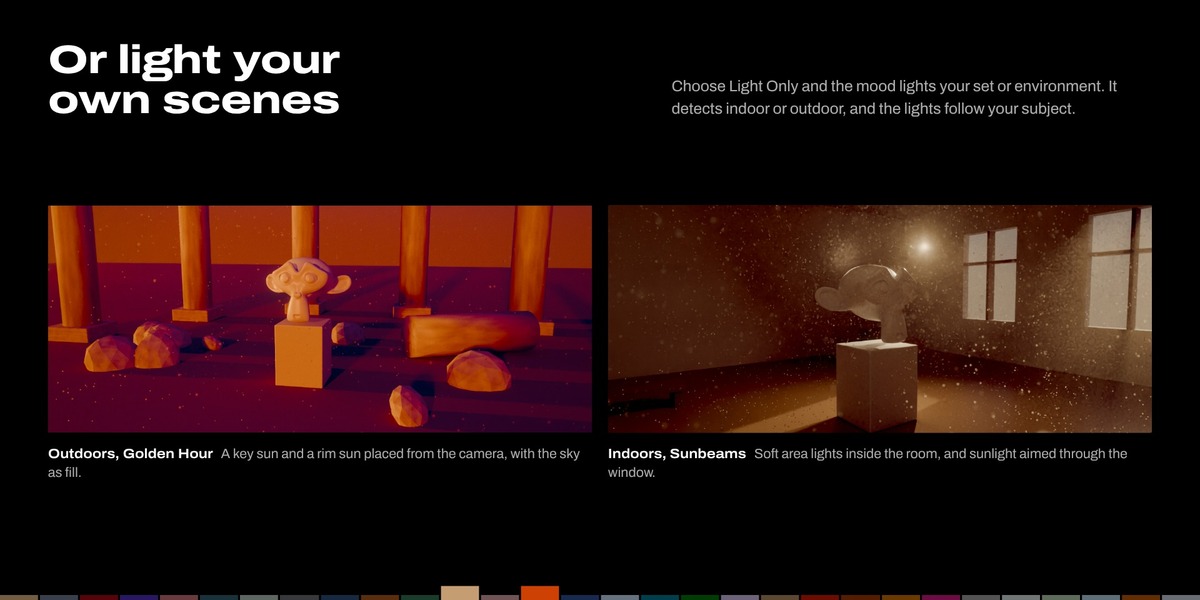
| Outdoor | A key sun and a rim sun, placed relative to the camera, with the sky as ambient light. |
| Indoor | Soft area lights inside the room around the subject, a soft fill from the camera, and sunlight aimed through a window or doorway if the room has one. Lights stay inside the room. |
| Detect | The magnifier button re-checks whether the camera is indoors or outdoors. |
| Subject | The eyedropper lights the selected object. The lights follow it when it moves. |
| Rotate Lighting | Turns the key and rim lights around the subject. |
Studio sets
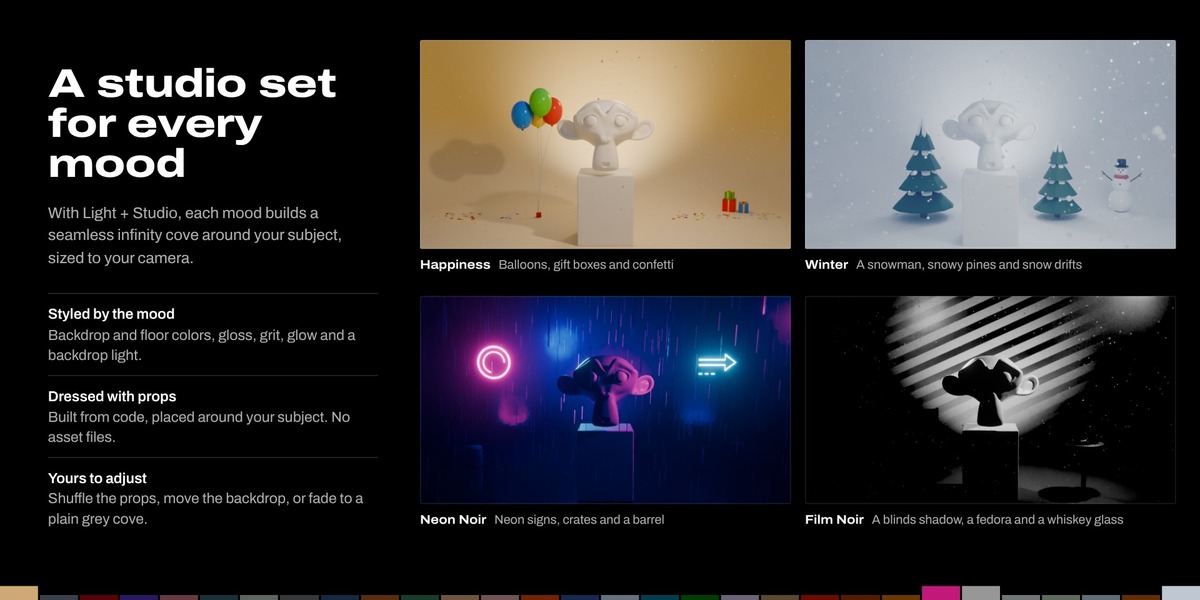
Every mood has its own studio: an infinity cove (a floor that curves seamlessly up into the backdrop, with rounded side walls) built around the subject and sized to fill the camera's view.
- Each mood styles it: backdrop and floor colors, floor gloss (matte paper to a wet, mirror-like floor), grit (seamless paper to rough concrete), a darker top, a glowing light-box backdrop (Dreamy, Clinical) and a venetian-blinds shadow (Film Noir).
- Backdrop light: with Light + Studio, a soft spot behind the subject pools the mood's color on the backdrop. It flickers with candle and fire moods.
- Soft boxes: with a studio, the mood lights become soft area lights inside the set. Switch to Outdoor in the Lighting panel to let the sun shine through the set's walls.
- Effects work on set: rain falls in front of the backdrop like a rain tower, and lightning flashes from above the camera.
| Backdrop Distance | Moves the backdrop closer or farther. |
| Fit Studio to Camera | Rebuilds the set after you move or zoom the camera. |
| Mood Style | Fades the mood's styling down to a plain grey studio. |
| Mood Props | Turns the props on or off. The shuffle button next to it rearranges them. |
Every studio value is also in Fine-Tune > Studio Set.
Mood props
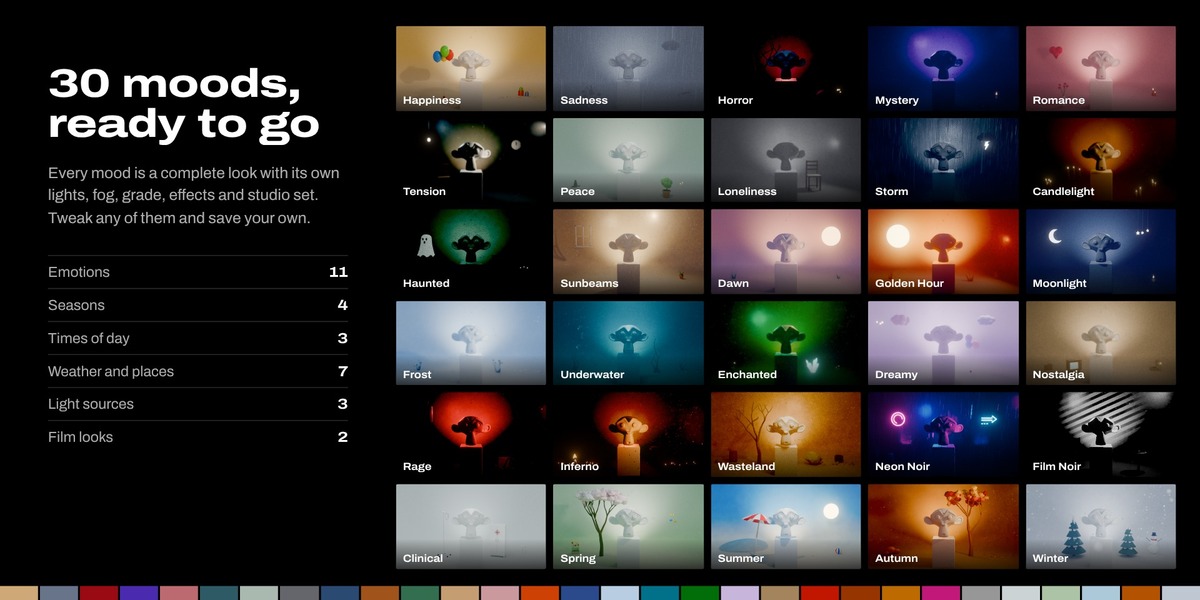
Each mood dresses its studio with props built from code (no asset files). They are sized to your subject and placed as the camera sees them: around the subject, never in front of it, clear of your own objects, and inside the frame. Props are rebuilt whenever the studio is, so move them by shuffling rather than by hand. Custom moods keep the props of the mood they were saved from.
| Happiness | balloons, gift boxes, confetti |
| Sadness | wilted flowers, a closed umbrella, a dark cloud, dry leaves |
| Horror | a skull, black candles, a dead tree |
| Mystery | old books, a magnifying glass, a lantern |
| Romance | roses, red candles, a heart, petals |
| Tension | a bare hanging bulb, a clock at 11:58, an empty chair |
| Peace | stacked zen stones, a bonsai, candles |
| Loneliness | one empty chair |
| Storm | a thundercloud with a lightning bolt, an open umbrella |
| Candlelight | candle clusters and a candelabra |
| Haunted | a sheet ghost, an iron candelabra, an old chair |
| Sunbeams | a window frame, a potted plant |
| Dawn and Golden Hour | a low sun on the backdrop, grass |
| Moonlight | a crescent moon, hanging stars, a lantern |
| Frost | ice crystals, snowballs |
| Underwater | seaweed, coral, bubbles, shells and starfish |
| Enchanted | glowing mushrooms, glowing crystals |
| Dreamy | pastel clouds, stars, pastel balloons |
| Nostalgia | a gramophone, an old TV, a suitcase |
| Rage | a punching bag, a knocked-over chair, broken glass |
| Inferno | a campfire, a charred barrel, embers |
| Wasteland | rusty barrels, tires, a dead tree, boulders, rocks |
| Neon Noir | neon signs, crates, a barrel |
| Film Noir | a table with a fedora and a whiskey glass, a chair |
| Clinical | an IV stand, a medicine cabinet, a stool |
| Spring | tulips, a blossom tree, butterflies, petals |
| Summer | a beach parasol, a beach ball, a hot sun, shells |
| Autumn | pumpkins, an autumn tree, fallen leaves |
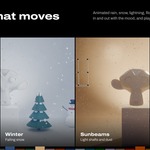
| Winter | a snowman, snowy pines, snow drifts |
Story mode: moods over time
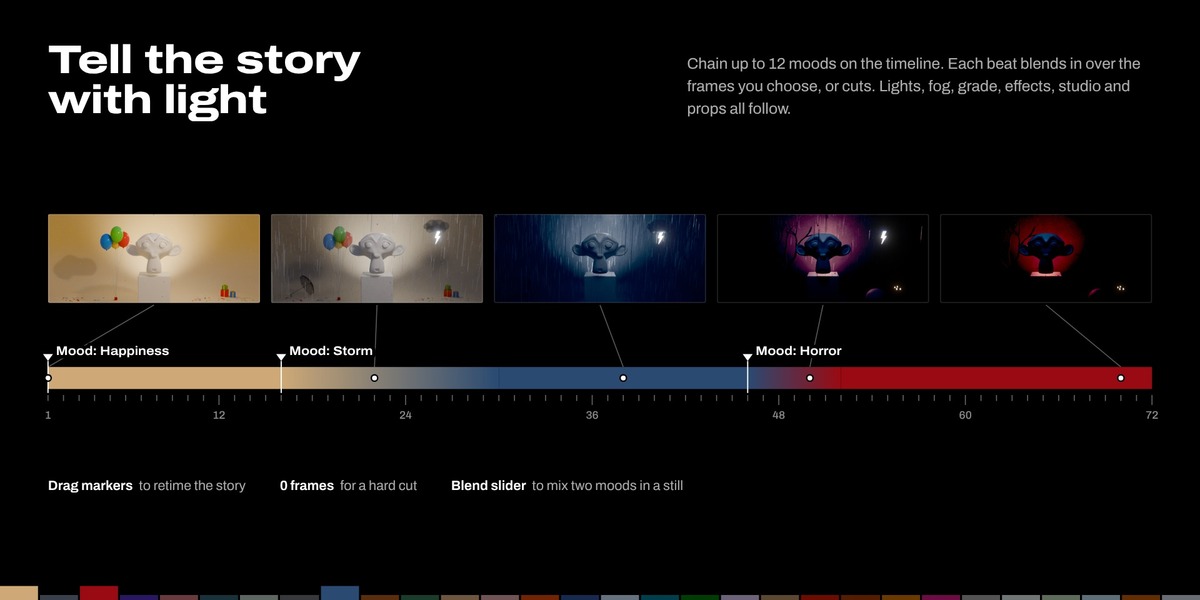
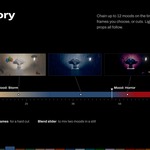
The Story panel holds a list of beats. Each beat is a mood that starts at a frame and blends in over a number of frames (0 is a hard cut). Up to 12 beats per scene.
- Go to the frame where the mood should change and press +.
- Pick the new beat's mood in the gallery.
- Set Transition In for how long the change takes.
Each beat appears as a "Mood: ..." marker in the Timeline. Drag the markers to retime the story. Click a beat in the list to jump to it and edit it. For stills, turn off Animate Over Time and use Blend to mix two neighbouring beats.
Effects
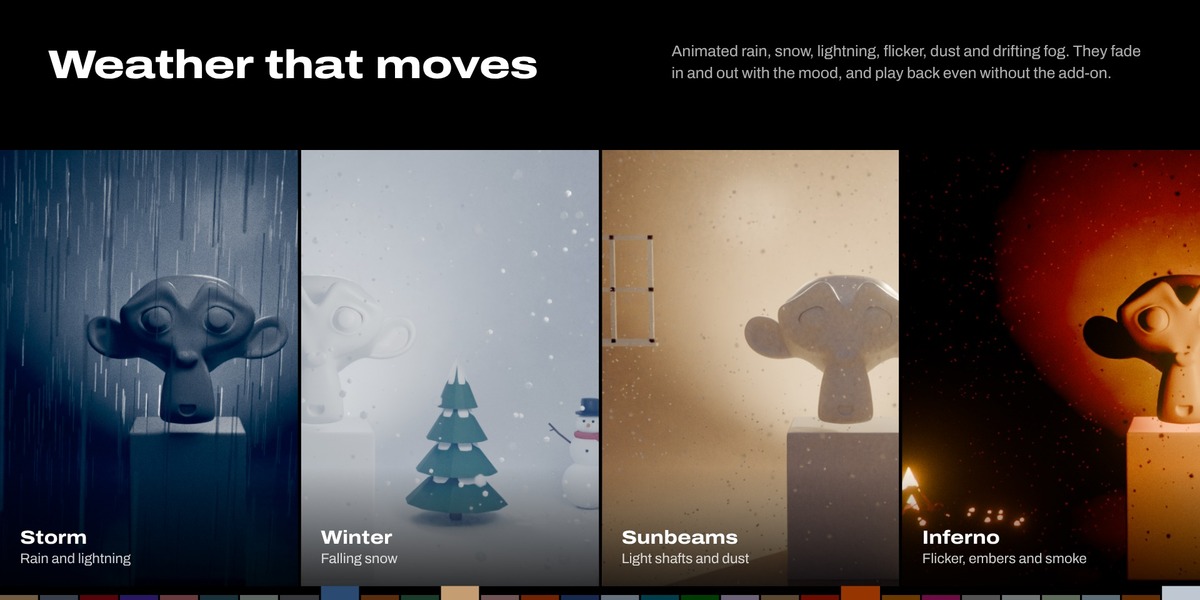
Effects are part of the mood, so they fade in and out with story transitions.
| Light Flicker | From a soft candle wobble to a failing fluorescent tube (the Candle to Electric slider). It affects your own lights and the indoor mood lights. Sun lights never flicker. |
| Lightning | Strikes come in short clusters every few seconds. Outdoors the flash comes from the sky, indoors through the window. |
| Rain | Falling streaks over the scene. Indoors the rain falls outside the window. |
| Snow | Gently falling snow, used by Winter. |
| Dust | Fine motes around the subject that glint where light hits them. Best with backlight or window light. |
| Fog Drift | The fog slowly moves and swirls. |
Adjust effects per beat in Fine-Tune > Effects, or all at once with the Effects slider in Layers. Effects play back without the add-on: flicker and lightning use F-curve noise, and rain, snow and dust are geometry nodes.
Camera and lens
| Depth of Field | The camera focuses on the subject automatically and follows it. The f-stop is worked out from the lens and the distance. Cameras that already use depth of field are left alone. |
| Film Grain | Fine animated grain, new each frame. |
| Color Fringing | Red and blue fringes toward the edges, like a real lens. |
| Widescreen Bars | Black bars to 2.39:1. They follow your render size. |
Layers and Fine-Tune
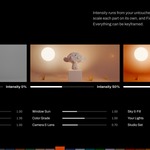
Layers scales each part of the mood on its own:
| Mood Lights | Strength of the key and rim lights the mood adds (and the backdrop light in a studio). |
| Window Sun | Indoors: sunlight coming in through windows and openings. |
| Sky & Fill | How much of the world and sky the mood replaces (indoors: the soft camera fill). |
| Fog | Fog density multiplier. |
| Color Grade | Strength of the compositor color grade. |
| Your Lights | How much the mood dims and tints lights that were already in the scene. |
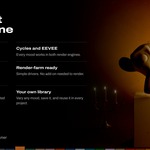
| Effects | Strength of flicker, lightning, rain, dust and fog drift. |
| Camera & Lens | Strength of depth of field, film grain, color fringing and widescreen bars. |
| Studio Set | How much the mood styles the studio set (0 is a plain grey studio). |
Fine-Tune edits all 44 values of the selected beat's mood, in 9 groups: Key Light, Rim Light, Sky, Fog, Color Grade, Effects, Camera & Lens, Your Lights, Studio Set. Vary gives a fresh take, and Save stores the mood in your library so it appears in the gallery. Intensity, the Layers sliders and every Fine-Tune value can be keyframed (hover and press I).
What it builds
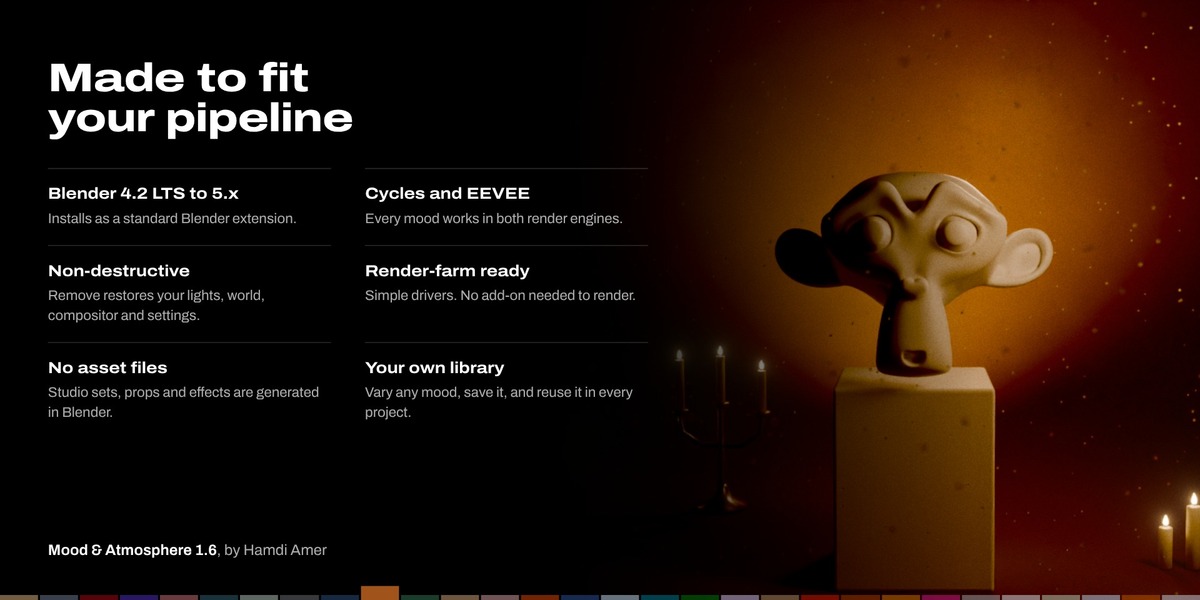
Everything goes in a "Mood & Atmosphere" collection, plus a few clearly named MOOD_ nodes: a Mood Rig empty that holds all the controls, the mood lights, the studio set and props, effect objects, a fog volume fitted to your scene, a mood sky mixed over your existing world, and a Mood Grade group in the compositor.
Remove restores your lights, world, compositor, markers and render settings. Everything is driven by simple driver expressions, so a saved .blend keeps its mood and whole story on machines and render farms without the add-on, even with script auto-run off.
Tips
- After big scene changes, press Refit to Scene in the Layers panel.
- To see the color grade in the viewport, enable Grade in Viewport (Layers panel) in Material Preview or Rendered mode.
- Indoors, the room's own lamps still count. Lower Your Lights for darker moods.
- Indoors in EEVEE, turn on Raytracing in Render Properties so light bounces around the room the way it does in Cycles.
Known limits
- One mood rig per scene. Scenes that share one world or compositor tree share the mood's nodes.
- Rain has no splashes or wet surfaces yet (a glossy studio floor helps).
- The studio is sized for the camera when it is built. After moving or zooming the camera (or for an animated camera), press Fit Studio to Camera.
- Effects are timed by the scene clock, so two scenes show the same flicker and lightning pattern.
Support
Questions or a bug? Message Animation store through this product page. Please include your Blender version, render engine and a screenshot if you can.
 Included
Includes 12 months of
- Support from Animation Store
- Product updates
Extend this product’s Support Period +12 months: 50% of product price
Have questions before purchasing?
Login to message
| Blender Extension Compatible | Yes |
| Dev Fund Contributor | |
| Published | about 11 hours ago |
| Blender Version | 4.2 - 5.2 |
| Extension Type | Add-on |
| Render Engine Used | Cycles, Eevee |
| License | GPL |
Discover more products like this
atmosphere Compositing color grading weather mood light Studio Lighting presets rain snow cinematic-lighting animation