Morph Target Pro — Complete Shape Key Workflow for Character Morphs
 blenderustad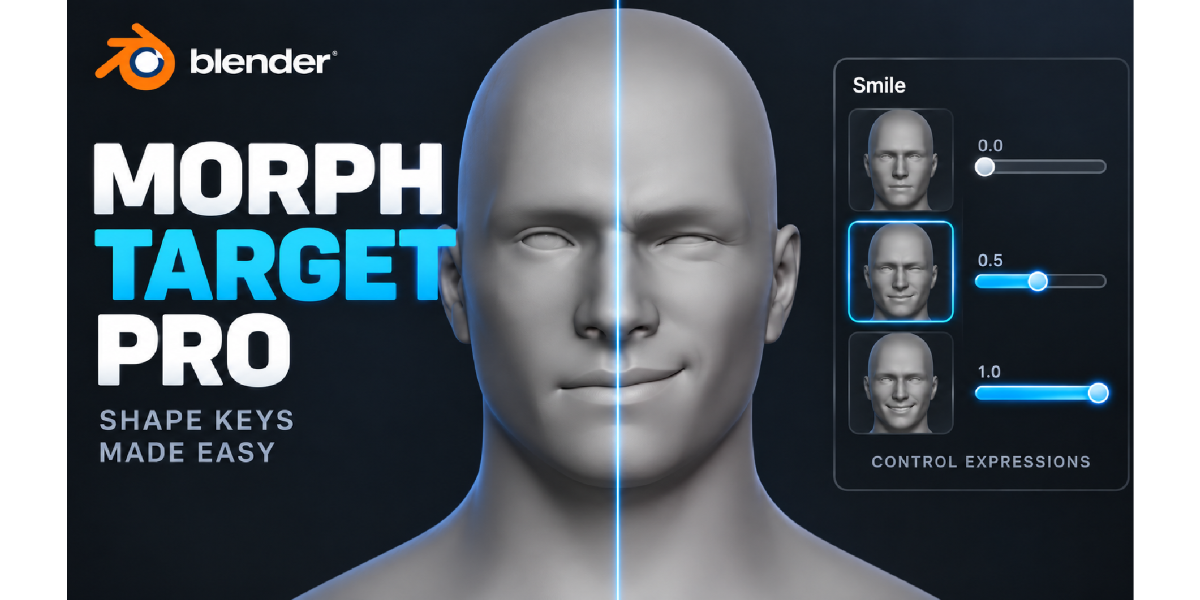
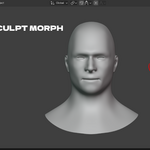
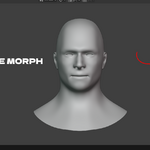
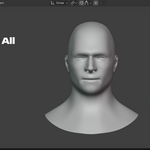
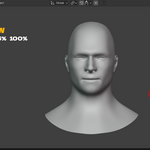
Installation
Blender 4.2+ (Extension):
- Edit → Preferences → Get Extensions (or Add-ons) → Install from Disk
- Select the ZIP file
- Enable Morph Target Pro if it isn't enabled automatically
Blender 3.6+ (Legacy Add-on):
- Edit → Preferences → Add-ons → Install
- Select the ZIP file
- Enable Morph Target Pro
Access the panel: Press N in the 3D Viewport to open the sidebar, then select the Morph Target Pro tab.
Before You Start
- Select a mesh object. Morph Target Pro operates on the active mesh only.
- The mesh needs (or will automatically get) a Basis Shape Key and Relative Shape Keys — this is Blender's default and the standard used for game engine and animation export. Absolute Shape Keys are not supported by v1 and the panel will flag this if detected.
Panel Structure
Morph Targets (top-level, always visible)
- Search box — filters the morph list by name instantly
- Morph list — shows every Shape Key except Basis, with inline mute toggle, value slider, rename, duplicate, and delete buttons per row
- Move Up / Move Down, Rename, Duplicate, Delete — column controls for the selected morph
- Active Morph value slider — the real Blender Shape Key
value, so it works with animation and drivers exactly as native Shape Keys do - Sort (Creation Order or Alphabetical)
- After Create mode (Stay in Object Mode / Edit Mode / Sculpt Mode) — sets what happens right after + Create Morph
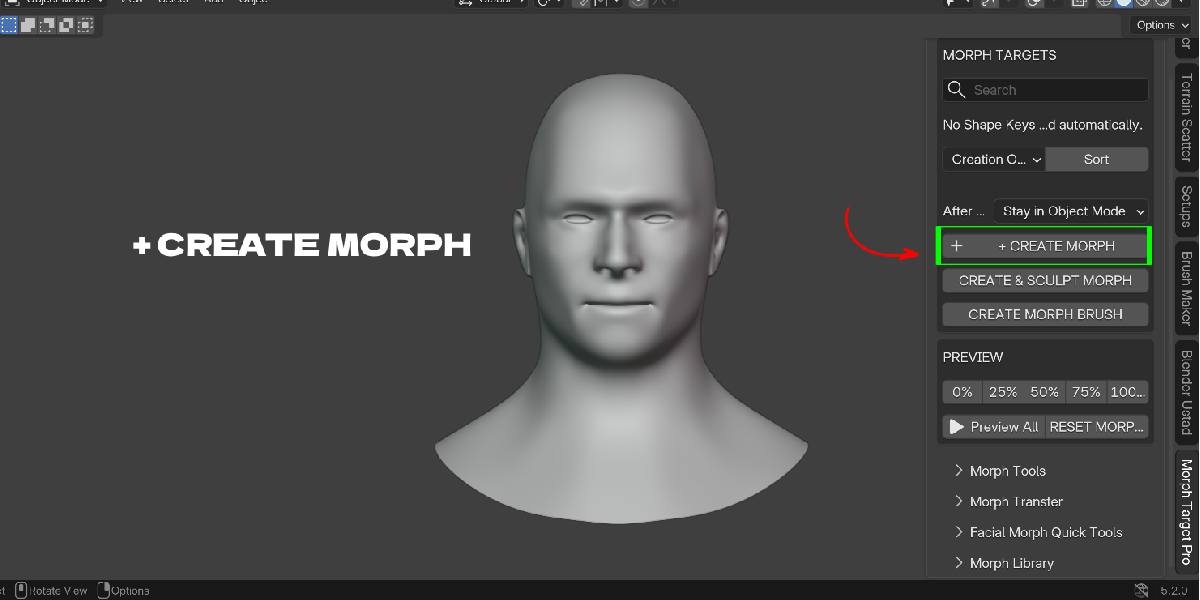
- + Create Morph — creates a new Shape Key from Basis
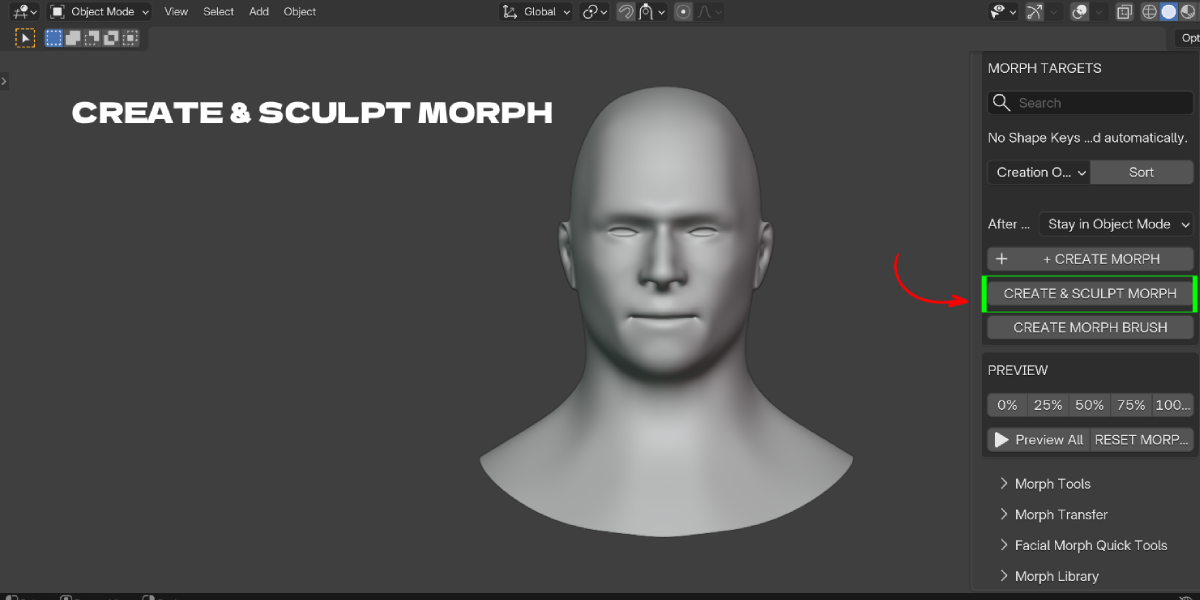
- Create & Sculpt Morph — creates a new Shape Key and enters Sculpt Mode immediately
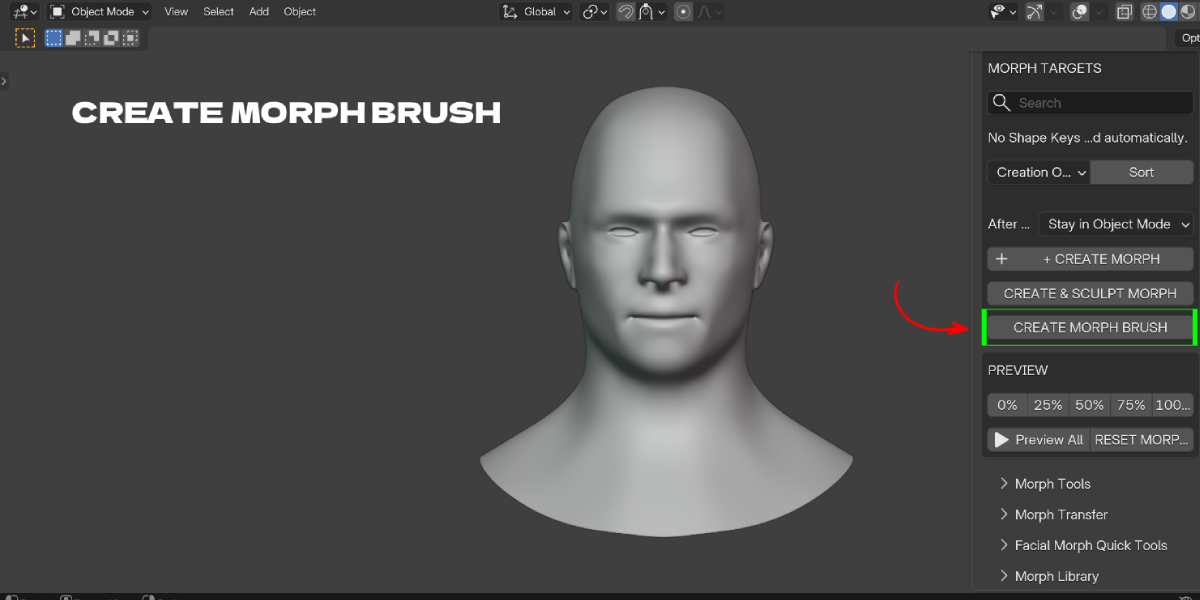
- Create Morph Brush — sculpts directly on the currently active Shape Key
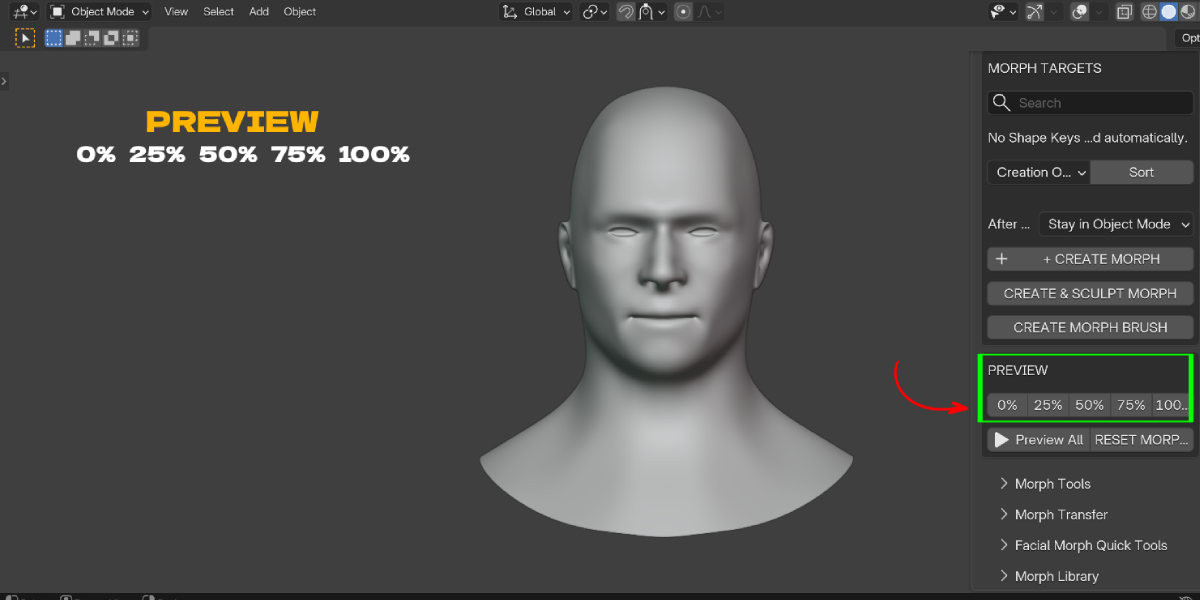
- Preview row — 0% / 25% / 50% / 75% / 100% one-click preview of the active morph, isolating it from all others
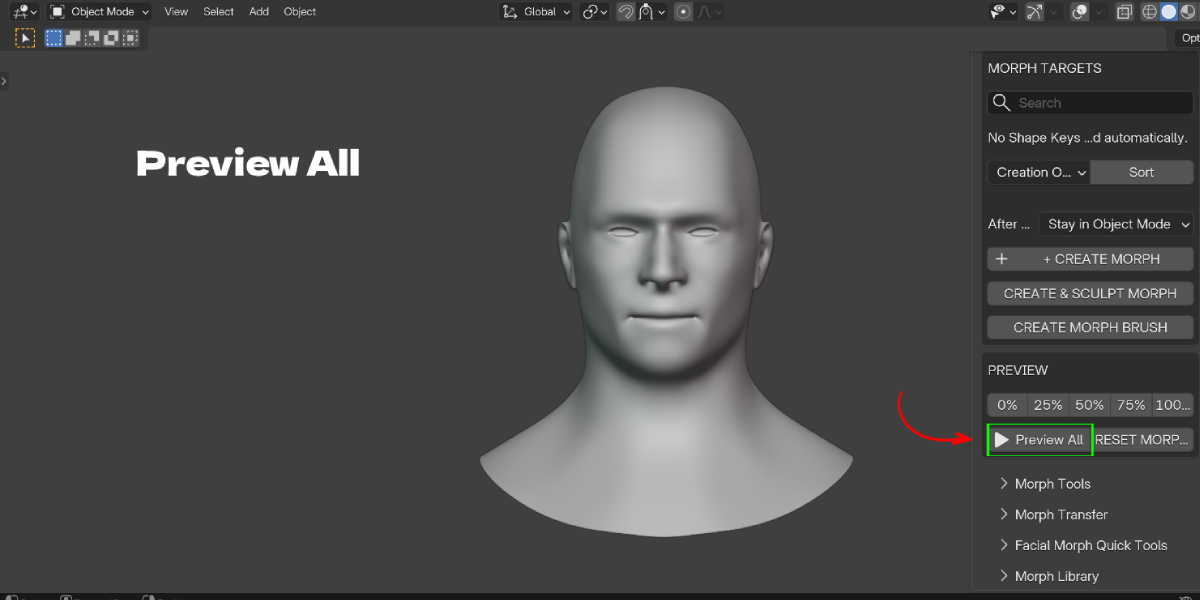
- Preview All — cycles every enabled morph at 100% on a timer; press Esc to stop and restore original values
- Reset Morphs — sets every morph's influence to 0
Morph Tools (sub-panel)
- Duplicate / Optimize (safe metadata refresh — never touches point data)
- Mirror / Symmetry: Direction (Left→Right / Right→Left), Character Left (+X / −X), Mirror Tolerance, Mirror Morph, Symmetrize Morph, Full Mirror (Swap) with optional native topology mirror
- Cleanup: Empty Epsilon threshold, Cleanup Morphs / Scan, results list with checkboxes, Apply Selected Cleanup
Morph Transfer (sub-panel)
- Source / Target mesh pickers (with "Use Active" shortcuts)
- Transfer scope: Active Morph or All Morphs
- Strict Topology / Vertex Order toggle
- Overwrite Same Names toggle
- Transfer Morphs button
Facial Morph Quick Tools (sub-panel)
- One-click creators for Smile, Frown, Angry, Blink L, Blink R, Mouth Open, Mouth Close, Eye Squint — each enters Sculpt Mode immediately on a new Shape Key
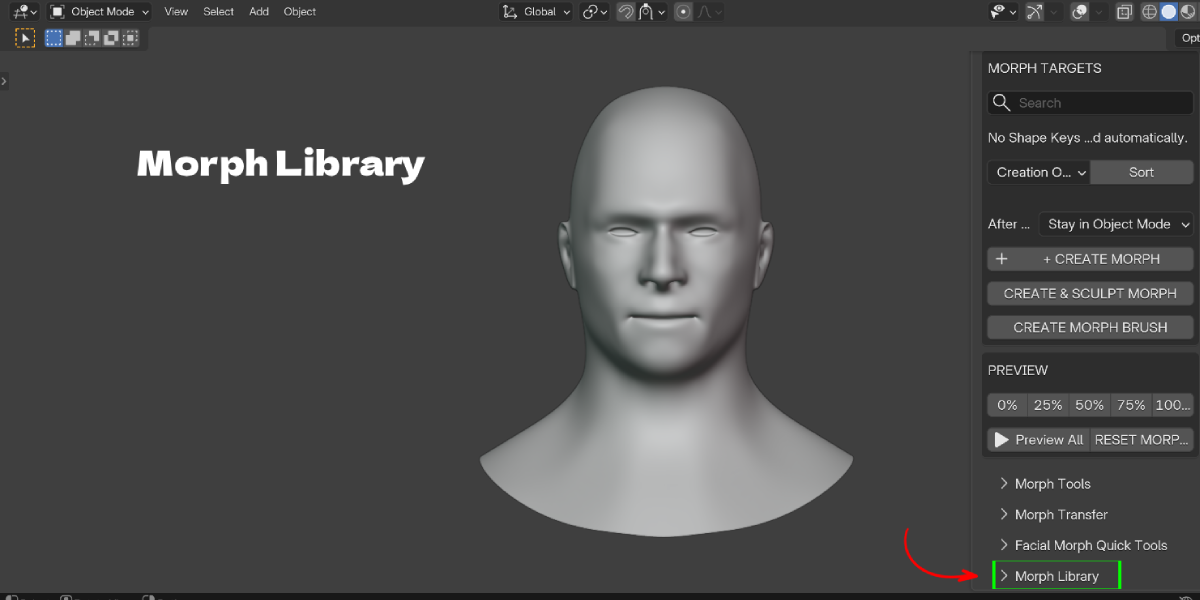
Morph Library (sub-panel)
- Category filter and search
- Refresh / Apply / Delete for saved presets
- Preset list with name, category, and vertex count
- Save Active Morph to Library, with category assignment (Face / Mouth / Body / Custom)
About (sub-panel)
- Author, contact, website, YouTube, and other add-ons by Blender Ustad
Typical Workflow
- Select your character mesh.
- Click Create & Sculpt Morph, name it (e.g. "Smile"), and sculpt with Blender's native brushes.
- Click Save Morph when finished — the morph value resets to 0 and every other morph's prior value is restored.
- Use the 0–100% preview buttons to check the shape at partial influence.
- If the character is asymmetric on one side only, select the morph and click Mirror Morph (or Symmetrize Morph to force clean symmetry).
- Repeat for your full expression set, using Facial Morph Quick Tools for standard names.
- Run Cleanup Scan periodically to catch empty or duplicate morphs before they pile up.
- Save a finished expression set to the Morph Library so it can be applied to topology-matched characters later.
- When a mesh gets updated or a new character shares topology, use Morph Transfer to move the whole morph set over in one step.
Notes and Limits
- Morph Target Pro requires Relative Shape Keys (Blender's default workflow). Absolute Shape Keys are not supported in v1.
- Transfer and Library Apply both require matching vertex count; Transfer can also enforce strict topology/connectivity matching.
- Deleting a morph that another Shape Key uses as its Relative Key is blocked until that dependency is reassigned.
- Library presets store sparse vertex deltas locally in your Blender user configuration folder — they are not embedded in the .blend file until applied.
Have questions about this product?
Login to message
| Blender Extension Compatible | Yes |
| Published | about 2 months ago |
| Blender Version | 3.3 - 5.2 |
| Extension Type | Add-on |
| Render Engine Used | Blender-Game-Engine, Cycles |
| License | GPL |

Discover more products like this
character morph shape key shape key transfer addon blend-shapes facial rig Sculpt viseme facial morph reusable morph library morph target