Mortis
 Egret Studios LLC
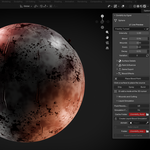
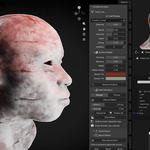
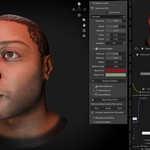
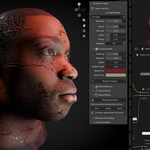
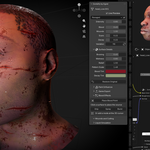
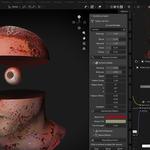
Mortis 1.0
Procedural undead effects for Blender
By Egret Studios
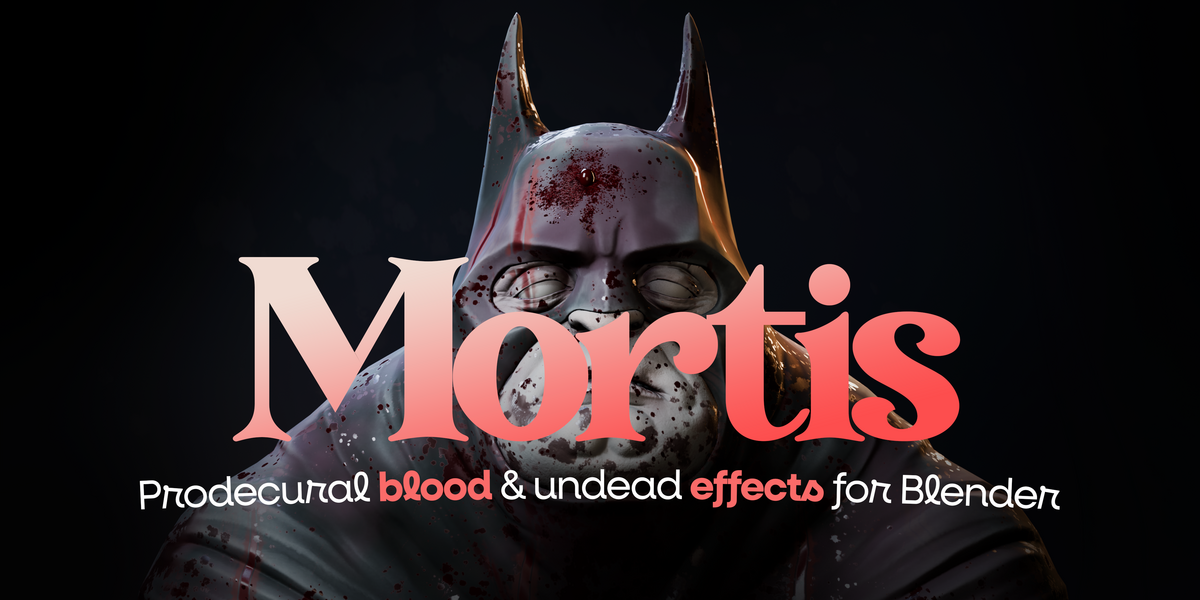
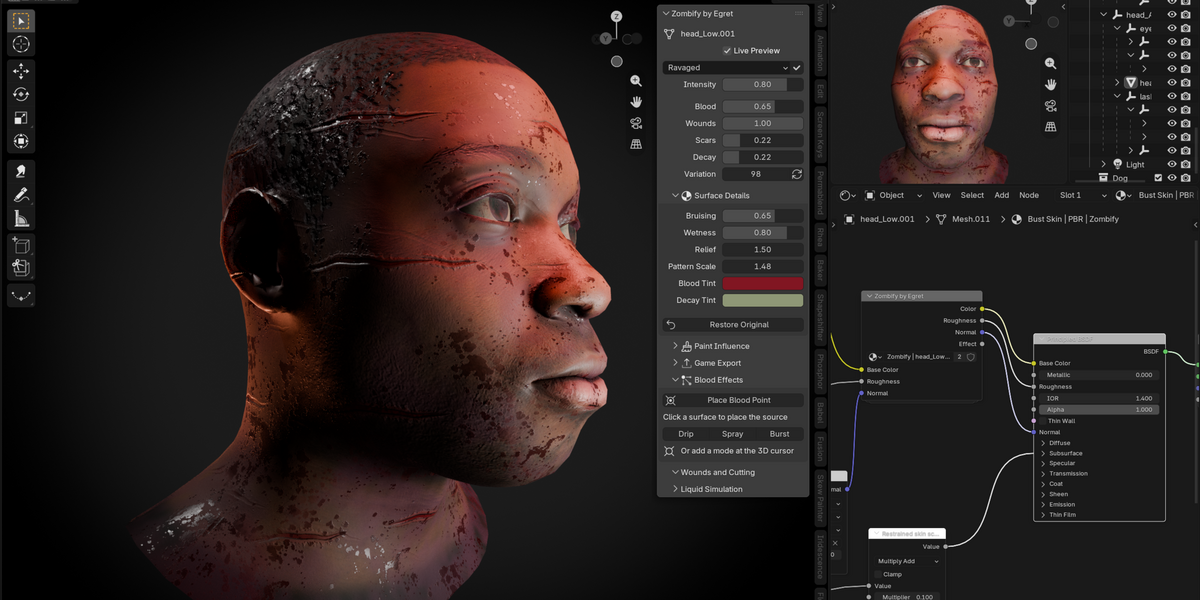
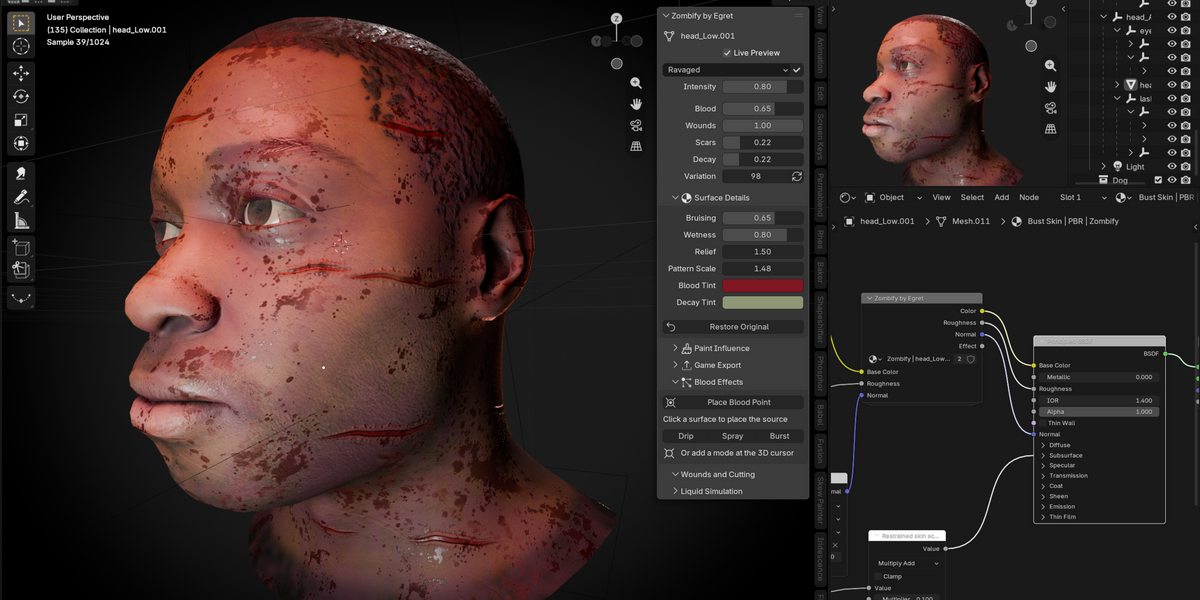
Mortis is a procedural undead effects extension for Blender built for transforming existing characters and meshes with editable corpse complexions, blood, scars, decay, physical wounds, severing, liquid blood and export-ready game assets.
Mortis works with supported existing materials as well as meshes without materials. Surface treatments stay editable, blood and splatter placement is procedural, and scar or splatter shapes use bundled image alphas. No runtime downloads or external solver installation are required.
Installation
Mortis requires Blender 4.2 or later.
- Open Edit > Preferences > Get Extensions.
- Open the menu and choose Install from Disk.
- Select
mortis-1.0.0.zip. - Enable Mortis.
- In the 3D Viewport, press N and open the Mortis tab.
If you used the earlier unreleased Zombify build, disable or uninstall it first, install Mortis, then restart Blender before opening an existing scene.
Do not enable both extensions at the same time.
Existing scene-data identifiers remain compatible. The product name and extension ID are now Mortis.
Quick Start
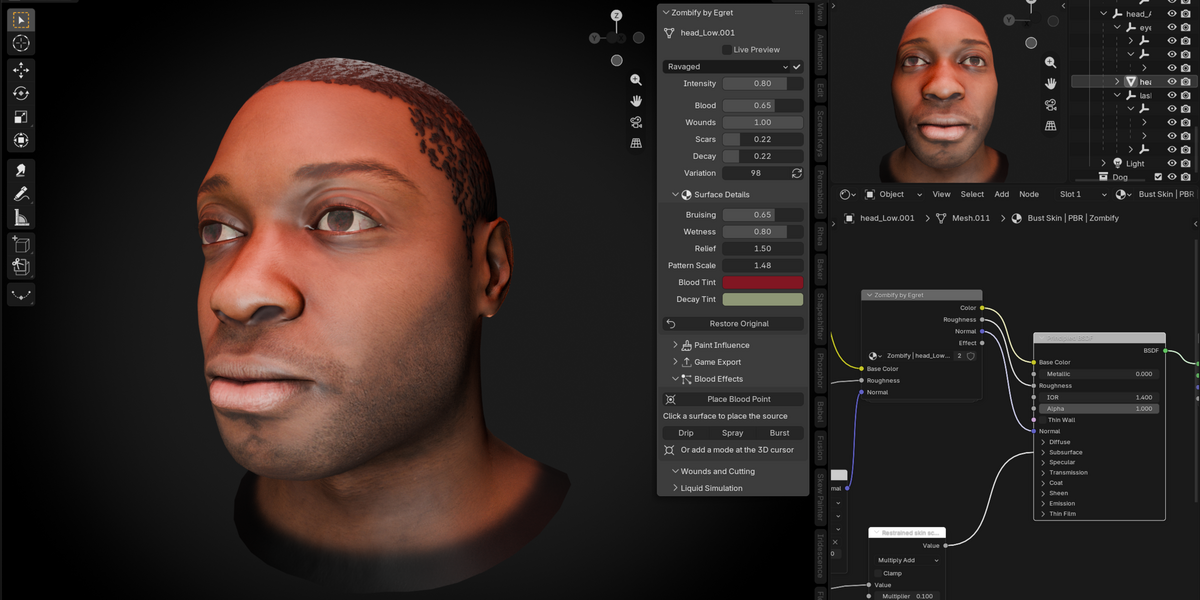
Select a mesh in Object Mode, choose one of the included Looks, then click Mortis Selected.
Keep Live Preview enabled and switch to Material Preview or Rendered mode to see the effect.
Adjust the overall Intensity and individual surface controls, then use Paint Influence when you need to protect specific regions such as eyes, clothing, hair or other areas that should remain unchanged.
Mortis can be applied to several selected meshes at once. Once a mesh is affected, choose another Look and click the adjacent Apply Look checkmark to replace its current surface recipe.
For a simple corpse-white result, start with Dead White and set Intensity to 1.
Use Remove Mortis to restore the active mesh's original materials and remove its managed surface attributes.
The 17 Looks
Mortis includes 17 editable undead looks designed as starting points rather than fixed presets.
Applying a Look resets its blood, decay, complexion, wetness, relief and layer recipe while keeping your Intensity, painted mask, rotation, offset and variation settings.
These Looks are material treatments. They do not generate new anatomical geometry.
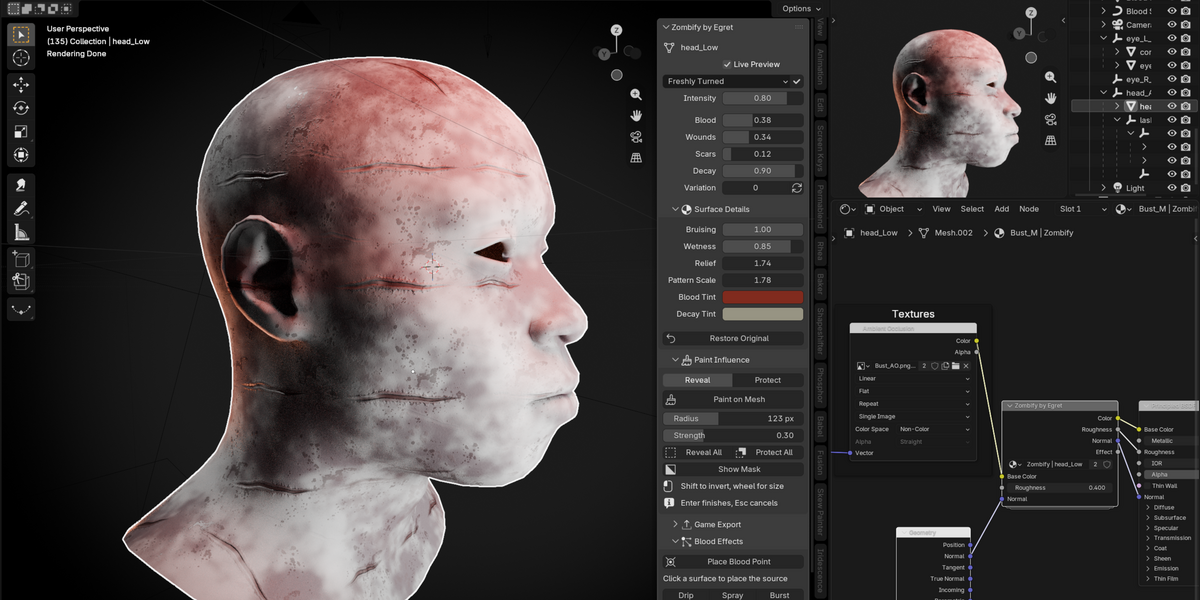
Surface Details
Mortis separates the underlying complexion from the procedural damage layers.
Skin Transformation changes the overall complexion while preserving useful detail from the original material. Skin Tone defines the target color, while Skin Roughness controls the finish.
Source texture luminance and normal detail remain connected where supported.
Very dark source pigments receive less complexion replacement to help preserve areas such as dark hair, brows or lips. This is based on luminance and is not anatomical detection.
Main Surface Controls
Live Preview temporarily switches the Mortis surface treatment on or off without removing it.
Paint Influence
Paint Influence lets you control exactly where Mortis affects the mesh.
Use Protect All to start with no visible Mortis effect, or Reveal All to affect the entire mesh.
Choose Reveal or Protect, then click Paint on Mesh.
- Drag with the left mouse button to paint.
- Hold Shift to invert the brush.
- Scroll to change brush radius.
- Use the middle mouse button to orbit.
- Press Enter to accept.
- Press Esc or right-click to restore the previous mask.
Enable Show Mask to display the influence as grayscale.
Black protects the surface.
The mask controls the complete Mortis surface treatment together. It limits the procedural pattern rather than placing an exact wound beneath every brush stroke.
Influence data is stored on mesh vertices, so denser meshes support finer painting.
Temporarily disable topology-changing modifiers such as Subdivision, Mirror or Remesh while painting.
Existing Materials
Mortis is designed to work with existing Blender materials rather than replacing them blindly.
It creates private material copies while retaining references to the originals.
Supported top-level Principled BSDF inputs such as Base Color textures, Roughness and Normal maps remain connected through the effect.
Mortis also supports multiple material slots, empty material slots, meshes without materials and shared mesh data.
Shared data is made independent before Mortis adds its attributes. Duplicated Mortis objects separate their managed resources when their controls or masks are edited.
Non-Principled materials receive a shader overlay. More complex custom graphs remain available inside Blender, although game export requires a directly connected Principled BSDF for each exported material slot.
Mortis does not automatically identify skin, eyes, teeth, hair or clothing. Use Paint Influence or separate body meshes when specific regions need protection.
Stable Procedural Placement
Mortis stores its procedural coordinates in a rest-position attribute.
Moving, rotating or deforming the mesh does not cause the procedural effect to slide across the surface.
Armature deformation is supported as long as vertex correspondence remains unchanged.
Topology replacement, including remeshing, can destroy the required attributes. If this happens, remove Mortis and apply it again after the topology change.
Blood Effects
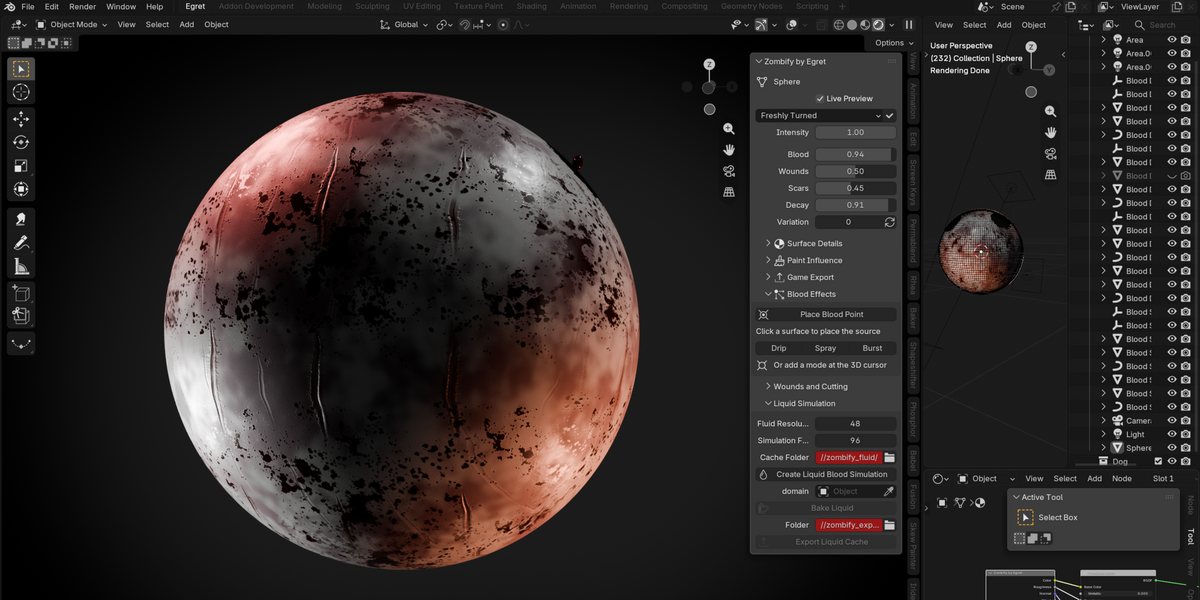
Mortis includes realtime point blood effects for quick drips, sprays, bursts and impact splatters.
Open Blood Effects and click Place Blood Point, then click a surface.
The selected mesh automatically becomes the collision target, although another Collision Mesh can be assigned.
Select a blood point and rotate its arrow to control emission direction.
Drip repeatedly releases drops and briefly connects nearby droplets with a thin liquid ligament.
Spray emits blood over time.
Burst creates a single explosive group.
Playback and timeline scrubbing update the effect directly in the viewport.
Controls include start frame, duration, drop count, speed, drop size, spread, air drag, lifetime and impact size.
Blood Collision & Splatter
Mortis uses a deterministic ballistic solver for its point blood effects.
Scene gravity and air drag affect each particle. Drops stop when they hit the assigned collision mesh and create projected splatter patches.
Each emitter supports up to 256 particles.
Collision paths use a snapshot of the emitter and collider. If collision geometry changes, click Refresh Collisions.
This workflow is intended for stationary emitters and collision surfaces. Animated or moving collision geometry does not provide historical motion sampling.
Blood Effects Export
Freeze Current Frame converts the current live blood effect into independent mesh objects.
Export Current Frame writes a static GLB containing visible droplets and decals.
Export Blood Animation exports keyframed blood droplets and growing impact patches across the scene frame range, up to 600 frames.
This is portable object animation rather than a runtime blood solver.
Animated impact patches are exported as flat decals, while the live Blender preview uses projected splatter patches.
Physical Wounds
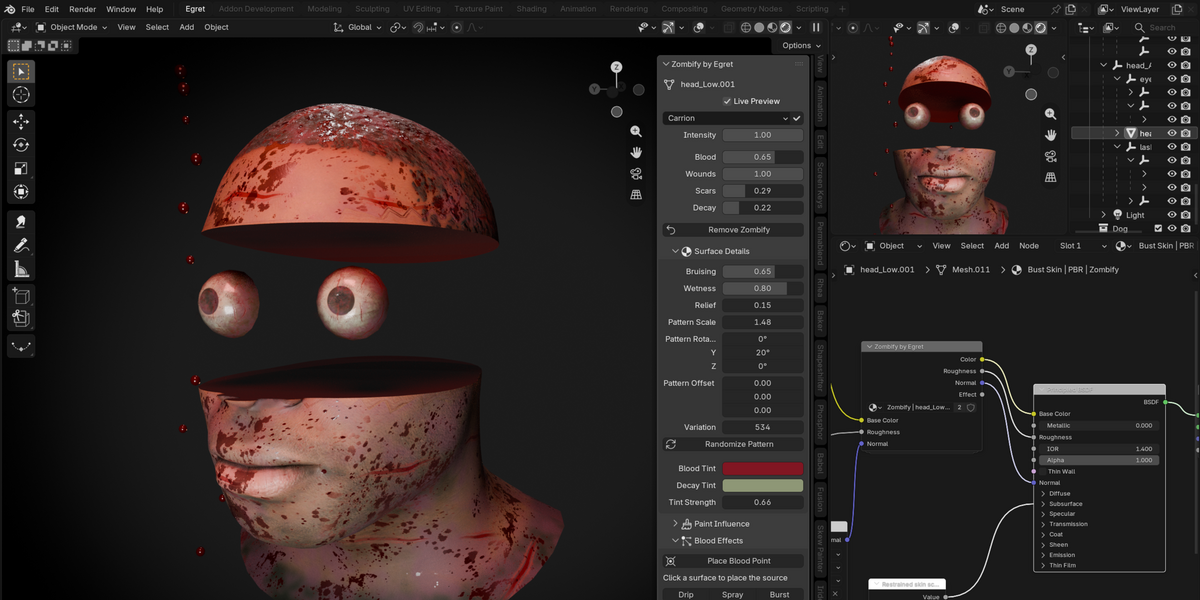
Mortis can create real geometric wounds directly on a mesh.
Position Blender's 3D cursor on the surface with its local Z axis pointing outward.
Under Wounds and Cutting, choose the wound size and depth, then click Carve Wound at Cursor.
Mortis creates an exact Boolean cut with a recessed interior and blood material.
The cutter remains editable and is hidden in the Outliner.
Undo removes the operation.
Physical wounds work best with closed, manifold meshes.
Severing
Sever at Cursor Plane cuts a mesh along the 3D cursor's local XY plane.
The operation creates two capped static pieces with red interior faces.
The original object remains hidden for recovery.
The resulting pieces use the currently evaluated pose and are not rigged.
This is geometric cutting only. Mortis does not reconstruct internal bones, organs or anatomical structures.
Rotate the 3D cursor to control the cutting angle.
Liquid Blood Simulation
Mortis also provides a full liquid-blood workflow using Blender's Mantaflow system.
Choose a cache folder, resolution and duration, select the collision mesh, then position the 3D cursor at the desired source.
Click Create Liquid Blood Simulation.
Mortis creates a Mantaflow liquid domain, a continuous inflow source and a collision modifier.
Resize the domain so it contains the full simulation area before baking.
Use Blender's Fluid settings to adjust viscosity, source velocity, inflow timing and additional colliders.
Full liquid simulation requires baking.
For faster interactive work, use Mortis' point-based Drip, Spray and Burst effects instead.
Liquid Export
Under Effects Export, Export Liquid Cache writes the baked liquid mesh animation as Alembic.
The receiving application or game engine requires an Alembic geometry-cache importer and an appropriate blood material.
A material setup note is included with the exported cache.
Liquid simulations can use substantial disk space, so use a dedicated cache folder for each project.
Game Export
Mortis can convert procedural surface effects into baked PBR assets for use outside Blender.
Open Game Export, choose an output folder and texture resolution, then click Bake Game Asset.
Each export creates a unique subfolder, preventing older exports from being overwritten.
The exporter creates a separate static mesh using the current evaluated pose, builds a fresh UV atlas, then bakes the Mortis appearance into standard texture maps.
GLB Export
GLB + Textures exports the mesh together with its baked textures.
Textures + Mesh creates the baked maps while keeping the generated mesh inside Blender.
The baked mesh is hidden automatically to prevent it from overlapping the procedural source.
A Mortis.json file records the original source, export settings and texture conventions.
Choose DirectX when you also need a Normal_DirectX.png file with the green channel inverted.
The Blender material and exported GLB continue to use OpenGL normals.
Animated Character Export
Bake Animated Character provides the rigged export workflow.
Mortis bakes a rest-pose PBR texture atlas and exports the character together with its armature, shape keys and scene animation as Character.glb.
The mesh must retain unchanged topology.
Apply or disable topology-changing modifiers first and keep only the required armature modifier.
The original rig and source remain editable.
Shader-only effects such as subsurface scattering, transmission, coat and volumes cannot be fully represented by standard PBR maps.
Export Notes
Game export operates on the active mesh.
Multi-part characters must be exported part by part or prepared as one compatible mesh first.
Texture baking uses Cycles on CPU for consistent device availability.
The interface reports progress between map passes. Individual passes block Blender until they finish.
Press Esc between passes to cancel.
If an export fails or is cancelled, Mortis removes temporary objects and the incomplete output folder before restoring the previous scene bake settings.
Output Folders & Cache Paths
Output directories do not need to exist before you use them.
Choose a folder with the folder browser or type the desired path directly.
This message is informational and is not an error.
Save the .blend file before using relative // paths.
Do not use an existing file as an output directory.
If writing fails, choose another writable location and confirm sufficient disk space is available.
Demos & Comparisons
The Mortis showcase is stored separately from the extension installer.
showcase/mortis-busts.html contains portrait comparisons.
showcase/demo.html contains the complete showcase library.
The demonstration material includes textured and sculpted examples showing several Mortis Looks as well as separate blood-effect scenes.
Mortis must be enabled before opening demo scenes if you want to edit their controls.
Use Material Preview for quick surface editing and Rendered mode when evaluating final scene lighting.
Saved materials can render without Mortis enabled, but live blood updates and Mortis interface controls require the extension.
Troubleshooting
No visible change
Enable Live Preview, switch out of Solid mode, increase Intensity and check the influence mask.
Paint brush looks coarse
Paint Influence is stored on mesh vertices. Use a denser mesh for finer detail and stop timeline playback while painting.
Pattern stretches after remeshing
Remove Mortis and reapply it after the topology change.
Material looks too bloody
Reduce Blood or Intensity, then protect regions with Paint Influence.
Blood drops ignore changed geometry
Select the correct Collision Mesh and click Refresh Collisions.
Blood emitter appears frozen
Check the emitter's Live Preview option and make sure the timeline is inside its active emission range.
Game bake rejects the material
Use a directly connected Principled BSDF. Nested groups using implicit UVs require explicit UV Map nodes.
Character export rejects modifiers
Keep a single armature modifier and apply or disable topology-changing modifiers before export.
Liquid cache is empty
Make sure the source remains inside the liquid domain and bake the complete required frame range.
GLB looks different in another engine
Check texture color spaces and normal-map conventions. Some Blender shader features cannot be reproduced through standard PBR textures.
Dead White looks too subtle
Apply the Look with its checkmark, set Intensity to 1 and reveal the intended skin regions with Paint Influence.
Different Looks appear identical
Changing the Look dropdown alone does not update an already affected mesh. Click the adjacent Apply Look checkmark.
Remove Mortis leaves blood or cuts behind
Remove Mortis removes only the managed surface treatment. Blood points, wound cutters, severed pieces and liquid objects are separate effects.
Current Scope
Mortis combines procedural surface treatment, influence painting, ballistic blood emitters, Mantaflow liquid setup, physical Boolean wounds, capped severing, PBR baking, rigged GLB export and Alembic liquid export inside one Blender workflow.
Mortis does not perform anatomical reconstruction and does not provide a runtime game-engine blood or gore simulation.
There is no separate C++ runtime or external solver to install.
Mortis 1.0 has been tested with Blender 4.2.0 and Blender 5.2.0 LTS on Windows.
License & Credits
Copyright 2026 Egret Studios
Mortis code is licensed under GPL-3.0-or-later.
Bundled image credits and redistribution terms are included in assets/NOTICE.md.
Required attribution accompanies exported assets where applicable.
See CHANGELOG.md for Mortis 1.0.0 release changes.
 Included
Includes 12 months of
- Support from Egret Studios LLC
- Product updates
Extend this product’s Support Period +12 months: 50% of product price
Have questions before purchasing?
Login to message
| Blender Extension Compatible | Yes |
| Published | 2 days ago |
| Blender Version | 4.2 - 5.3 |
| Extension Type | Add-on |
| Render Engine Used | Cycles, Eevee |
| License | GPL |
