 ZEG
ZEG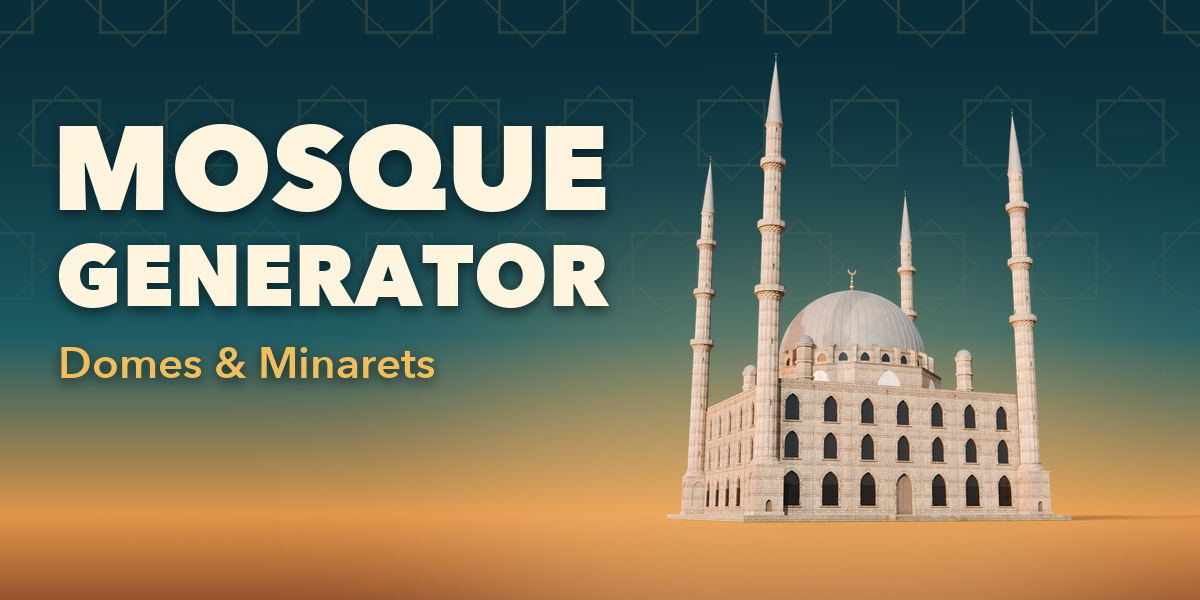
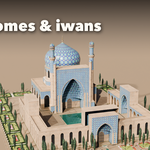
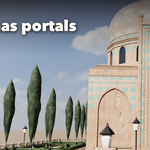
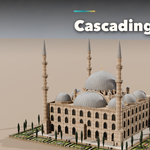
Installation
In Blender open Edit, Preferences, Get Extensions, then use Install from Disk and pick the mosque_generator zip.
Usage
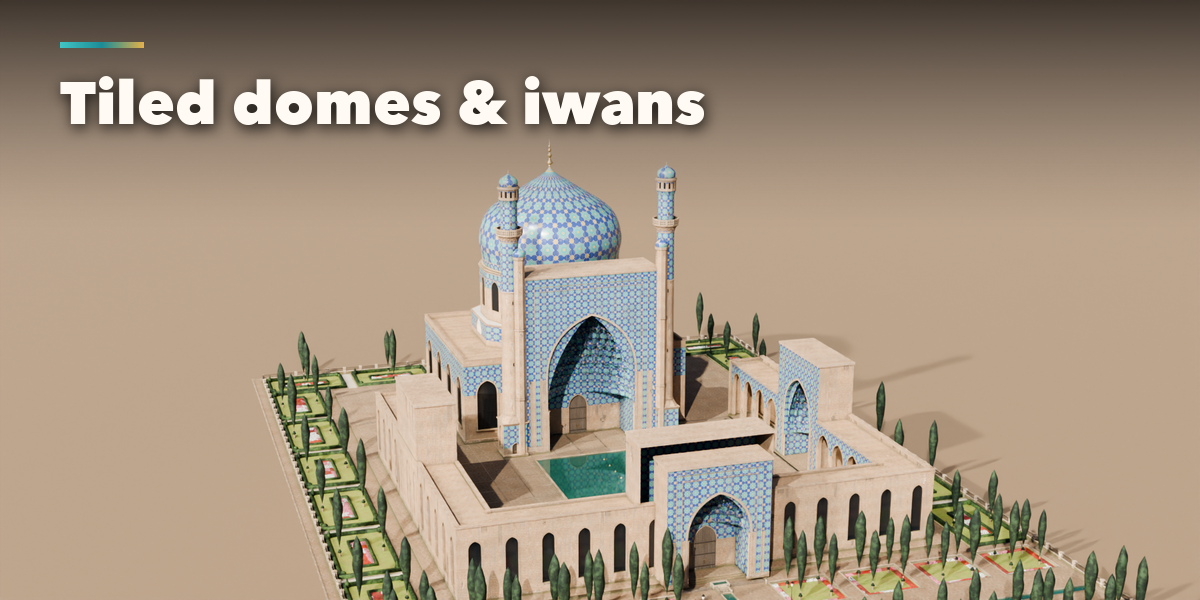
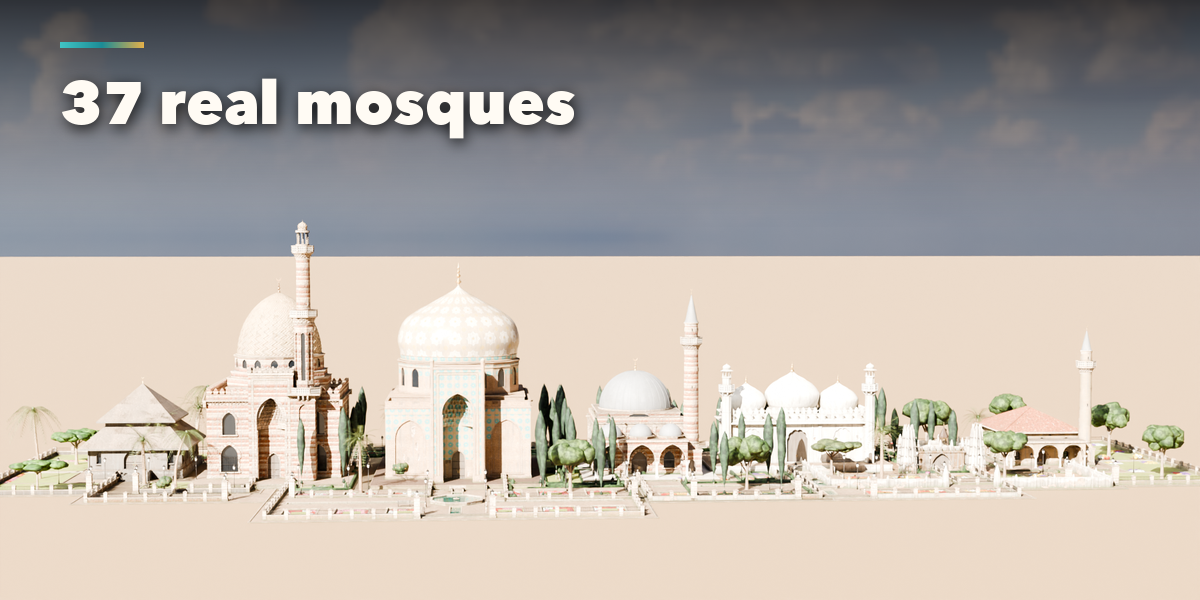
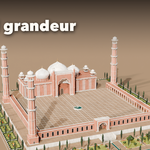
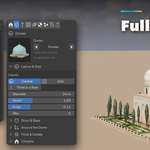
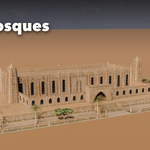
- Open the Mosque tab in the 3D viewport sidebar (N). With no mosque selected, click the big picture to browse the designs, or open Browse Designs and pick a tradition and a design, then press Add Mosque to place it at the 3D cursor. You can also use Shift+A, Mesh, Mosque.
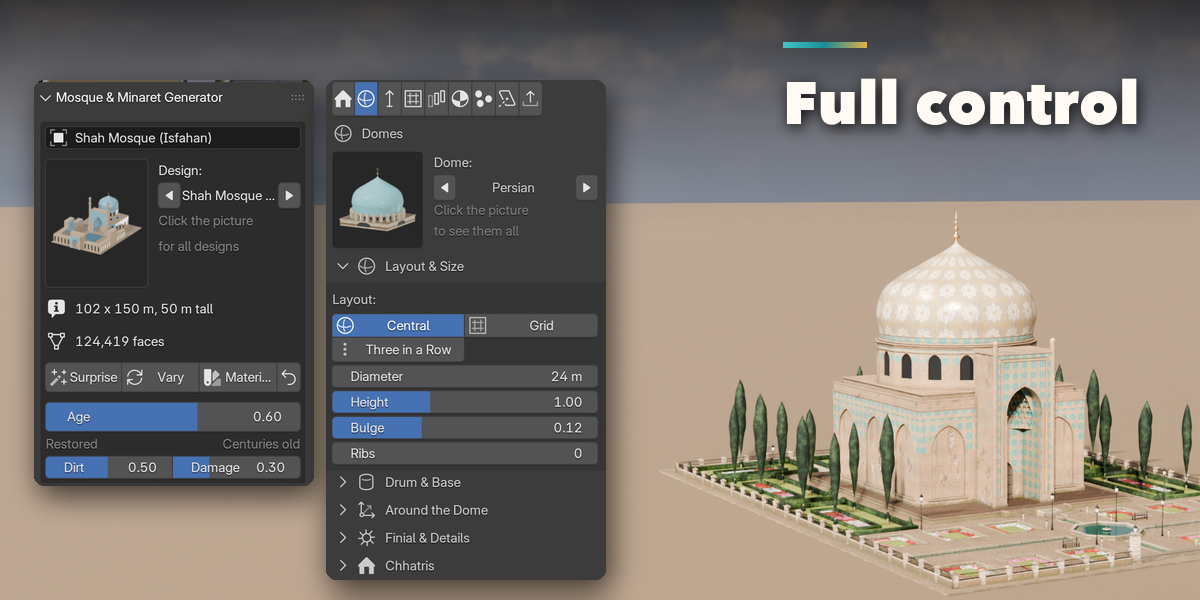
- The card at the top shows the design, its size and face count. Surprise makes a new random mosque, Vary changes the current one a little, Materials picks a new matching scheme and the arrow resets everything to the design. The Age slider below them ages the whole mosque from freshly restored to centuries old.
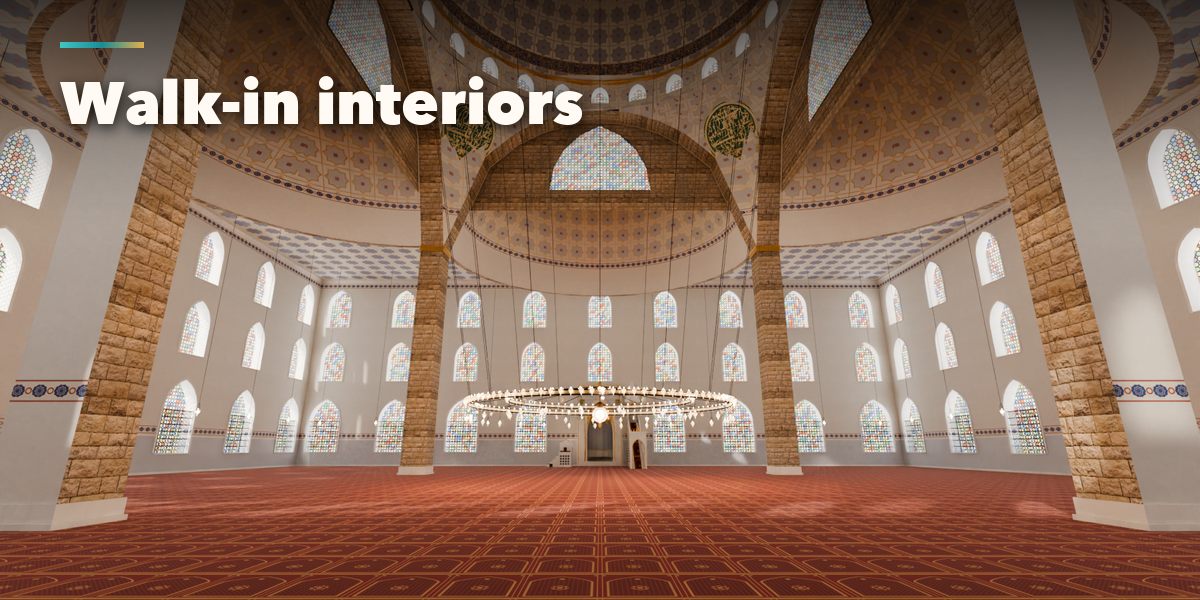
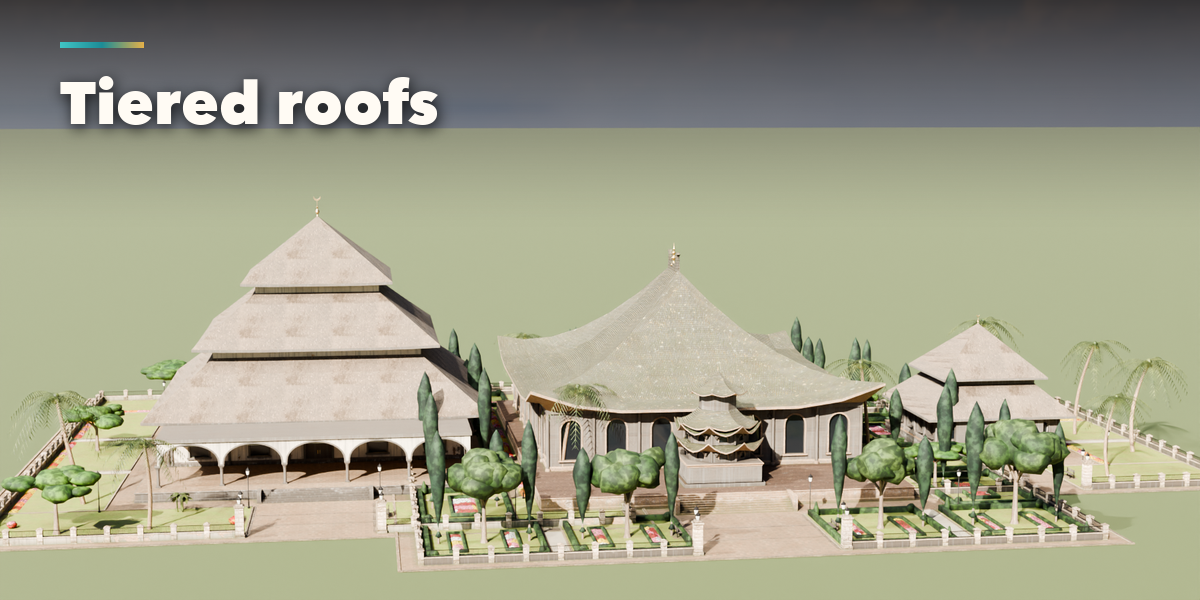
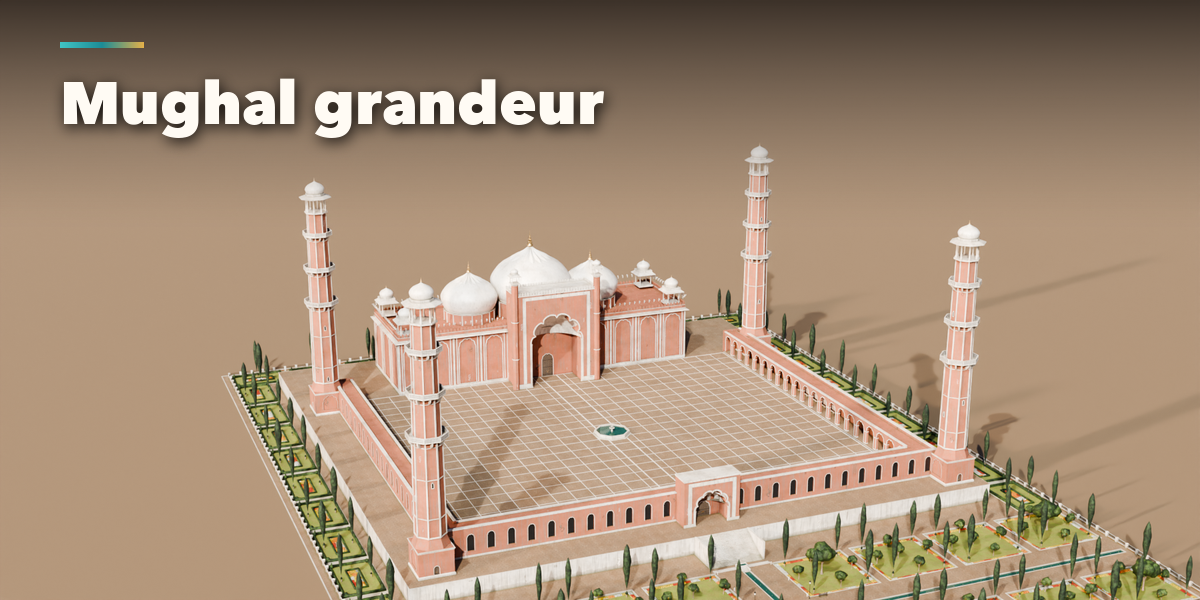
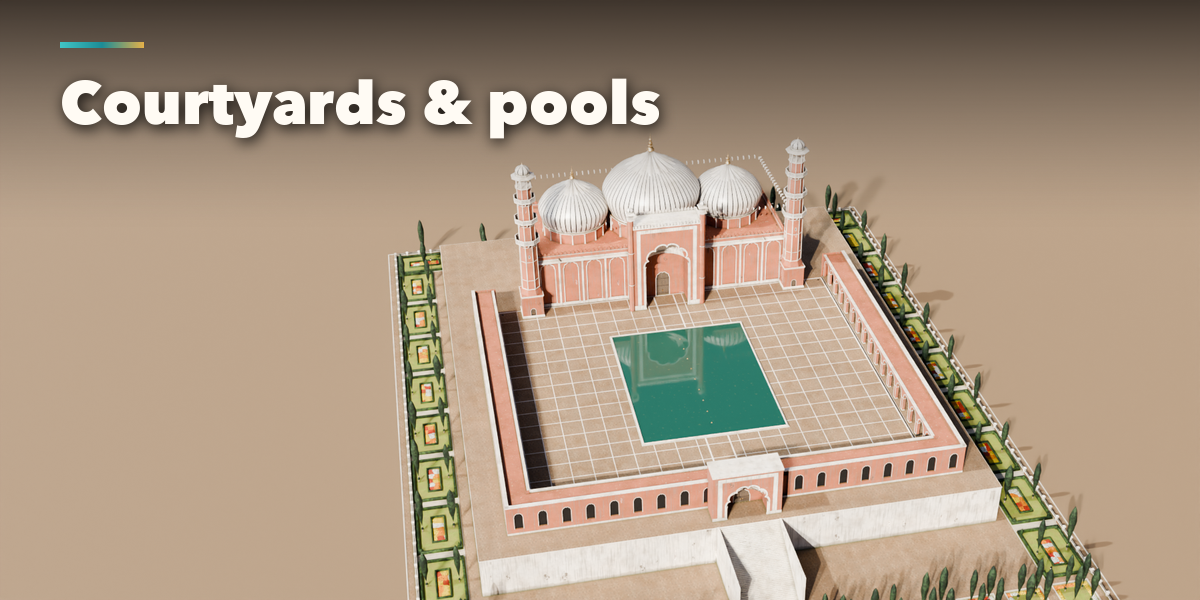
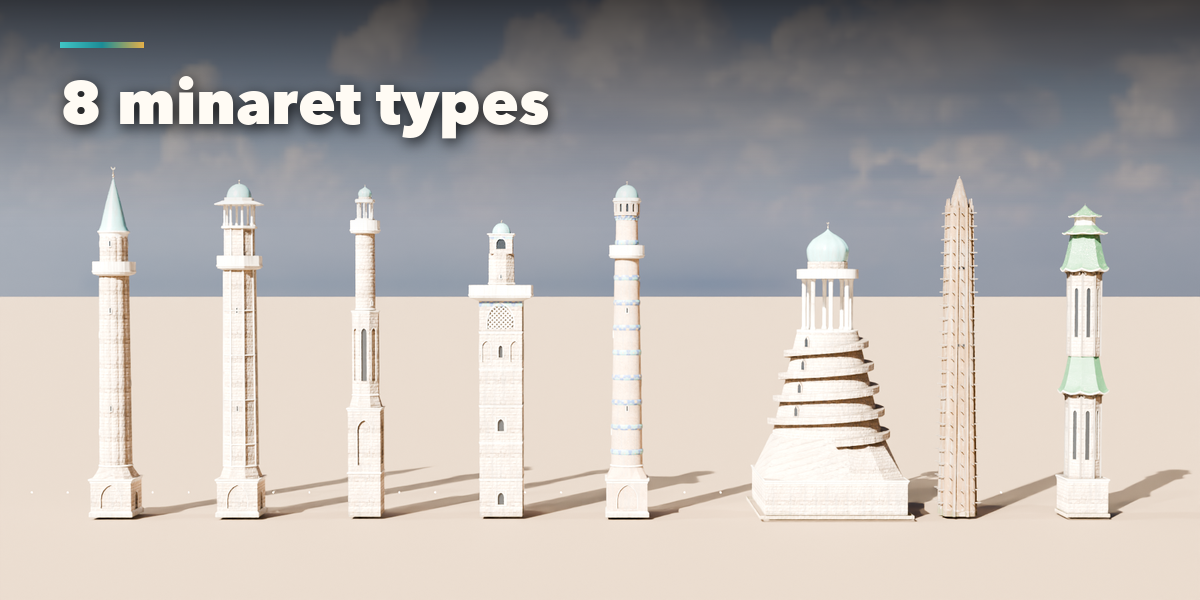
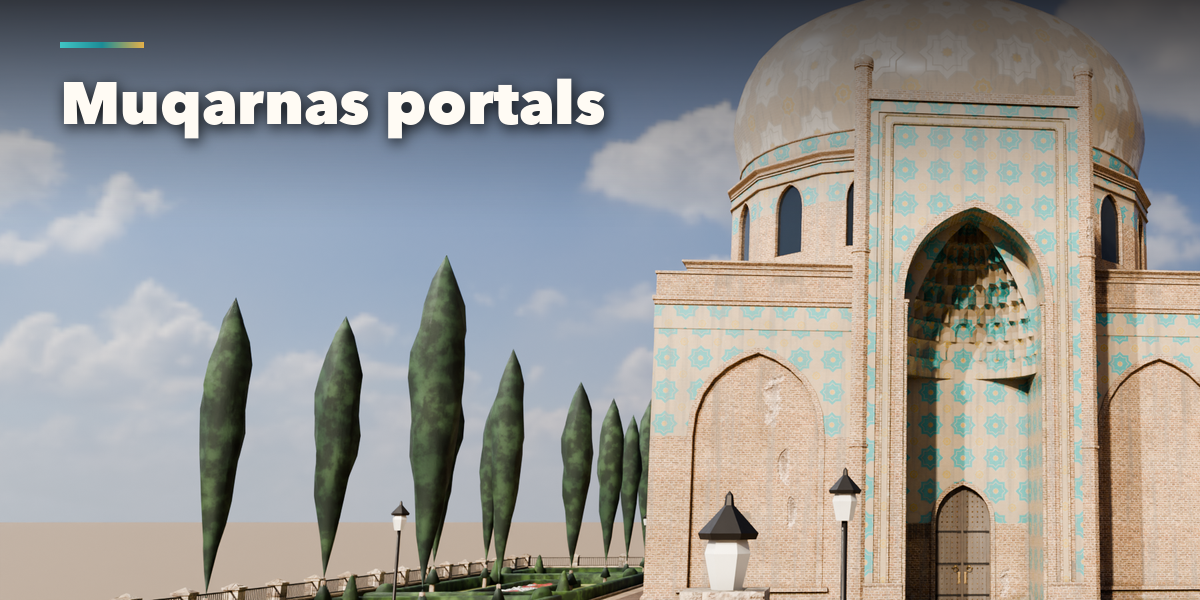
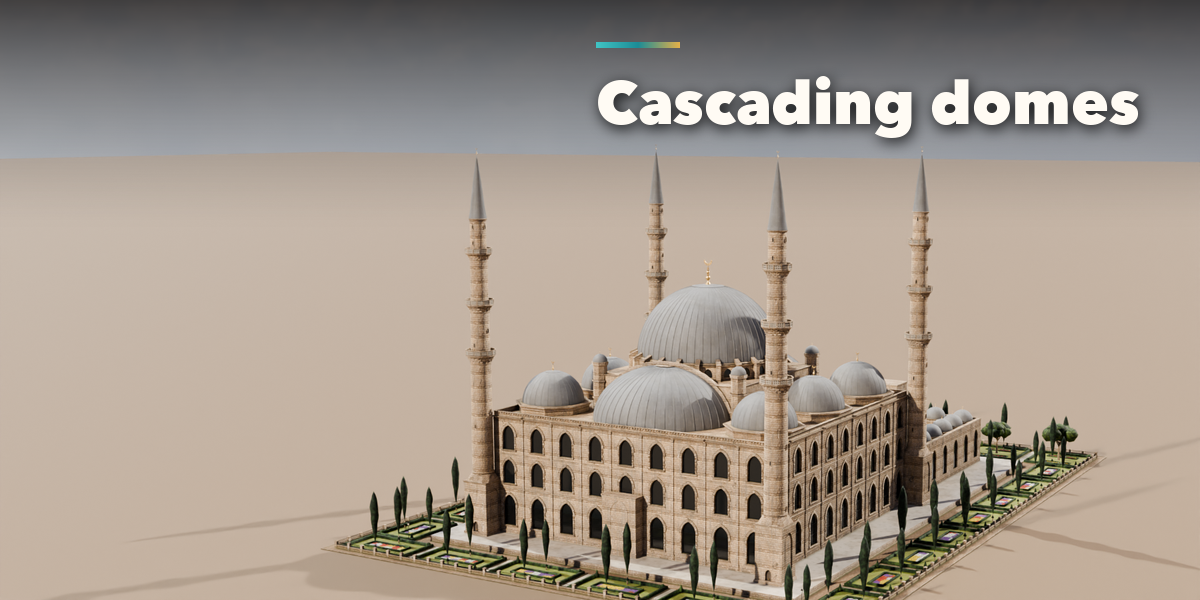
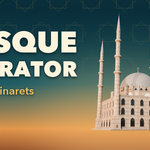
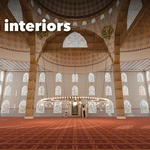
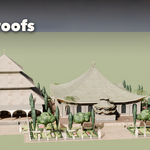
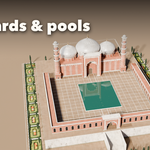
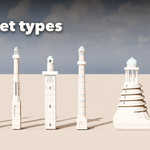
- The icon tabs hold every setting: Prayer Hall (plan, size, arches, windows, walls, cornice, crenellation, platform), Domes (profile, layout, drum, semi-domes, small domes, finial, chhatris), Minarets (count, placement, shaft, balconies, top), Courtyard & Portal (portal, courtyard, arcades, iwans, fountain), Roof (flat, tiered, hipped, naves, Chinese, tent), Materials (walls, trim, domes, roof, tiles, metal, paving), Interior (walk-in hall: chandeliers and lamps, walls and floor, decoration, light, structure, mihrab and minbar; Step Inside adds an interior camera) and Parts & Export (part visibility, detail level, Convert to Mesh).
- Convert to Mesh keeps the mosque as plain meshes; Delete removes it with all its parts.
All sizes are in meters. The root empty sits on the ground at the center of the prayer hall; the qibla wall faces +Y and the entrance -Y.
Have questions about this product?
Login to message
| Blender Extension Compatible | Yes |
| Published | about 23 hours ago |
| Blender Version | 4.2 - 5.2 |
| Extension Type | Add-on |
| Render Engine Used | Cycles, Eevee |
| License | GPL |

Discover more products like this
building environment middle-east procedural architecture islamic-architecture Mosque ottoman dome Generator minaret muqarnas