 TAngraFX


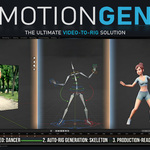
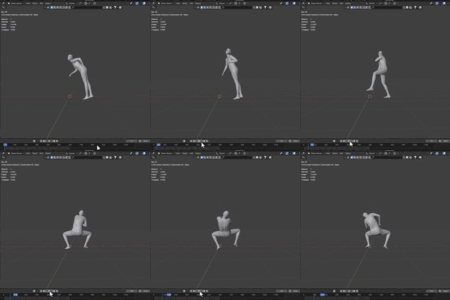
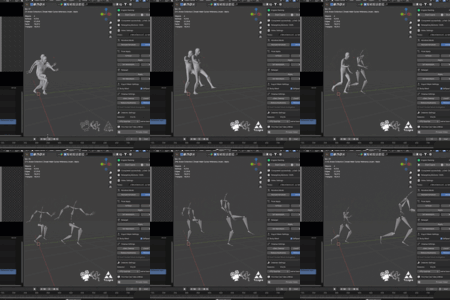
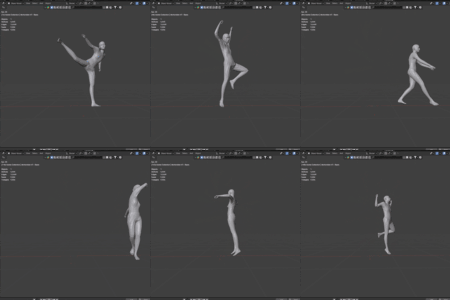
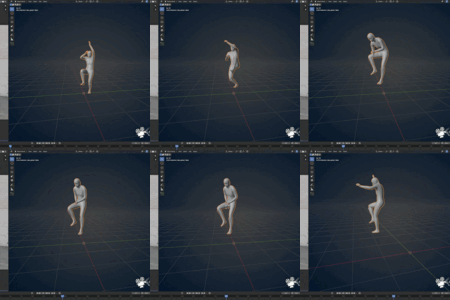
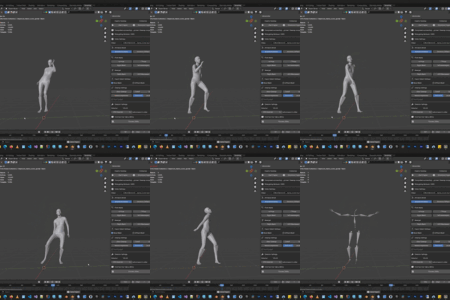
Complete guide to installing, configuring, and using MotionGen for professional motion capture in Blender.
INSTALLATION
Step 1: Download the Add-on
Download the MotionGen ZIP file from your purchase confirmation email or download link.
Step 2: Install in Blender
Video Tutorial of How to Install, Activate and Update the MotionGen Addon and Engine
- Open Blender (version 3.6 to 5.1.2)
- Go to Edit → Preferences
- Navigate to the Add-ons or Extensions tab
- Click the Install from disk button at the top
- Browse and select the downloaded ZIP file
- Click Install Add-on
Alternative 1: Drag and drop the ZIP file directly into the Blender viewport.
Alternative 2: Install using the Extension Manager superhive repository URL
Step 3: Enable Motion Gen
- In Add-ons preferences, search for "Motion Gen"
- Check the checkbox to enable the add-on
- Select the Engine Path where Motion Gen should install its engine
- Click Start Download to download engine dependencies
First Run Notice: The first time you process a video, the engine will setup all dependencies automatically. This may take several minutes. Subsequent runs will be much faster.
Installation Complete! You'll find Motion Gen in the 3D Viewport sidebar (press N if the sidebar is hidden).
You can refer to the video tutorial in the Installation section on this page.
Step 4: Activate your license
Enter your email and order ID to activate the add-on and click the Activate button. You should have internet and unblock MotionGen in your Firewall if you have any.
You can refer to the video tutorial in the Installation section on this page.
Update Addon and Engine
1- Download the latest addon ZIP file from Superhive Market.
2- Drag and drop the ZIP file into Blender and click OK.
3- Go to MotionGen Preferences, make sure the same path is selected as before, and click on "Update Engine"
You can refer to the video tutorial in the Installation section on this page.
INTERFACE OVERVIEW
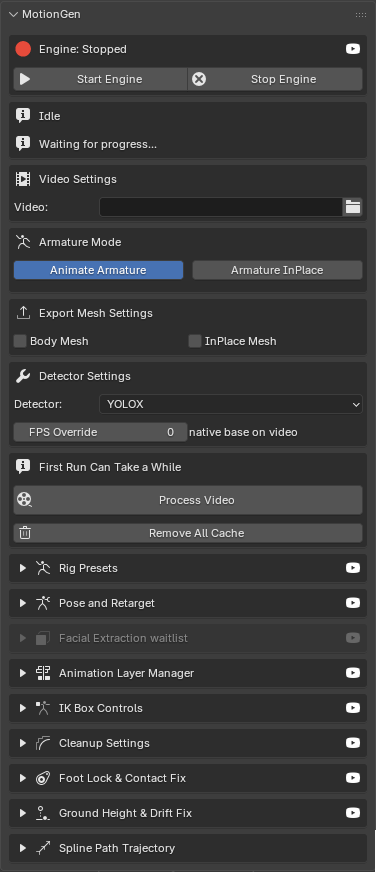
ENGINE AND VALIDATION
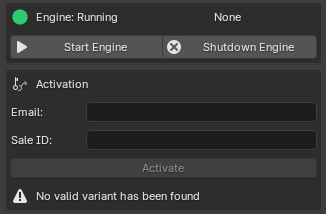
Shows whether the engine is Running, Stopped, or Initializing. The green indicator means ready to process.
Click Start Engine and wait for the status to show "Engine: Running" with a green indicator.
Activation: Enter your Email and Sale ID / Order ID (whichever the store provides) that you received in your email or in the order section in the store where you bought the add-on, and click on Activate.
Note: To activate the license, the MotionGen engine needs to access the internet one time during the activation process.
Important: Keep the engine window minimized in the background. Do not close it, MotionGen needs it to process files.
VIDEO SETTINGS
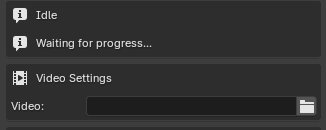
Select your input video file (MP4 recommended). Browse to your motion capture source video.
- Navigate to Video Settings
- Click the folder icon next to "Video:"
- Browse to your video file
- Select an MP4, MOV, or AVI file
ARMATURE MODE
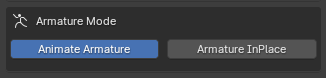
Choose between Animate Armature (moves in 3D space) or InPlace (stays at origin for game engines).
Animate Armature: The character will move through 3D space following the video motion. Use this for cinematics and character animation.
Armature InPlace: The character stays at world origin (0,0,0). Perfect for game engines and when you need root motion control.
EXPORT MESH SETTINGS
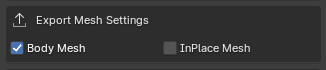
- Body Mesh: mesh export with animation as reference or for surface binding purposes
- InPlace Mesh: Mesh export stays at world origin (0,0,0) as reference or for surface binding purposes
MOTION LAYER
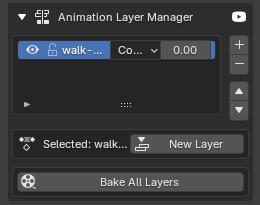
Motion Layer is a tool to edit the animation without touching the current mocap keyframes.
PRESETS AND POSE APPLY
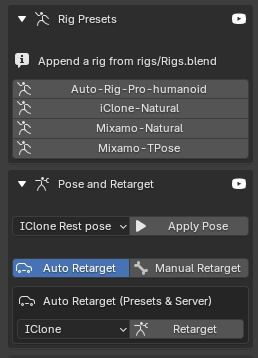
Set A-Pose, T-Pose, Rigify rest pose, UE Metahuman/Mannequin or Mixamo configurations for retargeting and weight painting workflows.
Select the MotionGen generated rig and click the desired pose button to apply, this will add a pose at frame 0. This step is needed for retargeting.
RETARGET
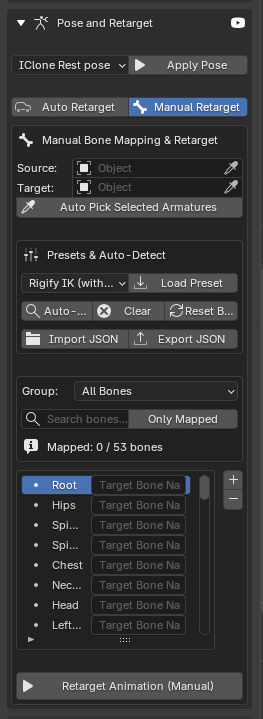
One-Click Retargeting And Manual Retarget
- Select both Motion Gen generated rig (source) and your target rig (Rigify/UE Mannequin/Mixamo)
- Go to the Retarget section
- Click the button matching your target rig type
- Done!
Supported Rigs: Rigify, UE Metahuman, UE Mannequin, Mixamo, iClone (Rig with Controller and more coming soon)
IK CONTROLLER
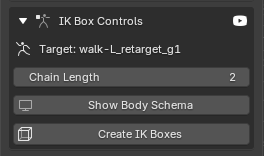
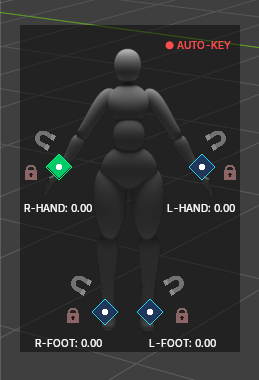
Gain full control of the body and apply an IK rig to existing motion capture animation.
Chain length will determine how much IK will affect the body and indicate the chain of bones.
Show Body Schema is a new UI for IK Body Controller that helps users to set keys and lock and unlock the IK part of the body.
Create IK and Remove IK can be used to create or remove the IK controllers.
FOOT LOCK
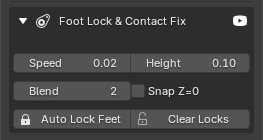
Auto Foot Lock is an easy to use foot sliding fix solution that can be customized by minimum foot height, foot speed, and how much bending.
GROUND OFFSET AND DRIFTING
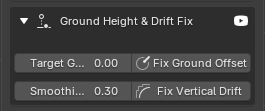
Fix ground offset will fix the Root z offset at frame 1.
Fix Vertical Drift will fix the average Z offset and vertical drifting through all frames.
CLEANUP SETTINGS
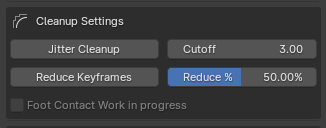
Jitter Cleanup
Remove unwanted jitter or noise to smooth the animation from motion capture data:
- Select the animated rig
- Click Jitter Cleanup
- Adjust Cutoff value (default 3.00 works for most cases)
- Higher values = more aggressive smoothing
Reduce Keyframes
Simplify animation curves for easier editing:
- Select the animated rig
- Click Reduce Keyframes
- Set Reduce % (default 50% is recommended)
- Lower percentage = more keyframes retained
- Higher percentage = fewer keyframes (more simplified)
Tip: Use keyframe reduction to make your animation curves more readable in the Graph Editor.
DETECTOR SETTINGS
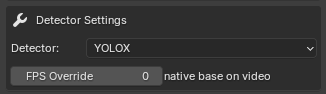
Detector: YOLOX or ViTDet. Engine auto-selects the best for your video. Usually no change needed.
FPS Override: Set to 0 (default) to use the video's native FPS. Override only if needed for specific workflows.
PROCESS VIDEO
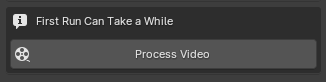
- Scroll to Detector Settings (usually no changes needed)
- The engine automatically selects YOLOX or ViTDet for best results
- FPS is automatically detected from your video
- Click Process Video at the bottom
- Wait for processing to complete
Note: The first run may take a while because the engine sets up all dependencies. Subsequent processes are much faster.
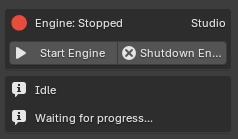
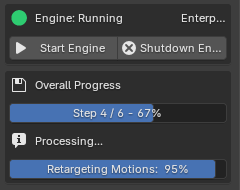
In the meantime, the progress info and progress bar below the engine section will show the necessary information and progress steps.
PREFERENCES SETTINGS
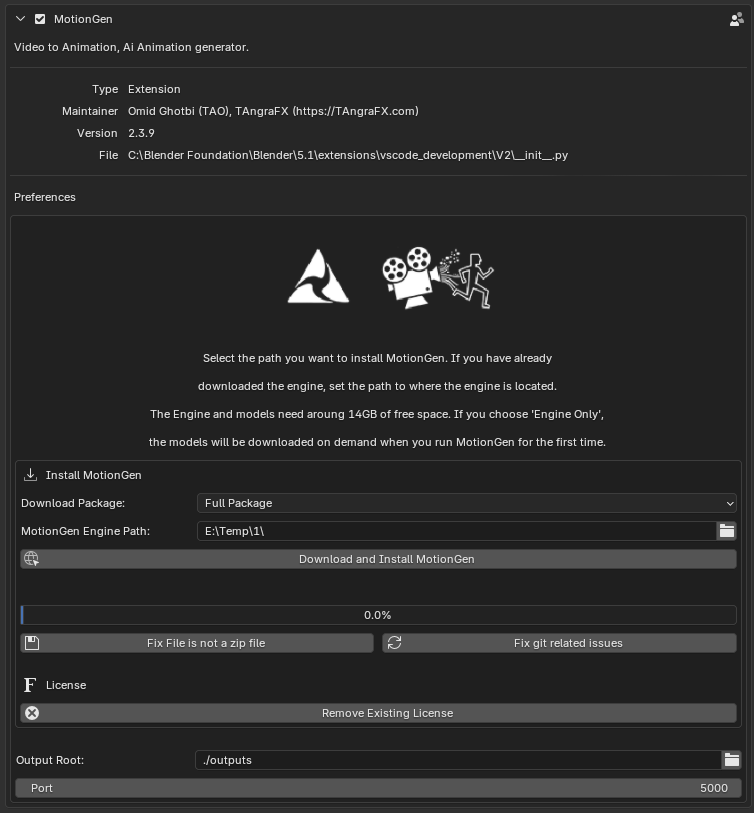
Preferences
- Download Package Type: Full Package will install everything you need in one step, but it will take more time in other hand, Only Engine is lighter, and it will need to install dependencies at first run.
- MotionGen Engine Path: This is the path that the engine will be installed or can be accessed. For fewer issues, make it short and direct to an empty space, as MotionGen will need lots of space.
- Download and Install MotionGen: It will download and install the actual engine. You should have an internet connection in order to download the engine.
- Progress bar: indicates the remaining percentage of the installation process.
- Fix File Is not a Zip file: This should resolve the issue on some PC that has uncompatible file format. An internet connection should be available to use it. This is not necessary for most users. Only a few specific PC will need this in order to get more dependencies.
- Fix Git or GitPython related issue: This will resolve the issue in case Git or GitPython is not available of distenation machin. This is not necessary for most users. Only a few specific PC will need this in order to get more dependencies.
- Remove the Current License: If you want to upgrade or change your license, for example from Lite to Pro, you should use this button in order to revoke the current license and request a new one. After clicking on that button in N-Panel, restart the engine and input your new license info.
- Output root: This is the root of the output cache path. If you face some issues or need to empty the cache, you can delete it if you need.
- Port: This is an internal software communication; no need to touch it.
TIPS & BEST PRACTICES
Video Quality Matters
- Use well-lit videos with clear visibility of the subject
- Avoid motion blur where possible
- Avoid black clothes, it is hard for AI vision to follow the black/dark color correctly.
- Single person in frame works best
- Full body visible throughout the video
- Keep video resolution around 480p, 720p, or 1080p at max (accept ratio can be anything) to reduce VRAM usage and faster processing.
- MP4, MOV, or AVI format recommended for best compatibility
Game Engine Integration
- Use Armature InPlace mode for game exports
- Retarget to UE Mannequin for Unreal Engine projects
- Apply cleanup tools before exporting to reduce file size
- Test FPS override if your game uses different framerates
Performance Tips
- First run downloads dependencies (patience required!)
- Keep engine window minimized, not closed
- Video size can drastically increase processing time and memory usage and has no benefit in simulation.
- Process shorter clips first to verify quality
- Close unnecessary background apps for better GPU performance
- Ensure at least 8GB VRAM available
TROUBLESHOOTING
SYSTEM REQUIREMENTS
Minimum Requirements
ROADMAP
- Ready to use Animation Asset library: a huge gallery of clean and usable motions ready to use.
- Retarget to Rig with Controller: Rigify and Unreal Engine, Auto Rig Pro
- Static Camera Mode: Can be used for static camera on
- Camera Tracking Mode: Determine the camera position and movement.
- Path Controller: Animation follows the path based on the curve
- Foot Contact Modification: Easily detect and modify foot contact to avoid foot sliding.
- Apply Rigid Body Simulation: Any dynamic RDB movement, such as a fall or hitting a car, etc.
- Add support for more Rigs: Auto-Rig Pro, IClone, SecondLife, Daz, etc.
- Face Extraction: Support for AI face recognition and face extraction.
- Hand Gesture Extraction: Support for AI hand recognition and extraction.
LICENSE & LEGAL
MotionGen uses a dual-license approach to give you maximum flexibility:
Add-on Code (MIT License): Fully open-source. Tweak, modify, and customize it to fit your workflow however you like.
Motion Engine (Perpetual License): Licensed for life and operates via an intermediator connection. No conflicts with GPL3 or other software.
Commercial use guidelines:
• Lite: Personal testing only. Perfect for kicking the tires and making sure the tool works for you.
• Pro: Full commercial use with a single seat.
• Ultimate: Full commercial use for studios and enterprises, with 10 seats included.
By downloading MotionGen, you agree to the license, terms, and conditions, including the license, terms, and conditions for all libs and SDKs used in MotionGen.
CONTACT US
TAngraFX
Website: TAngraFX.com
YouTube: TAngraFX Channel
Discord: https://discord.gg/yJA2pfVDTM
Release Note:
v2.3.7 Compatible with engine v1.17 and up
First release
v2.3.8 Compatible with engine 1.18 and up
Add support for Order ID as well as Sale ID
Add support for Legacy HDD support so the installation and start server have enough time to finish. Although it will take more time on HDD, it has no effect on SSD.
Typo fixes.
Bug fixes.
v2.3.9 Compatible with engine 1.19 and up
Add support for upgrading a license from Lite to Pro or Gold
Add Revoke the Current license
Fix more common issues.
Many bug fixes.
v2.7.1 Compatible with engines 1.37 and up
Fix Retarget failed: 'Action' object has no attribute 'fcurves' in Blender 5.0
Add motion Layer
Add motion Blending
Add motion Influence
Add Rig presets
Add Mixamo Classic TPOSE
Add support for iClone and CC4/5
Add support for Auto-Rig Pro
New UE 5 Armature
Add multiple new poses
Add support for Rigged + Controller
Add support for IK/FK Rigify
Add new Update method to avoid full engine installation.
Fix icon missing on new scene
Fix UI reset on new scene or new sequencer
Fix Ask for reactivation on new scene
v2.7.5 Compatible with engines 1.38 and up
Add support for Auto Rig Pro Retargeting
Add support for Rigify Rig and custom controller
Remove depressed functions
Support for Blender 5.2
Auto engine shutdown
Many bugs fixed
v2.9.4 Compatible with engines 1.47 and up
Foot lock
Fix vertical drift
IK Box Controller
Add body schema
Detect active running engine to avoid multiple instances
Better decompression
Better pervis movement detection
Improve accuracy
Improve timing
Many bug fixes
v2.9.8 Compatible with engines 1.47 and up
Fix reactivate License issue
Fix license no variation on mismatch
Fix start engine timeout for HDD or slower SSD
Detect if already run; do not run it with start; only connect to it.
Fix overall progress bar showing for no reason on shutdown server
Mixamo hand rotation issue fix
ARP Smart
Fix license invalidation caused by hardware change
Revoke
Id mapping
Email Mapping
Version manager
Manual retarget
Mixamo Left hand
New UI
v2.9.9 Compatible with engines 1.47 and up
Delete cache
Fix Remove IK
Fix f-curve issue in Blender 5.3
Add video tutorial
Dynamic foot lock
Anti sliding
Better smooth animation
Lower VRAM usage
Add Clear cache
Fix invalidating license on core isolation, guard, and vpn that hide PC fingerprint in rare cases.
-
$1
Limited to 3 sec per video, no other limitation. For test reasons.
-
$29
Freelancer and Indie users, commercial use
-
$57
Professional users, commercial use
-
$250
Enterprise and Studio, 10 seats, unlimited
 Included
Includes 12 months of
- Support from TAngraFX
- Product updates
Extend this product’s Support Period +12 months: 50% of product price
Have questions before purchasing?
Login to message
| Blender Extension Compatible | Yes |
| Sales | 1200+ |
| Rating | 74 ratings |
| Dev Fund Contributor | |
| Published | 3 months ago |
| Blender Version | 3.6 - 5.2 |
| Extension Type | Add-on |
| Render Engine Used | Arnold, Blender-Internal, Blender-Game-Engine, Cycles, Eevee, Freestyle, Luxrender, Octane, Vray |
| License | Mit |
Discover more products like this
One Click Animation mapping mocap 3d animation from video AI Animation retarget-animation MOCAP ANIMATION markerless AI video to animation auto-retargeting mocap animation