 Tesselune


MotionLab 1.0.0 Documentation
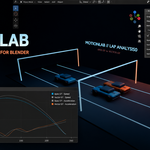
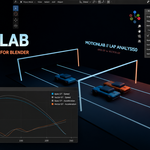
MotionLab is a Blender Extension for recording evaluated object motion, calculating motion and energy measurements, displaying interactive graphs, creating Events, and exporting reusable analytical Sessions.
Requirements
- Blender 4.5 or later
- Tested with Blender 4.5 LTS and Blender 5.0
- Windows x64
Installation
- Download motionlab-1.0.0-windows-x64.zip.
- Do not extract the extension ZIP.
- Open Blender and go to Edit > Preferences > Get Extensions.
- Open the extension menu and choose Install from Disk.
- Select motionlab-1.0.0-windows-x64.zip.
- Enable MotionLab.
- Open Scene Properties > MotionLab Session.
- Open the MotionLab tab in the 3D View sidebar by pressing N.
Quick Start
- Select one or more animated or simulated objects.
- Set the Blender Scene start and end frames.
- Open Scene Properties > MotionLab Session.
- Enter a Session name and choose an export folder.
- For Rigid Body simulations, run Physics Preflight > Check.
- Press Start Session.
- Allow playback to reach the Scene end frame. MotionLab will complete and export the Session automatically.
- Open the MotionLab tab in the 3D View sidebar.
- Select a recorded Object and Metric, then press Show.
The graph dashboard is intentionally inactive when MotionLab starts. Blender's normal 3D View controls remain available until you display a recorded graph.
Recording a Session
Each selected object becomes a separate Track inside the Session. MotionLab samples the evaluated object transform at each frame in the selected Scene range.
The recording can include keyframed animation and evaluated Rigid Body motion. At the Scene end frame, the Session is analyzed and exported. Use Stop and Export when you need to finish a recording before the end frame.
After completion, the MotionLab Session panel displays recording quality information, recorded static object data, and Events.
Available Measurements
- Speed (m/s) — magnitude of translational velocity
- Acceleration (m/s²) — rate of change of translational velocity
- Angular Velocity (rad/s) — rotational speed
- Momentum (kg·m/s) — mass-weighted translational motion
- Kinetic Energy (J) — energy associated with motion
- Potential Energy (J) — gravitational potential estimate
- Total Energy (J) — kinetic and potential energy combined
Mass-dependent values use the object and Rigid Body metadata captured during recording.
Working with Graphs
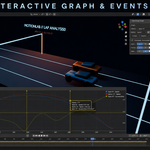
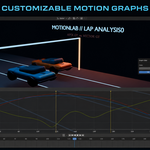
Select a recorded Object and Metric in the MotionLab Graph panel, then press Show. Showing a new primary metric replaces the active widget's primary graph instead of adding an accidental overlay.
- Use the mouse wheel over a graph to zoom around the pointer position.
- Use middle-mouse drag over a graph to pan.
- Left-click a graph position to jump Blender to its corresponding frame.
- Use View to switch the X axis between Frames and Seconds.
- Use Auto Fit to restore an automatic graph range.
- Assign graph series to the Left or Right Y axis.
- Change graph colors and reorder or remove displayed series.
Multi-Object Comparison
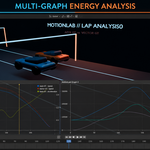
Open Compare > Compare Multiple Objects to display the same measurement from multiple recorded objects in the active graph widget.
Use Energy Overlay to add or remove Kinetic Energy, Potential Energy, and Total Energy for a recorded object.
Graph Dashboard
The Dashboard controls multiple graph widgets. You can add, remove, position, and tile widgets to inspect different measurements at the same time.
MotionLab 1.0.0 supports Left and Right Y axes. A third Y axis is not included.
Events and Frame Navigation
MotionLab creates automatic analytical Events from characteristic measurement points and also supports manual Event markers.
- Filter Events by recorded object or Event type.
- Show or hide Event lines that match the active filters.
- Select an Event row to jump directly to its Blender frame.
- Enter a Marker Label and choose Add at Current Frame to create a manual Event.
- Delete manual Events with the X control.
Hiding an Event changes only its display state. The Event remains part of the Session and can be shown again.
Physics Preflight and Pre-roll
Physics Preflight reports possible Rigid Body cache and frame-coverage problems without changing the Scene, simulation settings, cache settings, or bake status.
Physics Pre-roll Start controls the frame from which Blender evaluates the simulation before MotionLab begins recording the Scene range.
- 0 — disable pre-roll and begin at the Scene start frame
- 1 — default setting; evaluate from frame 1
- Another positive frame — use a specific earlier evaluation frame
For reliable physics results, the Rigid Body cache should begin at or before the selected Pre-roll frame and extend through the recording end frame.
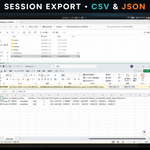
Exported Session Structure
- manifest.json — Session index, Scene metadata, diagnostics, and Track file references
- summary.csv — compact one-row-per-Track overview and measurement maxima
- metadata/ — recorded object and Rigid Body metadata
- samples/ — frame-by-frame position, rotation, scale, frame, and time samples
- analysis/ — derived motion and energy measurements
- events/ — automatic and manual Event data
Keep the exported folder structure intact. MotionLab requires the manifest and referenced Session files to remain together.
Loading a Session
- Open Scene Properties > MotionLab Session.
- Select the exported folder containing manifest.json.
- Press Load.
- Select a recorded Object and Metric in the MotionLab Graph panel.
- Press Show.
Loading a Session restores analytical data for review. It does not create, reposition, or animate the original Blender objects.
Troubleshooting
No graph appears: Complete or load a Session, choose a Graph Object and Metric, press Show, and confirm Dashboard Visible is enabled.
Rigid Body motion begins in the wrong state: Run Physics Preflight, check the cache range, and set Physics Pre-roll Start to an earlier frame.
The graph scale is difficult to read: Use View > Auto Fit or assign a differently scaled series to the Right Y axis.
A Session will not load: Select the folder containing manifest.json and keep the metadata, samples, analysis, and events folders in their original structure.
CSV values are unfamiliar: Begin with summary.csv, then inspect the column headings in the samples and analysis files. Frame is the Blender frame; time is measured in seconds from the Scene start.
Privacy and Connectivity
MotionLab performs recording and analysis locally in Blender. No account, license server, or internet connection is required for normal product operation.
License
MotionLab is distributed under GPL-3.0-or-later. The extension package includes readable Python source code and the applicable license text.
Have questions about this product?
Login to message
| Blender Extension Compatible | Yes |
| Published | about 2 months ago |
| Blender Version | 4.5 - 5.0 |
| Extension Type | Add-on |
| Render Engine Used | Cycles, Eevee |
| License | GPL |
Discover more products like this
animation data-visualization graph simulation velocity physics acceleration rigid body JSON export CSV export energy motion analysis