Mpipe
 MNC Development
MPipe — Documentation
Requires Blender 5.1 or later.
1. In Blender, open Edit > Preferences > Get Extensions.
2. Click the dropdown arrow at the top right of the window and choose Install from Disk…
3. Select MPipe-1.0.0.zip. Blender asks for one permission, files: MPipe creates your project folders and reads and writes the pipeline files inside them. It never accesses the network.
4. The extension installs and enables itself. Go back to the 3D viewport and press N to open the sidebar: MPipe has its own tab, named MPipe.
To update later, install the newer zip the same way; it replaces the previous version. Uninstalling removes the add-on only — your projects, their pipeline.json and every file MPipe created stay on disk and remain readable without it.
Open Edit > Preferences > Add-ons > MPipe. Only the first field really needs your attention; everything below it is the template used when you create a new project, and existing projects are never affected by a change here.
| Artist Name | Your identity in file locks, shot statuses and publishes. Left empty, MPipe falls back to your operating system user name. |
| Naming Defaults | The file pattern and the version padding written into new projects. |
| Default Project Folders | The five folder names — assets, shots, renders, resources, exports — and the comma-separated asset types created under the assets folder. |
| Asset Subfolders | The two subfolders each asset gets: working and publish. |
| Shot Defaults | The collections created in every new shot scene. |
| Dashboard | How many days a working file can go without a save before the dashboard lists it as stale. Default 14. |
| Recent Projects | The last ten projects you created or opened, each removable with the X button. |
| Diagnostics | Check Environment verifies ffmpeg, the active project configuration and disk access, then reports each result inline. |
Outside any project, the panel shows No active project and offers three ways forward: New Project, Open Project, or one of your recent projects.
New Project asks for a folder, a project name and a short project code, then creates the folder tree and writes a pipeline.json at its root. That file is what makes the folder a project.
| assets/ | One folder per asset type, then one per asset, each split into working and publish. |
| shots/ | One folder per shot, holding its work files and its sidecar JSON. |
| renders/ | Engine output, organised by shot and by version. |
| resources/ | References, source textures, HDRIs, documentation. |
| exports/ | Deliveries, bundles and interchange files. |
From then on, MPipe finds the project by itself: open any .blend saved anywhere inside that folder and it walks up the parent folders until it meets the pipeline.json. If it ever looks lost, Refresh Context re-runs the detection.
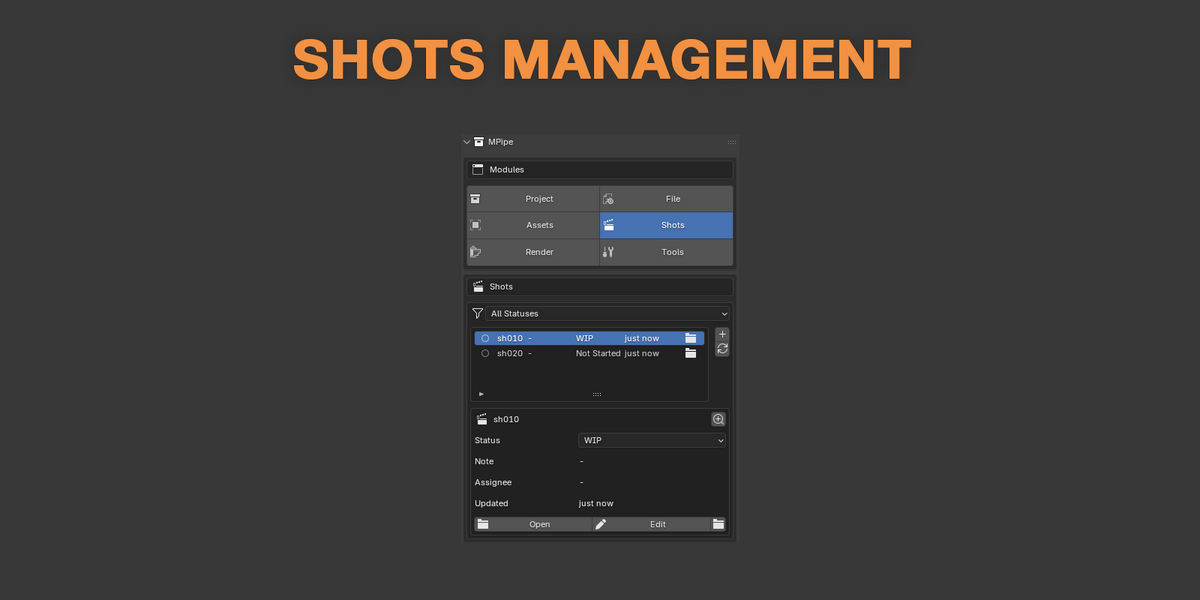
Everything lives in one panel, in the 3D viewport sidebar under the MPipe tab. Six module buttons at the top switch what the panel shows, and most modules are split further into tabs.
| Project | Info — the current project, its code and your artist name. Dashboard — the state of the whole project. |
| File | Versions, Naming, Validation — everything about the file you have open. |
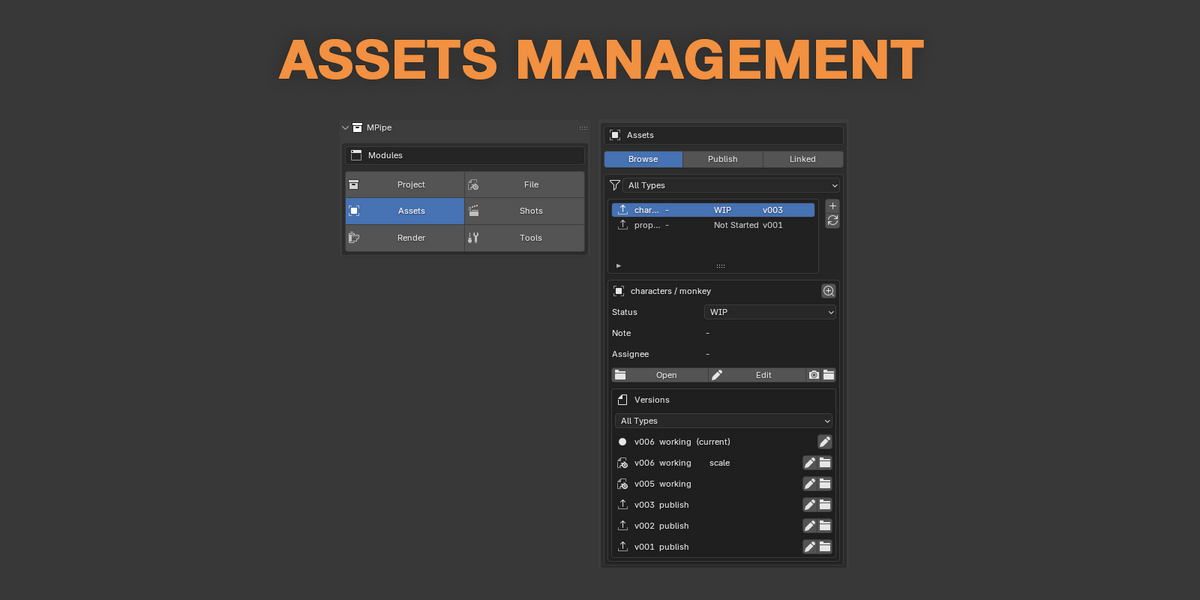
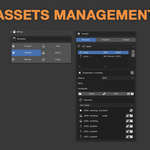
| Assets | Browse, Publish, Linked — the asset library, publishing, and the assets linked into this file. |
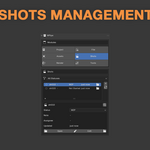
| Shots | The shot list, with status, thumbnail and one-click opening. |
| Render | Project Settings — the render settings of the current scene. File Settings — the output path and the saved project presets. |
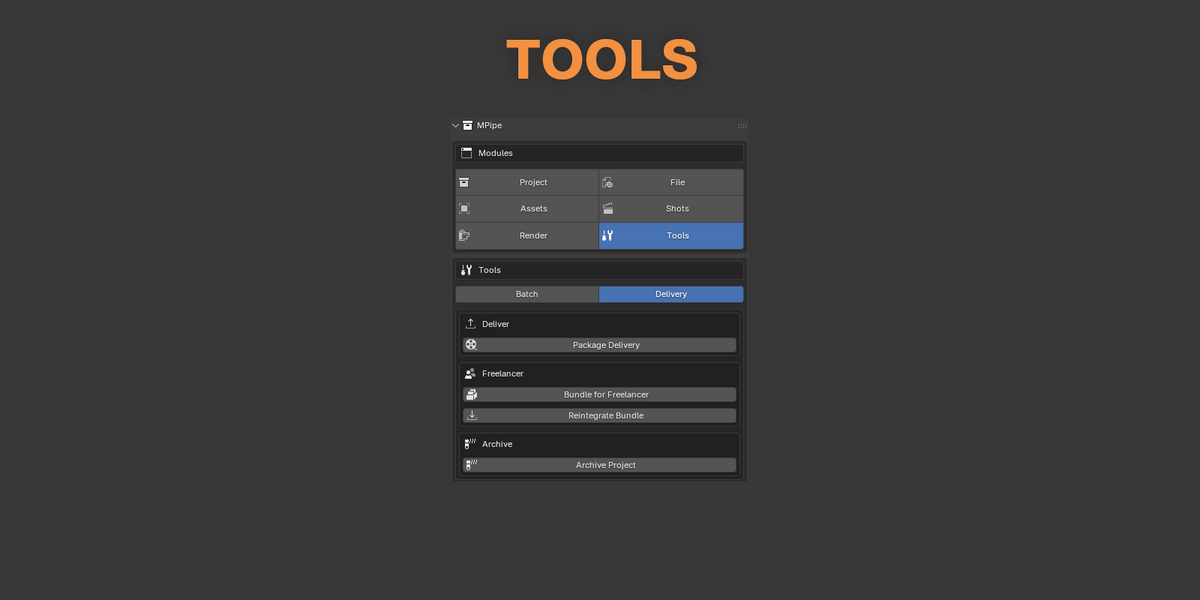
| Tools | Batch, Delivery — project-wide operations, packaging and archiving. |
The File module works on the .blend you have open. Its three tabs answer three questions: which versions exist, is this file named correctly, and is it clean enough to publish.
| VERSIONS | |
| Save Version Up | Saves the next version of the current file, following the project pattern and padding. |
| Versions list | Every version found on disk. Open File loads one, Edit Note attaches a short note so the next person — or you, later — knows what changed in it. |
| NAMING | |
| Convention status | The panel states plainly whether the open file Matches convention or that its Name does not match convention. |
| Rename to Convention | Renames the current file to the project pattern, so a file that drifted is brought back in one click. |
| LOCK | |
| Lock status | Shows Locked by you or Not locked. Opening a project file writes a small companion file next to it, named after the .blend with .lock appended, carrying your artist name and a timestamp. |
| Someone else inside | You get a warning naming the person and how long ago they opened it. It is informative, never blocking: you can still work, and you can take the lock over. |
Locks are released when you close Blender, and they follow you if you change your Artist Name while a file is open. Working alone, the lock costs nothing and you can ignore it entirely.
An asset has a working file you edit and published versions everyone else uses. The rule that keeps a project intact is simple: shots link publishes, never working files.
| BROWSE AND PUBLISH | |
| New Asset | Creates the asset folders and its first working file, named to the convention. |
| Publish Asset | Snapshots the open working file into the asset's publish folder as the next version, renders a thumbnail, and can mark the published collection as a Blender asset filed into a catalog — so it appears in the native Asset Browser. |
| Open Asset · Edit Asset | Open an asset's working file, or rename it and change its type. |
| Capture Thumbnail | Re-renders the preview image of an asset from the current viewport. |
| LINKED | |
| Link Published Asset | Links the latest publish into the open file and creates a library override, so you can pose and animate it locally. |
| Update Linked Asset | Moves one outdated link to the newest published version. |
| Pin Version | Holds a shot on a specific version while the asset keeps evolving elsewhere. |
| Update All Links · Relink Assets | Bring every link in the open file up to date, or repair links whose target has moved. |
New Shot creates the shot folder and its first file, with the scene already set to the project fps, resolution and frame range, and the template collections created.
The shot list shows every shot with its status and thumbnail. Open Shot loads its latest file, Edit Shot changes the status and the note, Capture Thumbnail refreshes the preview from the viewport.
Four statuses are available: Not Started, WIP, Review and Done.
Status and note are stored in a sidecar JSON file inside the shot folder, not in the central pipeline.json. Two people editing two different shots never write to the same file, which is what makes this safe on a shared or synced drive.
MPipe prepares renders; it never launches them. There is no queue, no background job and no render farm — you press F12 yourself, as always.
| Set Render Output | Points the scene's output at the folder derived from the current shot and its version, inside renders/. |
| Save Project Settings | Stores the current scene's render settings into the project as a named preset, shared with anyone who opens the project. |
| Apply Render Preset | Applies a saved preset to the current scene in one click. |
| Delete Render Preset | Removes a preset from the project. |
Run Validation in the File module checks the open file. Each check returns pass, warning or error; where a safe automatic correction exists, a Fix Issue button appears next to it. A publish carrying a blocking error is refused.
| naming_convention | Error. The file name must follow the project pattern. |
| missing_textures | Error. Every image must resolve on disk. |
| applied_scale | Warning, fixable. Object scale must be applied. |
| orphan_data | Warning, fixable. No unused datablocks left behind. |
| scene_units | Warning, fixable. Parameters: system, scale_length. |
| polycount | Warning. Parameter: max_triangles, 500000 by default. |
| uvs_present | Warning. Every mesh with polygons must have a UV map. |
| collections_template | Warning, fixable. Shots only — the template collections must exist. |
Each check is configured per project, under validation.checks in the pipeline.json, using its id as the key. Set enabled to false to switch it off, severity to "ERROR" or "WARNING" to decide whether a failure blocks a publish, and add any other key to override a parameter:
| Tighten a threshold | "polycount": { "severity": "ERROR", "max_triangles": 150000 } |
| Switch one off | "uvs_present": { "enabled": false } |
You can add your own checks. In the pipeline_hooks/ folder at the project root, you can put .py files in it, each exposing an MPIPE_CHECKS list. Every entry needs an id and a check function taking (context, params) and returning (passed, message); label, description, severity, fix, applies and params are optional. Your checks then sit beside the built-in ones, configurable from the pipeline.json in exactly the same way. A hook that fails to load is reported as a warning and never prevents the other checks from running.
| BATCH | |
| Re-publish Modified Assets | Publishes every asset whose working file is newer than its last publish. |
| Update All Shot Links | Brings every shot in the project onto the latest publishes. |
| Regenerate Thumbnails | Rebuilds the preview images across the project. |
| DELIVERY | |
| Package Delivery | Encodes frames you have already rendered into a deliverable video, named to the convention. It uses ffmpeg when it is on your PATH and falls back to Blender's video sequencer otherwise — Check Environment in the preferences tells you which applies. |
| Bundle for Freelancer | Packs an asset or a shot with its dependencies, textures packed and links remapped, so it opens on a machine that has never seen the project. |
| Reintegrate Bundle | Brings a returned bundle back into the project, remapping the links the other way. |
| Scan Disk Usage | Reports how much space each shot and asset occupies. |
| Purge Old Versions | Deletes superseded working versions, keeping the most recent ones. The number kept is archive.keep_versions in the pipeline.json. |
| Archive Project | Packages the finished project, leaving out the regenerable renders. |
Batch operations and purging touch many files at once. Run them when nobody else is mid-save, and keep a backup of a project you cannot afford to lose.
Under Project > Dashboard, press Refresh Dashboard to scan the project. It is a read-only overview, useful with a team and just as useful when the only person you are tracking is yourself.
| Outdated Links | Files still pointing at an older publish. |
| Recent Publishes | What was published last, and by whom. |
| Stale Files | Working files untouched for longer than the Stale File Days preference. |
| Active Locks | Which files are currently open, and by whom. |
| Disk Usage | Where the space is going. |
One readable file at the project root holds every convention. MPipe writes it when the project is created and updates it when you save a render preset; you can also edit it in any text editor. Unknown keys are tolerated, so a file written by a newer version still opens.
| project | Name, short code, fps and resolution. |
| folders | The five top-level folder names. |
| naming | The file pattern and the version padding. |
| asset_types · asset_folders | The asset categories, and the working and publish subfolder names. |
| shot_defaults | Frame range, template collections and the collection assets are linked into. |
| render_presets | The presets saved from the Render module. |
| validation | Which checks run, with their severity and parameters. |
| archive | How many versions Purge Old Versions keeps. |
Everything MPipe stores is relative to this file, so the project folder can be moved, copied to another drive or mounted at a different path on each machine and still work.
| The panel says there is no active project | The open file is not saved inside a project folder, or there is no pipeline.json above it. Save the file into the project first, then press Refresh Context. |
| My file is flagged as not matching the convention | It was named outside MPipe, or the project pattern changed since. Rename to Convention in the File module brings it back. |
| A warning says someone else has the file open | Informative only — nothing is blocked. If they closed Blender abnormally the lock may be stale; you can take it over. |
| A .lock file is sitting next to my .blend | That is the lock. It is removed when Blender closes normally, and deleting it by hand is harmless. |
| A linked asset is marked outdated after I published | Expected: the shot still points at the previous publish. Use Update Linked Asset, or Pin Version if you meant to stay on that one. |
| A publish was refused | A validation check returned a blocking error. Run Validation to see which one, fix it, or lower its severity in the pipeline.json if it does not apply to your project. |
| My own check does not appear | The pipeline_hooks folder must be at the project root, the file must end in .py and expose MPIPE_CHECKS, and each entry needs an id and a callable check. A hook that failed to load is listed in the validation results with the reason. |
| Package Delivery is unavailable or slow | Run Check Environment in the preferences. Without ffmpeg on your PATH, MPipe falls back to Blender's sequencer, and a Blender built without video output cannot encode at all. |
| The dashboard looks empty or out of date | It is scanned on demand, not live. Press Refresh Dashboard. |
MPipe · Requires Blender 5.1 or later
-
$10
1 User - Non-commercial use
-
$25
5 Users - Commercial use
-
$75
10 Users - Commercial use
-
$200
10+ Users - Commercial use
Have questions about this product?
Login to message
| Blender Extension Compatible | Yes |
| Published | about 18 hours ago |
| Blender Version | 5.1 - 5.2 |
| Extension Type | Add-on |
| Render Engine Used | Cycles |
| License | GPL |