MStep - CAD Step Importer (.step, .stp)
 Damian Mathew







MOUVAL MStep - Documentation
Quick Start Guide
Installation
- Download
mouval_mstep-1.0.0.zip - Open Blender (4.0 or newer)
- Go to Edit > Preferences > Add-ons
- Click Install... and select the ZIP file
- Enable the addon by checking the box next to "MOUVAL MStep"
- Done! No additional installations required - completely standalone
Importing Your First STEP File
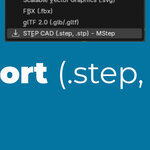
- Go to File > Import > STEP CAD (.step, .stp) - MStep
- Browse and select your STEP or STP file
- Adjust import settings (optional):
- Mesh Quality: 1-100 (default: 50)
- Scale Mode: Auto or Custom
- Create Materials: Import colors from CAD file
- Shade Smooth: Apply smooth shading automatically
- Click Import STEP/STP
- Your CAD model appears in the 3D viewport with correct scale and colors!
Import Settings Explained
Mesh Quality (1-100)
Controls the polygon density of imported geometry:
- Low (1-30): Fast import, lower poly count - good for real-time applications or background objects
- Medium (30-70): Balanced quality - recommended for most workflows
- High (70-100): Maximum precision - use for close-up renders or detailed inspection
Tip: Start with 50 and adjust based on your needs. Higher values increase import time.
Scale Mode
-
Auto (from file): Reads unit information from the STEP file and converts automatically
- Supports: millimeters, centimeters, meters, inches, feet
- Recommended for most users
- Custom: Manually specify a scale multiplier if your file lacks unit metadata
Create Materials
- Enabled: Imports RGB color data from STEP file and creates Principled BSDF materials
- Disabled: Objects import without materials (you can add them manually later)
Shade Smooth
- Enabled: Applies smooth shading with custom normals for curved surfaces (recommended)
- Disabled: Uses flat shading (faceted appearance)
Common Workflows
Product Visualization
- Import with Mesh Quality: 70-100 for best detail
- Enable Create Materials to preserve colors
- Enable Shade Smooth for realistic surfaces
- Set up lighting and render with Cycles or Eevee
Technical Animation
- Import with Mesh Quality: 40-60 for good performance
- Use Auto Scale to ensure accurate dimensions
- Animate objects using Blender's standard animation tools
- Export to video or game engine
Mesh Editing/Retopology
- Import with Mesh Quality: 30-50 for manageable geometry
- Use imported mesh as reference or base for retopology
- Modify geometry using Blender's modeling tools
Troubleshooting
Import Fails or Nothing Appears
- Verify your file is a valid STEP (.step, .stp) format
- Check the Blender console (Window > Toggle System Console) for error messages
- Try reducing Mesh Quality to 30 and re-import
- Ensure the file isn't corrupted - try opening it in another CAD viewer
Objects Are Too Small/Large
- If using Auto Scale: Your STEP file may lack unit metadata - switch to Custom Scale
- Common scale factors:
- 0.001: If file is in millimeters but imported huge
- 0.01: If file is in centimeters (most common)
- 1.0: If file is already in meters
Import Is Very Slow
- Reduce Mesh Quality to 20-40 for complex assemblies
- Large STEP files (500+ parts) may take several minutes - this is normal
- Progress bar shows import status - don't close Blender during import
Colors Don't Import
- Ensure Create Materials is enabled
- Not all STEP files contain color data - if colors are missing in your CAD software, they won't import
- Materials are created with the same name as the STEP component
Supported File Formats
| Format | Extensions | Standard | Features |
|---|---|---|---|
| STEP | .step, .stp | ISO 10303-21 | Geometry, Colors, Units, Assemblies |
Pro Tips
- Batch Import: Import multiple files by repeating the import process - each creates a separate collection
- Collection Names: Imported objects are organized in a collection named after your STEP file
- Material Editing: Imported materials are standard Principled BSDF - edit them like any Blender material
- Performance: For viewport performance with large models, use Mesh Quality: 20-30, then re-import at higher quality for final render
- Units: Blender's scene units don't need to match the STEP file - MStep handles conversion automatically
System Requirements
- Blender Version: 4.0 or newer (tested up to 4.3+)
- Operating System: Windows 10/11 (64-bit)
- RAM: 8GB minimum, 16GB+ recommended for large assemblies
- Storage: 250MB for addon installation
License & Legal
Addon License
MOUVAL MStep addon code is licensed under the MIT License. You are free to use this addon for commercial and personal projects.
Bundled Libraries
This addon includes the following open-source libraries:
- PythonOCC 7.7.2 - LGPL License
- Open CASCADE Technology (OCCT) - LGPL License
Full license information is available in the addon preferences panel and via the "View OCCT License" button.
Support
Bug Reports
Found a bug? Click Report Bug in the MStep panel sidebar, or email us directly at:
Please include:
- Blender version
- Error message (from system console if available)
- Description of what you were trying to do
- Sample STEP file (if possible)
Feature Requests
We'd love to hear your ideas! Email [email protected] with the subject "MStep Feature Request"
Changelog
Version 1.0.0 (Initial Release)
- ✅ STEP/STP file import with Open CASCADE Technology
- ✅ Automatic unit detection and conversion (mm, cm, m, in, ft)
- ✅ RGB color import with automatic material creation
- ✅ Adjustable mesh quality (1-100 tessellation control)
- ✅ Smooth shading with custom normals
- ✅ Progress bar for large imports
- ✅ Standalone installation (no pip dependencies)
- ✅ Professional UI with sidebar panel
About MOUVAL LLC
MOUVAL LLC is a software development company based in Austin, Texas, specializing in professional tools for 3D artists, engineers, and designers. We create high-quality Blender addons that bridge the gap between CAD and creative workflows.
Location: 5900 Balcones Drive STE 100, Austin, TX 78731
Contact: [email protected]
Thank you for choosing MOUVAL MStep! We hope it transforms your CAD-to-Blender workflow.
-
$14.99
Single-user license. Perfect for freelancers and individual designers.
-
$59.99
Multi-seat license for 5 users. $12/user - Save 20% vs individual license.
-
$199
Multi-seat license for 20 users. $10/user - Save 33% vs individual license. Best value for studios and teams.
Have questions about this product?
Login to message
Discover more products like this
mechanical Workflow industrial design precision step Geometry Import-Export engineering modeling file-formats cad professional