 mkeyworks


Installation
-
Download the Add-on File
Get the latest
.zipfile of the add-on
-
Open Blender Preferences
Go to the top menu:
Edit → Preferences → Add-ons
-
Install from File
Click “Install…” in the top-right corner of the Add-ons tab.
Locate and select the downloaded
.zipfile.Click Install Add-on.
-
Enable the Add-on
Once installed, search for “Multi Toggle” in the Add-ons list.
- Check the box next to the add-on’s name to enable it.
- Place your cursor on the Outliner.
Access & Usage
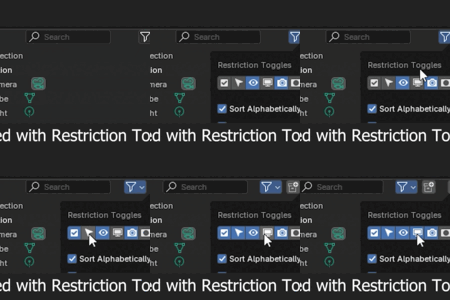
In the Outliner go to Filter → Enable Restriction Toggles — they sync with Multi-Toggle buttons.
From the 3D Viewport:
Select one or multiple objects or collections.
-
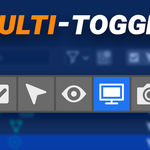
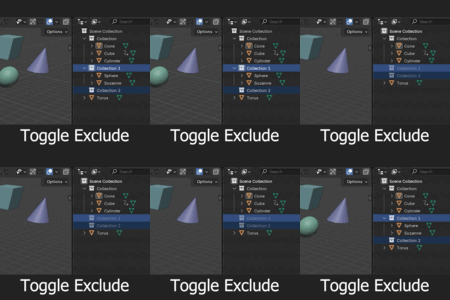
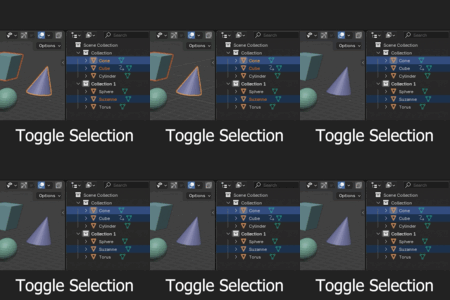
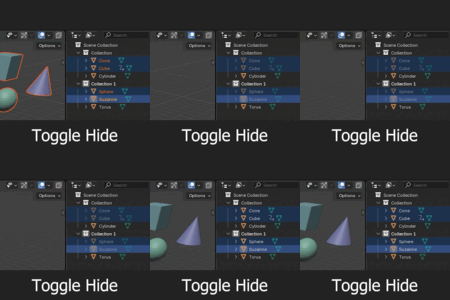
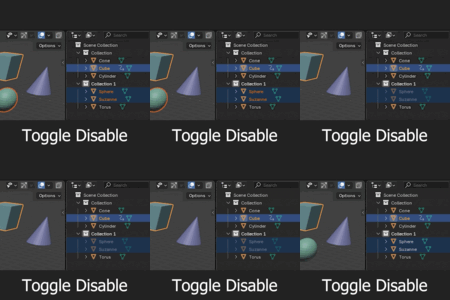
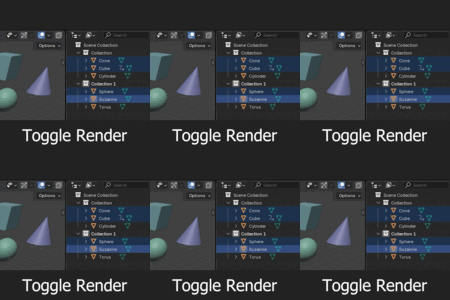
Use the buttons in the Outliner to toggle:
Toggle Exclude
Toggle Selection
Toggle Hide
Toggle Disable
Toggle Render
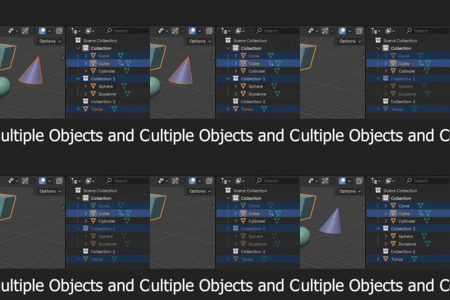
From the Outliner:
Select the desired objects or collections directly in the Outliner.
Run the same toggles without manually clicking each visibility icon.
Select the desired objects or collections directly in the Outliner.
Run the same toggles without manually clicking each visibility icon.
Discover more products like this
optimize disable Selection 3d viewport outliner organizer outliner addon Scene Management object visibility hide speed add-ons Multiple optimization Workflow enable Object blender addon toggle rendering objects viewport automation addon outliner-manager interface 3dviewport ui Blender outliner addon Add-on batch collection visibility collections productivity useful Blender outliner collection addon outliner Render Workflow enhancement