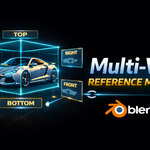
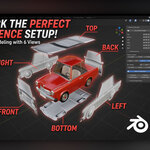
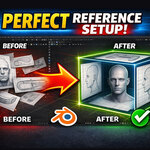
Multi-View Reference Manager (Blender Addon)
 Shift4cube


Does this addon slow down my Blender scene?
Not at all! MVRM uses standard Blender "Empty Image" objects. It is incredibly lightweight and will not impact your viewport performance or render times. Reference images do not show up in final renders.
Will these reference images be saved if I send the .blend file to another computer?
This addon uses Blender's native image data system. If you want to send the file to someone else, you must tell Blender to pack the images inside the file. Go to the top menu: File > External Data > Automatically Pack Resources, then save your .blend file.
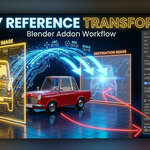
My front blueprint and side blueprint are slightly different sizes. How do I fix this? A: Use the Transfer Transforms tool!
Unlock and manually scale one of your images until it is the perfect size.
While it is selected, go to the Active Image Editing panel and click Get.
Select the image that is the wrong size.
Make sure only the Scale box is checked, and click Apply. It will instantly snap to match!
I can't click, move, or select my reference images anymore. Are they stuck?
They are locked! You likely clicked the Disable Select button in the Global Controls to prevent accidental clicks while modeling. Simply click Enable Select, or click the little arrow/cursor icon next to the specific image name in the Main Panel to unlock it.
I loaded my images, but I can't see them in the viewport!
By default, Blender hides reference images when you are rotating around in 3D space to keep your view clean. Press Numpad 1, 3, or 7 to snap to flat Orthographic views to see them. If you want to see them all the time, check the Show in Perspective box under Global Controls.
I clicked "Auto Detect Folder," but nothing loaded. Why?
: Auto Detect looks for specific words in your file names. Ensure your image files contain the words front, back, top, bottom, left, or right (e.g., mustang_front_view.png). Also, make sure the images are in a supported format like PNG, JPG, or WEBP.
Where do I find the addon after I install it?
In the 3D Viewport, press the N key on your keyboard to open the right-side menu (Sidebar). You will see a new tab labeled Reference at the bottom of the list.
$2
Have questions about this product?
Login to message
| Published | 7 months ago |
| Blender Version | 4.0 - 5.0 |
| Extension Type | N/A |
| Render Engine Used | Cycles, Eevee |
| License | Mit |