 Designers


MultiCam Add-on Documentation
1. Installation
- Download the MultiCam.py file
- Open Blender and go to Edit > Preferences > Add-ons
- Click "Install" and select the downloaded MultiCam.py file
- Enable the add-on by checking the box next to "Camera: MultiCam"
2. Accessing MultiCam
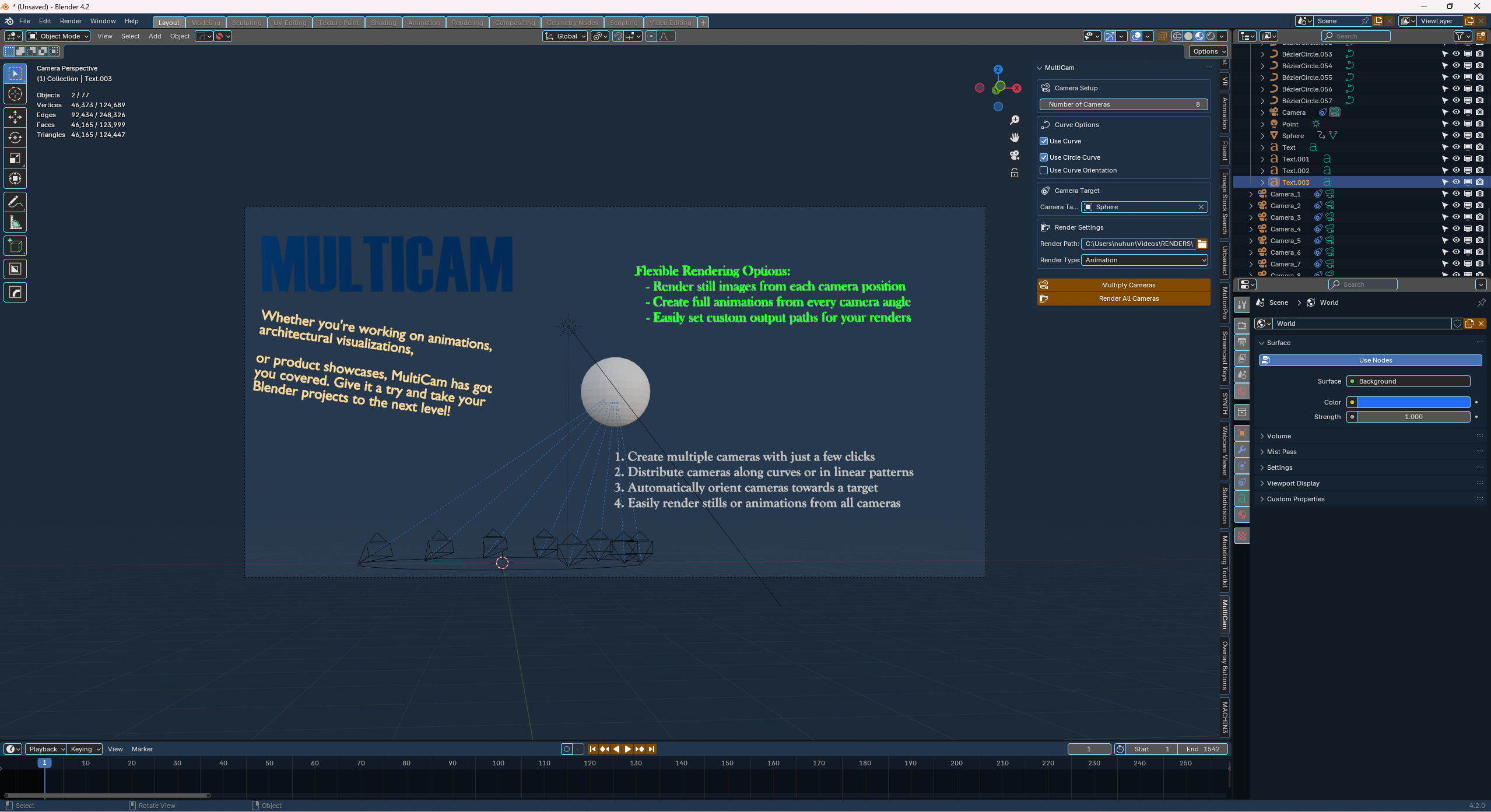
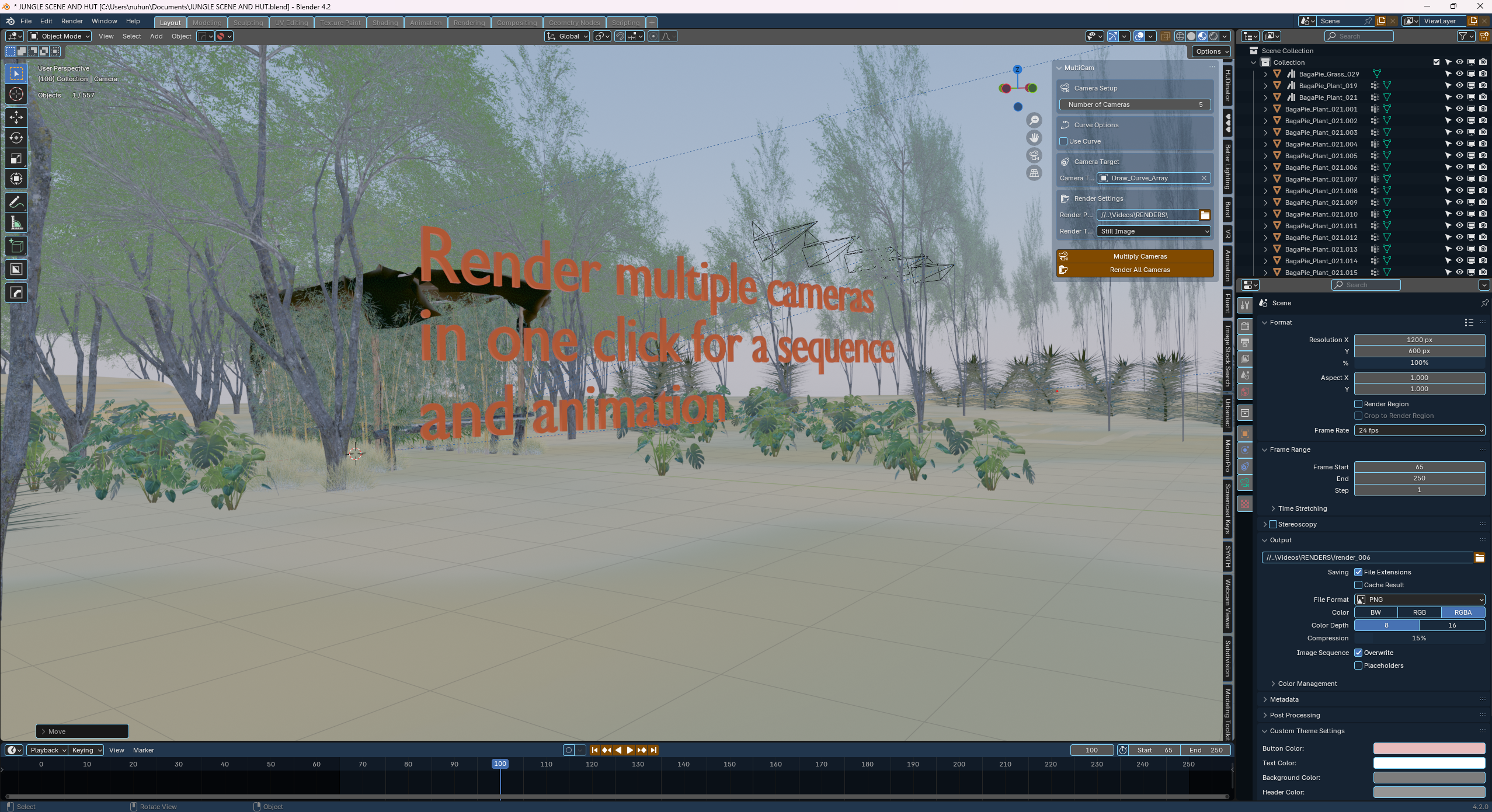
- In the 3D Viewport, open the sidebar (N key)
- Look for the "MultiCam" tab
3. Main Features
3.1 Camera Setup
- Number of Cameras: Set the number of cameras you want to create
3.2 Curve Options
- Use Curve: Enable to place cameras along a curve
- Use Circle Curve: Create a circular curve for camera placement
- Use Curve Orientation: Orient cameras along the curve's direction
3.3 Camera Target
- Select an object for all cameras to focus on
3.4 Render Settings
- Render Path: Set the directory for saving rendered images/animations
- Render Type: Choose between still images or animations
4. Using MultiCam
4.1 Creating Cameras
- Adjust the settings as needed
- Click "Multiply Cameras" to generate the cameras
4.2 Rendering
- Set up your scene and render settings in Blender as usual
- Click "Render All Cameras" to render from each camera
5. Tips and Tricks
- For best results with curve placement, create your curve before using MultiCam
- When using a target object, ensure it's placed where all cameras can see it
- Experiment with different numbers of cameras and curve shapes for varied results
6. Troubleshooting
- If cameras aren't appearing, check that you have an active camera in your scene
- Ensure your render path is set to a valid directory
- For curve-based placement, make sure you have a curve object in your scene
7. Known Limitations
- Currently supports up to 100 cameras
- Circular curve is always created at the world origin
8. Support
For additional help or to report bugs, please contact: [email protected]
9. Version History
v1.0 - Initial release
Thank you for using MultiCam! We hope it enhances your Blender projects.
📘 UNV MultiCam Batch + Offsets — Documentation
Author: Nuh Ünver Version: 1.1.0 Blender Version: 3.0+ Category: Camera Description: Realtime multi‑camera placement, offsets, and batch rendering (no compositor needed)
⭐ Overview
UNV MultiCam Batch + Offsets is a Blender add‑on designed for fast, flexible, and automated multi‑camera workflows. It enables artists to:
Generate multiple cameras in a circle or along a curve
Apply per‑camera offsets and global offsets in realtime
Animate cameras along a curve using Follow Path
Batch‑render all cameras (still or animation) without using the compositor
Filter, inspect, and edit camera offsets directly in the UI
Rebuild camera rigs instantly when settings change
All cameras created by the add‑on follow the naming pattern: UNV_Cam_XX.
📂 Features
🎯 1. Camera Placement
The add‑on supports two placement modes:
Circle Mode
Creates cameras evenly spaced around a circle.
Parameters:
Count — number of cameras
Radius — circle radius
Look At — optional target object
If no target is assigned, cameras automatically rotate inward.
Curve Mode
Places cameras along a curve using a Follow Path constraint.
Parameters:
Curve Object — the curve to follow
Look At — optional target
Each camera receives:
A Follow Path constraint
An offset factor based on its index
Optional Track To constraint
Realtime Rebuild
Any change to placement settings triggers a full rebuild:
Camera count
Placement mode
Radius
Curve object
Look At target
This ensures instant feedback and a non‑destructive workflow.
🎛️ 2. Offset System
Each UNV camera has its own offset properties:
Offset X
Offset Y
Offset Z
These offsets are applied on top of the camera’s base location, which is stored at creation time.
Global offsets apply to all UNV cameras:
Global X
Global Y
Global Z
Whenever an offset changes, all cameras update instantly.
⚠️ Important Note About Animating Offsets
Blender does not support right‑click → Insert Keyframe on these custom offset sliders. This is a Blender limitation for custom UI properties.
✔ To animate camera movement or offsets, use the standard Blender keyframe shortcut:
Adjust the camera’s offset values
Press I in the 3D Viewport
Insert a keyframe for Location, Rotation, or LocRot
This correctly animates the camera’s transform.
Right‑clicking the offset sliders will not work.
🎬 3. Animation Along a Curve
The operator Animate Cameras on Curve:
Requires a curve object
Sets keyframes for each camera’s Follow Path constraint
Animates
offset_factorfrom 0.0 → 1.0Uses the add‑on’s frame range settings
This creates smooth, synchronized camera motion along the curve.
🖼️ 4. Batch Rendering
The batch renderer allows:
Render Types
Still — renders only the current frame
Animation — renders the full frame range
Camera Selection
Render only UNV cameras
Or render all scene cameras
Optional limit (Max Cameras)
Output
Each camera renders to its own folder
Output path is created automatically
Filepaths are sanitized for safety
This makes it ideal for:
Turntables
Multi‑angle product renders
Motion capture visualization
Automated cinematic pipelines
🧹 5. Cleanup
A dedicated operator removes all UNV cameras:
Deletes all objects named UNV_Cam_XX
Cleans the scene instantly
🧭 User Interface
The add‑on adds a panel under:
View3D → Sidebar → UNV MultiCam
Sections:
Placement (Realtime)
Placement mode
Camera count
Radius or Curve
Look At target
Delete all UNV cameras
Camera Movement (Offsets)
Global offsets
Search filter
List of all UNV cameras with per‑camera offsets
Selected Camera Offset
Shows offsets for the currently selected UNV camera
Animation on Curve
Curve object
Frame start / end
Animate button
Batch Render (Per Camera)
Output folder
Render type
Use only UNV cameras
Limit cameras
Batch render button
🧩 Registration
The add‑on registers:
Scene properties
Object properties
Operators
Panel
This ensures a clean integration into Blender’s data system.
✅ Conclusion
UNV MultiCam Batch + Offsets is a powerful, production‑ready tool for:
Cinematics
Turntables
Multi‑camera analysis
Curve‑based camera motion
Automated batch rendering
Realtime camera rigging
It is fast, clean, and fully non‑destructive — ideal for artists who need multi‑camera control without complexity.
Have questions about this product?
Login to message
| Published | over 2 years ago |
| Blender Version | 4.2, 4.1, 4.0, 3.6, 3.5, 3.4, 3.3, 3.2, 3.1, 3.0, 2.93, 2.92, 2.91, 2.9, 2.83, 2.82, 2.81, 2.8 |
| Extension Type | N/A |
| License | GPL |