 IZ.MdVerz



MultiXport Pro
Stop wasting time on repetitive exports. Stop fixing inconsistent files. Stop juggling export settings every time a client, engine, or pipeline changes.
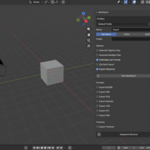
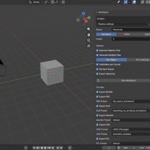
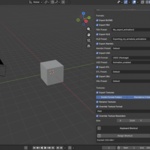
MultiXport Pro is a preset-driven, production-ready batch export addon for Blender. It allows you to export multiple formats, multiple objects, and multiple files in one click, using Blender’s native export presets combined with powerful organisation, naming, and texture-handling tools.
Compatibility
Blender Version: 5.0+
-
Supported Formats:
BLEND
FBX
GLB / GLTF
Alembic
USD (USD, USDC, USDA, USDZ)
STL
OBJ
What MultiXport Solves
MultiXport Pro is designed for artists, studios, and technical artists who:
Export to multiple engines or pipelines with different export requirements
Maintain strict file naming and folder structures
Need consistent texture handling across formats
Want repeatable, quick, one-click exports
Production-Ready Preset Integration
Blender already provides export presets — but managing them across formats is slow and repetitive.
MultiXport Pro unifies all your format-specific export presets into a single, elegant interface.
Select preset per format
Export all formats at once
Maintain engine-specific or client-specific settings
Important Note
After creating a new Blender export preset, restart Blender for it to appear in the addon.
Organisation & Structured Exports
Clean, predictable exports every time.
Export Scope
Export all objects in the scene
Export selected objects only
Batch Exporting
Export multiple objects as separate files
Export collections as separate files
Naming System
Set Name – Use a fixed base name
Prefix – Add a prefix to the base name
Suffix – Add a suffix to the base name
When generating multiple files:
The object/collection name is the base name
Notes:
When Prefix/Suffix mode is used with multi-export disabled, the Active Object becomes the base name
Folder Structure
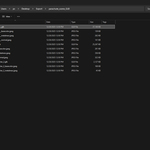
Automatic subfolder per format
Optional ZIP packaging
Texture folders alongside formats or as a standalone directory
Collision-free naming for files and textures
Hierarchy Support
Export hierarchy option to include things like armatures and parented objects.
⚠ Exporting large scenes or many formats may take some time depending on complexity
Quick Start
Step 1: Open the MultiXport Panel
Go to Sidebar (N Panel) → MultiXport
Step 2: Choose Export Directory
Set your export path
Use
//to export relative to the current.blendfile
Step 3: Select Formats
Enable one or more formats (FBX, GLB, USD, etc.)
For each format, select a Blender export preset
Step 4: Choose Export Scope
Export All Objects or Selected Objects only
Enable Generate Multiple Files if exporting individual assets
Step 5: Naming & Structure
Choose naming mode: Set Name, Prefix, or Suffix
Enable automatic subfolders per format if needed
Step 6: Export
Click Run MultiXport or trigger your assigned keyboard shortcut
Your files are now exported across all selected formats.
Export Profiles – One Setup, Infinite Reuse
Export Profiles allow you to save complete export configurations.
Each profile stores:
All addon settings
Enabled formats
Selected presets per format
Naming and structure options
Texture settings
Assigned keyboard shortcut
Profile Behavior
Each
.blendfile remembers its last-used profile to automatically load next time you open that file.Set a default profile for all new Blender files
Keyboard Shortcut Workflow
Test, iterate, and export faster.
Assigning a Shortcut
Click Assign Shortcut
Press your desired key combination, it will be displayed below the Assign shortcut button
Confirm with the checkmark
Running the addon with the shortcut displays a confirmation when executed
Advanced Texture Handling
Export only textures used by exported objects
-
Export textures directory:
Next to each format file
Into a dedicated texture folder
Texture Processing
Automatic texture renaming
Optional conversion to PNG or JPEG
Resolution overrides for batch resizing
PBR-Aware Naming
Detects Principled BSDF socket assignments
Generates logical PBR texture names for renaming
Generating Multiple Files Behavior
Textures follow the object name
Collision-free handling across formats
USD Notes:
usd, usda, and usdc automatically generate texture folders next to the format file, so no additional textures will be automatically exported next to them.
Support & Contact
For questions, feature requests, bug reports, or pipeline integration support:
-
$14.99
Commercial Use – Single Seat License Full Blender preset integration Export Profiles Smart folder organisation ZIP compression Batch export objects and collections Flexible naming system Full texture exporting and organisation Texture renaming and format conversion Resolution overrides Assignable keyboard shortcuts
-
$69.99
Commercial Use – Multi-Seat License (Up to 10 Users) Priority support for Pipeline-ready integrations
Have questions about this product?
Login to message
| Blender Extension Compatible | Yes |
| Dev Fund Contributor | |
| Published | 10 months ago |
| Blender Version | 5.0 |
| Extension Type | Add-on |
| License | GPL |

Discover more products like this
multi zip usdz fbx ready preset auto organize usd Export batch 3dmarketplace assetmanagement