Mutamesh | 4 Remeshers In One | Instant Meshes, Quadwild, Cwf, Adaptropic
 Giambattista Von Nettesheim


MutaMesh
Complete User Documentation
Version: 1.0.2 | Blender: 5.1.1+ | Platform: Windows 11 x64
1. Introduction
MutaMesh is a comprehensive remeshing toolkit for Blender that brings together four state-of-the-art remeshing algorithms from cutting-edge research. Each algorithm serves different purposes and excels in specific scenarios, giving you unprecedented control over mesh topology optimization.
What is Remeshing?
Remeshing is the process of reconstructing a 3D mesh's topology while preserving its geometric shape. Think of it as "rewiring" your mesh - you keep the same visual appearance but change how the polygons are arranged and connected. This is crucial for:
- Improving mesh quality for animation and simulation
- Optimizing performance by reducing polygon count
- Creating clean topology for subdivision modeling
- Preparing meshes for specific workflows (game assets, VFX, manufacturing)
The Four Tools
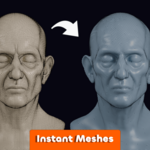
Instant Meshes
Fast, field-aligned remeshing for hard surfaces.
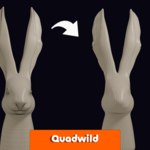
QuadWild
Feature-preserving pure quadrilateral mesh generation.
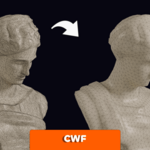
CWF
Intelligent mesh simplification that consolidates features.
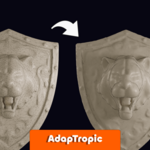
AdapTropic
Curvature-adaptive isotropic remeshing.
Key Benefits
- Research-Grade Quality: Each tool implements algorithms from top-tier academic papers.
- Specialized Solutions: Different tools for different mesh types and requirements.
- Integrated Workflow: Seamless integration with Blender's interface.
- Professional Results: Studio-quality output suitable for production use.
⚠️ Important
These are advanced tools that work best with clean, manifold input meshes. Some algorithms may create holes or fail on complex geometry - this is normal behavior that can be addressed with proper workflow.
2. Installation & Setup
System Requirements
- Operating System: Windows 11 x64 (required)
- Blender Version: 4.2 or newer
- Memory: 8GB RAM minimum, 16GB+ recommended for large meshes
- Storage: 2GB free space for addon and temporary files
Installation Steps
- Download the MutaMesh addon package
-
Open Blender and go to
Edit > Preferences > Extensions -
Click "Install" and select the downloaded
.zipfile - Enable the "MutaMesh" addon in the list
- Verify installation by checking for the "MutaMesh" tab in the 3D Viewport sidebar (N-panel)
First-Time Setup
The addon will automatically:
- Detect and configure binary paths for each remeshing tool
- Create necessary temporary directories
- Initialize default parameters for optimal results
If binary detection fails, check the console for error messages and ensure all files were extracted correctly.
3. Quick Start Guide
Basic Workflow
- Select a mesh object in your scene
- Open the MutaMesh panel (3D Viewport > N-panel > MutaMesh tab)
- Choose your remeshing tool from the dropdown
- Adjust parameters based on your needs
- Click "Remesh" and wait for processing
- Review results and refine if needed
Which Tool to Choose?
Common First Steps
Before remeshing, consider:
- Applying modifiers for accurate results
- Checking mesh manifoldness (Edit Mode > Select > Non Manifold)
- Setting appropriate target face count
- Creating backups of important meshes
4. Understanding Remeshing
Mesh Topology Fundamentals
Understanding mesh topology is crucial for effective remeshing:
Triangles vs. Quads
Triangles
Always planar, mathematically simple, good for complex surfaces
Quads
Better for subdivision, animation, and organized topology flow
Manifold vs. Non-Manifold
Manifold
Clean geometry where each edge connects exactly two faces
Non-Manifold
Problematic geometry with floating vertices, T-junctions, or overlapping faces
Regular vs. Irregular Vertices
Regular
Vertices with valence 6 (triangles) or 4 (quads)
Irregular
Singularities that change topology flow - necessary but should be minimized
Quality Metrics
Good remeshing optimizes several quality factors:
- Geometric Accuracy: How well the new mesh approximates the original shape
- Element Shape: How close triangles/quads are to ideal (equilateral/square)
- Size Uniformity: Consistent edge lengths across the mesh
- Feature Preservation: Maintaining sharp edges and important details
- Topology Flow: Organized edge loops that follow natural surface patterns
When Remeshing Helps
Remeshing is beneficial when your mesh has:
- Poor triangle shapes (very thin, stretched, or skewed)
- Uneven density (too many polygons in flat areas, too few in detailed areas)
- Chaotic topology from Boolean operations or automated tools
- Wrong polygon type (triangles when you need quads, or vice versa)
- Too much detail for your intended use case
5. Instant Meshes
Scientific Background
Instant Meshes implements the field-aligned meshing approach described in "Instant Field-Aligned Meshes" (Jakob et al., 2015). The algorithm uses:
- N-RoSy fields to control edge orientation symmetry
- Position fields to determine vertex placement
- Local optimization instead of global parameterization for speed and robustness
This approach generates meshes where edges naturally align with surface features while maintaining good element shapes.
Mesh Input and Output Types
-
Input Flexibility: Instant Meshes is highly versatile and can process input meshes that are:
- Composed of triangles.
- Composed of quadrilaterals.
- A mix of triangles and quadrilaterals.
-
Output Control: It can generate:
- Triangle meshes: Remeshes any input to a pure triangle mesh.
- Quad-dominant meshes: Remeshes any input to a mesh primarily composed of quads, with some triangles in areas of high complexity or to resolve transitions.
- Pure Quad Option: MutaMesh provides an option to further process the quad-dominant output to achieve a pure quad mesh. This is useful when a strict quad topology is required, though it might slightly alter the initially generated quad-dominant flow.
When to Use Instant Meshes
Ideal for:
- Hard-surface models: Mechanical parts, vehicles, architecture
- Large datasets: 3D scans, complex environments
- Speed-critical workflows: When you need results quickly
- Non-manifold input: Most robust to problematic geometry
Less suitable for:
- Pure quad requirements: Generates quad-dominant meshes with some triangles. If you need a pure quad output, ensure the "Pure Quad" option (if available for Instant Meshes in the UI) is enabled or be prepared for a mix.
- Perfect feature alignment: May introduce extra singularities for better element quality
- Organic detail preservation: CWF might be better for subtle surface features
User Interface Guide
The Instant Meshes panel appears when "Instant Meshes" is selected as the active tool.
Basic Parameters
Target Type & Count
Face Count: Specify target number of faces (recommended)
- Effect: Controls overall mesh density
- Range: 100 to 3,000,000 faces
- Tip: Start with 5,000-10,000 for most models
Vertex Count: Target number of vertices
- Effect: Similar to face count but gives different density distribution
- When to use: When you have specific vertex budget constraints
Edge Length: Target edge length in Blender units
- Effect: Creates uniform edge sizing across the mesh
- When to use: For maintaining consistent detail level
Mesh Type
Quad Dominant: Mixed quads and triangles (default)
- Result: ~80-90% quads, triangles in complex areas. Can be converted to "Pure Quad" using a post-processing option in MutaMesh.
- Best for: General-purpose remeshing, animation-ready topology.
Triangular: Pure triangle mesh
- Result: All triangular faces
- Best for: Game assets, physics simulation, 3D printing
Field Orientation (RoSy)
Controls the rotational symmetry of the orientation field:
Default (0): Algorithm chooses optimal symmetry
2-RoSy: Line fields, creates flowing edge patterns
- Effect: Edges follow principal curvature directions
- Use case: Organic surfaces, flowing designs
4-RoSy: Cross fields, creates grid-like patterns
- Effect: Orthogonal edge networks, good for quads
- Use case: Architectural surfaces, mechanical parts
6-RoSy: Hexagonal fields
- Effect: Creates triangular patterns with 60° angles
- Use case: Specialized applications, crystalline structures
Position Field (PoSy)
Controls the tessellation pattern:
Default (0): Algorithm chooses based on mesh type
4-PoSy: Square tessellation grid
- Effect: Promotes regular quad patterns
- Use case: When quad regularity is important
3-PoSy: Triangular tessellation
- Effect: Promotes regular triangle patterns
- Use case: Triangular mesh generation
Feature Preservation
Preserve Sharp Edges
- Enabled: Detects and preserves sharp features automatically
- Disabled: Ignores sharp features, creates smoother topology
- Effect: Sharp features become mesh edges, maintaining model definition
Crease Angle: (1° to 90°, default 30°)
- Low values (1°-15°): Only very sharp edges preserved
- Medium values (20°-45°): Balanced feature detection
- High values (45°-90°): More edges treated as features
- Effect: Controls sensitivity of feature detection
Align to Boundaries
- Enabled: Mesh edges align with domain boundaries
- Disabled: Natural field flow ignores boundaries
- Effect: Creates cleaner boundary conditions
Algorithm Options
Intrinsic Mode
- Disabled (Extrinsic): Uses 3D ambient space for optimization
- Result: Better feature alignment, snaps to sharp edges
- Best for: CAD models, hard surfaces
- Enabled (Intrinsic): Uses surface-intrinsic measurements
- Result: Smoother fields, better for curved surfaces
- Best for: Organic models, flowing surfaces
Deterministic Mode
- Enabled: Reproducible results (slower)
- Disabled: Faster but may vary between runs
- Use case: Enable for production work requiring consistency
Smooth Iterations: (0 to 10, default 2)
- Effect: Additional smoothing passes on the result
- 0 iterations: Raw algorithm output
- 2-3 iterations: Balanced smoothing (recommended)
- 5+ iterations: Heavy smoothing, may lose features
Processing Options
Apply Modifiers
- Enabled: Applies all modifiers before remeshing
- Disabled: Uses base mesh geometry only
- Important: Enable for accurate results with modified objects
Create New Object
- Enabled: Keeps original, creates new remeshed object
- Disabled: Replaces original mesh geometry
- Tip: Enable when experimenting with parameters
Expected Results
Typical Output Characteristics
- Element Quality: High-quality quads and triangles
- Feature Alignment: Sharp edges preserved as mesh edges
- Singularities: More irregular vertices than global methods, but better element shapes
- Speed: Very fast, usually completes in seconds
Visual Inspection
- Check wireframe view for element quality
- Verify sharp features are preserved as edges
- Look for excessive singularities in flat areas (adjust parameters if needed)
Performance Considerations
Processing Time
- Small meshes (<10k faces): Near-instant
- Medium meshes (10k-100k faces): Few seconds
- Large meshes (100k-1M faces): 10-60 seconds
- Very large meshes (1M+ faces): Minutes, may require high RAM
Memory Usage
- Scales linearly with input size
- Large meshes may require 16GB+ RAM
- Monitor memory usage for very dense inputs
Common Issues & Solutions
Problem: Output has too many irregular vertices
Solution: Try intrinsic mode or adjust RoSy/PoSy settings
Problem: Sharp features not preserved
Solution: Lower crease angle, ensure "Preserve Sharp Edges" is enabled
Problem: Mesh too dense/sparse
Solution: Adjust target count or switch to edge length mode
Problem: Processing very slow
Solution: Reduce target count, disable deterministic mode
6. QuadWild
Scientific Background
QuadWild implements the feature-line driven quad-remeshing approach from "Reliable Feature-Line Driven Quad-Remeshing" (Pietroni et al., 2021). The algorithm:
- Preserves feature lines by construction - they become patch boundaries
- Creates patch layouts using non-rectangular patches and T-junctions when needed
- Tessellates patches individually while maintaining global consistency
- Uses libSatsuma (from "Min-Deviation-Flow" paper) for T-mesh quantization optimization
This patch-based approach ensures feature lines are perfectly preserved while producing high-quality pure quad meshes.
Mesh Input and Output Types
- Primary Functionality (Tris to Quads): QuadWild is fundamentally designed to remesh triangular input meshes into pure quadrilateral output meshes. Its core algorithms and feature detection are optimized for this conversion.
-
Working with Quadrilateral Inputs (Preprocessing): If you wish to remesh an existing quadrilateral mesh using QuadWild, you must enable the "Preprocess Mesh" option in MutaMesh. This option will:
- Convert the input quadrilateral mesh into a temporary triangular mesh.
- Allow QuadWild to then process this triangulated version to produce the final pure quad output.
- Output: The final output from QuadWild is always a pure quadrilateral mesh.
QuadWild requires a triangular input. You MUST enable the "Preprocess Mesh" option if your input contains quads.
When to Use QuadWild
Ideal for:
- CAD models: Mechanical parts, industrial designs
- Pure quad requirements: When you need 100% quadrilateral faces
- Feature preservation critical: Sharp edges must be maintained exactly
- Subdivision surfaces: Clean quad topology for Catmull-Clark subdivision
- Animation models: Organized edge loops for deformation
Less suitable for:
- Organic models without clear features: Algorithm relies on feature detection
- Very smooth surfaces: May create unnecessary complexity
- Quick iteration: Slower than Instant Meshes due to global optimization
User Interface Guide
The QuadWild panel provides comprehensive control over the quad-remeshing process.
Basic Parameters
Sharp Feature Threshold: (0° to 180°, default 35°)
- Low values (0°-20°): Only extremely sharp edges detected
- Medium values (25°-45°): Balanced feature detection (recommended)
- High values (50°+): More edges treated as features
Effect: Controls which edges become patch boundaries
Critical: This directly affects patch layout and final topology
Alpha: (0.001 to 1.0, default 0.01)
- Technical: Controls field smoothness vs feature alignment trade-off
- Low values: Stronger feature alignment, may create irregular patches
- High values: Smoother fields, may lose some feature details
Recommendation: Use default unless you understand field theory
Scale Factor: (0.1 to 10.0, default 1.0)
- Effect: Global scaling of target edge lengths
- <1.0: Denser mesh, more detail preservation
- >1.0: Coarser mesh, simplified topology
Use case: Quick density adjustment without changing other parameters
Processing Options
Full Remesh (Do Remesh)
- Enabled: Complete quad remeshing process
- Disabled: Only field computation and layout generation
- Use disabled: For debugging or when you only need the field
Preprocess Mesh
- Enabled: Cleans and optimizes input mesh before remeshing. Crucially, if your input mesh is composed of quadrilaterals, this option MUST be enabled to convert it to triangles, which QuadWild can then process.
- Disabled: Uses mesh as-is (expects a triangular input mesh).
Recommendation: Enable for CAD models or poor-quality input. Mandatory for quad inputs.
Quality Control
Isometry Preservation: (0.1 to 10.0, default 1.0)
- Technical: Weight for preserving edge lengths from original
- Low values: Allows more distortion for better quad shapes
- High values: Strictly preserves original proportions
Balance: Higher values preserve shape, lower values improve topology
Regularity Enhancement: (0.1 to 10.0, default 1.0)
- Effect: Promotes regular quad shapes and edge loop organization
- Low values: Accepts irregular quads for other objectives
- High values: Strongly enforces regular quad patterns
Recommendation: Increase for cleaner topology, decrease for complex features
Align Singularities: (0.1 to 10.0, default 1.0)
- Technical: Weight for aligning irregular vertices across patches
- Effect: Creates cleaner global edge loop structure
- High values: Well-organized singularity placement
- Low values: Allows irregular singularity distribution
Time Limit: (10 to 3600 seconds, default 60)
- Effect: Maximum solver time for optimization
- Short times: Faster results, may be suboptimal
- Long times: Better optimization, slower processing
Recommendation: Increase for complex models or critical results
Advanced Flow Solver Options
Use Flow Solver
- Enabled: Uses the Min-Deviation-Flow (Bi-MDF) algorithm for T-mesh quantization
- Disabled: Uses standard integer linear programming approach
Technical: The Bi-MDF solver from "Min-Deviation-Flow in Bi-directed Graphs for T-Mesh Quantization" can handle more complex constraint configurations and provides an alternative to traditional Gurobi-based ILP optimization
ILP Method: (0 or 1, default 1)
- 0: Alternative ILP formulation/solver approach
- 1: Standard ILP method (default, recommended)
Technical: Selects the specific integer linear programming method used internally by the solver
Field Smoothness (Alpha): (0.001 to 0.5, default 0.005)
- Technical: Controls smoothness of the orientation field computation
- Lower values: Better feature preservation and sharper field alignment
- Higher values: Smoother fields, may lose fine feature details
Recommendation: Keep low for CAD models with sharp features
Gap Limit: (0.0 to 1.0, default 0.0)
- Technical: Optimization tolerance for the ILP solver
- 0.0: No gap limit (solve to optimality)
- Higher values: Accept suboptimal solutions to reduce solve time
Use case: Increase for complex models that take too long to solve
Minimum Gap: (0.0 to 1.0, default 0.4)
- Technical: Minimum improvement threshold for solver convergence
- Effect: Controls when solver considers solution "good enough"
- Higher values: Faster convergence but potentially less optimal results
Expert Configuration Options
Flow Config: Selects specialized flow solver configurations
Simple: Standard Bi-MDF configuration optimized for typical inputs
- Paired half target: "simple" - standard target resolution
- ISO weight: 1.0 - balanced isometry preservation
- Unalign weight: 2.0/4.0 - moderate singularity alignment
Half: Alternative Bi-MDF configuration for complex topologies
- Paired half target: "half" - modified target resolution strategy
- Different weight balancing: Adjusted for challenging geometries
- Use case: Try when "Simple" produces poor results
Satsuma Config: Controls the T-mesh quantization solver behavior
Default: Standard configuration using Lemon solver with MST evening
- Solver: Lemon matching algorithm
- Evening mode: MST (Minimum Spanning Tree)
- Refinement: Enabled with standard deviation limits
Approximate MST: Fast approximate solution using MST evening
- Max deviation: 5 - allows more deviation for speed
- Refinement: Disabled for faster processing
- Use case: When speed is more important than optimal quality
Other configurations available:
- Round to Even: Uses round-to-even evening strategy
- Symmetric DC: Symmetric double cover method
- Debug: Enhanced verbosity for troubleshooting
- Edge Flow: Uses edge flow deviation limit
- Node Throughflow: Explicit node throughflow configuration
Expected Results
Output Characteristics
- Pure Quads: 100% quadrilateral faces (no triangles)
- Feature Preservation: All sharp features become mesh edges
- Organized Topology: Clean edge loops following feature lines
- Singularities: Minimal irregular vertices, well-aligned when present
Quality Indicators
- Feature lines should be perfectly preserved as edges
- Quads should be approximately square-shaped
- Edge loops should flow naturally around the model
- Minimal T-junctions or irregular vertices
Performance Considerations
Processing Time
QuadWild is significantly slower than other tools due to global optimization:
- Simple models: 30 seconds to 2 minutes
- Complex models: 2-10 minutes
- Very complex models: 10+ minutes
Time is dominated by:
- Patch layout computation (30-50% of time)
- Integer linear programming solver (40-60% of time)
- Patch tessellation (5-15% of time)
Memory Requirements
- Higher memory usage than other tools
- Complex models may require 16GB+ RAM
- Solver creates large constraint matrices
Common Issues & Solutions
Problem: Processing takes extremely long
Solution: Reduce time limit, increase gap limit, or simplify input mesh
Problem: Output has holes or missing faces
Solution: Enable preprocessing, check input manifoldness, adjust feature threshold
Problem: Features not preserved correctly
Solution: Lower sharp feature threshold, check crease marking on input
Problem: Irregular quad shapes
Solution: Increase regularity enhancement weight, adjust isometry setting
Problem: Too many irregular vertices
Solution: Increase align singularities weight, check feature line complexity
7. CWF (Consolidating Weak Features)
⚠️ Major Warning: Performance with Hyperdense Meshes
CWF becomes extremely inefficient with meshes over 1 million faces. Processing can take over an hour. Do NOT use CWF on hyperdense meshes without pre-decimation.
Scientific Background
CWF implements the algorithm from "Consolidating Weak Features in High-quality Mesh Simplification" (Xu et al., 2024). The approach combines:
- Normal Anisotropy Term: Inherits the spirit of Quadric Error Metrics (QEM) for accuracy preservation
- Centroidal Voronoi Tessellation (CVT) Term: Promotes uniform point distribution and high triangle quality
- Decaying Weight Strategy: Automatically balances the two terms during optimization
The key innovation is consolidating both strong features (obvious edges) and weak features (subtle surface variations) during simplification.
⚠️ Major Warning: Performance with Hyperdense Meshes
CWF becomes extremely inefficient with hyperdense triangular meshes (typically over 1 million faces). Processing times can extend to one hour or more, making the tool impractical for such models.
Strong Recommendation: Do NOT use CWF for meshes with more than 1 million faces. The processing times are unacceptable for any practical workflow. For hyperdense meshes:
- Use external decimation tools to reduce complexity before applying CWF
- Consider alternative tools like Instant Meshes for very large models
- Perform mesh simplification in multiple stages rather than attempting CWF on the full-resolution model
Performance Threshold: Models under 500K faces generally provide reasonable processing times, while models over 1M faces become prohibitively slow.
Mesh Input, Output, and Purpose
- Input Requirement: CWF is designed exclusively to work with triangular input meshes.
- Output Type: The algorithm always produces a triangular output mesh.
- Primary Goal (Mesh Simplification): It is crucial to understand that CWF is fundamentally a mesh simplification tool. Its main purpose is to reduce the density and complexity of a triangular mesh while intelligently preserving and consolidating both strong and weak geometric features. It does not change the fundamental nature of the mesh from triangles to quads, nor does it primarily focus on altering triangle shape for isotropy like AdapTropic. The remeshing process in CWF is geared towards producing a lower-polygon, high-quality triangular representation of the original.
When to Use CWF
Ideal for:
- Organic models: Characters, animals, natural objects with subtle features
- High-poly simplification: Reducing complex models while preserving detail
- Feature consolidation: Making subtle details more pronounced
- Animation prep: Creating clean topology while maintaining character
- CAD model lightweighting: Reducing complexity for visualization/VR
Less suitable for:
- Extremely aggressive simplification: Very low target polygon counts
- Models with self-intersections: May generate artifacts
- Purely geometric shapes: Simple primitives without interesting features
User Interface Guide
Basic Parameters
Max Iterations: (10 to 200, default 50)
- Effect: Controls optimization duration and quality
- Low values (10-30): Faster processing, may not fully converge
- Medium values (40-80): Balanced quality/speed (recommended)
- High values (100+): Maximum quality, slower processing
Automatic termination: Process stops early if convergence achieved
Poisson Disk Samples: (100 to 50,000, default based on target)
- Technical: Number of sample points for initial distribution
- Low values: Coarser sampling, may miss details
- High values: Finer sampling, better feature capture
Auto-calculation: Usually matches target face count
Sampling Method
PDS Method:
- PCU: Fast, reliable Poisson disk sampling
- Yuksel: Alternative method with different distribution characteristics
Recommendation: Use PCU for most cases but Yuksel is also very reliable.
Performance Options
Use High-Performance Engine
- Enabled: Python binding for direct algorithm access (faster)
- Disabled: Subprocess execution (more stable)
Trade-off: Performance vs stability
Output Only Final
- Enabled: Only saves final result (faster, less disk usage)
- Disabled: Saves intermediate results for debugging
Recommendation: Enable for production use
Output Frequency: (1 to 20, default 5)
- Effect: How often intermediate results are saved (when Output Only Final is disabled)
- Lower values: More frequent saves, useful for monitoring progress
- Higher values: Less I/O overhead
Expert Parameters
FNum: (100 to 100,000, default 10,000)
- Technical: Internal parameter controlling feature resolution
- Effect: Higher values may capture finer features
Recommendation: Use default unless you understand the algorithm internals
Alpha: (0.1 to 10.0, default 1.0)
- Technical: Weight for normal anisotropy term
- Higher values: Stronger feature preservation
- Lower values: More emphasis on uniform distribution
Epsilon: (1e-10 to 1e-6, default 1e-8)
- Technical: Convergence tolerance for optimization
- Lower values: More precise convergence
- Higher values: Faster convergence, potentially less optimal
Lambda: (0.1 to 10.0, default 1.0)
- Technical: Weight for CVT term
- Higher values: More uniform triangulation
- Lower values: More feature-focused distribution
Decay: (0.8 to 0.99, default 0.95)
- Technical: Rate at which CVT influence decreases
- Higher values: Slower decay, more uniform final result
- Lower values: Faster decay, more feature-focused final result
Debug Options
Output XYZ Files
- Enabled: Saves point cloud files for analysis
- Use case: Debugging point distribution
Output RVD Files
- Enabled: Saves Restricted Voronoi Diagram data
- Use case: Advanced debugging and analysis
Expected Results
Output Characteristics
- Enhanced Features: Both obvious and subtle features are preserved and consolidated
- High Triangle Quality: CVT optimization ensures well-shaped triangles
- Reduced Complexity: Lower polygon count while maintaining essential details
- Organic Feel: Natural-looking simplification suitable for organic models
Quality Indicators
- Features should appear more defined than in the original
- Triangle shapes should be approximately equilateral
- Important surface character should be preserved
- Smooth transitions between detailed and simple areas
Handling Thin-Plate Models
CWF includes special handling for thin geometry:
- Automatic Detection: Algorithm identifies thin-plate regions
- Bias Point Strategy: Creates internal support points for stable computation
- Robust RVD Computation: Prevents failures on challenging geometry
Performance Considerations
Processing Time
- Small models (1k-5k faces): 1-5 minutes
- Medium models (5k-20k faces): 5-15 minutes
- Large models (20k-200k faces): 15-45 minutes
- Very large models (200k-500k faces): 45 minutes - 2 hours
- Hyperdense models (1M+ faces): 1+ hours (NOT RECOMMENDED)
⚠️ Critical Performance Warning
Hyperdense meshes with over 1 million faces experience exponential time degradation. The CVT computation and RVD processing become prohibitively expensive, often requiring multiple hours with no guarantee of successful completion. This makes CWF unsuitable for hyperdense models in any practical workflow.
Performance Optimization Strategy
- Pre-decimation: Reduce mesh complexity using Blender's Decimate modifier before CWF
- Staged Processing: Apply CWF to smaller sections or LOD versions first
- Alternative Tools: Use Instant Meshes for hyperdense models requiring remeshing
Time Factors
- Iterations count most significantly
- Mesh density is the primary performance bottleneck
- Python binding mode is 2-3x faster
- Complex geometry increases RVD computation time
- Hyperdense meshes cause memory thrashing and algorithm degradation
Memory Usage
- Moderate memory requirements for typical meshes
- RVD computation can spike memory usage significantly
- Large models may need 8GB+ RAM
- Hyperdense models (1M+ faces) may require 32GB+ RAM and still fail
- Memory usage scales non-linearly with face count
Common Issues & Solutions
Problem: Process appears frozen
Solution: Check iteration count, enable intermediate output to monitor progress
Problem: Output has holes or artifacts
Solution: Check input manifoldness, reduce target count, adjust parameters
Problem: Features not enhanced enough
Solution: Increase alpha parameter, adjust decay rate
Problem: Too many iterations without convergence
Solution: Increase epsilon tolerance, reduce max iterations
Problem: Memory errors with large models
Solution: Reduce sample count, close other applications, use simpler geometry
Problem: Processing takes extremely long (hours) or appears frozen on hyperdense meshes
Cause: CWF becomes exponentially slower with meshes over 1 million faces due to CVT computation complexity
Solution:
- Cancel the operation if it's taking more than expected time
- Pre-decimate the mesh: Use Blender's Decimate modifier to reduce face count to under 500K faces
- Use alternative tools: Consider Instant Meshes for hyperdense models
- Staged processing: Apply CWF to lower-resolution versions first, then transfer details if needed
Prevention: Always check face count before applying CWF - avoid using on meshes with 1M+ faces
8. AdapTropic (Adaptively Isotropic)
⚠️ Major Warning: Reliability and Common Failures
Of all the tools included in MutaMesh, AdapTropic is the least reliable and has the highest failure rate. Its success is extremely dependent on the quality and characteristics of the input 3D model.
While the original research paper suggests the algorithm is robust, practical use within MutaMesh has shown that it frequently produces meshes with significant errors that require manual intervention. You should be prepared for the following common outcomes:
- Non-Manifold Geometry: The most frequent issue is that the output mesh contains non-manifold geometry (e.g., edges connected to more than two faces, floating vertices). These errors must be fixed manually in Blender's Edit Mode, which can be a time-consuming process.
- Incorrect Normals: The normals of the resulting mesh are often poorly calculated, leading to shading artifacts. You will likely need to enter Edit Mode and manually recalculate or flip normals after remeshing.
- Holes: The algorithm can fail to generate a valid topology in certain areas, leaving holes in the mesh.
Recommendation: Use AdapTropic with caution. Always back up your work before using it, and be prepared to perform significant manual cleanup. For more reliable results, consider using CWF for organic models or Instant Meshes for general-purpose remeshing.
Scientific Background
AdapTropic implements "Adaptively Isotropic Remeshing based on Curvature Smoothed Field" (Lv et al., 2022). The algorithm:
- Computes curvature at each vertex using normal variation
- Smooths the curvature field using Laplacian smoothing to create CSF
- Assigns density factors based on curvature distribution histogram
- Performs edge reconnection using split, collapse, flip, and smoothing operations
This creates meshes where triangle density adapts to surface curvature while maintaining isotropic (well-shaped) elements.
Mesh Input, Output, and Purpose
- Input Requirement: Similar to CWF, AdapTropic is designed exclusively to work with triangular input meshes.
- Output Type: The algorithm always produces a triangular output mesh.
- Primary Goal (Isotropic Quality Improvement): Unlike CWF, which focuses on simplification, AdapTropic's main objective is to improve the quality of the triangles in a mesh by making them more isotropic (i.e., as close to equilateral as possible and with uniform sizing locally, adapted to curvature). While it can change mesh density based on the "Mesh Scale" parameter, its core strength lies in producing a high-quality, well-shaped triangular mesh that respects surface curvature, not necessarily in reducing polygon count as a primary function.
When to Use AdapTropic
Ideal for:
- Curvature-adaptive density: More triangles in curved areas, fewer in flat areas
- Isotropic triangulation: All triangles approximately equilateral
- Organic surfaces: Models with varying curvature characteristics
- Mesh quality improvement: Converting poor triangulation to high-quality
Less suitable for:
- Feature preservation: May smooth away sharp edges
- Pure quad output: Generates triangular meshes only
- Complex models: Most prone to creating holes and artifacts
User Interface Guide
Basic Parameters
Preprocessing Flag: (0 or 1, default 1)
Enabled (1):
- Effect: Splits long edges before main processing
- Benefit: Improved robustness for poor-quality input
- Recommendation: Highly recommended. Enable this for most meshes, especially CAD models or those with any visible triangulation issues, as it can slightly improve the success rate.
Disabled (0):
- Effect: Faster processing but may fail on poor geometry
- Use case: Only for input meshes that are already known to be of very high, clean quality.
Remesh Type
1 - Isotropic:
- Effect: Uniform triangle sizing across entire mesh
- Result: All triangles approximately same size and shape
- Use case: When uniform density is desired regardless of curvature
2 - Adaptively Isotropic:
- Effect: Triangle size adapts to local curvature via CSF
- Result: Dense triangulation in curved areas, coarse in flat areas
- Use case: Optimal quality/complexity balance (recommended)
Mesh Scale/Accuracy
Mesh Scale: (0.1 to 3.0, default 1.0)
Technical: Multiplier for target edge lengths and curvature values
Low values (0.1-0.7):
- Effect: More triangles, better feature capture
- Cost: Significantly longer processing time
- Use case: High-quality output for detailed models
Default (1.0):
- Effect: Improves quality while roughly maintaining triangle count
- Recommendation: Start here for most models
High values (1.1-3.0):
- Effect: Fewer triangles, faster processing
- Use case: Level-of-detail meshes, performance optimization
Curvature Smoothed Field (CSF) Process
The algorithm's core innovation:
- Initial Curvature: Computed as maximum angle difference between vertex normal and neighbor normals
- Histogram Analysis: Curvature values grouped into bins with assigned multiplication factors
- Field Smoothing: Laplacian smoothing creates continuous curvature distribution
- Adaptive Sizing: Edge operations use curvature-based length thresholds
Default Multiplication Factors: {1.8, 1.4, 1.0, 0.8, 0.6}
- High curvature areas get smaller triangles (factor 0.6-0.8)
- Medium curvature areas get normal sizing (factor 1.0)
- Low curvature areas get larger triangles (factor 1.4-1.8)
Edge Reconnection Operations
The algorithm uses four basic operations:
1. Split
Divides long edges (length > 3/2 * L_ave * min_factor)
2. Collapse
Merges short edges (length < 4/5 * L_ave * max_factor)
3. Flip
Improves triangle shapes by reconnecting edges
4. Relocate
Moves vertices toward centroid of neighbors for smoothing
Expected Results
Output Characteristics
- Isotropic Triangles: All triangles approximately equilateral
- Adaptive Density: More triangles in curved regions
- Smooth Transitions: Gradual size changes between regions
- Improved Quality: Better triangle shapes than input
Quality Indicators
- Triangle aspect ratios should be close to 1.0 (equilateral)
- Edge lengths should vary smoothly across the surface
- No extremely thin or stretched triangles
- Curvature features should have appropriate triangle density
Performance Considerations
Processing Time
AdapTropic can be slow due to iterative refinement:
- Simple models: 30 seconds to 2 minutes
- Complex models: 2-10 minutes
- Large/detailed models: 10+ minutes
Time Factors
- Mesh scale dramatically affects time (lower scale = exponentially longer)
- Preprocessing adds significant time but improves results
- Model complexity (curvature variation) affects iterations needed
Memory Usage
- Moderate memory requirements
- Large models with low mesh scale can exceed available RAM
Common Issues & Solutions
Problem: Output mesh has holes
Cause: Algorithm failed to create valid triangulation in complex regions. This is a very common failure mode for AdapTropic.
Solution:
- Use the Fix Holes tool under Mesh Utilities.
- If that fails, manually patch the holes in Edit Mode.
- Increase the
Mesh Scaleparameter to simplify the geometry for the algorithm. - Ensure the
Preprocessing Flagis enabled.
Problem: Output has non-manifold geometry or incorrect normals
Cause: This is a frequent and expected issue with AdapTropic, stemming from the algorithm's difficulty in resolving complex topologies.
Solution:
-
Check for errors: In Edit Mode, go to
Select > Select All by Trait > Non Manifold. - Manual Cleanup: There is no automatic fix. You must manually resolve these issues by merging vertices, deleting extra faces, or rebuilding parts of the mesh.
-
Fix Normals: After fixing geometry, select all (
A) and recalculate normals (Mesh > Normals > Recalculate Outside). You may still need to flip individual normals manually.
Problem: Processing extremely slow
Solution: Increase Mesh Scale, disable preprocessing (only if input geometry is perfect).
Problem: Poor triangle quality despite algorithm
Solution: The input mesh likely has underlying issues. Check for non-manifold geometry before running the tool. Ensure the Preprocessing Flag is enabled.
Problem: Features smoothed away
Solution: Lower Mesh Scale for more detail preservation, but be aware this increases the risk of failure and non-manifold output. Consider if another tool like CWF is more appropriate.
Problem: Algorithm crashes or fails completely
Solution: This is common. Check for non-manifold geometry in the source mesh, simplify the input, ensure you have adequate system memory, and try a larger Mesh Scale. If it consistently fails, the model is likely unsuitable for this specific algorithm.
⚠️ Important Warnings
High Failure Rate & Manual Cleanup
As stated above, AdapTropic is the most likely tool to fail or produce a flawed mesh. Expect to perform manual cleanup on the output. Always inspect for holes, non-manifold geometry, and incorrect normals.
Input Sensitivity
The tool's success is highly dependent on a clean, manifold, well-triangulated input. Poor input geometry significantly increases failure probability.
Performance
Can be very slow with low mesh scale values. Start with default settings and adjust based on results.
9. Mesh Utilities
Fix Holes Tool
MutaMesh includes a specialized tool for repairing holes that may be created during remeshing, particularly with AdapTropic.
When to Use
- After AdapTropic remeshing: Most common use case
- When other tools create holes: Occasional issue with complex geometry
- Import cleanup: Fixing holes in imported meshes before remeshing
How to Use
- Enter Edit Mode on the mesh with holes
- Open MutaMesh panel and expand "Mesh Utilities"
- Click "Fix Holes" button
- Review results - the tool will report what was fixed
What It Does
Detection Process:
- Identifies boundary edges (edges connected to only one face)
- Groups boundary edges into hole loops
- Analyzes hole complexity and size
Repair Strategies:
- Simple Holes: Direct triangulation fill
- Complex Holes: Edge bridging and subdivision
- Large Holes: May require multiple repair passes
Limitations:
- Cannot fix all hole types (some require manual editing)
- Very complex holes may need alternative approaches
- Non-manifold topology may prevent automatic repair
Best Practices
- Inspect First: Use Wireframe mode to see hole extent
- Backup: Duplicate object before attempting repair
- Iterative: Run tool multiple times for complex holes
- Manual Cleanup: Some holes need hand-finishing in Edit Mode
10. Troubleshooting
Common Issues Across All Tools
"No Mesh Selected" or "Invalid Object"
Symptoms:
Error message when clicking Remesh
Causes:
- No object selected
- Selected object is not a mesh
- Object is hidden or in different layer
Solutions:
- Select a mesh object in Object Mode
- Ensure object type is Mesh (not Curve, Surface, etc.)
- Make object visible and in active layer
"Executable Not Found" or "Binary Detection Failed"
Symptoms:
Error about missing executables
Causes:
- Incomplete addon installation
- Missing binary files
- Incorrect file permissions
Solutions:
- Reinstall addon completely
- Check Windows 11 compatibility
- Run Blender as Administrator if needed
- Verify all files extracted from ZIP
Processing Hangs or Takes Very Long
Symptoms:
Progress appears stuck, no updates
Causes:
- Large mesh size
- Complex geometry
- Inappropriate parameters
Solutions:
- Reduce target polygon count
- Simplify input geometry first
- Check task manager for actual process status
- Use progress indicators when available
Output Mesh Has Holes
Symptoms:
Missing faces, boundary edges visible
Causes:
- Complex input geometry
- Non-manifold input
- Algorithm limitations
Solutions:
- Use Fix Holes tool in Edit Mode
- Check input mesh manifoldness
- Try different algorithm
- Adjust parameters for more conservative results
Poor Result Quality
Symptoms:
Bad triangle shapes, wrong topology
Causes:
- Inappropriate tool choice for model type
- Wrong parameters
- Poor input mesh quality
Solutions:
- Review tool selection guide
- Adjust parameters based on model type
- Clean input mesh before remeshing
- Try different algorithm
Checking and Fixing Mesh Normals
Symptoms:
- Dark or incorrectly shaded areas on the remeshed model.
- Materials appear inside-out or react unexpectedly to light.
- Boolean operations or further modeling steps behave unpredictably.
Background:
While MutaMesh tools generally handle normals correctly during the import of the remeshed object, there can be instances, especially with complex geometries or specific material setups, where the normals of the final mesh might not be oriented as expected.
Recommendations:
-
Inspect Normals: After remeshing, it's good practice to check the normal orientation. In Blender, you can do this by:
- Selecting the remeshed object.
- Going to the
Viewport Overlays(usually a dropdown in the top-right of the 3D Viewport). - Enabling
Face Orientation. Blue faces generally indicate correctly oriented (outward-facing) normals, while red faces indicate inverted (inward-facing) normals.
-
Recalculate Normals: If you observe red faces or suspect normal issues:
- Select the remeshed object and enter
Edit Mode(Tab key). - Select all geometry (
Akey). - Go to
Mesh > Normals > Recalculate Outside(Shift + N). - In most cases, this will fix common normal problems. For more complex issues, you might need to manually flip selected faces (
Mesh > Normals > Flip).
- Select the remeshed object and enter
Tool-Specific Issues
Instant Meshes
Problem: Too many irregular vertices
Solution: Use intrinsic mode, adjust RoSy/PoSy settings
Problem: Features not preserved
Solution: Lower crease angle, enable sharp edge preservation
Problem: Wrong mesh density
Solution: Adjust target count or use edge length mode
QuadWild
Problem: Very slow processing
Solution: Reduce time limit, increase gap tolerances
Problem: Holes in output
Solution: Enable preprocessing, check feature threshold
Problem: Poor quad shapes
Solution: Increase regularity weights, adjust isometry
CWF
Problem: Appears frozen during processing
Solution: Enable intermediate output, check iteration count
Problem: Features not enhanced
Solution: Increase alpha parameter, adjust decay rate
Problem: Memory errors
Solution: Reduce sample count, simplify input
AdapTropic
Problem: Output has holes (most common)
Solution: Use Fix Holes tool, increase mesh scale
Problem: Very slow processing
Solution: Increase mesh scale, disable preprocessing
Problem: Poor triangle quality
Solution: Check input manifoldness, enable preprocessing
System-Level Issues
Memory Problems
Symptoms:
Crashes, "Out of Memory" errors
Solutions:
- Close other applications
- Reduce target polygon counts
- Process in smaller chunks
- Upgrade system RAM if possible
Disk Space Issues
Symptoms:
Temporary file errors, processing failures
Solutions:
- Clear system temporary directory
- Ensure sufficient free space (2GB+ recommended)
- Check TEMP environment variable setting
Performance Issues
Symptoms:
Slow processing, system unresponsive
Solutions:
- Reduce complexity settings
- Close unnecessary applications
- Use task manager to monitor resource usage
- Consider processing overnight for complex models
11. Best Practices
Workflow Recommendations
Pre-Remeshing Checklist
1. Check Mesh Manifoldness:
- Edit Mode → Select → Non Manifold
- Fix issues with Remove Doubles, Fill holes, etc.
2. Apply Modifiers:
- Ensure all modifiers are applied for accurate results
- Create backup before applying destructive modifiers
3. Set Appropriate Scale:
- Ensure object scale is reasonable (close to 1.0)
- Apply scale transformation if needed
4. Clean Geometry:
- Remove duplicate vertices
- Ensure consistent normals
- Fix any obvious topology issues
Tool Selection Strategy
For Hard-Surface Models:
- First choice: Instant Meshes (fast, robust)
- If pure quads needed: QuadWild
- For simplification: CWF
For Organic Models:
- First choice: CWF (feature enhancement)
- For curvature adaptation: AdapTropic
- For speed: Instant Meshes
For Mixed/Unknown Models:
- Start with: Instant Meshes (most robust)
- If unsatisfied: Try tool-specific options based on results
Parameter Tuning Approach
Conservative Start:
- Use default parameters first
- Make small adjustments based on results
- Test on small sections when possible
Iterative Refinement:
- Start with lower target counts for faster iteration
- Increase complexity once parameters are tuned
- Save parameter sets that work well
Quality vs Speed Balance:
- Use faster settings during development
- Switch to quality settings for final results
- Consider overnight processing for complex models
Understanding Processing Times and Performance
The time it takes for each MutaMesh tool to process a mesh can vary significantly based on several factors. Understanding these can help you manage your workflow and set realistic expectations.
General Factors Influencing Processing Time:
- Target Mesh Density: Higher target face/vertex counts or smaller target edge lengths will almost always result in longer processing times across all tools.
- Input Mesh Complexity: Meshes with very intricate details, many separate parts, or existing topological issues can slow down the algorithms.
- Tool-Specific Configurations: Each tool has parameters that can heavily influence speed (e.g., iteration counts, solver settings, enabling/disabling specific sub-processes like preprocessing).
- Hardware: CPU speed, RAM amount, and even disk speed (for temporary file I/O) play a role. MutaMesh is currently optimized for Windows 11.
Tool-Specific Speed Profiles:
1. Instant Meshes:
- General Speed: This is typically the fastest and most efficient tool in MutaMesh.
- Performance Notes: Designed for speed and can handle very large datasets relatively quickly. Its local optimization approach avoids many of the bottlenecks of global methods.
2. QuadWild:
- General Speed: Generally the second most efficient tool.
- Performance Notes: While efficient for a pure-quad, feature-preserving remesher, some meshes, particularly those with extremely complex feature networks or very high target quad counts, can lead to noticeably longer processing times. The ILP (Integer Linear Programming) solver, especially with stricter gap limits, can be computationally intensive.
3. CWF (Consolidating Weak Features):
- General Speed: CWF can be quite time-consuming, especially for large meshes or high iteration counts.
- Performance Notes: Processing can sometimes fail or take an exceptionally long time if the high-performance Python binding is not used (i.e., when relying on the subprocess method). The binding offers significant speed improvements. The algorithm involves complex calculations like RVD (Restricted Voronoi Diagrams) which are inherently intensive.
4. AdapTropic (Adaptively Isotropic):
- General Speed: This is currently the slowest tool in the MutaMesh suite.
- Performance Notes: The iterative nature of its edge reconnection and CSF (Curvature Smoothed Field) refinement can lead to very long processing times, especially with low "Mesh Scale" values (which request higher detail). We recommend using this tool with patience. Future optimizations are planned to improve its speed.
Recommendations for Managing Processing Times:
- Start with Lower Density: When experimenting, use a lower target face count or a larger mesh scale to get faster feedback.
- Optimize Input: Ensure your input mesh is clean and manifold to avoid unnecessary computational overhead.
- Use Bindings When Available: For tools like CWF, ensure the high-performance binding option is active for significantly faster results.
- Be Patient with Complex Tools: Understand that tools like AdapTropic and, to a lesser extent, QuadWild and CWF, are performing complex operations. Allow them adequate time, especially for final quality renders.
- Monitor Blender Console: Keep an eye on the Blender system console for progress messages or errors that might indicate why a process is slow or has stalled.
Model Preparation Guidelines
For CAD Models
Preprocessing:
- Enable mesh preprocessing in applicable tools
- Check for non-manifold edges from Boolean operations
- Consider slight smoothing to remove computational noise
Parameter Recommendations:
- Instant Meshes: Enable extrinsic mode, preserve sharp edges
- QuadWild: Lower feature threshold, enable preprocessing
- CWF: Standard settings work well
- AdapTropic: Enable preprocessing, conservative mesh scale
For Organic Models
Preprocessing:
- Ensure smooth normals where appropriate
- Check for sculpting artifacts (isolated vertices, etc.)
- Consider slight decimation if extremely dense
Parameter Recommendations:
- Instant Meshes: Consider intrinsic mode for smooth surfaces
- QuadWild: May struggle without clear features
- CWF: Ideal tool, use default settings
- AdapTropic: Good for curvature adaptation
For Scanned Models
Preprocessing:
- Run mesh cleanup tools first
- Fill obvious holes manually
- Consider noise reduction
Parameter Recommendations:
- Start with Instant Meshes for robustness
- Use conservative target counts initially
- Expect some manual cleanup needed
Quality Control and Evaluation
Immediate Post-Processing Checks
Visual Inspection:
- Switch to wireframe mode to check topology
- Look for obvious artifacts or poor triangulation
- Check edge flow in areas important for animation
- Verify feature preservation
Technical Validation:
- Check for non-manifold geometry
- Verify mesh is watertight if needed
- Ensure consistent normals
- Count actual vs. target polygon count
Performance Testing:
- Test in intended application (game engine, renderer)
- Check rendering performance
- Verify UV unwrapping compatibility
- Test any rigging or animation requirements
Long-term Quality Metrics
For Game Assets:
- Polygon budget adherence
- LOD generation compatibility
- Texture application quality
- Animation deformation
For Visualization:
- Surface smoothness and continuity
- Feature definition and clarity
- Lighting response
- Material application quality
For Manufacturing:
- Dimensional accuracy
- Manifold validity for 3D printing
- Overhang and support considerations
- Surface finish requirements
Project Management
Backup and Version Control
Before Remeshing:
- Always save a copy of the original mesh
- Document the source and any preprocessing done
- Note the intended purpose and requirements
During Experimentation:
- Save results with descriptive names
- Include tool and parameter information in filename
- Document what worked and what didn't
Final Versions:
- Maintain clear naming conventions
- Include metadata about processing
- Export in multiple formats if needed
Documentation and Learning
Parameter Tracking:
- Keep notes on successful parameter combinations
- Document failures and their causes
- Create templates for similar model types
Performance Tracking:
- Note processing times for different model sizes
- Track performance metrics for future reference
- Build understanding of tool capabilities and limitations
12. Technical Reference
File Formats and Data Flow
Input Formats
- Native: Direct Blender mesh data
- Temporary: OBJ files for algorithm processing
- Points: XYZ format for point cloud processing (CWF)
Output Formats
- Primary: OBJ files from algorithms
- Import: Converted back to Blender mesh data
- Intermediate: Various debug formats (RVD, XYZ, etc.)
Temporary File Management
- Location: System temporary directory
- Cleanup: Automatic after processing
- Debugging: Optional retention for analysis
Algorithm Integration Details
Wrapper Architecture
Each algorithm is integrated through a wrapper system:
Common Functionality:
- Parameter validation and conversion
- Progress reporting and cancellation
- Error handling and recovery
- File management and cleanup
Tool-Specific Wrappers:
-
instant_meshes/wrapper.py: Command-line interface to Instant Meshes -
quadwild_wrapper.py: Complex parameter setup and config file management -
cwf_wrapper.py: Subprocess execution with progress monitoring -
cwf_wrapper_alt.py: Python binding alternative for CWF -
adaptropic_wrapper.py: AdapTropic executable interface
Progress Reporting System
- Modal Operators: Non-blocking UI with progress updates
- Timer System: Regular progress checks during processing
- Cancellation: Safe process termination when requested
Performance Characteristics
Computational Complexity
- Instant Meshes: O(n log n) - scales well with input size
- QuadWild: O(n²) to O(n³) - global optimization dominates
- CWF: O(kn) - iterations × input size, bounded by convergence
- AdapTropic: O(mn) - operations × vertices, depends on mesh scale
Memory Usage Patterns
- Instant Meshes: Linear scaling, efficient memory use
- QuadWild: High memory for constraint matrices
- CWF: Moderate with RVD computation spikes
- AdapTropic: Variable based on refinement operations
Scalability Recommendations
- Small Meshes (<10k faces): All tools perform well
- Medium Meshes (10k-100k faces): Monitor QuadWild and CWF performance
- Large Meshes (100k+ faces): Consider preprocessing, expect long processing times
Error Handling and Recovery
Error Categories
- Input Validation: Mesh format, manifoldness, etc.
- Processing Errors: Algorithm failures, convergence issues
- System Errors: Memory, disk space, executable issues
- Output Errors: Malformed results, import failures
Recovery Strategies
- Graceful Degradation: Fallback to simpler processing modes
- User Feedback: Clear error messages with suggested solutions
- Partial Results: Save intermediate results when possible
- Manual Intervention: Guidance for user correction steps
Configuration and Customization
Default Parameters
- Optimized for common use cases
- Derived from algorithm papers and testing
- Balances quality, speed, and reliability
Advanced Configuration
- Expert parameters for specialized uses
- Debug options for development and analysis
- Performance tuning for specific hardware
Extensibility
- Modular wrapper system for new algorithms
- Configurable UI based on available tools
- Plugin architecture for additional utilities
13. FAQ
General Questions
Q: Why Windows 11 only?
A: The algorithms are provided as Windows executables, and Windows 11 provides the most stable execution environment for these research tools.
Q: Can I use this commercially?
A: Yes, MutaMesh can be used for commercial projects. See individual algorithm licenses for specific terms.
Q: How long does processing usually take?
A: Ranges from seconds (Instant Meshes on simple models) to tens of minutes (complex models with quality settings). See performance sections for specific tools.
Q: What if my mesh has holes after remeshing?
A: This is normal, especially with AdapTropic. Use the Fix Holes tool in Edit Mode, or manually repair in Edit Mode.
Tool Selection
Q: Which tool should I use for character models?
A: CWF is usually best for organic characters, as it consolidates subtle features while maintaining quality.
Q: I need pure quads for subdivision. Which tool?
A: QuadWild is designed specifically for pure quadrilateral output with clean topology.
Q: My mesh is very high-poly and slow. What's fastest?
A: Instant Meshes is the fastest tool and handles large meshes well.
Q: Which tool preserves sharp edges best?
A: QuadWild preserves features by construction. Instant Meshes is also excellent for hard surfaces.
Technical Issues
Q: The tool seems frozen. What should I do?
A: Check the progress indicators. Some operations take time. You can usually cancel safely if needed.
Q: I get "executable not found" errors. How to fix?
A: Reinstall the addon completely, ensure Windows 11 compatibility, and run Blender as Administrator if needed.
Q: Output quality is poor. How to improve?
A: Check input mesh manifoldness, adjust parameters based on model type, consider different tool selection.
Q: Can I interrupt processing?
A: Yes, most tools support cancellation through their progress panels or ESC key.
Workflow Questions
Q: Should I apply modifiers before remeshing?
A: Generally yes, for accurate results. The tools usually have an "Apply Modifiers" option.
Q: Can I remesh multiple objects at once?
A: No, process one object at a time for best results and control.
Q: How do I know if my mesh is manifold?
A: In Edit Mode, use Select → Non Manifold to check. Fix any selected geometry before remeshing.
Q: What's the best target polygon count?
A: Depends on use case. Start with 5,000-10,000 for most models, adjust based on detail requirements.
Parameter Tuning
Q: How do I make triangles more uniform?
A: AdapTropic specializes in isotropic triangles. For other tools, focus on quality-related parameters.
Q: Output is too dense/sparse. How to adjust?
A: Adjust target face count, or use edge length mode in Instant Meshes. Each tool has density controls.
Q: Sharp features are being smoothed away. How to preserve them?
A: Lower crease angle thresholds, enable sharp feature preservation, or use QuadWild for guaranteed preservation.
Q: Processing is very slow. How to speed up?
A: Reduce target complexity, use faster algorithms (Instant Meshes), or adjust quality/speed parameters.
Conclusion
MutaMesh provides professional-grade remeshing capabilities directly within Blender, bringing research-quality algorithms to production workflows. Each tool serves specific purposes:
- Instant Meshes: Fast, robust, general-purpose remeshing
- QuadWild: Feature-preserving pure quad generation
- CWF: Intelligent simplification with feature consolidation
- AdapTropic: Curvature-adaptive isotropic triangulation
Success with MutaMesh comes from understanding each tool's strengths and limitations, preparing input meshes properly, and choosing appropriate parameters for your specific use case.
Remember that these are advanced algorithms that may occasionally fail or produce unexpected results - this is normal behavior that can be managed with proper workflow and the included utilities.
This documentation covers MutaMesh v1.0.
Discover more products like this
3D workflow topology tools mesh cleanup instant meshes automated remesh retopology cwf remesher adaptropic blender addon mesh optimization quadwild remeshing