M.V.P Pose
 Creative Collections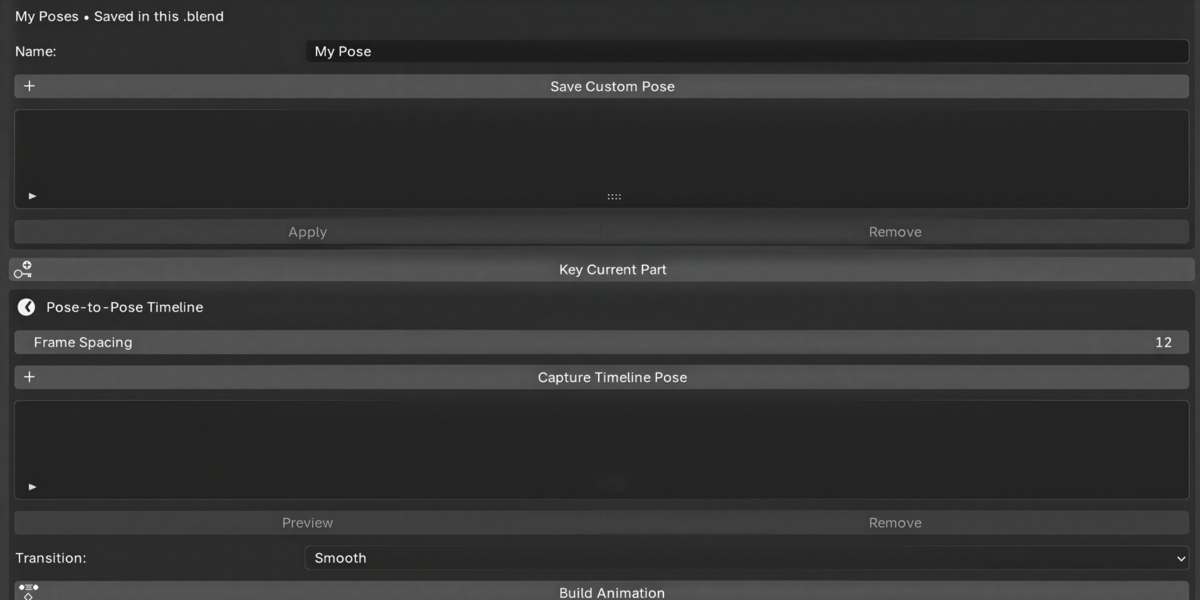
## 1. Installation
**Drag and drop (fastest)**
Drag **PoseFlow-1.2.1.zip** into any Blender window and confirm. Don't unzip it.
**From Preferences**
Edit → Preferences → Get Extensions → **⌄** (top right) → **Install from Disk…** → select **PoseFlow-1.2.1.zip**.
**Open the panel:** in the 3D Viewport press **N** and click the **PoseFlow** tab.
**Updating:** save your work, remove the old version in Preferences → Get Extensions, install the new ZIP and restart Blender. Your mappings and saved poses stay in your .blend files.
**Demo scenes:** unzip **PoseFlow-1.2.1-Extras.zip** and open `examples/PoseFlow-Demo.blend` (posing and a five-pose animation) or `examples/PoseFlow-Contacts-Demo.blend` (planted feet and a hand following a prop).
---
## 2. Preparing your rig
PoseFlow poses a humanoid rig's **FK controls**, the bones an animator rotates by hand.
- Switch arms and legs to **FK** in your rig's own settings.
- The built-in presets expect a **T-pose** rest skeleton, facing **−Y**, with **+Z** up and the character's left side on **+X**, all in armature space. Object rotation doesn't matter.
- **A-pose rigs** can still use custom poses, mirroring and the timeline. The built-in presets assume a T-pose.
| Rig | How to set it up |
|---|---|
| **Auto-Rig Pro** | Switch arms and legs to **FK**, then click **Suggest Mapping**. All 48 `c_…` controls are mapped automatically. |
| **Mixamo** | Click **Suggest Mapping**. `mixamorig:` names are recognised. |
| **Rigify** | Set limbs to FK, click **Suggest Mapping**, then check the FK control assignments. |
| **Custom FK rigs** | Click **Suggest Mapping** and fill any empty fields with the bone picker. |
---
## 3. Mapping your rig (one time per character)
1. Select the armature and enter **Pose Mode**.
2. Open **Rig Mapper** and click **Suggest Mapping**. It fills empty fields only and never overwrites your own choices.
3. Review the list. Correct any field with the searchable bone picker. Optional roles such as individual fingers can stay empty.
4. Click **Check**. It confirms that every mapped control can be posed, and explains any problem before your character is changed.
**Tip:** to redo a mapping from scratch, clear the fields first. Suggest Mapping only fills empty fields.
---
## 4. Posing
| Control | What it does |
|---|---|
| **Body Part** | Choose Full Body, Head, Chest, Hips / Crouch, Left/Right Arm, Hand or Leg. |
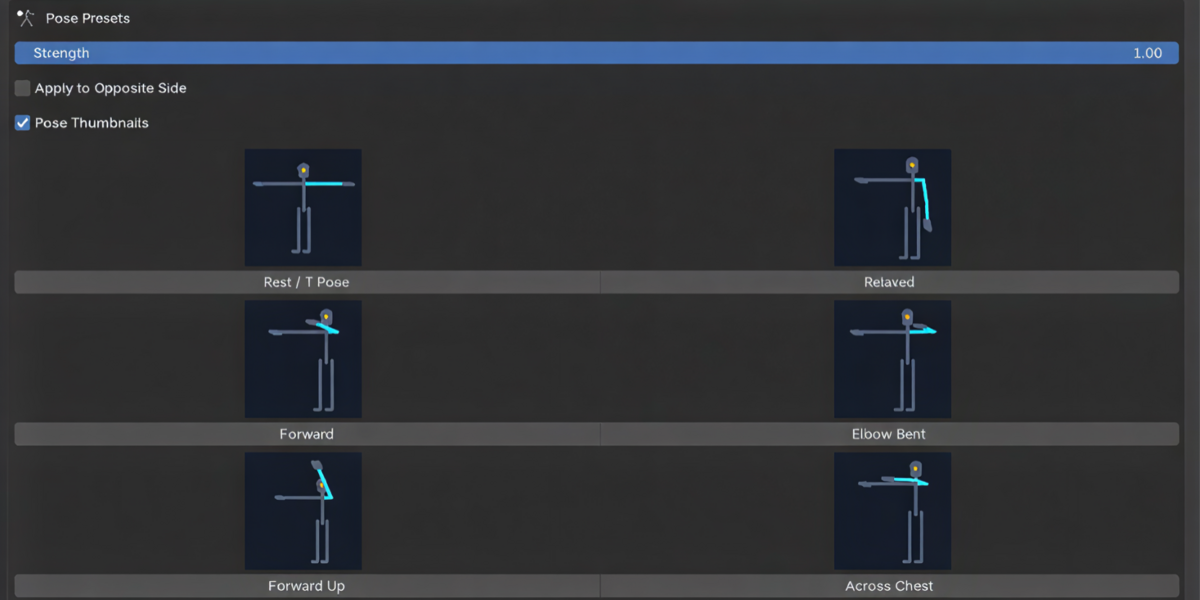
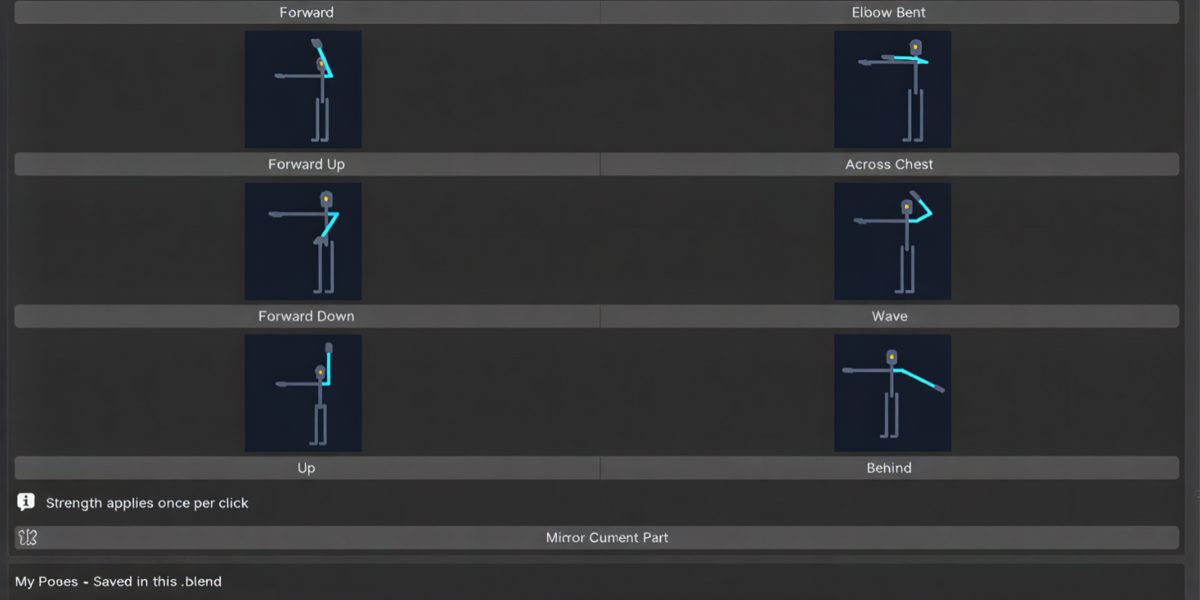
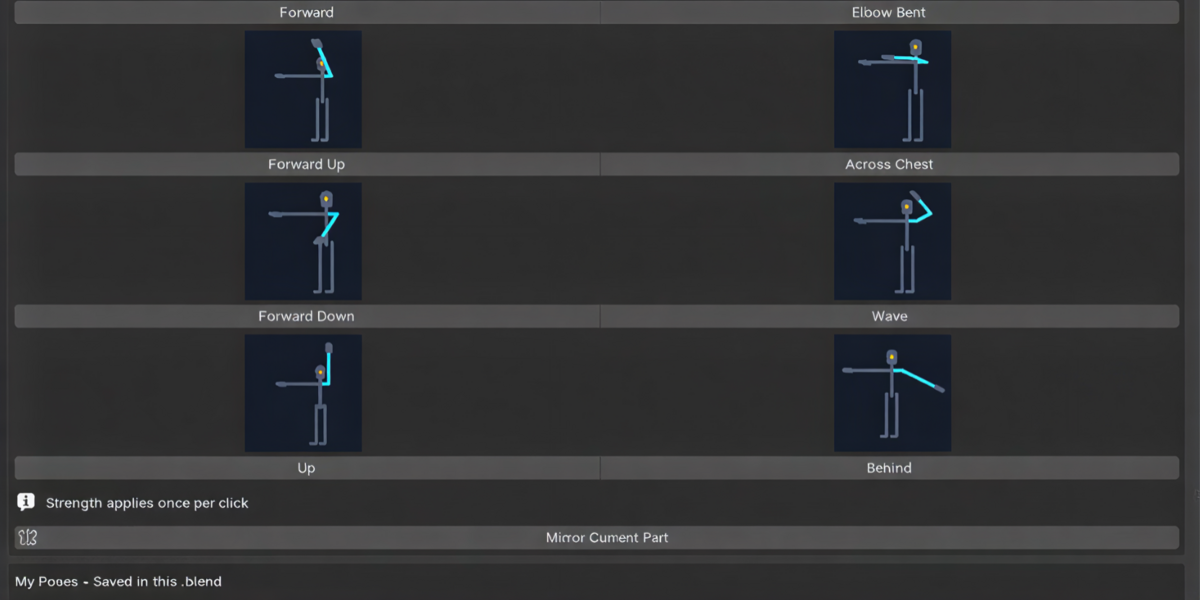
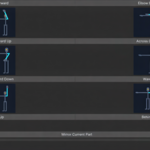
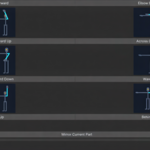
| **Preset thumbnails** | Click to apply. 65 presets in total. The affected part is highlighted in cyan. |
| **Strength** | Sets how much of a preset one click applies: 0 = none, 1 = full. Clicking again blends further. |
| **Apply to Opposite Side** | Mirrors the preset as it's applied. |
| **Mirror Current Part** | Copies the current part to the other side. Full Body swaps both sides. |
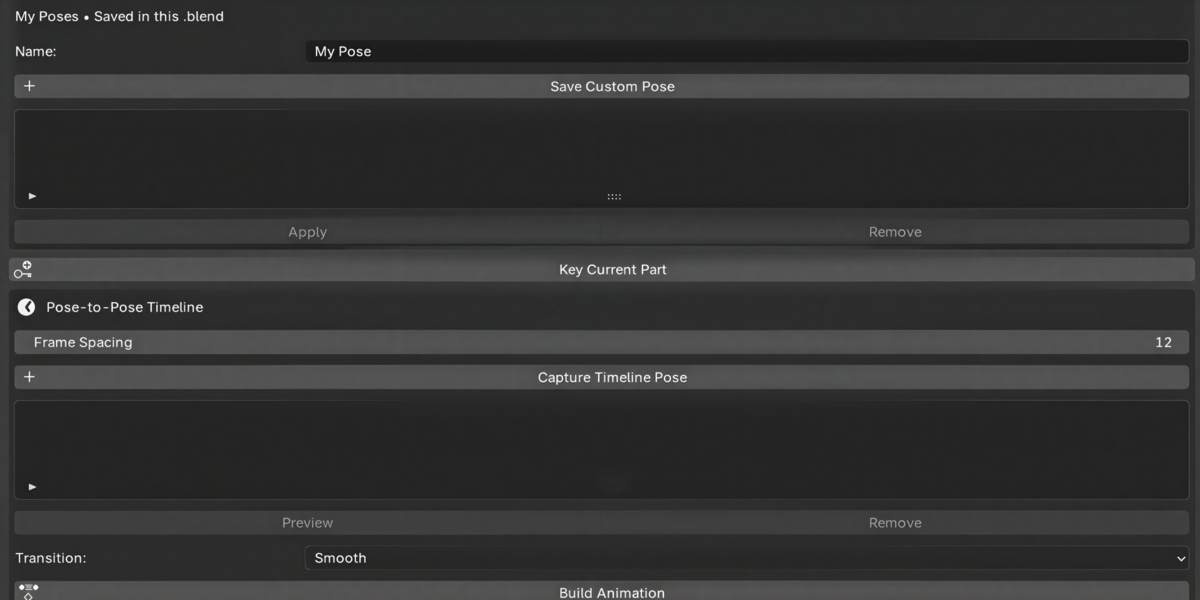
| **Save Custom Pose** | Adds the current part to your personal library for this character. |
| **Key Current Part** | Keys the mapped controls at the current frame. |
**Hips / Crouch** includes Stand, Shallow Crouch (40°), Crouch (75°) and Deep Crouch (110°). The hips drop using your character's real leg lengths and the feet stay in place.
Hinge joints such as Auto-Rig Pro's elbows and knees only bend on their free axis. Locked axes are always respected.
---
## 5. Pose-to-pose animation
1. Pose the character and click **Capture Timeline Pose**.
2. Change the pose and capture again. Each capture is placed **Frame Spacing** frames after the last, and you can edit any frame number.
3. **Preview** shows a captured pose without keying it.
4. Choose **Stepped**, **Linear** or **Smooth**, then click **Build Animation**.
5. Refine the timing in the Dope Sheet or Graph Editor.
Animation is written to a **private copy of your Action**. Existing keys and Actions shared with other characters are never overwritten.
---
## 6. Contacts and body placement
**Foot locks:** click **Lock Both Feet**. The feet stay planted while you move the hips.
- **Knee / Elbow Direction** sets which way the joint bends. You can also move the marker in the viewport.
- **Release** removes a contact and keeps the pose exactly as it looks.
**Weight and stance**
- **Move Hips / Shift Weight:** Height Offset (negative lowers the body) and Side Shift (positive moves toward the character's left). Values are fractions of leg length.
- **Change Stance Width:** positive spreads the feet apart, negative brings them together.
**Sit / Kneel / Lunge**
- **Sit:** add an Empty where the pelvis should rest, set it as the **Seat / Floor Marker**, then click **Sit**.
- **Kneel / Lunge:** release any foot locks first, then click the button. For Lunge, choose the **Lead / Reach Side**.
**Reach and Grab**
- **Reach to 3D Cursor:** place the 3D cursor and click. The hand moves there.
- **Grab Prop:** pose the hand next to an object, pick it in the **Prop** field, and click **Grab Prop**. The hand now follows the prop.
**Animating with contacts:** set up contacts before your first timeline capture, and keep the same contacts for the whole sequence. Captures record the targets too, so planted feet stay planted between poses.
---
## 7. Troubleshooting
| Message or problem | Solution |
|---|---|
| *rotation is fully locked (a mechanism bone)* | That bone isn't meant to be posed. Clear the field and map the animator control. For Auto-Rig Pro, that's the `c_…` bone. |
| *a constraint controls its rotation* | Map the FK control instead of a constrained bone. |
| *target changes locked location* | Unlock that channel on the bone, or unmap it. |
| *Map these controls first: …* | Map the listed roles in Rig Mapper. |
| *Mute NLA tracks and exit NLA tweak mode* | Do this in the NLA editor, then try again. |
| *Timeline poses need unique frame numbers* | Give each captured pose its own frame. |
| *Some targets are out of reach* | Move the contact target closer, or adjust the hips. |
| Poses apply but the mesh doesn't move | The rig's limbs are in **IK** mode. Switch them to **FK** in the rig's settings. |
| A preset bends a limb the wrong way | The rig's rest pose isn't a T-pose facing −Y. Pose it by hand and save it as a custom pose. |
| Suggest Mapping didn't change a field | It only fills empty fields. Clear the field and run it again. |
---
## 8. FAQ
**Does PoseFlow need the internet?** No. It runs fully offline, with no accounts, telemetry or extra packages.
**Can I undo everything?** Yes. Every PoseFlow action supports Ctrl+Z.
**Where are my poses saved?** In your .blend file, per character. Save the file to keep them.
**Will my saved poses work on another character?** Saved poses are tied to the rig they were made on. If that rig's bones change, PoseFlow won't apply the old pose rather than apply it incorrectly.
**Does it work with IK rigs?** PoseFlow poses the FK controls, so switch limbs to FK. For planted feet and hands, use PoseFlow's own foot locks and Reach/Grab.
---
## 9. Changelog
**1.2.1:** Auto-Rig Pro support: automatic mapping of `c_…` FK controls, hinge elbows and knees, location-only constraints allowed, clearer messages.
**1.2.0:** Foot locks, weight shift, stance width, sit/kneel/lunge, Reach & Grab, and thumbnails for all 65 presets.
**1.1.0:** Hips / Crouch with a leg-length-aware crouch solver.
**1.0.0:** Initial release: Rig Mapper, presets, mirroring, custom poses and the pose-to-pose timeline.
Have questions about this product?
Login to message
| Blender Extension Compatible | Yes |
| Published | about 7 hours ago |
| Blender Version | 5.0 - 5.2 |
| Extension Type | Add-on |
| Render Engine Used | Cycles, Eevee |
| License | GPL |

Discover more products like this
3drig poses AutoPoser Animation Composer Autoanimation rig ue5 Blender_to_UE5 ue5 animation import