 孙堪伟
孙堪伟



N-Panel Orchestrator - User Guide
Installation
Follow these steps to install the N-Panel Orchestrator addon in Blender:
- Open Blender and go to Edit > Preferences > Add-ons
- Click the "Install..." button in the top right corner
- Select the N-Panel Orchestrator addon file (
.zipformat) - Click "Install Add-on"
- Enable the addon by checking the checkbox next to "Interface: N-Panel Orchestrator"
.zip file directly into Blender's Preferences window (Blender 4.2+). Activation
Once installed, use the default hotkey:
B - Opens the N-Panel Selector popup in 3D Viewport
Key Features
- Advanced Panel Management: Organize third-party N-Panels into custom categories
- Quick Search & Switch: Fast search functionality to find and switch between panels
- Custom Categorization: Create up to 6 user-defined categories for grouping panels
- Recently Used Tracking: Automatically tracks and displays your most frequently used panels
- Exclusion System: Hide specific panels from management while keeping them available in Blender
- Panel Renaming: Customize display names for any panel category
- Configuration Persistence: Save and load your panel organization setups
- Auto-Save Option: Automatically save configuration changes
- Smart Refresh: Rescan for new panels after enabling/disabling addons
- Blender 4.2+ Optimized: Full compatibility with modern Blender versions
Quick Start
Accessing the Interface:
- Press B in the 3D Viewport to open the main selector
- Use the search button in the 3D Viewport header (magnifying glass icon)
- Access through the N-Panel Manager tab in the 3D Viewport sidebar
Basic Workflow:
Click the "+" buttons in empty slots to create new categories for organizing your panels.
Click the "+" button within any category to add panels from the uncategorized list.
Click any panel name to instantly switch to that N-Panel tab in the sidebar.
Use the search functionality to quickly find and switch to specific panels.
Main Components:
- Recently Used Section: Shows your 5 most recently accessed panels
- Custom Categories: Your organized panel groups (up to 6 categories)
- Uncategorized Panels: All panels not yet assigned to custom categories
- Excluded Panels: Panels hidden from management but still available in Blender
- Configuration Tools: Save, load, refresh, and reset buttons
Category Management:
- Create Categories: Click "+" in empty slots
- Rename Categories: Click the pencil icon next to category names
- Delete Categories: Click the "X" icon next to category names
- Reorder Categories: Use "Category Order" to rearrange your categories
- Add Panels: Click "+" within categories to add from uncategorized list
- Remove Panels: Click "X" next to panel names to remove them from categories
Advanced Features
Panel Renaming:
Customize how panels appear in your interface:
- Click the pencil icon next to any panel name
- Enter your preferred display name
- Changes persist across Blender sessions
Exclusion System:
Manage which panels appear in the orchestrator:
- Add to Exclusion: Use the "+" in the Excluded section to hide panels from management
- Remove from Exclusion: Click "X" next to excluded panels to restore them to management
- Excluded panels remain available in Blender but don't appear in your organized categories
Configuration Management:
- Save Configuration: Save your current panel organization
- Load Configuration: Restore a previously saved setup
- Export/Import: Share your configurations between Blender installations
- Reset: Restore default settings and clear all customizations
Preferences
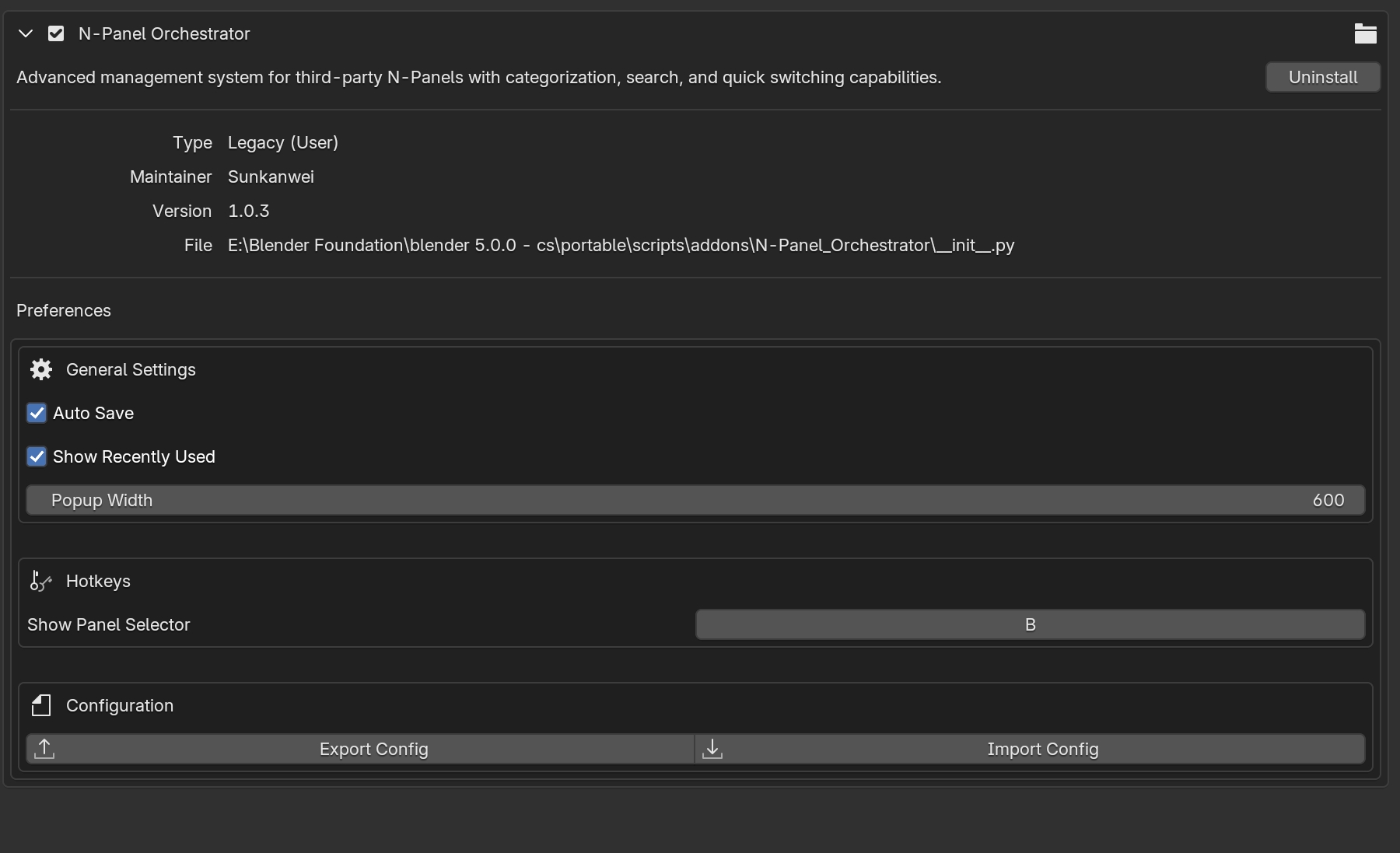
Access preferences via Edit > Preferences > Add-ons > N-Panel Orchestrator:
- Auto Save: Automatically save configuration changes
- Show Recently Used: Display recent panels in the popup
- Popup Width: Adjust the width of the panel selector (400-1200px)
- Hotkey Configuration: View and modify the activation hotkey
- Import/Export: Direct access to configuration management
Workflow Tips
Best Practices:
- Group related panels into logical categories (e.g., "Modeling", "UV", "Rigging")
- Use descriptive custom names for panels with unclear original names
- Exclude rarely used panels to keep your interface clean
- Save your configuration after major reorganizations
- Use the search function for quick access to infrequently used panels
- Refresh the panel list after enabling/disabling addons to detect new panels
Compatibility
- Blender Version: 4.2+ (optimized for modern Blender versions)
- Panel Types: All third-party N-Panels in the 3D Viewport sidebar
- Addon Support: Works with any addon that creates N-Panel interfaces
Troubleshooting
- If panels don't appear after installing new addons, use the Refresh button
- If the hotkey doesn't work, check for conflicts in Preferences > Keymap
- Missing panels might be excluded - check the Excluded section
- If interface seems unresponsive, try resetting the configuration
- For persistent issues, disable and re-enable the addon
Have questions about this product?
Login to message
Discover more products like this
n menu clean panel Panel clean tabs Clean Panels Sidebar simple n-panel