 ATDIGIT


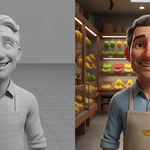
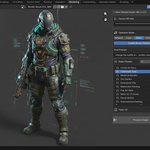
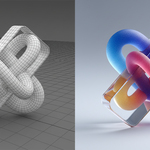
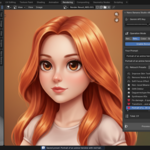
What is Nano Banana Studio?
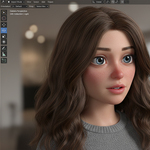
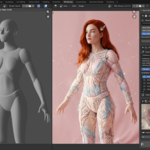
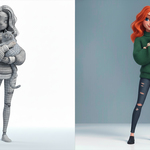
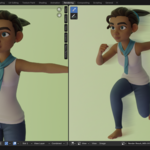
A post‑render re‑rendering engine on Blender’s Rendering tab. It creates a new variant of your finished render while preserving composition, then lets you refine it with curated or custom presets.
Where do I find the panel and start?
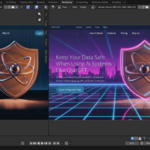
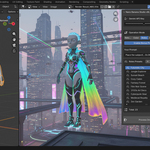
Rendering tab → press N → “Nano Banana” panel. Paste your API key, choose a preset (or your own), and click “Process Image.”
How do I prepare the source?
Load an image, render a frame (F12) to get a Render Result, or open a Movie/Sequence and set the current frame. The add‑on processes the currently displayed image/frame.
Does it preserve the scene layout?
Yes. The goal is a new variant of your render while keeping the original composition (objects, layout, camera).
What image sources are supported?
Regular images, Render Result/Compositor (captures the visible result), and Movie/Sequence (captures the current frame as a still).
How do presets work?
Click to set; “+” appends to your current prompt; search/sort are per tab. Enable “Bonus Presets” to reveal extra curated prompts.
Can I save my own prompts as presets?
Yes. Click “Save” in the Presets header. The name is taken from the beginning of your prompt. Delete via the trash icon.
What are Visual Styles and how do they work?
Visual Styles are 12 curated reference images bundled with Nano Banana Studio. Each style carries a specific lighting, color palette, and atmosphere — for example, "Noir Portrait" gives you high-contrast black-and-white cinematic mood, while "Arcviz Daylight" applies warm architectural sunlight. When you select a style, the AI uses it as a visual guide alongside your text prompt, so your render gets the exact look you want without changing your original composition or objects. On first launch the default style is "Blender Classic", which delivers a clean photorealistic 3D render look.
How do I preview a Visual Style before rendering?
Open the Visual Styles section in the Nano Banana panel (click the arrow to expand it). Once you select a style from the dropdown, a full-width panoramic preview of the reference image appears right inside the panel. This lets you see exactly what lighting, color, and atmosphere the style will apply — before you spend any time or API credits on rendering. You can collapse the section again when you're done to save sidebar space.
Can I render without any Visual Style applied?
Yes. Simply select "No Style" from the Visual Styles dropdown. This tells the AI to rely solely on your text prompt with no style reference image, giving the model full creative freedom. You can switch between styles and "No Style" at any time — the setting is saved automatically and restored when you reopen Blender.
Where do I get the API key?
Google AI Studio (Gemini): https://aistudio.google.com/app/apikey. A billing‑enabled key required.
Do I need to press Enter after pasting the key?
No. The field updates live. Save your .blend or Save Startup File to keep it.
How is my API key handled?
Stored in the scene and used only when you process an image. You can clear it any time.
What is the output resolution?
With Nano Banana (Standard): ~1024 px on the long side.
With Nano Banana Pro: Choose 1K, 2K, or 4K output resolution for premium quality renders.
Does it work offline?
No. An internet connection is required to reach Google AI Studio.
What Blender versions are supported?
Blender 4.2+.
Where do I get support?
Include Blender version, OS, steps to reproduce, and any popup message.
$14.99
Have questions about this product?
Login to message
| Blender Extension Compatible | Yes |
| Sales | 20+ |
| Dev Fund Contributor | |
| Published | 12 months ago |
| Blender Version | 4.2 - 5.2 |
| Extension Type | Add-on |
| Render Engine Used | Cycles, Eevee |
| License | GPL |
Discover more products like this
Gemini 2.5 Flash Image gemini ai image editing ai-render background removal retouch render result image editor google-gemini cinematic color grading prompt-engineering nano banana