Node Graph Extras
 Minimal Effort Tech



Contents
Node Graph Extras
Node Graph Extras is a multi-tool Blender add-on for annotated node graphs, layout and routing, scripted node groups, and reusable snippets.
What it covers
Use annotations to explain graphs, alignment tools to clean layouts, scripted groups to generate repeatable setups, and snippets to store reusable node selections.
Where it lives
The add-on works primarily in Blender's Node Editor, with feature panels in the sidebar, feature-specific add menus, toolbar tools, and add-on preferences.
| Workflow | What it does | Entrypoint |
|---|---|---|
| Annotations | Diagram, label, group, and connect ideas directly in the node editor. | Sidebar Annotations, Add > Annotation, toolbar drawing tool. |
| Alignment / Routing | Organize node layouts, add routed reroutes, remove helper reroutes, and align nodes quickly. | Sidebar Alignment, node context menu, Quick Align, Reroute Path. |
| Scripted Groups | Generate reusable node groups from Python text datablocks. | Group add menus, contextual Scripted Group panel. |
| Snippets | Save and place reusable node selections by tree category. | Sidebar Snippets, Add > Snippets. |
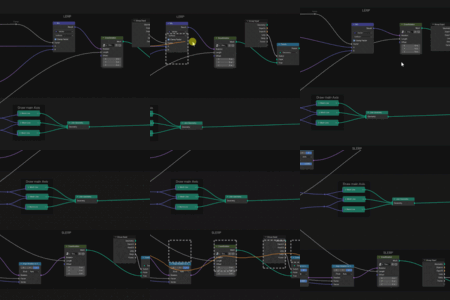
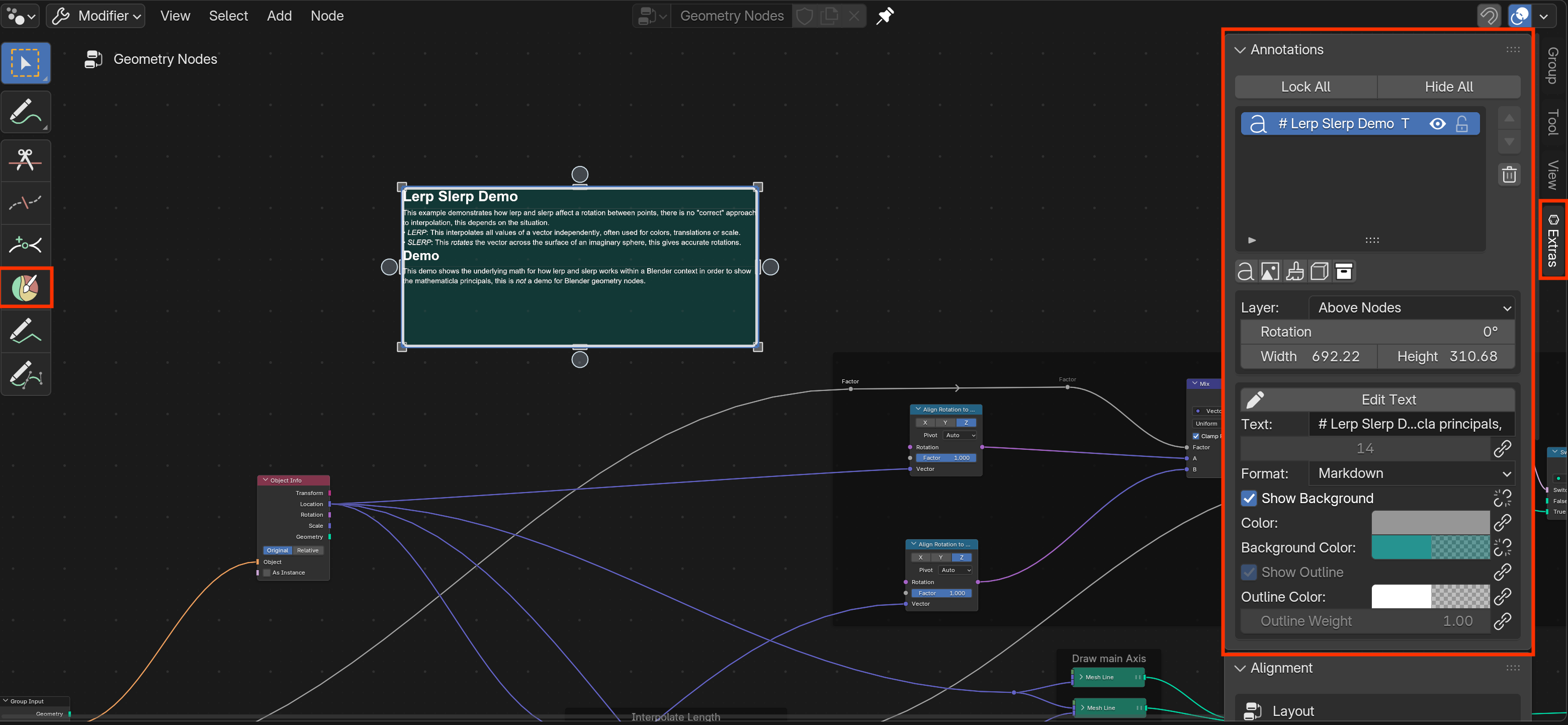 Persistent Node Editor surfaces for the main workflows.
 User Guide
Use this section to install the add-on, locate the current UI, and try each feature area in a few minutes.
Node Graph Extras includes four major workflows: annotations for graph explanation, alignment and routing for readability, scripted groups for repeatable logic, and snippets for reusable node selections.
Install and Enable
- Open Blender.
- Go to Edit > Preferences > Get Extensions.
- Open the repository menu in the extensions view and choose Install from Disk.
- Select the Node Graph Extras zip archive.
- Enable the extension if Blender does not enable it automatically.
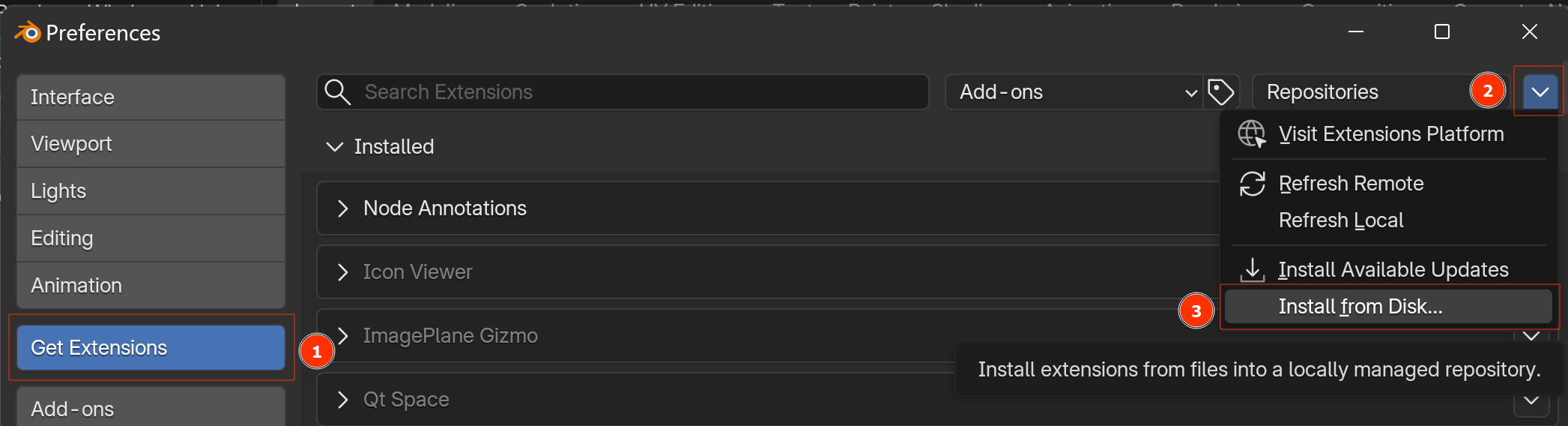
NodeGraph Extras is distributed in both full and no-wheels variants. The no-wheels build omits bundled Pillow and Markdown dependencies, so rich text rendering and clipboard image workflows may be limited.
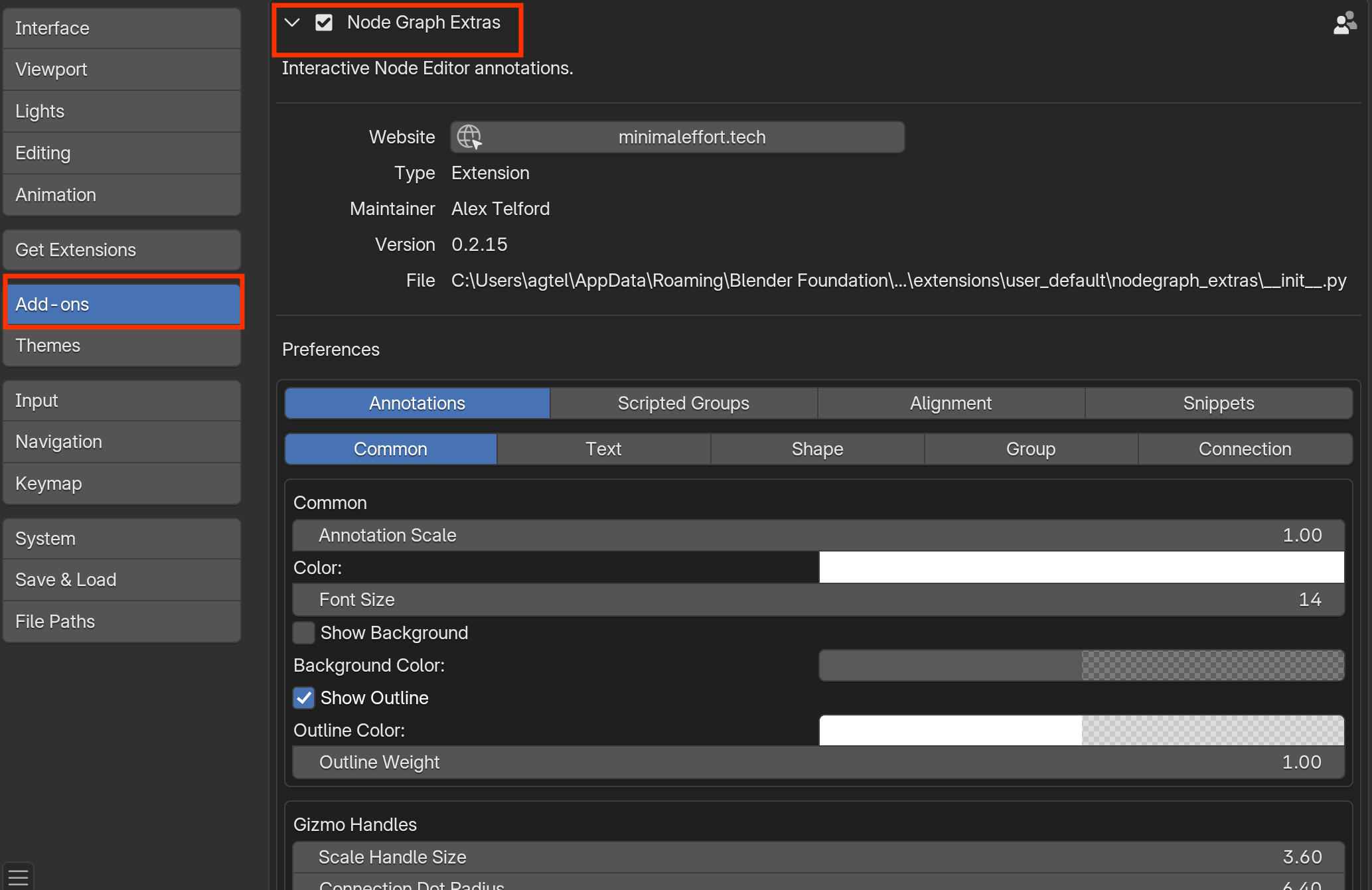
After installation, check the add-on preferences. They define the default behavior for annotations, alignment, scripted groups, and snippets.
UI Surfaces
Most workflows live in Blender's Node Editor and are split across a few consistent surfaces.
| Surface | What you will find there |
|---|---|
| Sidebar > Node Graph Extras | Persistent panels for Annotations, Alignment, Snippets, and the contextual Scripted Group editor. |
| Toolbar / Active Tool | Drawing annotation options plus the Quick Align and Reroute Path tools. |
| Add menu | Annotation, Snippets, and Scripted Group creation entries. |
| Node context menu | Alignment and routing actions. |
| Add-on Preferences | Per-feature defaults for annotations, scripted groups, alignment, and snippet management. |
Persistent Node Editor surfaces for the main workflows. Annotations
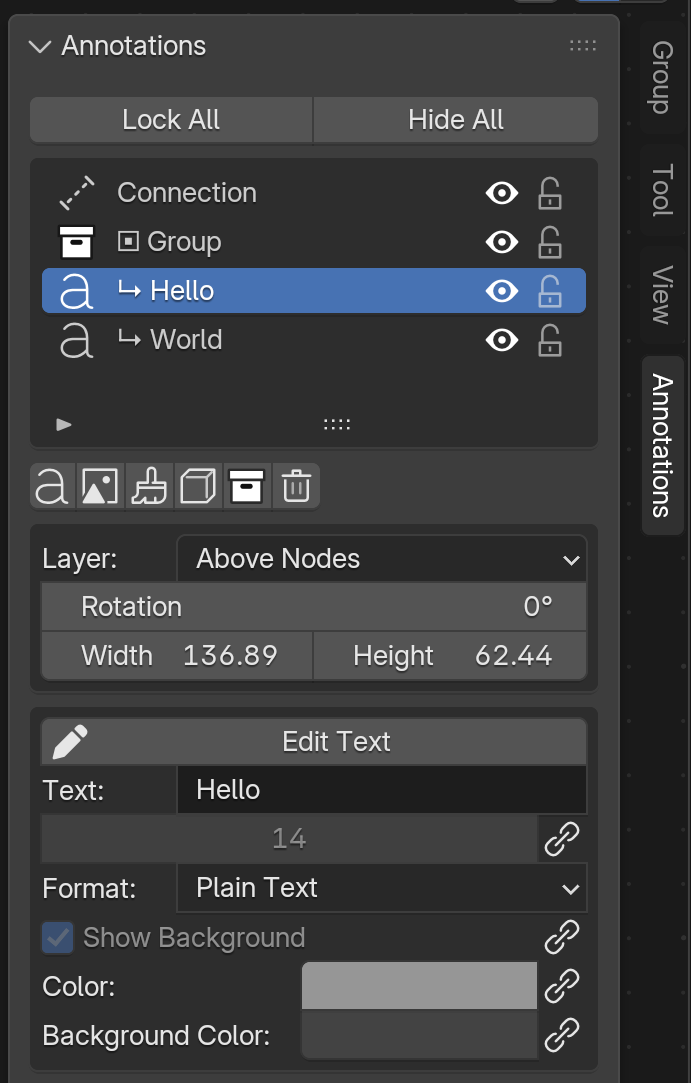
Open the sidebar and switch to the Annotations tab. Built-in annotation types include Text, Image, Drawing, Shape, Group, and Connection. You can create them from the panel buttons, Add > Annotation, or Ctrl+V for pasted text and images.
Select, Move, and Resize
- Click an annotation body to select it.
- Use Shift-click or Ctrl-click to build a multi-selection.
- Drag selected items to move them.
- Drag resize handles on the active border to resize.
- Grouped items keep hierarchy rules and re-evaluate parenting when the drag finishes.
Edit from the Panel
The panel combines global list controls, common transform properties, and type-specific settings such as text content, shape style, connection markers, and group styling. Many style properties are linked to preferences by default, but you can unlink them for per-annotation overrides.
Use the Drawing Tool
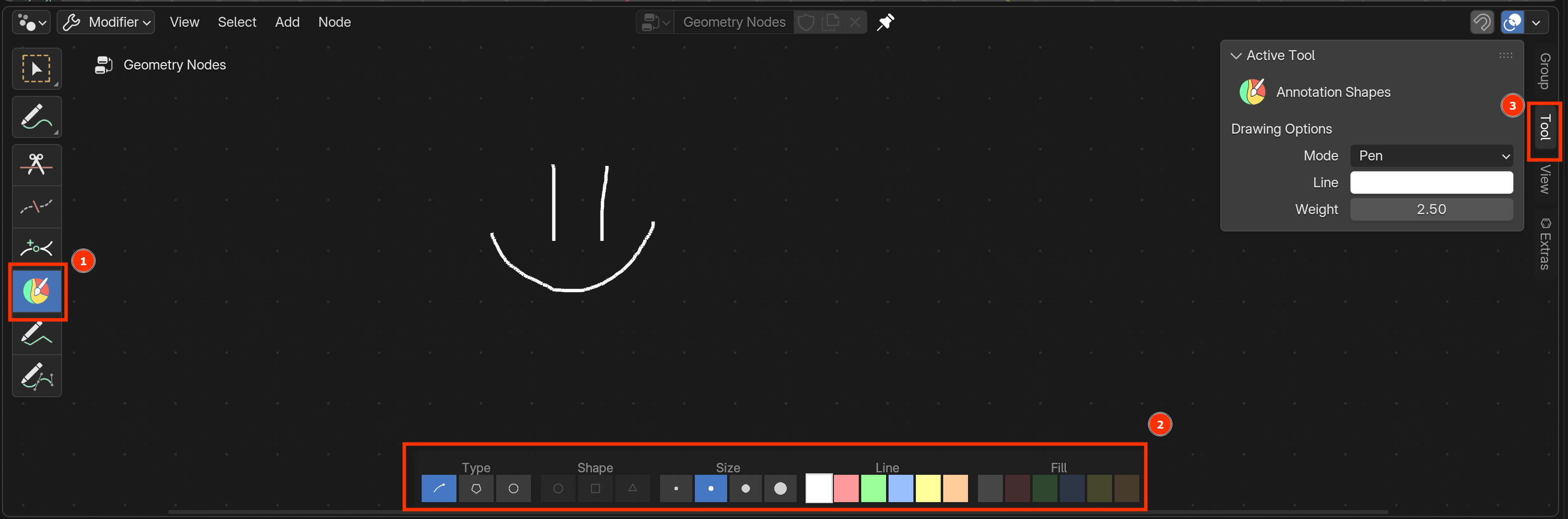
Drawing annotations are edited from the Node Editor toolbar. Activate Annotation Shapes, choose Pen, Polygon, or Shape mode, then set line and fill styling as needed. Use Enter to commit and Esc or right-click to cancel.
Connect and Group Annotations
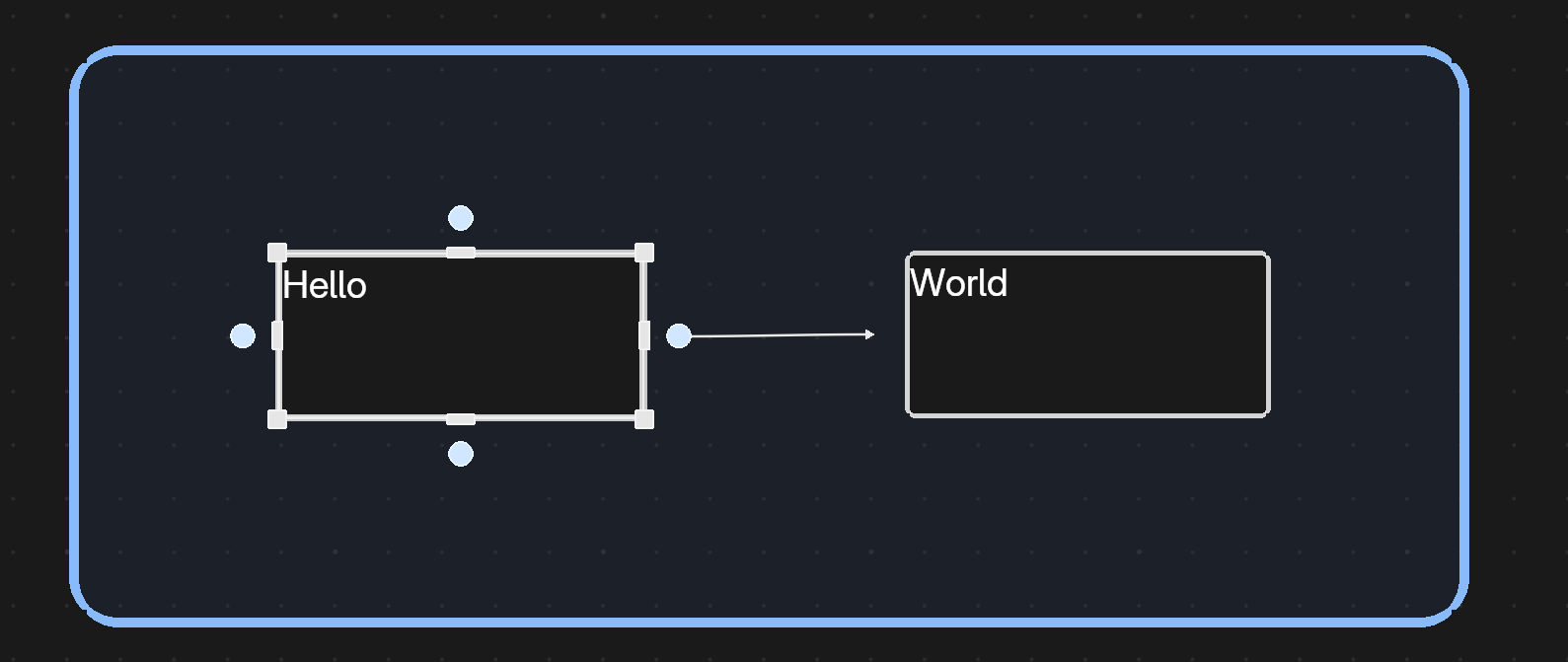
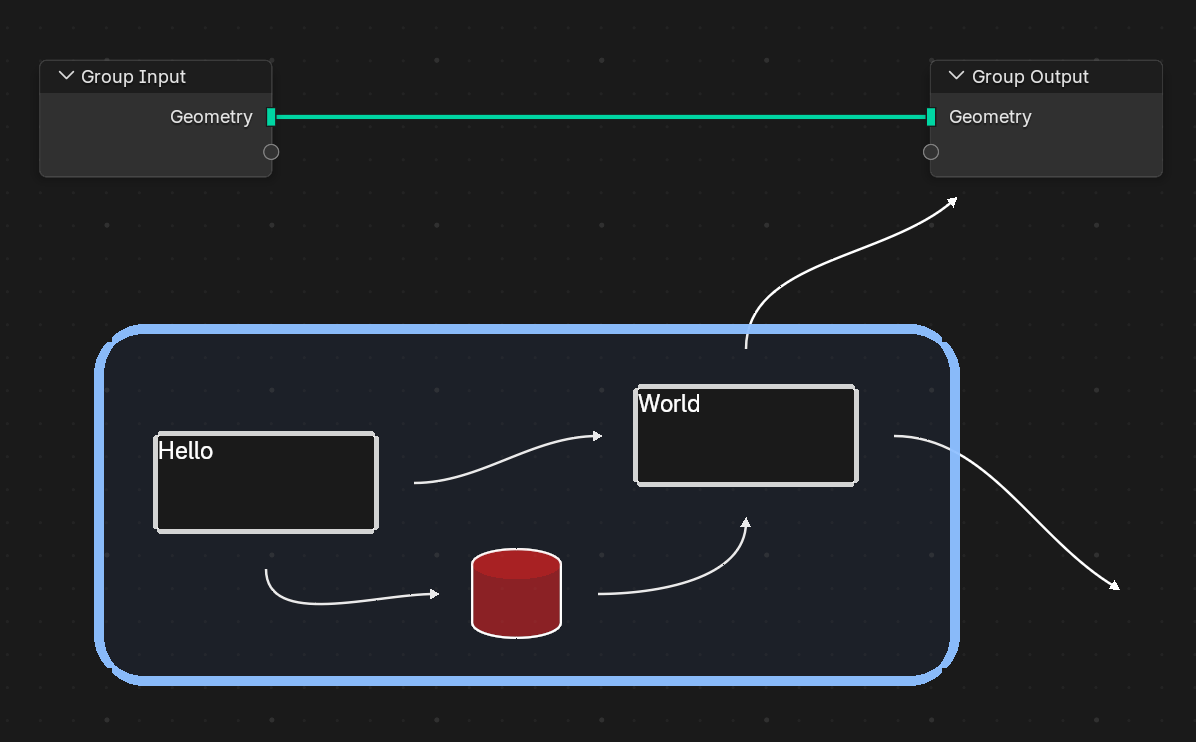
Select an annotation to reveal side connection dots, then drag to another annotation, a node, or empty space. Select two or more annotations and press Ctrl+G to wrap them in a group.
Alignment and Routing
The Alignment panel contains layout tools, reroute operations, and debug helpers. The same routing actions are also available from the node editor context menu.
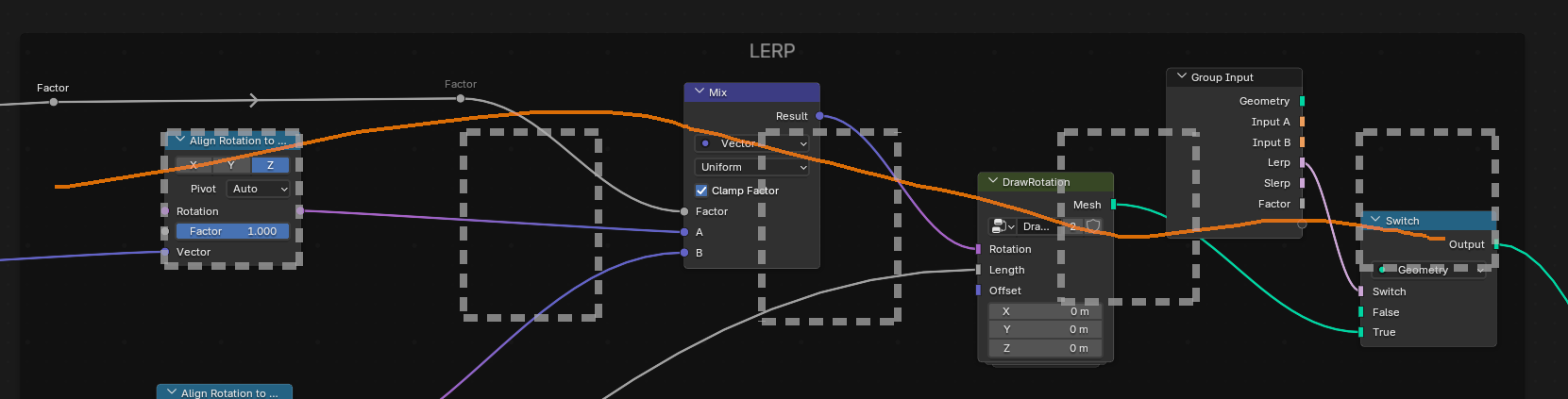
Quick Align
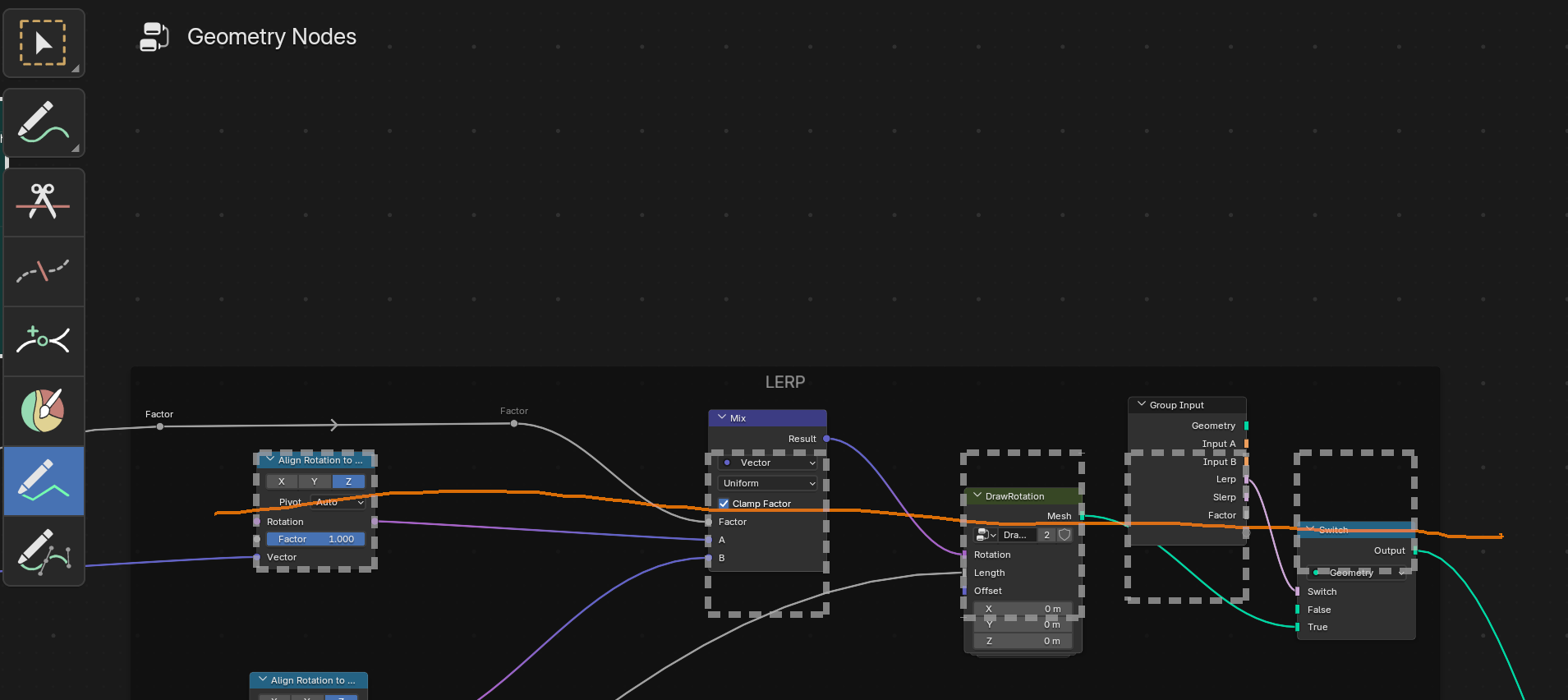
Activate the quick align tool and drag a guide through nodes to align them against the first touched node. While dragging, arrow keys can switch between align and even-spacing behavior.
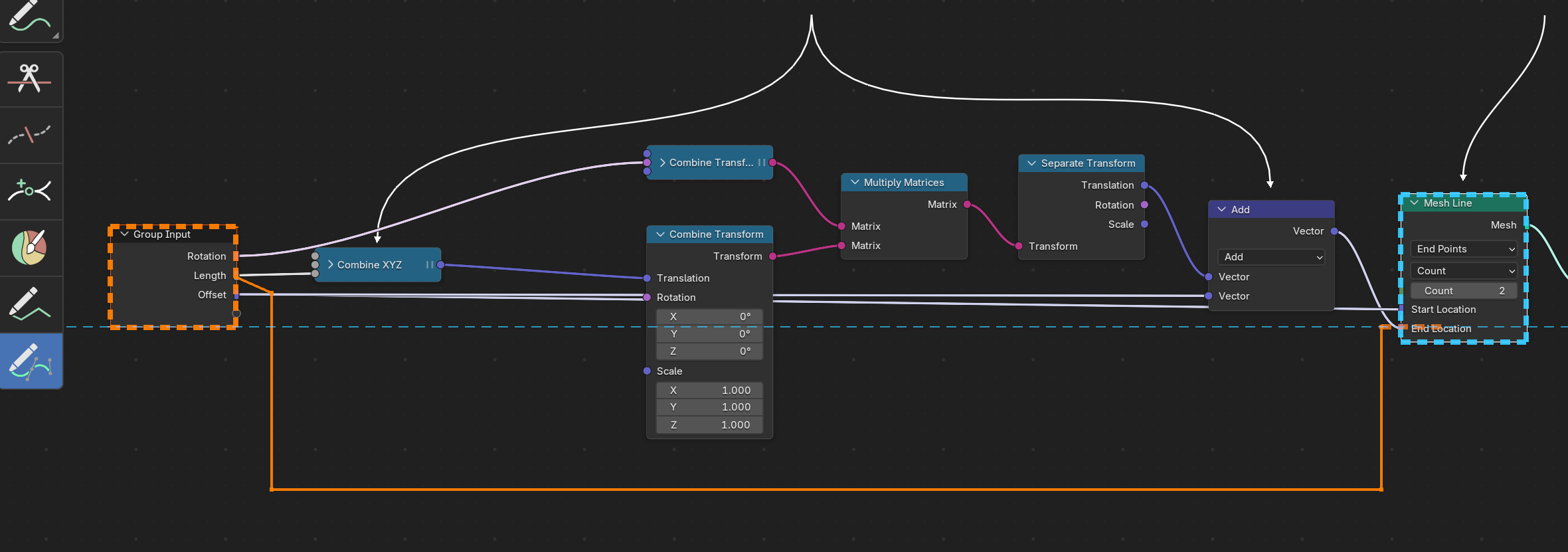
Quick Reroute
Select nodes with one or more connections, activate the reroute tool, then click a path. Hold Shift to snap to orthogonal lines.
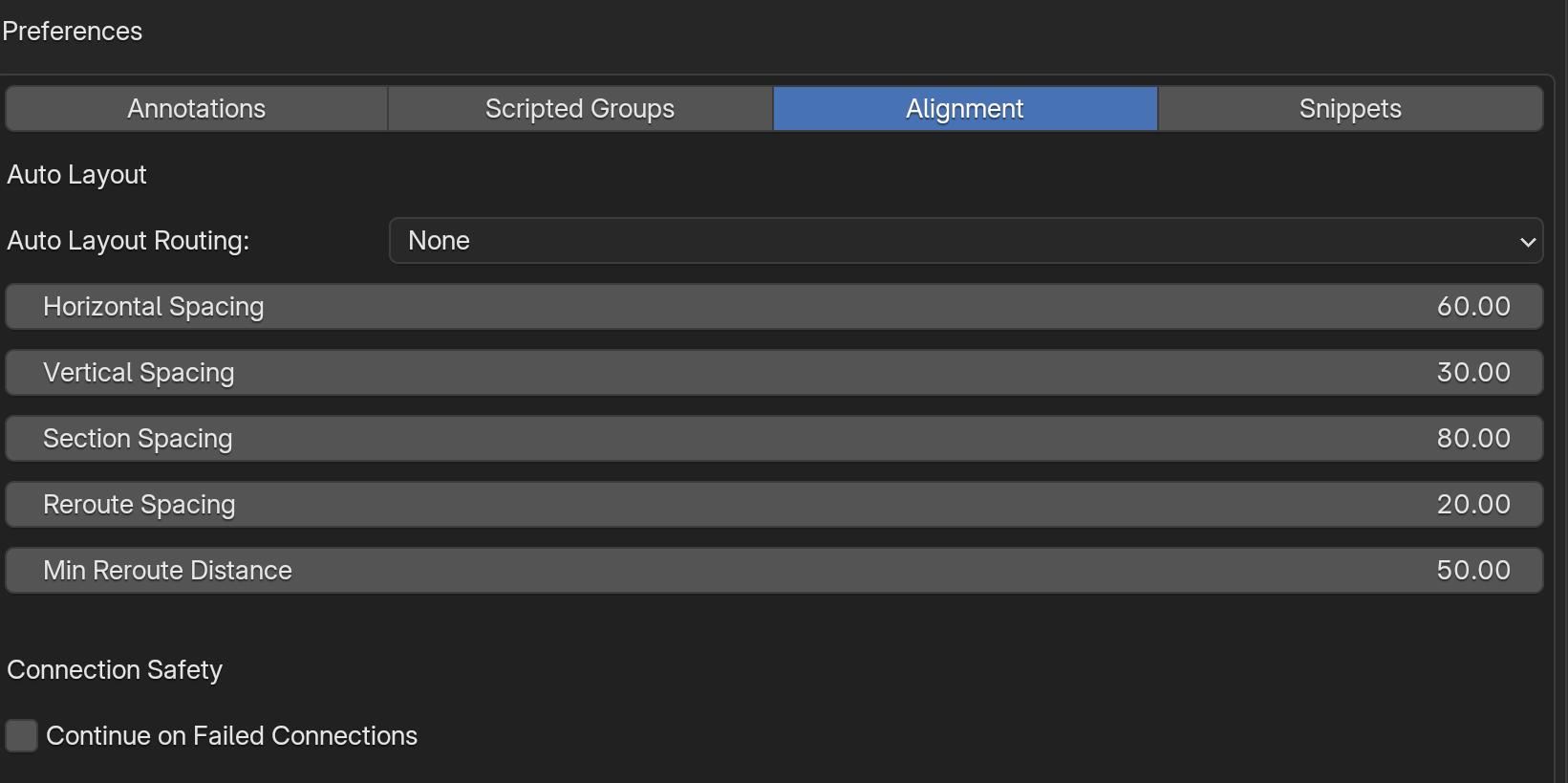
Auto Layout
Select one or more nodes to align, or select no nodes to operate on the whole graph, then run Auto Layout. Preferences control spacing, rerouting mode, and failure tolerance.

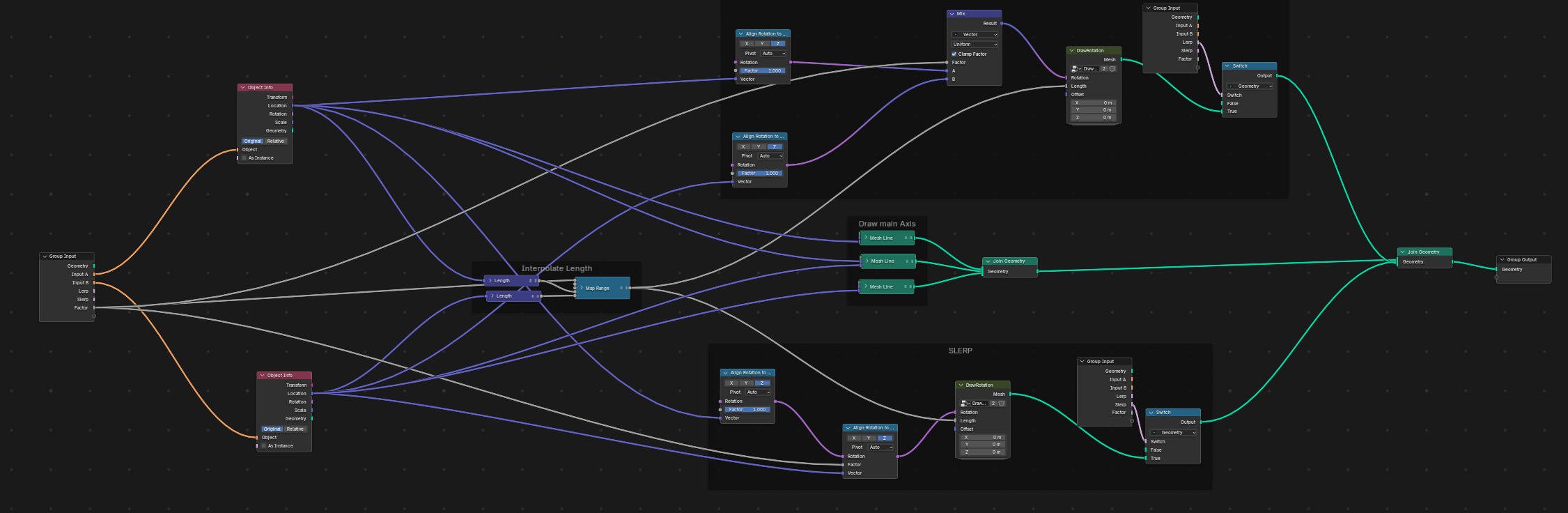
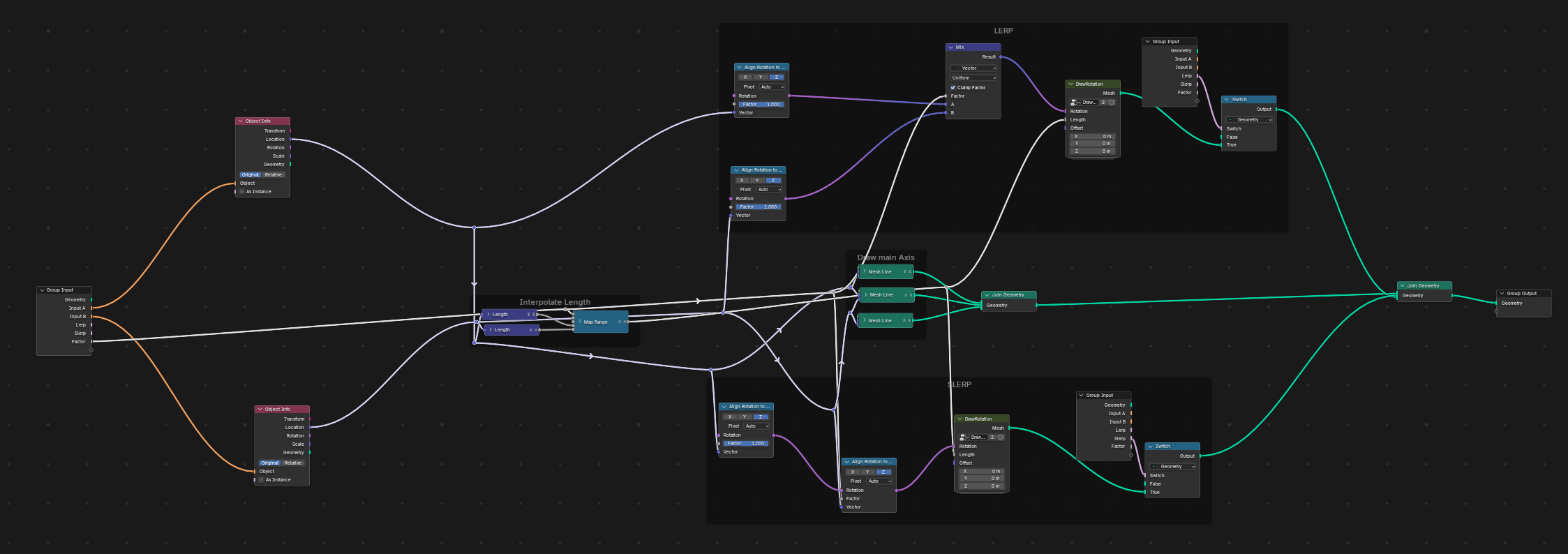
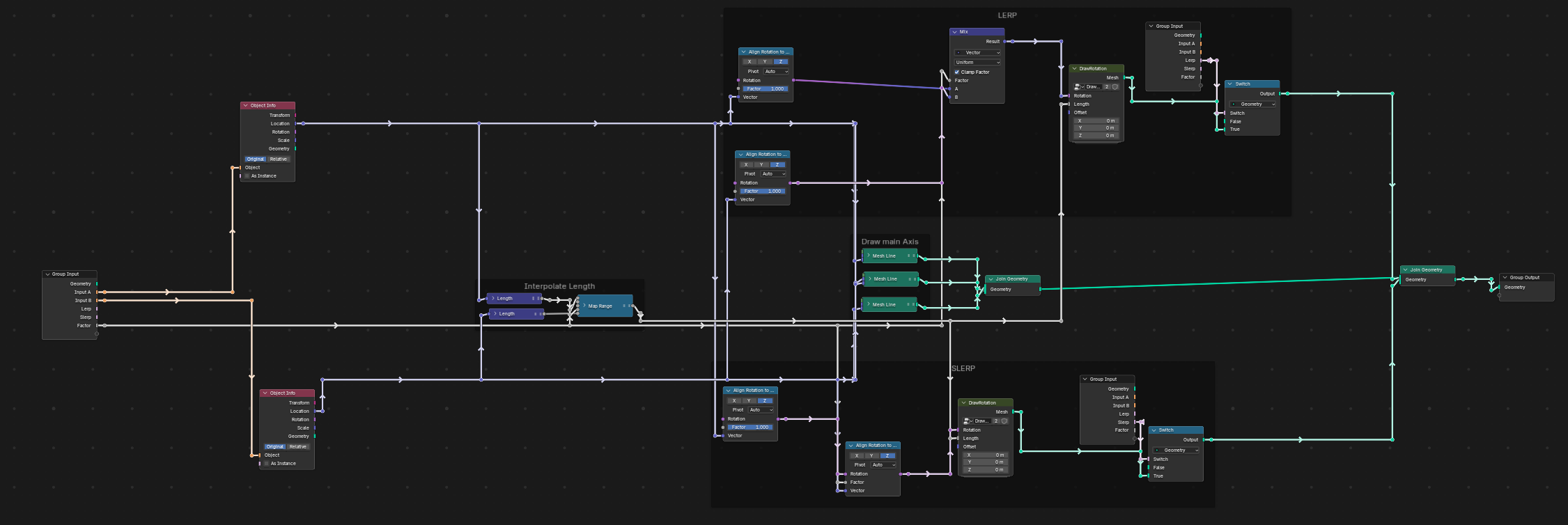
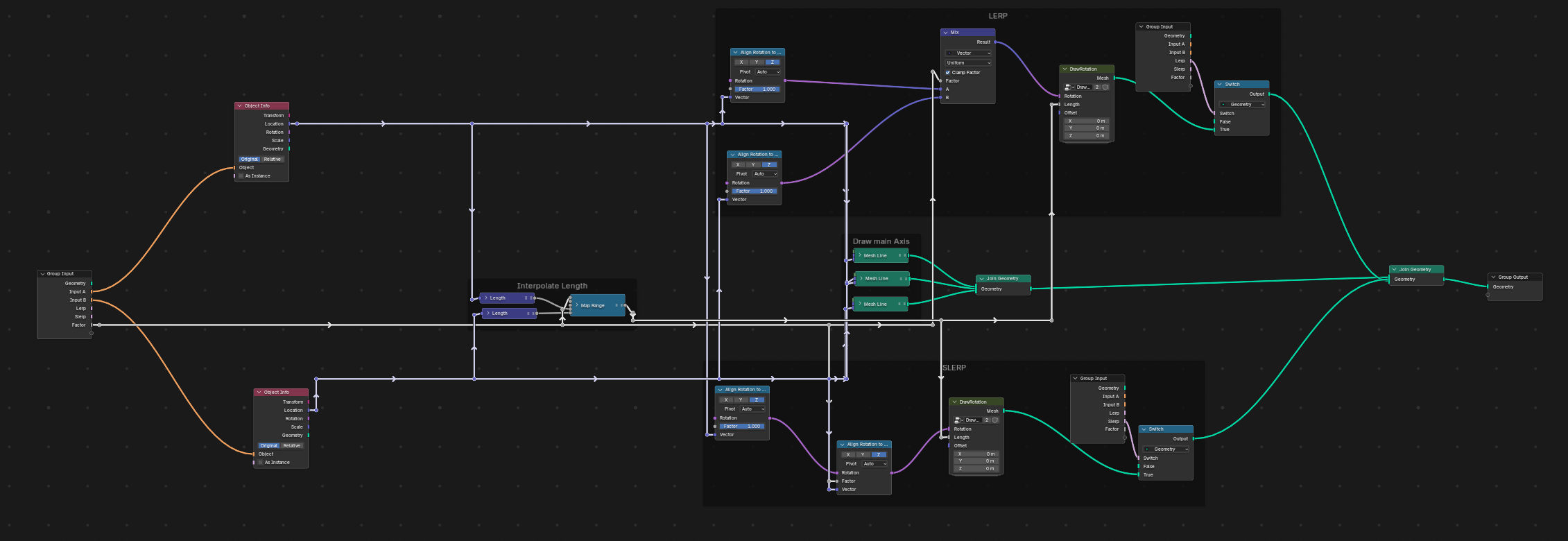
Rerouting Modes
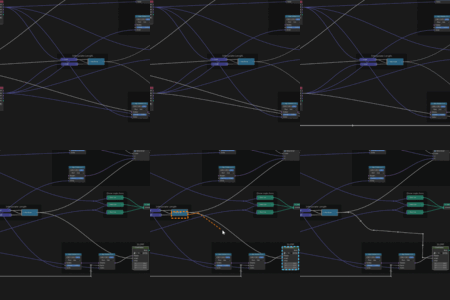
Three routing modes are available. Minimal consolidates shared lines, Orthogonal prefers stronger right-angle structure, and Metro focuses on readable obstacle avoidance.
Minimal
Orthogonal
Metro
Scripted Groups
Scripted groups are normal Blender node groups backed by a text datablock that defines inputs, UI, and graph construction. Create them from Add > Group > Scripted Group or Scripted Group From Selection. The contextual panel appears only when the active node is a scripted group node.
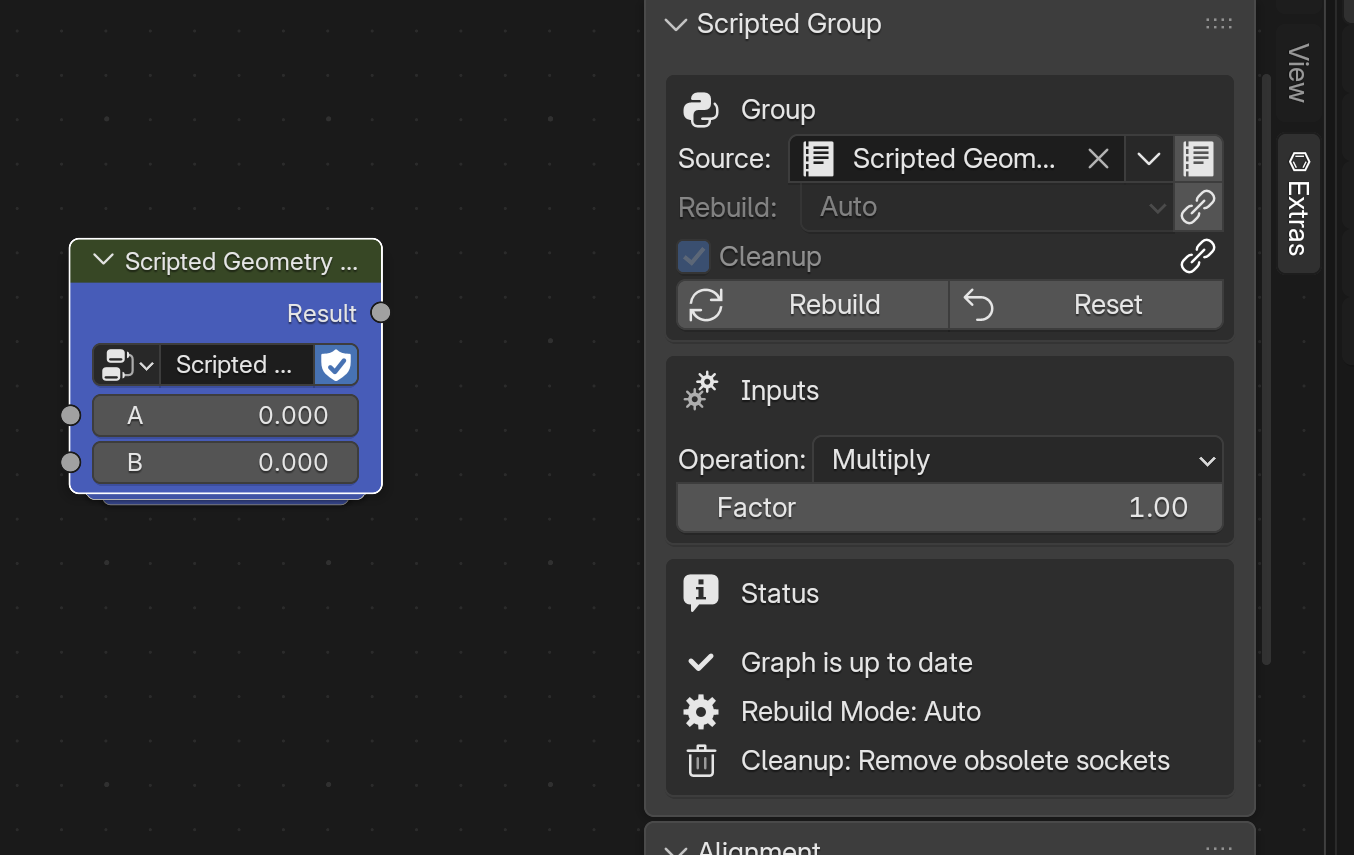
The panel lets you assign or open the source text datablock, load shipped templates, control rebuild mode, and inspect warnings or dirty state before rebuilding.
Script Structure at a Glance
INPUTS = {
"strength": {
"label": "Strength",
"type": "FLOAT",
"default": 1.0,
"min": 0.0,
"max": 10.0,
},
}
def draw_ui(layout, inputs, ui):
ui.draw_defaults(layout)
def build_props(inputs, io):
io.input("value", "float", name="Value")
io.output("result", "float", name="Result")
def build_graph(inputs, graph):
graph.link(graph.input_node.outputs[0], graph.output_node.inputs[0])
Start with one input, one output, and a very small build_graph(...) function. Rebuild often as you expand the group.
First Scripted Group
- Add a Scripted Group from the group menu.
- Select the new node.
- Open the Scripted Group sidebar panel.
- Pick a template from the dropdown or edit the generated source.
- Click Rebuild if the group is in manual mode.
Snippets
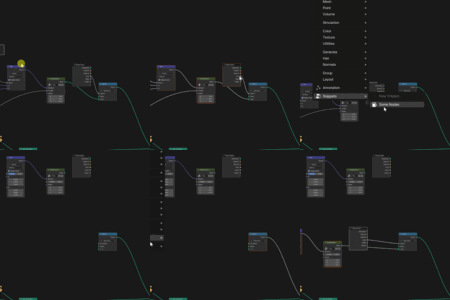
Snippets capture a selected node arrangement so it can be reused later. Create and place snippets from the Snippets sidebar panel or from Add > Snippets in the node editor header.
- Snippets are filtered by compatible tree category.
- Entries with missing dependencies are hidden from placement.
- Each snippet can store a display name, a tree category, and an Auto Connect flag.
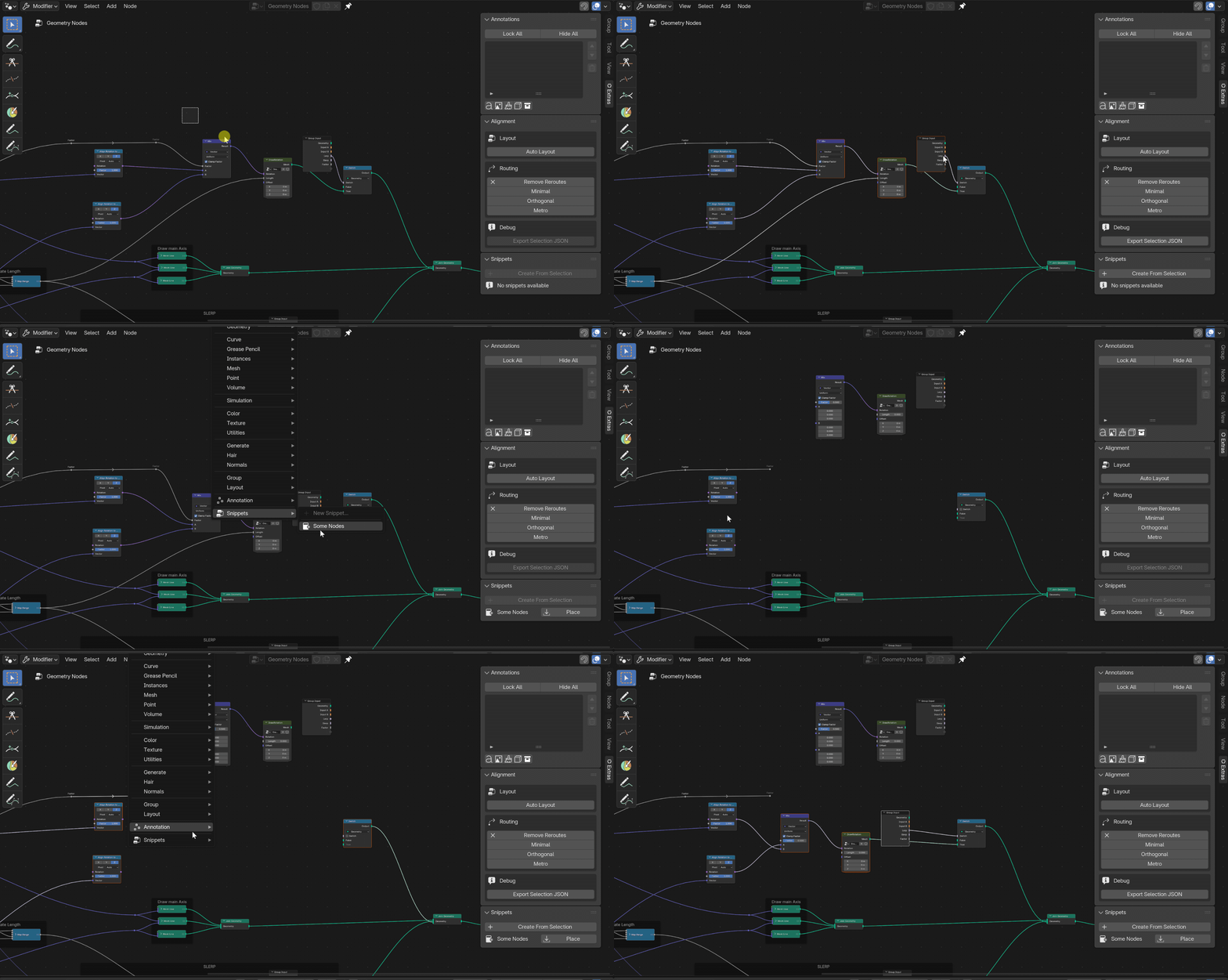
First Snippet
- Select a group of nodes.
- In Snippets, click Create From Selection.
- Give the snippet a name.
- Move the node editor cursor where you want the snippet to appear.
- Click Place from the sidebar or use Add > Snippets.
Preferences and Shortcuts
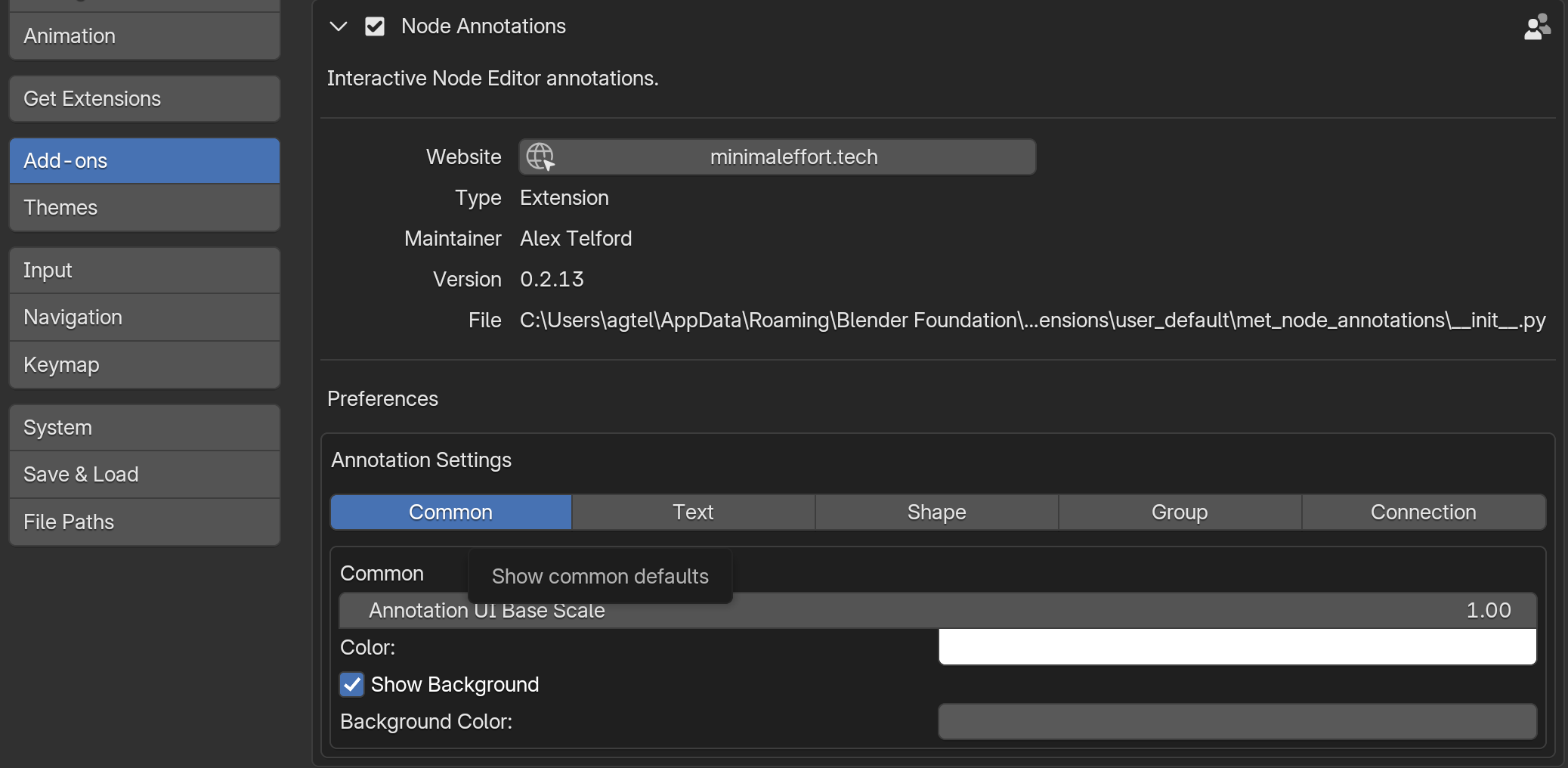
Open the add-on preferences to set global defaults and library settings. Feature tabs are registered per subsystem: Annotations, Scripted Groups, Alignment, and Snippets.
- Annotations: style defaults, handle sizes, text, shape, group, and connection presets.
- Scripted Groups: rebuild defaults, socket cleanup, auto-rebuild delay, and safety threshold.
- Alignment: layout spacing, reroute spacing, failure tolerance, and quick-align increments.
- Snippets: snippet library, category filtering, dependency visibility, ordering, and deletion.
Shortcuts and interaction summary
-
Ctrl+V: paste image or text as an annotation. -
Ctrl+G: create a group from the current annotation selection. -
Ctrl+D: duplicate the active or selected annotation. -
Tab: start text editing for the active text annotation. -
XorDelete: delete the selected annotation. -
Enter: commit drawing and reroute-path modal sessions where prompted. -
Escor right-click: cancel drawing and modal tool sessions.
Developer Guide
This section is for developers extending the current Node Graph Extras add-on. It captures the current architecture, extension points, and build workflow so changes can be made coherently instead of through isolated patches.
Licensing and Support Scope
Developers are allowed to study, modify, and redistribute this extension under the GPL license terms that ship with the project. That permission does not imply ongoing patch support for custom forks or modified builds.
Limited sales support is intended for the shipped extension and supported workflows. If you customize the extension for your own pipeline, you are responsible for maintaining those changes and fixing bugs introduced by that custom work. If you require assistance for an official feature while using a custom build, indicate that in the support request and confirm the issue reproduces without your local changes when possible.
Build Tooling
This project uses beb (Blender Extension Builder) to validate, build, install, and deploy extension packages from manifest.json.
# Windows
.venv\Scripts\activate
# macOS / Linux
source .venv/bin/activate
pip install beb
Product Overview
met is the MinimalEffortTech prefix used in Blender ids, and nge is shorthand for Node Graph Extras. The repository contains a shared core plus the main deployed feature areas:
-
common: identifiers, preferences, registration, shared structs, export and import helpers, and utilities. -
annotations: diagramming, notes, images, groups, and connections in the node editor. -
alignment: auto-layout, reroute insertion and removal, quick align, and routing helpers. -
scripted_groups: programmable node groups backed by Blender text datablocks.
Blender Identifier Policy
Use nodegraph_extras.common.core.identifiers for all Blender-facing ids.
Annotations Architecture
Annotations are built around an implementation registry.
-
annotations.impl.registrystorestype_id -> implementation. -
annotations.impl.__init__dispatches draw, panel, invoke, and modal hooks. -
annotations.ui.panelsasks the active implementation to draw type-specific controls.
Alignment and Routing Architecture
Alignment and routing are implemented as one feature area with shared preferences, operators, tools, and internal planning code.
Scripted Groups Architecture
Scripted groups let users generate node groups from source text while still editing them through Blender UI. The active panel appears only when the selected node points at a scripted group node tree with scripted metadata.
Built-in UI and Input Contracts
- Sidebar panels live under Node Graph Extras in the node editor.
- Annotations and Alignment are persistent panels.
- Scripted Group is contextual and appears only for active scripted nodes.