Node Tracer
 MNC Development
Node Tracer — Documentation
Requires Blender 5.2 or later.
1. In Blender, open Edit > Preferences > Get Extensions.
2. Click the dropdown arrow at the top right of the window and choose Install from Disk…
3. Select NodeTracer-1.0.0.zip. Blender asks for no permission: the add-on reads and writes nothing on disk and never accesses the network.
4. The extension installs and enables itself. There is nothing to set up: the Double Click trigger is already active in every Node Editor, and Ctrl + L is ready to select a chain.
To update later, install the newer zip the same way; it replaces the previous version. To stop tracing, disable the add-on in Edit > Preferences > Add-ons: its highlight and its shortcuts go away immediately. The add-on adds no data to your files: it only draws on top of the Node Editor, so your .blend files open exactly the same without it.
With the default Double Click trigger, a double-click is all it takes.
1. In a Node Editor — Shader Editor, Geometry Node Editor or Compositor — double-click a node, on its header or on an empty spot of its body rather than on one of its fields.
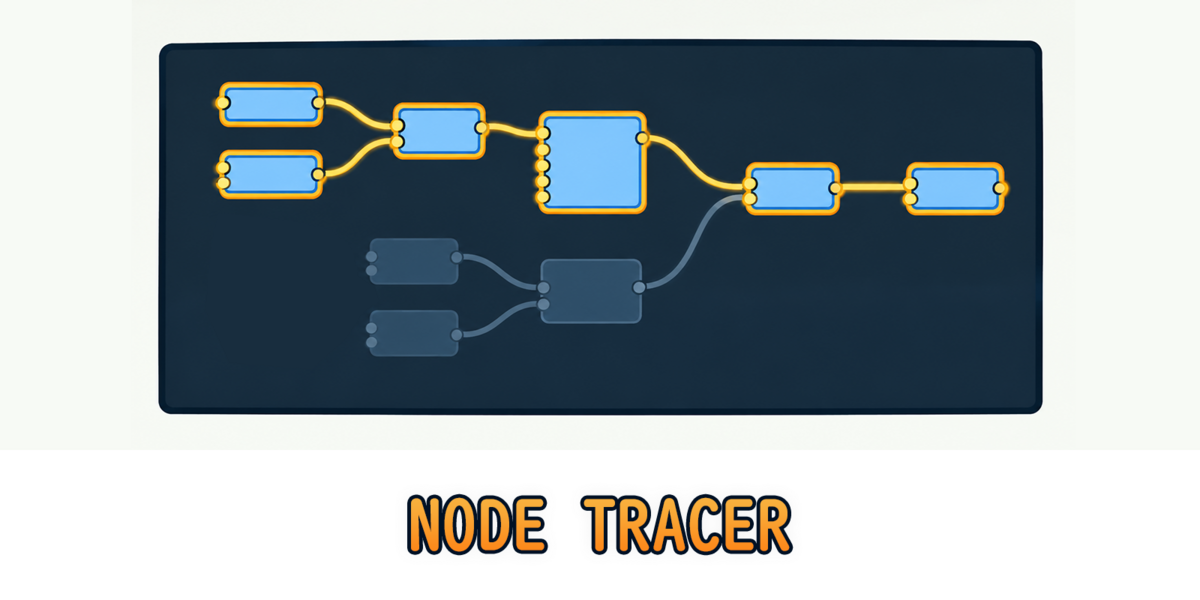
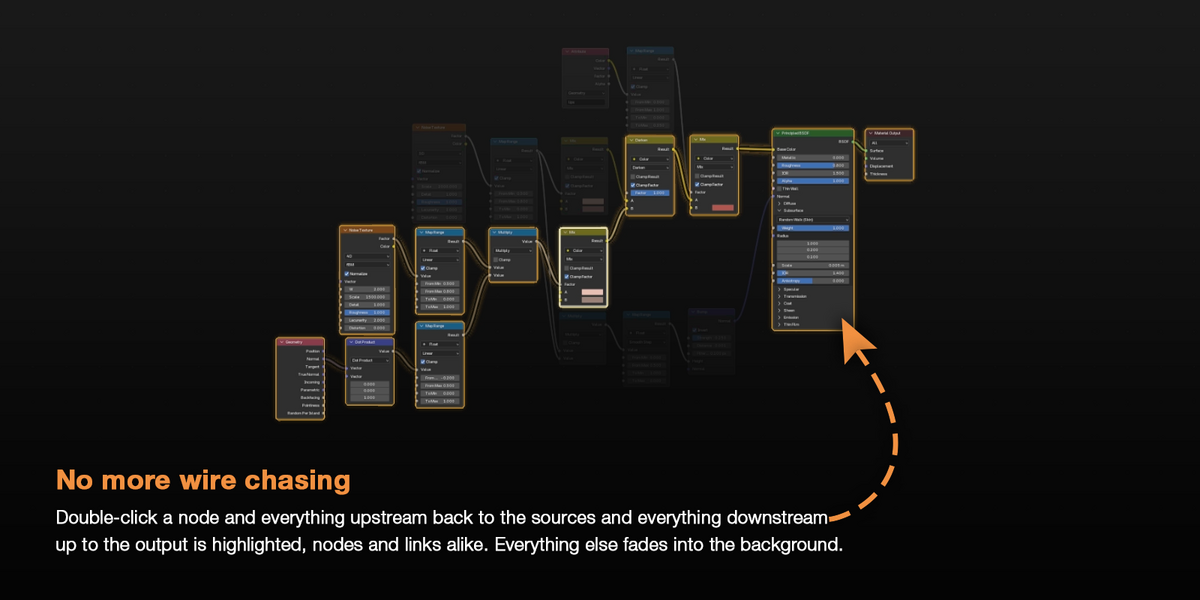
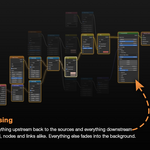
2. The node and its whole chain light up: every node that feeds it, back to the sources, every node it feeds, up to the output, and the links between them. The rest of the tree fades toward the editor background.
3. To clear the trace, double-click the same node again, or double-click empty space. Double-click another node to move the trace to it.
The trace stays where you put it while you work: move the mouse, pan, zoom, select or drag nodes — the highlight follows the nodes as they move. Each Node Editor keeps its own trace, and showing another node tree in the editor hides it until you come back. Double-clicking a node group traces it instead of entering it: press Tab to enter the group, as usual.
The Trigger setting decides what starts a trace. Change it in the preferences, see section 8.
| Double Click | The default. A double-click traces a node until you double-click it again or double-click empty space, see section 2. |
| Hover | The node under the mouse cursor is traced. When the cursor leaves a node, its chain stays lit for a fraction of a second, so crossing the gap between two nodes doesn't flicker. |
| Selection | The active node is traced while it is selected. With several nodes selected, only the active one is traced. Click empty space to deselect everything and clear the trace. |
| Hover + Selection | The hovered node is traced. When the cursor is not over a node, the active node is traced instead, as long as it is selected. |
Frames are never traced: hovering or double-clicking the empty part of a frame acts like empty space, and the nodes inside it are traced normally. With any trigger other than Double Click, a double-click keeps Blender's own behavior and enters node groups.
Node Tracer reads the links of the node tree: the chain is every node the traced node depends on, and every node that depends on it.
| Upstream | Every node feeding the traced node, through any number of links, back to the nodes that have no linked inputs. |
| Downstream | Every node it feeds, up to the outputs of the tree. |
| Links | The links along which the traced node's data travels. A link that bypasses the traced node stays faded, even when both of its nodes are lit. |
| Reroutes | Traced like any other node. |
| Zones | The input and output nodes of a Repeat, Simulation, For Each or Closure zone are traced together, as if they were linked. |
| Muted and invalid links | Followed and highlighted like the others. Turn Follow Muted Links off to stop at muted links, see section 9. |
| Node groups | A group node is traced as a single node: the trace does not go inside the group. Once you are inside a group, the trace covers that group's own tree. |
A link to a hidden socket is followed but not drawn — Blender doesn't draw it either. Frames and zone backgrounds fade with the rest of the tree; the traced nodes inside them stay lit. The Depth, Upstream and Downstream settings can limit the chain, see section 9.
With Socket Precision on, the default, you can trace one socket instead of the whole node.
1. Double-click right on the circle of a socket — or, with a Hover trigger, hover it.
2. A ring in the Focus color marks the socket, and only the chain flowing through it lights up.
| Input socket | Upstream, only the links plugged into that socket are followed. Downstream, the whole chain of the node is traced, since the input affects its outputs. |
| Output socket | Downstream, only the links leaving that socket are followed. Upstream, the whole chain of the node is traced. |
| Collapsed nodes | Their sockets can be traced too. |
| Reroutes | Always traced as a whole. |
Double-click the header of the node to go back to tracing the whole node. Turn Socket Precision off to always trace whole nodes. Tracing a socket needs the exact position of each socket: if the preferences show Approximate socket positions, see section 9.
The chain keeps its full brightness, while everything else fades toward the editor background.
| Traced node | Outlined in the Focus color, with a thicker line. |
| Other chain nodes | Outlined in the Chain color, or in the Upstream and Downstream colors when Colors is set to Direction. |
| Links | They keep their own wire colors, tinted toward the chain color by Link Tint. |
| Glow | A soft glow around the chain nodes and links. It stays behind the nodes and never covers them. |
| Fading in and out | The highlight appears and disappears over the Transition time. Moving the trace from one node to another is instant. |
| Overlays | Turning off Overlays in the Node Editor header hides the highlight, like Blender's other overlays. |
To move, frame or copy the nodes of a chain, turn the trace into a selection with Select Chain.
1. Trace a node, or make it the active node.
2. With the mouse over the Node Editor, press Ctrl + L.
3. Every node of the chain is selected, every other node is deselected, and the traced node becomes the active node. The status bar tells how many nodes were selected.
| Which node | The node traced with a double-click first, then the hovered node, then the active node if it is selected. |
| Settings | Depth, Upstream, Downstream, Follow Muted Links and the traced socket apply, exactly as for the highlight. |
| Undo | Select Chain is a regular undo step: Ctrl + Z brings the previous selection back. |
With nothing traced and no active selected node, the status bar says “Trace or select a node first”. The command is also listed in Edit > Preferences > Keymap, see section 8.
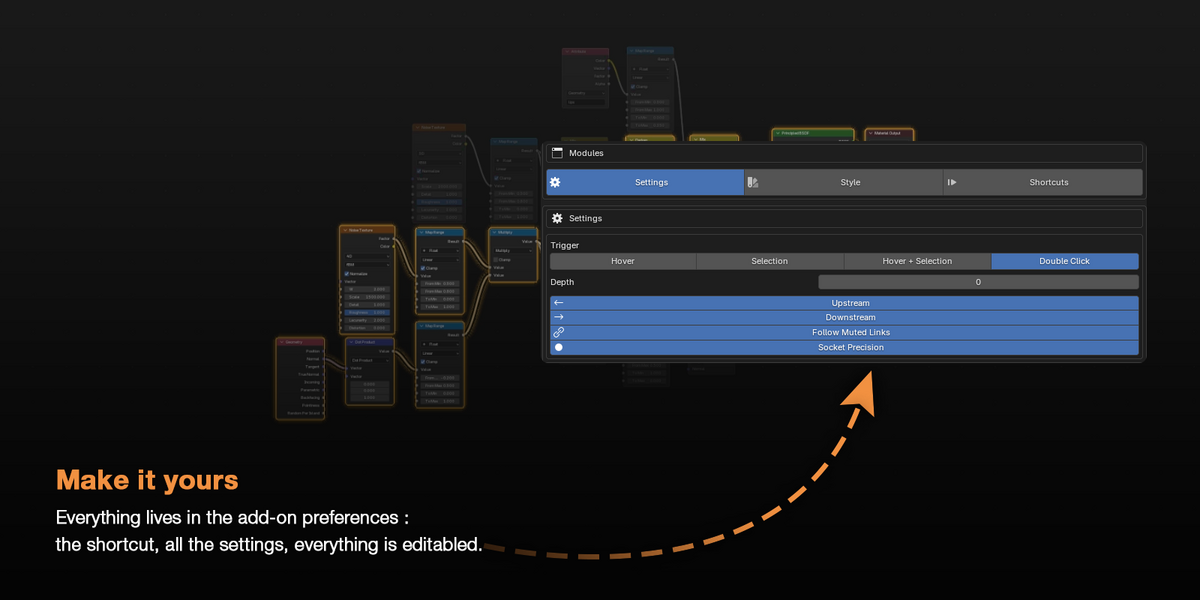
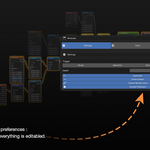
Open Edit > Preferences > Add-ons and expand Node Tracer. The three buttons at the top switch between the Settings, Style and Shortcuts modules. Each change applies to every Node Editor right away — no restart, no need to reopen the file.
| SETTINGS | |
| Trigger | What starts a trace: Hover, Selection, Hover + Selection or Double Click, see section 3. Double Click by default. |
| Depth | How many links are followed from the traced node. 0, the default, follows the whole chain; 1 traces only its direct neighbors. |
| Upstream | Trace the nodes that feed the traced node. On by default. |
| Downstream | Trace the nodes that the traced node feeds. On by default. With Upstream and Downstream both off, only the traced node is lit. |
| Follow Muted Links | Keep tracing through muted links. On by default. |
| Socket Precision | Trace a single socket when you pick one, see section 5. On by default. |
| STYLE | |
| Fade | How much the rest of the tree fades out, from 0, no fading, to 1. 0.70 by default. |
| Transition | Duration of the fade in and fade out, in seconds. 0 makes it instant. 0.15 by default. |
| Colors | Single uses the Chain color for the whole chain; Direction gives the upstream and downstream sides their own colors. Single by default. |
| Chain, Upstream, Downstream, Focus | The highlight colors. Focus colors the traced node and the ring of a traced socket. |
| Outline | Width of the outline around the chain nodes, in pixels. 0 hides it. 1 px by default. |
| Glow | Strength of the glow around the chain. 0 hides it. 0.50 by default. |
| Glow Size | Size of the glow, in pixels. 8 px by default. |
| Link Tint | How much the links take the chain colors, from 0, their own wire colors, to 1. 0.35 by default. |
| Reset Style | Brings every Style setting back to its default. |
| SHORTCUTS | |
| Trace Node | Double-click by default, shown as dbl-Left Mouse in Blender. It is only used by the Double Click trigger. |
| Select Chain | Ctrl + L by default, see section 7. |
| Changing a shortcut | The checkbox turns a shortcut on or off. Click the button, then press the new combination; the arrow that appears next to it restores the default. |
The settings are saved with your preferences. The shortcuts are regular Blender keymap entries: they are saved with your preferences too, and listed in Edit > Preferences > Keymap, under Node Editor. Hover tracing uses a third entry, Node Tracer Hover, under Window: keep it on for the Hover triggers to work.
| Double-clicking a node group doesn't open it anymore | Expected with the Double Click trigger: the double-click traces the group. Press Tab to enter it, or choose another trigger. |
| The preferences show “Approximate socket positions” | Node Tracer could not read the exact socket positions in this Blender version. Tracing still works, but the highlighted links may sit slightly off the real ones and single sockets can't be traced. Install the latest version of the add-on. |
| Ctrl + L says “Trace or select a node first” | No node is traced or hovered, and the active node is not selected. Trace a node or click one, then press Ctrl + L again. |
Node Tracer · Requires Blender 5.2 or later
Have questions about this product?
Login to message
| Blender Extension Compatible | Yes |
| Published | 12 days ago |
| Blender Version | 5.2 |
| Extension Type | Add-on |
| License | GPL |
Discover more products like this
addon Node Node Workflow geometrynodes compositor advanced Blender nodes Workflow shader editor