Nodecraft
 Bohx Foundry
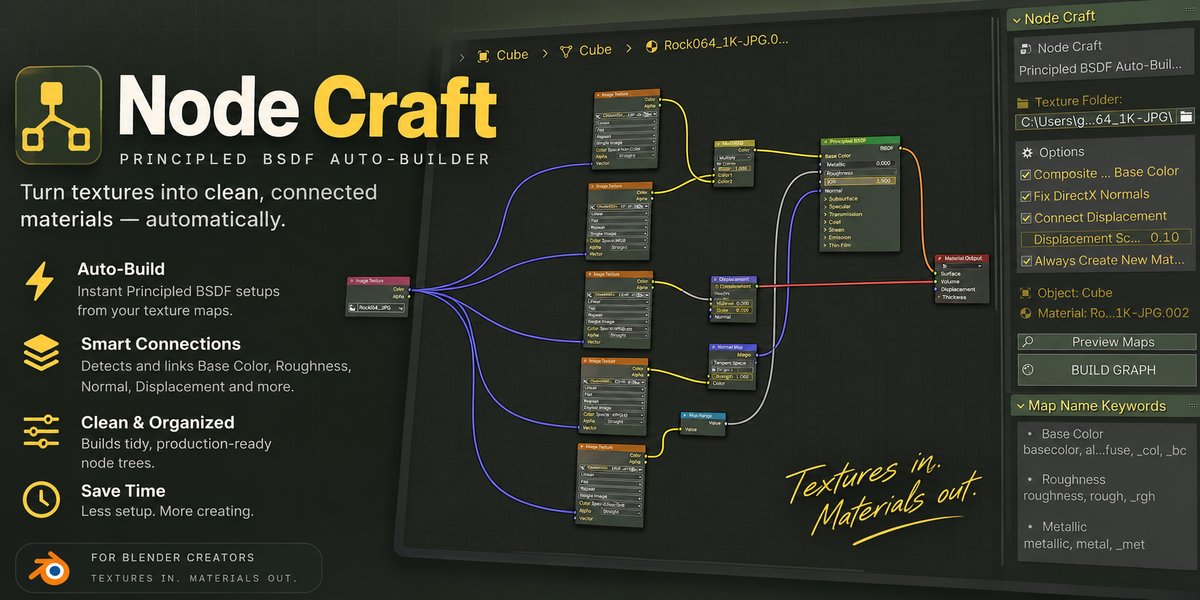

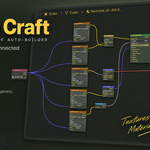
What does "Always Create New Material" do?
With toggle OFF (default):
Object has Material A (custom nodes)
You build Node Craft
Material A's nodes → replaced with auto-generated graph
Original Material A is gone (unless you undo immediately)
With toggle ON:
Object has Material A (custom nodes)
You build Node Craft
Material A stays untouched
Material B is created with auto-generated graph
Material B is applied to the object
Both materials exist in your blend file
Switch between them in Material Properties
Use cases for ON:
Preserving custom materials
Testing multiple texture folder builds
Comparing different PBR setups
Safety when experimenting
Does Node Craft work with procedural textures?
No, Node Craft is designed for image-based textures only. It scans folders for files and loads them as Image Texture nodes.
For procedural workflows, build the graph manually or use node groups.
What's the difference between "Composite AO" and leaving AO separate?
Composite AO ON (default): AO is multiplied into Base Color via a Mix node. This bakes the AO effect directly into the base and is more efficient
Composite AO OFF: AO texture is loaded but not connected. You can manually wire it into the mix for control, or leave it for later post-processing
Use Composite ON for simpler setups. Use OFF if you want fine control over AO strength.
Do I need to unwrap UVs myself?
No. If your object has no UVs, Node Craft auto-unwraps using angle-based unwrapping when you hit BUILD GRAPH. If it has existing UVs, they're used as-is.
For best results, manually unwrap in Edit Mode before running Node Craft for more control.
Can I save Node Craft settings for reuse?
Node Craft remembers your folder path and toggle settings for the current Blender session. They're stored in the scene, so:
Save your .blend file → settings persist
Close Blender → settings reset to defaults
For permanent presets, you'd need to modify the addon code or use a Python script.
Can Node Craft detect maps by folder structure instead of filename?
No, it only uses filenames. If you have separate folders like textures/albedo/, textures/roughness/, etc., you'll need to:
Move all files to a single folder, or Rename them with keywords before running Node Craft
Displacement doesn't show
Ensure Connect Displacement toggle is ON in Node Craft panel
Render engine must be Cycles
In Render Properties → Cycles → Displacement:
Set to Displacement Only or Displacement and Bump
Height map keyword must be in filename (height, displacement, _disp, etc.)
Increase Displacement Scale slider (default 0.1 is subtle)
Opacity/Alpha not working
Make sure "Opacity" keyword is in the filename
Verify viewport shading is Material Preview or Rendered
Node Craft auto-sets blend method to BLEND
In Material Properties → Blend Mode, confirm it's not Opaque
Object has UVs but textures show wrong (stretched/repeated)
Node Craft connects to the first UV map by default
If your object has multiple UV maps, ensure the correct one is active
In Object Data Properties → UV Maps → click the eye icon on the right map
Re-run BUILD GRAPH to wire the new UV map
No object selected / No material yet
In the viewport, select the mesh object (not empty, not camera)
Switch to Shader Editor (top bar → change editor type)
Confirm object name appears in Node Craft panel
Click BUILD GRAPH
Roughness/Metallic looks flat (no variation)
Ensure the texture files for Roughness/Metallic are actually present in the folder
Check that "Roughness" and "Metallic" keywords are in the filenames
Verify they're not being overridden by a packed ORM map
If using color textures (not grayscale): Node Craft auto-converts via RGB→BW, which reads luminance
Normal map is inverted (lighting looks wrong)
If using DirectX normal maps: ensure filename contains _dx, directx, -dx, or dx_
Node Craft will auto-flip the G channel
If using OpenGL normal maps: make sure filename does not contain DirectX keywords
If still inverted after that: manually add an Invert node after Normal Map and toggle its Color input
Textures appear pink/checkerboard in viewport
Ensure render engine is Cycles (EEVEE has limited support for certain node setups)
In Shader Editor viewport shading, switch to Material Preview or Rendered (not solid)
Check file paths are absolute and images are accessible
Verify color spaces in Image Texture nodes (select node → Properties panel)
No recognized texture maps found."
A: Check:
Folder path is set and valid
Texture filenames contain at least one keyword from the detection table (e.g., "albedo", "roughness", "normal")
Files are supported formats: .png, .jpg, .jpeg, .exr, .tif, .tiff, .tga, .hdr, .bmp
Filenames are not encrypted or have weird encoding
Use Preview Maps to debug.
$10
Have questions about this product?
Login to message
| Blender Extension Compatible | Yes |
| Published | 16 days ago |
| Blender Version | 4.2 - 5.2 |
| Extension Type | Add-on |
| Render Engine Used | Cycles, Eevee |
| License | Mit |