Normalforge
 3DC JAN KASPERCZYK


NormalForge for Blender — Documentation
Overview
Ai has been used while creating this addon for code revision and to help to write the documentation.
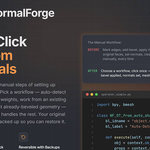
NormalForge is a professional Blender add-on that automates the bevel + custom normals workflow for game-ready meshes. Instead of manually applying modifiers, fixing n-gons, selecting faces, and transferring normals, NormalForge handles the entire pipeline in a single click while preserving your original mesh through a non-destructive backup system.
Whether you're preparing hard-surface assets for Unreal Engine, Unity, or any real-time pipeline that requires explicit custom normals, NormalForge eliminates the tedious manual steps and ensures consistent, professional results every time.
Why NormalForge?
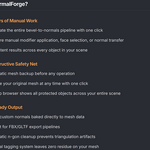
Save Hours of Manual Work
- Automate the entire bevel-to-normals pipeline with one click
- No more manual modifier application, face selection, or normal transfer
- Consistent results across every object in your scene
Non-Destructive Safety Net
- Automatic mesh backup before any operation
- Restore your original mesh at any time with one click
- Backup browser shows all protected objects across your entire scene
Game-Ready Output
- Clean custom normals baked directly to mesh data
- Perfect for FBX/GLTF export pipelines
- Automatic n-gon cleanup prevents triangulation artifacts
- Material tagging system leaves zero residue on your mesh
Core Features
Automated Workflows
NormalForge provides four distinct workflow operators, each designed for a different starting point in your asset pipeline:
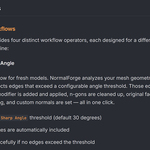
1. Auto-Detect by Angle
The fastest workflow for fresh models. NormalForge analyzes your mesh geometry and automatically detects edges that exceed a configurable angle threshold. Those edges receive bevel weights, a bevel modifier is added and applied, n-gons are cleaned up, original faces are selected via material tagging, and custom normals are set — all in one click.
- Configurable
Sharp Anglethreshold (default 30 degrees) - Boundary edges are automatically included
- Falls back gracefully if no edges exceed the threshold
2. From Bevel Weights
For artists who prefer to hand-paint their bevel weights for maximum control. NormalForge reads your existing bevel weight data and runs the full pipeline using those weights. If no weights are found, it automatically falls back to angle detection so you never get a dead-end.
- Reads the
bevel_weight_edgelayer directly - Respects your manual weight painting decisions
- Automatic angle-based fallback if no weights exist
3. From Existing Bevel Modifier
Already have a bevel modifier on your object? This workflow takes your existing modifier, applies it, and handles the rest. It appears automatically in the panel when a bevel modifier is detected on the selected object.
- Applies your existing bevel modifier with all its current settings
- Uses material tagging to identify original vs. bevel faces
- Preserves your modifier's width, segments, profile, and all other settings
4. From Existing Geometry
For meshes that already have bevel geometry applied (no modifier present). NormalForge uses an intelligent face-area detection algorithm with flood-fill propagation to automatically identify which faces are bevel strips and which are original surfaces, then sets custom normals on the original faces.
- Median-based area analysis separates small bevel faces from large original faces
- Flood-fill propagation follows entire bevel chains, even multi-segment bevels
- Configurable
Detection Ratiothreshold for different mesh densities - Adjacency validation prevents false positives on uniformly small geometry
Full Bevel Modifier Control
NormalForge exposes the complete set of Blender's bevel modifier parameters in a collapsible panel (collapsed by default to keep the UI clean). Every setting you can configure on a native bevel modifier is available here:
| Setting | Description | Default |
|---|---|---|
| Width | Bevel width | 0.02 |
| Segments | Number of bevel segments | 1 |
| Profile | Profile curvature (0.5 = round) | 0.5 |
| Affect | Edges or Vertices | Edges |
| Width Type | Offset, Width, Depth, Percent, or Absolute | Offset |
| Clamp Overlap | Prevent bevel from overlapping geometry | Off |
| Loop Slide | Prefer sliding along edges over even widths | On |
| Mark Seam / Sharp | Automatically mark seam or sharp edges on bevel faces | Off |
| Outer / Inner Miter | Sharp, Patch, or Arc miter patterns | Sharp |
| Spread | Arc spread for inner miters (visible when Inner Miter = Arc) | 0.1 |
| Intersection Method | Grid Fill or Cutoff | Grid Fill |
| Face Strength | None, New, Affected, or All | None |
Backup & Restore System
Every NormalForge operation automatically creates a full mesh backup before modifying your geometry. This gives you a non-destructive safety net:
- Automatic Backup — Created before every workflow operation, no manual step required
- One-Click Restore — Instantly revert to your original mesh with all original topology intact
- Clear Normals Only — Remove custom normals without restoring geometry (keeps the bevel geometry but removes the custom shading)
- Backup Browser — A dedicated panel section showing every object in your scene that has a NormalForge backup, with individual restore buttons for each
-
Persistent Storage — Backups survive file save/load using Blender's
use_fake_usersystem
Automatic Geometry Cleanup
After applying the bevel modifier, NormalForge automatically cleans up problematic geometry:
- N-gon Detection — Finds faces with 5+ vertices created by the bevel operation
- Smart Triangulation — Converts n-gons using the Beauty method for optimal triangulation
- Quad Reconversion — Attempts to reconvert tris back to quads where topology allows, preserving clean quad flow
- Material Tag System — Uses temporary tagged materials to identify bevel vs. original faces, then cleans up all tag materials after completion leaving zero residue
Mesh Info Panel
The panel displays real-time mesh statistics for the selected object:
- Vertex and polygon counts
- Custom normals status (Yes/No)
- Sharp edge and seam edge counts
- Active modifiers list with type icons
Professional Workflow Integration
Hard-Surface Game Asset Pipeline
-
Model your hard-surface object with clean topology
-
Set bevel weights on edges that should receive bevels (or skip this and use angle detection)
-
Run NormalForge — choose the appropriate workflow for your situation
-
Verify results in the viewport with smooth shading
-
Export your FBX/GLTF with baked custom normals
Retro-Fitting Existing Assets
-
Import an asset that already has bevel geometry applied
-
Run "From Existing Geometry" to auto-detect bevel faces
-
Adjust Detection Ratio if needed for your specific mesh density
-
Custom normals are set automatically on original faces
Iterative Refinement
-
Run any NormalForge workflow
-
Check the result in viewport
-
Restore via the backup system if adjustments are needed
-
Adjust bevel settings (width, segments, profile) in the collapsible options
-
Re-run the workflow with new parameters
Technical Specifications
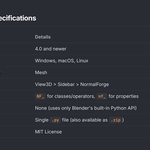
| Specification | Details |
|---|---|
| Blender Version | 4.0 and newer |
| Platform | Windows, macOS, Linux |
| Add-on Category | Mesh |
| Panel Location | View3D > Sidebar > NormalForge |
| Internal Prefix | NF_ for classes/operators, nf_ for properties |
| Dependencies | None (uses only Blender's built-in Python API) |
| File Format | Single .py file (also available as .zip) |
| License | MIT License |
Installation & Setup
-
Download the
normalforge.zip file
-
Open Blender and go to Edit > Preferences > Add-ons
-
Click "Install..." and select the downloaded
normalforge.zip file
-
Enable the "NormalForge" add-on by checking the checkbox
-
Access the panel via View3D > Sidebar (N key) > NormalForge tab
normalforge.zip filenormalforge.zip fileThe add-on is a single Python file with no external dependencies. It uses only Blender's built-in bpy and bmesh modules, so there's nothing extra to install or configure.
Panel Layout Reference
The NormalForge panel is organized into clearly separated sections:
Bevel Options (collapsed by default)
- Width, Segments, Profile
- Affect, Width Type
- Clamp Overlap, Loop Slide
- Mark Seam, Mark Sharp
- Outer/Inner Miter, Spread
- Intersection Method, Face Strength
Workflows
- Auto-Detect by Angle (+ Sharp Angle slider)
- From Bevel Weights
- From Existing Bevel Modifier (shown only when a bevel modifier exists)
- From Existing Geometry (+ Detection Ratio slider)
Toggle / Restore
- Restore Original Mesh button
- Clear Custom Normals Only button
- Backup status indicator
Saved Backups
- Lists all objects in the scene with NormalForge backups
- Individual restore button for each object
Mesh Info
- Vertex/polygon counts
- Custom normals status
- Sharp/seam edge counts
- Active modifiers
Operator Reference
| Operator | ID | Description |
|---|---|---|
| Auto-Detect by Angle | object.nf_from_auto_sharp |
Detect edges by angle, add bevel, apply, set normals |
| From Bevel Weights | object.nf_from_bevel_weight |
Use existing bevel weights or fall back to angle detection |
| From Existing Bevel | object.nf_from_existing_bevel |
Apply an existing bevel modifier and set normals |
| From Existing Geometry | object.nf_from_geometry |
Auto-detect bevel faces by area and set normals |
| Restore Original Mesh | object.nf_remove |
Restore mesh from backup, removing all modifications |
| Restore by Name | object.nf_restore_by_name |
Restore a specific object's backup from the backup browser |
| Clear Custom Normals | object.nf_clear_normals |
Remove custom normals without restoring geometry |
Troubleshooting
"No edges found to process"
- For angle detection: Lower the Sharp Angle threshold to capture more edges
- For bevel weights: Make sure edges have bevel weight values greater than 0
"No bevel faces detected"
- The From Existing Geometry workflow couldn't distinguish bevel faces from original faces
- Try adjusting the Detection Ratio — lower values are more aggressive at classifying faces as bevel geometry
- This can happen on meshes with very uniform face sizes
"No backup found to restore"
- Backups are only created when you run a NormalForge workflow
- If you saved and reopened the file, backups should persist. Check the Saved Backups section in the panel
Custom normals look wrong after export
- Make sure your export format supports custom normals (FBX and GLTF do)
- In FBX export settings, ensure "Smoothing" is set to "Normals Only" or "Face"
- In your game engine, verify the mesh import settings preserve custom normals
Bevel modifier panel not showing "From Existing Bevel" button
- This button only appears when the selected object has at least one Bevel modifier
- The modifier must be of type BEVEL (not a different modifier type)
-
$5
- Licensed to ONE (1) individual user. - The Licensee may install and use the Software on any number of personal computers, provided the Licensee is the sole user. - The Software may be used for personal projects, freelance work, and commercial projects where the Licensee is the sole operator.
-
$10
- Licensed to ONE (1) professional user. - The Licensee may install and use the Software on any number of personal and work computers, provided the Licensee is the sole user. - The Software may be used for personal projects, freelance work, client work, and commercial projects of any scale where the Licensee is the sole operator.
-
$80
- Licensed for up to TEN (10) named users within the Licensee's organization. - Each named user may install and use the Software on any number of workstations, provided they are the sole operator on those installations.
-
$300
- Licensed for up to FIFTY (50) named users within the Licensee's organization.
Have questions about this product?
Login to message

Discover more products like this
shading nanite modeling custom normal modeling Vertex normals nanite