Normalproof — Is Your Normal Map Upside Down? Checked, Fixed, Proven
 Skava
Skava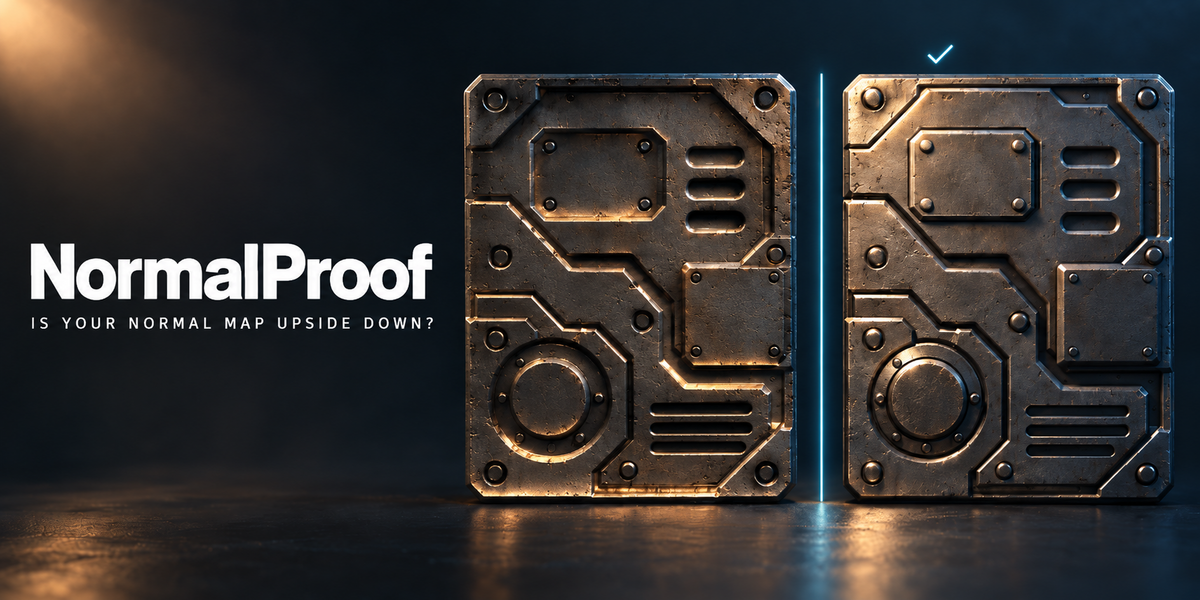
Install
- Keep the archive zipped. Do not unpack it.
- In Blender open Edit > Preferences > Add-ons.
- Press the arrow button in the top right corner and choose Install from Disk.
- Pick the archive from your purchase page and tick the checkbox next to NormalProof.
Press N in the 3D Viewport; the sidebar tab is called NormalProof. Nothing is downloaded and no external Python packages are installed.
Check
- Choose the reference:
- A high-poly: select the high-poly first, then the object with the normal map last so it is active — the order Blender bakes in.
- A height map: select only the object. Each material's height map, connected to a Displacement or Bump node, is used.
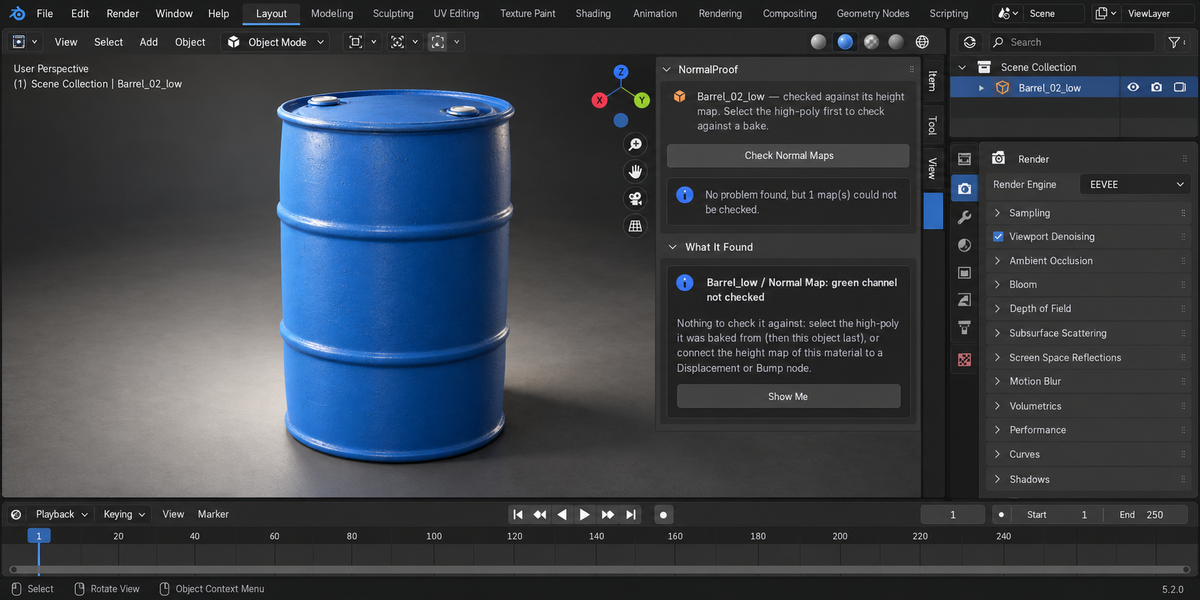
- Press Check Normal Maps. Every tangent-space Normal Map node in the object's materials is checked.
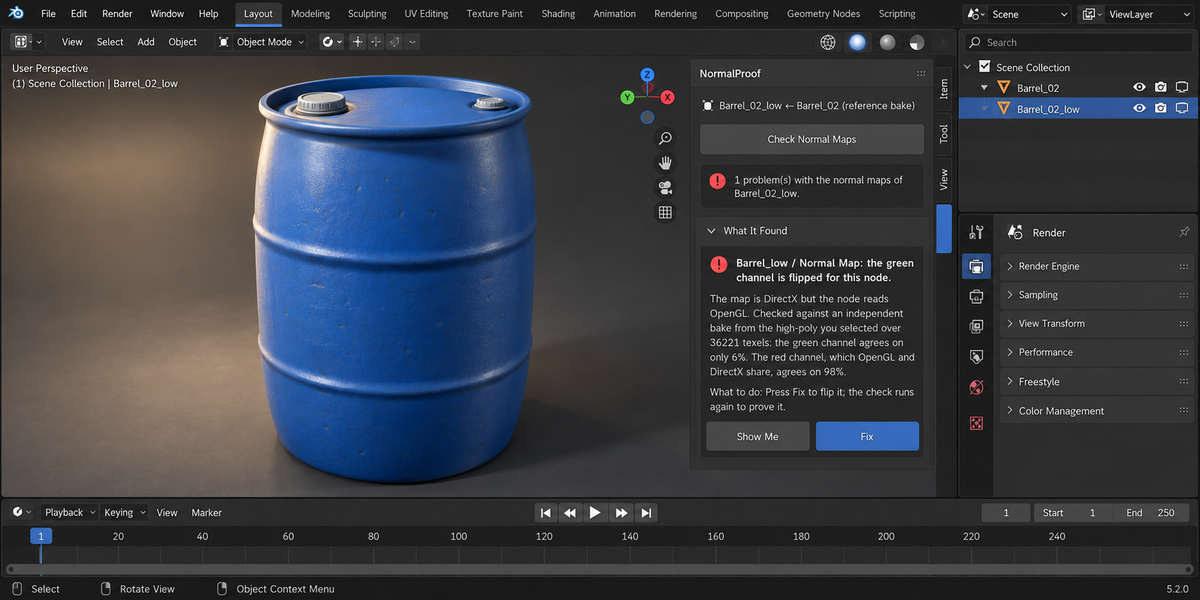
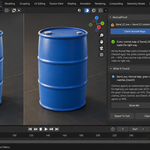
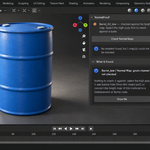
- Read What It Found: one entry per map, with the material and node, how many texels were compared and how many agreed.
Reading the findings
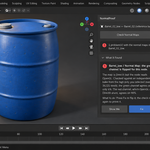
- The green channel is flipped for this node (must look at) — the map is DirectX and the node reads OpenGL, or the other way round.
- The normal map is read as colour (must look at) — the image is set to sRGB, so the node receives changed values and every normal tilts.
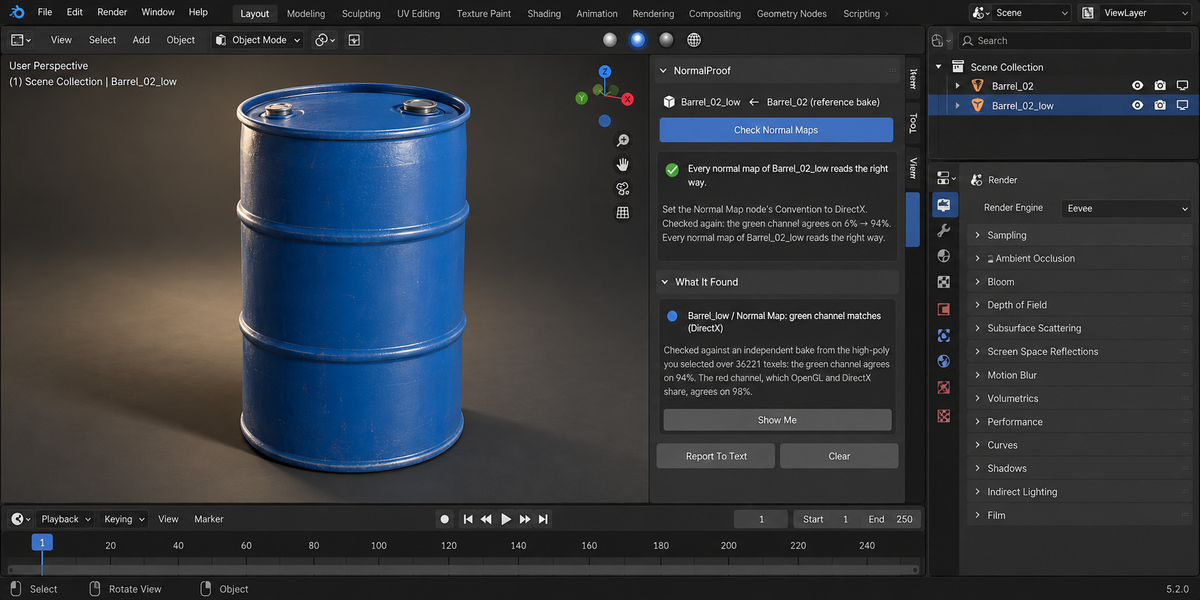
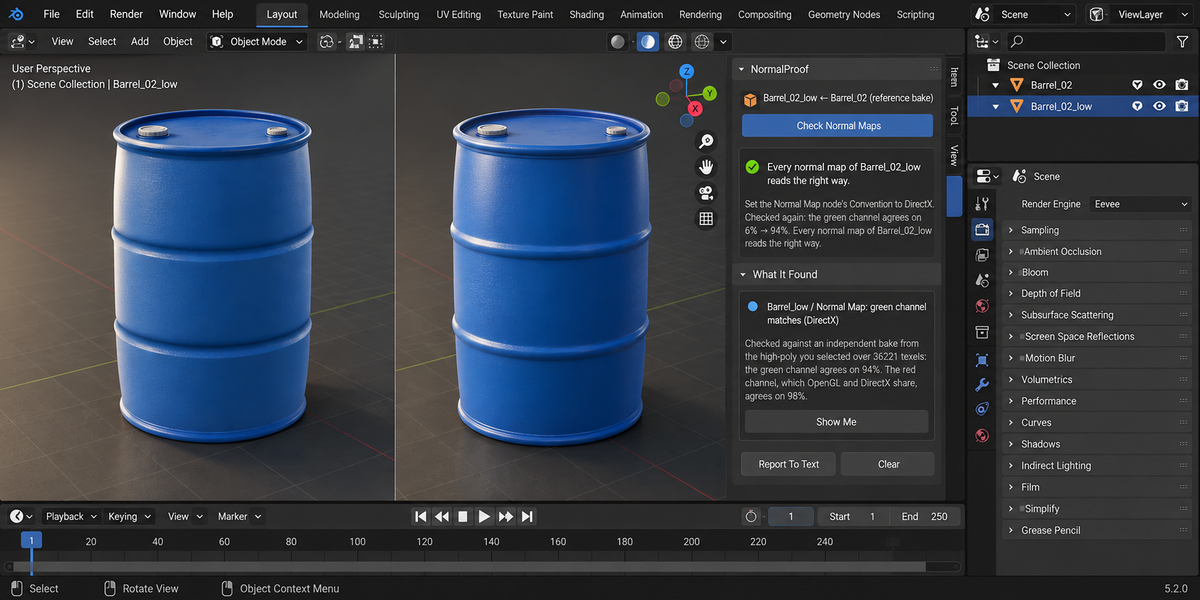
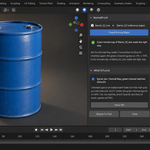
- Green channel matches (for the record) — the map and the node agree.
- Cannot tell which way the green channel points (worth a look) — the agreement is too close to half, or the red-channel control does not agree, so the reference does not match this map. Check it by eye.
- Green channel not checked (worth a look) — there was no high-poly and no height map, or too little detail to compare.
- Strength is … (for the record) — baked maps are made for 1.0.
Show Me makes the material and the Normal Map node active. Report To Text writes the whole check to a text block named NormalProof. Clear forgets the check.
Fix
- Flipped green channel: on Blender 5.x the node's Convention is switched between OpenGL and DirectX. On 4.2 a flip (Separate Color, 1 − G, Combine Color) is inserted in front of that Normal Map node, in the same connection; pressing Fix again removes it.
- Read as colour: the image is set to Non-Color. If the same image is used as a colour somewhere else in the file, the fix refuses and explains how to make a separate copy, because a colour space belongs to the image, not to the node.
After a fix the check runs again and the panel shows the new result. Every fix can be undone with Ctrl+Z.
Settings
- Check at — the resolution of the check bakes. Higher reads finer detail and takes longer.
What is changed in your file
Checking changes nothing: it bakes on temporary copies and puts back your bake settings, render engine, selection and active object. Only Fix changes your file, and only the node or image named in the finding.
Pipeline mode
NormalProof also runs from the Whole Delivery panel in the same tab and from the command line with the rest of the Proof line; there it uses the materials' height maps.
Limits
- Only tangent-space Normal Map nodes are checked. Object-space maps and maps inside node groups are not.
- Without a high-poly or a height map there is nothing independent to compare with, and the map is reported as not checked. NormalProof does not guess the format from the map alone.
Requirements
Blender 4.2 or newer. Checked on 4.2.9, 5.1.0, 5.2.0, 5.2.1 and 5.2.2.
Have questions about this product?
Login to message
| Published | 2 days ago |
| Blender Version | 4.2 - 5.2 |
| Extension Type | N/A |
| Render Engine Used | Cycles |
| License | GPL |
Discover more products like this
validation opengl proof PBR Game asset materials baking colour space normal map texture green channel directx