 Novacrat



Nova Views Documentation
Installation
 Nova Views uses Blender’s extension system, available since Blender 4.2.
After downloading the zip file, open Edit > Preferences in Blender and navigate to either the Add-ons or Get Extensions section. Click the dropdown menu in the top-right corner and select Install from Disk. Browse to your downloaded file and confirm installation.
Getting Started
Once installed, the Nova Views panel appears in the 3D Viewport sidebar (press N to open). By default, it opens in its own 🅝 Views tab, but you can configure it to use the built-in View tab in the add-on preferences.
Each 3D viewport also displays an indicator showing the current history state and active view.
The add-on registers the following shortcuts:
- Alt + Left / Right — navigate to the previous or next view in history
- Alt + Shift + 0–9 — assign a numbered slot to the current view, or save the current view directly to a slot
- Alt + 0–9 — restore the view assigned to a slot
Note for Mac users: Where Alt is mentioned, use the Option ⌥ key.
Viewport History
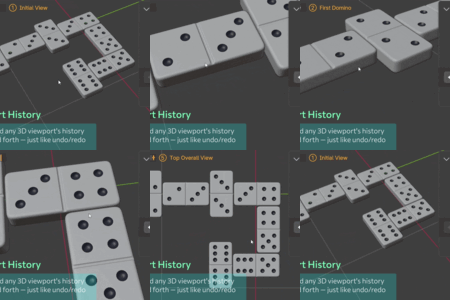
Nova Views tracks view history independently for each 3D viewport. When a view has been held stable for a set amount of time, it is added to that viewport’s history.
The current history state is shown both in the viewport indicator and in the Views History section. The label displays the index of the current view and the total number of entries in the history. If the current view is saved in the list, a small Diamond icon appears before the index.
You can navigate back and forth through the history using the Left / Right Arrow buttons in the section, or with the Alt + Left / Right shortcuts.
The history can be cleared with the Trashcan icon.
By default, history tracking starts automatically for every viewport when the file is opened. A Record icon in the subpanel header indicates that tracking is active. Click it to pause tracking for that viewport — the icon will change to a Pause icon.
History tracking can also be toggled globally in the Settings section.
Saved Views
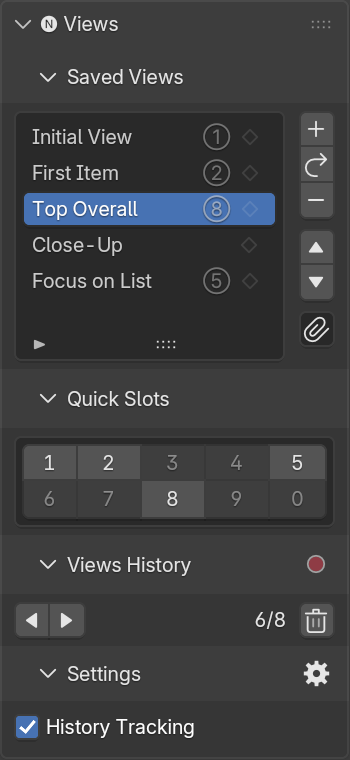
The Saved Views section displays your list of saved views with controls to manage them. You can save the current view at any time, or restore any saved view back to a viewport.
Saving and Restoring Views
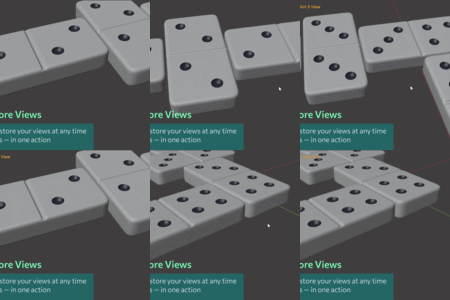
To save the current view, press the Plus icon. To overwrite the selected view with the current one, press the Update icon.
Each entry in the list has an Outlined Diamond icon on its right — click it to restore that view. If a view is currently active in the viewport, its icon is shown as a Filled Diamond.
Note: The Plus and Update icons are inactive when the current view is already saved in the list.
Organizing Views
Use the Up / Down icons to reorder views in the list. Use the Minus icon to delete a view. Double-click a view in the list to rename it.
The Clip icon opens the Quick-Access Slots assignment panel.
Quick Slots
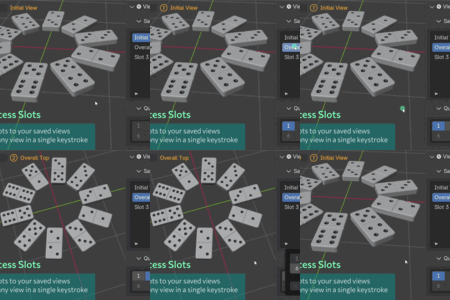
Ten numbered slots (0–9) can be assigned to saved views for instant access via Alt + 0–9.
The Quick-Access Slots section shows which slots are currently in use — unused slots appear grayed out. If the view assigned to a slot is currently active, that slot is shown as selected. Clicking an active slot immediately restores its assigned view.
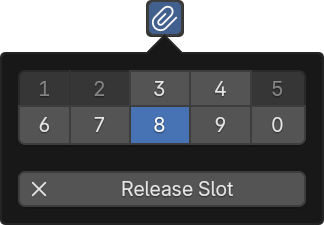 Slots are assigned using the Clip icon next to the list. The popup assignment panel shows which slots are taken, which are free, and which is currently assigned to the selected view. Use the Release Slot button to remove the assignment.
When a slot is assigned to a view, its encircled number is shown in the list entry.
Assigning a Slot to the Current View
You can assign a slot directly from any viewport using Alt + Shift + 0–9 shortcut. If the current view already has a slot, it will be updated. If the slot is already assigned to another view, it will be reassigned. If the current view hasn’t been saved yet, it will be saved to the list first, then the slot is assigned to it.
Indicator
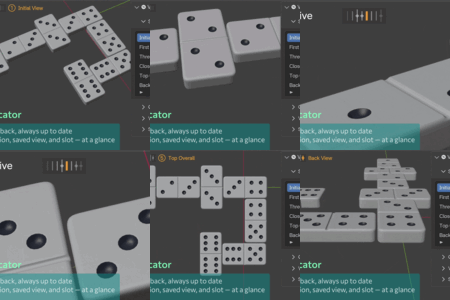
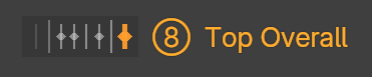 While Nova Views is running, every viewport displays an indicator. It shows the current viewport’s history as a framed row of ticks, with the tick for the current view highlighted. If the current view is saved, a diamond is shown on its tick. The view name is displayed to the right, and if the view has a quick-access slot assigned, its encircled number appears before the name.
Settings
The Settings section provides control over global history tracking.
- History Tracking — When disabled, navigation history is not recorded in any viewport, regardless of per-viewport settings
Click the Gear icon in the section header for quick access to the add-on preferences.
Add-on Preferences
Access add-on preferences via Edit > Preferences > Add-ons > Nova Views, or click the Gear icon in the Settings section header.
Note: Clear the search field to show all add-ons in the Preferences window.
Panel Configuration
Panel Tab — Choose where the panel appears in the 3D Viewport sidebar. Either integrate the panel into the built-in View tab, or use a separate 🅝 Views tab.
Indicator Position
Indicator Position — Set where the viewport indicator is displayed.
- After View Name — Displays the indicator inline with Blender’s view name overlay (e.g. ‘User Perspective’). Visible only when viewport overlays, Text Info, and View Name are all enabled.
- Top Center — Displays the indicator centered at the top of the viewport.
- Bottom Center — Displays the indicator centered at the bottom of the viewport.
Center Between Panels — When enabled, calculates the horizontal center considering the Toolbar and Sidebar widths.
Performance
History Stable Interval — How long the viewport must remain still before a view is added to history.
View Transition Duration — Duration of the animated glide when navigating history or restoring a view.
View History Limit — Maximum number of history entries per viewport. Older entries are removed as the limit is reached.
Never lose a good angle.
For questions, suggestions, issues, or support, feel free to reach out:
— Novacrat
Have questions about this product?
Login to message
| Blender Extension Compatible | Yes |
| Dev Fund Contributor | |
| Published | 5 months ago |
| Blender Version | 4.2 - 5.2 |
| Extension Type | Add-on |
| Render Engine Used | Cycles, Eevee |
| License | GPL |
Discover more products like this
angle viewport quick access named views 3dview history organize 3dviewport view views history good angle viewport history