 bhdesign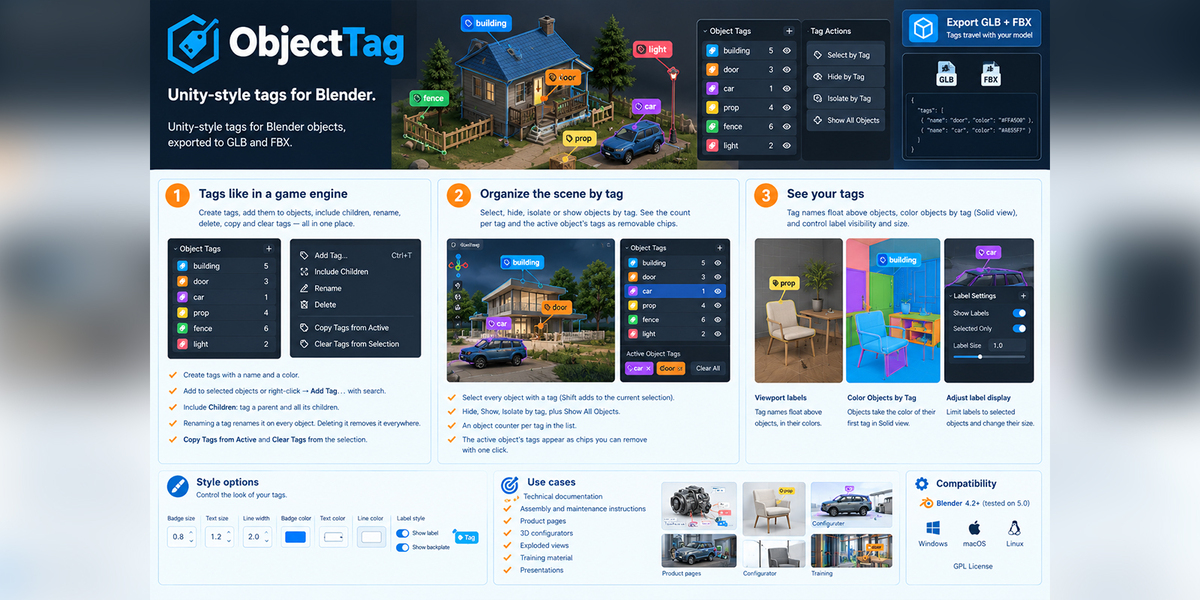
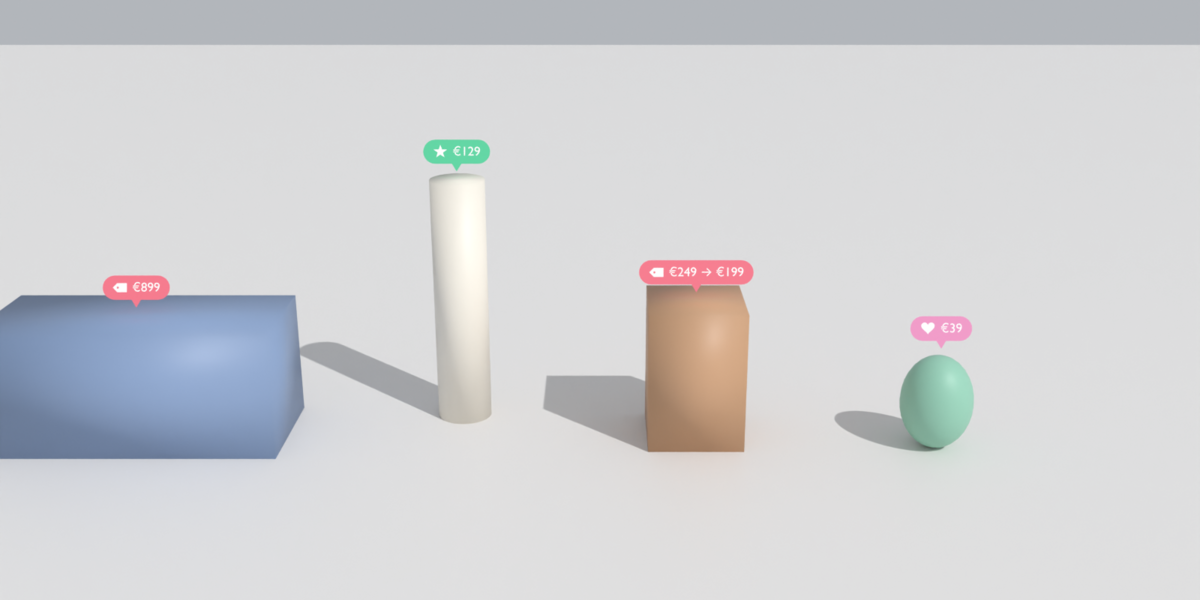
ObjectTag: Unity-style tags for Blender
Unity-style tags for Blender objects, exported to GLB and FBX.
Tag your objects (clickable, door, collider) in one click, then select, hide or isolate them by tag. The tags travel with your export, so Three.js, Godot and Unity can read them directly.
Main features
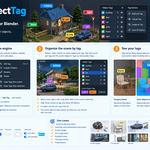
1. Tags like in a game engine
- Create tags with a name and a color.
- Add them to the selected objects from the panel, or right-click → Add Tag… with search.
- Include Children: tag a parent and all its children get the tag too.
- Renaming a tag renames it on every object. Deleting it removes it everywhere.
- Copy Tags from Active copies tags to the other selected objects, and Clear Tags removes all tags from the selection.
2. Organize the scene by tag
- Select every object with a tag (Shift adds to the current selection).
- Hide, Show, Isolate by tag, plus Show All Objects.
- An object counter per tag in the list.
- The active object's tags appear as chips you can remove with one click.
3. See your tags
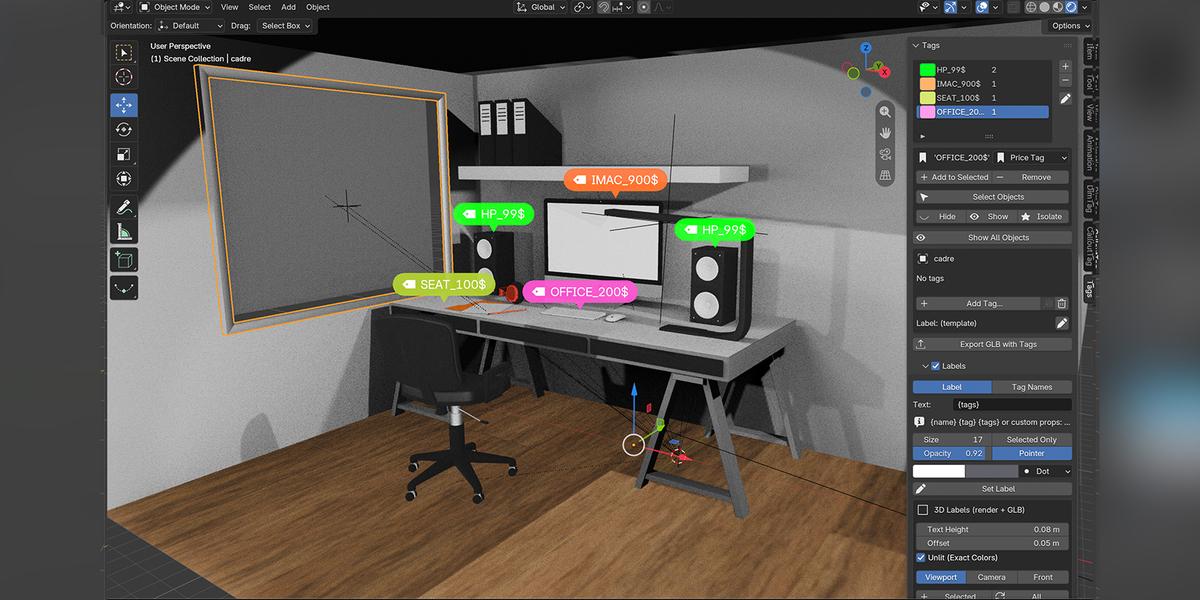
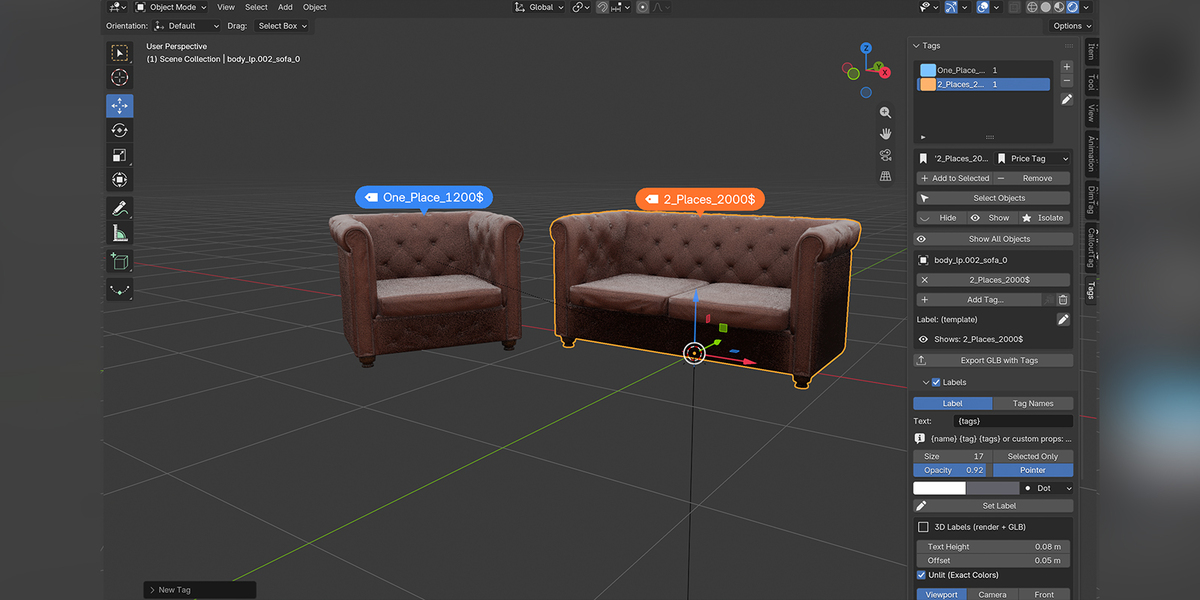
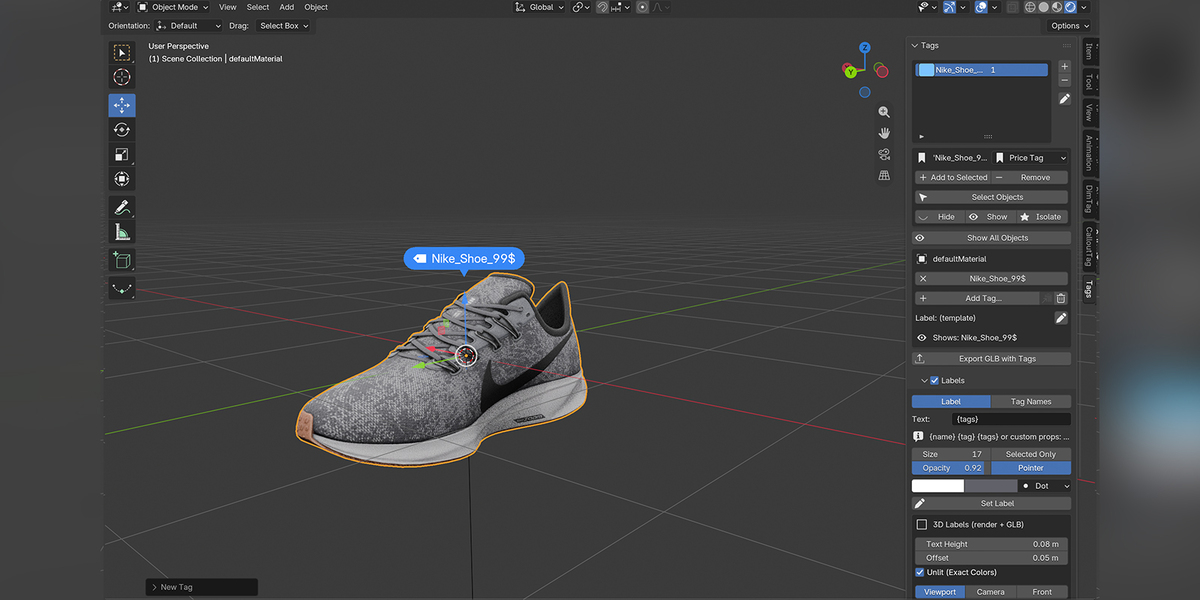
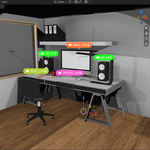
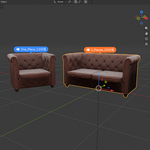
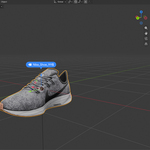
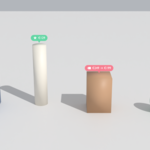
- Viewport labels: tag names float above the objects, in their colors.
- Color Objects by Tag: objects take the color of their first tag in Solid view.
- Labels can be limited to the selected objects, and their size is adjustable.
4. Tags that survive export
-
GLB / glTF: tags are exported as a real list,
"tags": ["clickable", "door"], in each node's extras. -
FBX / Unity: Write Flag Properties adds
tag_door = Trueon each object, which works with formats that don't import lists. - Export GLB with Tags in one click, with the right export options already set.
- Find Tags in Scene picks up tags on imported or appended objects.
Compatibility: Blender 4.2 or newer (tested on 5.0), Windows, macOS and Linux. GPL license.
Use cases: interactive web 3D (clickable objects, hotspots, hide and show groups), game levels (colliders, spawn points, triggers), product configurators (swappable parts, variants), and organizing large scenes.
Reading tags in your engine
// Three.js
gltf.scene.traverse((obj) => {
  if (obj.userData.tags?.includes("clickable")) makeClickable(obj);
});# Godot 4: with glTF extras imported as node metadata
if node.has_meta("extras") and "door" in node.get_meta("extras").get("tags", []):
setup_door(node)// Unity: FBX with "Write Flag Properties" enabled
void OnPostprocessGameObjectWithUserProperties(GameObject go, string[] names, object[] values) {
if (System.Array.IndexOf(names, "tag_door") >= 0) go.tag = "Door";
}
Before you put the Godot and Unity snippets on the store page, test them in each engine. How extras and FBX custom properties get imported depends on the engine version and import settings. The Three.js one is reliable.
Have questions about this product?
Login to message
| Blender Extension Compatible | Yes |
| Published | 4 days ago |
| Blender Version | 4.2 - 5.2 |
| Extension Type | Add-on |
| License | GPL |