ObjectVault — Object-Level Versioning
 Nuriddin Khamidov


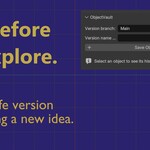
ObjectVault Documentation
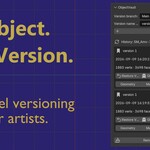
ObjectVault is an object-level versioning tool for Blender. It lets you save versions of individual objects, compare ideas, and restore the complete object or only the part you need.
Installation
- Download the ObjectVault extension ZIP file.
- Open Blender.
- Go to Edit → Preferences → Get Extensions.
- Open the menu in the top-right corner and select Install from Disk.
- Select the ObjectVault ZIP file.
- Enable ObjectVault: Object-Level Versioning.
- In the 3D Viewport, press N and open the ObjectVault tab.
Quick Start
- Select an object in the 3D Viewport.
- Enter a name in Version Name, for example:
Base Design. - Click Save Object Version.
- Edit the object as usual.
- Select a saved version from the history when you want to compare or restore it.
Panel Overview
Version Branch
Use this field to organize alternative design directions. A branch is a separate version history for the same object.
Examples:
MainSport VariantClient FeedbackExperimental
Enter a new branch name before saving a version. ObjectVault will save that version into the selected branch.
Version Name
Add a clear note before saving a version. Good names make your history easier to understand later.
Examples:
Base DesignRounded EdgesDark Metal MaterialClient Revision 02
Save Object Version
Creates an independent snapshot of every selected object. The snapshot includes supported geometry, materials, transforms, modifiers, and constraints.
Restoring a Version
Make the original object active, then use one of the buttons inside a saved version.
| Button | What it restores |
|---|---|
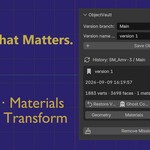
| Restore Version | Geometry, materials, modifiers, constraints, and transforms. |
| Geometry | The saved geometry while keeping the current material assignments. |
| Materials | The saved material assignments only. |
| Modifiers | The saved modifier stack and modifier settings only. |
| Transform | The saved location, rotation, and scale only. |
Ghost Comparison
Click Ghost Comparison to show the saved version as an orange wireframe overlay in the viewport.
Use it to compare the current object with an earlier idea before restoring anything. Click the button again to hide the ghost.
Compare
Click Compare to view a compact summary of the current object and the saved version. The comparison includes basic geometry, material, and modifier information.
Delete
Click Delete next to a saved version to remove that version and its internal snapshot safely.
Backup Collection
ObjectVault stores snapshots inside a hidden, non-rendering collection named:
__OBJECTVAULT_BACKUPS__
Do not manually edit, rename, move, or delete objects inside this collection. Use ObjectVault’s Delete button to remove versions safely.
Remove Missing Version Records
Use this button only if a snapshot was manually removed from the backup collection or became unavailable. It removes history entries that no longer have a valid internal snapshot.
Important Notes
- Snapshots are stored inside the current
.blendfile. - File size increases according to the number and complexity of saved versions.
- ObjectVault tracks objects with an internal ID, so renaming an object does not disconnect its history.
- ObjectVault is designed for intentional object versions. It is not a replacement for full project backup or source control.
- Save your Blender file regularly.
Compatibility
- Blender 4.2 and newer.
- Tested with Blender 5.2 LTS.
- No internet connection or external account required.
Have questions about this product?
Login to message
| Blender Extension Compatible | Yes |
| Published | about 2 months ago |
| Blender Version | 4.2 - 5.2 |
| Extension Type | Add-on |
| License | Mit |

Discover more products like this
object-versions 3d modeling workflow checkpoint version-control Checkpoint_Assets