Obssidian Petrify Wave FX
 Obssidian Art
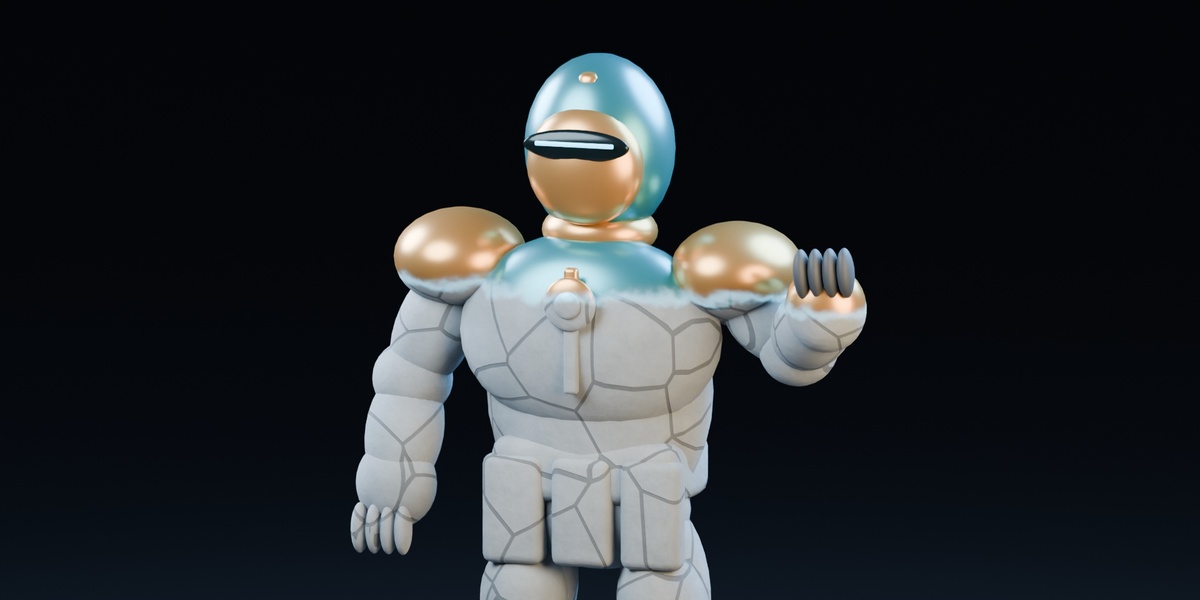
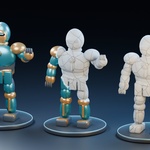


Obssidian Petrify Wave FX 0.6.2
Install & begin
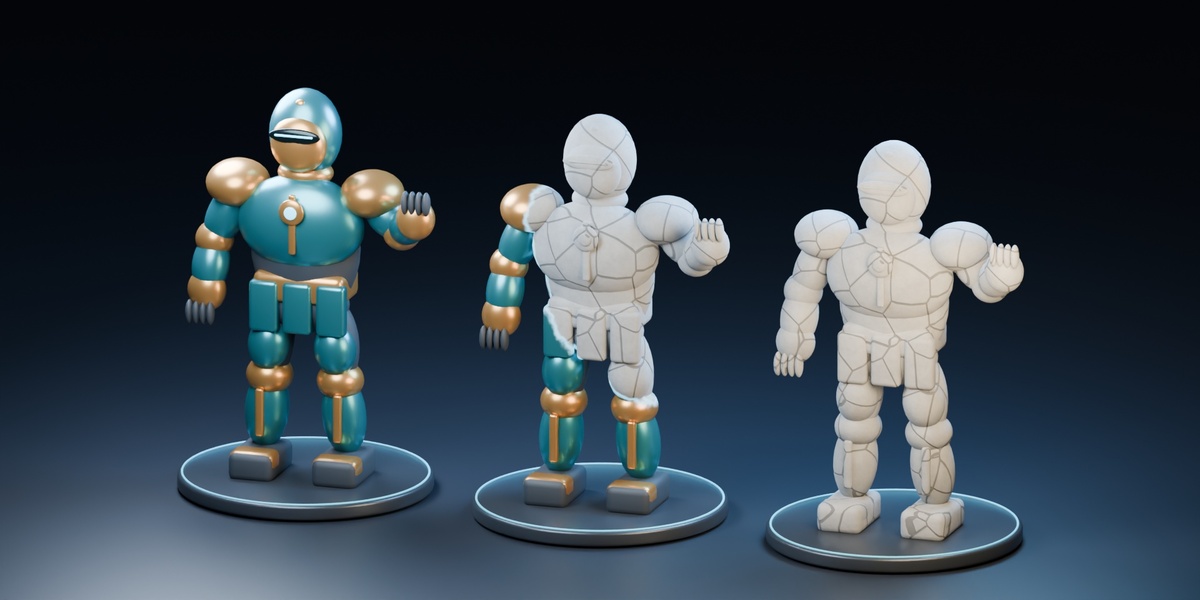
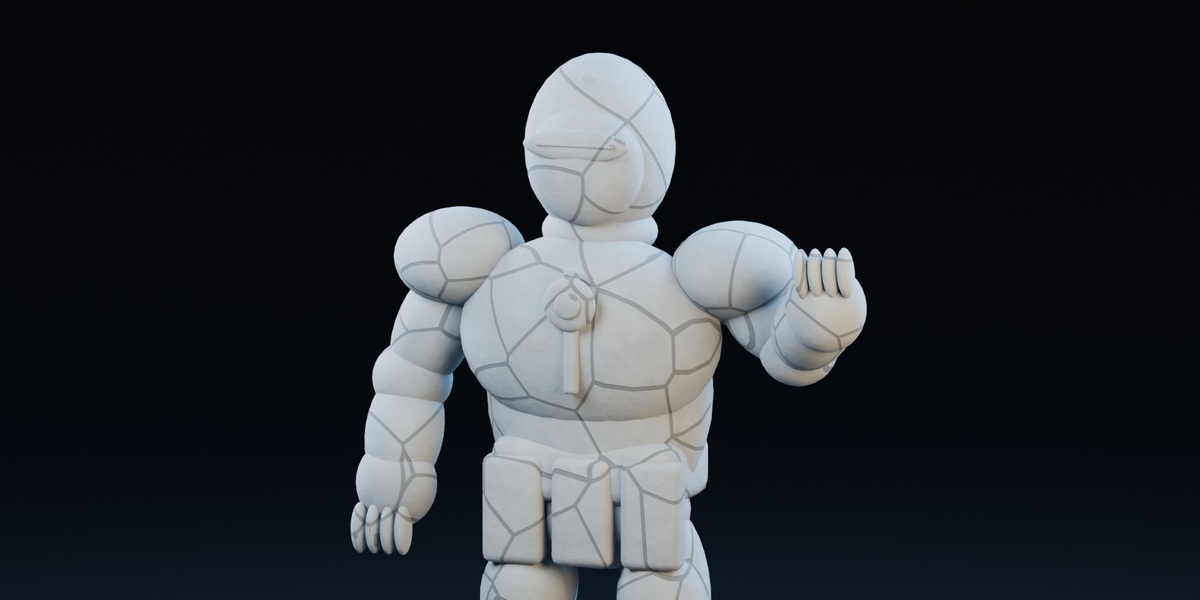
Obssidian Petrify Wave FX 0.6.2 turns selected areas of existing meshes into procedural stone. Original surface materials remain visible ahead of the transition. Work in Object Mode and preview with Material Preview or Rendered shading.
Install the product ZIP directly in Blender. Keep a compressed copy for installation; extract another copy only to read the manuals or open the demo.
Installation
- Open Edit > Preferences > Add-ons in Blender. From the menu, choose Install from Disk.
- Select Obssidian_Petrify_Wave_FX_0.6.2.zip from your download. Leave this ZIP compressed.
- Enable Obssidian Petrify Wave FX, then open the 3D View sidebar with N and select Petrify.
- Enable the addon before opening the included demo or an existing scene that needs its controls.
First effect
Meshes: select editable local mesh objects, place the 3D cursor at the desired start point and click Apply to Selected Meshes. Character: select its armature or a skinned mesh and click Apply to Character; all editable meshes bound to that rig in the current view layer share one effect.
Adjust Petrification: 0 = original, 1 = stone. The initial value is 0.4, so applying the effect already shows a partial preview. Solid shading does not display the shader.
Requirements & contents
Tested on Windows with Blender 4.2.0, 4.5.2 LTS and 5.2.2 LTS. Eevee and Cycles workflows were checked; complex custom materials still need a scene-specific test. macOS and Linux have not been tested. No external Python packages, account, textures or internet connection are required by the addon.
Included: installer, English and Spanish manuals, license, and an original procedural sentinel demo. The walking character and animation shown in promotional videos are not included.
Animate a transformation
The buttons create progress keyframes from the current frame. They do not start playback, reverse the timeline, or stop a moving rig. Duration is measured in frames, not seconds.
Example: 60 frames at 30 fps
- Use a newly applied effect with no previous progress keys. Set the current frame to 1.
- Set Duration (frames) to 60. Click Petrify. It creates progress 0 at frame 1 and progress 1 at frame 61.
- Scrub to frame 31 to inspect the transition, then to 61 to see complete stone coverage.
- At frame 61, click Reverse. It starts at progress 1 and ends at 0 on frame 121.
- Scrub to 91 and 121 to inspect the reversal. Press Space in the viewport to play the scene.
| Frame | Result |
|---|---|
| 1 | Original surface; Petrify begins |
| 31 | Midpoint in a fresh default curve |
| 61 | Fully stone; Reverse begins |
| 91 | Reverse midpoint |
| 121 | Original appearance; effect remains editable |
Buttons add two endpoint keys. Existing keys at those two times are replaced; all other keys, including intermediate and later progress keys, stay. They can change the curve or make the effect return later. Inspect them in the Graph Editor. A button starts from 0 or 1, not arbitrary current progress.
Default Duration is 72 frames; the panel accepts 2 to 10000. Repeating a button at the same frame with the same duration updates the same endpoints. Hover over Petrification and press I for manual keys. Blender interpolation and existing curve settings affect the timing.
Statue pause
To stop a walking statue, pause or retime the rig separately, for example with Blender NLA Strip Time. Synchronize its hold with the material keys. Petrify itself does not freeze bones or automatically create an NLA pause.
Find the controls
Select the rig, any affected mesh, or the shared origin to edit the same effect. Multiple unrelated effects on one rig can make the controller selection ambiguous; select the intended affected mesh instead.
| Main control | Purpose |
|---|---|
| Petrification | Preview or key the original-to-stone blend. |
| Duration (frames) | Length of the next Petrify or Reverse action; default 72. |
| Petrify / Reverse | Add 0-to-1 / 1-to-0 progress endpoint keys. |
| Radial / Directional | Expand from a point / sweep along origin local Z. |
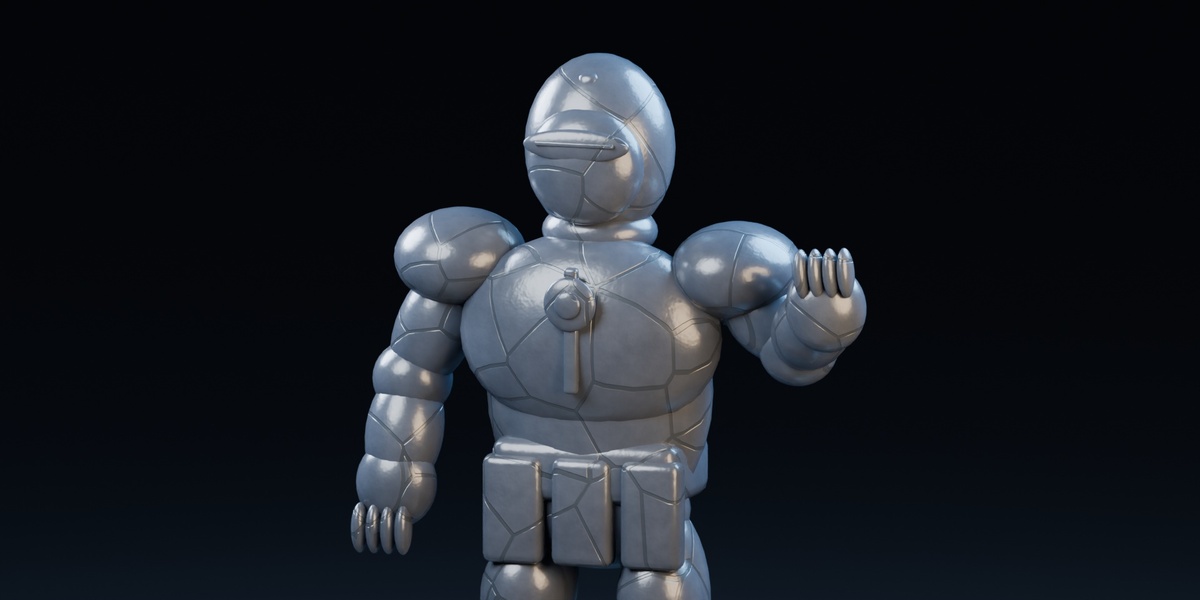
| Basalt / Limestone / Obsidian | Apply a stone palette, roughness and relief preset. |
| Restore Original Materials | Remove the selected effect and restore saved material slots. |
Restore the whole character
Select the armature and click Restore Original Materials. Selecting only some meshes restores that subset. Selecting the origin restores its editable targets. Reverse returns the appearance but keeps the effect; Restore removes it. Artist-assigned materials added after application are preserved. Undo and Redo remain available.
The origin is removed when no affected objects or other datablocks still use it. An origin retained by a manually shared material is intentional. Enable the addon before reopening files that need restoration tools.
Origin & finish reference
Origin & Propagation
| Control | How to use it |
|---|---|
| Select Origin | Select the shared source. Move with G; rotate with R. Show its collection and enable selection if it is inaccessible. |
| Fit Reach | Recalculate coverage at the current pose after moving or rotating the origin. Refit at a wide pose or increase Reach for large movements. |
| Reach | Propagation extent in origin coordinates, not necessarily world meters. Parenting to a scaled bone can change the numeric value. |
| Softness | Width of the transition band in origin coordinates. |
| Irregularity | Organic breakup of the advancing boundary. |
| Start bone / Start at Bone | For a character, choose a bone, then attach the origin to it and fit coverage. It follows that bone animation. |
Directional orientation: the sweep uses origin local Z, not automatic world up. Start at Bone inherits the bone orientation and scale. Rotate the origin if you want a feet-to-head direction and fit reach afterward. Keep its scale nonzero.
Finish & Glow Settings
| Control | Purpose |
|---|---|
| Dark / Light | Mineral palette colors. |
| Detail | Frequency of the mineral texture; higher values make finer detail. |
| Roughness | Stone surface gloss; lower values are shinier. |
| Relief | Bump shading strength. No mesh cutting, fracture or deep cracks. |
| Front color / Front glow | Transition emission color and strength. Set glow to 0 for an unlit boundary. |
Shared Effect Utilities: Make Effect Independent separates selected copied targets, effect materials and progress animation. Blender duplication alone can leave copies linked. For independent characters, duplicate the rig and all its meshes, select the copied rig and use this command. Rig motion is not rewritten.
Materials & supported scope
What changes
The addon creates effect materials and native drivers, while keeping references to the originals for restoration. Original material graphs, UVs, weights and vertices are preserved. Targets sharing mesh data are made single-user; that independent mesh remains after removal to preserve later edits.
New managed effects store shared normalized rest positions and a validity attribute. Mineral detail stays attached during stable-topology deformation. Restoring removes unused owned attributes. If these attributes were deleted or renamed manually, restore and reapply on a backup copy.
Transparency, hair and complex materials
Alpha cutouts on a direct Principled BSDF, including linked image alpha, are inherited by the stone branch. Numeric Alpha animation is shared through a copied native signal. Arbitrary nested shader groups and multi-BSDF alpha networks are not automatically interpreted.
Hair cards keep their cutout silhouette and modeled strand shapes; they are not merged into solid sculpted hair. The original volume and displacement fade as stone replaces them. Test engine-specific or complex custom materials in the render engine you will use.
Boundaries
- This is a surface effect: no actual fractured geometry, debris, rigid-body simulation or silhouette replacement.
- Propagation uses distance or a plane, not distance traced along the mesh surface. Nearby disconnected parts may transform together.
- Active Geometry Nodes modifiers are rejected for the entire selected batch. On a duplicate, realize instances if required and apply or convert the generated result to an ordinary mesh first.
- Linked, read-only and library-override targets are skipped. Use editable local copies. Topology-changing modifiers and simulations require separate validation.
- Restore before destructive Join/Convert operations, deleting material slots, or uninstalling from scenes you want to return to their original materials. Deleted face assignments or altered backup metadata cannot be reconstructed.
Save a scene copy before applying effects to production assets. Manually assigning an effect material to unmanaged meshes uses fallback coordinates and does not create normal restoration backups.
Troubleshooting & support
| Symptom | Check |
|---|---|
| Nothing changes | Use Material Preview or Rendered shading. Select an affected mesh, check progress and Reach. |
| Boundary misses a limb | Fit Reach at a wide pose, increase Reach, or reposition the origin. |
| Object walks out of the effect | Use Start at Bone for a moving character, or parent the origin appropriately. |
| Petrify / Reverse cancels | Unlock and unmute the progress curve, leave NLA Tweak Mode, or resolve its driver/read-only action. The warning states the blocked condition. |
| Unexpected later transformation | Inspect existing progress keys. The buttons preserve other keys, including old later keys. |
| Effect looks too shiny or strongly cracked | Change preset or adjust Roughness and Relief under Finish & Glow Settings. |
| Copied controls affect the original | Select the copied mesh or rig and use Make Effect Independent. |
| Panel or origin is missing | Enable the addon, select an affected target, and show the origin collection. If the origin was deleted, use Restore Original Materials. |
Open the included demo
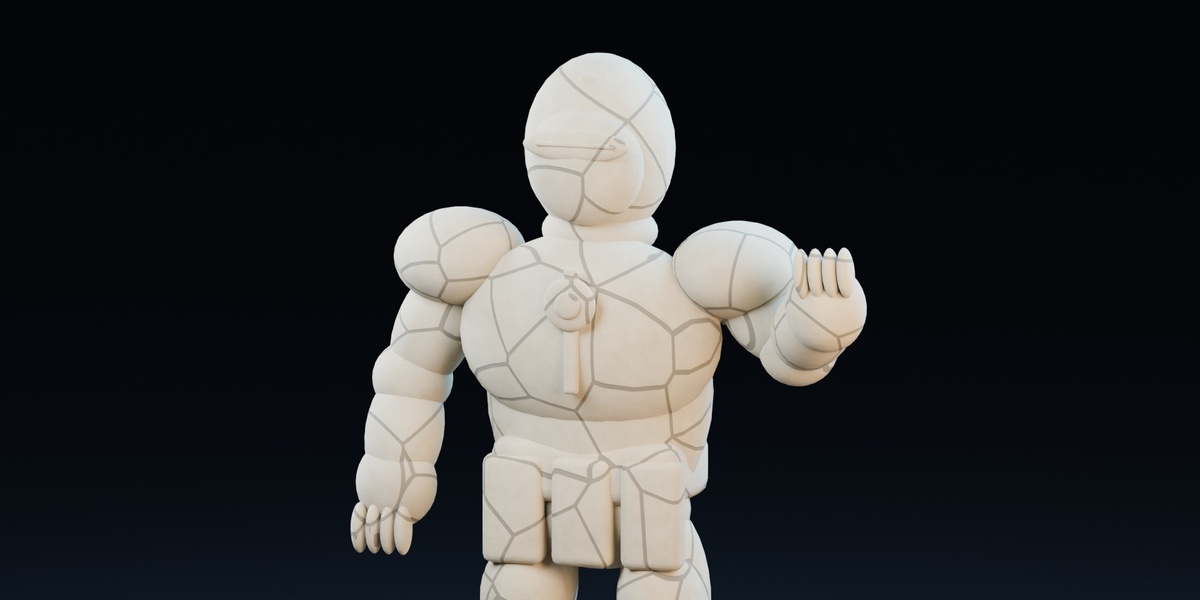
Enable the addon, then open demo/Petrify_Studio.blend. This original procedural sentinel scene was saved in Blender 4.2 and copied from the validated earlier demo. Frames: 1 original, 52 partial, 88 stone, 160 returned. Select an affected sentinel or origin to see the panel. Play the timeline or press F12 to render the saved view.
Updates & problem reports
Keep a backup before installing an update. Older saved effects retain their existing node graphs; installation does not rebuild them. Restore and reapply on a copy to receive a newer graph, then recheck settings and animation. Report issues through the seller contact on your Superhive purchase page: addon/Blender versions, operating system, engine, reproduction steps, and a minimal scene you are allowed to share. Remove private assets first.
License
Addon source is GPL-3.0-or-later; the complete license is included as LICENSE.txt and inside the installer. The original procedural demo can be used in personal and commercial Blender projects; see DEMO_ASSET_LICENSE.txt. No downloaded walking character, FBX animation, Blender installation or third-party texture library is included.
Have questions about this product?
Login to message
| Blender Extension Compatible | Yes |
| Published | 11 days ago |
| Blender Version | 4.2 - 5.2 |
| Extension Type | Add-on |
| Render Engine Used | Cycles, Eevee |
| License | GPL |
Discover more products like this
animation materials procedural VFX transformation petrify petrification Shader stone fantasy