 BlueTools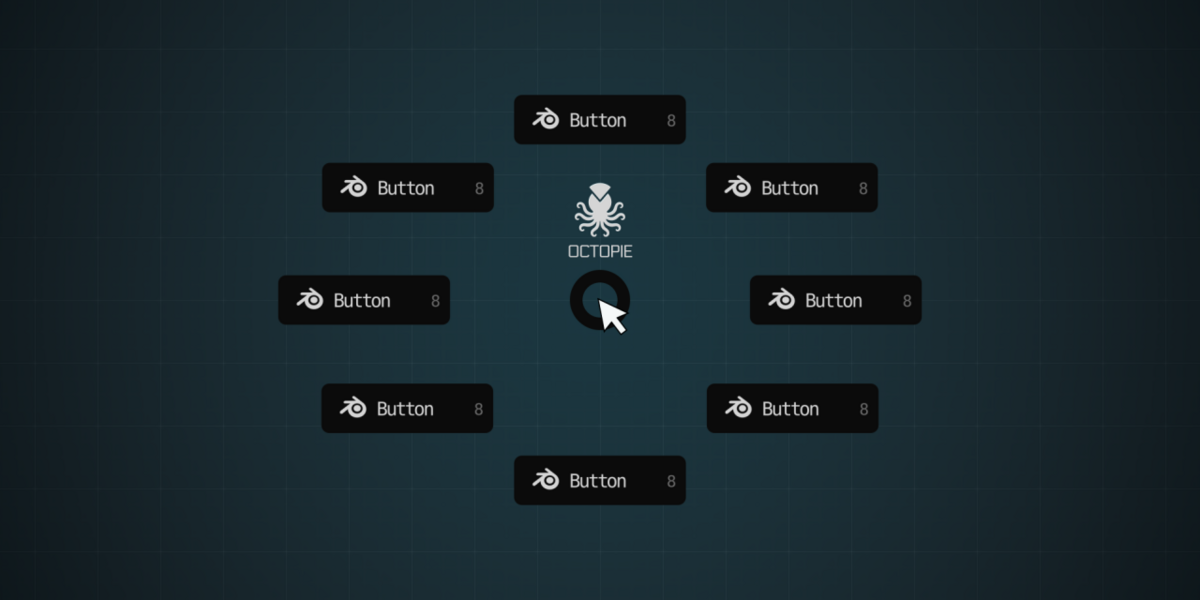
OctoPie Documentation
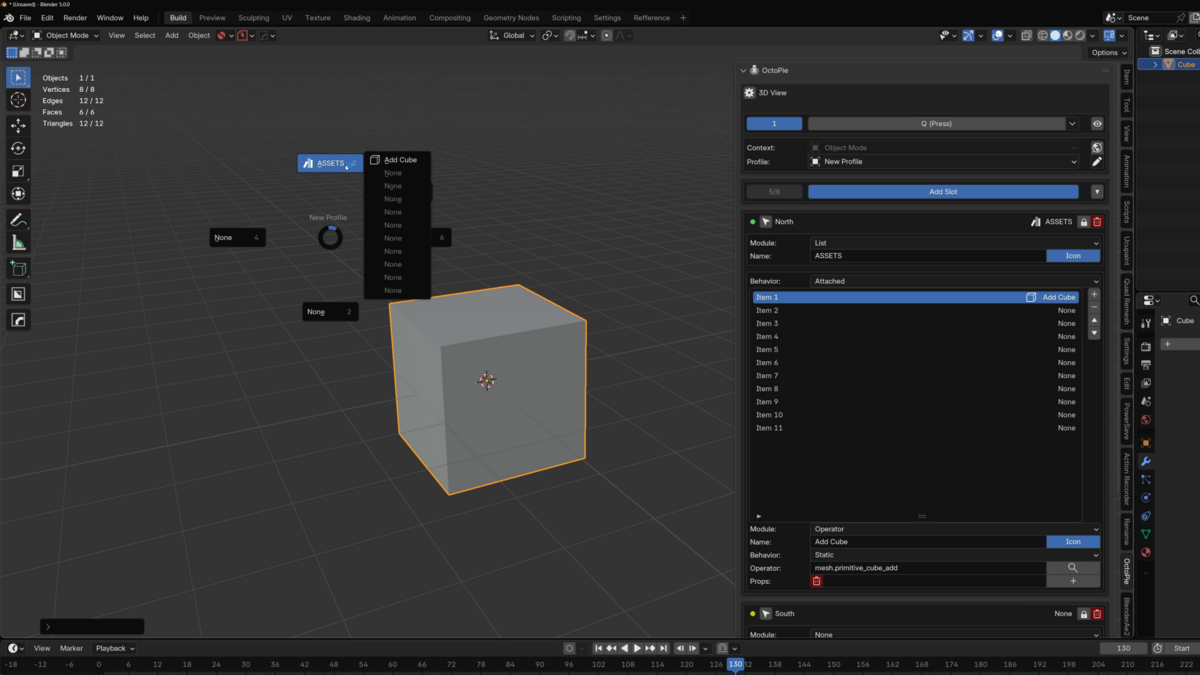
OctoPie is a Blender add-on for building fast, customized pie menus from the N-panel. You configure slots, profiles, contexts, scripts, assets, and shortcuts in the sidebar, then launch the finished pie at your cursor with a keyboard shortcut.
Pies per editor: 8
Slots per pie: 8
Core idea
The pie menu is your runtime launcher. All setup and editing happens in the N-panel.
Installation & Setup
- Download the OctoPie .zip file.
- Open Blender and go to Edit > Preferences > Add-ons.
- Click Install... and select the downloaded .zip file.
- Search for OctoPie in the add-ons list and enable it.
- Open a supported editor, press
Nif the sidebar is hidden, and go to the OctoPie tab.
The 3D View is enabled by default. Other supported editors can be enabled in Preferences > Add-ons > OctoPie.
Understanding the Interface
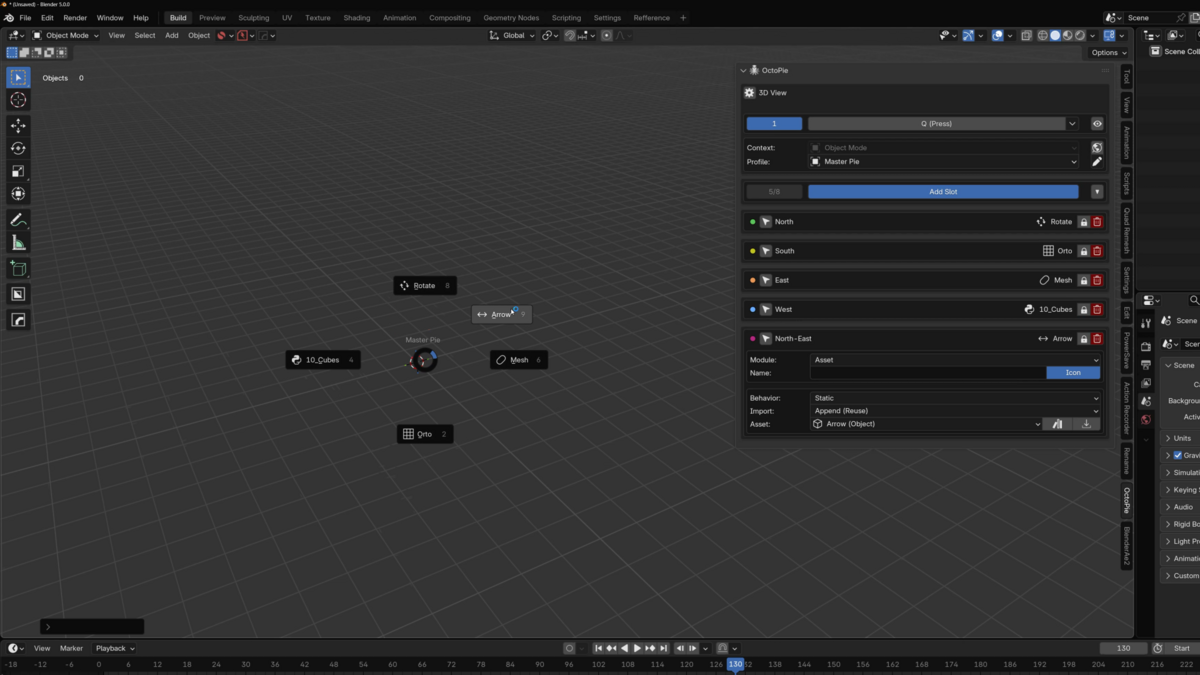
The N-panel is split into a header area, a context and profile area, and the slot editor. This keeps editing separate from the runtime pie, so the pie itself stays quick and uncluttered.
- Header: Preferences, pie selector, shortcut button, and live preview toggle.
- Context & Profile: Resolved context, Global override, active profile, and profile actions.
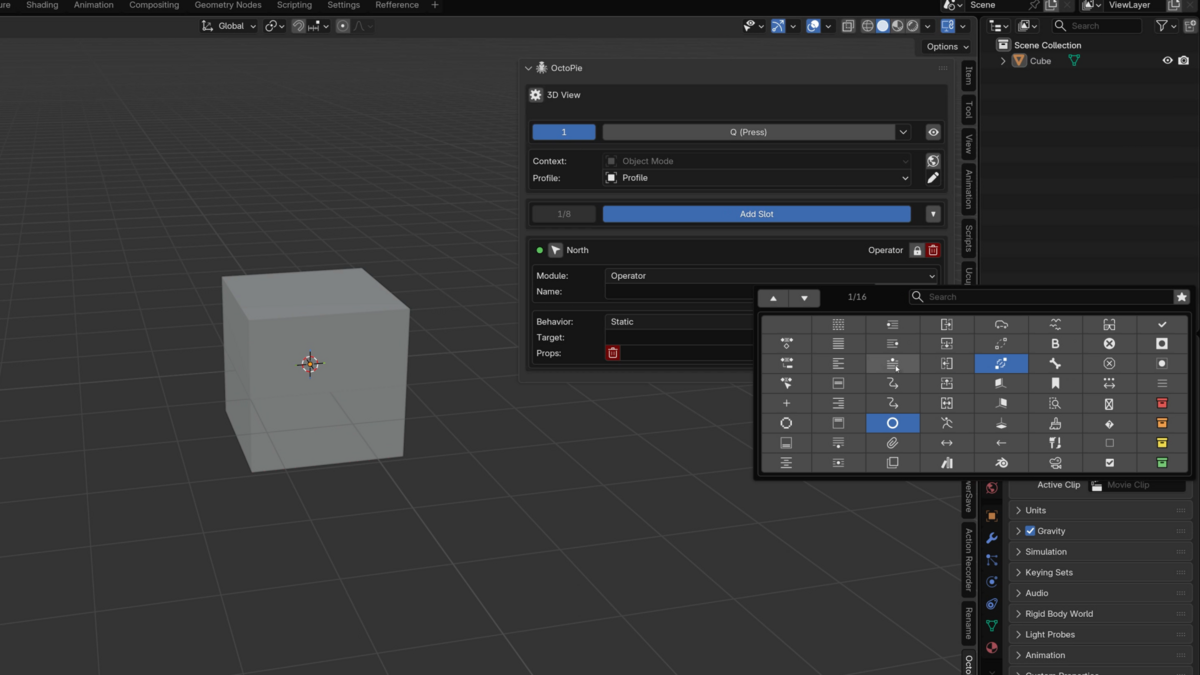
- Slots: Add, expand, move, lock, remove, name, icon, and configure each slot.
Create Your First Pie
- Choose a pie number. Select Pie 1 through Pie 8 in the OctoPie panel. Each number is a separate radial menu for the current editor.
- Assign a shortcut first. Click the shortcut button, press the key combination you want, and make sure the pie has a real launcher before adding slots.
- Choose your context. Use Auto Context, Global override, or a manual context depending on whether the pie should change by mode.
- Select or create a profile. Create a descriptive profile such as Modeling, Edit Mesh, Shader Tools, or UV Workflow.
- Add slots and test. Add up to eight slots, set each module and target, then press the shortcut in Blender to test the pie at your cursor.
Core Concepts
Every OctoPie setup is resolved through three layers: the Blender editor, the current context inside that editor, and the active profile for the pie.
- Editor: where the pie operates, such as 3D View, Node Editor, Image Editor, or Sequencer.
- Context: the mode or state, such as Object Mode, Edit Mode, Sculpt Mode, Shader, or Geometry Nodes.
- Profile: the saved set of eight slots for a specific editor and context combination.
When a pie opens, OctoPie looks for editor plus resolved context plus active profile, then editor plus Global plus active profile, then the Empty profile fallbacks. If nothing is configured, it opens an empty pie safely.
Editors & Contexts
OctoPie keeps separate configuration buckets per Blender editor. Auto Context can select the right context automatically, while Global override forces one setup to behave the same everywhere in that editor.
Supported editors: 3D View, Node Editor, Image Editor, Sequence Editor, Clip Editor, Dope Sheet, Graph Editor, NLA Editor, Text Editor, Outliner, Properties, File Browser, Spreadsheet.
Profiles
A profile is the content of a pie for a specific editor and context. Profiles can be added, duplicated, renamed, imported, exported, reset, locked, or deleted.
- Use descriptive names by purpose, such as Modeling, Edit Mesh, Render Utility, or Shader Tools.
- Lock stable profiles to avoid accidental edits.
- Use Pie Menu slots to open another reusable profile as a nested pie.
- The Empty profile represents a clean default state.
Slots
Each pie has eight fixed directions. A slot can be enabled, disabled, locked, collapsed, moved, duplicated, copied to another profile, named, assigned an icon, and connected to a module target.
| Slot | Direction | Position |
|---|---|---|
| 1 | North | Top |
| 2 | South | Bottom |
| 3 | East | Right |
| 4 | West | Left |
| 5 | North-East | Top-Right |
| 6 | North-West | Top-Left |
| 7 | South-East | Bottom-Right |
| 8 | South-West | Bottom-Left |
- Labels can be typed manually or resolved from the module target.
- Icons can use Blender built-in icons, Lucide icons, local PNG icons, or text fallbacks.
- Consistent directions across pies make muscle memory easier to build.
Action Types Reference
- Operator: Runs a Blender operator directly, with optional properties and static or dynamic execution.
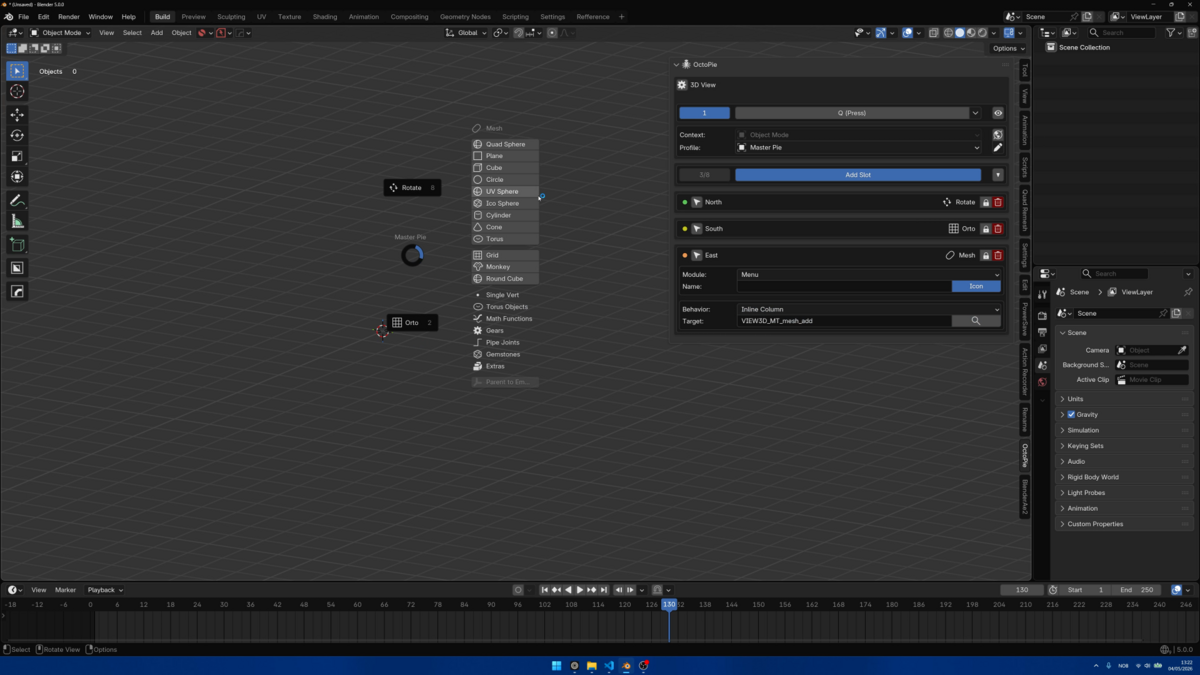
- Menu: Opens a built-in Blender menu, attached to the slot or as a detached pie-style menu.
- Shortcut: Replays an existing Blender keymap entry from inside a slot, list item, macro step, or nested pie.
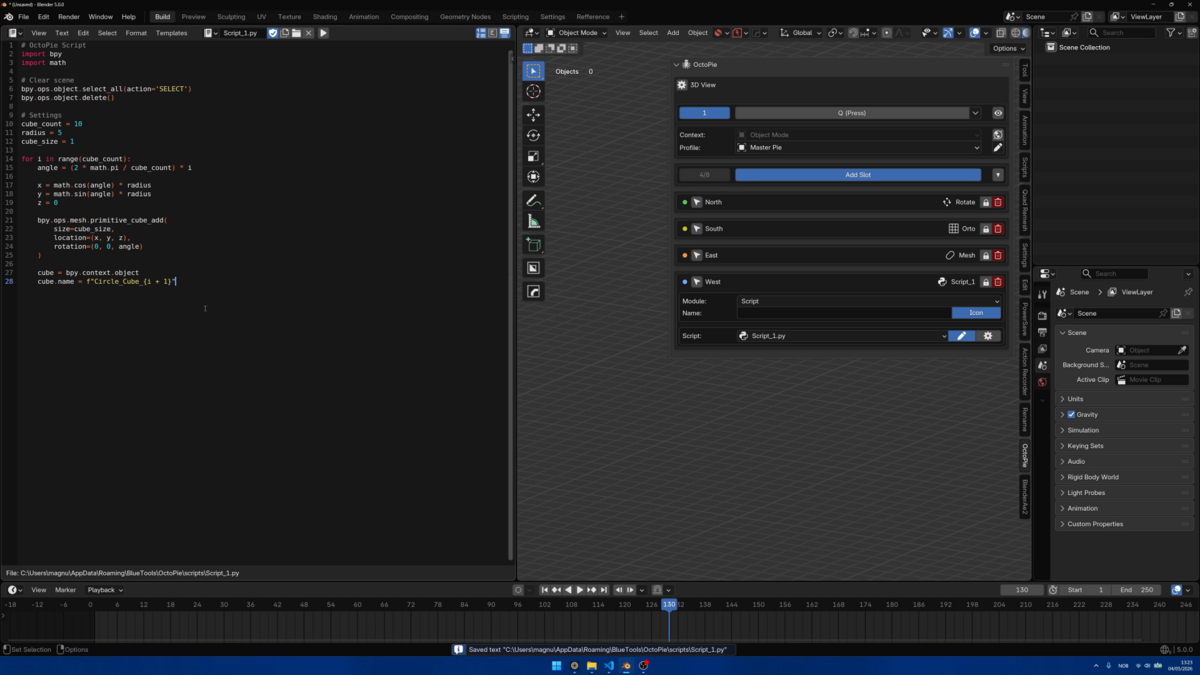
- Script: Runs a Python script stored in OctoPie's scripts folder with bpy and context available.
- Asset: Appends, appends with reuse, or links an Asset Browser item from a configured library.
- Macro: Runs multiple operator, shortcut, script, or asset steps in sequence.
- List: Opens a custom list menu containing operators, menus, shortcuts, scripts, assets, macros, lists, or pies.
- Pie Menu: Opens another eight-slice pie, or binds to another OctoPie profile as a reusable nested pie.
Shortcuts
OctoPie uses two shortcut concepts. Pie shortcuts open one of the eight main pies. Shortcut modules replay an existing Blender shortcut from inside a slot, list item, macro step, or nested pie.
- Click a pie shortcut to record a key. Press Esc to cancel recording.
- Double-click the shortcut recorder to open the keyboard picker.
- Mirror shortcuts across editors when useful, such as Pie 1 on Q everywhere.
- Live Preview is available in supported editors when the current pie has an active keymap binding.
Assets & Scripts
Asset slots store a library reference, blend file path, asset type, asset name, import method, and run behavior. Supported asset types include Object, Collection, Material, NodeTree, and World.
Script slots create or import Python files into OctoPie's scripts folder. Scripts execute inside Blender with bpy and context available.
Script Safety: OctoPie scripts are not sandboxed. Only run scripts you wrote yourself or fully trust.
Advanced Features
- Profile management: Add, copy, rename, import, export, reset, lock, and delete complete pie setups.
- Moving slots: Swap slot positions, duplicate a slot with Ctrl+Click, or copy it to another profile with Alt+Click.
- Script management: Create, import, and edit Python scripts directly from OctoPie.
- Asset actions: Assign selected Asset Browser items and choose append, append reuse, or link behavior.
Tips & Best Practices
- Use one pie for one clear job or category.
- Name profiles and slots by purpose, not by number.
- Keep similar actions in similar positions across pies.
- Leave unused directions empty when that makes the pie easier to read.
- Use List for many actions in one category, Pie Menu for secondary radial groups, Macro for repeated multi-step work, Script for personal automation, and Asset for reusable library content.
Troubleshooting
| Issue | Likely cause | Fix |
|---|---|---|
| The slot editor does not appear | The selected pie has no shortcut assigned. | Assign a shortcut first, then add slots. |
| The panel is missing in an editor | That editor is disabled in OctoPie preferences. | Open Preferences > Add-ons > OctoPie > Editors & Behaviors and enable the editor. |
| The wrong profile opens | The active profile, context, or Global override is different from what you expect. | Check the current editor, current context, Global override state, and active profile. |
| A slot does nothing | The slot is disabled, incomplete, or pointing at a missing target. | Check that the slot is enabled, configured, and saved in the profile you are using. |
| A script or asset is not working | The target script or asset cannot be found. | Verify that the script exists in the scripts folder, or that the asset is selected and its import method is valid. |
Reset a single slot with the remove button. Reset a profile from profile actions. Factory Reset is available in Preferences > OctoPie > System & Data and deletes all OctoPie data after confirmation.
Quick Reference
| If you want to | Use |
|---|---|
| Run one Blender command | Operator |
| Expose a Blender submenu | Menu |
| Trigger a known shortcut | Shortcut |
| Run your own Python tool | Script |
| Chain several actions | Macro |
| Open a custom item list | List |
| Open another radial menu | Pie Menu |
| Load something from Asset Browser | Asset |
| Control | Click | Result |
|---|---|---|
| Pie selector | Ctrl+Click | Toggle pie on or off |
| Move button | Ctrl+Click | Duplicate slot |
| Move button | Alt+Click | Copy slot to profile |
| Remove button | Ctrl+Click | Delete slot |
| Shortcut recorder | Double-click | Open keyboard picker |
| Operator picker | Ctrl+Click | Paste from Info |
| Operator picker | Alt+Click | Toggle Info editor |
Runtime pie keys: Escape closes the pie without action. Clicking a slot executes that slot. Clicking outside closes the pie.
Have questions about this product?
Login to message
| Dev Fund Contributor | |
| Published | 2 months ago |
| Blender Version | 5.0 - 5.1 |
| Extension Type | N/A |
| Render Engine Used | Cycles |
| License | GPL |