 Space Robot


Introducing "Oh Snap! Dynamic Snap to Mesh Tool"
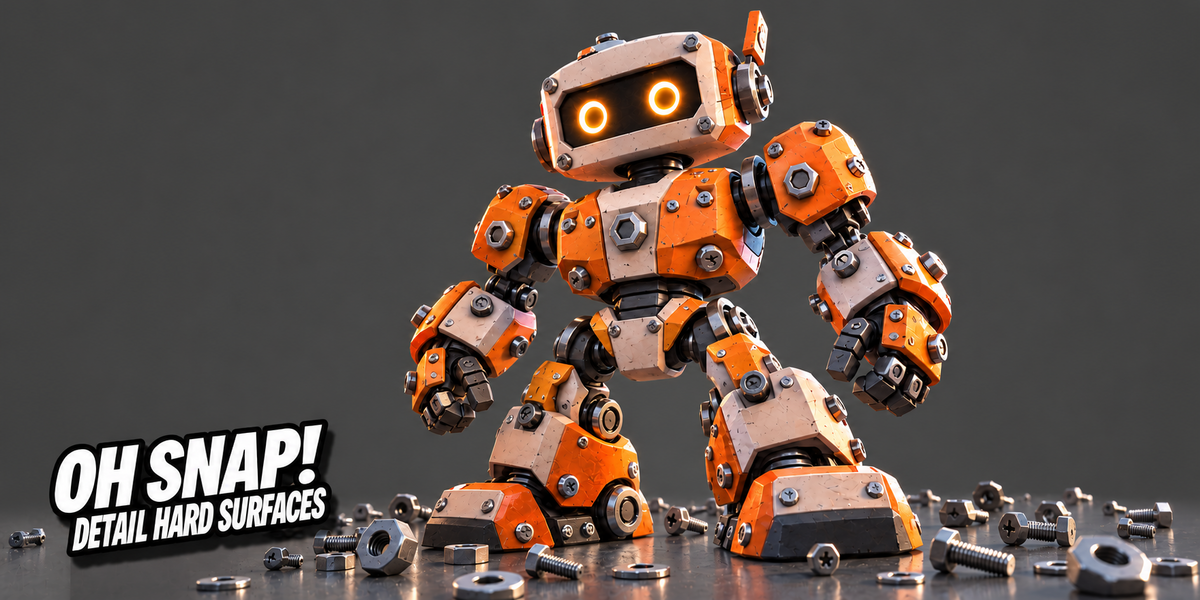
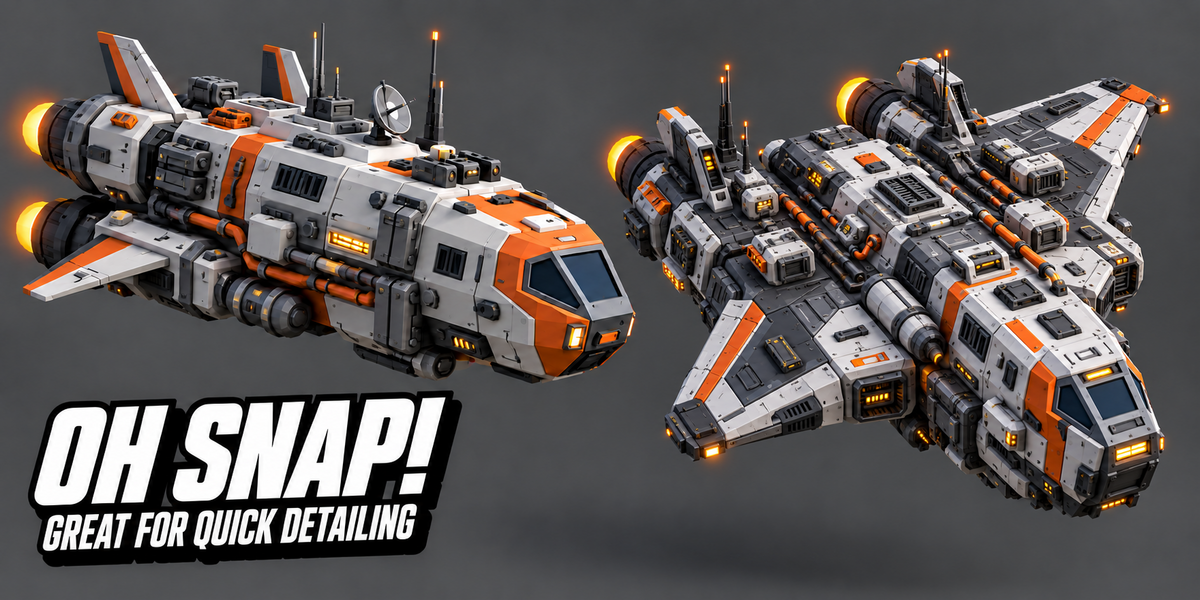
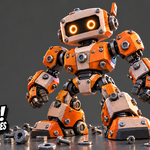
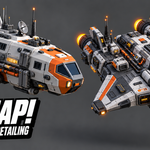
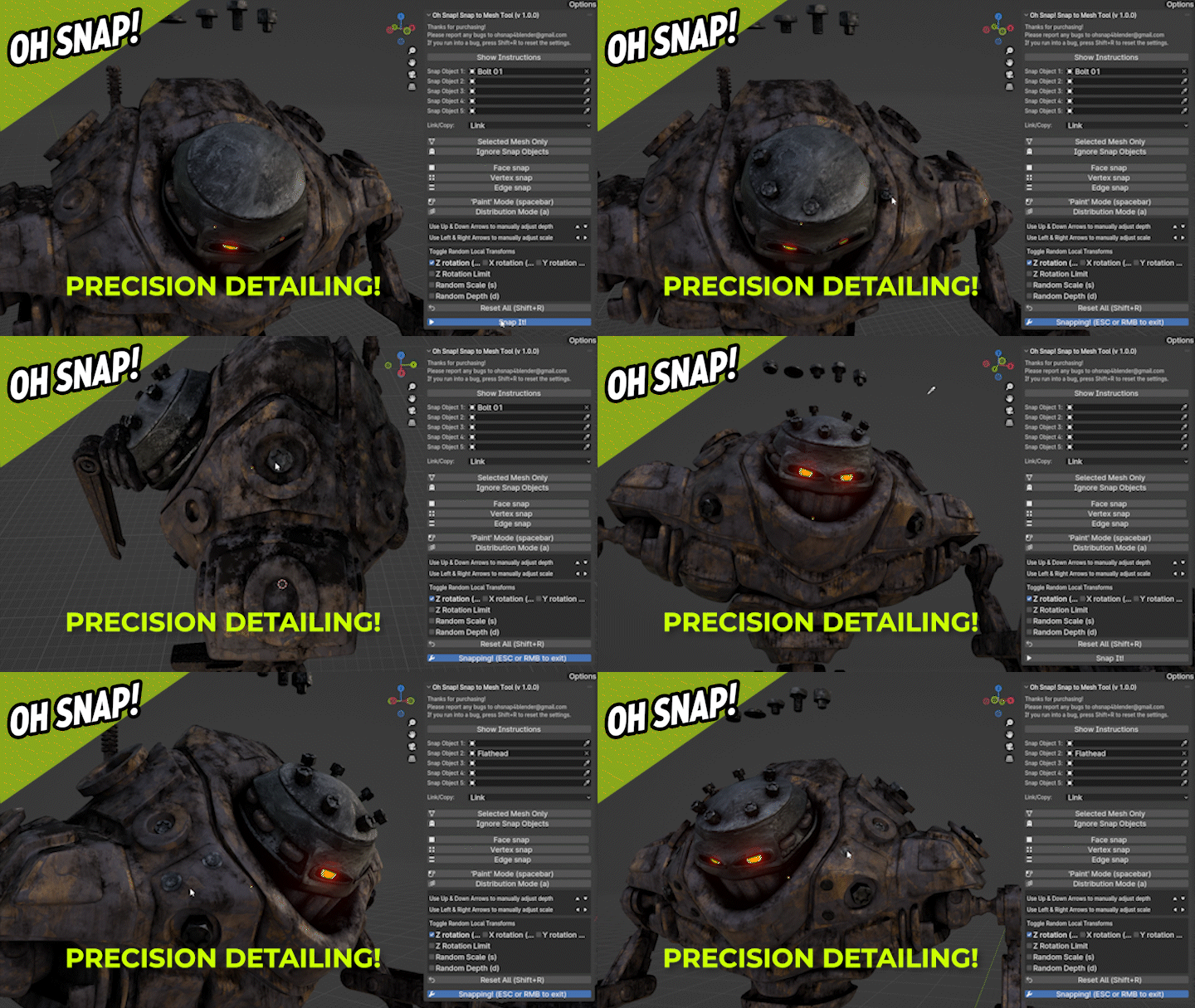
Stop placing bolts, rivets, and debris one at a time. Oh Snap! lets you click, drag, or scatter hardware across any surface — hundreds of objects in one action, each one seated correctly and oriented naturally. It started as a fix for my own robot-detailing problem; it's grown into a full placement toolkit used for hard-surface, architecture, and landscape work.
Not an ecosystem, not a biome painter. Oh Snap! is built for the moment you just need something placed correctly, right now, without loading an asset library.
If you're deep into a 3D project and the small stuff; bolts, rivets, screws, debris, foliage; is what's standing between you and finishing, that's exactly the gap this tool fills. Pick your hardware, aim, click, done. What started as a one-off script for my own robot builds has turned into a full placement toolkit used for everything from hard-surface detailing to architecture and landscapes.
Snap it, your way
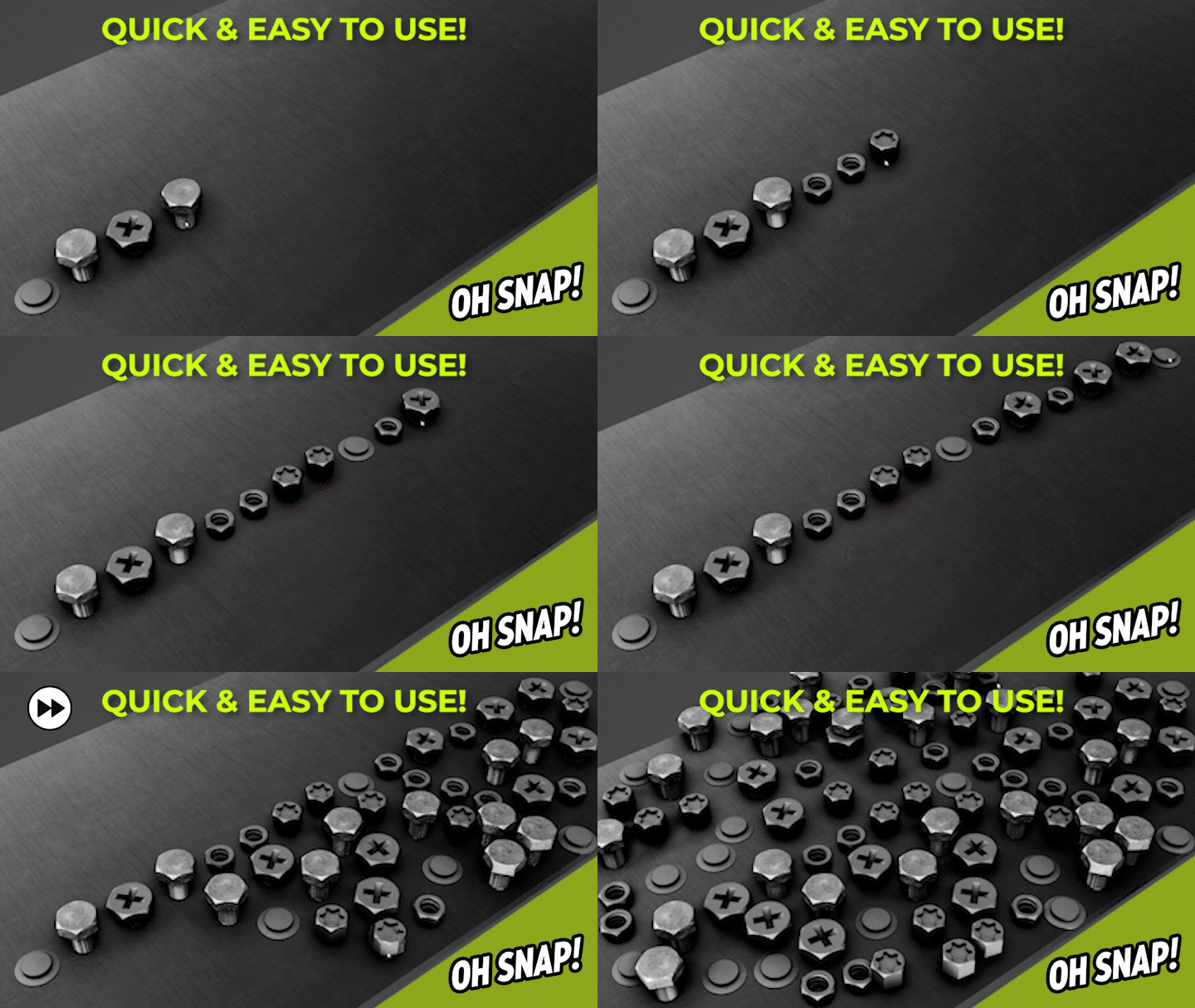
Load up to 10 different objects into your Snap Mesh slots and let Oh Snap! pick between them at random, or lock in a specific one on the fly with a number key. Snap to the nearest face, vertex, or edge. Restrict snapping to just the mesh you've selected. Ignore objects you've already placed so new ones never land on top of old ones by mistake.
Four ways to place
- Single click the classic, still the fastest way to place one object exactly where you want it
- Draw Mode hold and drag to stamp objects continuously along a path
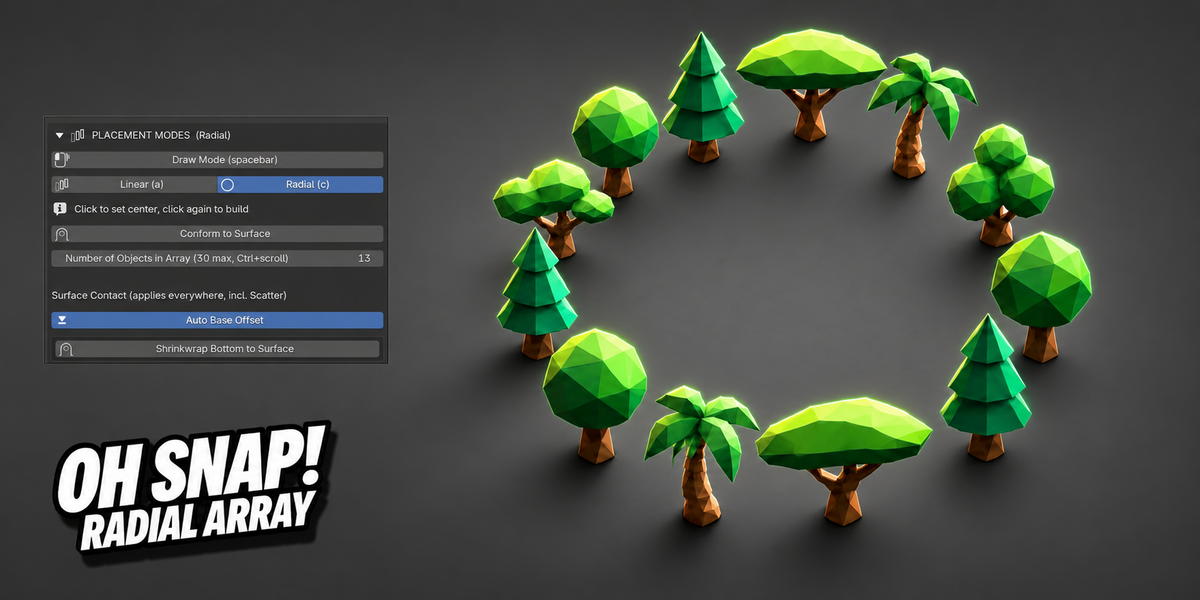
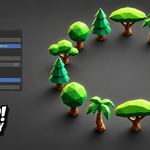
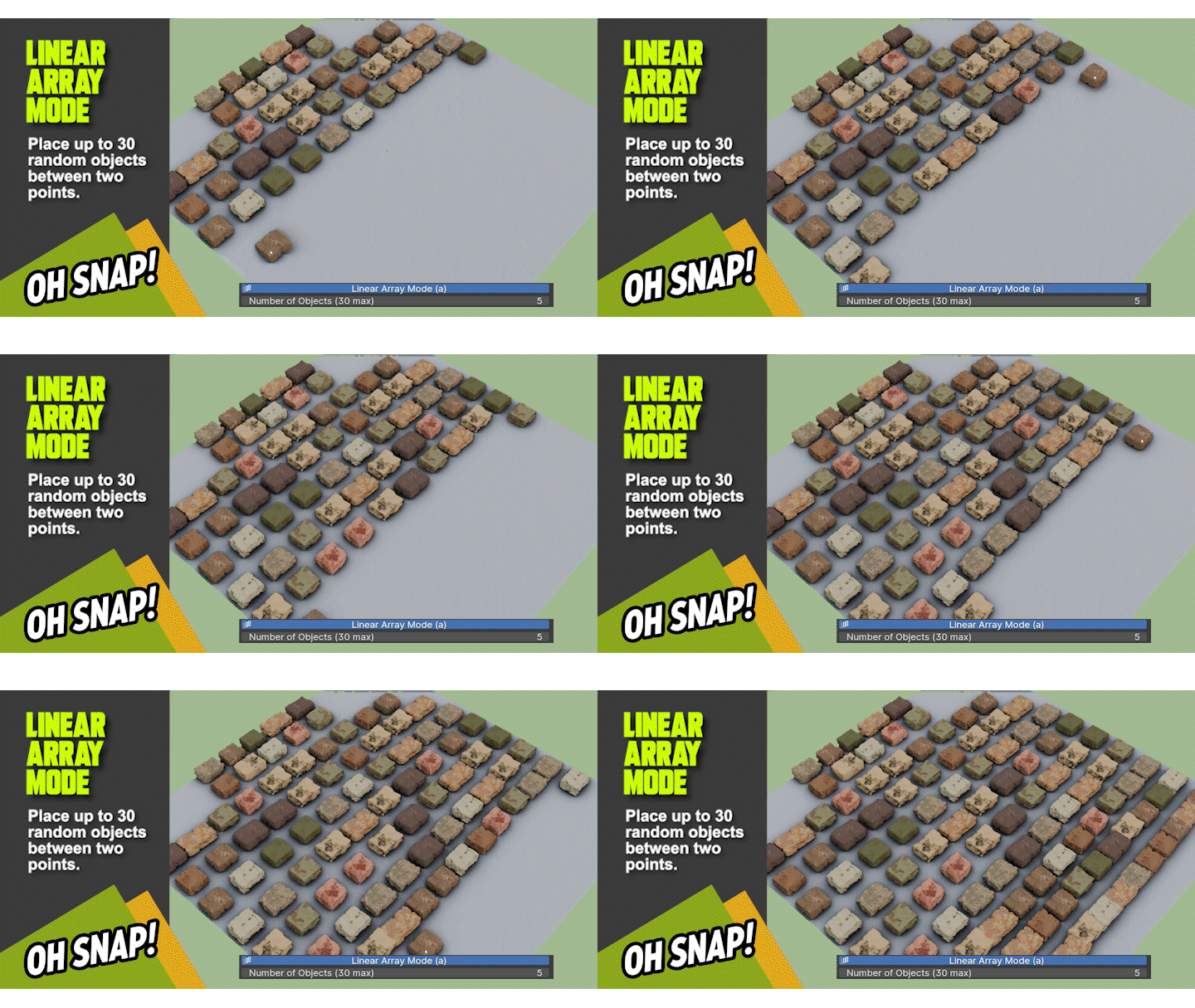
- Linear & Radial Array click to start, click again to extend or complete — lay a straight run of rivets or build a full bolt ring around a pipe or flange in seconds. Both can conform to a curved or bumpy surface instead of a flat line or circle
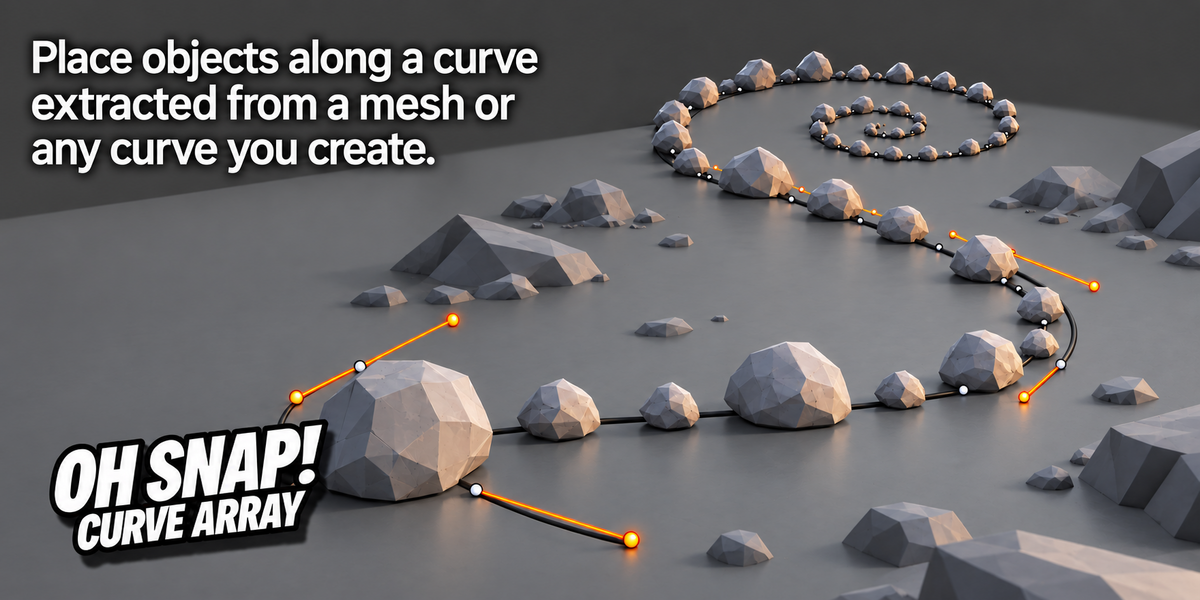
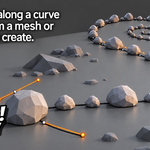
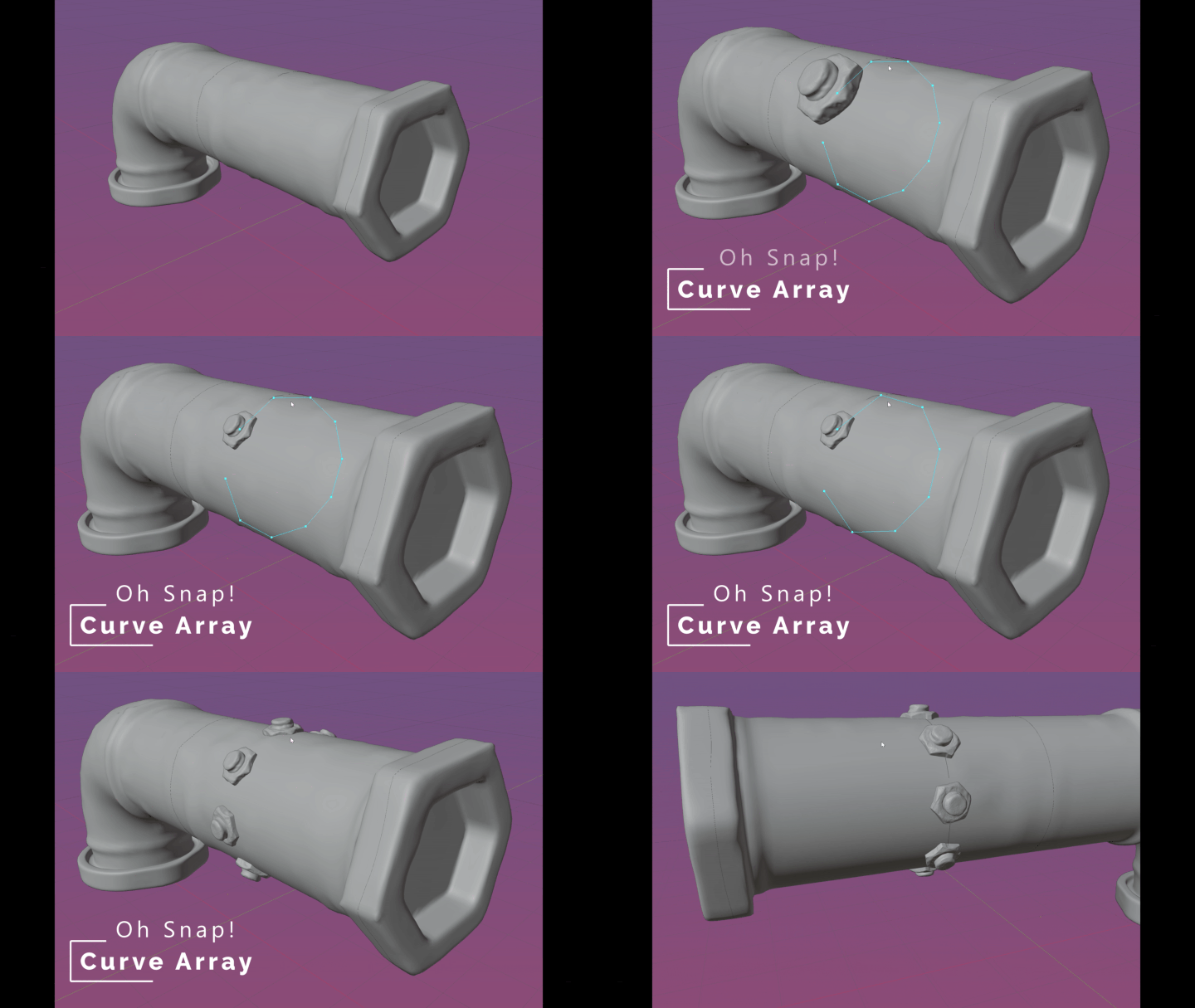
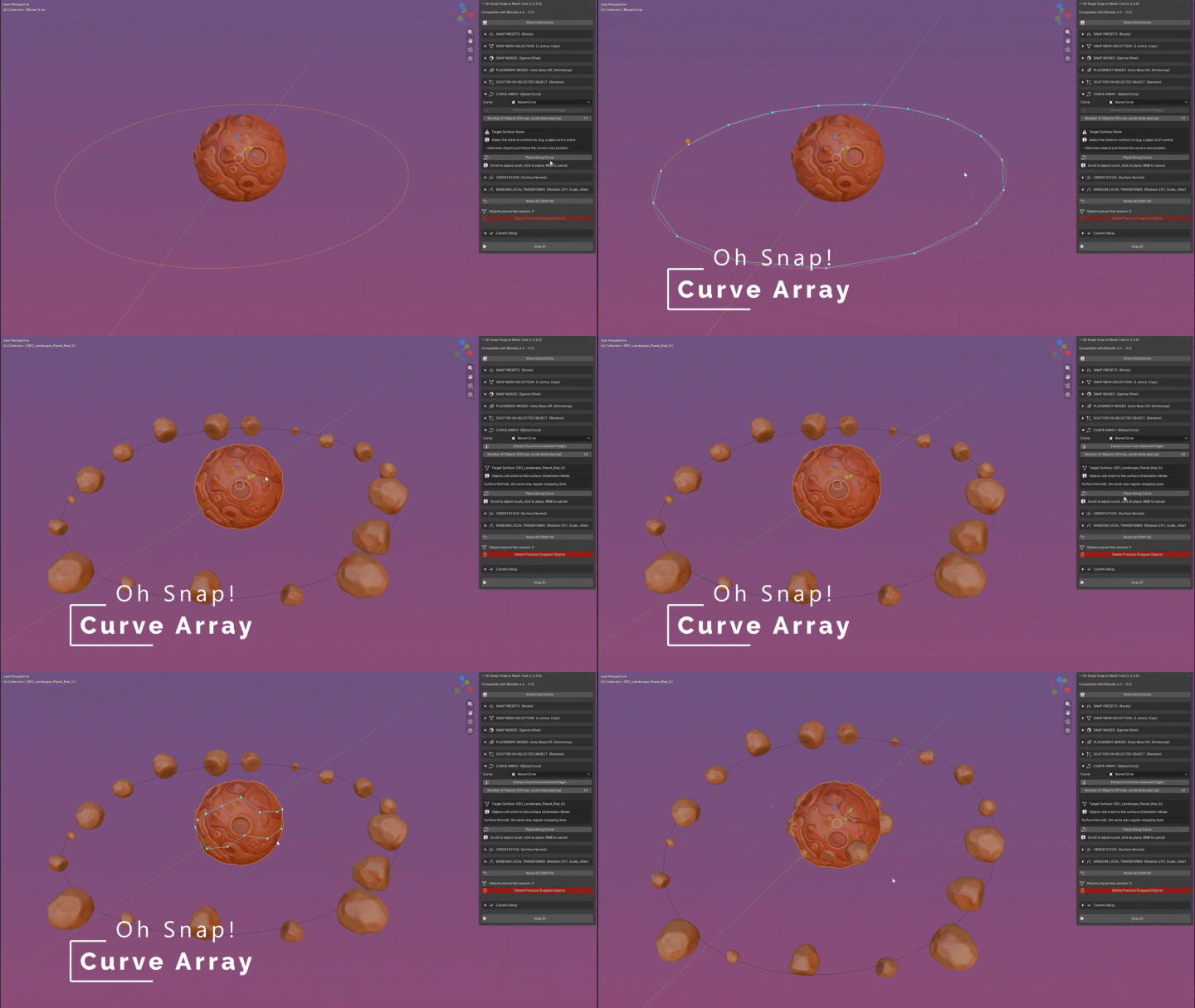
- Curve Array place objects along any curve, including ones you extract directly from a mesh's own edges in a single click (perfect for wrapping hardware around a pipe or seam) with a live preview showing exactly what will land where before you commit
Scatter across a whole surface
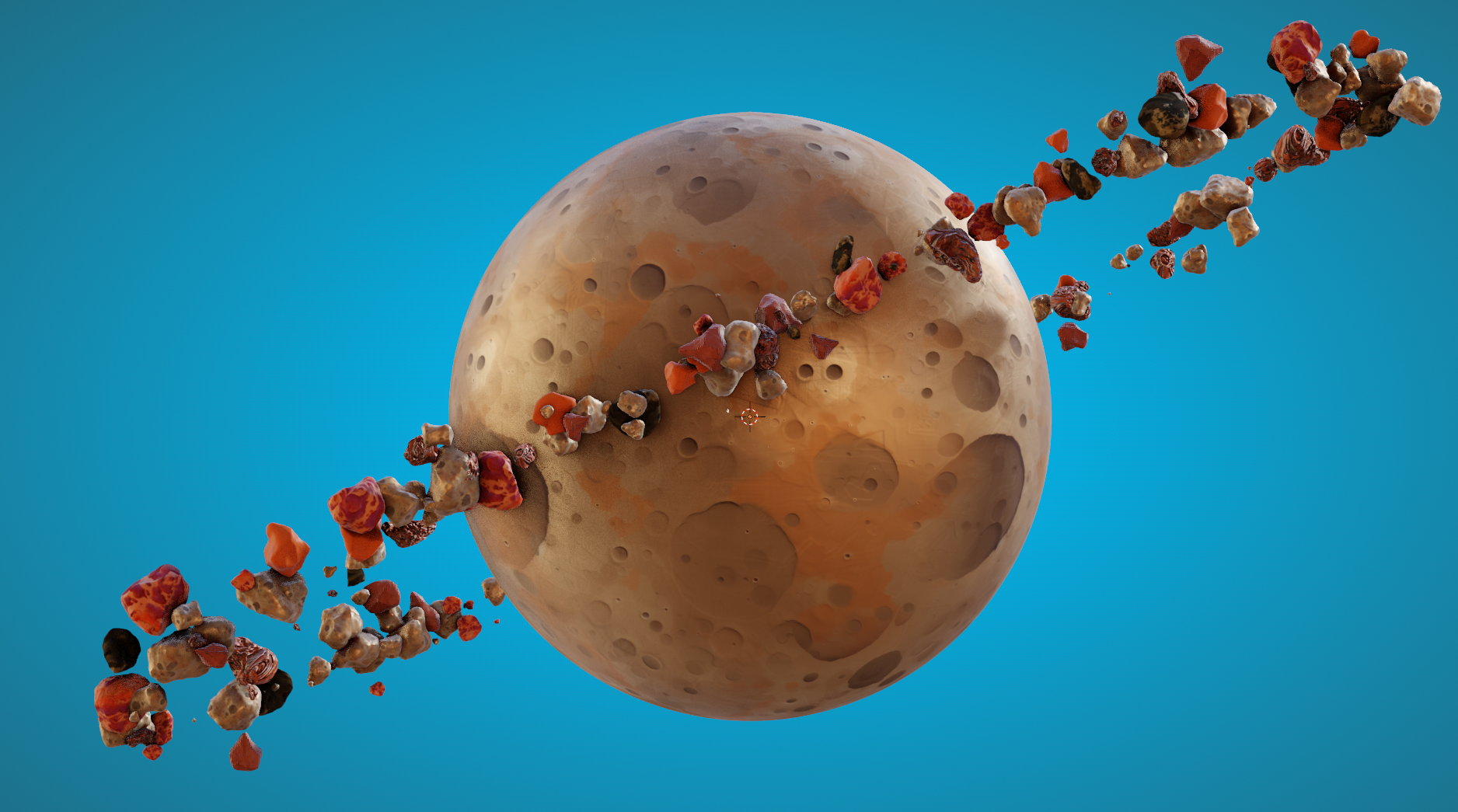
Bulk-place hundreds of objects in one click, distributed across faces, edges, vertices, or fully at random. Dial in clumping to get natural-looking clusters instead of an even grid, or take manual control with Set Clump Point; a live tool that shows you the actual object at your cursor, not just a placeholder dot, with on-the-fly control over count, clump size, scale, depth, and rotation as you place. Restrict scattering to upward-facing surfaces only, so debris doesn't creep onto the underside of overhangs and arches.
Objects that actually sit right
Auto Base Offset measures each object's own geometry and makes sure its base (not its origin) touches the surface, so nothing looks like it's floating or sunk in. Shrinkwrap Bottom to Surface goes a step further, letting an object's underside genuinely deform to hug a curved surface; a brick that curves to match the sphere it's resting on, applied live or baked in permanently, and available for objects you've already placed too.
Orientation, your call
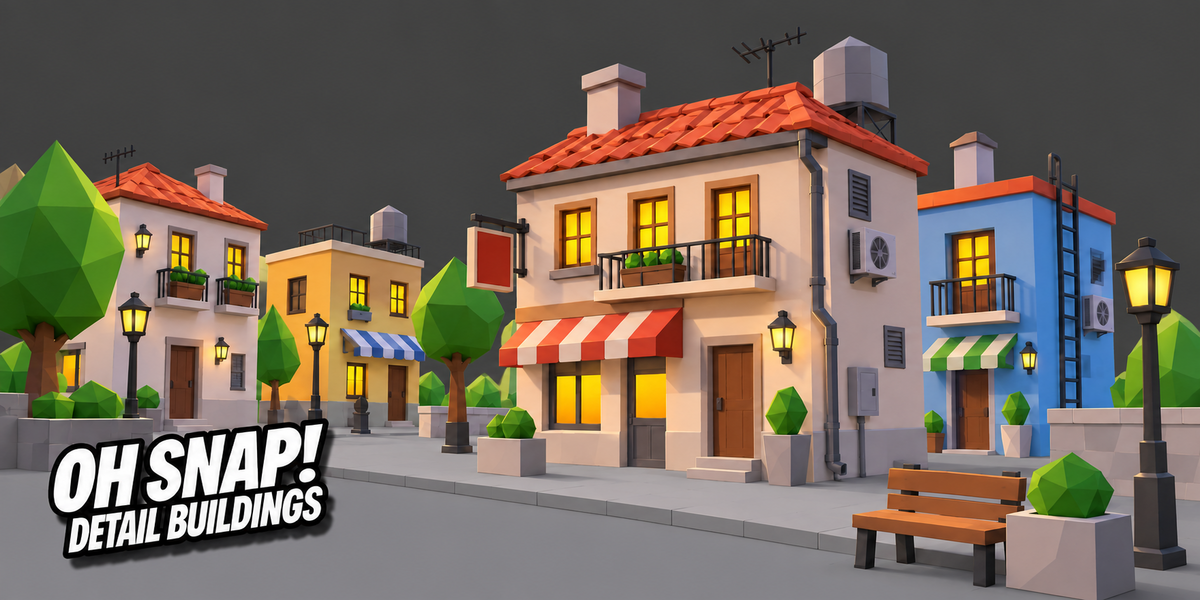
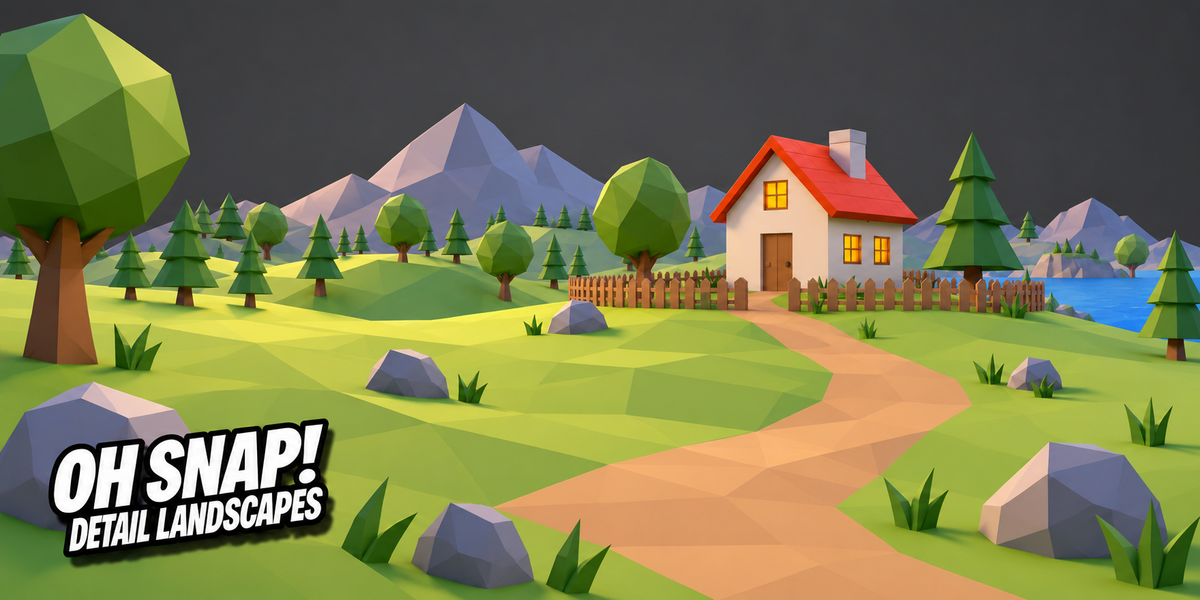
By default, everything tilts to match the surface underneath it. Switch to World Up and trees, posts, and lamps stay perfectly upright no matter how uneven the terrain underneath them gets. Limited Tilt and Custom Axis give you everything in between.
Full randomization control
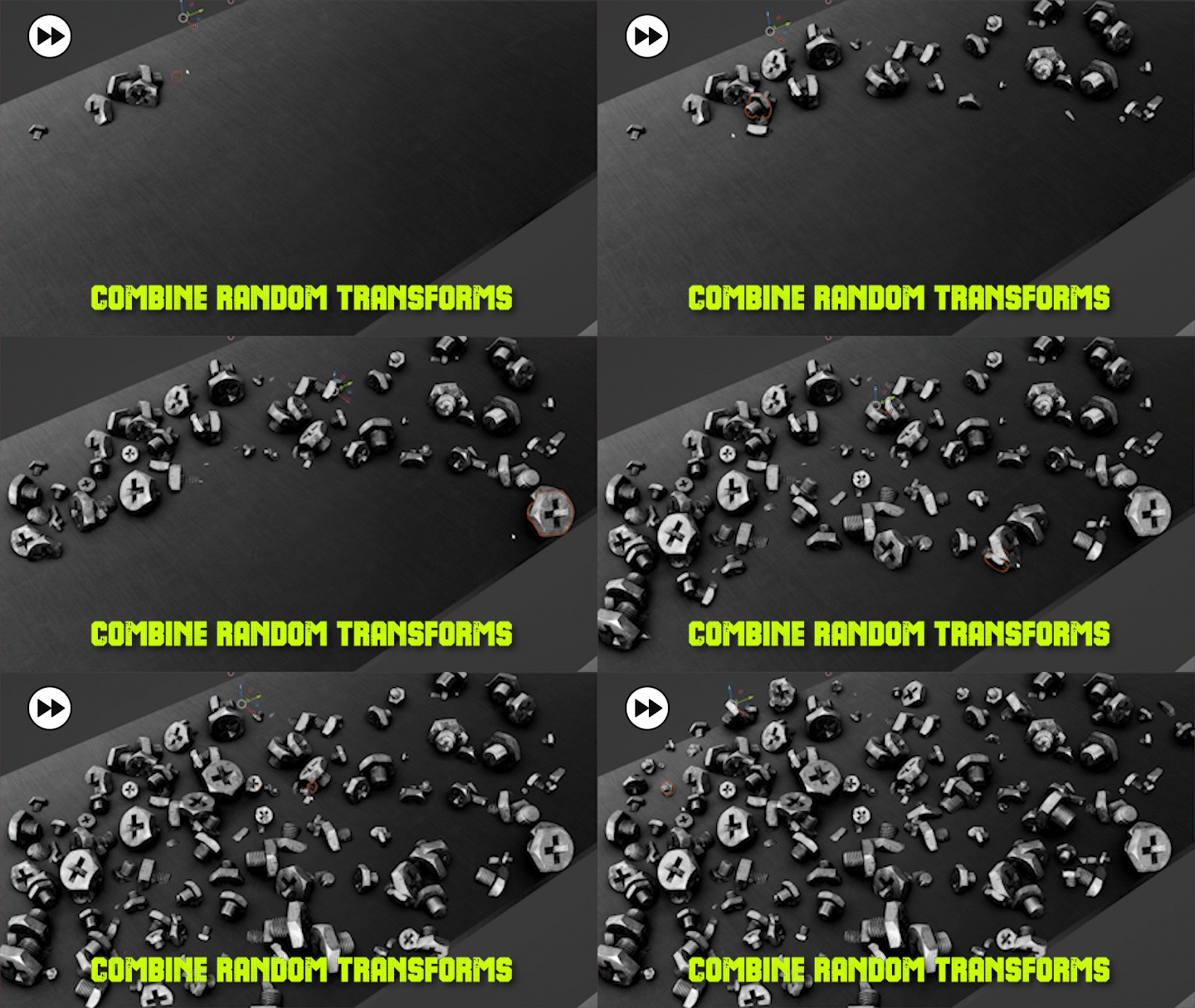
Random rotation on any axis, random scale, random depth, and random surface jitter; all independently toggleable, all with their own ranges; so a field of scattered rocks or a wall of rivets never looks like it was stamped with a machine.
Save your setups
Snap Presets remember your entire configuration; snap mode, randomization, array settings, even which meshes were loaded; so you can jump between completely different setups instantly, without rebuilding from scratch every time.
Load your hardware, hit play, stop clicking one bolt at a time.
Whether you're finishing off a robot, detailing a hard-surface model, dressing a landscape, or scattering rubble across a ruin, Oh Snap! is built to keep you focused on the creative decisions; not the repetitive clicking.
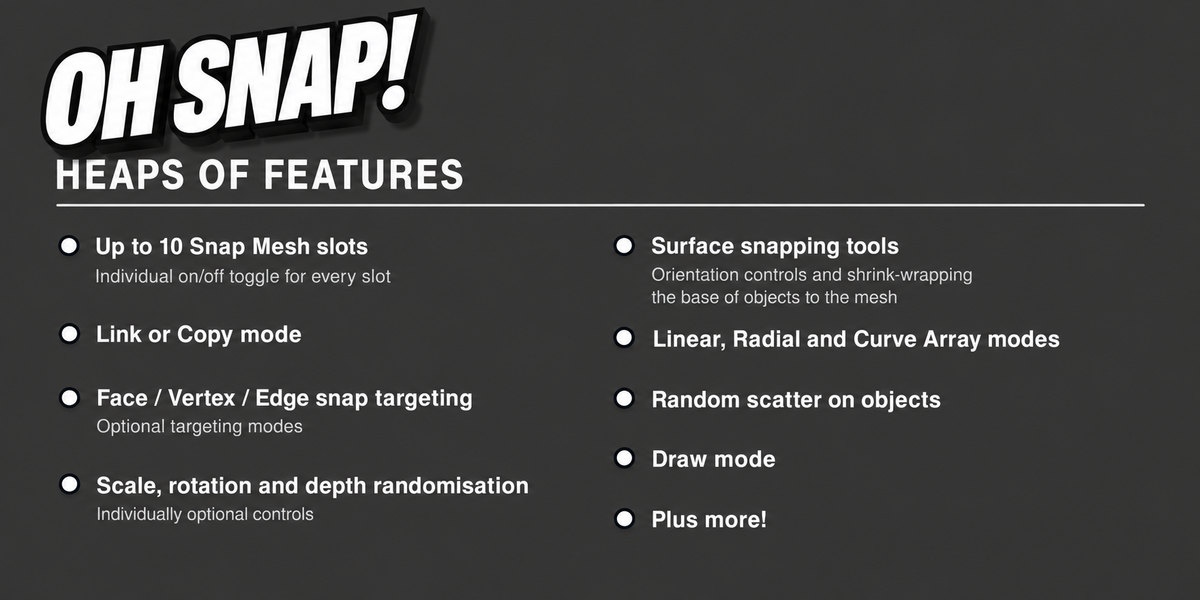
Already sold? Here's the complete current feature set for Oh Snap! v2.3.0:
Comprehensive User Guide Included.
Core Snapping
- Up to 10 Snap Mesh slots, each with an individual on/off toggle
- Link or Copy mode for placed objectsill slots by dropdown, drag-and-drop from the Outliner, or "Add Selected Mesh(es) to Slots"
- Clear All Snap Mesh Slots
- Face / Vertex / Edge snap targeting
- Snap to Selected Mesh(es) Only
- Ignore Other Snapped Objects
- Number keys (1–0) to lock a specific Snap Mesh, or go back to random
- Live preview that periodically re-rolls in random mode, so it honestly reflects what's about to be placed
Randomization
- Random rotation, independently toggleable per axis (Z/X/Y)
- Random scale (min/max range)
- Random depth (min/max range)
- Random surface jitter (tangential offset across the surface)
- Manual depth offset and scale adjustment (arrow keys)
- Manual Z rotation, 15° increments (R/T)
Orientation
- Surface Normal (default), World Up, Custom Axis, Limited Tilt
- Consistent roll — objects orient using the reference mesh's own orientation, so repeated placements don't spin randomly
Placement Modes
- Single click placement
- Draw Mode (drag to stamp continuously)
- Linear Array (click-chain multi-segment path)
- Radial Array (click center, click again to build the ring)
- Conform to Surface for Linear/Radial (occlusion-aware wrapping onto curved or bumpy surfaces)
- Curve Array — standalone, live preview showing the actual object, adjustable scale/depth/rotation while aiming
- Extract Curve from Selected Edges — one-click curve creation from mesh edges, with closed-loop detection
- Target Surface indicator for Curve Array's surface projection
Scatter
- Standalone Scatter on Selected Object
- Methods: Faces, Edges, Vertices, Random (area-weighted)
- No-repeat sampling for the discrete methods
- Clump slider + Clump Radius
- Top Surfaces Only filter
- Set Clump Point — manual clump placement with a live object preview, not just a marker
- Full scroll-wheel control in Set Clump Point: zoom, count (Ctrl), clumpiness (Shift), clump radius (Ctrl+Shift)
- Adjustable scale/depth/rotation while placing, carried through to the final object
Surface Contact
- Auto Base Offset — automatically keeps an object's true base touching the surface, not its origin
- Shrinkwrap Bottom to Surface — an object's base can deform to conform to a curved surface underneath it
- Bake Shrinkwrap Immediately toggle (live modifier vs. baked into the mesh)
- Add Shrinkwrap to Selected — apply after the fact to already-placed objects
- Bake Shrinkwrap to Selected — with a "No Shrinkwrap detected" state when nothing qualifies
Snap Presets
- Save / Save As / Delete
- Auto-applies the moment you select one from the dropdown
- Include Snap Meshes in Preset toggle
- Prompts to save unsaved changes before switching to a different preset
Session Management
- Everything placed files into a "0h Snap! Snapped Objects" collection (sorts to the top of the outliner)
- Timestamped sub-collection per batch, tagged with the active preset's name if one was used
- Undo Last Placement (Backspace)
- Delete All This Session (Shift+Backspace, live modal)
- Delete Previous Snapped Objects — works across every placement mode, walks backward through history one batch at a time
UI
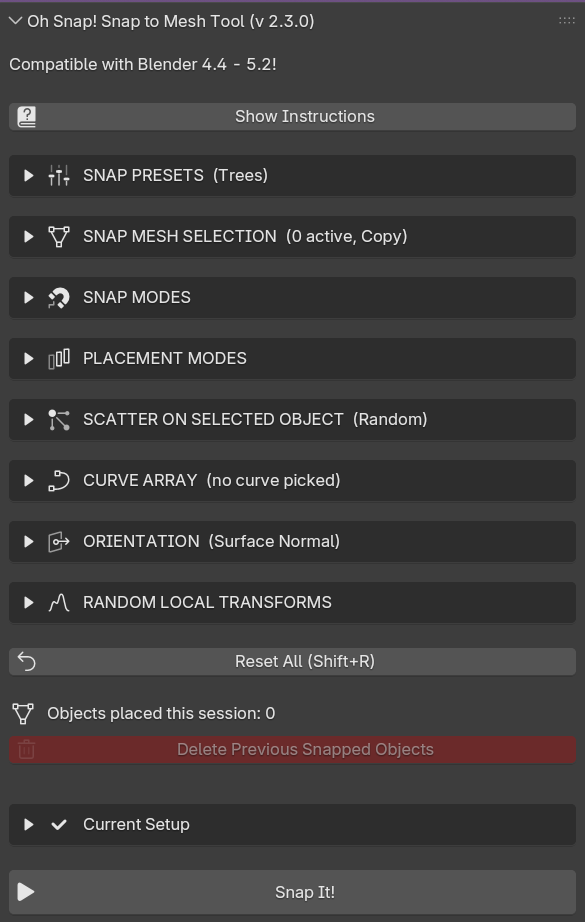
- Accordion-style panel sections (opening one closes the others)
- Live setting summaries in each section's header, even while collapsed
- Current Setup summary — everything active shown at a glance, independently collapsible
- Viewport HUD showing live active settings while snapping
- Show Instructions toggle
- Reset All (Shift+R)
Compatibility
- Available as a legacy .py file or a Blender Extension (.zip)
- Blender 4.4 through 5.2
